Extended fields
How to use the "Fields" tab for products in Shoporama: additional fields, Google Shopping custom labels, HTML fields, and the fields from your theme.
Extended fields allow you to store additional information about your products beyond the name, price, and description. This could include, for example, an ISBN number, a material, a size guide, or a custom label for Google Shopping. On the product page, you’ll find these fields in the “Fields” tab, and your theme determines where and how they appear in the store.
Where can I find the fields?
When you edit a product, the fields are located in the “Fields” tab. The tab has two sections: “Additional Fields ” and “HTML Fields.” At the bottom of the tab is a brief help text with a link to this article.
Previously, Google title, Google description, Google Shopping title, and Google category were also located in the “Fields” tab. They now have their own tabs, located just above “Fields”:
- SEO: Google title and description, Google preview, keyword analysis, Open Graph, canonical, and noindex. Read more in SEO in Shoporama.
- Product Feeds: Google Shopping title, Google category, condition, and whether the product appears in the individual feeds. Read more in Set Up Google Shopping Feed.
Just below “Fields” is the “Theme Settings” tab (formerly “Extensions from your theme”) with the fields defined by your theme itself. You can read more about those further down.
Extra Fields
In the Extra Fields field, enter one piece of information per line in the key=value format. The key is the name of the information, and the value is the content itself:
isbn=1234567890
material=100% organic cotton
origin=Portugal
Your theme can display these fields on the product page. In Montana and MontanaB2B, extra fields with a value are automatically displayed in the “Product Details” table on the product page, but custom labels for Google Shopping are not. Other themes only display the fields that the theme is designed to read. If you’re using a custom theme, your developer can display exactly the fields you need.
A few things to keep in mind:
- The key is saved in lowercase. If you enter ISBN=1234567890, it is saved as isbn=1234567890. The value is saved exactly as you enter it.
- Lines without a key before the equals sign and empty lines are removed when you save.
- Use the same keys for all products—for example, always use “material” and don’t alternate between “material” and “fabric.” That way, your theme and feeds can rely on them.
- If many products need additional fields, you can import them via CSV in the `extra_fields` column. See Import Additional Fields for Products.
Google Shopping Custom Labels
Under “Extra Fields,” you’ll find the collapsed box labeled “Google Shopping custom labels.” Custom labels are used for rules and campaigns in Google Merchant Center and Google Ads, such as bidding higher on seasonal items. You enter them as regular extra fields:
google-custom-label-2=summer
google-custom-label-3=high-margin
google-custom-label-4=own-import
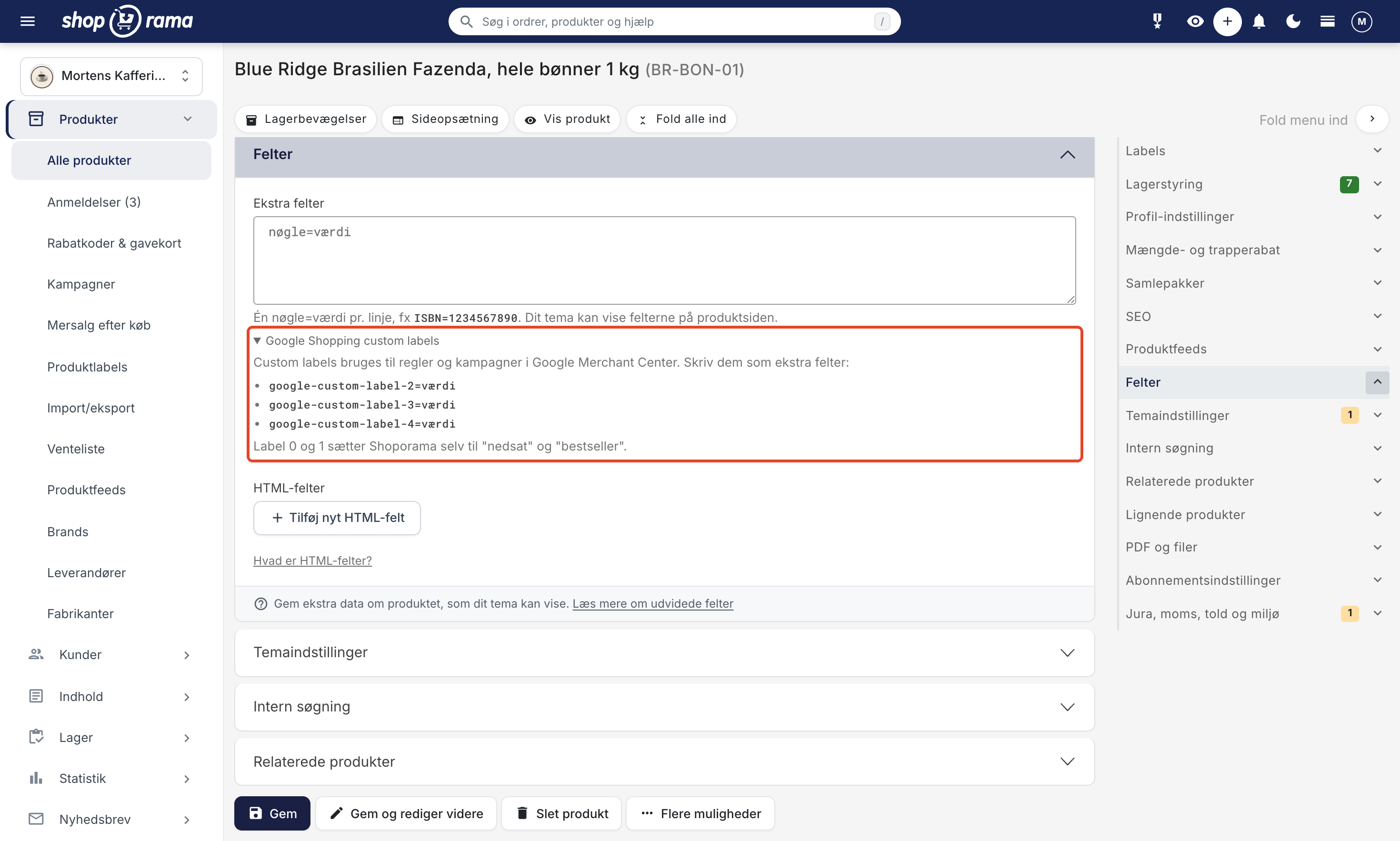
Shoporama automatically sets labels 0 and 1 to "on sale" and "bestseller," so you cannot enter values for them here. If a product is associated with a product label that matches the same custom label, the product label takes precedence, and the custom field is ignored. If many products need to have the same value, product labels are therefore often the easiest option. Montana and MontanaB2B skip fields that start with "google-custom-label-" and move them to "Product Details," so customers won’t see your custom labels.
HTML Fields
You use HTML fields for content that requires HTML code, such as a size chart, an embedded video, or a script that should only run on this specific product. Here’s how to create one:
- Click “Add New HTML Field” in the “Fields” tab.
- Enter a Field Name without spaces, such as " size chart," and click Add Field.
- Paste your HTML into the field.
- Select Placement: “Do not add automatically” if your theme should display the field on its own, or “Insert at the end of <head>” or “Insert at the end of <body>” if the code should be automatically inserted on the product page.
- Save the product.
To delete an HTML field, clear the field and save. If the code is to be used on all pages in the store—for example, for Cookiebot or Google Tag Manager—it belongs in the store’s own HTML fields. Read more in HTML Fields: Insert Cookiebot, GTM, and Other Scripts.
Theme Settings: Fields from Your Theme
The Theme Settings tab contains the fields defined by your theme, such as video, badge, and add-ons in Montana. The tab is available on products, categories, landing pages, blog posts, and static pages, but is only displayed when your theme actually has fields for that type. The fields can include, for example, text, long text, text editor, number, checkbox, color, date, dropdown, multiple choice, images, and repeatable elements.
The difference between Theme Settings and Extra Fields is that the theme has predetermined which fields are available in Theme Settings and how they are displayed. In Extra Fields, you define the keys yourself. Read more in Theme Settings for Products and Pages.
Exporting the Fields
Extra Fields are included when you export products under Products → Import/Export. In the CSV export, they appear in the “extra-fields” column, and in the JSON export, they are located under “meta” for each product.
The fields from Theme Settings are included in the JSON export under ` extension_data`. Each field contains the field’s title, type, ID, and value, and image fields are included as fully formatted image URLs. If you retrieve products via the REST API, you’ll receive the fields from Theme Settings in the same format.
For developers: Use the fields in your theme
This section is for you if you’re developing or customizing a theme. In the product template, you can retrieve a single additional field using `$product->getMetaValue('key')` and all fields using `$product->getMetaValues()`. To retrieve an HTML field with the placement "Do not auto-add," use ` $product->getHtmlField('field_name')`.
<{* One specific field *}>
<{if $product->getMetaValue('isbn')}>
    <p>ISBN: <{$product->getMetaValue('isbn')|escape}></p>
<{/if}>

<{* All fields as a table *}>
<{$metaValues = $product->getMetaValues()}>
<{foreach $metaValues as $key => $value}>
    <{* Skip custom labels for Google Shopping *}>
    <{if $value && $key|truncate:19:"":true != 'google-custom-label'}>
        <tr><td><{$key|escape}></td><td><{$value|escape}></td></tr>
    <{/if}>
<{/foreach}>

<{* An HTML field *}>
<{$product->getHtmlField('size-chart')}>
- getMetaValue() is case-insensitive for the key, and it returns nothing if the field does not exist.
- For products, shortcodes such as [NAME], [PRICE], and [BRAND] are filled in as values when you read them in the theme.
- If you display all fields using getMetaValues(), technical keys such as google-custom-label-2 will also be included. Skip them in the loop as shown in the example so they aren’t displayed to customers. Montana and MontanaB2B do this as well.
- Categories, pages, landing pages, and blog posts also have getMetaValue() and getMetaValues().
- Via the REST API, you can add extra fields to the “meta” field using the same key=value format, with one line per field. This replaces all existing lines.
Frequently Asked Questions
Where have the Google title and Google category gone?
They are no longer located in the “Fields” tab. You’ll find Google title, description, Open Graph, canonical, and noindex in the “SEO” tab. Google Shopping title, Google category, status, and feed display settings are located in the “Product Feeds” tab. Your saved values remain the same as before.
I’ve added a custom field, but it’s not showing up in my store. Why?
The theme determines whether and where additional fields are displayed. Montana and MontanaB2B display all fields with a value under “Product Details,” except for custom labels for Google Shopping. Other themes only display the fields they’re designed for. Also, check that the line is formatted as key=value and that you’ve saved the product.
What’s the difference between extra fields and profile attributes?
Profile attributes belong to the product’s profile, so all products with the same profile have the same fields, and they can be used for variants and filtering. Extra fields are free text on the individual product, and you determine the keys yourself. Use attributes for fixed properties such as color and size, and custom fields for one-off information.
Can customers see my Google Shopping custom labels?
No, not in the default themes. Montana and MontanaB2B display custom fields under “Product Details” but skip fields that start with “google-custom-label-”. The other default themes only display the fields they’re designed to show. However, if you have your own theme or a customized version of a default theme that displays all additional fields, they may appear. In that case, your developer can skip them, or you can use product labels with a Google Shopping custom label instead.
Can I edit extra fields for multiple products at once?
Yes, using CSV import. Create a column named `extra_fields` and enter the fields in URL format, for example, `isbn=1234567890&material=cotton`. The import adds or changes the fields listed in the file and leaves the product’s other extra fields unchanged. See Import extra fields for products.
When should I use an HTML field instead of the product description?
Use the description for plain text and images. Use an HTML field when you have code that the text editor cannot handle—such as a script—or when your theme needs to display the content in a specific location, such as a size chart in a tab. HTML fields placed in `<head>` or `<body>` are inserted only on this specific product’s page.
What happens if I switch themes?
Your custom fields and HTML fields will remain on the products regardless of the theme. The new theme will simply display them in its own way—or not at all. The same applies to data in Theme Settings: it won’t be deleted, but a different theme will typically use different fields.
If you have any questions about extended fields, feel free to contact us at support@shoporama.dk.
Related articles
Optimizing images for mobile
Guide to using responsive images with srcset in your Shoporama theme to provide optimized images for mobile users.
Show variants not in stock
Guide to display out-of-stock variants in your Shoporama theme so customers can see the full range and sign up for stock alerts.
Unsubscribe links in automatic emails
Give your customers the option to unsubscribe from automatic follow-up emails after purchases and product reviews - with a simple link in the email.
REST API
Complete guide to Shoporama's REST API: authentication, all endpoints, examples and Swagger documentation.
Related features
Extrafelt
An extra field stores custom data on products. Read about extra fields, product feeds and customizing your online shop.
Extended fields (Extra fields)
Create custom fields on products in Shoporama. Save everything from ISBNs to YouTube links, Google Shopping labels and pricerunner categories as...
Related products - increase your upsell
Show related products manually, automatically based on purchase data or via recommendation engines. Increase upselling in your online store.