An online store that uses Billy to process orders for you
When orders are manually entered into Billy, time is spent copying customer information, amounts, and sales tax from the online store to the accounting system, and you might not notice a typo in an amount until it’s time to reconcile the accounts. With Shoporama’s free Billy app, orders are automatically transferred to Billy once they’ve been paid or shipped. The app posts them to the accounts you’ve selected, records the payment, and notes what happened on the order in Shoporama.
Billy is now called Shine Regnskab, so in Shoporama, the app is therefore named Billy (Shine Regnskab). It was developed by Shoporama and replaces the built-in Billy integration under “Financial System.” You’ll find it under Integrations, Apps, and you connect it using an API token that you create yourself in Billy.
Shoporama, Shopify, or WooCommerce with Billy?
If you’re looking for an online store that works with Billy, it’s worth checking how much the integration itself costs. For Shopify and WooCommerce, Billy integrates via apps from third-party providers, which you pay for each month. According to Billy’s own list of apps, they cost from just under 100 DKK to just over 200 DKK per month, depending on the provider and the number of orders, and there may be a setup fee on top of that.
In Shoporama, the Billy app is free. It’s developed by Shoporama, so if you have any questions about it, you can contact the same support team you use for the rest of your online store.
How the Billy app works
Here’s how it works when the order is transferred as an invoice, which is the default setting. Financial documentation is covered in the next section.
- The customer shops in the online store. Once the order is paid for—or once it’s shipped, if you prefer—Shoporama sends it to the app.
- The customer is either found or created in Billy. The app searches for the customer by email to ensure the same customer isn’t created again on their next purchase. Businesses are created using a CVR number or VAT number, an EAN number, and the contact person listed as the “Attn.” on the invoice. If you’d rather group private customers under a single customer in Billy, you can choose that option.
- The invoice is created as a draft. It receives the online store’s order number as the invoice number, one line per item with the item name and item number, and lines for shipping and discounts. Sales tax is applied to each line.
- The amount is verified before the invoice is approved. If the invoice amount and sales tax match the order, it is approved. If they differ, it remains as a draft so you can correct it before anything is posted.
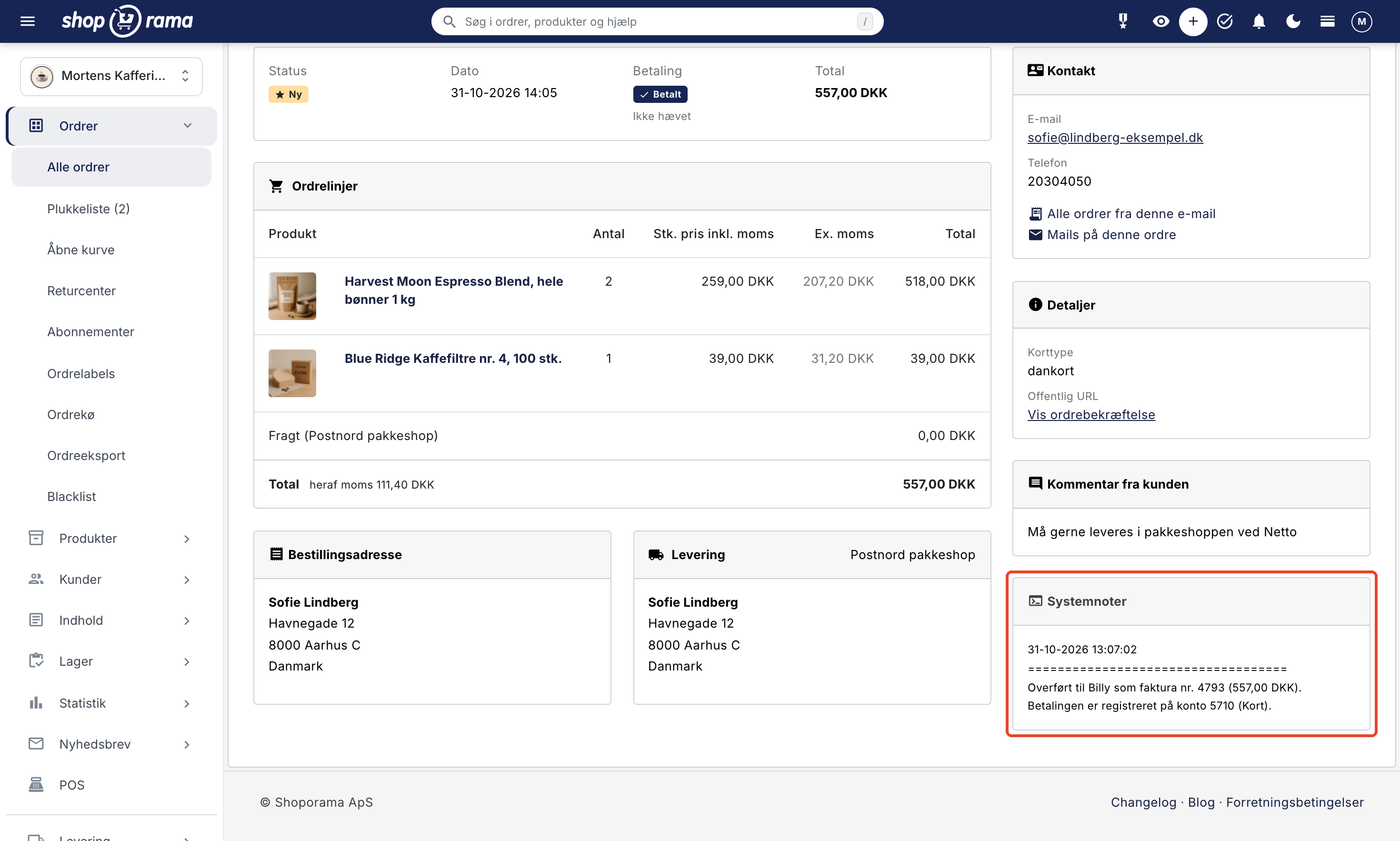
- The payment is recorded. For a paid order, the payment is recorded in the account you selected as the payment method, so the invoice appears as paid in Billy.
- You’ll see the result on the order. The order receives the green “billy-ok” label and a note with the invoice number and amount.
Invoice or financial document?
You choose how orders are transferred to Billy:
- Invoice in Billy (default). Billy creates the invoice, the customer is added, and the payment can be recorded on the invoice. If you’d rather approve it yourself, the app can save the invoices as drafts. A draft does not record the payment.
- Financial document with the online store’s invoice. Only the accounting entries are transferred to the cash book in Billy: sales, shipping, and payments to your accounts, with the online store’s own invoice attached as a PDF. No customers are created in Billy.
Credits follow the original order. An invoice is credited with a credit memo, and a financial document is credited with an offsetting financial document.
What do you get as a store owner?
- No double entry. Customers, item lines, shipping, discounts, and sales tax are automatically transferred.
- Correct VAT on every line. Danish VAT, VAT-exempt items, sales to businesses in other EU countries with a valid VAT number, and exports outside the EU each have their own VAT rate. If the order contains items with different VAT rates, the discount is distributed based on the value of the items.
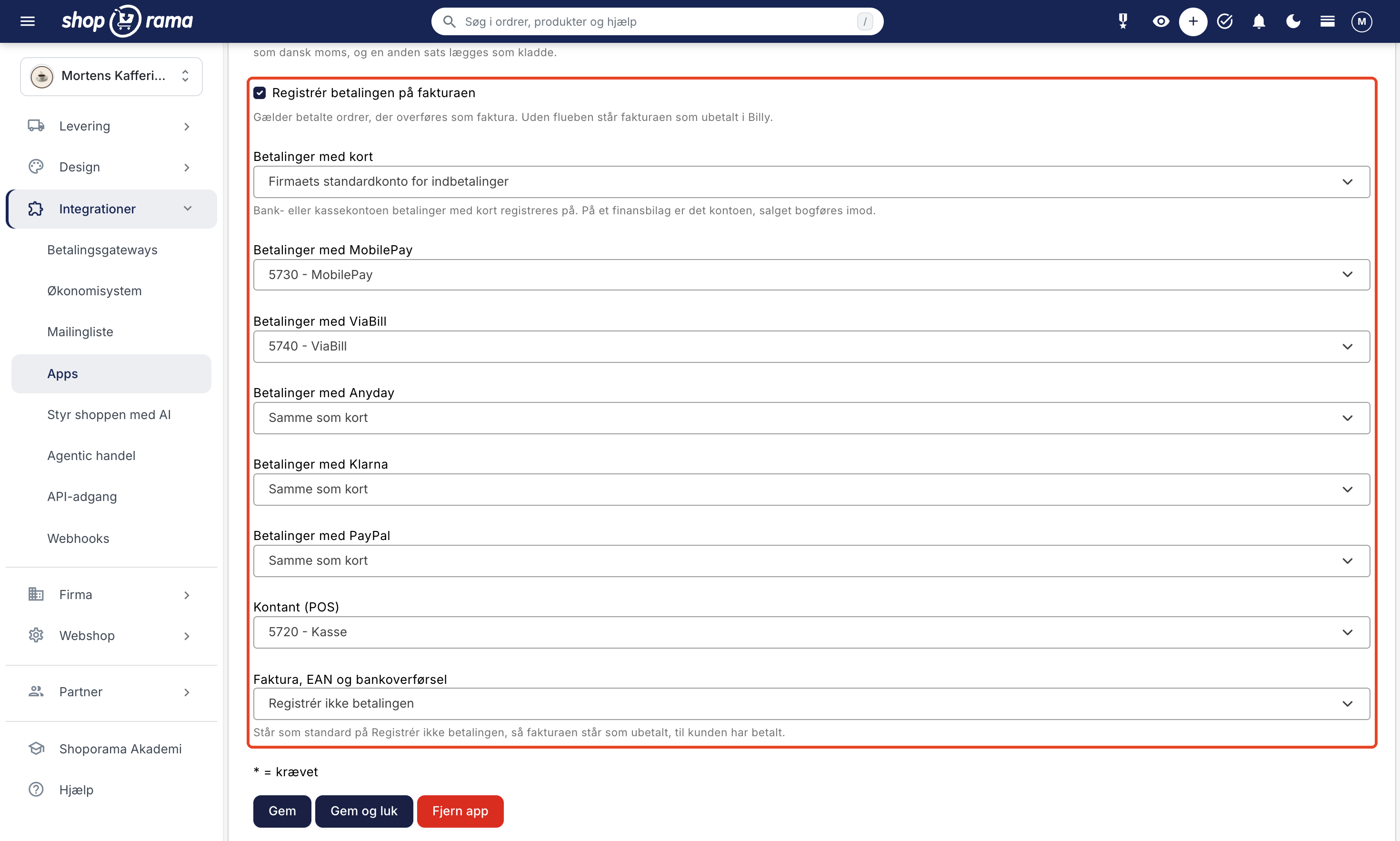
- Payment goes to the correct account. Card, MobilePay, ViaBill, Anyday, Klarna, PayPal, and in-store cash payments can each be assigned their own account in Billy. Orders on invoice, with an EAN number, or via bank transfer are marked as unpaid by default until the customer has paid.
- Credit memos linked to the invoice. If you issue a credit memo for an order in Shoporama, the credit memo is transferred to Billy, linked to the original invoice and the same customer. If the payment was processed via the app, the refund is credited to the same account.
- Verification before posting. An invoice is only approved when the amount and sales tax match the order. Otherwise, it remains as a draft, and a note on the order explains why.
- Errors are displayed on the order. Orders that did not transfer are labeled “billy-failed” with an explanation, and the app’s settings show how many have failed in the last 7 days.
- No duplicates. An order is transferred only once, even if its status changes afterward.
- No need to create items. The app automatically creates the items it needs in Billy, including those for shipping and discounts.
How to Get Started
- Check your company’s subscription in Billy. The app uses Billy’s API, which requires a Plus or Complete subscription.
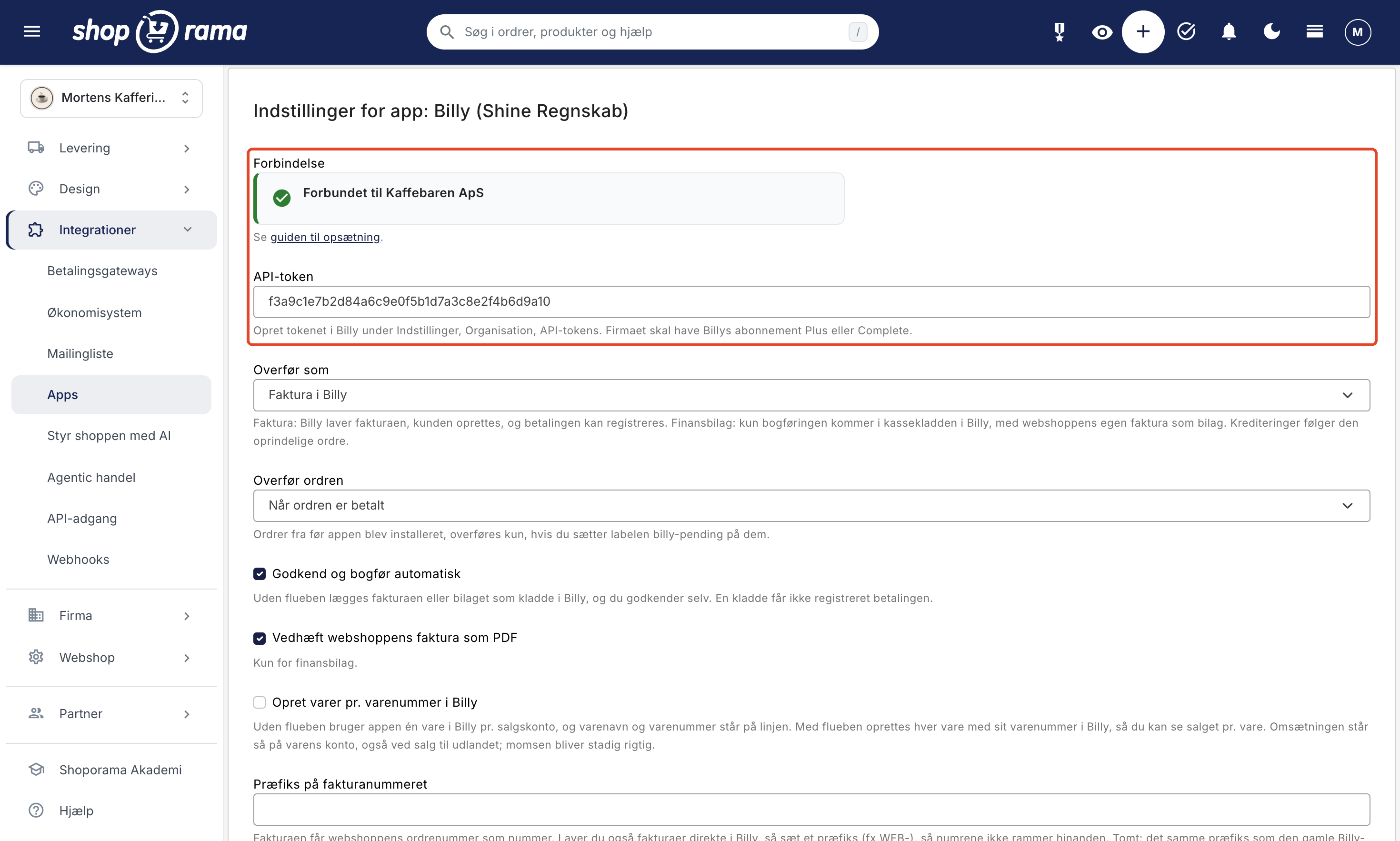
- Create an API token in Billy. Go to Settings and find API tokens (access keys) under Organization. Create a new one, name it Shoporama, and copy it.
- Install the app. Go to Integrations, Apps in Shoporama, click Install for Billy (Shine Accounting), and then click Settings.
- Paste the token. Enter it in the API Token field and click Save. The Connection field now displays the company name in Billy.
- Select the accounts and specify when orders should be transferred. The lists are retrieved from the chart of accounts in Billy. The sales accounts are pre-assigned numbers from Billy’s default chart of accounts, but the chart of accounts isn’t the same for all companies, so be sure to check them. If an account does not exist in your system, it will be indicated in the Connection field. If you are registered with OSS, also check the box next to Registered with OSS. Click Save.
- Check the first order. Once it has been transferred, the invoice number will appear in the note on the order.
The complete guide with all the fields is available in the Billy app guide. You’ll find a brief overview of the app under “Billy Integration,” and all accounting integrations under “Accounting Programs.”
Are you using the old Billy integration?
The built-in integration under “Integrations,” “Financial System” will continue to work for the online stores that have it, but it will no longer be developed. Here’s how to switch to the app:
- Install and set up the app as described above. The settings aren’t transferred automatically, so enter the token and select accounts in the app. The token can be the same API key that the old integration uses.
- Set “Supplier” to “None” under “Financial System” as soon as the app is set up. Until then, the app will not transfer any orders. The old integration will continue to transfer them as before, and the app will label them “billy-failed” with a note. This is expected.
- Check the orders from that period in Billy. Only apply the “billy-pending” label to an order that is missing in Billy. Otherwise, it may be transferred twice.
Invoices created by the old integration can still be credited using the app. The app finds the invoice in Billy by its invoice number and links the credit memo to it. The entire procedure is described in the Billy app guide.
What You Need to Know
- A Plus or Complete subscription is required. Without one of these two subscriptions in Billy, the app cannot transfer orders.
- No inventory in Billy. The app creates the items it needs but does not sync inventory. You manage inventory in Shoporama.
- OSS is treated as a draft. Billy does not have VAT rates for OSS. If you’re registered for OSS, check the box for “Registered for OSS (VAT in the buyer’s EU country).” Orders with VAT for private customers in other EU countries will then be created as drafts with Danish VAT and the label “billy-failed,” and you can correct the VAT in Billy and approve the order there. If the checkbox is not selected, 25% will be posted as Danish VAT, and an order with a different rate will be saved as a draft.
- Do you also create invoices in Billy? If so, add a prefix to the invoice numbers in the app—for example, “WEB”—so that the online store’s numbers don’t overlap with your own.
- The invoice date is the transfer date. An invoice is dated the day the order is transferred. A financial document is dated the order date.
- You’ll need to reconcile payments and fees yourself. The app records the customer’s payment but not the payments and fees from the payment provider. The order number cannot appear on the payment itself in Billy, so use the invoice number, which can also include the cart number at the end.
- Corrections are not automatically updated. If you correct the order in Shoporama after it has been transferred, you must also make the correction in Billy.
- No automatic retries. If an order fails, correct the error and apply the “billy-pending” label to the order.
Frequently Asked Questions About the Billy Web Store
How much does the Billy app cost?
The app is free in Shoporama. It requires that your company in Billy have a Plus or Complete subscription, because Billy’s API can only be used with those plans. You can find the subscription price on Billy’s website.
Why is the app called Billy (Shine Regnskab)?
Billy changed its name to Shine Regnskab in April 2026. It’s the same accounting program, and many people still know it as Billy. That’s why both names appear on the app in Shoporama.
Where can I find the API token in Billy?
Go to Settings in Billy and find API tokens (access keys) under Organization. Create a new token, name it Shoporama, and copy it. Paste it into the API Token field in the app’s settings, and click Save. The token belongs to the company and does not expire.
What’s the difference between an invoice and a financial document?
If you select “Invoice,” Billy creates the invoice, the customer is added, and the payment can be recorded on the invoice. If you select “Financial Document,” only the journal entry appears in Billy’s cash book with the online store’s own invoice attached as a PDF, and no customer is created. “Invoice” is the default.
When is the order transferred to Billy?
When the order is paid, or when it’s shipped, if you prefer. Each order is transferred only once, and canceled orders are not transferred. Orders from before the app was installed are transferred only if you apply the “billy-pending” label to them.
Are credit memos also transferred to Billy?
Yes. When you issue a credit memo for an order in Shoporama, the credit memo is automatically transferred once the original order has been transferred to Billy—even if it was transferred via the old integration. An invoice is credited with a credit memo linked to the original invoice and to the same customer, and a financial document is created with an offsetting financial document. If the app recorded the payment on the invoice, the refund is recorded in the same account. Read more in Credit Memos and Refunds.
What happens if an order cannot be transferred?
The order is given the red label “billy-failed” and a note explaining why, e.g., that an account does not exist in Billy’s chart of accounts. The app does not retry on its own. Correct the error described in the note, and then apply the “billy-pending” label to the order. An order that has already been posted will not be posted again. How to use labels: Order Labels.
Can the app handle international sales?
Yes. Sales of goods to businesses in other EU countries with a valid VAT number and sales outside the EU each have their own account and VAT rate in Billy. If you sell in multiple currencies, the invoice will be in the order’s currency using the exchange rate at the time of purchase. Billy does not have VAT rates for OSS. If you’re registered for OSS, check the “Registered for OSS” box; orders with VAT to private customers in other EU countries will be saved as drafts, and you can adjust the VAT in Billy.
Does the app create my products in Billy?
Yes, but only the ones it needs. In Billy, the product determines the account, so the app creates one product per sales account, and the product name and product number appear on the invoice line. If you check the box for “Create items by item number” in Billy, each item is created with its own item number, so you can view sales by item. The app does not sync inventory. You manage inventory in Shoporama.
I’m using the old Billy integration. What should I do?
The built-in integration under “Accounting System” will continue to function but is no longer being developed. Install the app, enter the token, select accounts, and then set “Supplier” to “None” under “Accounting System.” Until then, the app won’t transfer any orders so they aren’t entered into Billy twice. The orders will be labeled “billy-failed” with a note, and this is expected. Afterward, check the orders from that period in Billy, and only set an order to “billy-pending” if it’s missing from Billy.
Ready to handle your bookkeeping on your own?
If you’re already using Billy, the app is the quickest way from an online store order to a posted invoice. If you have a Shoporama online store, install it under Integrations, Apps. If you’re not a customer yet, you can create an online store and try it out for yourself. Need help with setup? Email support@shoporama.dk.