Why an Online Store with MobilePay Sells Better
MobilePay is the most widely used payment method in Denmark, and the difference in conversion rates between an online store with MobilePay and one without is significant. This is especially true on mobile devices, where users would otherwise have to find their payment card and enter the 16-digit number, expiration date, and CVC. With MobilePay, customers authorize the payment with a fingerprint, facial recognition, or PIN, and complete checkout in under 10 seconds.
Shoporama supports MobilePay as a fully integrated payment method through your payment gateway.
How MobilePay Works in Shoporama
MobilePay is not a standalone payment gateway. It is a payment method that you enable through the gateway that already handles your card payments. On Shoporama, the primary way to use MobilePay is through QuickPay, where you can choose between MobilePay Online and Vipps MobilePay. MobilePay can also be enabled via, for example, OnPay, Pensopay, Flatpay, Nets Easy, and Stripe.
When a customer selects MobilePay in your online store:
- The customer is redirected to the MobilePay flow (app or browser with a QR code on desktop)
- The customer authorizes the payment using a fingerprint, facial recognition, or a PIN
- The amount is deducted immediately or reserved until the order is shipped (you choose)
- The order is created in Shoporama with a payment status of “Approved” and the MobilePay transaction ID on the order details page
For you as a store owner, the difference from a regular card payment is minimal. Funds are settled through your QuickPay agreement, refunds are handled in the same place, and the statistics are displayed in the Shoporama admin panel alongside your other payment methods.
What do you get as a store owner?
- Higher mobile conversion rates. MobilePay significantly reduces friction at checkout. The average Danish online store sees a 30 to 60 percent increase in mobile conversion rates when MobilePay is added as a payment method.
- One-click refunds. Full and partial refunds are handled directly from the order card in the Shoporama admin panel. The money is returned to the customer’s MobilePay account.
- 3D Secure included. Strong customer authentication is handled by the MobilePay app. No extra setup, no extra friction.
- Payment method statistics. In the Shoporama admin panel, you can see what percentage of sales comes from MobilePay versus cards, and filter the order list by payment method.
- One agreement covers all cards plus MobilePay. With a single QuickPay agreement, you can accept Dankort, Visa, Mastercard, MobilePay, ViaBill, and Anyday. You don’t need multiple gateway agreements.
How to get started
- Set up a QuickPay agreement if you don’t already have one. Add MobilePay as an option to the agreement directly in QuickPay Manager.
- Enter your QuickPay API keys in Shoporama under Integrations and Payment Gateways.
- Enable MobilePay as a payment method under the same menu.
We have detailed instructions for setting up QuickPay and a guide for MobilePay on your online store, which can also help if MobilePay doesn’t appear in the payment window. Need help? Email support@shoporama.dk, and we’ll help you get started.
Also, read about all of Shoporama’s payment gateways for a complete overview of the feature and how it fits into the rest of the platform.
Fees and what to keep in mind
MobilePay charges a separate transaction fee in addition to QuickPay’s standard card fees. The fee depends on your MobilePay agreement and is independent of Shoporama. You can view the current rates in your MobilePay agreement or read our overview of fees for MobilePay and Fraudfighter.
Three things to know before going live:
- Subscriptions are not supported via MobilePay. If you sell subscriptions, recurring payments must be made by card through QuickPay or PensoPay. The initial purchase itself can be made via MobilePay, but not subsequent payments. Read more about subscriptions on your online store.
- Phone number at checkout. Make the phone number a required field. MobilePay typically returns the phone number, but not in all scenarios, and you’ll need it for order confirmation and shipping. Read more about handling phone numbers.
- The customer must have the MobilePay app. Yes, even if the customer is checking out from a computer. Computer checkout is done via a QR code that the customer scans with their phone. It’s a good idea to have multiple payment methods active at the same time so that customers without MobilePay can also shop.
Frequently Asked Questions About MobilePay in Online Stores
Do I need to use a different payment gateway, or can QuickPay handle it on its own?
QuickPay alone is sufficient. QuickPay supports cards, MobilePay, ViaBill, Anyday, and a wide range of other payment methods. You don’t need additional payment gateways to offer MobilePay in your online store.
Should I choose MobilePay Online or Vipps MobilePay in QuickPay?
Both appear as MobilePay to your Danish customers. MobilePay Online runs through your card acquirer, such as Clearhaus, and is typically the quickest option if you already accept cards. Vipps MobilePay requires a direct agreement with Vipps MobilePay, and QuickPay will ask for the agreement’s MSN number. Read more in the MobilePay section of your online store.
Can I offer MobilePay without also offering card payments?
Yes. In the Shoporama admin panel, you can choose exactly which payment methods are displayed to the customer. If you only want MobilePay, simply disable card payments. However, most shops offer both MobilePay and cards, as some customers still prefer to pay with Dankort or Visa.
Where can I see if a payment was made via MobilePay?
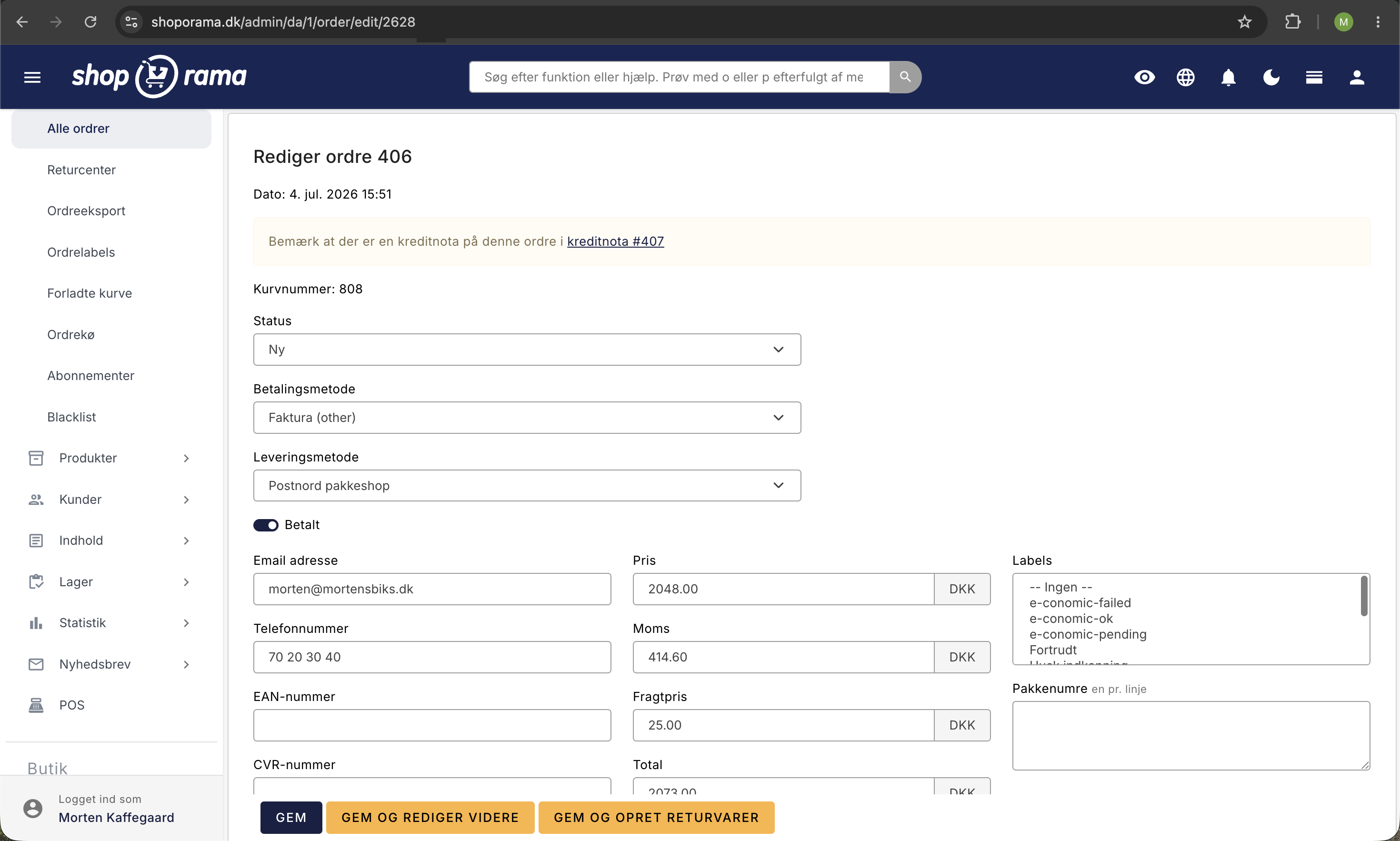
On the order card in the Shoporama admin panel, the payment method is explicitly listed as MobilePay along with the transaction ID from QuickPay. You can also filter the order list by payment method to view only MobilePay orders.
What happens if MobilePay is down?
The customer receives an error message at checkout and can select a different payment method. This is one of the reasons why it makes sense to have multiple payment methods active at the same time. Service disruptions at MobilePay typically affect all of Denmark, not just your shop.
Will the money be deposited directly into my account?
The funds are settled through your QuickPay agreement, just like card payments. The settlement period is typically 1 to 3 business days, depending on your QuickPay agreement. Funds from MobilePay do not bypass QuickPay.
Does the customer need the MobilePay app to pay?
Yes, the payer must have MobilePay installed on their phone—even if the customer is checking out from a computer. When the customer selects MobilePay during a computer checkout, a QR code is scanned using their phone.
Can I use the same MobilePay agreement for multiple stores?
You can, but each Shoporama store must have its own QuickPay agreement. The MobilePay agreement is at the QuickPay level, so if you have one QuickPay agreement, you can use MobilePay in all stores linked to it.
What should I do if a MobilePay payment doesn’t show up in Shoporama?
This happens very rarely, but can occur due to network errors. Check the QuickPay Manager: if the payment is there but not in Shoporama, you can manually mark the order as paid in the admin panel. Email support@shoporama.dk if this happens repeatedly.
How long does it take to get MobilePay up and running on my shop?
If you already have QuickPay set up, you can have MobilePay up and running in under 10 minutes. The actual approval of the MobilePay agreement by MobilePay typically takes 1 to 3 business days. Most new Shoporama customers have MobilePay active from day one.
Ready to get started with MobilePay?
A web store with MobilePay is one of the most cost-effective ways to optimize conversions. If you have an existing QuickPay agreement, you can have MobilePay activated in under 10 minutes. If you need help with setup, email support@shoporama.dk. Our Danish support team typically responds within an hour during business hours.
Sign up for a free Shoporama trial and see for yourself how quickly you can get an online store with MobilePay up and running. No commitment, no setup fees, and no credit card required.