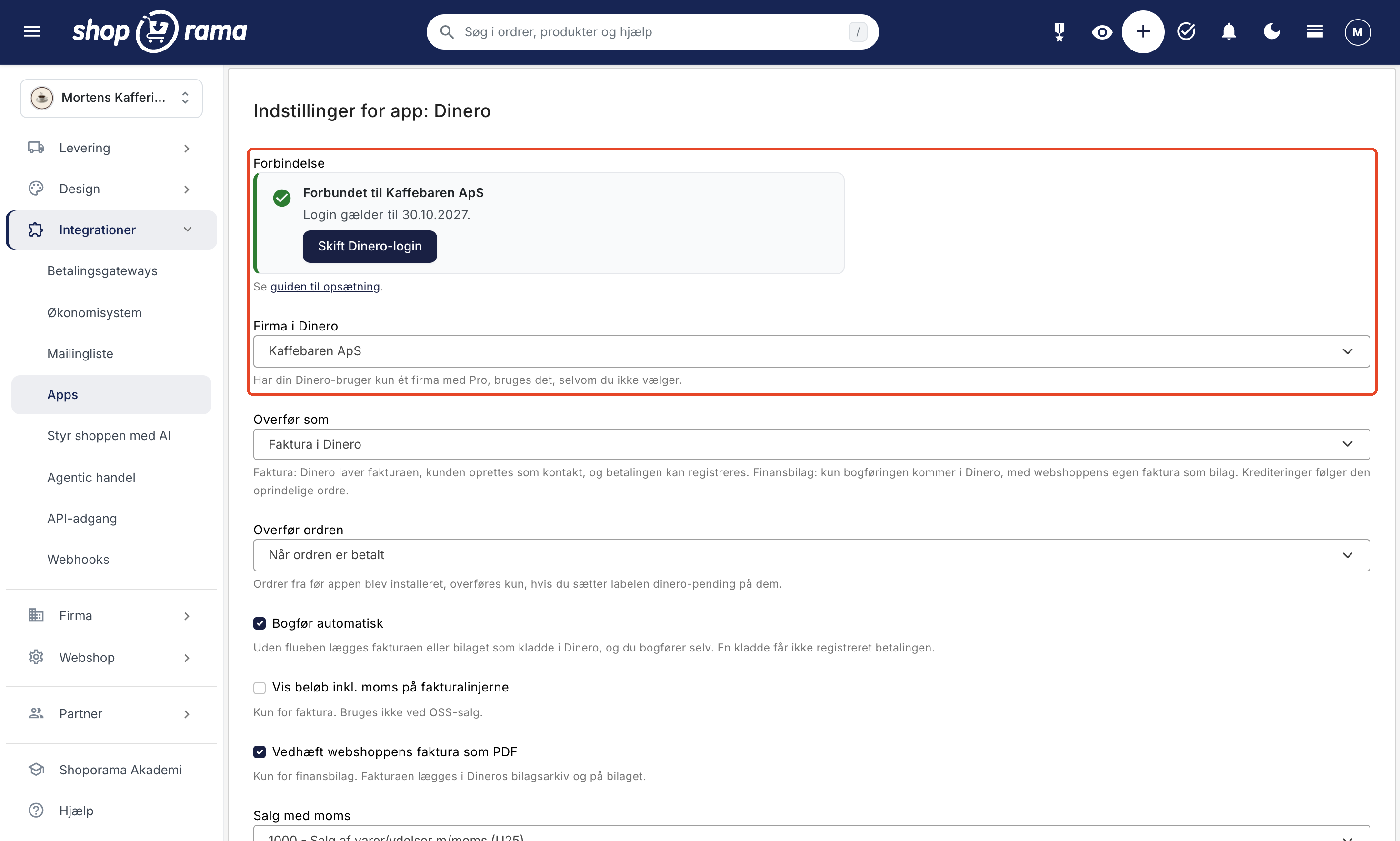
The Dinero integration is a free app in Shoporama that transfers your orders and credit memos to Dinero. By default, an order becomes an invoice in Dinero with the customer listed as the contact, and for paid orders, the payment is recorded so that the invoice is marked as paid. You can also choose to export financial documents, where only the accounting data is transferred, with the online store’s own invoice attached as a PDF. The app is installed under Integrations, Apps, and you connect it by logging in with your Dinero account. Your company must have Dinero Pro.
Here’s what the app does
- Transfers the order once it has been paid for or shipped. You choose which option to use, and each order is transferred only once. Orders from before the app was installed will be included if you apply the “dinero-pending” label to them.
- Finds or creates the customer as a contact in Dinero. If the customer is found via email, they are added; otherwise, they are created with their name, address, and phone number, and for a company, also with the CVR number, EAN number, and contact person. This applies only to invoices. No contacts are created for financial documents.
- Posts entries to your accounts. Sales with VAT, sales without VAT, sales to businesses in the EU, sales outside the EU, and shipping each have their own account, and the lists are retrieved from your chart of accounts in Dinero.
- Handles OSS. If you’re registered for OSS and select the two OSS accounts in the app, sales to private customers in other EU countries are posted without Danish VAT, and the foreign VAT appears on a separate line.
- Checks the amount before posting. If the invoice amount or VAT differs from the order, it remains as a draft in Dinero, and the note on the order explains why.
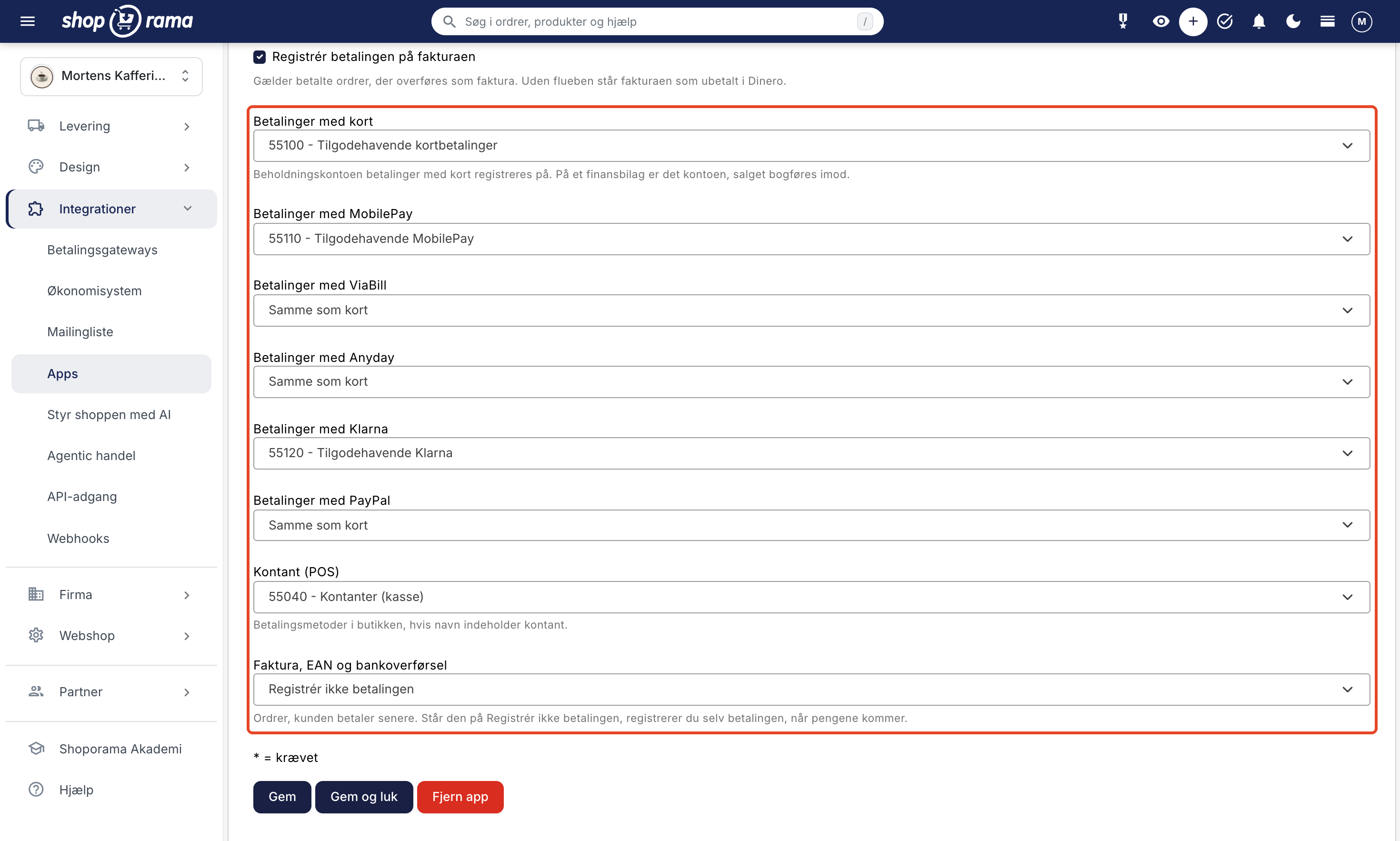
- Record payments using one account per payment method: card, MobilePay, ViaBill, Anyday, Klarna, PayPal, and cash in-store. Orders paid by invoice, EAN, or bank transfer can remain marked as unpaid until the funds are received.
- Credits are posted automatically once the app has processed the original order. An invoice is credited with a credit memo linked to the original invoice, and a financial document is created with a corresponding offsetting entry.
- Handles currency. If you sell in multiple countries, each with its own currency, the invoice is processed in the order’s currency, and the exchange rate at the time of purchase is listed in the invoice’s comments. A financial document is always in Danish kroner, converted using the exchange rate at the time of purchase.
- Displays the order status with the label “dinero-ok” and a note containing the invoice number. If there’s an error, the order is marked “dinero-failed” with an explanation, and you can resubmit it with the status “dinero-pending.”
- The connection remains active for one year. You log in using your Visma credentials, and there are no keys to copy. A reminder appears in the app’s settings for the last 30 days. You won’t receive an email, so keep an eye on the date.
The app does not do the following
- It doesn’t create items in Dinero or sync inventory. Invoice lines are text entries with amounts and accounts.
- It does not assign each item or item group its own account.
- It does not reconcile payments and fees from payment providers.
- It does not record the refund to the customer on the credit memo.
- It does not send the invoice from Dinero to the customer. The app does not send any emails.
- It does not update the invoice if you edit the order in Shoporama afterward.
- It does not automatically retry when a transfer fails. You correct the error and set the label to “dinero-pending.”
- It does not generate invoices with used VAT. Items with used VAT can be posted to the “Sales, Excluding VAT” account.
If you’re using the built-in Dinero integration under Integrations, Financial System, install the app, set it up, and then set Supplier to None under Financial System. Until then, the app won’t transfer any orders so they aren’t entered into Dinero twice. The old integration will transfer them as before, and the app will label them “dinero-failed” with a note. Afterward, check the orders from that period in Dinero, and only set “dinero-pending” on an order that is missing in Dinero. Otherwise, it will be transferred twice.
If you later issue a credit memo for an order that the old integration transferred, the credit memo will be labeled “dinero-failed” and include a note. Create the credit memo in Dinero yourself, or apply the “dinero-pending” label to the credit memo. The app will then transfer it according to the “Transfer as” setting, but without linking it to the original invoice.
Here’s how to set it up: Set up the Dinero integration. If you’d like to learn more about what a web store with Dinero offers, read “Web Store with Dinero,” or view all accounting integrations under “Accounting Software.”