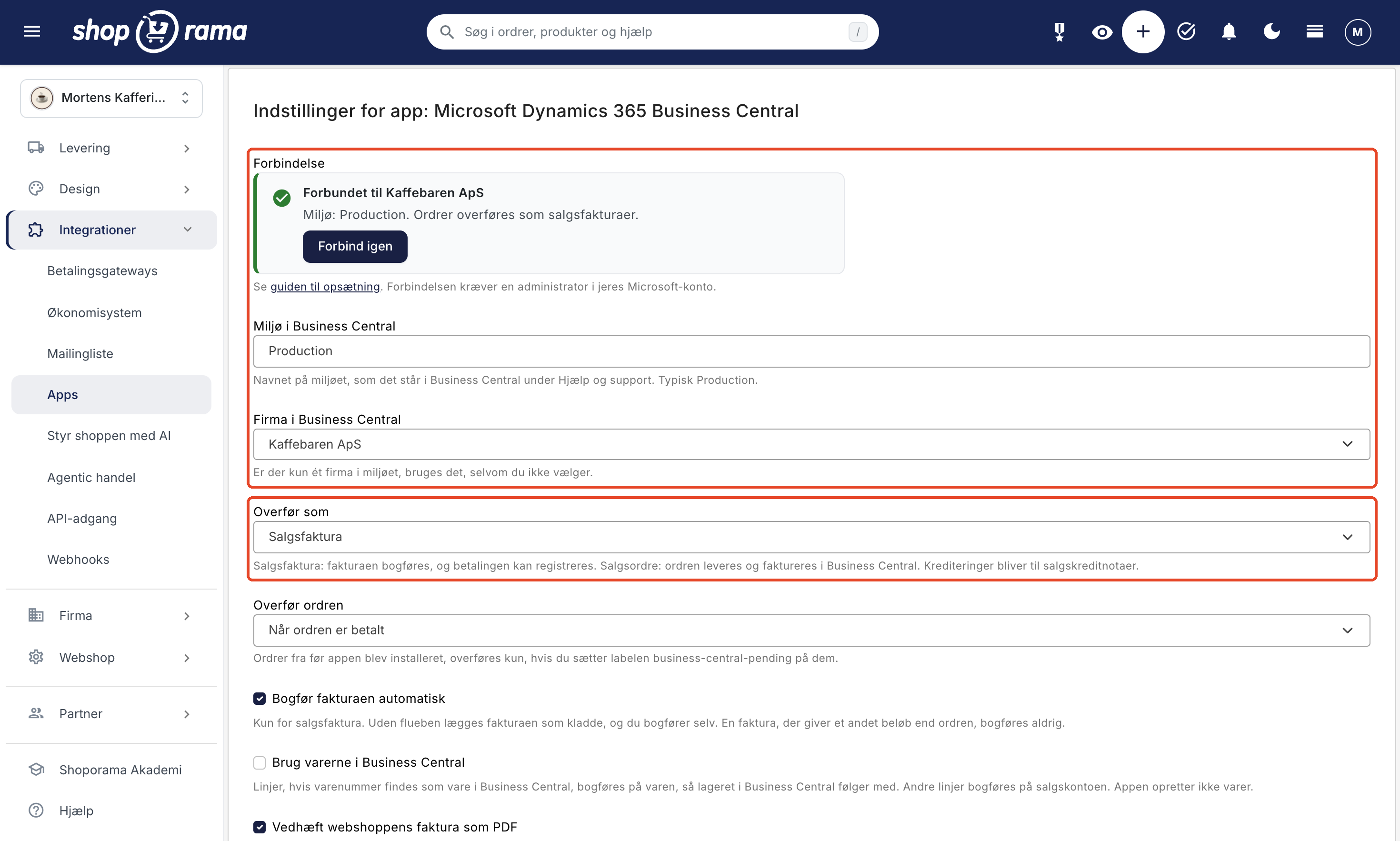
The Business Central integration is a free app in Shoporama that transfers your orders and credit memos to Microsoft Dynamics 365 Business Central. By default, the order becomes a posted sales invoice, and for paid orders, the payment is recorded so that the invoice is marked as paid. If you manage inventory and shipping in Business Central, the order can instead become a sales order. You’ll find the app under Integrations → Apps, and it works with Business Central Online.
Here’s what you get from the app
- No manual data entry. The customer, line items, shipping, discounts, and sales tax are automatically transferred to Business Central once the order is paid, shipped, or created—whichever you choose. You don’t need to manually enter online store orders into Business Central.
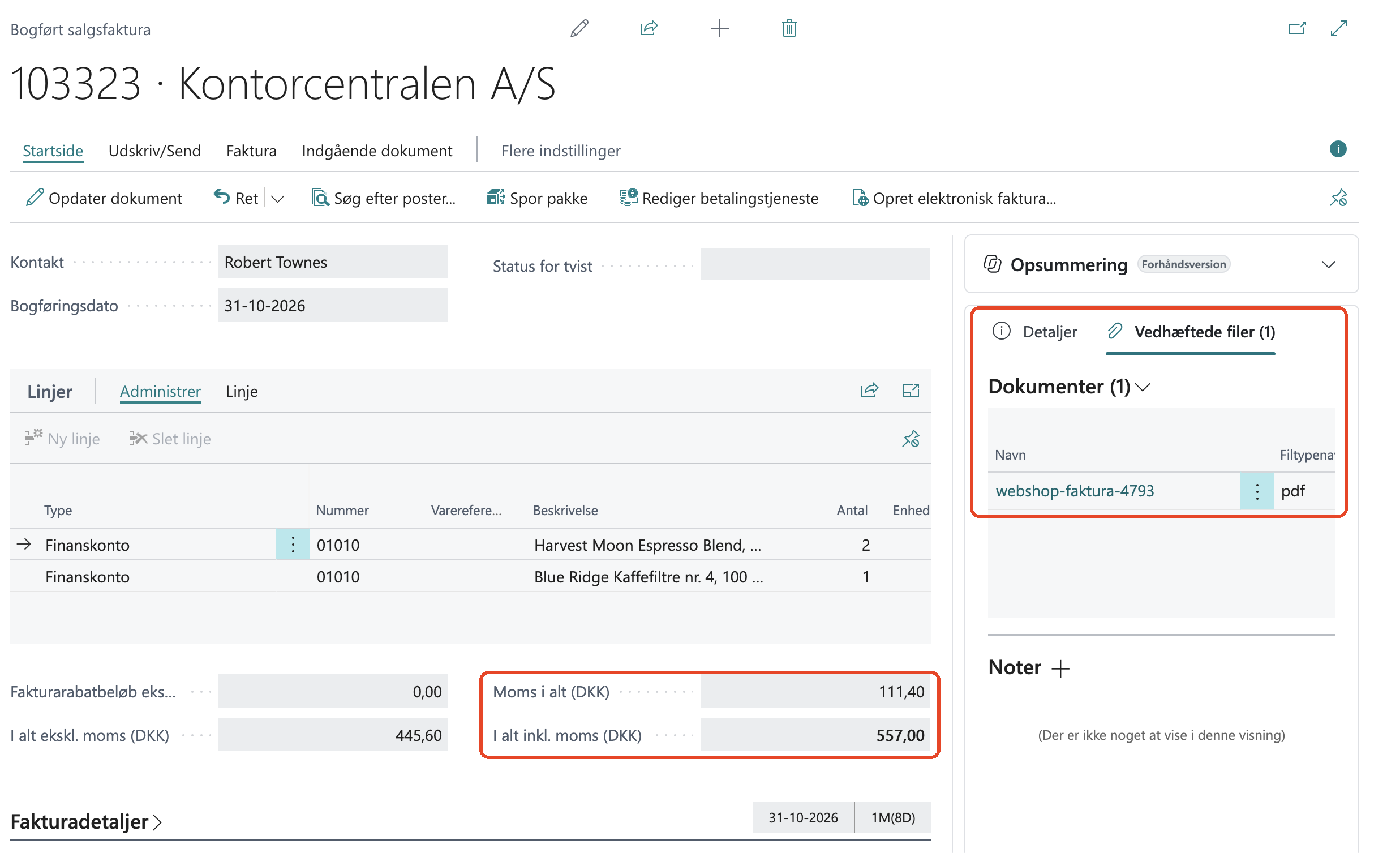
- Posted and paid immediately. The invoice is posted, and the payment is recorded and reconciled with the invoice. Card, MobilePay, ViaBill, Anyday, Klarna, PayPal, and in-store cash payments can each have their own contra account, and orders on invoice or with an EAN number can remain open until the customer has paid.
- Fewer errors in the books. Before the invoice is posted, the app compares the amount and sales tax in Business Central with the order. If they don’t match, the invoice remains as a draft, and a note on the order explains why, so the app doesn’t post an amount that differs from the order.
- Built for B2B and ERP. Companies get their own customer account with a CVR number, and if the customer already exists as a customer in Business Central with the same email address, that email is used. If you use Business Central inventory, the sale is posted to the item so that inventory levels in Business Central are updated accordingly. And with sales orders, you fulfill and invoice the order in Business Central just as you normally would.
- VAT and accounts by zone. Denmark, companies in other EU countries with a VAT number, and sales outside the EU can each have their own account and VAT zone. Business Central automatically calculates the VAT based on your VAT accounting setup and places EU sales and exports in the correct fields on the VAT return.
- Automatic credit memos. If you issue a credit memo for an order in Shoporama, it becomes a sales credit memo in Business Central. If the invoice hasn’t been paid yet, the credit memo is offset against it.
- Attachments included. The online store’s own invoice is attached to the sales invoice or credit memo as a PDF, and the order number is listed in the “External Document No.” field, so the accountant can find the order behind each invoice.
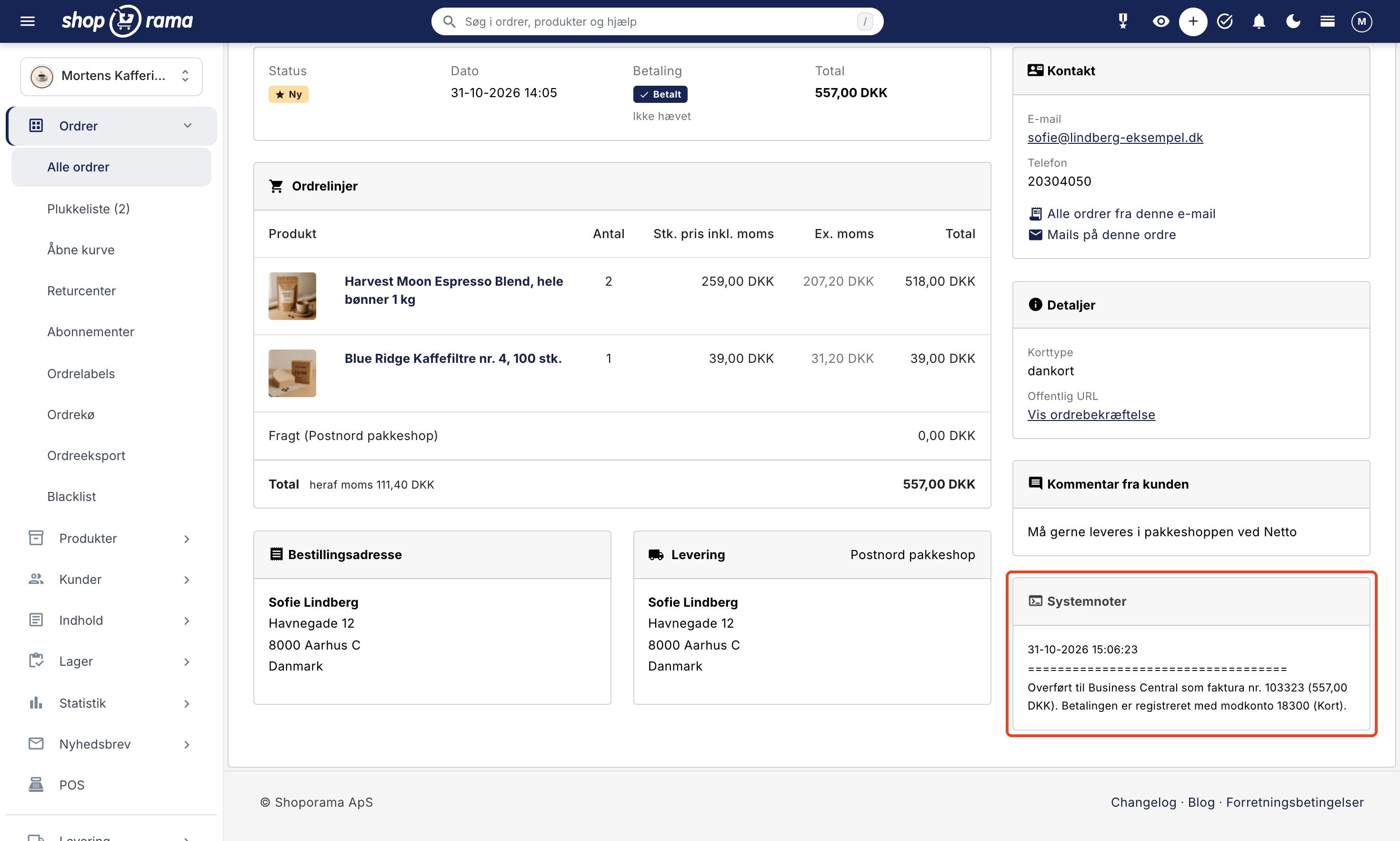
- Errors are displayed on the order. A transferred order receives the green “business-central-ok” label and a note with the invoice number. If something goes wrong, the order receives the red “business-central-failed” label with an explanation, and the app’s settings show how many orders have failed in the last 7 days.
- Free. The app is free in Shoporama and does not use any of your user licenses in Business Central.
How it works
Install the app under Integrations → Apps and click Connect to Business Central. An administrator in your Microsoft account grants consent, and the app is then created under Microsoft Entra apps in Business Central with the D365 BUS FULL ACCESS permission set. Finally, you select the company, accounts, tax groups, and contra accounts for the payments in the app.
- Sales invoice or sales order. A sales invoice is posted immediately, and the payment is recorded. A sales order is not posted but is shipped and invoiced in Business Central.
- Customers. The app finds the customer by email and a company by its CVR number if it has encountered the company before. Otherwise, it creates a new customer, which inherits its accounting groups from a customer template in Business Central. If you’d rather group private customers under a single customer account, you can choose that option. Companies always get their own.
- Items. When you select “Use items in Business Central,” line items are posted to the item when the item number in Shoporama exists in Business Central, including variants. Other line items are posted to the sales account. The app does not create items.
- Payments. The app uses its own payment journals in Business Central—one per payment method—so it never posts to your own journals.
- Currency and OSS. If you sell in multiple countries, the invoice is issued in the order’s currency, and Business Central converts it using its own exchange rates. Orders with VAT from another EU country (OSS) and a rate other than 25% are created as drafts, so you can select the country’s VAT groups in Business Central. OSS sales to countries with a 25% VAT rate, such as Sweden, are posted with Danish VAT and must be corrected in Business Central.
- One transfer per order. An order is transferred only once, and canceled orders are not transferred. Orders from before the app was installed are included if you apply the “business-central-pending” label to them.
The app does not do the following
- It does not create items in Business Central and does not retrieve items, inventory, or prices for Shoporama.
- It does not retrieve any data from Business Central. If you make corrections or enter new data there, it will not be transferred to Shoporama.
- It does not record refunds and does not create return orders.
- It does not automatically post OSS sales. Sales with a rate other than 25% are marked as draft, and sales to countries with 25% VAT are posted with Danish VAT.
- It does not record payments on invoices in foreign currencies.
- It does not work with Business Central on-premises or Dynamics NAV.
- It does not automatically retry when a transfer fails. You must correct the error and apply the “business-central-pending” label to the order.
How to set it up: the guide to the Business Central app. If you’d like to learn more about what a web store with Business Central offers, read “Web Store with Business Central,” or view all accounting integrations under “Accounting Programs.”