Build modules for the page designer with Claude
Ask Claude to build new modules for the page builder, such as a campaign countdown, an FAQ, or a comparison table. The module is built in a copy of the theme and is stored on a draft page until you publish it.
In the page builder, you build your pages using modules, such as a large banner, a product list, or a text box. If your theme is missing a module, Claude can build it for you. It could be a countdown to a campaign, expandable Q&A, a comparison of some of your products, or a step-by-step guide. You describe in your own words what the module should display and which fields you’ll be able to fill out yourself. Claude builds the module in a copy of your theme and places it on a draft page so you can see the result before your customers do.
Below, you’ll find a step-by-step example and three other modules that Claude has built for a coffee shop. To learn how the theme copy, preview, activation, and saved versions work in general, read “Edit Your Theme with Claude.” If you haven’t connected Claude to your shop yet, start with “Manage Your Shop with AI.”
What is a module in the page builder?
A module is a building block with its own appearance and its own fields. For example, the “Large Banner ” module in Montana has the fields “Heading,” “Description,” “Button Text,” “Link,” and “Image.” When you place a module on a page, it becomes a section on that page. You fill in the fields, and the theme handles the appearance. The same module can be used on many pages with different content. Read more about the Page Designer itself in “Page Designer in Shoporama.”
When Claude builds a new module, Claude creates both the appearance and the fields. Afterward, the module functions just like the theme’s own modules: you’ll find it in the list when you click “Add Section,” and you can edit the text, dates, and images yourself. You’ll only need to use Claude again if the module itself needs to be redesigned.
First, check the theme’s built-in modules. What you’re looking for might already be there. For example, Montana includes a “Text Banner” for a short campaign message with color and a link, and “Values/USPs” to highlight your benefits with icons. View all modules in Montana and MontanaB2B: all modules in the page designer; and Delaware and DelawareDK: all modules in the page designer.
Example: A countdown to Black Week, step by step
In this example, a coffee shop using the Montana theme already has a copy of the theme named Montana-v2. If you don’t have a copy, ask Claude to create one first, or mention it in the same message.
1. Describe what the module should do
Describe the module as you would explain it to a colleague: what it should display, where it should be placed, and whether customers can see it yet. You don’t need to know the technical details.
2. Here’s what Claude does
- Reads the module instructions so that the new module is built the same way as the theme’s own modules.
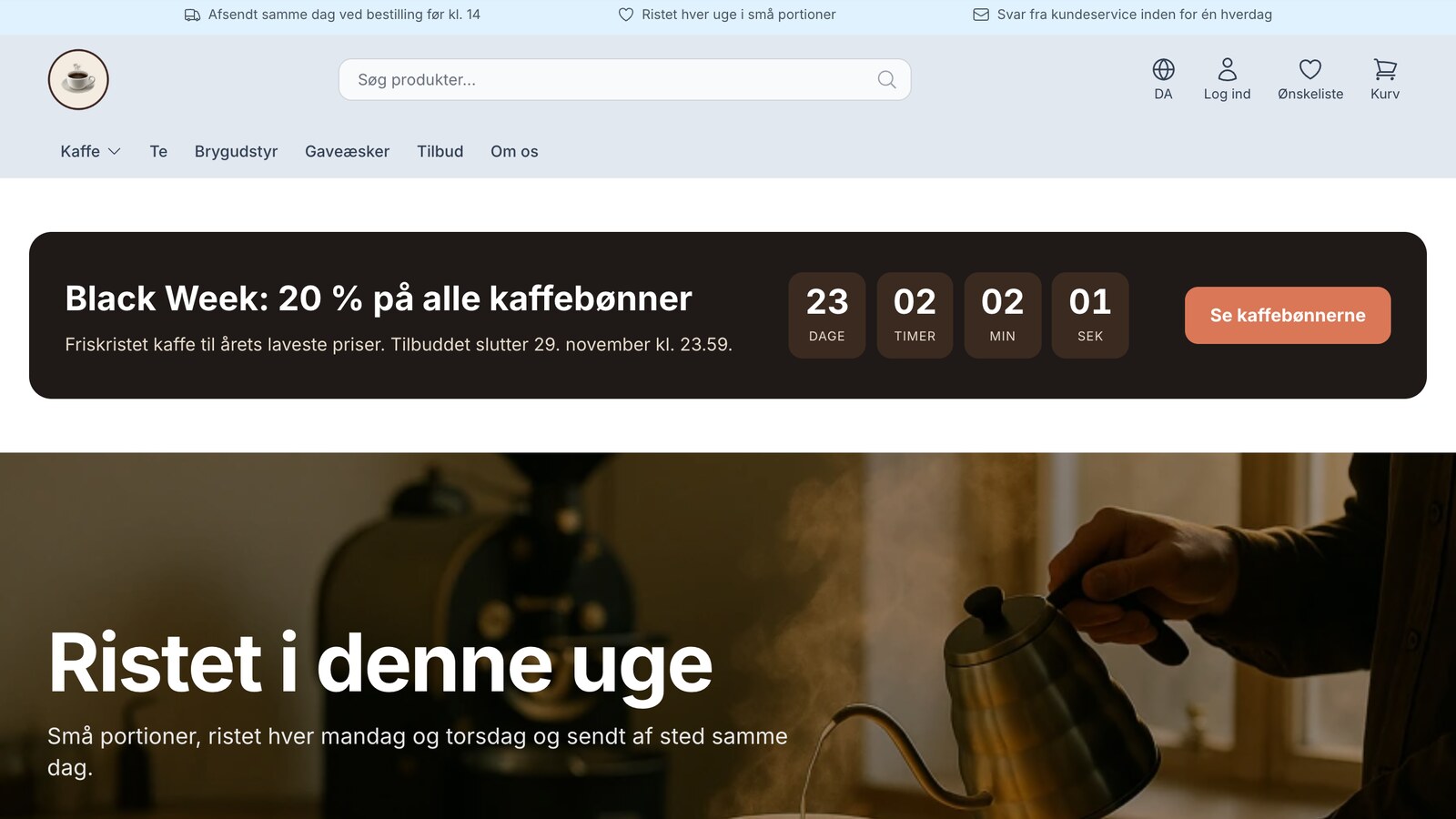
- Builds the module in the copy. Here, it’s called “Campaign Countdown” and has the fields “Heading,” “Text,” “Ends,” “Button Text,” and “Link.” The banner counts down days, hours, minutes, and seconds and hides itself when the time is up. The store your customers see remains unchanged.
- Create a draft of the front page. A draft is a page in the page builder that isn’t live. In this example, the draft has the same modules as the front page, and the countdown is at the top.
- Provides you with a single link that displays the theme copy along with the draft.
3. View the preview
The link opens your store with the theme copy and the draft. Only the browser that opens the link will see the change. Your customers will still see the front page as it is. You can recognize the preview by two bars:
- At the top is the page designer’s bar: “Preview mode · Home page with campaign countdown (draft) · This page is not visible to your customers” with the “Close preview” link.
- Just below that is the theme’s bar: “Preview of the Montana-v2 theme · Your customers still see the active theme” with the “Exit Preview” link.
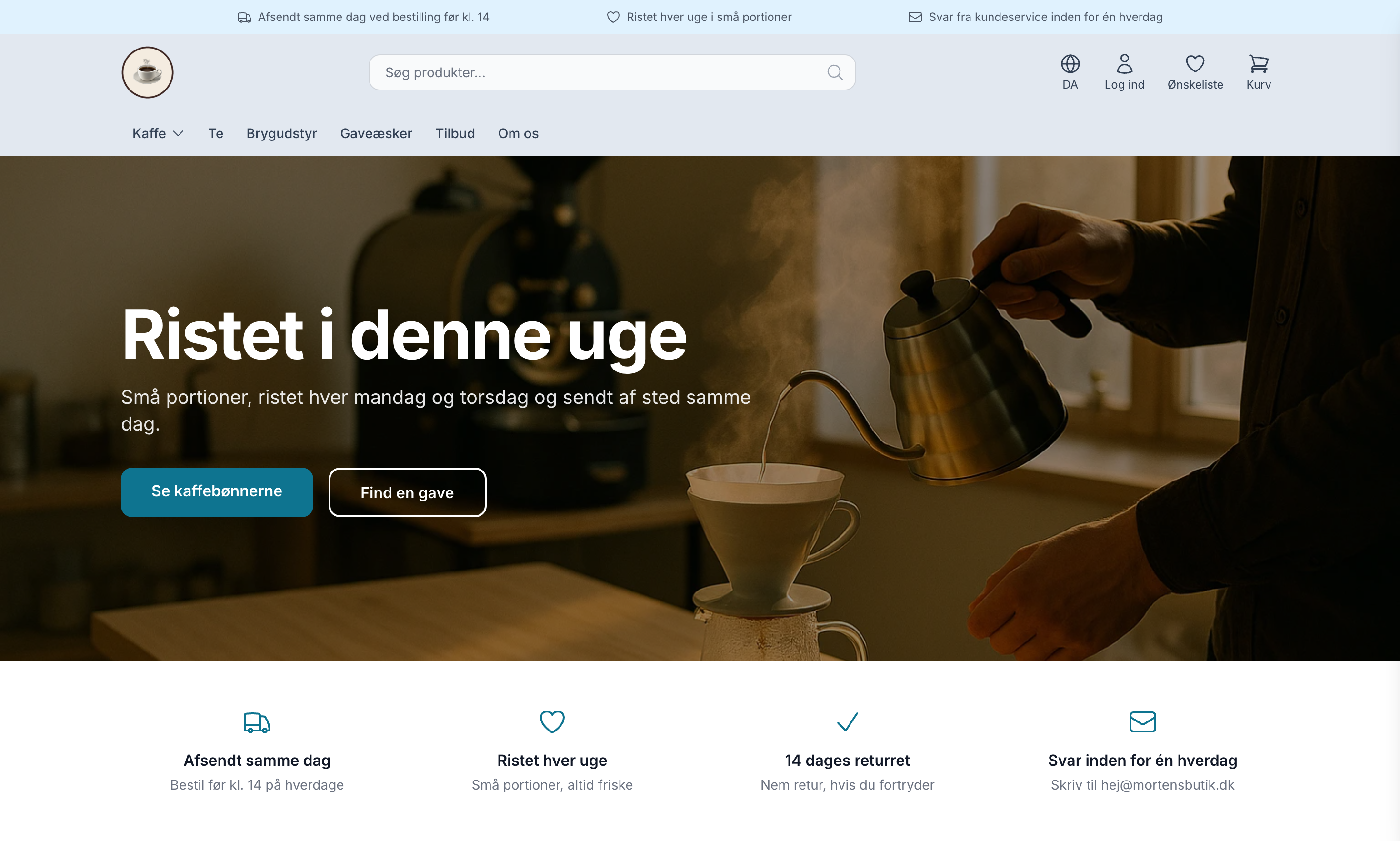
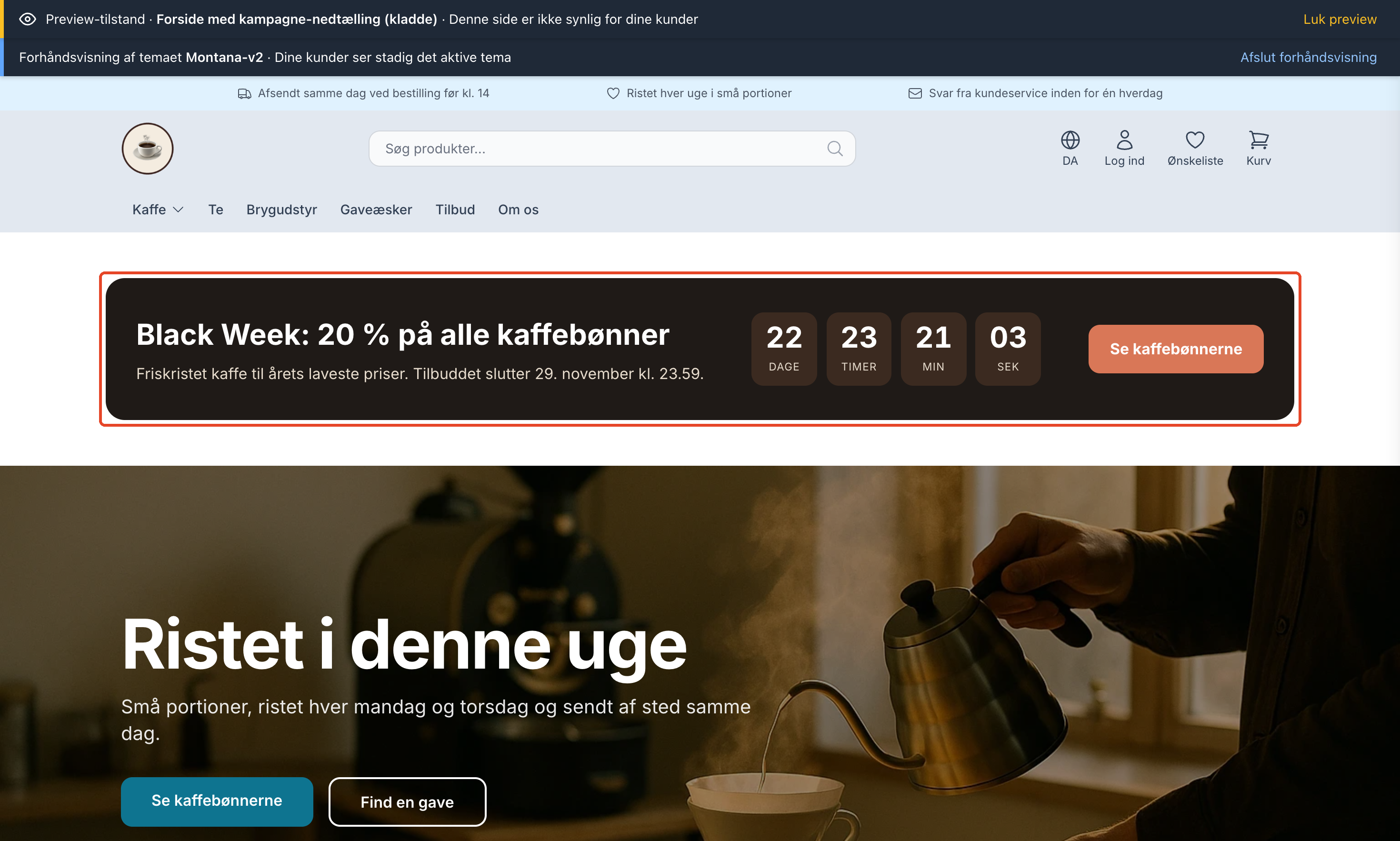
Review the module on both a computer and a mobile device. If you’d like anything changed, please let Claude know, e.g., “Make the numbers bigger on mobile” or “Use our orange color on the button.” The link is valid for 7 days, and you can send it to a colleague. It does not grant access to the admin panel.
4. This is what the draft looks like in the admin panel
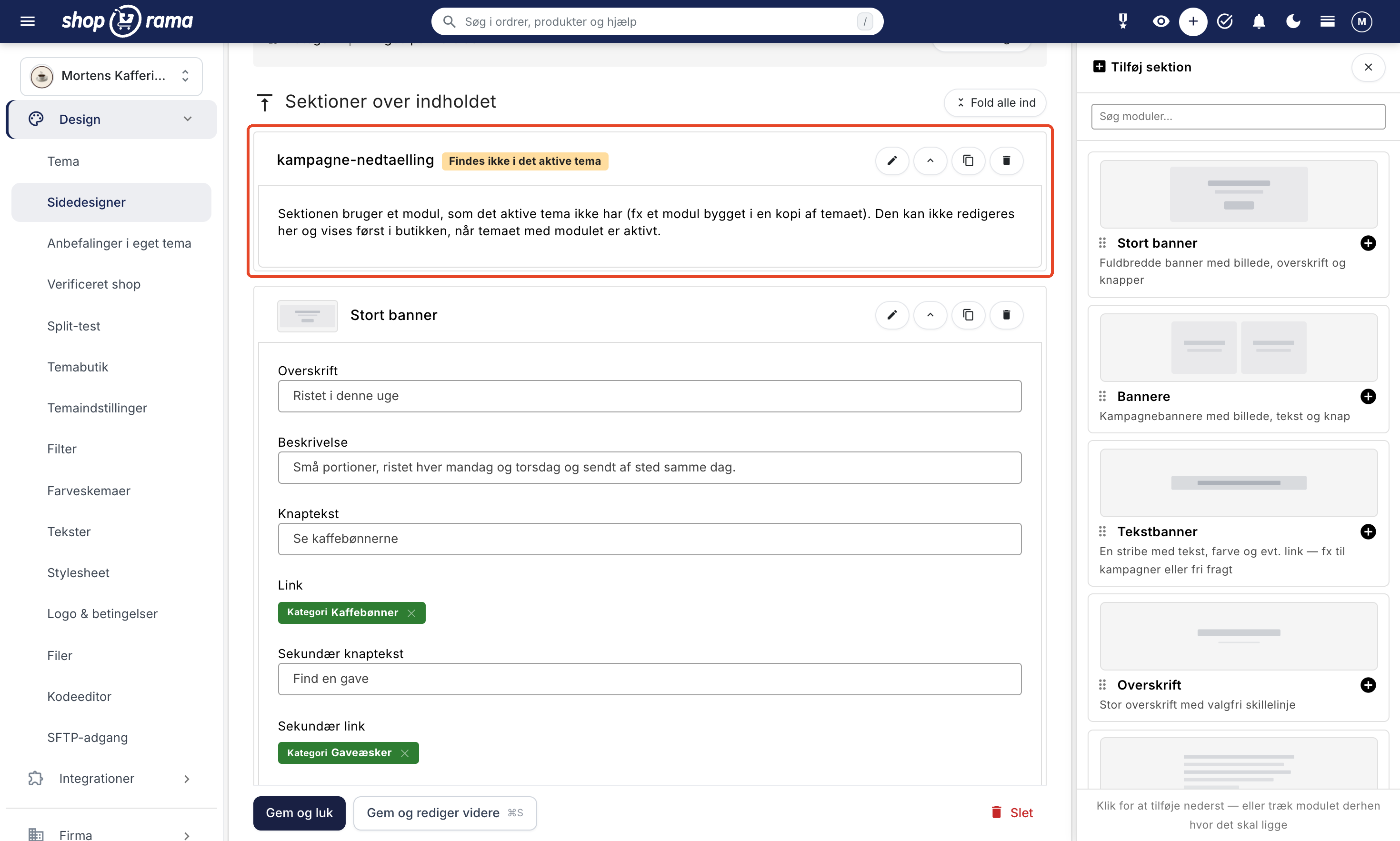
If you open the draft under Design → Page Designer, the countdown will appear with its technical name and the yellow label “Not available in the active theme.” Below the label, it says: “The section uses a module that the active theme does not have (e.g., a module built in a copy of the theme). It cannot be edited here and will not appear in the store until the theme with the module is active.”
That’s how it’s supposed to be. The Page Designer in the admin panel always uses your active theme, and it doesn’t recognize the module yet. You can edit the other modules in the draft as usual. The fields for the countdown will appear once the copy has become your active theme.
Why does Claude place the module on a draft?
As long as the module exists only in the copy, the theme your customers see won’t recognize the module. If the module were placed on a page that’s live, customers using most themes would see an error message saying “You’re missing this section” instead of the countdown. That’s why Claude only places a new module on a draft, and Claude can’t publish the draft until the copy containing the module is your active theme. The page with the module and the theme that recognizes the module go live together.
Don’t publish the draft too early. In the admin panel, you can check the “Online” box for the draft before the copy is active, but then customers will see the error message. Wait until the copy is your active theme. The reverse applies when you want to switch back: the page with the module must be taken offline first. See “Undo” after the page has been published.
Go live with the module
Once you’re satisfied, two things need to happen in this order:
- Activate the theme copy so the module appears in the theme that customers see.
- Publish the draft so customers see the page with the module.
Claude can do both. For example, type “It looks good. Put everything live.” or “Put the copy live and publish the draft.” While the theme is being switched, the store briefly displays a message stating that it is being updated. If you’d rather do it yourself, select the copy under Design → Theme (under Custom Themes), click Save, and then check the Online box for the draft under Design → Page Designer.
Once the draft is published, the front page will have two layouts in the Page Designer: the old one and the new one. Take the old one offline when you’re satisfied so you don’t end up editing the wrong one. If you’d rather keep just one layout, you can instead ask Claude to move the module to the front page you already have once the copy is active.
Afterward, you can edit the content yourself
- The fields are ready. The “Not available in the active theme” label is gone, and the countdown fields appear in the page designer. The “Ends” field has a tooltip showing how to enter the date and time.
- The module is in the list. If you click “Add Section,” you’ll find the module on the page types that Claude has made it available for. In the example, these are the front page, category pages, and landing pages.
- The next campaign won’t require Claude. Edit the headline, text, and end date in the page designer when you need to use the countdown again.
Undo after the page is published
If you’ve published a page with a module from the copy and want to switch back to your previous theme, you must take the page offline before changing the theme. Your previous theme doesn’t recognize the module, so in most themes, the store will display an error message saying “You’re missing this section” where the module used to be. Claude keeps an eye on this: before a theme change, Claude always runs a test, tells you which pages use modules that the other theme doesn’t have, and offers to take them offline first. You can also request both actions in the same message, for example, “Take the homepage with the countdown offline, and then switch back to the previous theme.”
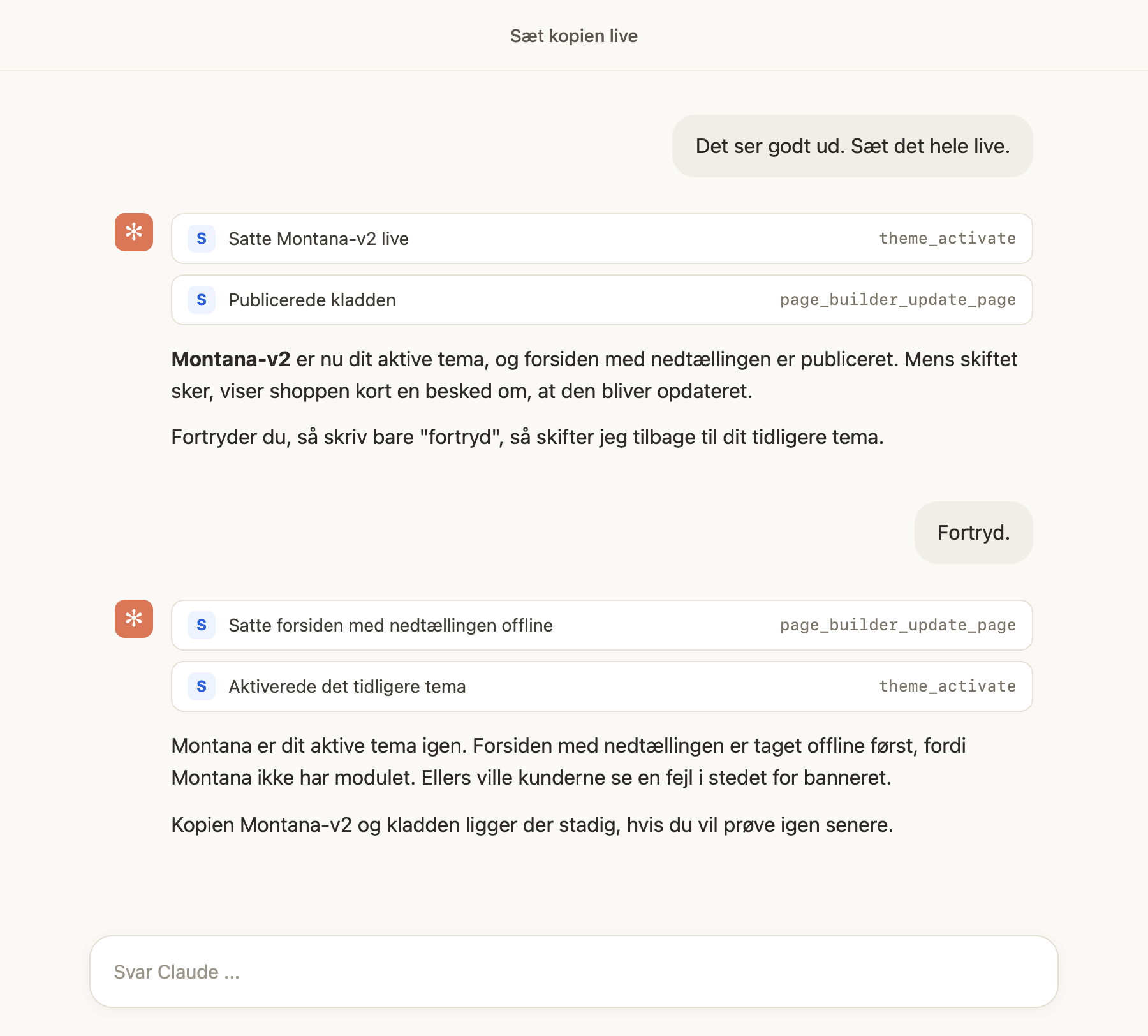
- Ifyou do this yourself in the admin panel, uncheck the “Online” box on the page under Design → Page Designer before selecting your previous theme under Design → Theme. If you forget to do this, the change will still take effect, but Design → Theme will display a yellow box at the top with the heading “Some pages use modules that the active theme does not have” and links to those pages until they are taken offline or you switch back to the theme with the modules.
- If you’ve taken the old front page offline, put it back online so the front page looks the same as before.
- If the module is on a page you want to keep—for example, because Claude has moved it to your existing front page—ask Claude to remove the module from the page instead of taking the entire page offline.
- The copy and the draft will remain, so you can try again later.
More modules Claude has built
The countdown is just one example. In the same copy, Claude has built three more modules for the coffee shop. Each module is located on a draft of a category page and can be used on the homepage, category pages, and landing pages. The modules are only available in the copy from the example, not in Montana. If you’d like a similar module, ask Claude to build it in your own copy, and feel free to use the messages below as a starting point.
Claude also fills in the content on the draft, such as the questions or steps. Until the copy becomes your active theme, you can edit the content by messaging Claude. Afterward, you can edit it yourself in the page designer.
Frequently Asked Questions Module
The module displays a heading, a short text, and a list of questions. The customer clicks on a question to expand the answer. Claude added the module to a draft in the “Coffee” category with four questions about shelf life, grinding, roasting, and delivery.
- Fields you can edit yourself: Heading, Text under the heading, and Questions. Under “Questions,” you can add as many as you like, each with a question and an answer. The answers are plain text. If you want to include links or bold text in the answers, request “text with formatting.”
- Message to Claude: “Create a collapsible Q&A module and add four questions about coffee to the coffee page.”
- For your customers, not for Google. Don’t expect the questions to appear as a special “Q&A” result in Google. Google only shows those kinds of results for well-known government and health websites.
The Comparison Module
The module displays up to four products side by side with an image, name, price, and the “View Product” button. Below the products are the attributes you enter yourself, such as roast, flavor, origin, and what the coffee is best suited for. The price is retrieved from the product, so it’s always up to date, even when the product is on sale. On a mobile device, the table is displayed as a single card per product with the characteristics below it, so the customer doesn’t have to scroll horizontally. Claude created the “Find Your Coffee” comparison with three coffees in a draft of the Coffee Beans category.
- Fields you can edit yourself: Heading, Products (you select 2–4 products from the store), and Properties. For each property, enter the name—for example, Roast—and a value for Product 1, Product 2, Product 3, and Product 4 in the same order as the products. If you take one of the products offline, it will disappear from the comparison, and the other products will retain their own values.
- Message to Claude: “Create a table so customers can see three of our coffees side by side: roast, flavor, origin, and what they’re best for.”
- Errors are caught. The first version of the module had an error in the template. Shoporama rejected the file before it was saved, so Claude corrected the error and saved it again.
The Brewing Guide Module
The module is a step-by-step guide with a heading, introduction, and numbered steps. Next to it is the “What You’ll Need” box listing the items for the guide, each with an image and price, so the customer can click directly on the item. On a mobile device, the box appears below the steps. Claude created a four-step guide for a French press, featuring a French press, a grinder, and coffee in a draft under the “Brewing Equipment” category.
- Fields you can edit yourself: Heading, Introduction, Steps (each with a title and text), “What You’ll Need” (products you select from the store), and Heading above the products. The box displays up to six products. The module can be reused for other guides, such as ones for a coffee dripper or espresso.
- Message to Claude: “Create a brewing guide for a French press with steps and the items you’ll need, and post it on the Brewing Equipment page.”
Fields you can request
A module can have exactly the fields you need. Describe them in plain language, and Claude will choose the right type of field:
- Short text, such as a heading or button text
- Longer text and formatted text
- Numbers, possibly with a minimum and maximum value, e.g., number of columns
- A checkbox for something that can be turned on or off
- Color
- A drop-downmenu with fixed options, such as left, center, or right
- Link, e.g., to a category
- Image or multiple images from your image library
- Video
- Products, categories, or landing pages that you select from your store
- Content type, e.g., your recipes or employees, if you use content types
- Repeating elements, where you can add as many as you want, such as questions and answers in an FAQ or rows in a table. Each element can have its own fields.
You can also specify that a field must be filled out, that it has a default value, or that it includes a tooltip so you and your colleagues know what to enter.
Tips for Writing to Claude
The more precisely you describe the module, the fewer rounds of revisions you’ll need. Tell us what the module should display, which fields you’ll be able to edit yourself, on which pages it should be available, and whether customers can view it yet.
- "Create a module with customer testimonials that includes a name, city, text, and a small image. Display three at a time on desktop and one at a time on mobile."
- "Create a module for our 'About Us' page with a timeline where I can add the year, headline, text, and an image myself."
- "The campaign countdown should also have a background image. Add an image field and show it to me in the draft."
- "Include the other modules from the front page in the draft so the preview looks like the actual front page."
- "Show me which fields the module will have before you build it. Use the theme’s colors and fonts."
What You Need to Know
- Only in themes with modules in the page builder. This works in copies of all Shoporama’s standard themes and in custom themes that use the page builder. The requirements for editing the theme with Claude are listed in Edit Your Theme with Claude.
- New Tailwind classes do not work. Montana, MontanaB2B, and Washington are built with Tailwind, and the theme’s CSS is pre-defined. Claude therefore uses the theme’s existing classes or writes plain CSS for the module.
- The module belongs to the copy. It exists only in the theme Claude built it in and is included if you make a new copy of that copy. If you later switch to a different theme, the module will not be included. Therefore, take pages containing the module offline or remove the module from them before switching, as described under “Undo” after the page has been published.
- The theme settings are shared. Colors and other theme settings are shared between the copy and the active theme. If you change them, the changes take effect in the store immediately. If you need to be able to choose a color for the module, request a color field within the module itself.
- Extra Security. If you’ve enabled Extra Security, Claude will still save, delete, and restore the files in the copy immediately, because your customers don’t see the copy. This means you can view the module preview without approving anything. Changing a theme and deleting a theme await your approval in the admin panel, as do files in your active theme. The draft can only be published once you’ve approved the change. The copy of the theme itself and the draft in the page designer are created immediately.
- Requires the Pro pricing plan. It’s included in the price, but the module is built as a copy, and a copy is a separate theme that requires Pro. On Flex, Claude cannot create copies.
For Developers and Agencies
This section is only relevant if you develop themes or integrations yourself. A module consists of three files in the theme:
- components/sections.json determines which modules each page type is allowed to use, e.g., front, category, landing_page, and product.
- components/sections/<name>.json describes the module in the admin panel: title, description, preview (preview_svg), and fields.
- templates/sections/<name>.html displays the module. The field values are stored in $section, e.g., <{$section.heading|escape}>.
The fields in the countdown from the example look like this (the preview is omitted):
{
  "title": "Campaign Countdown",
  "description": "Banner with a headline, text, button, and a countdown to an end date",
  "fields": [
    {"id": "heading", "type": "text", "title": "Heading", "placeholder": "Black Week ends soon"},
    {"id": "text", "type": "text", "title": "Text"},
    {"id": "end", "type": "text", "title": "Ends", "description": "Date and time, e.g., 2026-11-30 23:59. After this time, the banner will be hidden.", "placeholder": "2026-11-30 23:59"},
    {"id": "button_text", "type": "text", "title": "Button Text"},
    {"id": "link", "type": "link", "title": "Link"}
  ]
}
The field types are text, longtext, richtext, integer, bool, color, list, link, image, images, video, product, products, category, categories, landing_page, landing_pages, content_type, and repeater. A field can also have description, placeholder, default, required,min/max, options (for list), andfields/field_title (for repeater).
In the REST API, the page builder’s endpoints /page-builder-component, /page-builder-page, and /page-builder-row accept the parameter ?theme=<theme>, so that modules and field types are loaded from one of the store’s own themes that is not currently active. A row for a module that the active theme does not have can only be created on a draft (not live and without a schedule). Otherwise, the API returns a 409 error with the message ` module_not_in_active_theme`. You’ll receive the same response if you try to publish such a draft online before the theme containing the module is active. GET /theme-preview/{theme}?theme_page_id= returns a single link to the copy of the draft. POST /theme-activate does not block a theme switch, but the response—even in dry_run mode—includes the `pages_missing_modules ` and `warning` fields listing the pages that are live or scheduled to go live and that use modules not included in the new theme.
The files themselves are uploaded using PUT /theme-file/{theme}/{file}, which requires an API key with the “Access to theme files” checkbox selected. Templates are rejected with a line number if they contain Smarty errors, and JSON files must be valid JSON. See the endpoints and fields in the REST API and the structure of modules in the theme developer documentation.
Frequently Asked Questions
How do I remove the countdown after Black Week?
You don’t need to. The countdown hides itself once the end date has passed and can be reused for the next campaign. If you want to remove it completely, open the page under Design → Page Designer and click the trash can icon next to the countdown. If the countdown is on its own front page setup, you can instead uncheck the box in “Online” and put the old front page back online if you’ve taken it offline.
Can I change the end date or stop the campaign early?
Yes. When the copy is your active theme, edit the “Ends” field in the Page Designer and save. If you set a date that has already passed, the banner will disappear. Until the copy is active, ask Claude to edit the date on the draft.
Do I need to add the module to the page designer myself, or does Claude do it?
The first time, Claude does it. The module is placed on a draft, which you’ll see in the preview. Once the copy becomes your active theme, the module will appear in the list under “Add Section” for the page types Claude has made it available for. Then you can add it to multiple pages yourself without asking Claude.
How do I view the module on my phone before customers do?
Open the preview link on your phone. If you’re using the Claude app on your phone, tap the link in Claude’s reply; otherwise, send the link to yourself. Only the browser that opens the link will see the copy and the draft, and the link is valid for 7 days.
What happens to the front page if the module doesn’t work?
Nothing, as long as the module is only in the copy and on a draft. Shoporama checks the templates for errors in the code before they’re saved and rejects a file with errors, so Claude has to fix it. If the module looks wrong in the preview, let Claude know. If the copy is already active, you can switch back. The page with the module must first be taken offline, and Claude offers to do this, as described under “Undo,” after the page has been published.
Do I need to involve my agency, or can I ask Claude for a module myself?
You can do it yourself. You describe the module in plain language, and Claude writes the code. If an agency built your theme, talk to them first, because the copy won’t receive any changes they make to the original theme later on. Themes from the Theme Store cannot be copied, and the theme must have modules in the page designer.
What happens to the module when Shoporama updates Montana?
The module is located in your copy, and a copy won’t receive Shoporama’s future updates to the theme. So the updates won’t affect your module, but the copy also won’t receive new features or fixes from Montana. If you want them, make a new copy of Montana and ask Claude to move the module over to it.
Does the module work if the store has a dark theme?
Shoporama’s themes don’t include a dark theme for your customers, so you don’t need to worry about that. The module will display the colors Claude has assigned to it—often the theme’s own colors, such as the button color. If you want different colors, let Claude know, or ask for a color swatch so you can choose the color yourself in the page designer.
Related articles
Page designer
Lær hvordan du bruger Sidedesigner i Shoporama til at opbygge sidelayouts med blokke som hero-sektioner, produktlister, bannere og meget mere, helt...
Manage Your Store with AI: Get Started with Claude and MCP
Connect your Shoporama store to Claude using the connector library or via MCP, and have it create orders, discount codes, and storefronts. Learn...
Setting up the front page
Lær hvordan du sætter forsiden op i din Shoporama-webshop. Forsiden er en kategori, som du kan tilpasse med Sidedesigner i understøttede temaer.
Extra security: Approve changes from Claude
With Extra Security, Claude won't make any changes that send emails, transfer money, or can't be undone until you've approved them. Here's how to...
REST API
Complete guide to Shoporama's REST API: authentication, all endpoints, examples and Swagger documentation.
Edit your theme with Claude: Test changes on a copy before they go live
Ask Claude to make a copy of your theme and implement the change—for example, adding a "In Stock" label to your products. You'll see the result in...
Related features
Page Builder - build professional pages without coding
Build professional pages with Shoporama's visual Page Builder. Drag and drop modules, live preview and responsive design. Included at no extra charge.
Now Claude can change your theme, and you'll see it before your customers do
Ask Claude for a stock label, a discount label, or a countdown. Claude will build it in a copy of your theme; you'll see it first, and then you'll...
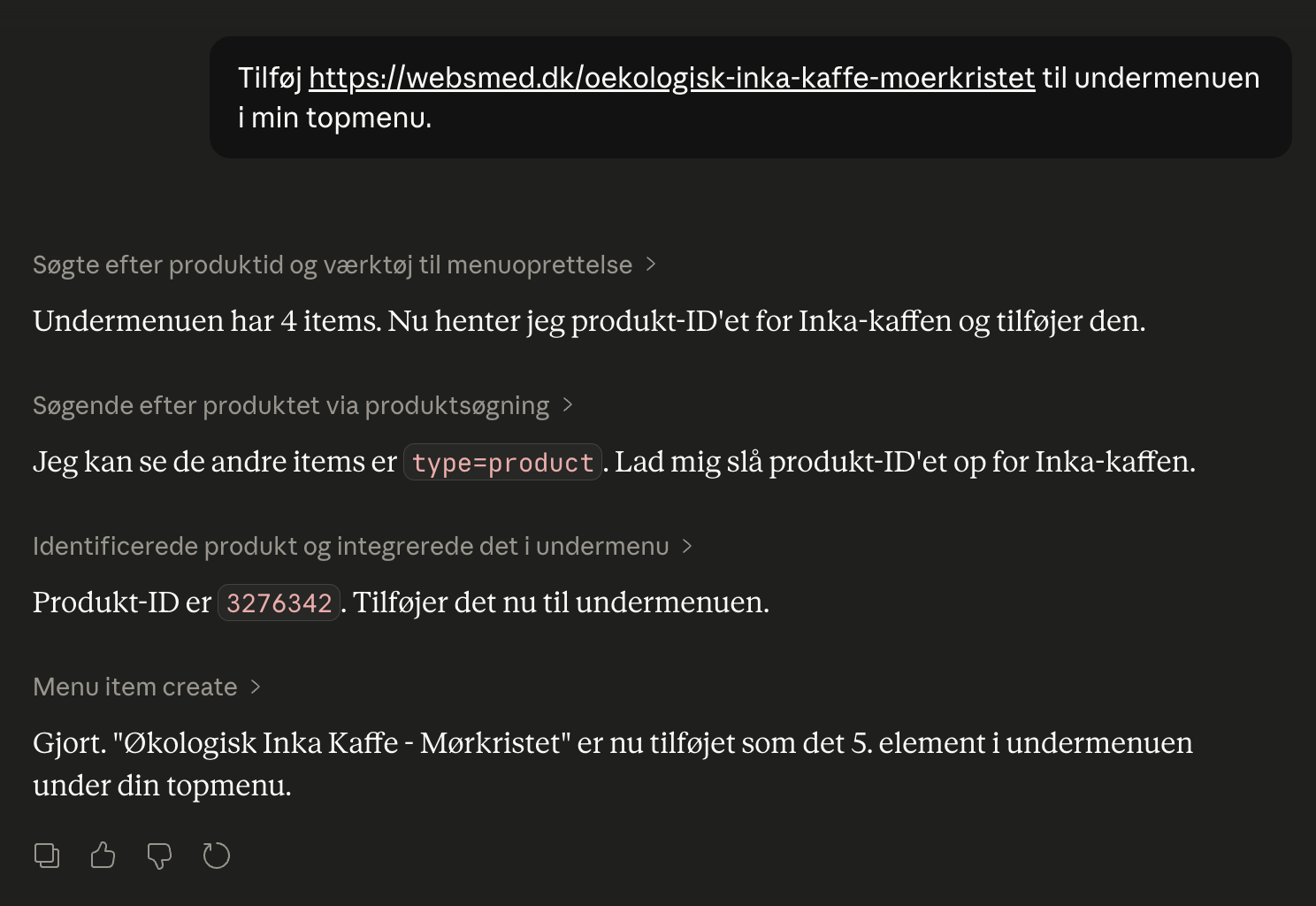
Control the shop with AI
Chat with your online store in Danish. Connect Shoporama to Claude and manage products, orders, promotions, and content directly from the chat.
Claude (AI assistant)
Claude is an AI assistant from Anthropic that can integrate with Shoporama webshops via MCP and control the store via chat in Danish.