Edit your theme with Claude: Test changes on a copy before they go live
Ask Claude to make a copy of your theme and implement the change—for example, adding a "In Stock" label to your products. You'll see the result in a preview that your customers won't see; once you're satisfied, you can publish the copy, and you can always undo the change.
With Claude, you can change the design of your online store by simply typing what you want. For example, you can ask Claude to display “Only 3 left” on items that are about to sell out. Claude creates a copy of your theme, makes the change in the copy, and gives you a link so you can see the result in your own store. Meanwhile, your customers see the shop they’re used to. When you’re satisfied, ask Claude to go live with the copy, and if you change your mind afterward, just type “undo.”
You don’t need to know how to code. Claude writes the code, and Shoporama saves it, checks it for errors, and keeps track of previous versions of each file. This makes it safe to test out an idea, even in the middle of a busy week. It works in Claude on your computer, on your phone, and at claude.ai.
In short: Tell Claude what you want to change and ask for a copy of your theme. Open the preview that Claude provides. Type “go live” when it looks right, and “undo” if you change your mind.
Here’s how it works
- Copy. Claude copies your theme to a new theme among your own themes. You can also start with one of Shoporama’s default themes: Montana, MontanaB2B, Delaware, DelawareDK, Washington, California, or Alaska2. Your store remains untouched.
- Modification. Claude finds the correct files in the copy and applies the changes. Shoporama checks the code before it’s saved.
- Preview. You’ll receive a link showing your store with the copy. Only the person who opens the link will see the copy.
- Live. When you give the go-ahead, Claude puts the copy live, and you can undo the change at any time.
What you’ll need
- Claude connected to your shop using the Shoporama connector from Claude’s connector library and the “Full” access level, so Claude can make changes. If you haven’t done so yet, start with “Manage Your Shop with AI.” The connection automatically grants Claude access to your theme files.
- Smarty 4. Your store must be running Smarty 4, the latest version of Shoporama’s theme platform. If you’re using one of the default themes listed above, it’s already set up that way. Otherwise, you can read “How to Switch to Smarty 4” or ask Claude, who can see what your store is running.
- Access to the Theme and CSS section. If you’ve set this section to Read-Only or Off under AI Tools, Claude cannot make copies or modify the theme. See “Customize which tools Claude can use in your shop.”
Requires Pro and Smarty 4. The feature is included in the price, but your store must be on the Pro pricing plan and running Smarty 4, and Claude must be connected as described above. The Pro plan is required because a copy is considered a separate theme. On the Flex plan, Claude therefore cannot create copies, preview them, or publish a separate theme. You can change your pricing plan under Company → Webshops using the “Change” link next to the pricing plan.
If Claude reports that the connection lacks access to theme files, remove Shoporama under Customize → Connectors in Claude, and reconnect. Connections created a long time ago may lack this access.
Step-by-Step: Tagging Your Products
The example here was created using the Montana theme on a test store that sells coffee. The dialogue in the videos and images is a simplified version of Claude, but the steps are the same when you do it yourself.
1. Request a copy and a modification
For example, write: “Make a copy of my theme and display ‘Only 3 left’ on products where there are 5 or fewer in stock. I’d like to review it before it goes live.”
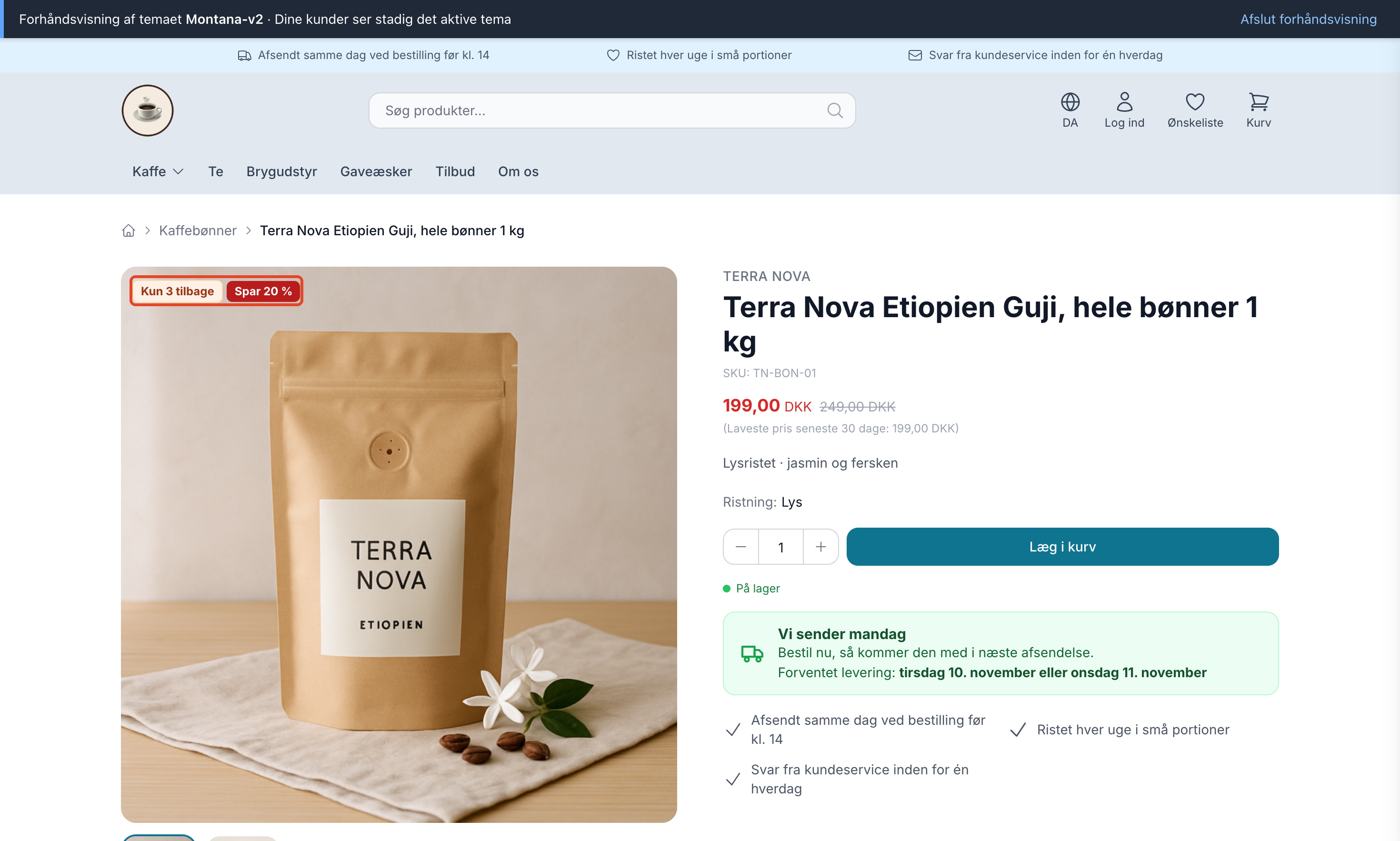
Claude copies the theme to a new copy, here called Montana-v2, reads the theme’s file list, finds the file containing the tags for the product images, and adds the stock tag. Finally, you’ll receive a link to the preview. The tag appears on the product image in the categories and on the product page when there are 1 to 5 items left of a product with no variants.
In the video, we request the “in stock” tag and a “discount” tag in the same message, so you can see the entire process from message to finished product page.
2. Continue building in the same conversation
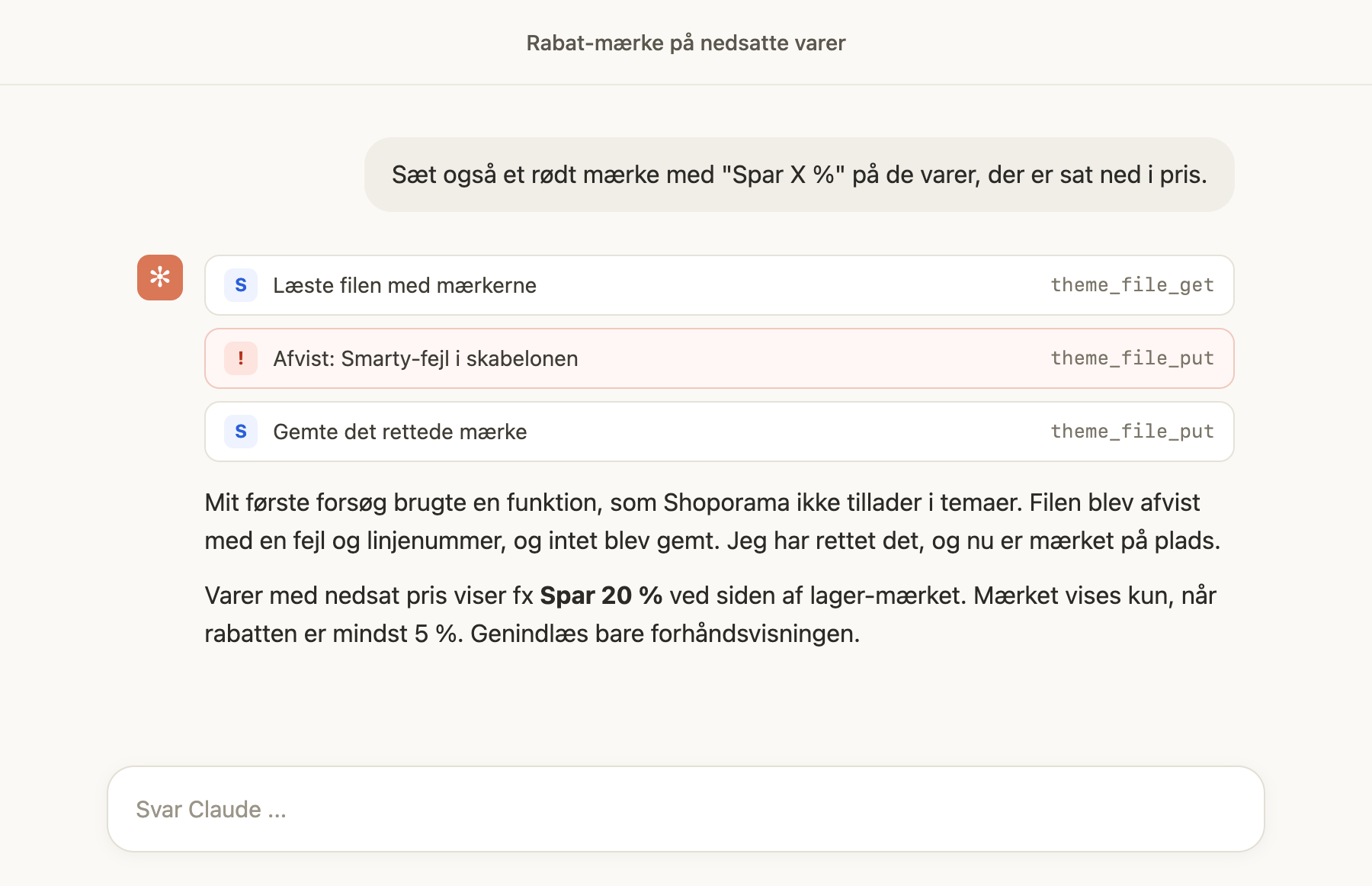
You can also tackle one thing at a time and keep going as long as you like. For example, write: “Also add a red tag that says ‘Save X%’ to the items that have been marked down.”
In the example, Claude’s first attempt used a feature that Shoporama doesn’t allow in themes. Shoporama rejected the file with an error and a line number, and nothing was saved. Claude corrected the code and saved it again. These are the kinds of errors that Shoporama’s checks catch before they reach the store. The label is only displayed when the discount is at least 5%, so an item that’s been marked down by just a few kroner won’t get a “Save 1%” label.
Reload the preview, and you’ll see both badges on the item.
3. Undo a single change
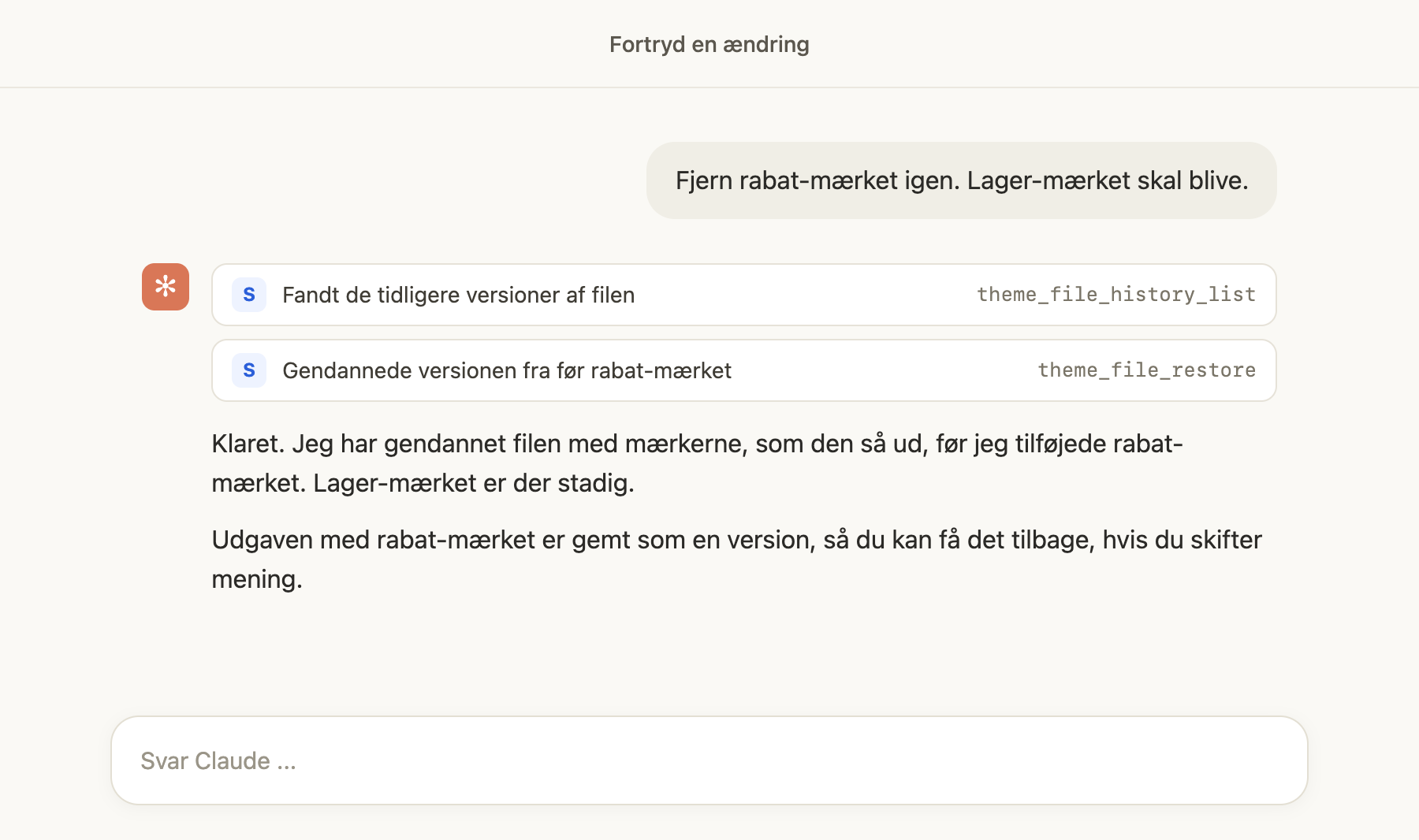
If you want to undo the most recent change, just say so. For example, if you added the discount label on its own, as in step 2, you can write: “Remove the discount label again. The ‘In Stock’ tag should stay.” Claude will find the previous versions of the file and restore the version from before the discount tag was added. The version with the discount tag is saved as a separate version, so you can restore it if you change your mind again.
4. Publish it
When the preview looks right, type “It looks good. Go live." If you change your mind afterward, type "undo," and Claude will reactivate your previous theme. Read more in the section "Go live with the copy, and undo again " further down.
More examples
The labels are just one example. The three examples here were created on the same test shop and in the same way: in a copy, and viewed in the preview before anything went live.
Countdown to Today’s Shipping
For example, write: “Create a countdown next to the ‘Buy’ button: Order by 2:00 PM, and we’ll ship today. Also show the estimated delivery time—it takes 1–2 business days.”
Claude builds it into the same copy, Montana-v2, so it’s included when the copy goes live. Below “Add to Cart,” there’s now a box that says “We’ll ship today” and a countdown, for example, “Order by 1 hr 23 min.” Below that is the expected delivery date, for example, “Friday, November 6, or Monday, November 9,” and the weekend is skipped. The countdown uses the shipping times you’ve set in the theme settings. After 2:00 PM and on weekends, the box changes to “We’ll ship tomorrow” or “We’ll ship Monday” with the text “Order now, and it will be included in the next shipment.”
A Christmas theme you’ll launch on December 1
For example, write: “Create a Christmas theme for the shop: red and green, a little snow, and a banner highlighting the last order date before Christmas. It should be possible to turn it off again in January.”
Claude creates a new copy for Christmas—in this case, “Montana Christmas”—next to the original. The buttons turn red, the banner highlighting the store’s benefits turns green, and a red banner appears at the top that reads, “Order by December 20 at the latest to ensure your package arrives before Christmas.” Snow falls lightly across the page, but not for visitors who have turned off animations on their phone or computer. The colors are applied on top of your color scheme in the copy’s own files, so your theme settings remain unchanged.
On December 1, click “Go live with the Christmas theme,” and in January, click “Cancel” to revert to your regular theme. If you’ve changed your theme in the meantime, ask Claude to go live with your regular theme instead, or select it under Design → Theme. It’s best to create the Christmas theme close to December, because changes made to your regular theme after the copy is created won’t be included in it.
New modules for the page builder
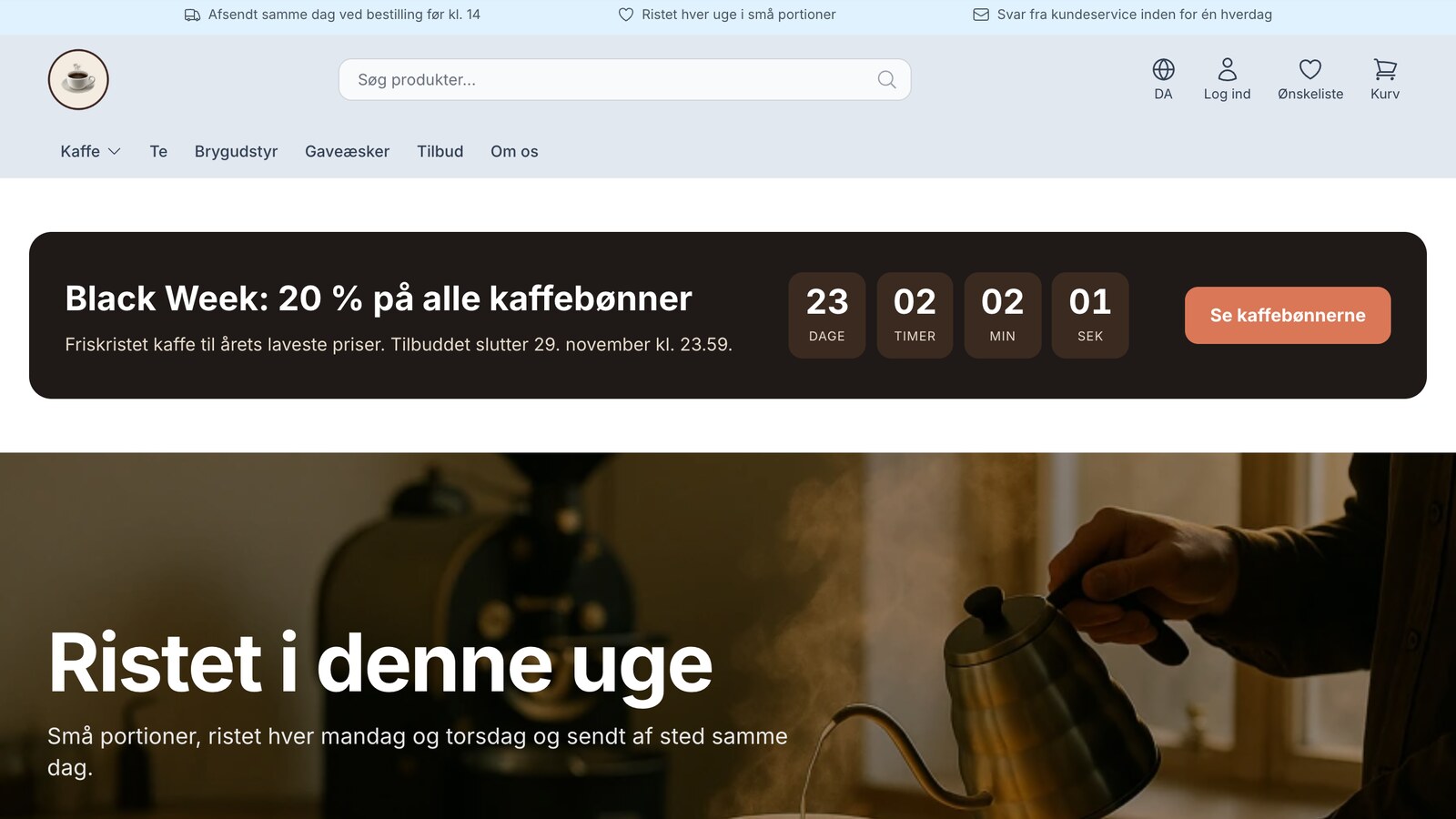
Claude can also build entirely new modules for the page designer in a copy, such as a campaign banner that counts down to when the offer ends. The module includes fields for text and the end date, so you can edit them yourself in the page designer. Claude places the module on a draft of the front page, and you can see everything in the preview before anything goes live. See Build Modules for the Page Designer with Claude.
Good prompts to use with Claude
The more precisely you describe what should happen, where it should happen, and when, the faster Claude will get it right. Feel free to start with “make a copy of my theme”—that way, you can be sure nothing changes in the store until you’ve reviewed it.
- “Make a copy of my theme and move the reviews above the product description on the product page.”
- “Display the text ‘Delivered in a gift box’ below the ‘Add to Cart’ button for items in the Gift Boxes category. Only in the copy.”
- "Make the buttons on the product cards round and slightly larger in the copy."
- "Which files control the cart in my theme? Don’t change anything yet."
- "Give me a new link to the preview that opens directly to the shopping cart."
- "Remove the latest change from the copy again."
Make one change at a time. That makes it easier to spot in the preview and easier to undo if it’s not right.
The Preview
The link from Claude shows your entire store using the copy: the homepage, categories, product pages, shopping cart, and checkout. If you click around, you’ll stay in the preview. Your customers and all other visitors will still see your active theme.
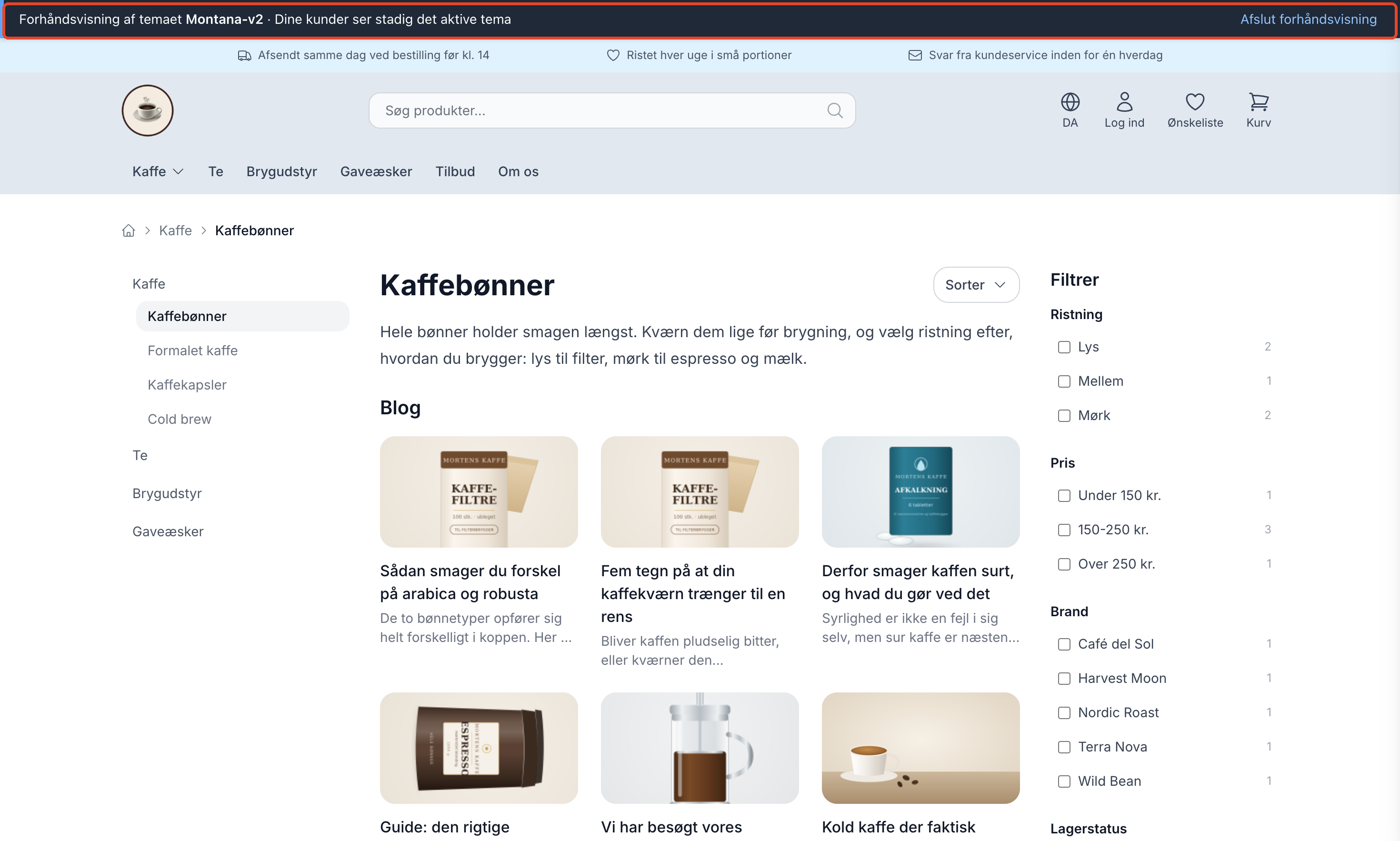
At the top of the page is a dark bar with the text “Preview of the Montana-v2 theme · Your customers still see the active theme,” along with the name of your copy. Click “End Preview” on the right side of the bar (on mobile, it simply says “End”) when you want to return to the regular store.
- The link is valid for 7 days. Ask Claude for a new one, or use the “Preview” button under Design → Theme.
- You can share the link with a colleague who needs to take a look. It does not grant access to your admin panel.
- The shopping cart and checkout are the real ones. If you place an order in the preview, it’s a real order.
- Emails cannot be previewed because they are sent outside your browser. If Claude makes a change to an email in the draft, you won’t be able to see it in the preview.
- Google and other search engines do not index the preview.
- If the copy contains an error, you’ll see it in the preview. This won’t trigger any notifications in the admin panel or emails to you.
If Claude has also created a draft in the page designer, the preview can show the draft alongside the copy. In that case, the page designer’s bar appears at the top, indicating that the draft is not visible to your customers, and the bar for the copy appears directly below it.
Publish the copy, then undo it
For example, type “Publish the copy.” Claude always runs a test first, which shows what changes without actually changing anything. While the change is taking place, the store briefly displays the message “We’re updating your store. This usually takes about a minute.” After that, all visitors will see the new theme.
If you change your mind, type “undo.” Shoporama remembers the theme from before the last change, and Claude reactivates it. The copy remains among your own themes, so you can try again later. You can also ask Claude to revert to your default theme, or choose a theme yourself under Design → Theme.
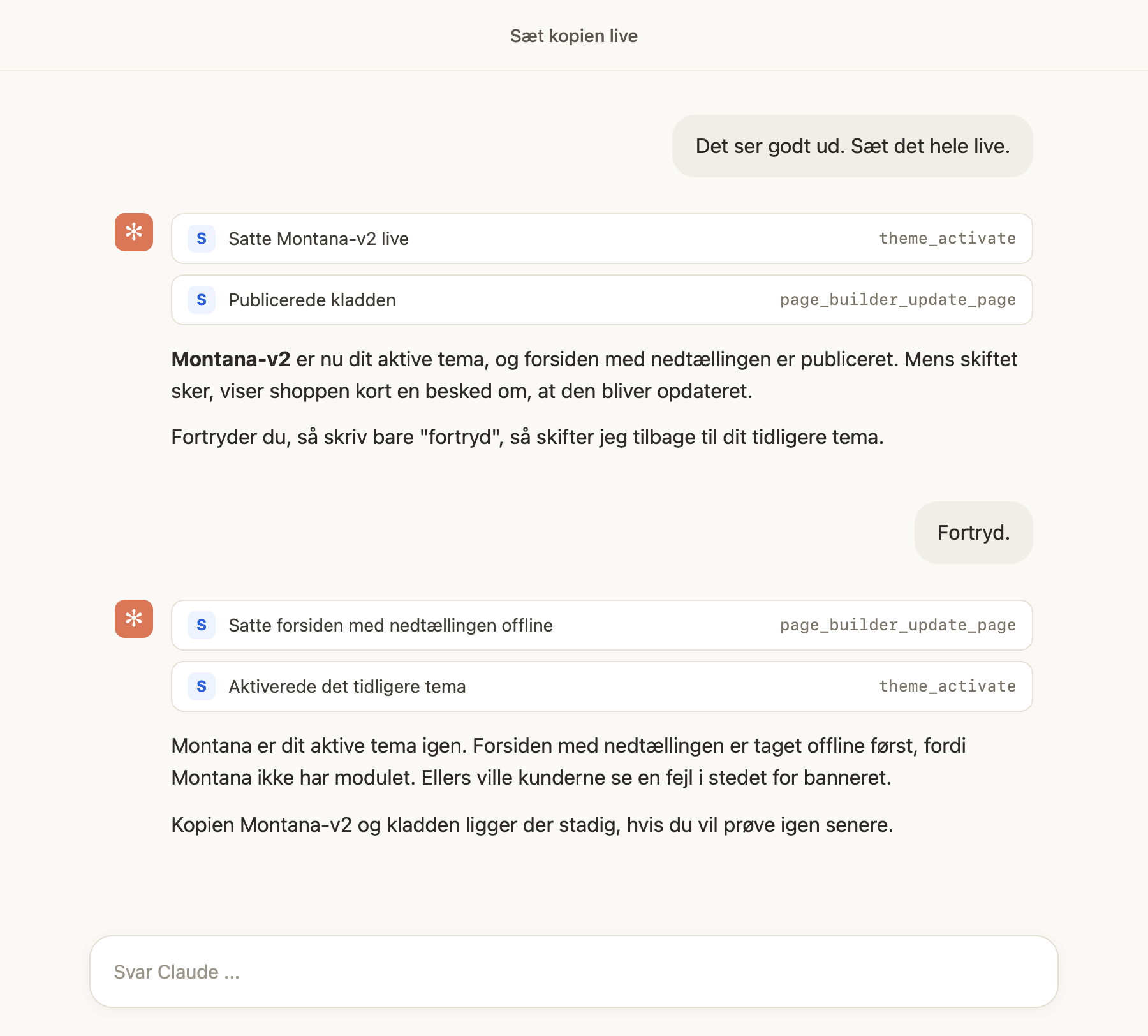
Have you published a page with a module from the copy? The module is only available in the copy, so your previous theme can’t display it, and in most themes, the store will instead show an error box where the module should have been. The test run catches this: Claude tells you which pages are affected and offers to take them offline before switching, as in the example. The switch will be carried out even if you say no. As long as there are affected pages, Design → Theme displays a yellow box at the top with the heading “Some pages use modules that the active theme doesn’t have” and links to those pages.
With Extra Security enabled
If you’ve enabled Extra Security, Claude will still save, delete, and restore files in a copy immediately. Your customers won’t see the copy, and each file has previous versions. Files in a theme used by the store, however, will wait for you to approve them in the admin panel. This applies to your active theme, a theme selected for a specific country, and a variant in a running split test. The same applies when Claude goes live with a theme or deletes one of your own themes. The copy itself is created immediately, and the link to the preview also requires no approval. Claude can therefore finish building in the copy, and you only approve it when the copy is ready to go live.
See who has changed the theme
The activity log, which you can open by clicking the Activity Log button under Company → Users, shows each change as “Theme changed” along with the theme before and after, and whether it was done via Claude, the API, or the admin. A copy is listed as “Theme copied,” and a deleted theme as “Custom theme deleted.” You can also view everything Claude has done in your store in the AI log.
Previous Versions and Code Review
The latest 20 versions of each file
Every time a theme file is modified or deleted by Claude, via the API, or in the code editor, Shoporama saves the old version. The latest 20 versions of each file are saved. Changes you or your developer make via SFTP are not saved as versions.
The easiest way to restore a previous version is to ask Claude to do so, as shown in the example above. You can also do this yourself in the code editor:
- Go to Design → Code Editor and open the file.
- Click on Previous Versions. You’ll see a list of versions, showing when each one was saved and its file size.
- Click Restore next to the version you want to restore, and confirm the prompt: “Restore this version? The current version will first be saved as a version.”
Because the current version is saved first, a restore can also be undone. Claude can recover a file that has been deleted.
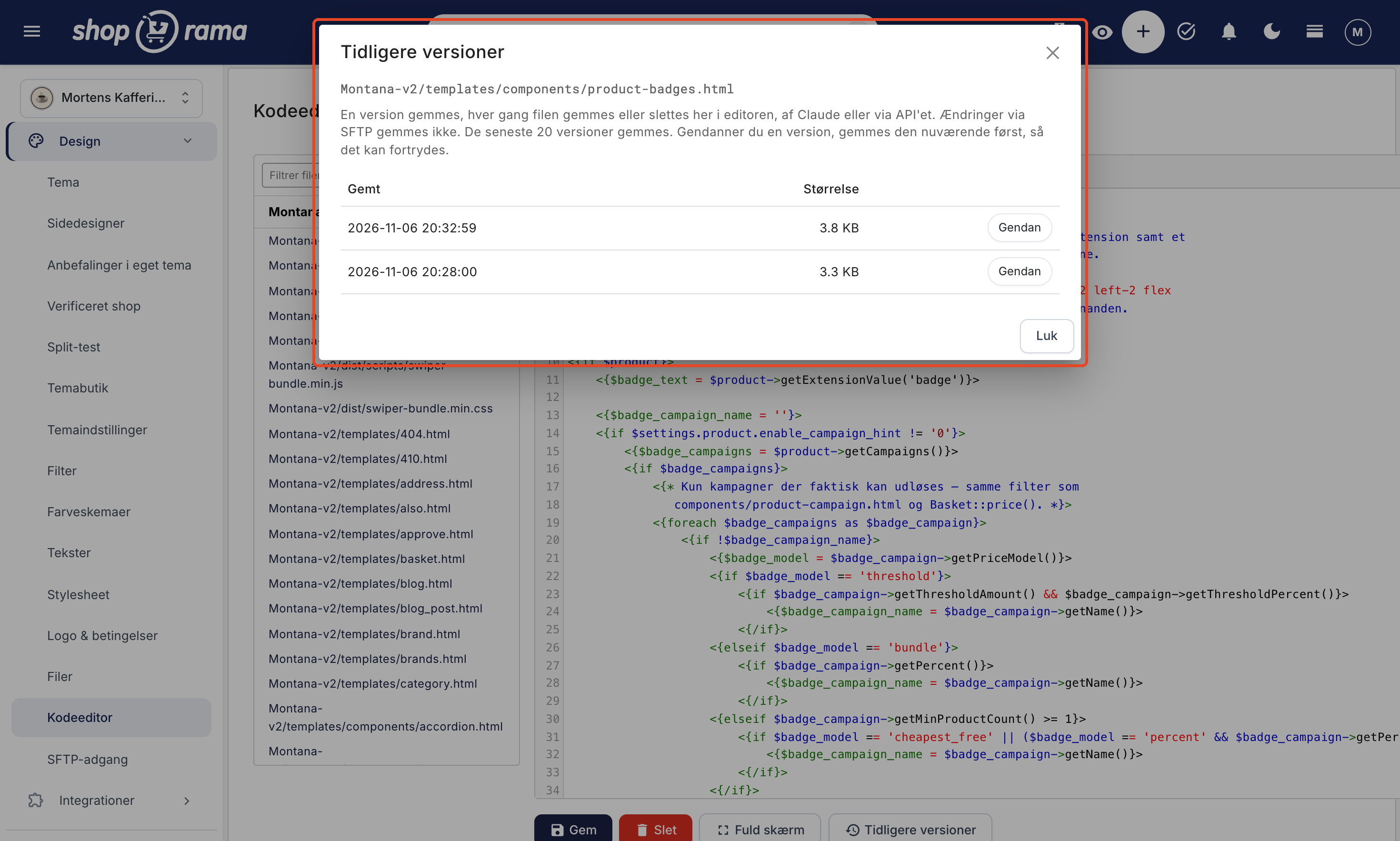
The copy is a standard custom theme, so you or your developer can also open it in the code editor and continue working on it.
Shoporama checks the code before it is saved
Before a template is saved, Shoporama checks to ensure the code is valid. If there’s an error, the file is rejected with an explanation and a line number, and nothing is saved. Claude reads the error and fixes it himself, as in the example with the discount tag. The same check applies when you save in the code editor. You’ll see the error message, and the file won’t be saved.
Configuration files in JSON format must also be valid before they can be saved, and program code can never be included in a theme. The check catches errors in the code itself, but not everything that might look wrong on the page. Therefore, always review the page in the preview before it goes live.
Images and Files in the Theme
If you want to add an image, an icon, or a font to the theme, attach the file in the chat and tell Claude what it’s for. It works the same way as “Images from Claude,” and the first time you use it, you’ll need to allow www.shoporama.dk in Claude’s settings. Claude can also download a file from a public web address or create a small file itself, such as an icon.
Text files can be up to 2 MB, and images, fonts, PDFs, and videos up to 10 MB.
Banners and other images that you want to be able to change yourself don’t belong in the theme. Place them in the image library and use them in the page builder’s image fields. That way, you can change them without anyone having to modify the theme.
Your own themes under Design → Theme
The copy is located under “My Themes” on the “Select Theme” page, which you’ll find under Design → Theme. Next to a custom theme that isn’t active, you’ll see:
- Select, which activates the theme when you then click Save at the bottom of the page.
- Preview, which opens the store with the theme in a new tab without activating it. This is the same preview that Claude provides.
- The trash can, which deletes the theme. You’ll first be asked: “Delete the Montana-v2 theme? This cannot be undone here, but support can recover it within 30 days.”
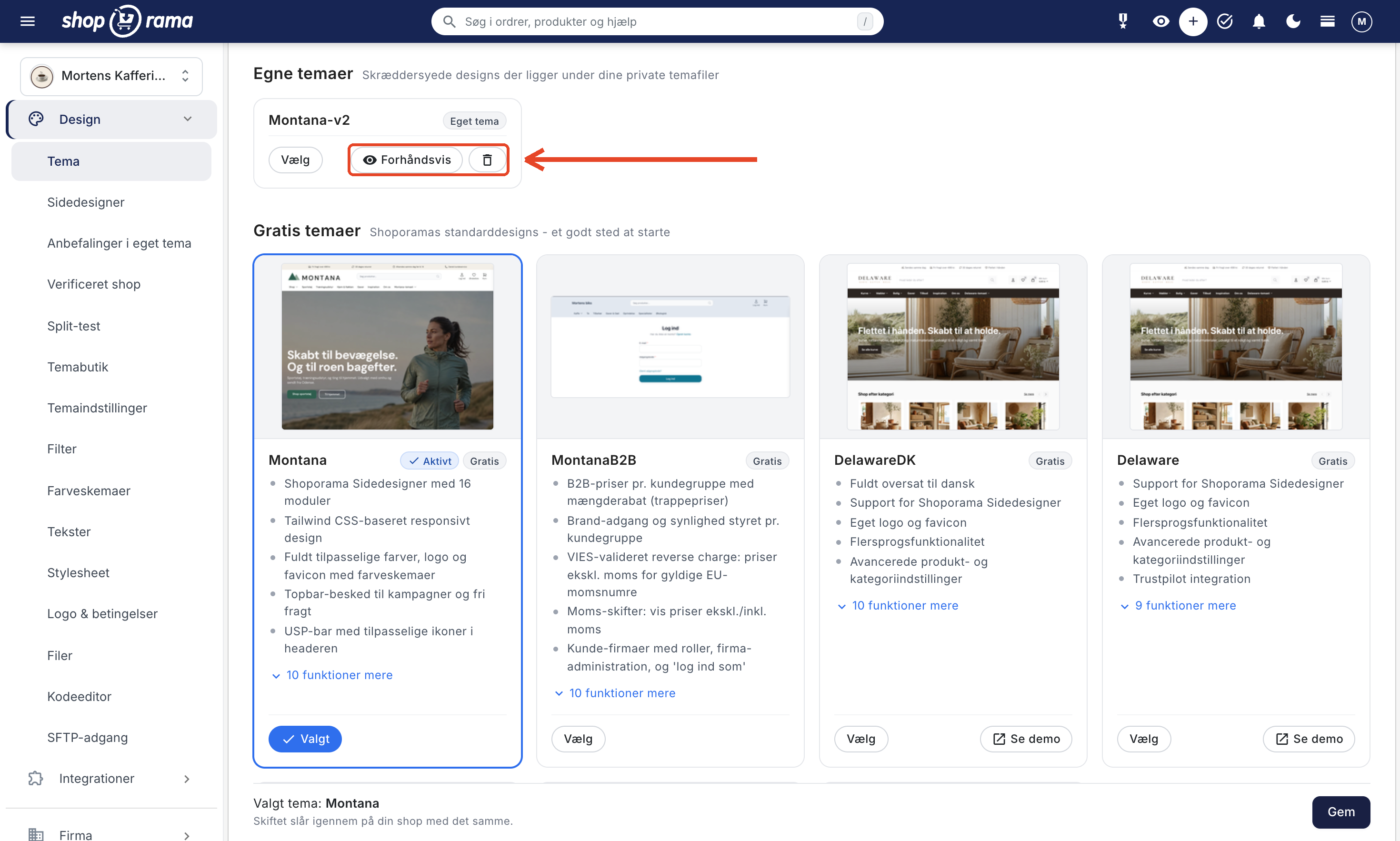
You cannot delete the active theme, a theme selected for one of your countries, or a theme included in an ongoing split test. If you try, you’ll see the message “The theme is in use and cannot be deleted.” A deleted theme is moved to the trash along with its previous versions. If you deleted it by mistake, email support@shoporama.dk, and we’ll find it for you. Claude can also delete a theme for you, but will ask for your confirmation first, and Claude cannot restore a deleted theme.
What You Need to Know
- Theme settings, the logo, and the stylesheet are shared. They apply to the entire store and not to individual themes. A change made under Theme Settings or in the Stylesheet therefore takes effect in the store immediately, even while you’re working in a copy. Claude doesn’t modify them while you’re working in a copy; instead, it incorporates the change into the copy’s own files.
- A copy is not included in Shoporama’s updates. If you copy a default theme, the copy will not receive the improvements we make to the theme later. The copy is also a snapshot: changes made afterward to your active theme will not automatically be included in the copy.
- Themes from the Theme Store cannot be copied. Instead, you can make a copy of one of Shoporama’s default themes.
- Montana, MontanaB2B, and Washington are built with Tailwind. Tailwind is a tool that pre-generates the theme’s CSS, so new Tailwind classes won’t work in a copy. Claude is aware of this and uses the classes the theme already has, or plain CSS. You usually won’t notice this.
- A maximum of 10 custom themes and 500 MB per copy. Delete old copies under Design → Theme if you reach the limit.
- Claude is most familiar with the default themes. Shoporama’s default themes include a map that tells Claude which files control what, and this map is included in the copy. If a developer built your theme, Claude has to figure out the file structure on its own, which may take a little longer.
- Only your own themes. Claude can only view and modify your shop’s own themes—never other shops’ themes—and program code cannot be included in a theme.
For developers: themes via the REST API
This section is technical. As a store owner, you can skip it.
Everything Claude does with themes can also be done via Shoporama’s REST API. The API key must have the “Access to theme files” checkbox selected. Connections from Claude via the connector are granted access automatically. All endpoints are located at https://dinshop.dk/REST/, and copying, previewing, activating, and deleting require Smarty 4 and Pro (on other pricing plans, the API returns a 403 error with `requires_pro`):
- GET /theme-copy returns information about the store’s capabilities: whether copying is enabled, whether versions are saved, custom themes, default themes, and limits.
- POST /theme-copy creates a copy with source_kind (own or standard), source, and name. DELETE /theme-copy/{name} deletes a custom theme.
- GET /theme-preview/{theme}?page=&theme_page_id= provides a link to a preview, either directly to a specific page or in conjunction with a draft from the page builder.
- POST /theme-activate with theme, standard, or previous activates a theme, reverts to the default theme, or undoes the most recent change. dry_run only shows what would happen. The response, even for `dry_run`, includes the `pages_missing_modules` and `warning` fields, listing the pages in the page designer that are online or scheduled to go online and that use modules not included in the new theme. The change is not blocked.
- GET and POST /theme-history/{theme}/{file} display and restore versions of a file.
- GET /theme-search/{theme}?q=®ex=&folder= searches the theme’s files, and GET /theme-trace/{theme}?page= shows which templates a page uses.
- GET /theme-docs and GET /theme-docs/{id} provide the theme documentation.
- PUT /theme-file/{theme}/{file} can accept ?upload_id= or ?source_url= instead of a body, and the page designer’s endpoints accept ?theme=, allowing you to work with modules in a copy.
A copy’s name must be 1 to 64 characters long and consist of letters, numbers, hyphens, and underscores; it must start with a letter or a number. Build files such as node_modules, src, and package.json are not included in a copy. The fields and responses are described in the API documentation.
Frequently Asked Questions
Is there an extra charge?
No, it’s included in the price. However, it requires the Pro pricing plan because a copy is considered a separate theme. You cannot create copies on Flex.
Can I do everything from the Claude app on my iPad or phone?
Yes. Once Shoporama is connected to your Claude account, you can message Claude in the app on your iPad and phone, just like on your computer. The link to the preview opens in a browser on whichever device you tap it on. If you’re working on your computer and want to view the copy on your phone, just open the same link on your phone. It works on all your devices as long as the link is valid.
Can Claude directly edit my active theme?
Yes, if you have your own theme and ask Claude to make changes to it, the changes will take effect in the shop immediately. Claude is instructed to use a copy for anything other than minor corrections, but feel free to specify this yourself: “make a copy first.” Claude cannot directly edit Shoporama’s default themes—only copies of them. If you want to be absolutely sure, turn on Extra Security. Then every file in your active theme will await your approval, while Claude can still work freely on a copy.
I don’t understand code. How do I know what Claude has changed?
Ask Claude to explain it in plain Danish, for example: “What have you changed, and which pages are affected?” Then check for the change in the preview, preferably on both your computer and your phone. Every time Claude saves a file, the old version is saved as a version, so you can always go back.
How far back can I go if something goes wrong in the middle of the season?
File versions have no expiration date. Shoporama saves the latest 20 versions of each file, so for a file that’s rarely changed, you can go back quite a long way. To undo a theme change, click “Undo,” and it will revert to the theme from before the most recent change. If you want to go further back, select the theme under Design → Theme.
Who can see the preview link?
Anyone with the link can view the copy until the link expires after 7 days. The link only works for your store and the copy it was created for, and it cannot be used to make any changes. Therefore, only share it with those who need to review it. A link cannot be closed early unless the copy is deleted.
I maintain the customer’s theme via SFTP. What happens to my changes once a copy has been created?
The copy is a separate folder among the shop’s own themes. Changes you make to the original after the copy has been created won’t be included in the copy, so if the customer puts the copy live, those changes will be missing. Therefore, agree with the customer on which theme to work in, or make your changes in the copy, which you can open just like any other custom theme. Remember that changes made via SFTP are not saved as versions.
The client has published a copy, and something isn’t working. Can I see it and switch back?
Yes. The company’s administrators can see the change in the Activity Log as “Theme changed,” along with the theme before and after, and whether it was done via Claude. You can switch back without using Claude under Design → Theme: click Select next to the previous theme and then click Save. The copy will remain in place so the error can be fixed at your leisure.
Can I test out new colors in the copy before customers see them?
Not under Theme Settings. The colors there apply to the entire store, even while you’re working in a copy, so customers will see any changes immediately. Instead, ask Claude to add the new colors to the copy’s own files, as in the Christmas theme above. That way, you’ll only see them in the preview until the copy goes live.
What should I do if something looks wrong in the copy?
Tell Claude what’s wrong and on which page. A screenshot in the chat helps. The copy isn’t live, so your customers won’t notice anything while it’s being fixed. If that doesn’t fix it, Claude can restore a previous version of the file, or you can delete the copy and start over with a new one.
Related articles
Manage Your Store with AI: Get Started with Claude and MCP
Connect your Shoporama store to Claude using the connector library or via MCP, and have it create orders, discount codes, and storefronts. Learn...
Extra security: Approve changes from Claude
With Extra Security, Claude won't make any changes that send emails, transfer money, or can't be undone until you've approved them. Here's how to...
Images from Claude: Send photos and PDFs directly to your online store
Attach photos and PDFs in Claude on your phone, in Claude Desktop, or at claude.ai, and ask Claude to add them to your products. The first time you...
Code Editor: Edit theme files directly in the admin panel
The code editor lets you edit your theme's HTML, CSS, and JavaScript files directly in the admin panel. See what you can edit, how to save your...
Customize which tools Claude can use in your shop
Activity Log: See who has done what in the admin panel
The activity log shows who has refunded, exported, deleted, imported, or changed access permissions in the administration system, and when. See...
AI Audit Log: See What the AI Has Been Up To in Your Store
The audit log shows every action an AI assistant has performed in your online store. See what’s logged, how to filter the log, and how to use it...
How to switch to Smarty 4
Guide to upgrading your Shoporama webshop from Smarty 2 to Smarty 4. Smarty 4 is faster, more secure and runs on PHP 8.
Theme Settings: How to Customize Your Theme
Theme settings are the theme's own control panel in Shoporama. Here, you can change colors, text, images, and enable or disable features without...
REST API
Complete guide to Shoporama's REST API: authentication, all endpoints, examples and Swagger documentation.
Build modules for the page designer with Claude
Ask Claude to build new modules for the page builder, such as a campaign countdown, an FAQ, or a comparison table. The module is built in a copy of...
Related features
Now Claude can change your theme, and you'll see it before your customers do
Ask Claude for a stock label, a discount label, or a countdown. Claude will build it in a copy of your theme; you'll see it first, and then you'll...
Control the shop with AI
Chat with your online store in Danish. Connect Shoporama to Claude and manage products, orders, promotions, and content directly from the chat.
Manage your store with AI: Connect Claude to your store
Connect Claude to your Shoporama store via MCP. Choose an access level, write some good initial messages, and decide for yourself what the AI is...
Choose a theme and understand theme settings and the page builder
Select and change themes in Shoporama, and learn the difference between Webstore settings, theme settings, text, and the page designer before you...
Webshop with Claude
Connect your Shoporama webshop with Claude and manage products, orders, campaigns and designs by typing in Danish. No code, full control, audit log.
Claude (AI assistant)
Claude is an AI assistant from Anthropic that can integrate with Shoporama webshops via MCP and control the store via chat in Danish.
Theme
A theme determines the look and feel of your online store. Read about themes, design, customization and responsive templates for webshops.