Manage Your Store with AI: Get Started with Claude and MCP
Connect your Shoporama store to an AI assistant via MCP, and ask it to create orders, discount codes, and storefronts. Learn about the setup, tools, and security features.
Imagine if you could type "show me today's orders" or "create a 10% discount code called SOMMER26 that expires on June 30," and your online store would just do it. You can do that in Shoporama. You connect your store to an AI assistant, type commands in plain Danish, and it carries out the actions exactly as if you were sitting in the admin panel and clicking around yourself. It requires no programming and no developer.
What is MCP in practice?
MCP stands for Model Context Protocol and is an open standard for how an AI assistant can communicate with another system. Think of it as a universal power outlet: Shoporama provides the outlet, and the AI assistant plugs in.
Without MCP, an AI chatbot can only talk about your online store based on what you type into the chat yourself. With MCP, Shoporama provides a set of tools—that is, specific actions such as “retrieve an order,” “create a product,” or “find search terms with no results.” When you ask for something, the AI selects the necessary tools on its own. At the time of writing, Shoporama has over 200 of them. Because MCP is an open standard, you’re not locked into a single assistant, but the guidance in the admin panel is based on Claude from Anthropic.
Here’s how to get started
Go to Integrations, Manage the Shop with AI. There’s no on/off switch you need to toggle first. “Activation” simply involves connecting an AI client. Click Get Started, and at the top you’ll find Your MCP URL with a Copy button next to it. That’s the address the AI client needs, and it looks like this:
https://www.shoporama.dk/mcp?mineksempelshop.dk
The last part—that is, what comes after the question mark—is your own shop’s domain. It’s set up this way on purpose so you can connect multiple Shoporama shops to the same AI account. More on that below. Always use the URL listed on your own page, and copy it from the specific shop in question. After that, there are two tabs.
claude.ai in the browser
- Open claude.ai in a browser on your computer and start a new chat
- Click the + at the bottom of the text field, then select Connectors, Add connector, and Add custom connector
- Type “Shoporama” under “Name,” and paste the MCP URL from Shoporama under “MCP server URL”
- Click Continue. Claude will automatically detect the login settings, so leave them as is and click Add
- Click Connect. Claude will open a login window for Shoporama. Log in and select the correct store from the list. Read the warning below before clicking next
- Select the access level, then click Authorize Access
- Start a new chat and try, for example, “Show me the latest 5 products”
Important: Check the shop selection before you authorize. The authorization page displays all the shops you have access to, sorted by name, and the top one is selected by default. Access is tied to the exact shop you select, and this association cannot be changed afterward. There is no “change shop” feature.
If you selected the wrong shop, do the following: remove the connection in claude.ai, create it again, and select the correct shop this time. Then log in to the admin panel of the shop you accidentally selected, go to Integrations, API Access, find the line with the name starting with OAuth:, and click the trash can icon. The old access will then be removed.
Custom connectors can only be added from claude.ai in a browser, not from the mobile app. But once the connection is added to your account, it also works on your phone. Then you can check today’s sales or place a phone order while you’re in the warehouse.
Claude Desktop on Mac or Windows
Claude Desktop uses a small helper process called mcp-remote to communicate with MCP servers on the web. It runs automatically via npx, so you don’t need to install anything yourself.
- Download Claude Desktop from claude.ai/download
- Open Settings, Developer, Edit Config
- Add the block below under `mcpServers`, using your own MCP URL. Remember to end it with your shop’s domain
- Save the file, and completely close Claude Desktop using Cmd+Q or Alt+F4
- Restart the program. The first time you send a message, a browser will open where you’ll log in to Shoporama, select your shop, and grant permission
"shoporama": {
  "command": "npx",
  "args": [
    "-y",
    "mcp-remote",
    "https://www.shoporama.dk/mcp?mineksempelshop.dk"
  ]
}
Do you have multiple stores? Then each store gets its own connection
Many people have more than one online store. A web agency might manage twenty client stores, and a retailer might have both a live store and a test store. They can all easily be connected to the same AI account at the same time.
That’s why the MCP URL ends with the shop’s domain. Claude doesn’t allow two connections with the same address, and without the domain, you’d only be able to connect one shop. At the same time, the domain acts as a label, so you can see from the list of connections which store a given connection belongs to.
Here’s how to do it:
- Log in to the admin panel of the first shop, go to Integrations, Manage the Shop with AI, click Get Started, and copy the MCP URL from there
- Create a connection in your AI client using that exact URL, and authorize it with the correct store and the access level you want to grant
- Switch to the next store in the admin panel, retrieve its MCP URL, and repeat the process
Tip: Always retrieve the URL from within the shop it pertains to. Do not copy it from another shop and manually edit the domain. The domain in the address is merely a label for you and your AI client. Shoporama completely ignores that part, and it is solely the access key behind the connection that determines which shop is opened.
The advantage of this model is that each store operates independently. You can grant “Read” access to the stores from which you only retrieve data, and “Full Access” to the one you’re working in. You can revoke access to one store without affecting the others, and each store has its own audit log. On the other hand, there is no automatic transfer between shops. If you want to move a campaign text from one shop to another, you’ll need to ask the AI yourself to retrieve it from one place and create it in another.
If you have both a live store and a test store active at the same time, be extra clear in your message about which store you’re referring to. Changes to the live store go live immediately. A good tip is to only keep the connections enabled that you’re currently using, and to name connections that include the domain, rather than calling them all “Shoporama.”
Which tools does the AI have access to?
The tools are divided into 14 areas, which you can see under “Customize Tools.” Under each area, there’s a link that shows how many tools the area contains. Click on it to see the full list of names. The areas are:
- Catalog: products, variants, categories, brands, suppliers, reviews, and inventory with locations, batches, and cost prices
- Orders: orders, status updates, notes, tracking, shipping labels, order labels
- Customers: customers, customer groups, B2B companies, profile fields, loyalty points, customer statistics
- Marketing: discount codes and campaigns
- Newsletter: Create newsletters, modules, lists, and subscribers. The AI cannot send
- Page Designer: homepage, modules, and scheduled pages such as a Black Friday homepage
- Theme and CSS: theme files, custom CSS, settings, stylesheet
- Content: blog posts, pages, landing pages, help articles
- Image library: images, folders, and alt text in your image library
- Navigation: menus, URL redirects, 404 errors
- Statistics: sales, profit, products, inventory, marketing, keywords with no results
- Shipping: shipping methods, shipping rates, countries
- Operations: returns, picking lists, inventory entries, messages from the store
- Settings: selected settings for the online store
In addition, there is a small group called Basic Info. It is always active so that the AI knows which store it is communicating with, and it cannot be turned off.
In everyday use, it sounds something like this: “Create a phone order for three black wool hats for Bo Jensen, Vestergade 12, 5000 Odense," "Which 404 errors should I set up redirects for?", or "Create a Black Friday homepage that automatically goes live on November 28 and takes down on December 1." A campaign or a scheduled homepage typically takes half an hour to put together. In a nutshell, it takes less than a minute, and you’ll have time to review the result before it goes live.
Statistics and Pre-built Reports
The AI can also answer questions about your numbers: sales and profit margins, bestsellers, slow-moving items, conversion rates, discount codes, and new versus returning customers. It can compare data to the previous period or the same period last year. Five pre-built prompts are included: Weekly Report, Purchasing Suggestions, Month-End Closing, Dead Stock, and Searches with No Results. Where you find them depends on your AI client. Read more in Statistics and Reports with Claude.
Inventory, Shipping, Operations, and Settings
The AI can move items between warehouse locations, create batches, set minimum stock levels and cost price, retrieve the pick list, mark orders as picked, and mark returns as received. It can adjust shipping rates, free shipping thresholds, and which shipping methods apply in a country, and it can change selected settings such as store name, search, inventory management, and order emails. Within the theme, it can set multiple settings at once, and it modifies your stylesheet in small increments so that the rest of your CSS isn’t overwritten.
What the AI Can’t Do
It’s just as important to know where the limits lie. There are no tools for:
- Sending newsletters. The AI can create a draft and show you a preview, but you’ll need to send it yourself in the admin panel
- Refunding or changing your payment setup. It cannot refund a payment, and it cannot change your payment gateways
- Changing the fundamentals of your store. It doesn’t touch users, roles, domains, currency, whether prices are displayed with or without tax, the mail server, theme selection, or your Shoporama subscription
- Creating or deleting shipping methods. It can edit your existing shipping methods, shipping rates, and countries, but you must create new shipping methods and weight ranges yourself in the admin panel
- Deleting orders. It can update and cancel an order, but not delete it
- Working in a store other than their own. A connection can only view the one online store it was authorized for
Please note that the AI may initiate actions that involve the transfer of funds. If it changes an order’s status to “Shipped” or “Picked Up,” the payment may be charged if your store charges for shipping upon dispatch. If it cancels an order, a card payment will be canceled at the payment gateway, and this cannot be undone. A payment that has already been processed will not be refunded upon cancellation. The AI can also mark an order as paid, for example, after a bank transfer. Before changing the status, it can show you what the change will trigger, and it can change the status of up to 25 orders at a time.
However, the AI can both view and edit customer data if the “Customers” section is set to “View and Edit.” If you don’t want customers to be involved, set the section to “View Only” or “Off” under “Customize Tools.”
And an important caveat: an AI assistant can make mistakes and misunderstand an instruction. Treat it like a skilled but new employee, and ask it to show you what it will do before it does it when making major changes. New products are created as hidden drafts unless you ask the AI to publish them immediately. If it deletes a product by mistake, it’s a soft delete, so you can retrieve it from the Trash in the menu or ask the AI to restore it. Keep in mind that a restored product comes back as offline, so it must be put back online.
Choose which areas the AI is allowed to work on
On the “Customize Tools ” page, for each area, choose between “Read and Edit,” “Read Only,” and “Off.” At the top, you’ll see “Active Tools ” with two numbers. The number updates immediately when you change the level, so you can see the effect before clicking “Save.” This setting applies to each individual store; if you have multiple stores connected, you’ll need to set it for each store. Your existing areas retain the access they previously had, while the newest areas—Delivery, Operations, and Settings—start in Read-only mode.
There are two good reasons to restrict access. The first is security: if you want to view information about your orders and customers but don’t want them to be modified, set the sections to Read-Only. If you don’t want the AI anywhere near your theme, for example, select Off. The second is practical: when the AI connects, it retrieves the entire list of tools, and that takes up a significant portion of the conversation. Some users see the error message “This conversation is too long” even before they’ve typed anything. If you change a level in the middle of a conversation, the AI may try to process the request until it reconnects, but the attempt will be rejected by Shoporama and logged. More details in “Customize Which AI Tools Are Active.”
Security: Access, Logs, and How to Disconnect
Authorization takes place on Shoporama
When you connect an AI client, it redirects you to an authorization page on Shoporama called “Authorize Access.” You log in with your regular Shoporama account, and the AI client never sees your password. You choose two things: which online store the access applies to, and what access level it will have. When you connect an AI assistant like Claude, the levels are “Read” and “Full,” and “Read” is selected by default.
If you want the AI to be able to both view and make changes, select “Full.” If you want to try it out risk-free, stick with “Read.” That way, the AI can still answer questions about sales, bestsellers, and inventory status, but it can’t make any changes. This is a great way to get started.
Supplier users, order processors, and users who only have access to specific categories cannot use the AI connection. The AI’s tools work across the entire store and can’t enforce those kinds of restrictions, so connect with a user who has no restrictions.
Extra security: Approve changes before they’re made
Under “Customize Tools,” you can enable “Extra Security.” This prevents the AI from making changes that send emails, transfer funds, delete items, or modify multiple items at once. Instead, they’ll wait for your approval, and the AI will provide you with a link to the change, which is valid for 24 hours. When something is pending, it appears at the top of the “Manage the Store with AI” page, and the menu shows the number of pending items. You’ll see exactly what the AI wants to do and what the consequences might be before you click “Approve and Execute” or “Reject.” Regular changes are still carried out immediately. Read more in “Extra Security: Approve Changes from Claude.”
Everything is logged
Every single time the AI uses a tool, it’s recorded in an audit log, which you’ll find under “View Audit Log” at the bottom of the AI page. It includes the time, which tool was used, the arguments it was given, whether it was executed, failed, was rejected, or is awaiting approval, what it may have initiated, and how long it took. The log is maintained per store, so each connection has its own history. Log entries are retained for 90 days. Fields whose names contain words such as “password,” “token,” “secret,” “API key,” or “card number” have their values replaced with [REDACTED] before anything is saved. The actual access key behind the connection is never stored in plain text. Everything about the log is in the AI audit log: see what the AI has done in your store.
Undo a change
If the AI has changed a theme setting, a shipping rate, a web store setting, or your stylesheet, you can click “Undo” next to the entry in the audit log. This only works if no one has changed the value since then. If it has been changed again, nothing will be changed, and you’ll receive a notification so that a more recent change is never overwritten. Emails and other actions that have already been triggered cannot be undone.
Built-in Limits
- Limit on changes. A connection may make a maximum of 120 changes per minute and 3,000 per hour. This stops an AI that has entered a loop before it reaches the entire catalog
- Text from customers is data. Order comments, reviews, return reasons, search terms, and 404 pages are written by customers and visitors. They are flagged to the AI as data it must never act upon. This protects against so-called prompt injection, where someone hides a message for the AI in, for example, a review
- New products are drafts. A product created by the AI is hidden from customers until you request that it be published online
- Theme settings are verified. The AI can only set values that your theme supports, and invalid values—such as a color in the wrong format—are rejected without anything being saved. Images must come from your image library, and dangerous HTML is removed
How to revoke access
Go to Integrations, API Access. Connections from the AI integration appear in the list with a name starting with OAuth:. Click the trash can icon next to the entry, confirm, and access is revoked immediately. You’d do this, for example, if you’ve authorized the wrong store. Remember that the page always shows the store you’re currently in, so you’ll need to switch to the wrong store in the admin panel to delete its access. On the same page, you can see when each access was last used, what access level it has, and how much of the daily limit it has used. See also Find or Create an API Key.
If an employee leaves, simply remove them as a user from the shop under Company, Users. This will immediately revoke all accesses the employee created via “Log in with Shoporama” (Claude, the POS app, and the scanner app). API keys created manually under “API Access” are not affected, so you’ll need to delete those yourself.
For those with a technical background
Shoporama’s MCP server communicates via JSON-RPC 2.0 over HTTPS to /mcp. Authentication uses standard OAuth 2.0 with an authorization code and PKCE, and clients discover all the necessary information themselves via .well-known-metadata. Client registration happens dynamically, so there’s nothing you need to set up in advance. If you want to use an MCP client other than Claude, just point it to the same MCP URL.
- The query string containing the store’s domain is not read by the server. The endpoint is the same for all stores, and the online store is accessed solely based on the bearer token that the client sends. The domain is a label, not a parameter, so you cannot switch stores by editing the URL
- Virtually all MCP tools internally call Shoporama’s existing REST API and thus inherit the same validation, the same access checks, and the same separation between online stores. Only a few lookup tools—including those that search the documentation—bypass this. See the REST API documentation.
- Each authorization issues its own token with a limit of 10,000 calls per day. These calls count toward that limit just as they do for other integrations, and usage can be viewed on the API Access page in the Daily Limit column.
- Tools are classified as read-only or write-enabled tools, and the list is filtered by both the token’s access level and the scope level under “Customize Tools.” The tools have MCP annotations such as `readOnlyHint` and `destructiveHint`, so clients can ask you before making any changes. If a tool is called anyway, it is rejected with an explanatory error message and logged as “Rejected.”
- The limit of 120 mutating calls per minute and 3,000 per hour applies per token. Rejected calls do not count toward this limit, and a change you have approved under “Extra Security” is not counted again. Some tools also have a limit per call, e.g., 25 orders per status change and 250 customers per import.
- The server supports MCP prompts with the five predefined reports. They use only the existing tools
- Theme settings are validated against the theme’s `theme_settings.json` file, and themes without that file cannot have settings applied via the AI. The stylesheet is modified using search-and-replace or by appending a hash from the read operation, so that a simultaneous change in the admin panel is not overwritten
- Some tools have been removed or replaced; for example, the previous tool for overwriting the entire stylesheet has been replaced by one that modifies it section by section. If a client with an outdated tool list calls a removed tool, it receives a message indicating what to use instead
- The tools for theme files require access to theme files on the connection. New connections get this automatically, while older ones must be disconnected and reconnected
- Lookups in Shoporama’s support articles, blog, and glossary are located in the Content section. If you disable Content, the AI will also lose the ability to look up information in the documentation
Frequently Asked Questions
Is there an extra charge for using AI in my store?
Shoporama does not charge a separate fee for connecting an AI client. The calls count toward the daily limit on the AI’s access, just like for other integrations, and you can track usage in the “Daily Limit” column under “Integrations,” “API Access.” The AI assistant itself is a product from Anthropic, so they determine what is included in their subscriptions.
Is this the same as the AI button in the text editor?
No. The AI assistant in the text editor writes text for you within the admin panel. This integration is different: you chat in an AI client outside of Shoporama, and it can retrieve data and perform actions across the entire store. The two features do not interfere with each other.
Do the actions performed by the AI go live for customers immediately?
Generally, yes—just like when you save changes yourself in the admin panel. This applies, for example, to theme settings, CSS, discount codes, and promotions. A blog post is published immediately, unless you specify a particular date, and discount codes and promotions can also be given a start date so they take effect only from a specific day. New products are the exception, as they are created as hidden drafts.
Can the AI write meta titles and meta descriptions for Google?
Yes. The AI can write and edit meta titles and meta descriptions for products, categories, blog posts, pages, and landing pages. For products, categories, and blog posts, it can also set the title and description that appear when the page is shared on social media. If it changes a product’s URL, a redirect is automatically created from the old URL.
Does it work the same way as when I place an order myself, for example, with emails and accounting?
Yes. When the AI changes the status of an order, it works the same way as in the admin panel. The customer typically receives a shipping confirmation email, the payment may be processed, and if your accounting software is set to receive orders upon shipment, the order is transferred as usual. If you request it, the AI can skip the shipping email, but “Ready for Pickup” and “Picked Up” always trigger an email. If you ask the AI to send an invoice, it will generally go only to the customer’s email address listed on the order.
Can multiple employees each have their own connection to the same store?
Yes. Each employee connects using their own Shoporama user account and selects their own access level, so one can have “Read” access and another can have “Full” access. However, “Customize Tools” and “Extra Security” apply to the entire store. Each connection appears as a separate line under Integrations, API Access, but neither the list nor the audit log shows which employee is behind it.
Can the AI automatically send me a weekly report?
No, the AI connection does not send reports on its own. The report is generated when you request it, for example, using the pre-built prompt “Weekly Report.” It provides you with revenue, bestsellers, conversion rates, and the items that are running out first, for the past 7 days compared to the previous week. The predefined prompts are read-only and do not make any changes to the store.
We’re an agency with many client stores. What do we do when a client stops working with us?
Remove the connection to the client’s store in your AI client, and delete the access in the client’s store under Integrations, API Access. If you only revoke access, the connection stops working immediately, but it remains as a dormant connection in the client. The client’s audit log is not deleted, so the history of your actions remains in the store for up to 90 days.
Can the AI see our customers’ personal information?
Yes, if the Customers, Orders, Newsletter, or Operations sections are not set to Off. In Read-Only mode, the AI can view the information, and in Read and Edit mode, it can also modify it. This applies to customers, customer groups, B2B companies, orders with names and addresses, subscribers’ email addresses, and—under Operations—returns and the picking list as well. If you do not want this data to be accessible, set these sections to “Off” under “Customize Tools.” Be sure to keep this in mind when reviewing your GDPR documentation.
If you’re stuck or unsure whether a change was made by you or by the AI, please email support@shoporama.dk, preferably with a screenshot from the audit log.
Related articles
Customize which tools Claude can use in your shop
AI Audit Log: See What the AI Has Been Up To in Your Store
The audit log shows every action an AI assistant has performed in your online store. See what’s logged, how to filter the log, and how to use it...
Copy a product using Claude or the REST API
Here's how to duplicate a product in Shoporama using Claude or the REST API. The copy is always saved as a draft, and you can override the name,...
Find or create an API key
Guide to finding your API key in Shoporama, which is used for integrations with e.g. Shipmondo.
Create an additional webshop
Guide to creating an additional online store under the same login in Shoporama.
AI assistant in the text editor
Learn how to use Shoporama's built-in AI assistant to generate product texts, image descriptions and text suggestions.
REST API documentation
Link to documentation for Shoporama's REST API for integration with external systems.
Create more users in your shop
Guide to creating multiple user logins for your Shoporama admin.
Extra security: Approve changes from Claude
With Extra Security, Claude won't make any changes that send emails, transfer money, or can't be undone until you've approved them. Here's how to...
Statistics and Reports with Claude
Once the store is connected to Claude, you can ask about sales, inventory, and customers in everyday Danish and get the same numbers as in the...
Related features
AI in the webshop
AI is used in eCommerce for product copywriting, SEO, customer support and chat operations. Shoporama has AI built in on multiple levels.
Chatbot
A chatbot answers customer questions automatically in your online store. Learn about types, benefits, popular solutions and when it makes sense to...
Claude (AI assistant)
Claude is an AI assistant from Anthropic that can integrate with Shoporama webshops via MCP and control the store via chat in Danish.
Model Context Protocol (MCP)
MCP is an open protocol that allows AI assistants like Claude to securely access webshops and other systems. Shoporama fully supports MCP.
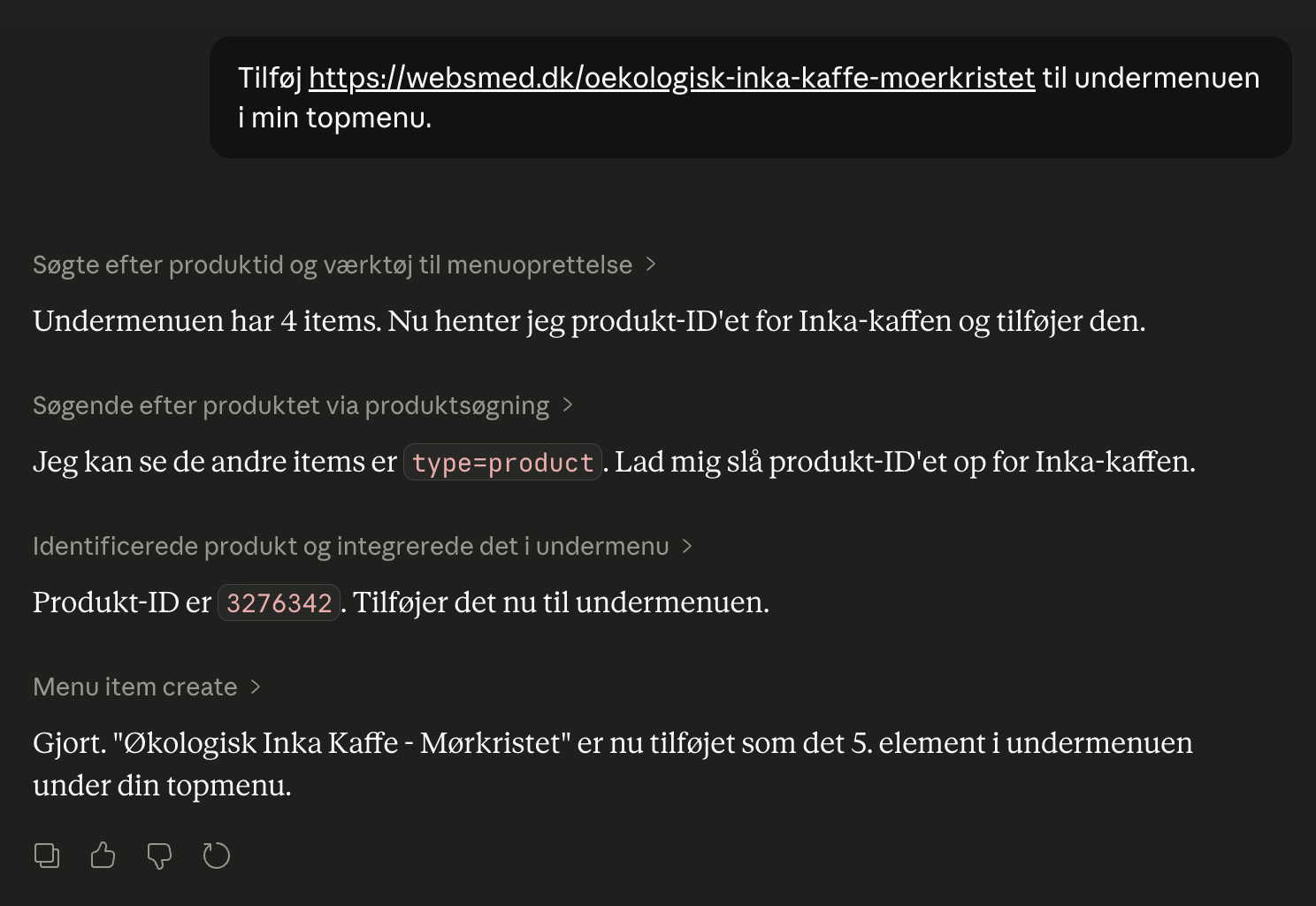
Now you can control your entire webshop by chatting
Launch campaigns, create products and view sales figures via chat in Danish. Shoporama's new AI integration with Claude saves hours in admin every...
Shoporama Symposium 2026: Oplæg, netværk, og cowork i Odense
The Shoporama Symposium 2026 will be held August 27–28 in Odense. View the program, pricing, and how to register. Presentations, networking, and...
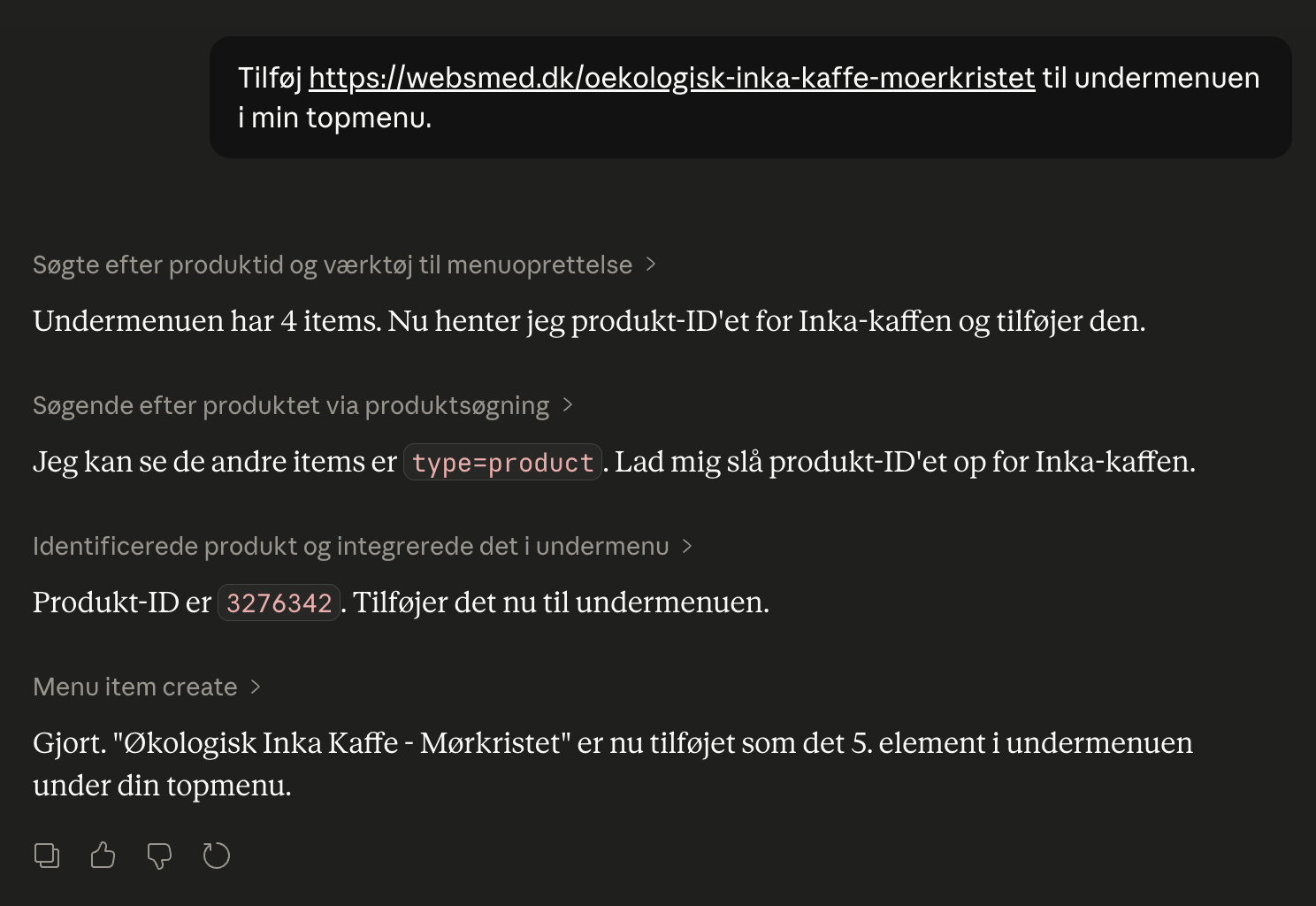
Control the shop with AI
Chat with your online store in Danish. Connect Shoporama to Claude and manage products, orders, promotions, and content directly from the chat.
Manage your store with AI: Connect Claude to your store
Connect Claude to your Shoporama store via MCP. Choose an access level, write some good initial messages, and decide for yourself what the AI is...
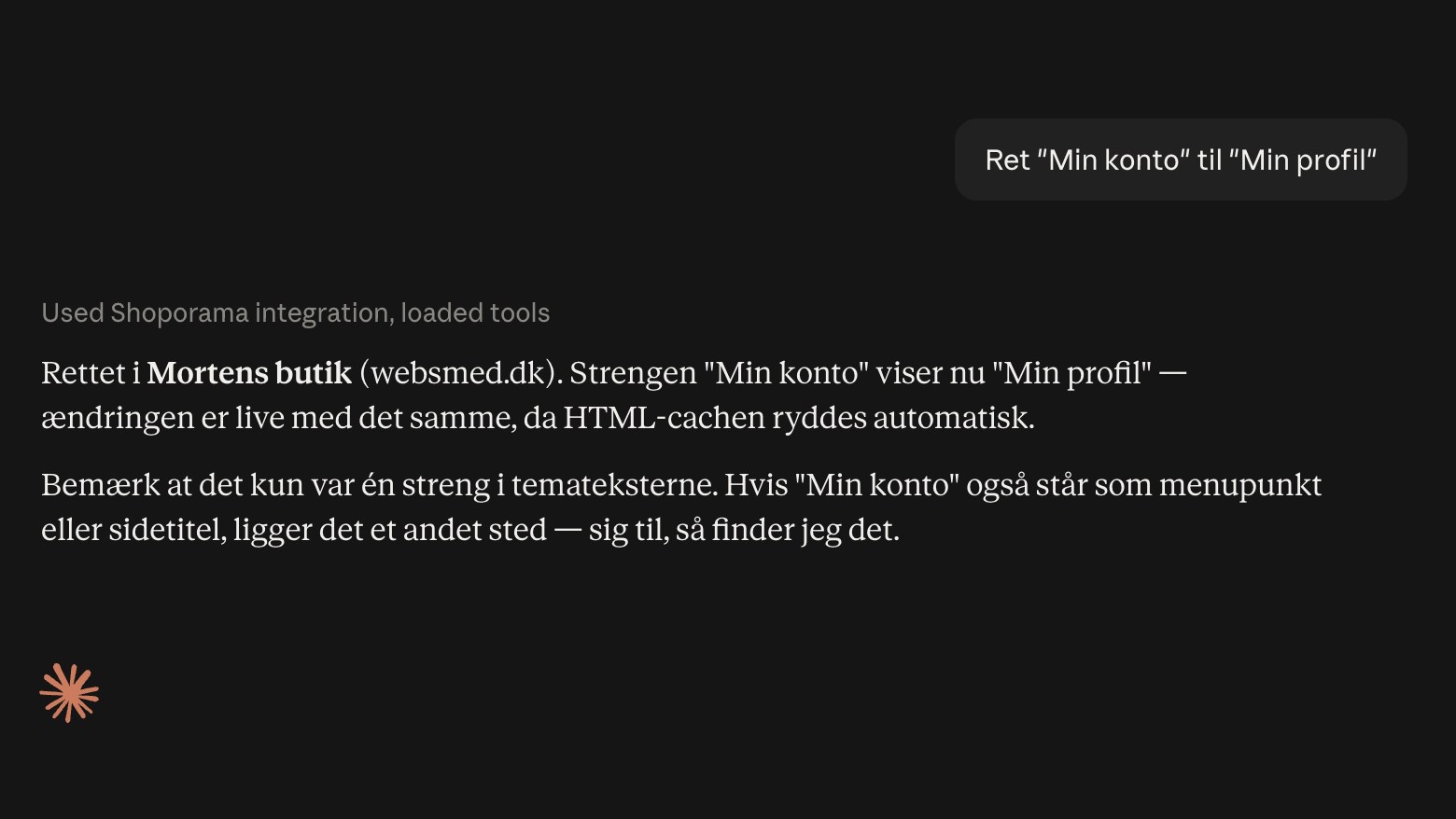
Now, AI can correct the text in your online store
Ask the AI to correct or translate the text in your online store—from buttons to order confirmations. The changes will take effect immediately.