Your Account: Edit Your User Information
How to edit your name and email address in your Shoporama account, what the checkboxes mean, and where to find dark mode, menu options, the Authenticator, and password reset.
Your account is the page on Shoporama where you can edit your personal information. It displays your name and email address, and your email address is also what you use to log in. The page isn’t very big, but it’s important: if your email address is incorrect, you won’t be able to reset your password or be sure that messages from the system will reach you.
Below, we’ll go over the fields, the two checkboxes, the other items in the account menu, and the difference between your own account and your colleagues’ user accounts.
How to find the page
- Click the profile icon in the top-right corner of the admin panel.
- Select “Your Account” from the drop-down menu.
- The page is called Edit Account.
On mobile, your personal settings are located under the “Your Account” heading.
Account Information: Name and Email
At the top of the page is the "Account Information" section with two fields. When you’re done, click the blue "Save" button at the bottom, and the page will reload with your new information.
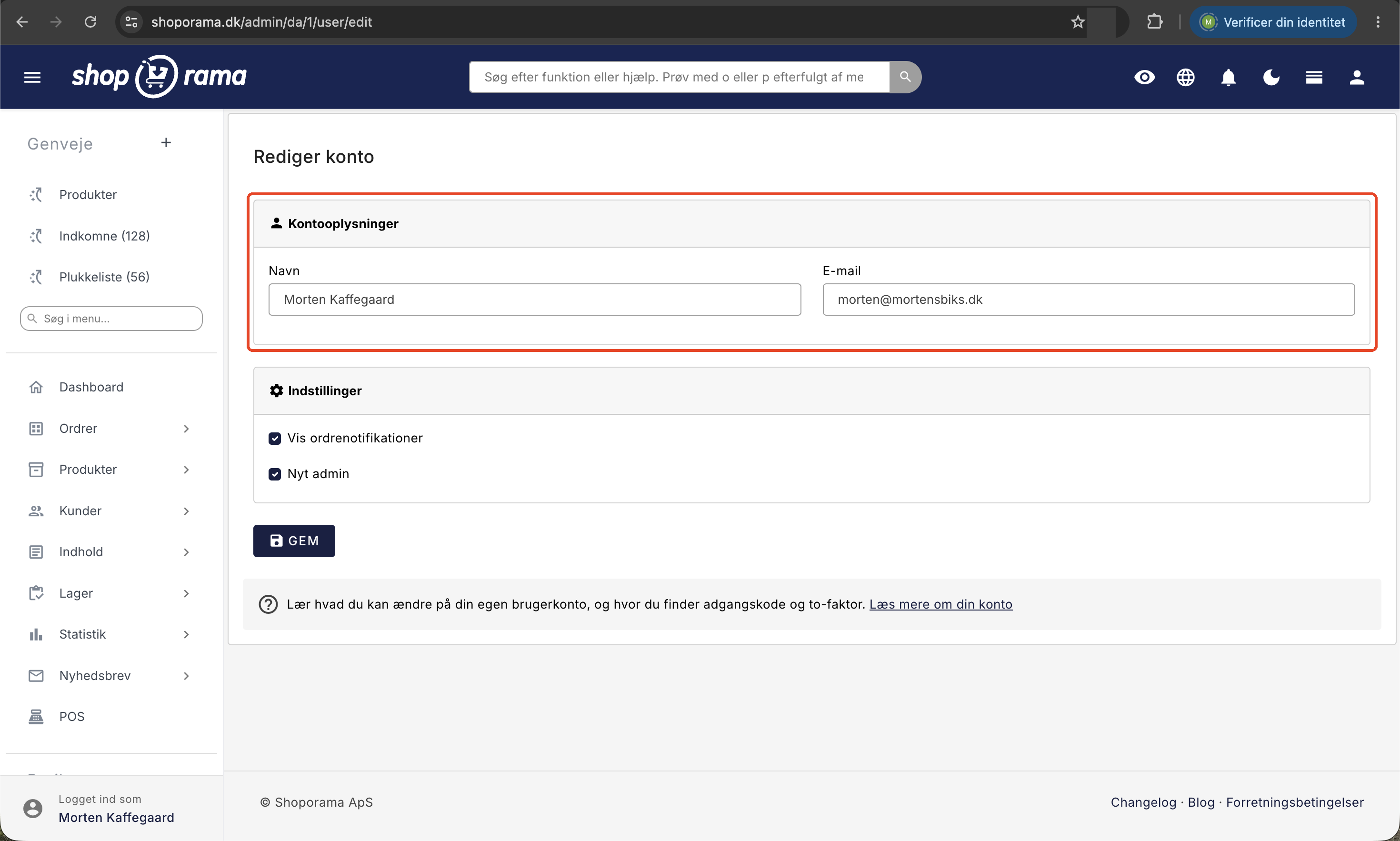
Name
Your name is your display name in the admin panel. The first letter appears in the profile icon in the top right corner, and your full name is displayed when you hover over the icon (Logged in as). Your name also appears when you submit a support request from here. Enter your real name, not a nickname. If you have multiple users, it’s much easier to tell who’s who in the user list and the activity log.
Your email address isn’t just contact information—it’s your username. If you change the address and save it, you’ll need to use the new one the next time you log in. Your password remains the same and won’t be reset by this change.
The email address must be unique across the entire Shoporama platform. If it’s already in use, you’ll see the message “Sorry, but that email address is already in use here,” and nothing will be saved. This typically happens if you’ve previously been a user at another store with the same email address.
The field must not be left blank. If it’s blank, you’ll see the message “Please enter an email address, ” and the name won’t be saved either. Therefore, never clear the email field just to test something.
Settings on the page
Below the account information is the " Settings " tab with space for two checkboxes. They do not function the same way.
Show order notifications
This setting is saved locally in the browser you’re currently using, not in your user account. The selection takes effect the moment you click it and is not affected by the “Save” button. However, it does not carry over to another computer, another browser, or an incognito window, and it disappears if you clear your browser data.
This setting currently controls the sound the system plays when an order is processed in the order queue on the order list. It is therefore not a general notification for new orders. If you want to be sure to catch new orders, use Orders → All Orders or the “Incoming” shortcut, which displays the number of new orders directly in the menu item.
New Admin
This field appears only if your user account was created before September 2024. Newer accounts always run on the current administration system, and for those accounts, the field does not appear on the page at all.
If the checkbox is selected, you’re using the current administration interface. If you uncheck the box and click Save, the entire admin interface will revert to the old design—not just the account page. You can switch back by rechecking the box on the account page in the old design. Our recommendation: leave it checked, as new features are only being developed for the current admin interface.
The other personal settings at the top
A few settings that many people look for on the account page are located in the top bar: dark mode and menu options as icons to the left of the profile icon, as well as the language in the profile menu itself.
Dark mode
The icon with a moon (or a sun, if you’re already in dark mode) toggles dark mode on and off, and the tooltip says “Dark mode.” This setting is saved to your user account, so it follows you no matter which computer you log in from. On mobile, you’ll find it under Your Account.
Sidebar or top menu
Next to it is an icon that switches the main menu. The tooltip alternates between “Switch to top menu” and “Switch to sidebar” depending on which one you’re currently using. The selection is saved to your user account, and the page reloads with the new menu. The icon appears only on computers and tablets, not on phones.
- Sidebar: The menu is on the left side and displays the entire menu tree at once.
- Top menu: The menu is positioned horizontally at the top and provides more horizontal space for long product and order lists.
Language and Store Selection
You can select the language in the profile menu under “Language,” where you can switch between Danish (DA) and English (EN). Your language selection is saved in your browser for 30 days and does not carry over to another computer. On a phone, you’ll find “Language” at the bottom of the menu. If you have multiple stores, there’s also a drop-down list with store names at the top of the menu, and the store you select is saved as your default store.
The other items in the account menu
In the same menu as “Your Account,” you’ll find two security options: “Language” and “Text Size,” and at the bottom, “Logout,” which logs you out of the admin panel.
Authenticator
"Authenticator " takes you to the Two-Factor Login page. You activate two-factor authentication by scanning a QR code with an authenticator app on your phone; after that, you’ll need to enter a code from your phone every time you log in. The page shows whether it’s Active or Inactive, and you can turn it off again by selecting “Deactivate Two-Factor Authentication.”
Please note the warning: if you lose your phone with the app, you’ll need to contact us to regain access. If you forget your password, you can still reset it under “Forgot Password,” but you’ll need the code from the app to log in afterward. For a complete guide, see the article on login and two-factor authentication.
Change Password
Clicking“Change Password” takes you to the “Change Password” page, where you’ll enter your new password twice. It must be at least 10 characters long; otherwise, you’ll see the message “The password must be at least 10 characters long.” If the two fields don’t match, you’ll see “The two passwords didn’t match.” If successful, the page will confirm with “Your new password has been saved.” Changing your password also logs you out of all other sessions, which is a convenient way to secure your account if you’ve been logged in on a public computer. See the article on changing your password.
Your account is not the same as the company’s user accounts
The Account page is solely for you: you cannot create colleagues, assign roles, or remove anyone from the Edit Account section.
To manage other users, go to Company → Users. There you’ll see the company’s users along with their roles and most recent logins. Only the company administrator can create users, edit them, remove them, and assign their roles. New users are created using the “Create New User” button. Read more in the article on roles and permissions, the article on creating multiple users, and the article on removing a user.
An important detail: all users always have access to their own account page and can change their own password, regardless of their role. This also applies to users with highly restricted roles such as Order Processing, Bookkeeper, or Supplier, and it applies even when the online store is closed or awaiting payment. So you don’t need to grant a packaging employee additional permissions just because they need to correct their own name.
Why it’s worth five minutes
- You won’t lock yourself out. An incorrect email address means you won’t be able to receive a link to a new password if you forget it.
- You can see who’s doing what. Using real names for all users saves you the guesswork that comes with an anonymous shared account.
- You’ll be more comfortable. Dark mode and the choice between a sidebar and a top menu might sound like just bells and whistles, but it makes a difference when you’re packing orders for several hours a day.
For the tech-savvy
The settings on the account page fall into two groups:
- Account-specific: follow you across browsers and devices. Name, email, dark mode, the choice between sidebar and top menu, text size, and which store you land on by default.
- Browser-specific: stored locally on your device. The order notifications field and the language selection in the profile menu. These settings don’t carry over to another device and will be lost if you clear your browser data.
If your account has never had an email address registered and you enter one for the first time, the system automatically sends a welcome email with a password. If you receive this unexpectedly, be sure to change your password immediately afterward. Note that the account page does not control access to the API and integrations: permissions are determined by the user’s role, which the company administrator selects under Company → Users, and API keys are located under Integrations → API Access. Once the company administrator has assigned a role to a user, that user’s connections via “Sign in with Shoporama” and the API keys they create themselves can have no higher permissions than those of their assigned role.
Frequently Asked Questions
I’ve changed my email address. Do I need to log in with the new one now?
Yes. The email address on the account page is your username, so starting next time, use the new address. Your password remains the same. If you’re unsure whether the change went through, refresh the “Edit Account” page and check what’s in the field.
I’m getting a message saying the email address is already in use. What should I do?
The address is registered to another user account in Shoporama, often one you’ve had yourself at a previous store. Use a different address, or email support@shoporama.dk, and we’ll help you figure out where the address is in use.
We share a single admin user at the office. Is that a problem?
In practice, yes. With a shared user account, you can’t see who made which changes, and when an employee leaves, everyone has to change their password. It’s better to create one user account per person and assign each user the role that matches their tasks. That way, the company administrator can also see in the activity log who, for example, refunded an order or deleted a product.
I checked the box for “Show order notifications,” but it’s gone on my laptop. Why?
Because that setting is saved in the browser you’re currently using, not in your account. You have to set it on each computer and in each browser. However, the change takes effect immediately and doesn’t require you to click “Save.”
Why does my coworker have a field called “New Admin” when I don’t?
This field only appears on accounts created before September 2024. Newer accounts always use the current administration interface, so the option has been removed for them. If your colleague unchecks the box and saves, the entire administration interface will revert to the old design, so leave it checked.
What happens to my other devices if I change my password?
They’ll be logged out. The change closes all other active logins for your user, so you’ll need to log in again on your phone, tablet, and other computers. It’s also the fastest way to end a forgotten session on someone else’s device.
Our accountant needs to view the numbers but not make changes in the store. Is that possible?
Yes. Create a separate user account for the accountant under Company → Users instead of lending them your own, and assign the user the “Bookkeeper” role. This role allows the user to view orders, products, inventory, customers, statistics, and invoices, but not to make any changes. If the accountant also needs to view cost prices and profit margins, enable the “Cost Prices and Profit Margins” option. The accountant can always change their name and password on their own account page without you having to grant additional permissions.
Where can I see what role I have?
Not on the account page. Your role is listed on the user list under Company → Users, which users with the Full Access role can open. If you see the “No Access” page, your role is typically listed in the message as well, e.g., “Your role (Employee) does not have access to this page.” If you need more access, contact the company administrator. See what each role can do in the article on roles and permissions.
Our packaging employee can’t save dark mode or open Authenticator. Why?
This happens to users who already had the “Order Management” or “Supplier” role before Shoporama introduced roles. For these users, the admin interface works as before until the company administrator changes their role. The Account page and Change Password feature work, but dark mode, menu selections, and text size are not saved, and the Authenticator redirects them to the order list or back to the page they came from. Ask the company administrator to change the user’s role or select an option under Company → Users and click Save. If you save without making any changes, the previous settings will be retained.
I can’t find dark mode on the account page. Where is it?
Dark mode is located as an icon in the top bar to the left of the profile icon—not on the account page itself. Next to the profile icon is the menu layout icon, and the moon icon is right before that. Click the moon icon, and the settings will change immediately. Your selection is saved to your account and follows you to other computers. On mobile, you’ll find it under the “Your Account” heading.
Related articles
Login and two-factor authentication (2FA)
Two-factor authentication (2FA) is optional extra security on your Shoporama login. Choose between the Authenticator app or free SMS and secure...
Change your password in Shoporama
How to change your Shoporama admin password. Step-by-step guide and tips for a secure password.
Create more users in your shop
A guide to creating multiple user logins for your Shoporama admin panel and assigning each user a role that determines what they can do.
Remove a user from your shop
Guide to removing a user from your business in Shoporama admin.
Admin Theme: Customize Your Admin Panel
Customize Shoporama's admin panel with your own CSS. Change colors, highlight important orders, add your own logo at the top, and make it work in...
Roles and Permissions: Give Each User the Right Access
See what the seven roles and five optional features provide access to, which role is best suited for whom, and what only the company administrator...
Activity Log: See who has done what in the admin panel
The activity log shows who has refunded, exported, deleted, imported, or changed access permissions in the administration system, and when. See...
Related features
More users
Assign each employee their own user account and a fixed role so they have only the access required for their tasks. Unlimited users on Pro and...
Two-factor login - extra security for your webshop
Protect your online store with two-factor login. Easy to set up with Google Authenticator, Authy or other TOTP apps.