Admin Theme: Customize Your Admin Panel
Customize Shoporama's admin panel with your own CSS. Change colors, highlight important orders, add your own logo at the top, and make it work in both light and dark modes.
Shoporama's admin interface looks the same for everyone by default. But you can customize the appearance yourself if you want to use your own colors, add your own logo at the top, or simply highlight the orders that require a quick response. You can do this under “Admin Appearance.”
In practice, it’s a single text field where you enter a few lines, and then the admin interface will look different for everyone on the account.
How to Find “Admin Appearance”
Open the menu on the left, scroll down to Company, and select Admin Appearance.
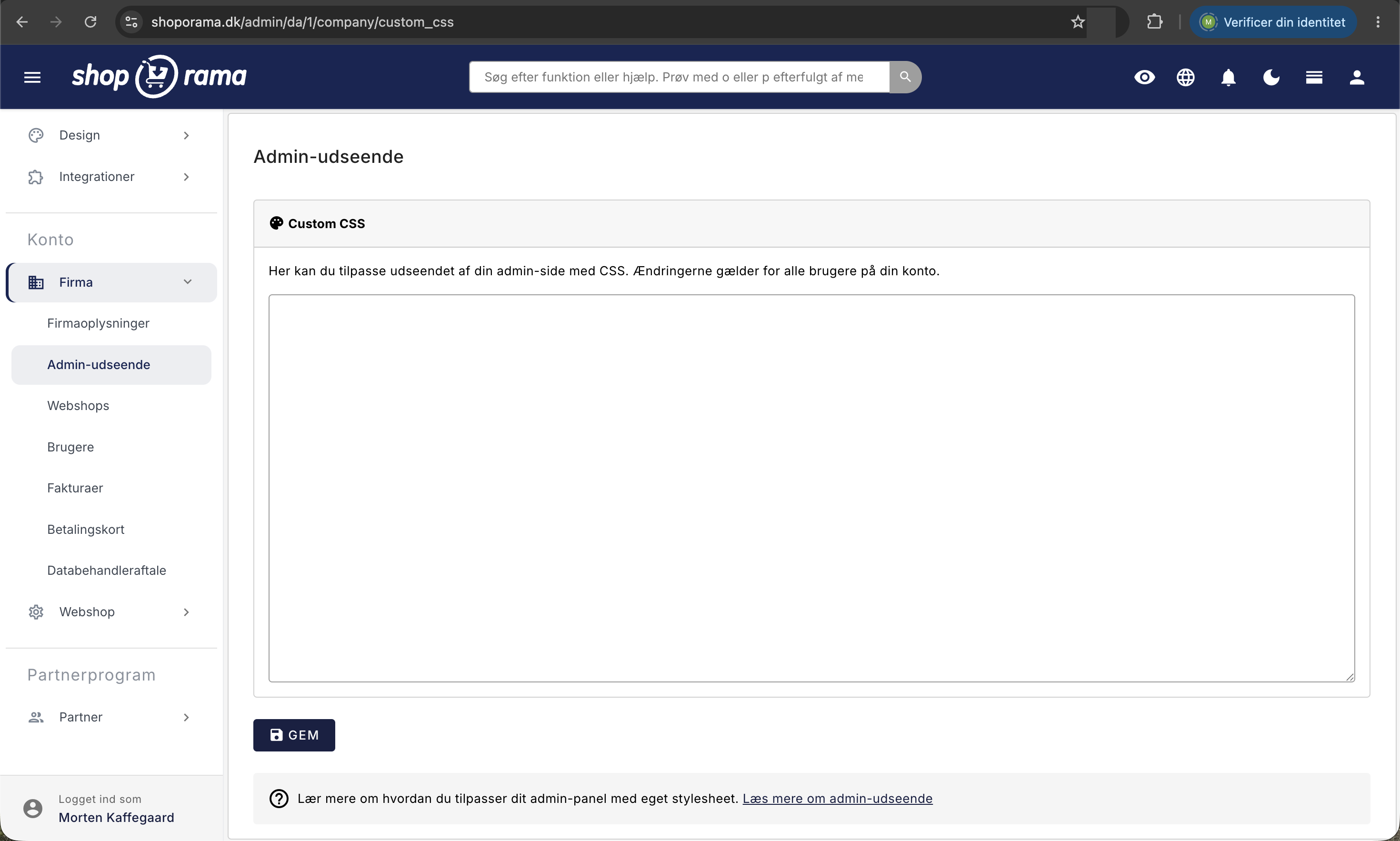
The page consists of a single box labeled Custom CSS. It says: “Here you can customize the appearance of your admin page with CSS. The changes apply to all users on your account.” Below that is a large text field, and at the bottom is a Save button.
- Type or paste your CSS into the text field.
- Click Save, or use Cmd+S on Mac and Ctrl+S on Windows.
- The page will reload, and you’ll see the results immediately throughout the entire admin area.
If you want to undo everything, clear the field and click Save. This will restore the default appearance. Nothing will break in the process.
What is CSS, and what can it do?
CSS is the language that controls how a page looks: colors, font sizes, spacing, and whether an element is displayed at all. You select the element you want to change and then write what should happen:
.top-app-bar {
  background: #14532d !important;
}
This rule says: “anything named top-app-bar should have a dark green background,” and top-app-bar is the bar at the top of the admin panel. !important means “this takes precedence over what Shoporama has specified,” and you’ll usually need to use it. You can change colors, adjust fonts and font sizes, make numbers more visible, rearrange elements, and hide elements you don’t use. However, you cannot add new features or insert JavaScript. The field only changes how the admin panel looks, never what it can do.
Who and what do the changes apply to?
- All users on the account. This is not a personal setting. Your colleagues will see the change the next time they load a page.
- All online stores under the same company. Further down, you can see how to target a single store.
- Only the admin panel, not your store. Your customers won’t see any of this. If you want to change the store’s appearance, do so in the theme under “Design.”
- Only when logged in. The login page is not affected.
- Only users with the Full Access role can edit the field. There is no separate permission specifically for the Admin appearance, so agree internally on who is allowed to make changes there. Users with a different role cannot open the page, but they can still see the result. Read more in Roles and Permissions.
Three examples you can copy directly
1. Give the top bar your own color
The easiest and most noticeable change. Replace the color code with your own:
.top-app-bar {
  background: #14532d !important;
}
2. Color-code orders with a specific shipping method
Each order line in the order overview is automatically assigned a series of names that describe the order. One of these is the shipping method’s name in lowercase, where everything except the letters a through z is replaced with underscores. "Pickup" becomes pickup, and "Post Nord" becomes post_nord. If pickup orders should be yellow so the packing department can spot them:
tr.pickup {
  background: #fff3cd !important;
}
If you’re unsure of the exact name, you can right-click on the order line and select “Inspect” or “View Source.” There’s a step-by-step guide in Change the background color of orders with specific delivery.
3. Make the order number larger
If you’re holding your phone in one hand and need to find an order number in a long list:
.shoporama-order-id-link {
  font-size: 16px;
  font-weight: 700;
}
Add your own logo at the top
If you’re an agency managing a store for a client, or if you just want to see your own brand, you can replace the Shoporama logo in the top-left corner. The logo must be located at an address accessible via HTTPS, and the address must be written without quotation marks:
.navbar-brand img {
  content: url(https://dit-domaene.dk/logo.svg);
  width: 160px;
}
If you’d rather just hide the logo, you can simply use ` display: none`.
Remember Dark Mode
The admin panel is available in both light and dark modes. Dark mode is a personal setting that each user enables themselves, so you can’t assume your colleagues are using the same mode as you. Your CSS must work in both modes.
The pitfall is light colors. A pastel background that looks nice in light mode turns into a garish mess with unreadable text in dark mode. The solution is to write the rule twice and place ` body.dark-mode ` before the last one:
tr.pickup {
  background: #fff3cd !important;
}

body.dark-mode tr.pickup {
  background: #3a3320 !important;
}
And test it: turn on dark mode in your own account, browse through the page, and turn it off again.
Multiple stores? Give each store its own color
The classic mistake when running multiple online stores from the same account is correcting a price or shipping an order from the wrong store. A colored top bar for each store eliminates this problem. Each store has its own number, which appears in the browser’s address bar. If it says /admin/da/7/, you’re in store number 7, and you can target it by adding body.webshop7 before the rule:
body.webshop1 .top-app-bar {
  background: #14532d !important;
}

body.webshop7 .top-app-bar {
  background: #7c2d12 !important;
}
There’s no cheaper way to protect yourself from making changes in the wrong shop. Read more in “How do I create another web shop?”
When is it worth the money?
- Agencies and web developers. Add your own logo and colors so customers see your brand when they log in.
- Multiple stores on one account. Color-code each store so no one edits the wrong one.
- Packing and inventory. Color-code orders that require special handling, such as in-store pickup. Fewer packing errors mean money saved.
- Training. Hide the parts of the menu you don’t use so new colleagues have less to worry about. If a colleague only needs access to part of the admin panel, assign them a more limited role, such as “Employee.”
- Accessibility. Increase the font size in one place for everyone if the numbers are hard to read.
Good to know before you get started
- This is cosmetic, not a change to permissions. If you hide a menu item, the feature still exists and can still be accessed. If an employee needs to be effectively blocked from access, a company administrator must assign them a role other than “Full Access” under Company > Users. Then the menu will only show what that role is permitted to see, and the rest of the admin panel will be blocked. See Roles and Permissions.
- The field only accepts CSS. It does not accept JavaScript, tracking codes, or HTML. If you need to add code to the store, use “Insert Code” in the head and body sections of your Shoporama store.
- Some characters cannot be used. Quotation marks, apostrophes, the greater-than sign, and the ampersand do not work in this field. See the technical section below.
- The names may change. We’re constantly developing the admin panel, so a rule may stop working after an update. Nothing else happens—the change simply loses its effect.
- Don’t see the change? Perform a hard refresh using Cmd+Shift+R or Ctrl+F5.
- Save a copy of your CSS in a document so you can always paste it back in.
For those with a technical background
The field’s content is placed in a ` style` element in the header of all admin pages for logged-in users at the company, following the platform’s own stylesheets. So you gain an advantage in terms of priority, but both utility classes and dark mode use `!important` in several places, so expect to have to use it yourself.
Characters You Can’t Use
The content is HTML-escaped, and since a `style` element does not decode HTML entities, quotation marks, apostrophes, `>`, `<`, and `&` will not be preserved. In practice, this means:
- Use descendant selectors, such as `.card .card-header`, instead of the child selector.
- Write url(https://...) without quotation marks.
- Avoid `content ` with text values, as they require quotation marks. Images via ` url()` work fine.
- Use ` max-width ` and ` min-width ` in media queries, not the newer `range` syntax.
- CSS nesting with the ampersand (&) does not work. Write the selectors in full.
However, @media, calc(), CSS variables, pseudo-classes, and attribute selectors with values without quotation marks do work.
Hooks you can use to attach your CSS
On the `body`, you’ll find, among other things, ` webshop<number> ` (the shop’s number from the URL), `dark-mode`, and `layout-topmenu`. Each order line in the order overview includes, among other things:
- paid or unpaid.
- The order’s status, such as new, process, sent, pending, ready, canceled, ready_for_pickup, or picked_up.
- The shipping method name in lowercase, where everything other than the letters a through z is replaced with an underscore. Numbers, spaces, and the characters æ, ø, and å are also replaced with underscores.
- “ean” for orders with an EAN number, “credit_note” for credit notes, and “has_pickup_address” or “no_pickup_address” depending on whether the order is to be delivered to a package pickup location.
The older guide in “Custom CSS” includes a few additional examples of selectors in the menu.
Frequently Asked Questions
I don’t know how to code. Can I still use it?
Yes. Copy the examples above into the field and just edit the color code. If something goes wrong, clear the field and click Save, and everything will be back to normal. If you want something more advanced, your web developer can handle it in a few minutes, or you can email support@shoporama.dk.
Will this affect my customers on the online store itself?
No. The field applies exclusively to the admin panel—that is, what you see when you’re logged in. Your customers won’t notice a thing. If you want to change the store’s appearance, do so in the theme under Design.
Does my CSS also apply to my colleagues?
Yes, and it’s also stated on the page: the changes apply to all users on the account, regardless of their role, across all online stores under the same company. So please let your colleagues know before making any significant changes.
How do I undo changes if the admin interface looks strange?
Go to Company, Admin Appearance, select everything in the field, delete it, and click Save. This will restore the default appearance. If you still see the old layout, perform a hard refresh using Cmd+Shift+R or Ctrl+F5.
Can I use different colors for my different shops?
Yes. Type body.webshop followed by the shop’s number before the rule. The number is in the browser’s address bar right after the language code. This way, each shop has its own color, making it harder to edit the wrong one.
Does this work in dark mode?
Your CSS loads in both modes but isn’t automatically adjusted. A light background color will also appear light for a colleague in dark mode. Therefore, add an extra rule with “body.dark-mode” at the beginning, and test the page in both modes.
Why isn’t my rule working?
The three most common reasons: you’re missing `!important`, so the platform’s own styling takes precedence; the selector is misspelled; or the rule contains quotation marks or a greater-than symbol, which aren’t allowed in the field. Also check that the page has reloaded completely.
Can I insert JavaScript or a tracking script here?
No. The content is inserted as pure CSS, and characters such as the less-than and greater-than symbols are re-encoded during the process, so a script tag can never be executed. If you need to add a script to the store itself, there’s a separate place for that, which is described in the article on inserting code into the `head` and `body` tags.
Can I hide menu items so that new employees don’t mess with prices and settings?
You can hide them visually, but this applies to all users and does not restrict access. Instead, a company administrator can assign the employee a role other than “Full Access” under “Company,” “Users.” With the Employee role, for example, the user can work with products, orders, and customers, but cannot access the online store’s settings. With the Order Management role, the user can process orders and view products and prices, but cannot edit them. New users are granted Full Access unless a different role is selected during setup.
Can I replace the Shoporama logo with my own?
Yes. Click on the logo image at the top and replace it with the URL of your own logo. The logo must be accessible via HTTPS, and the URL should be entered without quotation marks. This is particularly useful for agencies that want to showcase their own brand to the customer.
If you need help with a specific change, feel free to email support@shoporama.dk. Please describe exactly what you’d like to change and include a screenshot.
Related articles
Change the background color on fixed delivery orders
Learn how to give orders with a specific shipping method a special background color in the admin order overview.
Create an additional webshop
Guide to creating an additional online store under the same login in Shoporama.
Create more users in your shop
A guide to creating multiple user logins for your Shoporama admin panel and assigning each user a role that determines what they can do.
HTML fields: Insert Cookiebot, GTM and other scripts in your online store
How to use Shoporama HTML fields to insert Cookiebot, Google Tag Manager, Facebook Pixel, chat widgets and other custom HTML/JavaScript on your...
Pink orders - missing transaction ID
Explanation of what it means when orders are pink and it says 'Missing trans. id'.
How do I change company information
Guide to changing company name, address and other business information in Shoporama.