Inventory Overview: Your inventory status all in one place
View quantities, variants, warehouse locations, cost prices, and inventory value for your entire product range in a single table. Here’s how to interpret the numbers, filter the list, and update inventory directly from the overview.
The inventory overview displays your entire inventory in a single table: quantity per product, quantity per variant, quantity per warehouse location, selling price, cost price, and the item’s location. You can search, filter, sort, and edit inventory directly in the list without having to click into each product. You’ll find this page in the menu on the left under “Inventory” and the “Overview” section. The page header is titled “Inventory Movements” if you’re using inventory management with entries, and otherwise simply “Inventory.”
Inventory Value at the Top of the Page
At the top, you’ll see a line that reads something like “Your inventory is worth 124,500.00 DKK (excl. VAT) at cost.” This is the total value of everything in stock, calculated at cost and excluding VAT, and it is based on the cost prices listed in the inventory entries, not on the sales prices. The figure is recalculated overnight, so any inventory you’ve just added won’t be included until the next day. The line is only displayed if a value has been calculated. See Calculating Inventory Value and Cost Prices and Inventory Value for details.
The columns in the table
The table displays 25 products at a time, with the most recently created ones at the top.
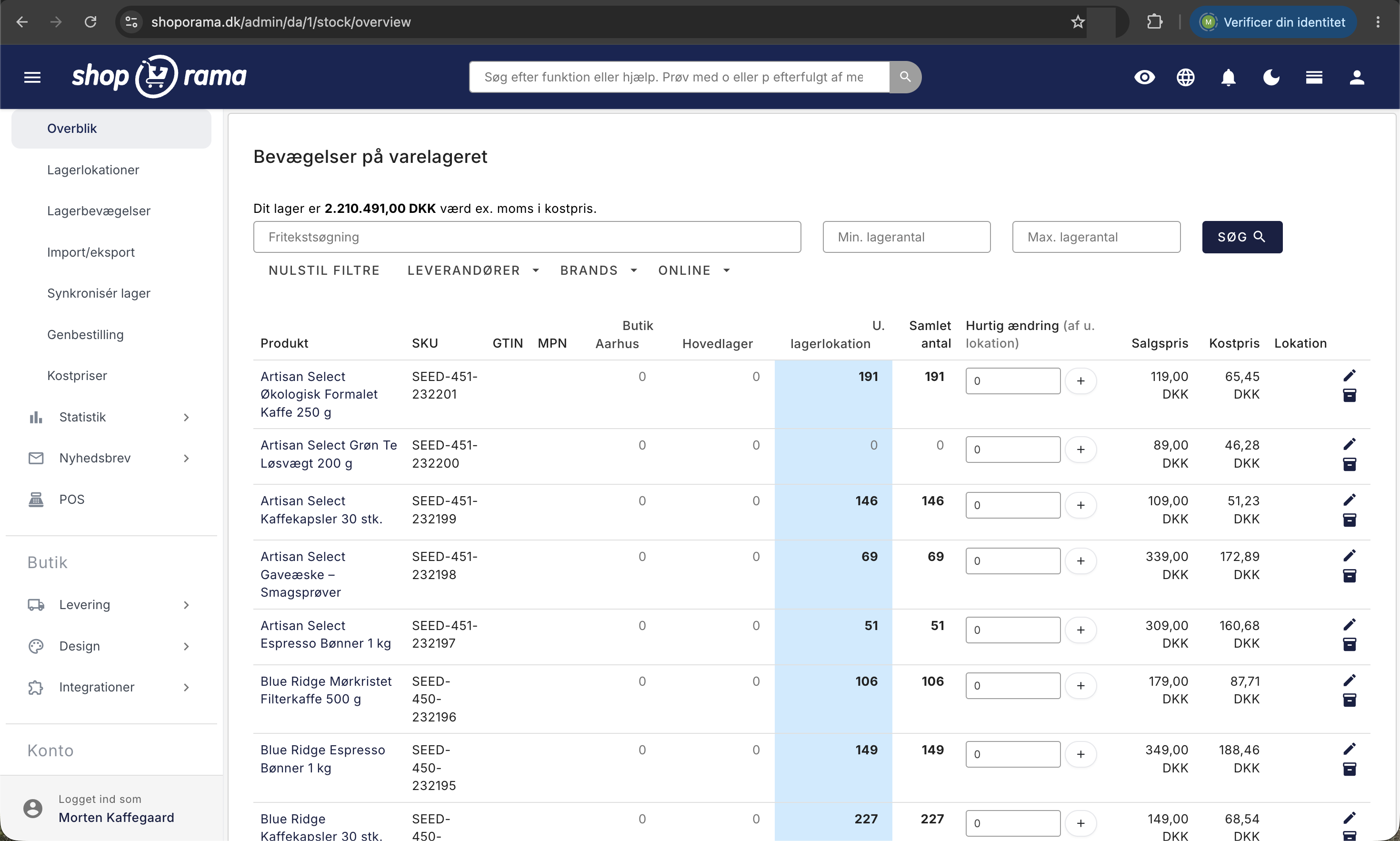
- Product: the name, which is also a link to the product.
- SKU, GTIN, and MPN: your item number, the barcode, and the manufacturer’s part number.
- One column per storage location, plus “U. Storage Location,” short for “unassigned.” Both are displayed only if you have created storage locations.
- Total Quantity, or simply Quantity if you don’t use storage locations: the total inventory.
- Quick Edit: a numeric field and a plus button that posts a change immediately.
- Selling price: the product’s price. If there is a promotional price, the regular price is crossed out with the promotional price shown below it.
- Cost: the purchase price you’ve entered. If none is entered, the field is left blank.
- Location: the free-text entry from the “Warehouse Location” field, such as a rack or shelf number.
On the far right, the pencil icon opens the product for editing, and the box icon opens the product’s “Inventory” page—the same page you access by clicking “Inventory” at the top of the product. Here you’ll find the individual entries: date and time, movement type, unit price, and inventory location. An addition is indicated by a green up arrow, and a removal by a red down arrow.
How to Understand the Inventory Count
The number in “Total Quantity” is not a field you’ve entered, nor is it something you can edit directly. It’s a calculated total of all inventory entries for the product. Every time items come in, go out, or you make a correction yourself, an entry is created with a plus or minus number, and the inventory is the sum of those entries. That’s why you can always track how you arrived at that number via the cash register icon, and why you can’t simply “set” the inventory to 40. You post the difference: if it says 37 and you’ve counted 40 on the shelf, you enter 3.
Variants get their own lines
If a product has variants—such as sizes or colors—each variant gets its own line under the product, marked with an arrow. The variant line shows the variant’s own SKU, GTIN, MPN, quantity per location, total quantity, cost price, and any variant price, and you can edit the quantity directly on the line. The product line displays “At the variant level” instead of a number field because inventory is managed per variant. See Product Profiles and Variants for more information on setup.
Note that the location columns on the product line only count entries made without a variant. Therefore, the location columns may show 0, while “Total Quantity” displays several hundred units. The actual numbers are located on the variant lines. Assembly kits also behave differently: if a kit is set so that its inventory status reflects its contents, “Assembly Kit” appears in the Quick Change column, and the quantity is calculated based on how many complete kits you can create from the parts.
Warehouse Locations in the Overview
A warehouse location is a physical place where you store items: a main warehouse, a store, or a remote warehouse. You create them under Inventory and Warehouse Locations. If you don’t have any, the overview is simple, with just one column: “Quantity.” As soon as you have at least one warehouse location, three things happen:
- A column appears for each warehouse location, in the order you’ve set for the locations.
- A column labeled “Unassigned” appears, listing items that are in stock but not assigned to a specific location. These are typically entries from before you created locations, or receipts where no location was selected.
- The “Quantity” column changes its name to “Total Quantity” and displays the inventory across all locations.
The headers with location names are clickable, and clicking them does two things: it sorts the list by the quantity at that specific location, and it makes the location active. The active column is highlighted in color, and the text next to “Quick Edit” changes to, for example, “Quick Edit (of Main Warehouse).” If you click again, the sort order reverses, and an arrow indicates the direction. When an item is sold in the online store, it is deducted from the location you have marked as the default location.
Quick Edit: Edit inventory directly in the list
- If you have warehouse locations, first click the header for the location where the items are to be added. If they are to be added without a location, click “No warehouse location.”
- Make sure the text under “Quick Edit” specifies the correct location.
- Enter the quantity in the field next to the product or variant. A positive number adds to stock, a negative number subtracts from stock, and fields with 0 are skipped.
- Click the plus button. The page will reload, and the new numbers will appear immediately.
You can fill in multiple fields before clicking, and the fields are arranged in tab order, so you can tab down through the list without touching the mouse. Please note that a quick edit records a quantity but no cost price. The items are thus included in inventory, but without a price in the inventory value, which lowers the average cost price. If you want the inventory value to be accurate, use the Cost Prices page under Inventory.
Search and Filters
- Free-text search: matches parts of the product name and location, while the item number and barcode are matched exactly and must therefore be entered in full.
- Min. Stock Quantity and Max. Stock Quantity: Filter by quantity. If only “Max” is filled in, it finds items that are running low. If only “Min” is filled in, it finds items that are piling up.
- Suppliers and Brands: checkboxes, each with its own “Apply” button.
- Online: Choose between “All,” “Only products that are online,” and “Only products that are not online.”
The Search button submits the search field and the two quantity fields, and Reset Filters clears everything. For products with variants, the quantity filters look at both the product’s total count and the counts for each individual variant, so a product is included if just one of the numbers falls within the range. This is handy when you’re looking for that one size that’s about to run out.
How to use the overview in practice
- Inventory count: Filter by a supplier or brand, and enter the quantities as you stand by the shelf.
- Goods Receipt: Click on the location where the goods are being received, search for the supplier, and enter the quantities line by line.
- Purchasing list: Enter 3 in “Max. stock quantity” and combine with “Only products that are online.”
- Tied-up capital: Sort in descending order by the location you want to check, and compare the quantity with the cost price in the same row.
- Troubleshooting: Negative numbers stand out and usually mean that more was sold than was in stock.
If you have both a physical store and an online store, the location columns are what make the difference. You can see on a single screen whether the last three items are in the store or at the remote warehouse.
For the tech-savvy
The stock count is not a column you can set, but an aggregation of entries, where each incoming and outgoing transaction is its own row with a sign. Two concepts are therefore easy to confuse: the list of entries consists of transactions with a time, quantity, price, and possibly a location, and says nothing about the inventory itself, while the stock count is the sum of those entries. This is the number in “Total Quantity,” and it’s also the one you use in themes and integrations, where you retrieve it with `getInStock()`, possibly with the variant’s attributes as an argument.
If you need to update many products at once, “Quick Edit” is not the right tool. Use the CSV import under “Inventory” and “Import/Export,” as described in “Update Inventory with a CSV File.”
Frequently Asked Questions
Can I remove items, or can the field only add them?
You can do both. The field is called “Quick Edit,” not “Add,” and a negative number works the same way as a positive number. For example, enter -2 and click the button, and two units will be deducted from inventory. If you enter 0, nothing happens.
Are my filters preserved when I navigate to the next page?
Free-text search, quantity filters, supplier, brand, and sorting are carried over. The online filter and the selected warehouse location are not, so you’ll need to set them again on the new page if you need them.
Why does the column for my warehouse location show 0 when the product is clearly in stock?
Either the items are listed in the “No warehouse location” column because they were added without being assigned to a location, or it’s a variant product. On the product row for a variant product, the location columns only count entries without a variant. You’ll find the numbers on the variant rows directly below.
What is the difference between the “Location” column and a warehouse location?
The “Location” column is a free-text field where you enter information about the product’s storage location, such as “Shelf B, shelf 3,” and it serves as a note for the pickers. A warehouse location, on the other hand, is an actual warehouse where Shoporama tracks inventory levels, and it has its own column in the table.
Does “Quick Edit” also change my inventory value?
Not directly. A Quick Edit posts a quantity without a cost price, and items without a cost price aren’t included in the value. However, they do count toward the total quantity over which the average price is calculated, so the value per unit will be lower. To ensure your accounting balances, use the "Cost Prices" page under "Inventory."
Why can’t I edit the quantity of my bundle?
Because the bundle is set up so that its inventory status reflects its contents. The quantity is calculated based on how many complete bundles you can create from the individual items. If you want to manage the bundle’s inventory separately, you must disable that setting on the product.
How many products are displayed at a time, and can I export the list to a spreadsheet?
25 products are displayed per page, and variant lines are added on top of that, so a page can contain many more rows. The overview cannot be downloaded directly as a file, but the CSV functions are located under Inventory and Import/Export.
Can I see when the stock level for a product was last updated?
Yes. Click the box icon at the far right of the product’s row to open the product’s Inventory page, which displays individual entries showing the time, movement, unit price, and inventory location. The entry list requires that inventory management with entries be enabled.
Related articles
Calculating inventory value
Explanation of how the inventory value is calculated in Shoporama. Weighted average, cost price, bundles, variants and credit notes.
Cost Prices and Inventory Value
Fill in any missing cost prices to get a more accurate inventory value and profit margin. Guide to the Cost Prices page.
Product Profiles and Variants
Guide to product profiles and variants in Shoporama. Understand how profiles, attributes and variants are related.
Update stock with CSV file
Guide to updating inventory on many products via CSV import in Shoporama.
Receive email when stock is low
Guide to receive an email notification when the stock status of a product reaches a certain quantity.
Shared inventory between webshops
Guide to setting up shared inventory so that two Shoporama webshops draw from the same inventory.
Related features
Stock integrations
Inventory management keeps track of inventory and avoids overselling or underselling. Read about inventory management, stock alerts and integration.
Batch Control
Manage batch and lot numbers with expiration dates, supplier tracking, and the FIFO principle. Full traceability from supplier to customer.
Stock integrations
Stock records, stock locations, order list, stock value and automatic notifications. Avoid overselling with Shoporama inventory management.