Update stock with CSV file
Guide to updating inventory on many products via CSV import in Shoporama.
Instead of manually updating each product’s inventory status, you can upload a CSV file with your inventory status. The file simply needs to include the product’s SKU and quantity in stock.
Prerequisites
Important: Unique SKU Numbers
It is essential that no two products have the same SKU. If you have products with variants (e.g., T-shirts in small, medium, large), each variant must have its own unique SKU—for example, 557788-S, 557788-M, 557788-L.
File Format
The CSV file must contain two columns separated by semicolons: SKU and quantity.
283750;90
283742;130
283634;60
In this example, 90 units of the product with SKU 283750 are added to inventory, 130 units of 283742, and so on.
Save the file as a .csv —for example, stockstatus.csv.
Upload the inventory file
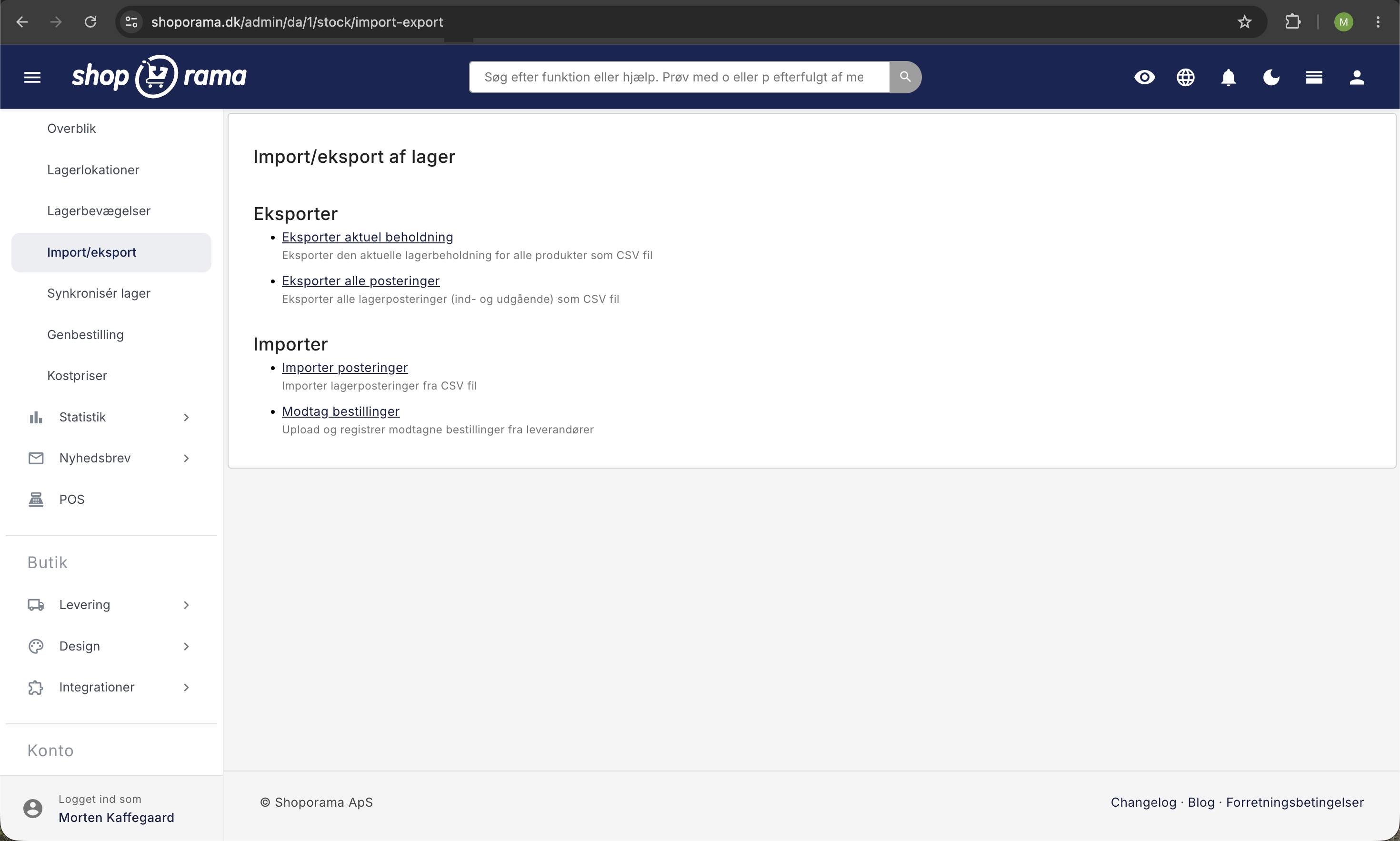
- Click Inventory in the menu
- Click Import/Export and then Import Entries
- Click “Browse” and select your CSV file
- Click "Upload"
Your inventory will be updated within the next few minutes. You will also receive a confirmation email.
Note
The inventory value (cost × quantity) is not updated via CSV upload. If you need to update the inventory value, you must do so manually or via product import.
Example with variants
If you have a T-shirt with three sizes, the file will look like this:
TSHIRT-S;25
TSHIRT-M;40
TSHIRT-L;15
Each variant is updated individually based on its unique SKU.
Need help? Contact us at support@shoporama.dk.
Related articles
Shared inventory between webshops
Guide to setting up shared inventory so that two Shoporama webshops draw from the same inventory.
Stock notification: Notify your customers when items are back in stock
Learn how to set up email notifications so your customers can be notified when out-of-stock products are restocked in your Shoporama online store.
Update the cost price of multiple products at once
Guide to mass edit the cost price (purchase price) of multiple products in the Shoporama admin.
Related features
CSV
CSV is a file format for tabular data used for import and export in online shops. Read about CSV files, product import and order export.
Mass editing
Edit many products at once. Loop Edit, stock update, bulk actions and queued bulk edits in the background.
Import your products from a CSV file or another platform
Import your products from a spreadsheet, Shopify, DanDomain, or Magento. Here's how to prepare the file, include images and inventory, and avoid...
Stock integrations
Stock records, stock locations, order list, stock value and automatic notifications. Avoid overselling with Shoporama inventory management.
Import features - move your shop or update thousands of products
Import via CSV or migrate from Shopify, DanDomain and Magento 2. Products, categories, prices, stock and extra fields.