Max. quantity per order: Limit how many items a customer can purchase
Here's how to set a purchase limit on an item so that customers can only buy a certain number per order. See what the customer experiences, what factors are taken into account, and how to identify customers who make repeat purchases within 24 hours.
The "Max. quantity per order" field lets you set the maximum number of units of an item a customer can purchase in a single order. If you set the limit to 2, a third item cannot be added to the cart, and the online store will verify this again throughout the checkout process.
This is useful when an item should only be sold in limited quantities at a time. This could be over-the-counter medication, an item you have only a few of in stock, or a special offer that needs to reach many customers and not end up in the hands of a single bulk buyer. You’ll need to determine for yourself which rules apply to your specific products.
How to set the limit
- Go to Products > All Products, and open the item.
- Find the Inventory Management tab.
- Enter the highest number in the “Max. quantity per order” field, located in the row below “Packages.”
- Click Save and Close, or Save and Continue Editing if you want to stay on the page.
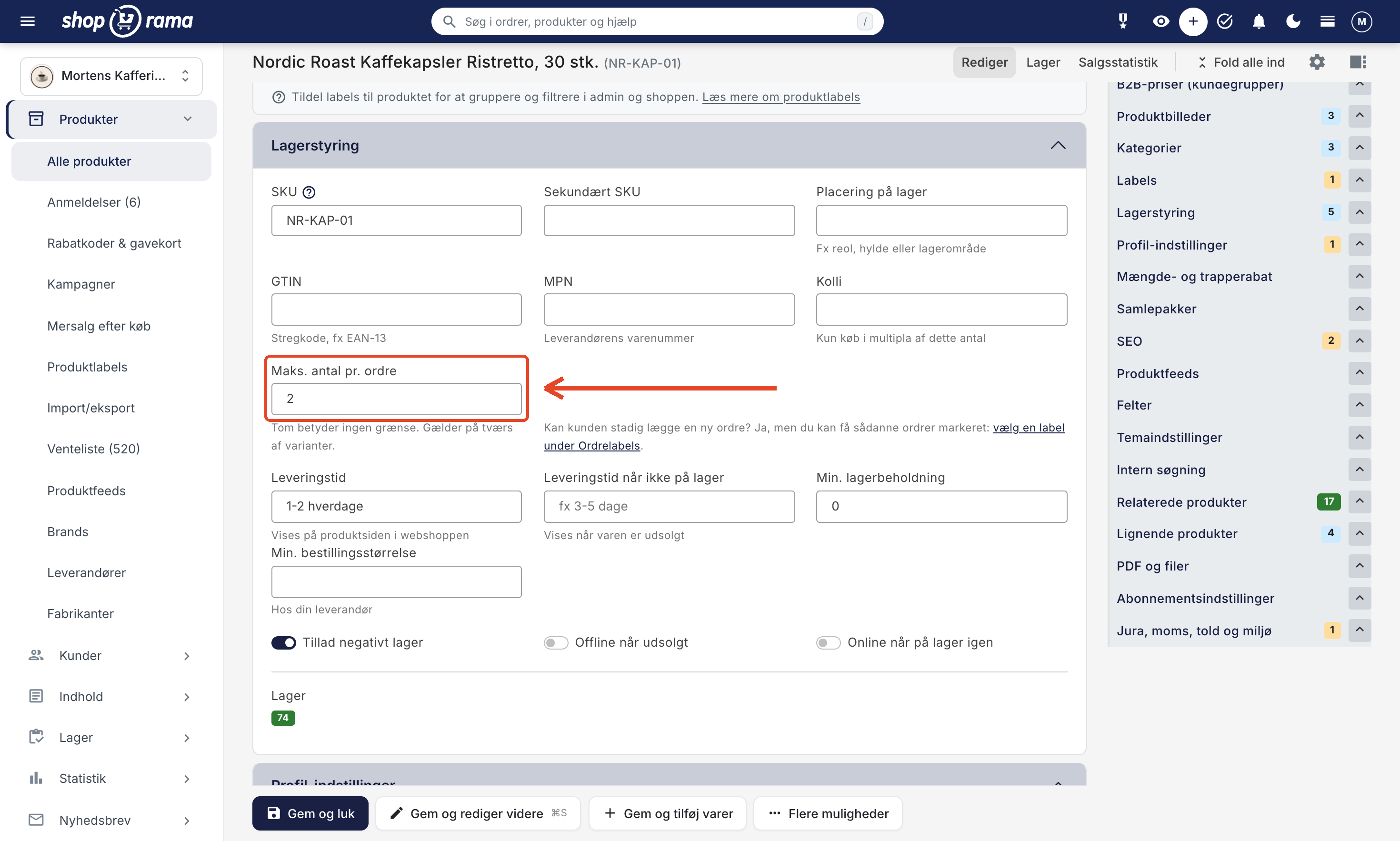
The limit applies to the entire product, across all variants. An empty field means no limit; to remove the limit, clear the field and save. You can enter any whole number up to 65,535. If you copy the item, the limit is copied along with it.
What the customer sees
In Shoporama’s built-in themes, the customer can see the limit before adding anything to the cart. The images here are from Montana:
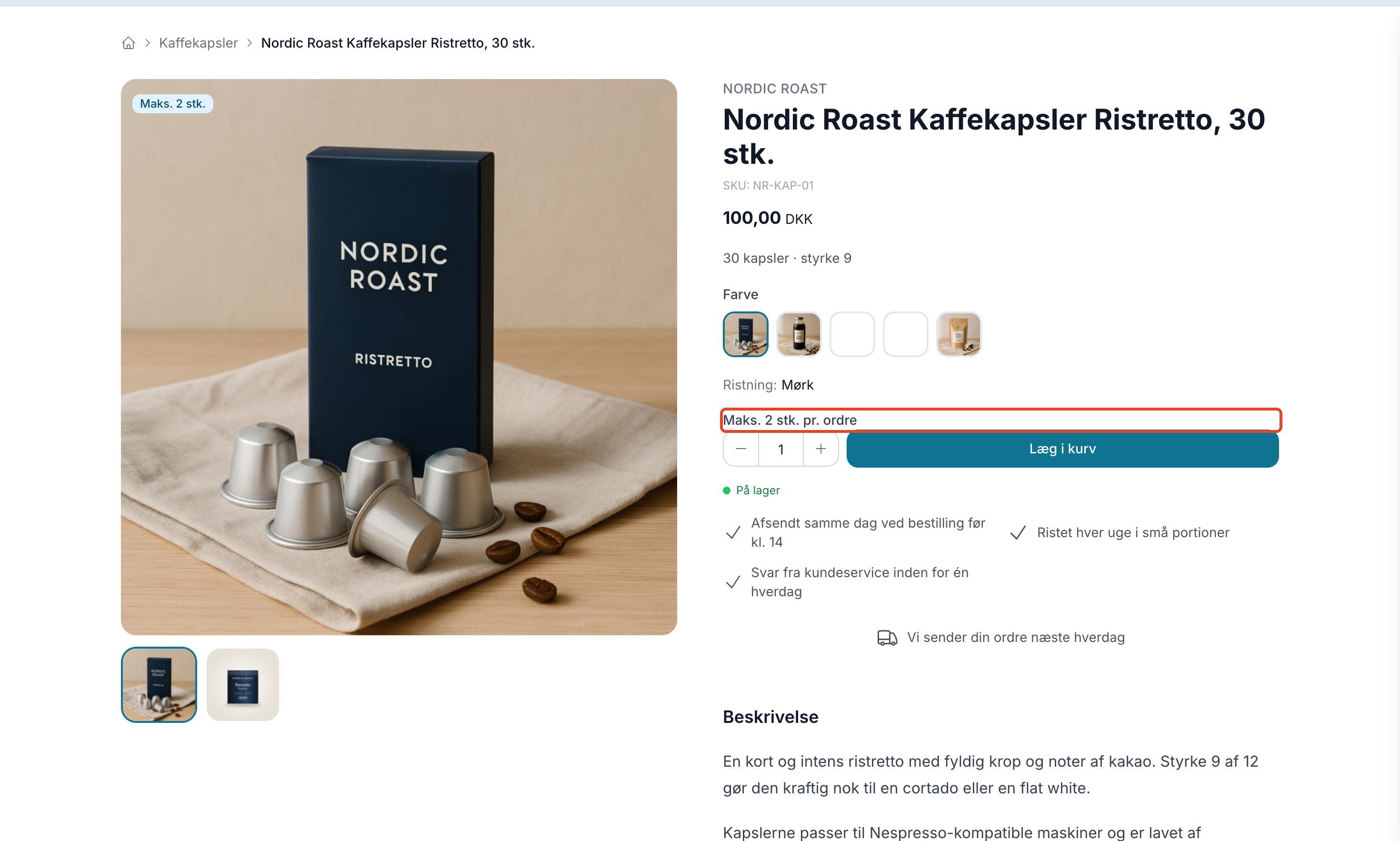
- On the product page, the text “Max. 2 per order” appears next to the “Buy” button, and the quantity field cannot be set higher than the limit.
- A small badge with the text “Max. 2 items” appears on the product image, both on the product page and on the product cards in lists.
If the customer still tries to purchase more than the limit, a yellow message appears at the top of the page: “You can purchase a maximum of 2 items of [product name] per order.”
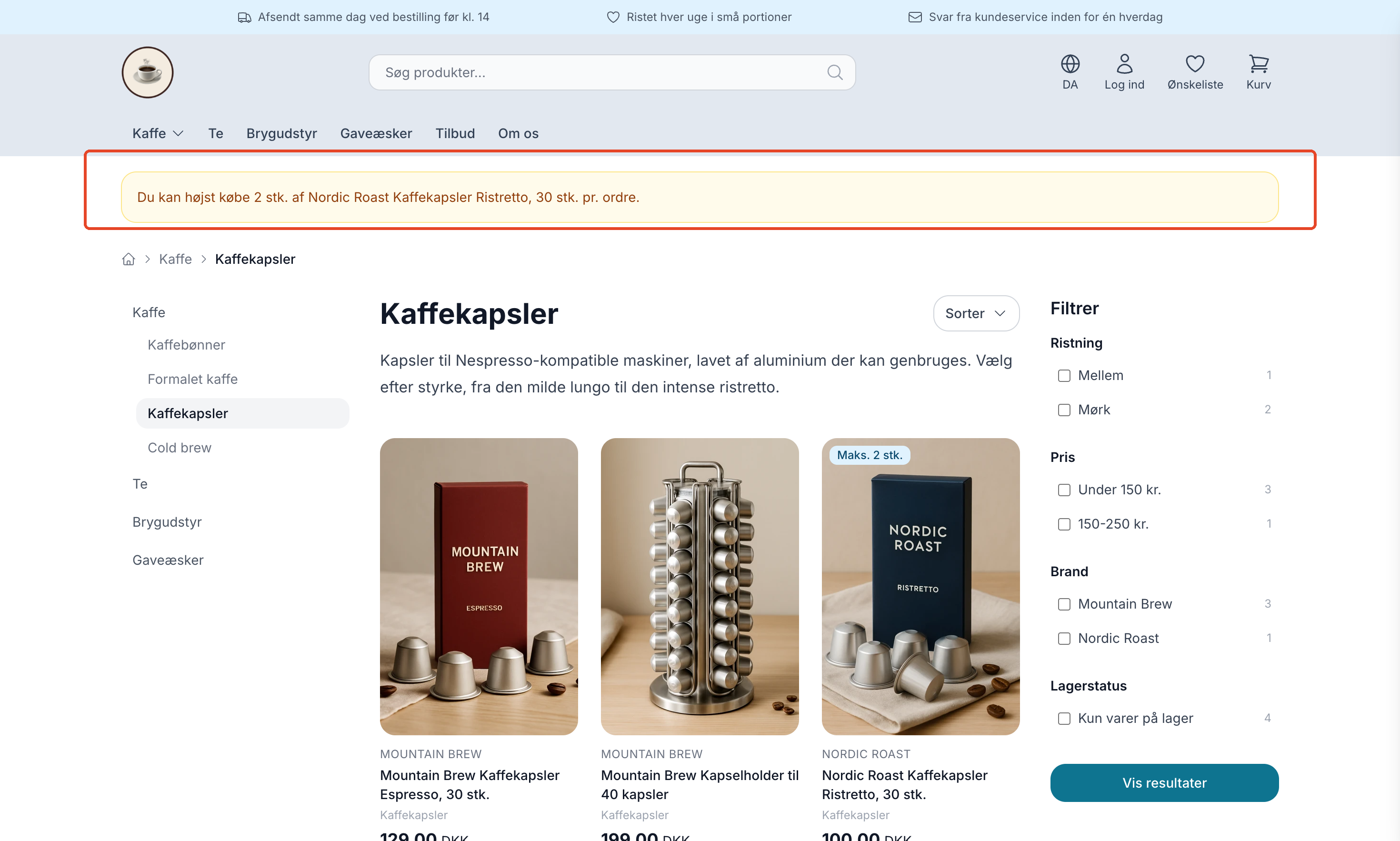
If you’re using a different theme, it will look different. You can read more about this in the “Themes” section further down.
How the Limit Is Enforced
The online store itself monitors the limit, not just the customer’s browser. This means the customer cannot bypass it by changing the number in the quantity field or using a direct link. The limit is checked in the following places:
When the customer adds the item to the cart
If the cart exceeds the limit, the entire addition is rejected. A lower quantity is not added to the cart instead. If the limit is 2 and there is already 1 in the cart, an attempt to add 2 more will be rejected, and there will still only be 1. The customer is redirected back to the page with a message. If the customer adds several different items to the cart at once, only the item that exceeds the limit is rejected. The others are added successfully.
When the customer changes the quantity in the cart
If the customer enters a quantity that is too high in the cart, it is reduced to the allowed limit, and the message is displayed. If the customer removes one variant and adjusts the quantity of another in the same update, this works fine as long as the total quantity remains within the limit.
When the cart is already over the limit
This can happen when the customer accesses the site via a link from a shopping cart email or a shared cart, or when you’ve lowered the limit after the item was added to the cart. In that case, the online store automatically adjusts the cart on the cart page, starting from the last line upward, and displays the message.
At checkout
The steps for address, shipping, payment, and confirmation will all reject a cart that exceeds the limit and send the customer back to the cart. After payment, nothing is ever rejected. A paid order is always created.
What Counts
- All variants of the item are counted together. If the limit is 2, the customer can buy 1 in black and 1 in white, but not 2 of each.
- Subscriptions are counted at the time of purchase. Subsequent renewals of the subscription are neither blocked nor flagged.
- The contents of a bundle count toward the limit. A bundle containing 2 units of the item counts as 2.
- The limit applies to the entire shipment. If the limit is 5 and the shipment contains 2 items, the customer can purchase a maximum of 4.
Where the limit does not apply
- Manual orders. Orders you create yourself in the admin panel are not subject to the limit.
- POS sales. Sales you enter manually at the register are not subject to the limit. However, if you link the sale to a customer or an email address, it may be counted toward the limit, and the order itself may be labeled accordingly.
- Your own system. Orders created by your own system via the REST API are not affected by the limit. However, if your system uses the same order flow as the register, those orders may be included in the tracking.
- Upsells after purchase. Items subject to the limit are not suggested and cannot be purchased there.
However, the limit also applies outside the regular online store: at self-service POS terminals where the customer operates the checkout themselves, in a storefront built on the Headless API, and when an AI agent makes a purchase via UCP. For developers: The Headless API and UCP return the error code ` max_per_order` when the limit is reached.
When the customer places a new order
The limit applies per order, so the customer can place a new order immediately after the first one. This does not stop the online store. However, you can have such orders marked with an order label so you can review them.
Here’s how to enable this feature
- Go to Orders > Order Labels.
- Click Create New Label, or click on a label you already have.
- Give the label a name, such as “Over Daily Limit,” and select a color.
- Check the box next to “Use this label for purchases over the limit.”
- Click Save and Close.
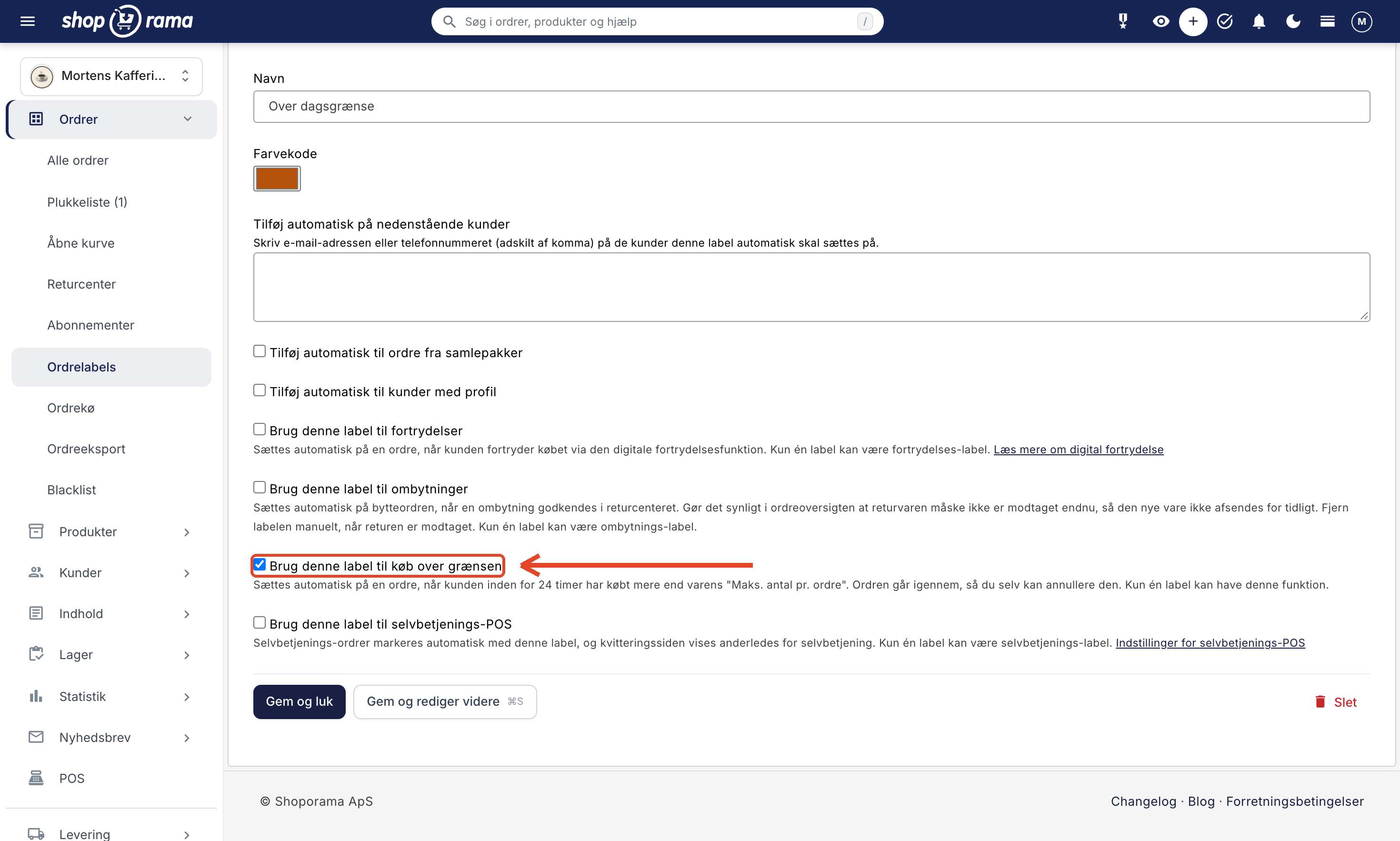
The label is not created automatically. Without a label with that checkbox selected, no marking will occur. Only one label in your online store can have this function, and if you check the box on a different label, the function will transfer to that label. The label cannot be used simultaneously for returns or exchanges.
When an order is tagged
Shoporama groups purchases of the same item by the same customer within 24 hours before or after the order date. If the total quantity exceeds the item’s “Max. quantity per order,” the order that exceeds the limit receives the label. The first order does not receive it. This is checked when the order is created and again when it is paid for.
An example: The limit is 2. The customer buys 2 items in the morning and 1 item in the afternoon. The afternoon order receives the label because the customer has now purchased 3 items within 24 hours.
At the same time, the order receives a note, which you can find behind the “Internal Note (Technical Log) ” button in the “Comments” tab of the order. It reads as follows: “Purchase exceeds the limit: 3 units of [item name] within 24 hours. The limit is 2. Previous order: 1234”
In the order list, the label appears as a badge next to the order’s status. You can filter by it using the “Label” button and remove it from an order by clicking the checkmark.

Which orders count
Only paid orders count, and the label is applied only after the order has been paid. These orders do not count:
- Canceled and credited orders
- Credit memos
- Exchange orders
- Manual orders
- Unpaid orders
- Purchase as a subscription
Please note
- Customers are identified only by exact information. Purchases are linked when the email address, phone number, or customer account is exactly the same. If the customer uses a different email address and phone number and does not have the same customer account, the purchases will not be linked.
- Phone numbers are compared exactly as they are entered. +45 12 34 56 78 and 12345678 are two different numbers for Shoporama.
- The order goes through. The label does not stop the purchase. If you do not want to ship the item, you must cancel and refund the order yourself.
Themes
The limit itself works in all themes because it is the online store that enforces it. The difference lies in what the customer sees.
- Montana, MontanaB2B, Delaware, and DelawareDK display the message, the text next to the “Buy” button, a badge on the product, and a quantity field that stops at the limit.
- California displays the message, the text next to the “Buy” button, and a badge on the product card. The quantity field in the cart stops at the limit.
- Alaska displays the message and text next to the “Buy” button and on the product card. The quantity field stops at the limit.
- Washington displays the message as a brief error message, the text next to the “Buy” button and on the product card, and the “+” button in the cart stops at the limit. The message cannot be changed under Design > Texts.
- Custom themes and modified copies will reject the customer, but without an explanation, until the theme is updated. The customer will therefore find that the item does not add to the cart without being told why.
If you have your own theme or a customized version of a built-in theme, your developer must add the message. Instructions on how to do this can be found in the developer documentation. If you don’t have a developer, one of our design partners can help. Until then, you can include the limit in the product description so the customer knows about it in advance.
Set the limit on multiple products
If you need to set the limit on multiple products, you don’t have to open them one at a time.
Bulk editing
Select the products in the product overview, click “Table Edit” in the bottom bar, and select the “Max. per order” column in the “Select Fields” window. The limit applies to the product and not to individual variants, so the variant row will simply display an asterisk (*). Read more in the article on bulk editing of products.
Import and Export
Under Products > Import/Export, you can import the limit from a CSV file. Select “Max. Quantity per Order” in the “Import” column next to the field in the file that contains the limit. An empty field or a value of 0 means no limit. When you export your products, the column is named “max_per_order.” Read more in the article on importing products via CSV.
API and Claude (for developers and AI users)
The field is named ` max_per_order ` in the REST API and in the ` product_create ` and ` product_update` tools when you manage your store with Claude. If you send null or 0, the limit is removed. The REST API rejects an invalid value—such as text or a number greater than 65535—with error code 400.
Frequently Asked Questions
What is the difference between “Max. quantity per order” and “Quantity on sale”?
"Quantity on Sale" controls how many units are sold at the sale price. When the count reaches zero, the offer expires, and the item can still be purchased at the regular price. This does not limit how many items the customer can buy. “Max. Quantity per Order” limits the purchase itself, regardless of price. The two fields are independent of each other.
I sell two brands with the same active ingredient. Do they count together?
No. The limit applies to each individual item, so two different items count separately, even if their contents are the same. If the limit is 2 for both, the customer can buy 2 of each in the same order. There is no combined limit across items.
Can’t the customer just place a new order and buy more that way?
Yes. The limit applies per order, so you can’t prevent that. You can have the order flagged so you’ll notice it and can cancel it yourself if you want. See the section “When the customer places a new order.”
A customer calls and wants to buy more than the limit allows. Can I sell them myself in the admin panel?
Yes. The limit does not apply to orders you create using the “Create Order” button in the order list, and those orders are not included in the tracking either. You’ll have to decide for yourself whether the sale is acceptable.
An order has been labeled. What do I do now?
Open the order and read the note. It tells you how many items the customer purchased and which previous order it relates to. Then you decide whether the order should be canceled or if it can be shipped. If you choose to ship it, you can remove the label so you won’t see the order again.
Will I be notified when an order is labeled?
No, you won’t receive an email. Filter the order list by the label and bookmark the page. That way, you’ll have one place to check—for example, every morning before you start packing.
Can I change the 24-hour limit or set a separate daily limit?
No. The 24-hour limit is fixed, and the tagging uses the same number as the “Max. quantity per order” field. There is no separate limit per day or per customer.
Can my business customers be allowed to buy more than others?
Not in the online store. The limit applies to all customers, regardless of customer group. If a business customer needs more, you can create the order manually in the admin panel.
Can I get a list of the marked orders for my own records?
Yes. Filter the order list by label and check at least one order. Click Export in the Bulk Edit bar at the bottom of the page, and select CSV file (all in the search). Read more in the article Export Orders as CSV.
Can I change the wording of the message and the text on the Buy button myself?
Yes. Go to Design > Texts, and search for “maximum purchase” or “Max.” Keep {max} and {name} where they appear in the text. They will be replaced with the number and the product name. The texts will appear at the top of the list once they’ve been displayed in the online store. If you can’t find them, try adding too many items to the cart yourself. Read more in the article on translating and customizing texts.
Need help? Contact us at support@shoporama.dk.
Related articles
Order labels
Guide to order labels in Shoporama. Create color-coded labels to organize and categorize your orders and set up automatic allocation based on...
Mass editing of products
Guide to bulk editing products in Shoporama - edit prices, inventory, SEO fields and more in a spreadsheet-like interface.
Edit product
Guide to the Product Edit Page in Shoporama: the top section with "Edit," Inventory, and Sales Statistics; how to customize the page with tabs and...
Bundles (Bundles)
Learn how to create bundles in Shoporama so you can sell multiple products as one package with automatic inventory tracking.