Edit product
Guide to the product editing page in Shoporama. Overview of all tabs in the order they appear: General, Images, Categories, Labels, Inventory, Variants, Discounts, Bundles, SEO, product feeds, fields, theme settings, search, related products, files, subscriptions, legal information, sales tax, customs, environmental data, and price monitoring.
Når du redigerer et produkt i Shoporama, åbner du en side med en lang række kort, der tilsammen styrer alt fra priser og billeder til SEO, produktfeeds, lager, jura, og miljødata. Denne guide gennemgår kortene i den rækkefølge, de står på siden, så du ved præcis, hvad de enkelte felter gør.
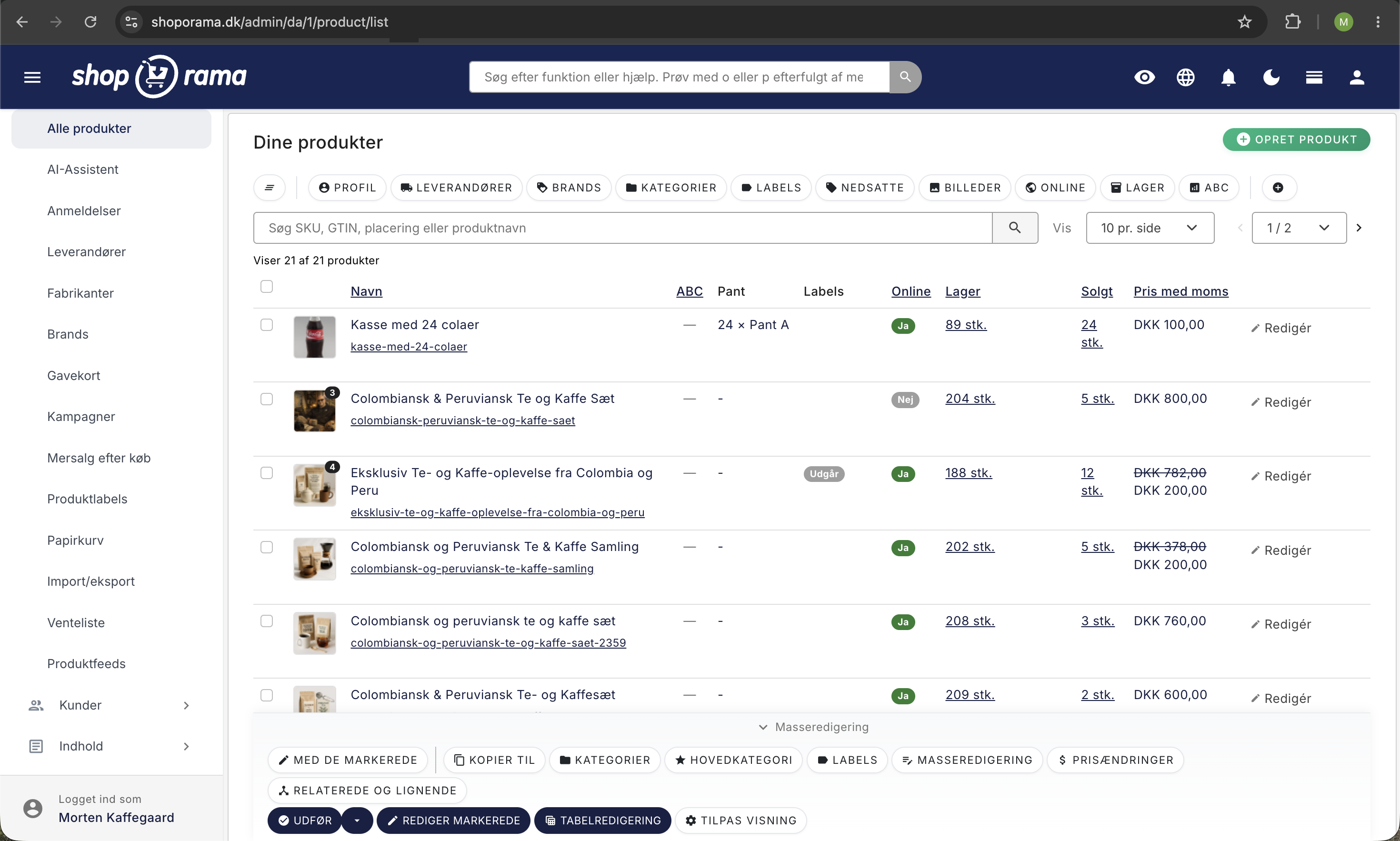
Sådan er siden bygget op
Produktsiden består af kort, som du folder ud og ind ved at klikke på overskriften. Kortene står i denne rækkefølge:
- Generelt
- B2B-priser (kundegrupper), hvis shoppen har kundegrupper
- Produktbilleder
- Kategorier
- Labels
- Lagerstyring
- Profil-indstillinger
- Mængde- og trapperabat
- Samlepakker
- Kredit m.m., kun for finansielle profiler
- SEO
- Produktfeeds
- Felter
- Temaindstillinger, kun hvis dit tema har felter til produkter
- Intern søgning
- Relaterede produkter og Lignende produkter
- PDF og filer
- Abonnementsindstillinger
- Jura, moms, told og miljø
- Prisovervågning, kun hvis produktet er med på en prisovervågning
I toppen af siden finder du knapperne Lagerbevægelser, Salgsstatistik, Sideopsætning (hvis din shop har sidedesigneren), Vis produkt i shoppen, og Fold alle ind. Er blot ét kort foldet ud, folder knappen alle kort ind på én gang. Er alle kort foldet ind, skifter knappen til Fold alle ud og åbner dem alle. Siden husker i din browser, hvilke kort du havde foldet ud på det enkelte produkt.
Knappen Salgsstatistik viser produktets salg i en periode, du selv vælger, med solgte stk., ordrer, omsætning, lagerdage, og salg pr. variant. Læs mere i artiklen Salgsstatistik for et produkt.
I højre side er der en menu med genveje til kortene, og tallet ud for et kort viser, hvor mange felter der er udfyldt. Nederst i de fleste kort står en diskret bundlinje med et spørgsmålstegn, en kort forklaring, og et Læs mere-link til en artikel, der går i dybden med emnet.
Generelt
Den første sektion indeholder de mest grundlæggende produktoplysninger:
- Navn: produktets titel, som vises i shoppen og i søgeresultater.
- Beskrivelse: en teksteditor med formatering, hvor du også kan bruge AI-assistenten til at skrive eller forbedre teksten.
- Adresse (URL): produktets URL-slug. En god adresse er kort, beskrivende, og bruger kun små bogstaver, tal, og bindestreger.
- Vejl. pris: produktets normalpris. Vises enten med eller uden moms afhængigt af din shopindstilling. Der er en lille lommeregner-knap, der kan tilføje eller fjerne moms.
- Tilbudspris: en valgfri nedsat pris. Når denne er udfyldt, vises den som den aktuelle pris, og normalprisen stryges igennem.
- Kostpris: indkøbsprisen uden moms. Bruges til at beregne avance og lagerværdi.
- Leverandør: vælg den leverandør, produktet kommer fra.
- Brand: vælg det brand, produktet tilhører.
- Online/offline: afgør, om produktet er synligt i shoppen.
- Fragt: en fast fragtpris for netop dette produkt. Udfyld kun feltet, hvis produktet skal koste noget andet i fragt end dine almindelige fragtregler.
- Vægt i gram: bruges af fragtregler, der regner på vægt, og til pakkelabels.
Produktbilleder
Sektionen hedder Produktbilleder. Upload billeder i formatet PNG, JPEG, eller WebP. Du kan uploade flere billeder ad gangen, og du kan trække og slippe for at ændre rækkefølgen. Det første billede bruges som hovedbillede.
Under hvert enkelt billede sidder to valg, der bestemmer, hvor netop det billede bliver brugt:
- Delingsbillede: det billede, der vises, når produktet deles på fx Facebook eller LinkedIn. Lader du valget stå tomt, bruges det første billede helt automatisk. Du skal altså kun markere et delingsbillede, hvis du vil dele et andet end hovedbilledet, fx ét med hvid baggrund eller uden tekst hen over motivet. Alle Shoporamas indbyggede temaer følger markeringen. Kører du et specialbygget tema, skal temaet understøtte den.
- Feed-billede: det billede, der bliver det primære i dit Google Shopping-feed. På produkter uden varianter er det første billede allerede det primære, så du skal kun bruge feltet, hvis du vil fremhæve et andet billede.
Vær opmærksom på feed-billedet, hvis produktet har varianter. Står feltet tomt, bruger hver variant sit eget billede i feedet, så kunden ser den rigtige farve eller model i Google. Markerer du et feed-billede, får alle varianter det samme billede i stedet. Har du knyttet billeder til dine varianter, skal feltet derfor blive stående tomt.
Begge valg kan også sættes automatisk, hvis du opretter dine varer gennem Shoporamas API eller en integration.
Kategorier
Vælg, hvilke kategorier produktet skal vises i. Du kan vælge flere kategorier, og du kan udpege én af dem som hovedkategori. Hovedkategorien bruges bl.a. til brødkrummer, og til at sende kunden det rigtige sted hen, hvis produktet senere tages offline.
Labels
Tildel produktlabels til produktet. Labels kan bruges til at filtrere og gruppere produkter i administrationen, og de kan vises som badges i shoppen.
Lagerstyring
Her styrer du lagerrelaterede oplysninger:
- SKU: dit eget varenummer. Systemet advarer, hvis samme SKU bruges på flere produkter.
- Sekundært SKU: et alternativt varenummer.
- GTIN: stregkode (EAN/UPC). Vigtigt for Google Shopping.
- MPN: producentens varenummer.
- Placering på lager: en fritekst til at angive, hvor varen befinder sig fysisk.
- Leveringstid: fx "1-2 dage".
- Leveringstid når ikke på lager: alternativ leveringstid, der vises, når lagerbeholdningen er 0.
Stregkoder, EAN og MPN
GTIN er varens stregkodenummer, typisk en EAN-13 på 13 cifre. MPN er producentens eget varenummer. De to felter ligner SKU-felterne, men de har en anden opgave: SKU er dit eget nummer, mens GTIN og MPN er de numre, omverdenen kender varen på.
Har produktet varianter, får hver variant sin egen linje i tabellen under Lagerstyring med felter til lager, SKU, sekundært SKU, kostpris, placering, GTIN, MPN, og min. lager. Har hver størrelse eller farve sin egen stregkode fra leverandøren, skal den stå på den enkelte variant og ikke kun på produktet. Bruger du ikke alle kolonner, kan du skjule dem med øje-ikonet i tabelhovedet. Det gælder alle produkter med samme profil. Dine data bevares, og kolonnen kan hentes tilbage under Produktprofiler i indstillingerne.
Det kan du bruge stregkoden til:
- Produktfeeds: GTIN og MPN sendes med i Google Shopping-feedet, og GTIN sendes som EAN i PriceRunner-feedet. Det er de numre, portalerne bruger til at genkende varen som den samme vare, andre også sælger.
- Søgning i administrationen: indtast stregkoden i produktsøgningen, og varen kommer frem. Det virker også for stregkoder, der sidder på en variant.
- Søgning i webshoppen: slå indstillingen Søg i navn, SKU-nummer og GTIN til i shoppens indstillinger. Så finder både kunder og dine egne medarbejdere varen ved at søge på stregkoden.
- Varemodtagelse: på lagersiderne kan du søge efter GTIN, så varen kommer frem, klar til at få lagt antal på. Med en håndscanner går det stærkt, fordi scanneren blot skriver tallet i feltet.
- Selvbetjenings-POS: kunder og medarbejdere scanner varens stregkode på deres egen telefon og lægger varen i kurven.
Sørg for, at den samme stregkode kun sidder ét sted. Sidder den på flere varer, kan systemet ikke afgøre, hvilken vare der scannes, og feeds risikerer at blive afvist.
Profil og varianter
Hvert produkt er knyttet til en profil. Profilen definerer, hvilke varianter (fx størrelse, farve) produktet har. Du kan:
- Se og redigere priser pr. variant
- Tilføje nye varianter direkte fra produktsiden
- Skifte profil. Vær opmærksom på, at alle lagerposteringer fjernes, hvis enten den nuværende eller den nye profil har varianter, og at produktets profilindstillinger nulstilles
Mængde- og trapperabat
Sektionen rummer to slags rabat på antal. Mængderabat sætter prisen ned med et fast beløb, når kunden køber flere end et antal, du selv vælger, fx 20 kr. i rabat ved køb af 5 eller flere. Trapperabat lader dig angive flere antalstrin og en pris for hvert trin. Har produktet varianter med priser, sættes rabatten pr. variant.
Samlepakker
Opret en samlepakke (bundle) ved at tilknytte andre produkter. Når kunden køber samlepakken, trækkes lager fra de tilknyttede produkter. Du kan søge efter produkter og tilføje dem til pakken.
Sådan sætter du en samlepakke sammen
- Vælg varerne. Søg de produkter frem, pakken skal indeholde. Du kan ikke vælge produktet selv, og du kan ikke vælge en vare, der i forvejen er en samlepakke.
- Sæt antal. Ud for hver vare skriver du, hvor mange der skal med i pakken, under Antal i samlepakken. Shoporama viser, hvad pakken er værd til dine salgspriser, og hvad indholdet har kostet i indkøb, så du kan se, hvor stor en rabat du reelt giver.
- Sæt prisen på pakken. Prisen skriver du i feltet Vejl. pris under Generelt, ligesom på alle andre produkter. Prisen på pakken er uafhængig af summen af delene, så det er dig, der bestemmer rabatten.
- Beslut, om lageret skal følge indholdet. Slår du kontakten Lagerstatussen for samlepakken skal afspejle lagerstatussen på pakkens indhold til, regner Shoporama pakkens lager ud som det antal hele pakker, du kan pakke af det, der står på lager. Har du 10 af den ene vare og 4 af den anden, og skal der én af hver i pakken, står pakken til 4.
Når en kunde køber pakken, sker der følgende:
- Alle varerne i pakken kommer med på ordren, så pakkeren kan se, hvad der skal i kassen.
- Varerne trækkes fra lageret hver for sig, præcis som var de solgt enkeltvis.
- Har en vare i pakken varianter, skal kunden vælge variant i shoppen, før pakken kan lægges i kurven.
- Selve pakkeproduktet kan ikke begrænses til bestemte varianter.
- Varerne i pakken kommer ikke med på abonnementer.
Er du i tvivl om prissætning, lagerværdi, eller hvordan pakken vises i shoppen, så er der en grundig gennemgang i Samlepakker (Bundles).
Kredit m.m.
Denne sektion vises kun, hvis profilen er markeret som finansiel. Her kan du:
- Kredit til dato: udsæt capture af betaling til en bestemt dato i måneden.
- Kredit i dage: udsæt capture et bestemt antal dage.
- Kredit til specifik dato: udsæt capture til en fast dato.
- Tilgodebevis: gør produktet til et gavekort, der opretter en unik rabatkode ved køb.
SEO
Kortet SEO samler alt, der handler om, hvordan produktet vises i Google og på sociale medier. Det er delt i fire afsnit: Google-søgeresultat, Søgeordsanalyse, Deling på sociale medier, og Indeksering. Felterne lå tidligere i kortet Felter, der nu er delt op i de tre kort SEO, Produktfeeds, og Felter. Vil du have hele billedet af, hvordan søgemaskineoptimering hænger sammen på tværs af produkter, kategorier, og sider, så læs SEO i Shoporama.
Google-søgeresultat
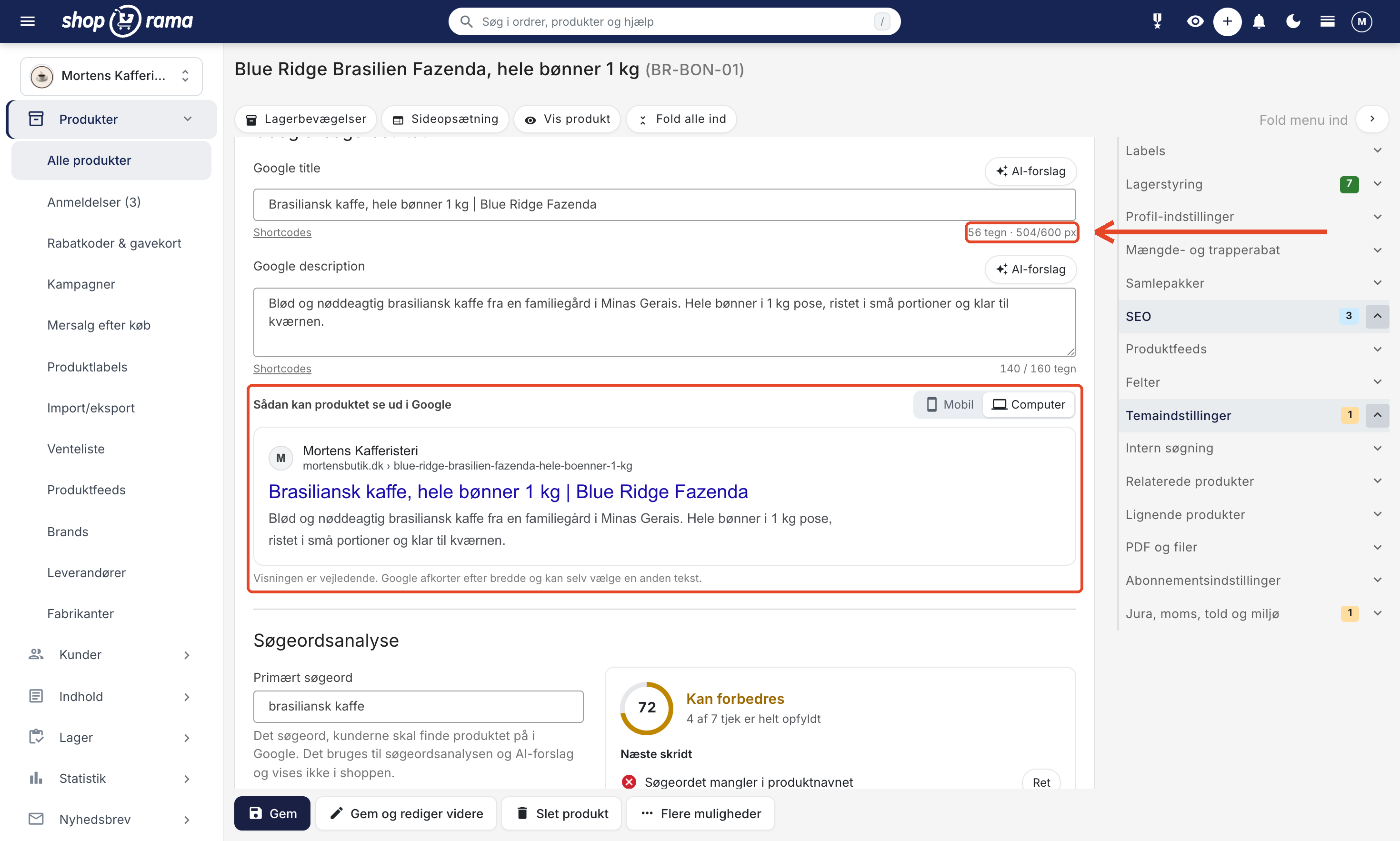
Her skriver du Google title og Google description, altså den titel og tekst, der kan stå om produktet i Googles søgeresultater. Står Google title tom, bruges produktets navn. Ved begge felter sidder en AI-forslag-knap, der skriver et udkast for dig ud fra produktets øvrige oplysninger: højst 60 tegn til titlen og højst 155 tegn til beskrivelsen.
- Tælleren under Google title viser både antal tegn og bredde, fx "56 tegn · 504/600 px". Google afkorter nemlig titlen efter bredde (ca. 600 pixel), ikke efter antal tegn. Tælleren bliver orange, når titlen er for bred.
- Tælleren under Google description viser antal tegn ud af 160. Sigt efter 120-160 tegn.
- Sådan kan produktet se ud i Google: et preview med fanerne Mobil og Computer, der viser shoppens navn, adressen, titlen, og beskrivelsen, og som opdateres, mens du skriver. Visningen er vejledende, for Google afkorter efter bredde og kan selv vælge en anden tekst.
Google title og Google description understøtter shortcodes, der automatisk erstattes med aktuelle værdier. Du ser listen ved at klikke på linket Shortcodes under feltet, og previewet viser teksten med værdierne udfyldt. Shortcodes virker også i selve produktbeskrivelsen:
- [PRICE]: prisen inkl. moms
- [PRICE_EX_VAT]: prisen uden moms
- [NAME]: produktnavnet
- [STOCK]: antal på lager
- [SUPPLIER]: leverandørnavnet
- [BRAND]: brandnavnet
- [YEAR]: indeværende år
- [MONTH]: indeværende måned
- [SEASON]: årstiden
- [FREESHIPPING]: beløb for fri fragt
Søgeordsanalyse
I feltet Primært søgeord skriver du det søgeord, kunderne skal finde produktet på i Google, fx "brasiliansk kaffe". Det bruges til søgeordsanalysen og AI-forslag og vises ikke i shoppen. Søgeordsanalysen afløser den tidligere SEO feedback, og den opdateres, mens du skriver.
- Score: med et søgeord får du en score fra 0 til 100. Fra 80 er den God, fra 50 til 79 Kan forbedres, og under 50 Svag. Uden søgeord vises ingen score, men tjekkene af titlens og beskrivelsens længde og af billedernes alt-tekst vises stadig.
- Næste skridt: de tre vigtigste forbedringer, hver med en Ret-knap, der folder kortet ud og springer direkte til feltet. Under Alle tjek kan du folde hele listen ud.
- Det tjekkes: om søgeordet står i produktnavnet, i Google title, i produktbeskrivelsen, og i Google description, om titlen er for bred, om beskrivelsen har en god længde, og om produktet har billeder med alt-tekst. Står kun en del af søgeordet et sted, giver det halve point. Du får en advarsel, hvis søgeordet står mange gange i titlen eller beskrivelsen, eller hvis en shortcode ikke bliver udfyldt.
- I produktoversigten kan du se status for alle produkter på én gang med kolonnen SEO-status og finde de svageste med filteret SEO. Se Produktoversigten.
- Adressen tæller kun med i scoren, hvis produktet er offline eller endnu ikke har en adresse. På et udgivet produkt er det kun en information, fordi en ændret adresse kan få placeringen i Google til at svinge i nogle uger.
Er produktet skjult for søgemaskiner, vises der ingen score. Er produktet offline, eller peger canonical på et andet produkt, står der en note øverst i analysen. Husk, at analysen er en tjekliste og ikke en garanti for placering i Google.
Deling på sociale medier
Open Graph-titel og Open Graph-beskrivelse er den titel og tekst, der vises, når produktet deles på fx Facebook eller LinkedIn. Tællerne hjælper dig med at holde titlen under ca. 60 tegn og beskrivelsen under ca. 155 tegn, og knapperne Kopiér fra Google title og Kopiér fra Google description giver dig et udgangspunkt, du kan rette til. Udfylder du ikke felterne, bruges Google title og Google description. Du kan også tømme felterne igen, hvis du fortryder. Standardtemaerne Montana, MontanaB2B, Delaware, og DelawareDK bruger felterne, når de er udfyldt. Selve delingsbilledet vælger du ikke her, men ude ved billederne under Produktbilleder.
Indeksering
- Canonical-produkt: er produktet en kopi af et andet produkt, kan du her vælge originalen. Søg produktet frem ved navn, og vælg det. Du skal ikke længere kende produktets id-nummer. Du kan kun vælge ét produkt, og ikke produktet selv. Google samler så produkterne og viser originalen i søgeresultaterne. Lad feltet være tomt, hvis produktet er sin egen original. Peger du på et produkt, der senere bliver slettet eller sat offline, gør Shoporama opmærksom på det på forsiden i administrationen, hvor du kan nulstille henvisningen med ét klik.
- Skjul for søgemaskiner ("noindex, follow"): markér varer, du ikke ønsker i søgeresultaterne, fx dubletter eller udgåede modeller. Google viser ikke produktet, men følger stadig links på siden. Shoporama holder produktet ude af shoppens sitemap.xml, uanset hvilket tema du bruger, og de fleste indbyggede temaer (dog ikke Washington) sætter samtidig et noindex, follow-metatag på produktsiden. Kører du et specialbygget tema, skal du sikre dig, at det også udskriver metatagget. Læs mere i Sæt noindex på en side, produkt eller kategori.
Produktfeeds
Kortet Produktfeeds styrer, hvordan produktet sendes med i dine produktfeeds til Google Shopping og prissammenligning:
- Google Shopping-titel: en alternativ titel, der kun bruges i Google Shopping-feedet. Står feltet tomt, bruges produktets navn. Google tillader højst 150 tegn, men viser kun de første ca. 70, så sæt det vigtigste først. Praktisk hvis butikstitlen er kort og fængende, men feedet har brug for mærke, model, og størrelse.
- Googlekategori: Googles egen kategori for varetypen. Skriv fx "kaffe" eller "kjoler" direkte i feltet, og vælg blandt resultaterne, der viser kategoriens navn, stien over den, og Googles id. Klik på den valgte kategori for at vælge en anden, eller på krydset for at fjerne den. Kategorierne vises på det sprog, du bruger admin på, men id'erne er de samme på alle sprog, så feedet påvirkes ikke. Står feltet tomt, bruges Googlekategorien fra produktets hovedkategori.
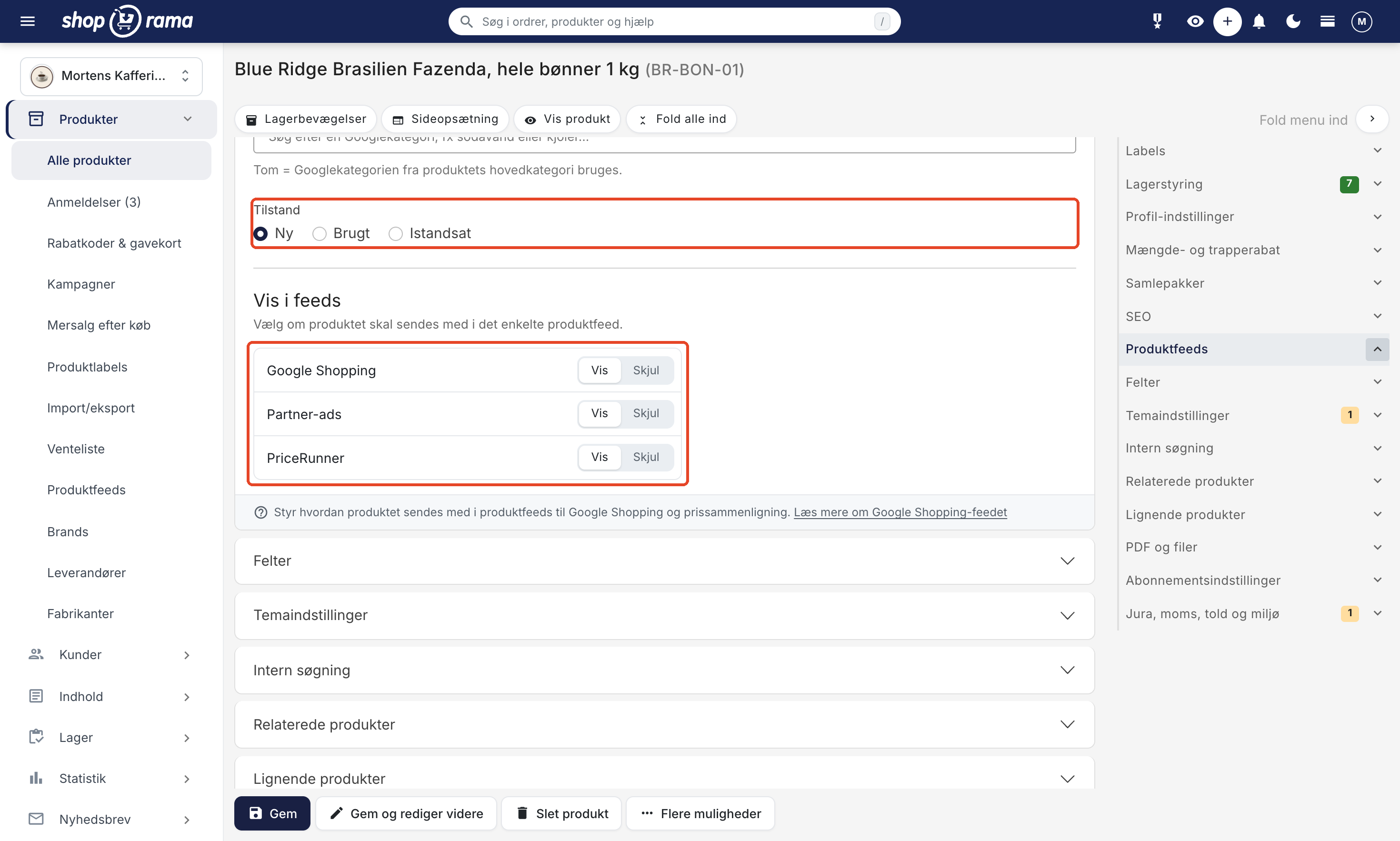
- Tilstand: vælg Ny, Brugt, eller Istandsat. Feltet følger med i feedet, så brugte og istandsatte varer ikke bliver afvist som nye.
- Vis i feeds: én linje for hvert feed, Google Shopping, Partner-ads, og PriceRunner, med knapperne Vis og Skjul. Så kan du tage en vare ud af ét feed uden at røre de andre, fx varer med dårlig dækningsgrad, eller varer, du ikke må markedsføre. Varer, du tidligere havde udelukket fra et feed, står allerede til Skjul.
Læs mere i Opsæt Google Shopping Feed og Google Shopping kategori-ID på produkter.
Felter
Kortet Felter rummer to ting: Ekstra felter, hvor du gemmer dine egne oplysninger om produktet, og HTML-felter, hvor du kan lægge rå HTML på produktet. SEO-felterne og feed-indstillingerne, der tidligere lå her, har fået deres egne kort.
Ekstrafelter er felter, du selv opretter på det enkelte produkt. Her skriver du dine egne oplysninger som nøgle og værdi, fx et ISBN-nummer, et materiale, eller en varegruppe, som dit tema og dine produktfeeds kan trække ud. De skal ikke oprettes på forhånd, og de kan være forskellige fra produkt til produkt.
Sådan bruger du ekstrafelter
Du skriver ét felt pr. linje i formatet nøgle, lighedstegn, og værdi:
isbn=9788712345678
materiale=100% bomuld
varegruppe=Efterår 2026
Nøglerne bliver automatisk skrevet med små bogstaver, når du gemmer, så ISBN=... og isbn=... ender som det samme felt. Værdien kan være alt, hvad du har brug for.
Nogle nøgler har en fast betydning, fordi Shoporama selv læser dem, når feeds bygges:
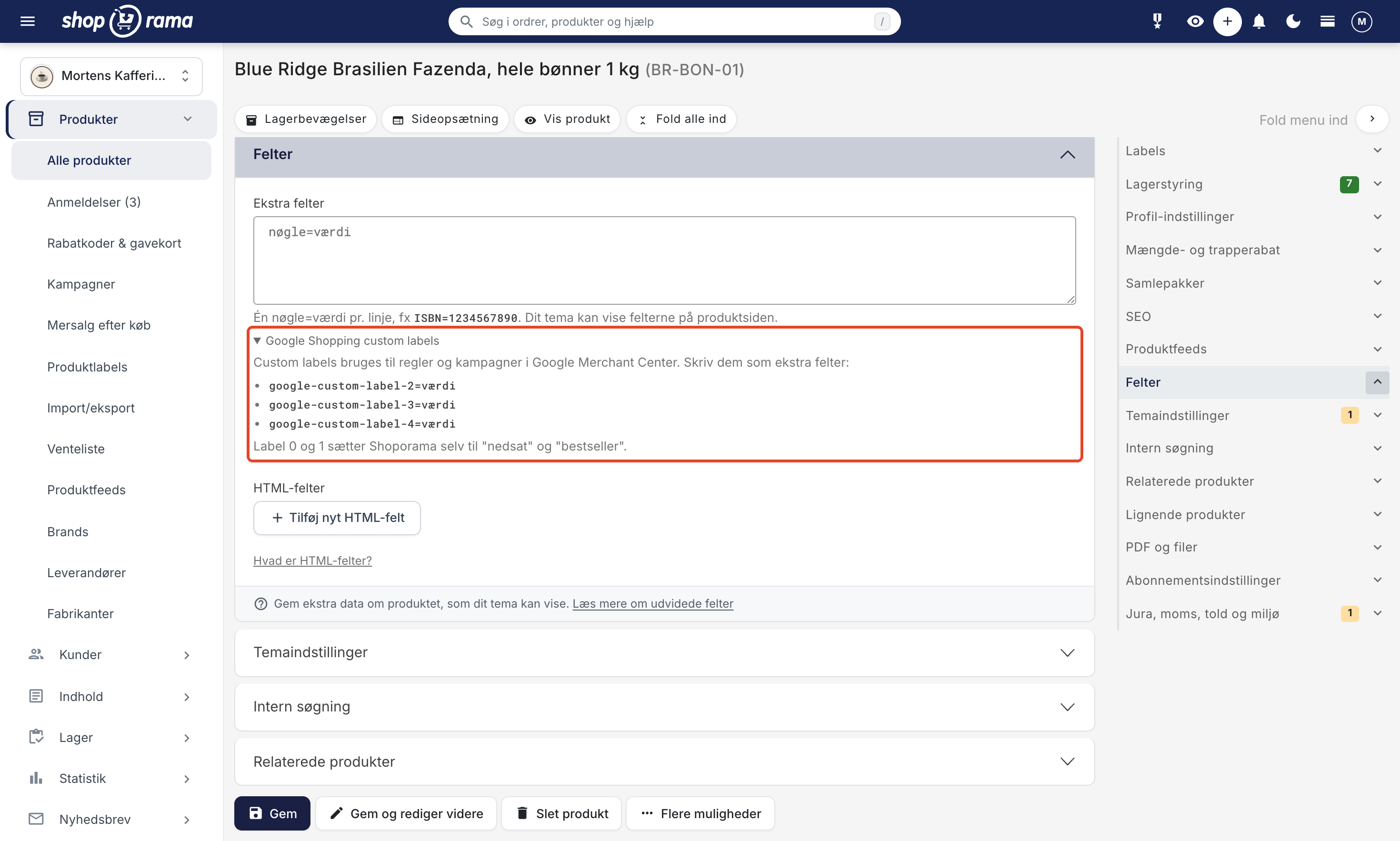
- google-custom-label-2, google-custom-label-3, og google-custom-label-4 bliver til Googles custom labels, som du kan lave regler og kampagner på i Google Merchant Center, fx en kampagne kun for varer med et bestemt mærkat. Label 0 og 1 er optaget: Shoporama sætter dem selv til "nedsat" og "bestseller". Du finder formatet i boksen Google Shopping custom labels, som du kan folde ud under feltet. Er produktet tilknyttet en produktlabel, der udfylder den samme custom label, vinder produktlabelen.
- pricerunner-description, pricerunner-condition, og pricerunner-category overskriver beskrivelsen, tilstanden, og kategorien for den enkelte vare i PriceRunner-feedet.
Ekstrafelterne følger med, når du eksporterer dine produkter, og de kan importeres igen via CSV, så du kan udfylde dem på mange varer på én gang. Se Importér ekstrafelter på produkter for formatet. Dit tema kan hente felterne frem på produktsiden, så fx materiale eller ISBN vises i en lille tabel under beskrivelsen. Læs mere i Udvidede felter.
HTML-felter på produktet
Nederst i kortet Felter kan du lægge rå HTML på det enkelte produkt. Klik Tilføj nyt HTML-felt, giv feltet et navn, og indsæt din kode. Til hvert felt vælger du en placering:
- Tilføj ikke automatisk: koden gemmes, og dit tema henter den selv frem, hvor den skal bruges.
- Indsæt sidst i <head>: bruges typisk til sporingskoder og stilarter.
- Indsæt sidst i <body>: bruges typisk til scripts, der først skal køre, når siden er indlæst.
HTML-felter er praktiske til en størrelsesguide, en video, en tabel med specifikationer, eller en sporingskode, der kun skal med på netop dette produkt. Vil du slette et felt igen, tømmer du tekstfeltet og gemmer. Læs mere i HTML-felter: Indsæt Cookiebot, GTM og andre scripts.
Temaindstillinger
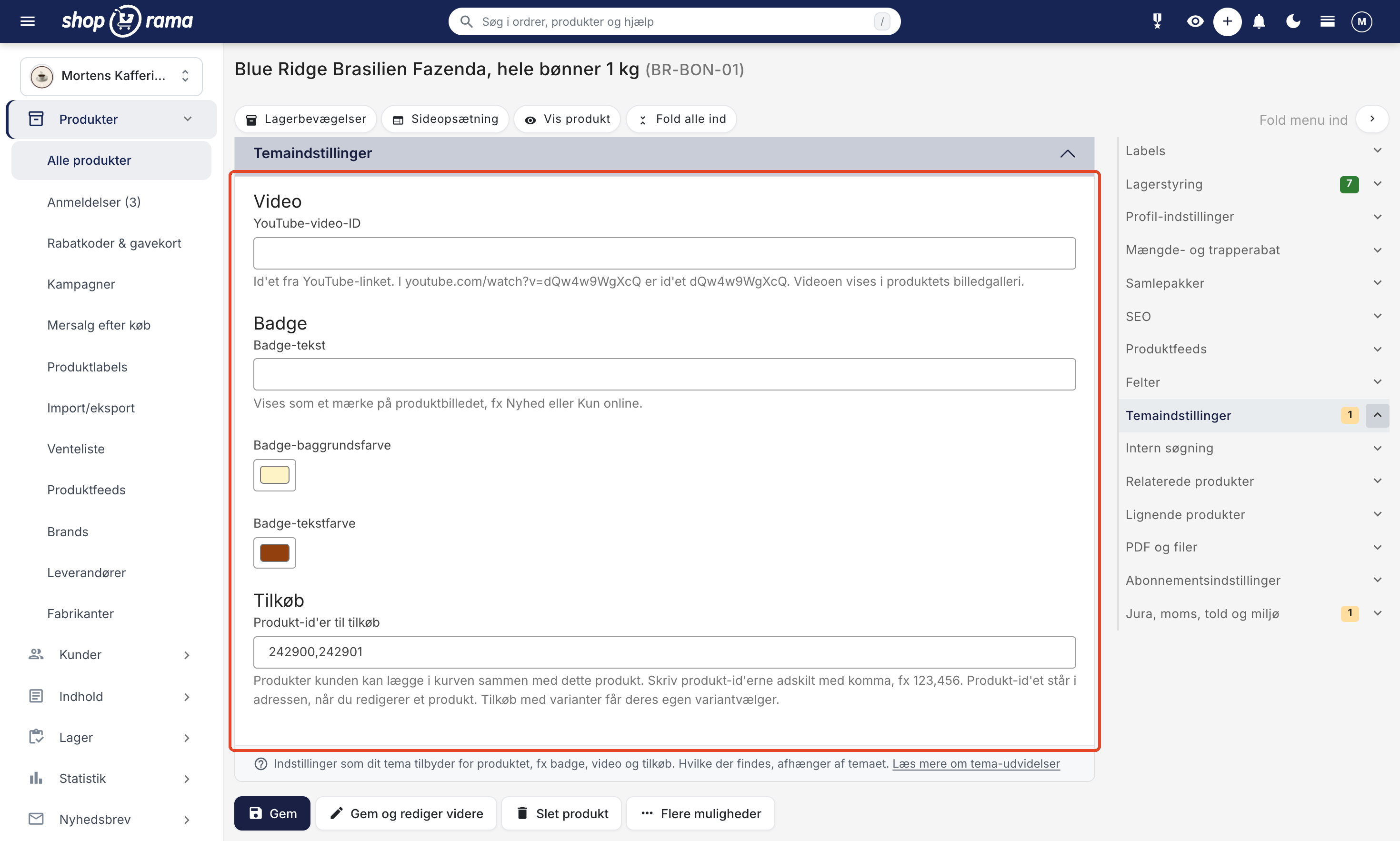
Kortet Temaindstillinger hed tidligere "Udvidelser fra dit tema". Det rummer de felter, dit tema stiller til rådighed på produktet, og det vises kun, hvis temaet faktisk har felter til produkter. Kan du ikke se kortet, har dit nuværende tema ingen. Det er temaudvikleren, der bestemmer, hvilke felter der findes, og hvor de vises i shoppen. Du udfylder dem, og temaet sørger for resten.
I Montana og MontanaB2B har kortet tre grupper:
- Video: feltet YouTube-video-ID. Id'et er den sidste del af YouTube-linket, så i youtube.com/watch?v=dQw4w9WgXcQ er id'et dQw4w9WgXcQ. Videoen vises i produktets billedgalleri.
- Badge: en badge-tekst med baggrundsfarve og tekstfarve. Badget vises som et mærke på produktbilledet, fx Nyhed eller Kun online.
- Tilkøb: produkt-id'erne på de varer, kunden kan lægge i kurven sammen med produktet, adskilt med komma, fx 123,456. Produkt-id'et står i adressen, når du redigerer et produkt. Læs mere i Tilkøb på produktsiden.
Andre temaer har andre felter. Afhængigt af temaet kan du møde disse felttyper:
- Tekst, lang tekst, og teksteditor med formatering
- Tal, afkrydsningsfelt, og farvevælger
- Dato, samt dato med klokkeslæt
- Dropdown med ét valg, og multivalg, hvor du kan sætte flere flueben
- Billede eller flere billeder, som du uploader direkte i feltet
- Gentagelsesfelter, hvor du tilføjer flere ens blokke, fx en liste af egenskaber med titel, tekst, og billede. Blokkene kan trækkes rundt, så de står i den rækkefølge, du vil have
Tekstfelter fra temaet kommer automatisk med i shoppens interne søgning, medmindre temaudvikleren har fravalgt det på det enkelte felt. Det betyder, at oplysninger som forfatternavn eller varegruppe kan findes af kunderne, selvom de ikke står i selve beskrivelsen.
Forveksl ikke kortet med siden Temaindstillinger under Design, hvor du styrer hele temaet, fx farver og tekster. Kortet på produktet gælder kun det enkelte produkt. Forveksl det heller ikke med ekstrafelter: felterne i Temaindstillinger er færdige felter fra temaet, mens ekstrafelter er dine egne nøgler og værdier. Læs mere i Temaindstillinger på produkter og sider og Udvidede felter.
Intern søgning
Tilføj valgfrie søgeord, der hjælper kunderne med at finde produktet via shoppens søgefunktion. Skriv ét ord pr. linje. Du kan også vælge at ignorere produktet helt i søgningen.
Relaterede produkter
Tilknyt relaterede produkter, der vises på produktsiden ("Andre kunder købte også" o.lign.). Du kan søge efter produkter og tilføje dem. Der er også en sektion for lignende produkter og omvendt relaterede produkter (produkter, der har dette produkt som relateret).
PDF og filer
Sektionen rummer to slags upload. En PDF kan alle hente fra produktsiden, fx et produktblad eller en manual. En fil kan derimod kun hentes af kunder, der har købt varen, så den bruges til downloadprodukter. Begge dele kan enten uploades direkte eller hentes af Shoporama ud fra en adresse, du indtaster.
Abonnementsindstillinger
Hvis din shop understøtter abonnementer, kan du her sætte en særlig abonnementspris, vælge om abonnementet kører i dage, uger, eller måneder, og angive det mindste antal timer fra bestilling til levering.
Jura, moms, told og miljø
Kortet samler juridiske oplysninger, moms og told, og miljødata i ét kort med tre afsnit: Salg og jura, Moms og told, og Miljødata (EPR). Det afløser de to tidligere kort "Told, moms og jura" og "Miljø m.m.".
Salg og jura
- Aldersverifikation: vælg Ingen, 15 år, 16 år, eller 18 år. 15 år bruges fx til håndkøbsmedicin og F1-fyrværkeri. Minimumsalderen sendes til betalingen, så kunden skal bekræfte sin alder. Det virker kun med ePay, og en afkrydsning af alder er ikke nok, når loven kræver alderskontrol. Læs mere i Aldersverifikation på produkter.
- Fortrydelsesret: vælg, om varen har almindelig fortrydelsesret (14 dage), eller om den er undtaget, fx fordi den er specialfremstillet, letfordærvelig, en forseglet hygiejnevare, en billet til en bestemt dato, eller digitalt indhold. Når du vælger en undtagelse, kan du skrive en uddybende note, der erstatter standardteksten til kunden. I standardtemaerne får kunden besked på produktsiden, i checkout, og i ordrebekræftelsen, og ved digitalt indhold skal kunden give samtykke i checkout. Læs mere i Undtag produkter fra fortrydelsesretten.
- Pant & depositum: vælg en pant-type og antallet af pant-enheder pr. salgsenhed, fx 24 for en ramme med 24 dåser. Panten vises adskilt fra varens pris og lægges oveni ved checkout. Pant-typerne opretter du under Webshop → Pant & depositum. Læs mere i Pant og depositum.

Moms og told
Her sætter du en Momsprocent på produktet, hvis den afviger fra shoppens normale moms. Står feltet tomt, bruges standardmomsen. Tarifkode (6-10 cifre) og Oprindelsesland (fx DK) bruges fx på tolddokumenter ved forsendelse uden for EU. Toldsats er kun en note og bruges ikke til beregning.
Miljødata (EPR)
Slå kontakten Registrér miljødata for dette produkt til. Så kan du registrere de oplysninger, der skal bruges til indberetning af producentansvar (EPR). Slår du kontakten fra igen, slettes produktets miljødata, når du gemmer.
- Emballage: vægt i gram pr. enhed for papir/pap, plast, metal, glas, træ, og andet materiale, og hvem der er producent af emballagen i Danmark: jer selv, fx ved egen import, eller en dansk leverandør.
- Elektronik (WEEE): vægten uden batteri og emballage, en af de 7 gældende WEEE-kategorier, og om varen sælges til husholdninger eller kun til erhverv. Har produktet en gammel kategori fra før 2018, bevares den, indtil du vælger en ny.
- Batterier: batteriets kategori efter EU's batteriforordning, samlet vægt, kemi, om batteriet er integreret i produktet, og om kunden selv kan skifte det.
- Registrering: dit registreringsnummer, fx hos Dansk Producentansvar, og en intern note om, hvor tallene kommer fra.
Læs mere i Miljødata på produkter. Se også Sikkerhedsprofiler (GPSR) for mere om produktsikkerhed.
Prisovervågning
Hvis du har opsat prisovervågning, kan du her automatisk tilpasse produktets pris baseret på konkurrenternes priser. Angiv et beløb at trække fra den laveste pris, og sæt en minimum- og maksimumpris.
Prishistorik
Under prisfeltet i sektionen Generelt sidder et lille link, Prishistorik. Det vises kun, når prislogning er slået til for shoppen, og det åbner prishistorik-siden filtreret på netop dette produkt, så du med det samme kan se, hvordan prisen har bevæget sig.
Du slår prislogning til og fra på siden Prishistorik i menuen. Vær opmærksom på, at al hidtidig historik bliver slettet, hvis du slår logningen fra igen, så lad den blive stående, når den først er slået til.
Hver gang prisen eller tilbudsprisen ændres, gemmes tidspunktet, produktet, varianten, og både prisen og tilbudsprisen før og efter. Varenummeret gemmes ikke sammen med posteringen, men vises: det hentes fra produktet, når loggen vises, så retter du varenummeret senere, står det nye nummer også på de gamle linjer. Det sker, uanset om ændringen kommer fra produktsiden, fra en CSV-import, eller fra API'et. På prishistorik-siden kan du søge på produkt, varenummer, eller variant, afgrænse på datoer, og hente det hele som CSV til regnearket.
Loggen er samtidig grundlaget for at kunne dokumentere den laveste pris de seneste 30 dage, som Omnibus-direktivet kræver, når du reklamerer med en nedsat pris. Hvordan førprisen vises i shoppen, og hvad reglerne kræver, er beskrevet i Prishistorik og Omnibus-direktivet.
Gemme-muligheder
I bunden af siden finder du flere måder at gemme produktet på:
- Gem: gemmer og går tilbage til produktlisten.
- Gem og rediger videre: gemmer og bliver på redigeringssiden.
- Slet produkt: sletter produktet (kræver bekræftelse).
- Gem og vis: gemmer og åbner produktet i shoppen (under "Flere muligheder").
- Gem og tilføj varer: gemmer og går til lagertilføjelse (under "Flere muligheder").
- Gem og tilføj nyt produkt: gemmer og opretter et nyt produkt (under "Flere muligheder").
Tip
Brug tastaturgenvejen Cmd+S (Mac) eller Ctrl+S (Windows) for hurtigt at gemme produktet uden at klikke.
Ofte stillede spørgsmål
Jeg kan ikke finde kortet Felter med meta-titel og noindex. Hvor er det blevet af?
Det gamle Felter-kort er delt i tre. Google title, Google description, Open Graph, canonical, og noindex ligger nu i kortet SEO. Google Shopping-titel, Googlekategori, tilstand, og valget af feeds ligger i Produktfeeds. Ekstra felter og HTML-felter ligger stadig i Felter. Brug menuen i højre side for at hoppe direkte til det rigtige kort.
Er scoren i søgeordsanalysen det samme som min placering i Google?
Nej. Scoren viser, hvor godt produktets navn, titel, og tekster passer til det søgeord, du har skrevet. Placeringen i Google afhænger af meget mere, fx hvor mange andre der sælger samme vare. Brug Næste skridt til de vigtigste rettelser, og jag ikke 100 point for enhver pris. Gentager du søgeordet mange gange, får du tværtimod en advarsel.
Hvordan tager jeg en vare ud af PriceRunner, men beholder den i Google Shopping?
Fold kortet Produktfeeds ud, og klik Skjul ud for PriceRunner under Vis i feeds. Google Shopping og Partner-ads bliver stående på Vis, så varen fortsat sendes med dér. Husk at gemme produktet. Ændringen slår igennem, næste gang PriceRunner henter dit feed.
Skal jeg sætte et delingsbillede på hver eneste vare?
Nej. Lader du valget stå tomt, bruger shoppen automatisk det første billede i rækkefølgen, og det er i langt de fleste tilfælde præcis det, du vil dele. Markér kun et delingsbillede på de varer, hvor et andet billede fungerer bedre på Facebook eller LinkedIn, fx hvis hovedbilledet er et nærbillede eller en detalje, der ikke kan ses i et lille delingskort.
Jeg har skiftet rækkefølgen på billederne. Følger delingsbilledet med?
Har du markeret et delingsbillede, bliver det ved med at være det samme billede, uanset hvor du flytter det hen i rækkefølgen. Har du ikke markeret noget, følger delingsbilledet altid det første billede, så det skifter med, når du trækker et nyt billede forrest. Facebook og LinkedIn gemmer selv en kopi af delingskortet et stykke tid, så der kan gå lidt, før ændringen slår igennem i et opslag, der allerede er delt.
Mine varianter har hver sit billede. Skal jeg sætte et feed-billede?
Nej, og du bør faktisk lade være. Når feed-billedet står tomt, viser Google det billede, du har knyttet til den enkelte variant, så kunden ser den rigtige farve eller model i annoncen. Markerer du et feed-billede, overtager det for samtlige varianter, og så viser alle varianter det samme billede. Feed-billedet er kun beregnet til varer uden varianter, hvor du vil fremhæve et andet billede end det første.
Hvad er forskellen på ekstrafelter og Temaindstillinger?
Felterne i Temaindstillinger er færdige felter, som dit tema stiller til rådighed, fx et felt til et video-id eller en badge-tekst. De har en etiket, en forklaring, og en fast plads i shoppen. Ekstrafelter er dine egne noter i formatet nøgle og værdi, som du selv finder på, og som ikke vises nogen steder, før dit tema eller et feed henter dem frem. Skal oplysningen vises i shoppen uden hjælp fra en udvikler, er Temaindstillinger den nemme vej.
Skal jeg udfylde Google title og Google description på hvert eneste produkt?
Nej, men hvor godt tomme felter bliver dækket ind, afhænger af temaet. Delaware, DelawareDK, Montana, og MontanaB2B falder tilbage på produktets navn i titlen, og på navn, pris, og et uddrag af beskrivelsen i meta-beskrivelsen. Alaska2 bruger produktnavnet som titel, men udskriver slet ingen meta-beskrivelse, når feltet er tomt. California gør det modsatte: meta-beskrivelsen falder tilbage på produktets beskrivelse, mens titlen kun bliver til shoppens navn. Start med de varer, der betyder mest for omsætningen, brug AI-forslag til et hurtigt udkast, eller brug shortcodes, så du kan skrive én formulering, der virker på mange produkter.
Hvad betyder Canonical-produkt, og skal jeg bruge det?
Det er en henvisning fra en næsten ens vare til den, du betragter som originalen. Har du fx det samme produkt liggende i to udgaver, kan du markere den ene som en kopi af den anden. Har du kun én udgave af hver vare, skal du ikke bruge feltet. Du søger originalen frem ved navn i kortet SEO, og Shoporama advarer dig på forsiden, hvis den vare, du peger på, senere bliver slettet eller sat offline.
Jeg har markeret en vare som undtaget fra fortrydelsesretten. Hvad ser kunden?
I standardtemaerne ser kunden en kort forklaring på produktsiden tæt ved købsknappen, i checkout ved handelsbetingelserne, og i ordrebekræftelsen. B2B-temaet MontanaB2B viser dem ikke, fordi der ikke er fortrydelsesret mellem virksomheder. Har du skrevet en uddybende note, bruges den i stedet for standardteksten. Er varen digitalt indhold, skal kunden give samtykke i checkout, før købet kan gennemføres. Har du dit eget tema, skal din udvikler selv tilføje teksterne.
Har du brug for hjælp? Kontakt os på support@shoporama.dk.
Related articles
Product overviews
Shoporama product overview guide: Search, filter, sort and mass edit your products efficiently from the product list.
Product Profiles and Variants
Guide to product profiles and variants in Shoporama. Understand how profiles, attributes and variants are related.
Extended fields
How to use the "Fields" tab for products in Shoporama: additional fields, Google Shopping custom labels, HTML fields, and the fields from your theme.
Associate images to a variant
Guide to associate product images to specific variants so that the correct image is displayed when selecting a variant.
The difference between description A and B
Explanation of the difference between description A and B on categories and landing pages in Shoporama.
Related features
Create and edit products, and edit multiple items at once
Create products with prices, images, categories, and inventory; check why an item isn't showing up; and edit multiple prices at once using bulk...
Alt text
Alt text describes images for search engines and screen readers. Read about alt text, SEO for images and accessibility in eCommerce.
EAN
EAN (European Article Number) is a barcode standard for unique product identification. Read about how EAN is used in webshops and product feeds.
Meta description
A meta description is the text in Google search results. Read about meta descriptions, SEO and how to write effective descriptions.
SKU
SKU is a unique item number for each product in your online store. Learn what an SKU is, how to build good SKUs, and the difference between SKU and...
GTIN
GTIN is the international standard number behind the barcode on products. Learn why GTIN is important for Google Shopping, price comparison sites...
MPN
MPN (Manufacturer Part Number) is the manufacturer's part number. Learn how MPNs are used in webshops, Google Shopping and product feeds.
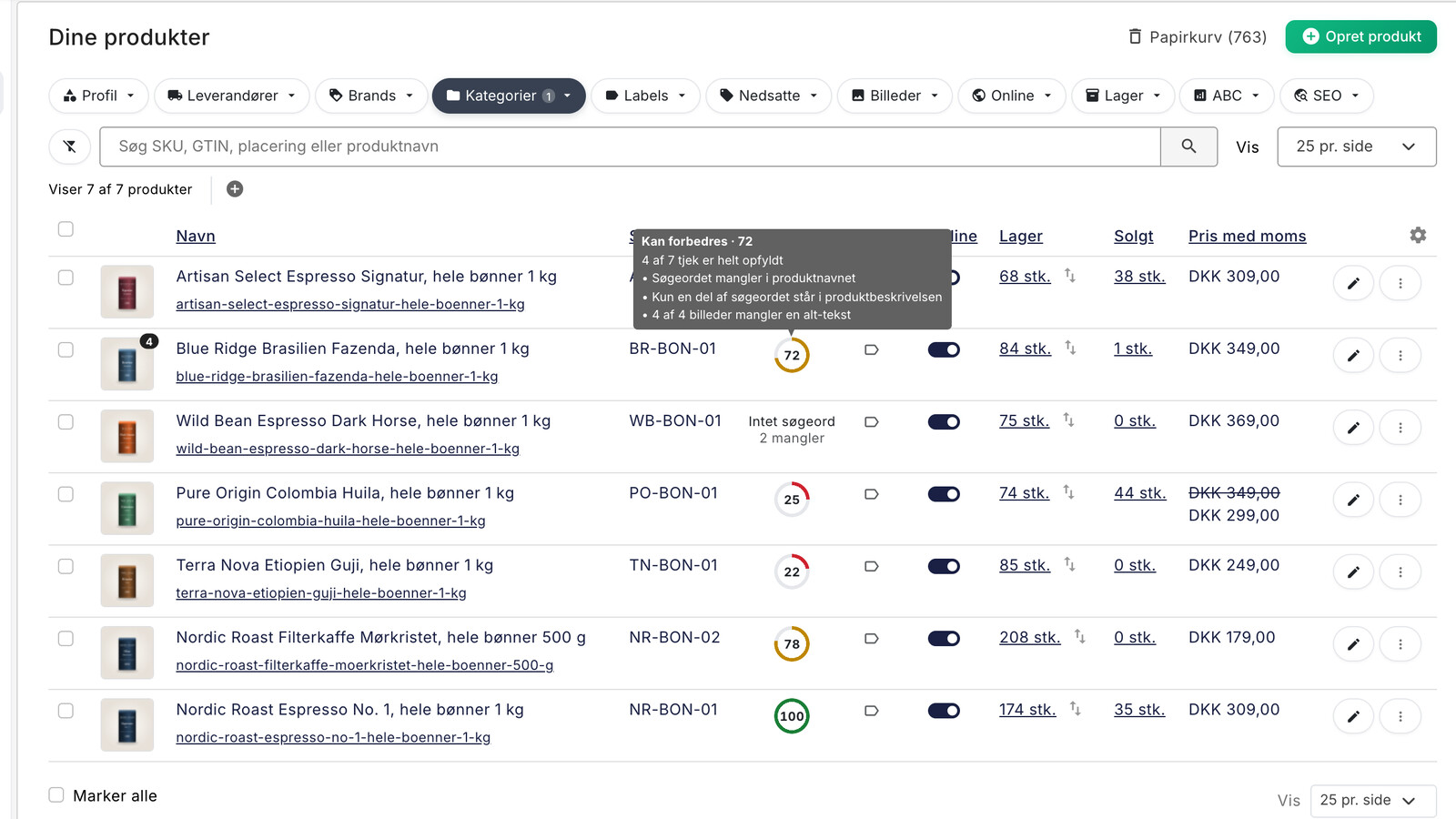
SEO på produktsider: Sådan finder og retter du de svage produkter
Se SEO-status på alle dine produkter, find dem med svag score eller uden søgeord, og ret title, beskrivelse, og alt-tekst med få klik i Shoporama.
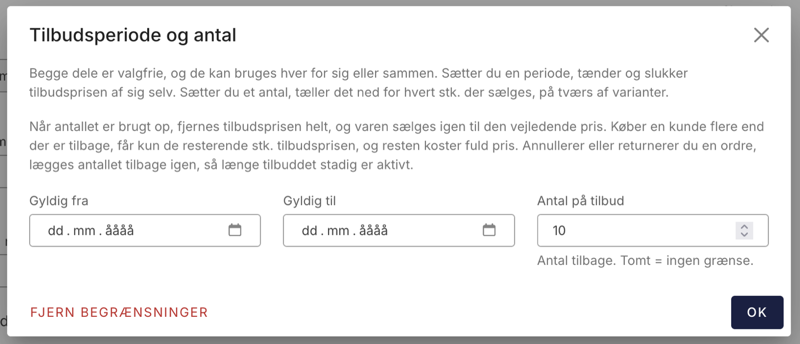
Now your offer can also stop at a certain number
Set a limit on the number of items sold at the sale price. When that number reaches zero, Shoporama automatically ends the sale. That's how the...