Set up ePay as a payment gateway
Step-by-step guide to setting up ePay as a payment gateway in your Shoporama webshop. Fill in Merchant ID, Secret (MD5) and Password for capture and get started quickly with card payment, MobilePay, Forbrugsforeningen and Klarna.
ePay is one of the payment gateways supported by Shoporama. With ePay, you can accept card payments, MobilePay Online, Klarna, Forbrugsforeningen, and a wide range of other payment methods. Here’s a complete guide to setting it up.
Note: ePay was formerly known as Bambora, but since December 2024, it has once again become an independent company under the name ePay. When you create a new payment gateway in Shoporama, select ePay.
Step 1: Set up the gateway in Shoporama
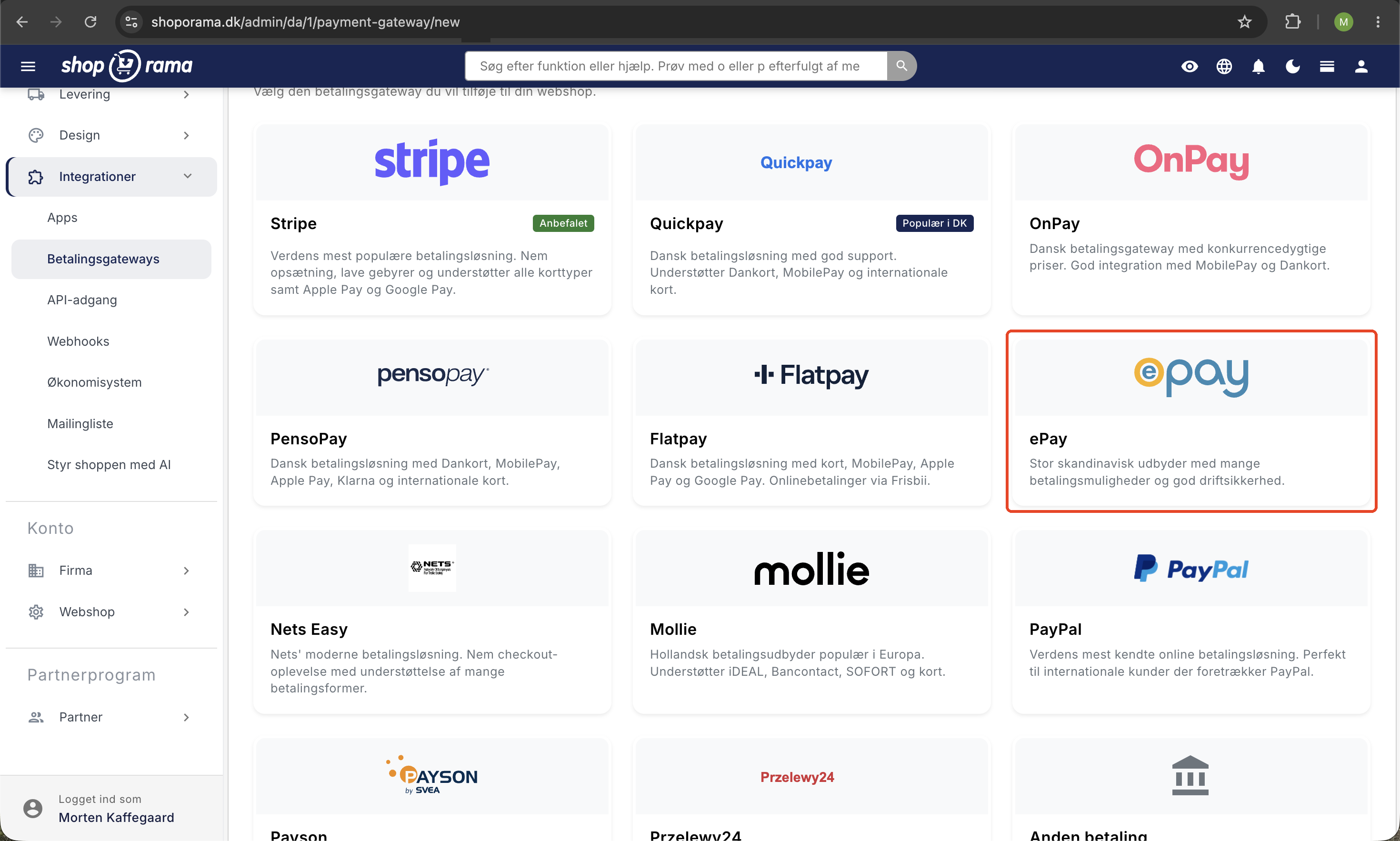
- Log in to your Shoporama admin panel
- Go to Store » Integrations » Payment Gateways
- Click Create New Payment Gateway
- Select ePay
- Give it a descriptive name, e.g., Credit Card
- Click Save
Step 2: Enter the Merchant ID
In the Merchant ID field, enter your Merchant ID from ePay. You can find it in the top-right corner of the ePay admin panel or under Settings » Payment System. It is typically a 7-digit number.
Step 3: Enter the Secret (MD5 secret)
The Secret field is an MD5 secret that ePay uses to sign callbacks. This ensures that Shoporama can verify that a payment message actually comes from ePay and not from a third party.
You’ll find it in the ePay admin under Settings » Payment System » MD5 Stamp/Key. You can choose which string to use. The important thing is that you enter exactly the same value in both ePay and Shoporama.
Step 4: Password (for capture)
If you want Shoporama to process payments automatically when an order is submitted, you must fill in the Password (for capture) field.
This is a so-called Remote Password, which you can find in the ePay admin under Settings » Payment System » Remote Password. It is used to authorize the API calls that Shoporama makes when a payment needs to be processed or refunded.
Tip: Without a Remote Password, Shoporama cannot automatically process or refund payments. You can do without it, but in that case, processing and refunds must be done manually in the ePay admin.
Step 5: Add your domain in ePay
ePay requires you to whitelist the domains that are allowed to use the payment window. If your domain isn’t approved, you’ll see the error “The referring domain is not allowed.”
- Log in to the ePay admin panel
- Go to Settings » Payment System
- Find the field for allowed domains
- Add your domain (e.g., www.dinshop.dk)
- Also add dinshop.shoporama.dk if you’re still using the Shoporama subdomain
Important: If you change your domain later, be sure to update the list in ePay.
Step 6: Automatic capture (optional)
If you want the funds to be automatically captured when the order is shipped or picked up, check the box next to "Automatically capture funds when the item is shipped or picked up. " This requires that you have entered a password (for capture).
The amount will be reserved on the customer’s card immediately, but will not be charged until you mark the order as shipped or picked up. This is the recommended setup for physical goods, as Danish law prohibits you from charging the payment before the item is shipped. Read more in our guide to charging payments on orders.
Step 7: Save and Test
Click Save in Shoporama. Then test that the payment works by creating a test order in your online store.
To see the correct payment window, your shop must be set to live. In demo mode, a simplified screen is displayed instead. See the FAQ below for more information.
Advanced settings
The ePay gateway has a number of advanced settings that most users won’t need to change:
- Windowstate: controls how the payment window is displayed (1 = same window, 3 = overlay, 4 = full page, recommended)
- Window ID: ID for a custom payment window design created in ePay
- Group: Groups transactions under a common name in ePay
- Language: 1 = Danish, 2 = English, 3 = Swedish
- Card Type: Limit to one specific card type (e.g., only Dankort or MobilePay Online). Leave blank to allow all activated card types
- Payment Group: Filter payment methods by category (card, gift card, online banking, invoice, mobile, etc.)
- Add invoice data: Sends order lines and customer information with the payment. Required when using Klarna
- CSS URL: URL to an external stylesheet that customizes the appearance of the payment window
- Google Tracker: Google Analytics tracking ID to track the payment flow
Frequently Asked Questions
What are the minimum fields I need to fill out?
At a minimum, you must fill in the Merchant ID and Secret. If you want automatic payment capture and refunds, you must also fill in the Password (for capture). The other fields can be left blank and will use default values.
Where can I find the MD5 secret in ePay?
Log in to the ePay admin panel and go to Settings » Payment System. Here you’ll find the “MD5 stamp/key” field (or simply “MD5 key”). You can choose which string to use. The most important thing is that you enter exactly the same value in both ePay and Shoporama.
Can I offer MobilePay and Klarna through ePay?
Yes. ePay supports MobilePay Online (payment type 29), Klarna (payment type 17), ViaBill, and a wide range of other methods. These must first be enabled in your ePay agreement. Using Klarna also requires that you enable “Add Invoice Data ” so that order lines are included.
Can I accept Forbrugsforeningen payments via ePay?
Yes. Forbrugsforeningen is enabled as card type 11 within your ePay gateway. If you want to offer both cards and Forbrugsforeningen, you can set up two ePay gateways in Shoporama with the same keys but different card types. Read the full guide on Forbrugsforeningen as a payment method.
How do I issue a refund for an order?
If you have entered the Password (for capture), you can refund a payment directly from the order view in Shoporama via a credit memo. Read our guide to credit memos and refunds. If you do not have the Remote password, the refund must be processed manually in the ePay admin panel.
Why don’t I see the payment window?
There may be several reasons:
- The store is in demo mode. The payment window only appears when the store is set to live. In demo mode, you’ll see the text “Pretend to pay” instead.
- Missing SSL. The payment window requires your store to run over HTTPS. Shoporama automatically creates an SSL certificate once your domain is set up correctly.
- Incorrect Merchant ID. Check that you’ve entered the correct Merchant ID from ePay.
I’m getting the error “The referring domain is not allowed”
This error means that the domain you’re using isn’t authorized in ePay’s admin panel. Log in to ePay and add your domain under Settings » Payment System. Remember to add both your own domain (e.g., www.dinshop.dk) and, if applicable, your Shoporama subdomain (e.g., dinshop.shoporama.dk).
Can I test payments with test cards?
ePay provides test merchant numbers and test cards that you can use to test the payment flow. Note, however, that the payment window only appears when the store is live, not in demo mode.
Alternatively, you can make a test purchase with a real card for an inexpensive product and then refund the payment in the ePay admin panel.
What is the difference between demo mode and live mode?
In demo mode, Shoporama simulates the payment so you can test the rest of the checkout flow (shopping cart, shipping information, order confirmation) without involving ePay. In live mode, the customer is redirected to the actual payment window on ePay, where they can pay by card, MobilePay, or other payment methods.
Is it called ePay, Bambora, or Worldline?
ePay was originally acquired by Bambora, which later became part of Worldline. Since December 2024, ePay has once again been an independent company. The correct name is simply ePay.
Do I receive the money directly into my account?
No. ePay is a payment gateway, not an acquirer. The funds are paid out by your acquiring partner (e.g., Nets, Clearhaus, Teller) to your business account according to an agreed-upon settlement frequency. ePay simply ensures that card data is securely forwarded to the acquirer. Learn more about when you’ll receive your funds.
Having trouble with the setup? Contact us at support@shoporama.dk, and we’ll help you.
Related articles
Consumers' Association as a payment method
How to accept the Spending Credit in your Shoporama online shop. The Spending Credit is activated as a card type in the ePay gateway, not as a...
Collect payments on orders (capture)
Guide to capture payments on orders in Shoporama. Understand the difference between authorization and capture and learn how to capture manually or...
Credit notes and refunds
Complete guide to credit notes and refunds in Shoporama, including partial refunds, full credit notes and transfer to accounting systems.
Set up Klarna as payment method
Learn how to set up Klarna as a payment method in your Shoporama webshop.
Mollie payment gateway
Learn how to set up Mollie as a payment gateway in Shoporama. Mollie supports iDEAL, credit cards, Klarna, PayPal, Apple Pay, Bancontact and many...
Stripe payment gateway
Learn how to set up and use Stripe as a payment gateway in your Shoporama online shop. Stripe supports card payment, MobilePay, Klarna, Apple Pay,...
Restrict payment methods to specific countries
Restrict which payment methods are shown in checkout based on the customer's country of delivery.
When will I get my money paid out?
Find out when you get paid from your sales through the payment gateway.