Mollie payment gateway
Learn how to set up Mollie as a payment gateway in Shoporama. Mollie supports iDEAL, credit cards, Klarna, PayPal, Apple Pay, Bancontact and many more payment methods.
Mollie is a European payment solution that gives your customers access to a wide range of payment methods through a single integration. Mollie is particularly popular in the Netherlands and Belgium, but supports payments throughout Europe and is a strong choice if you sell in multiple markets.
Payment Methods via Mollie
With a single Mollie account, you can offer many payment methods. The specific methods available depend on your Mollie account, the customer’s country, and whether you’ve enabled the Orders API.
- Credit cards: Visa, Mastercard, American Express.
- iDEAL. The most widely used payment method in the Netherlands.
- Klarna. Pay Later, Pay Now, and Slice It. Requires the Orders API.
- PayPal. Payment via PayPal account.
- Apple Pay. Payment via Apple devices.
- Bancontact. The most widely used payment method in Belgium.
- SOFORT. Real-time European bank transfer.
- SEPA Direct Debit. European direct debit.
- Giropay. German online bank payment.
- EPS. Austrian online banking payment.
- Przelewy24. Polish payment method.
- BLIK. Polish mobile payment.
- TWINT. Swiss payment app.
- Billie. B2B invoice, requires the Orders API.
- in3. Dutch installment payment, requires the Orders API.
- Riverty. Invoice and installment payments; requires the Orders API.
- Mollie gift card. Payment with a Mollie gift card.
- Bank Transfer. Standard bank transfer.
The payment methods displayed to the customer at checkout are managed in your Mollie Dashboard. You do not need to configure each individual method in Shoporama.
Step-by-Step Setup
- Create an account at mollie.com and fill in your business and bank information.
- Retrieve your API key in the Mollie Dashboard under Developers » API keys. Use the test key (starting with test_) for testing and the live key (starting with live_) in production.
- Go to Integrations » Payment Gateways in the Shoporama admin.
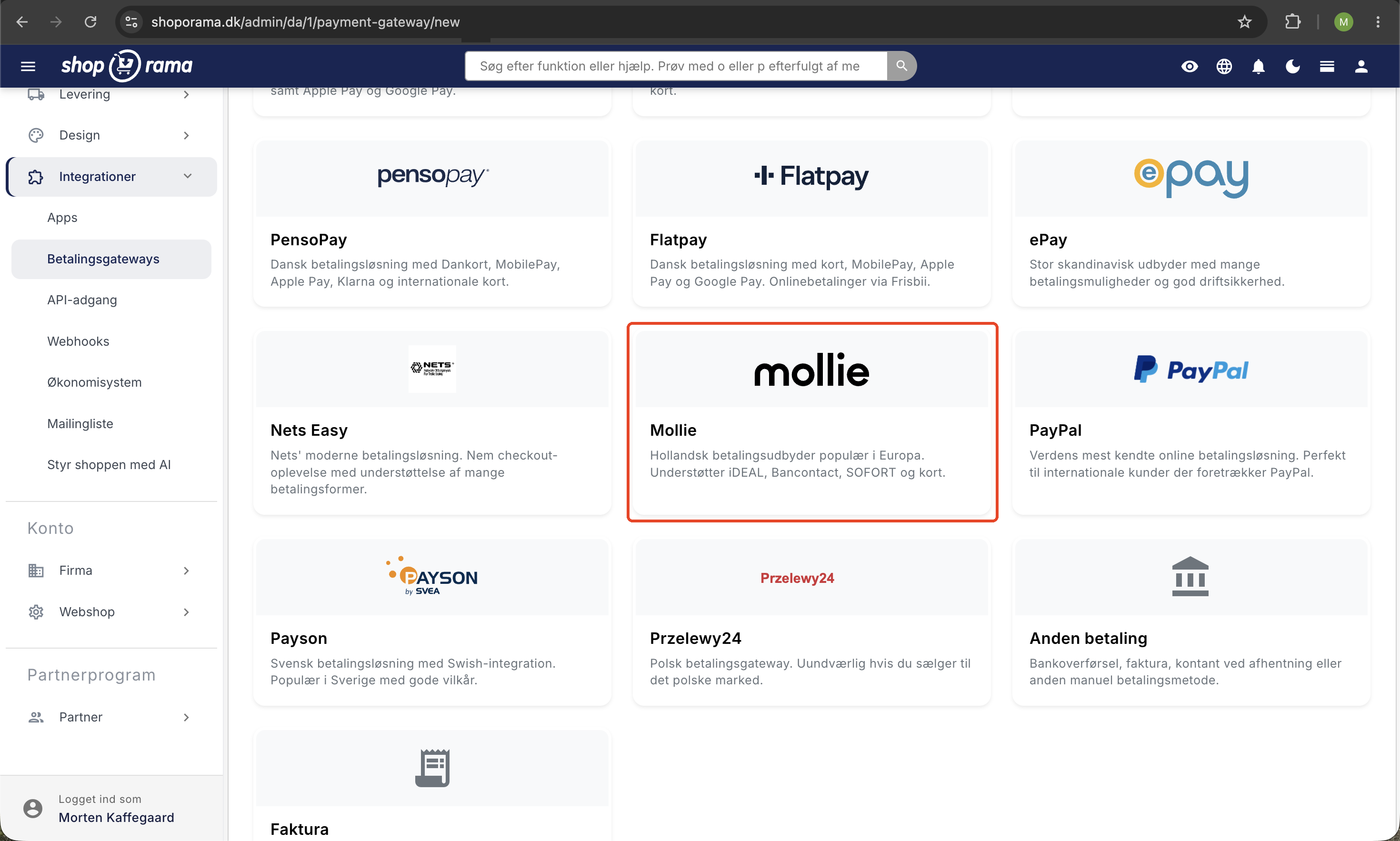
- Add a new payment gateway and select Mollie.
- Enter your API key in the API Key field.
- Select the language for Mollie’s payment window. See the full list in the section below.
- Leave Payment Method blank to display all active methods, or enter a specific method (e.g., ideal).
- Enable “Use Orders API” (required for Klarna) if you offer Klarna, Billie, in3, or Riverty.
- Save and make a test payment using a test key to confirm that the flow works.
Tip: If you want to offer several specific methods individually (e.g., both iDEAL and Bancontact as separate options at checkout), create one Mollie gateway per method in Shoporama and fill in the “Payment Method” field for each gateway.
Languages in the payment window
Mollie’s payment window can be displayed in 17 languages. You select one language per Mollie gateway. If you need to display multiple languages, you can create multiple Mollie gateways in Shoporama, each with its own language setting.
- Danish (da_DK)
- English (UK) (en_GB) and English (US) (en_US)
- Dutch (nl_NL) and Belgian Dutch (nl_BE)
- French (fr_FR) and French (Belgium) (fr_BE)
- German (de_DE), German (Austria) (de_AT), and German (Switzerland) (de_CH)
- Swedish (sv_SE)
- Norwegian (nb_NO)
- Finnish (fi_FI)
- Spanish (es_ES)
- Italian (it_IT)
- Polish (pl_PL)
- Portuguese (pt_PT)
Gateway Settings
- API Key. Your Mollie API key. Required.
- Language. The language in Mollie’s payment window. Select the language your customers most commonly speak.
- Payment method (optional). Leave the field blank to display all your active methods from the Mollie Dashboard. Enter a specific method code (e.g., ideal, bancontact, or creditcard) to offer only that one.
- Use Orders API (required for Klarna). Sends order lines and customer information to Mollie instead of just an amount. Required for Klarna, Billie, in3, and Riverty. Generally recommended for better order management in the Mollie Dashboard.
How to Offer Klarna Through Mollie
- Enable Klarna in your Mollie Dashboard under Settings » Payment methods. Mollie may request your business registration number (CVR) and bank details for authorization.
- Enable “Use Orders API” (required for Klarna) on the Mollie gateway in Shoporama. Without this setting, Klarna will fail because Klarna requires detailed order lines.
- Save and test the payment using a test account. Klarna has its own testing instructions in Mollie’s documentation.
The same procedure applies to Billie, in3, and Riverty.
Payment Flow
When the customer completes a purchase, they are redirected to Mollie’s secure payment page, select a payment method, and complete the payment. Afterward, the customer is redirected back to the order confirmation page in your online store.
Mollie independently sends a notification (webhook) to Shoporama when the payment status changes. This means that the order is marked as paid, even if the customer closes the browser during the process or loses their connection.
Refunds and Credit Memos
Refunds can be processed directly in the Mollie Dashboard or through Shoporama’s order management system when you create a credit memo. Mollie supports both full and partial refunds of payments.
Fees and payouts
Mollie’s fees depend on the payment method, transaction volume, and country. See Mollie’s pricing page for current rates. Credit cards and iDEAL typically have lower fees than Klarna, and “pay later” methods usually have a percentage-based fee of the order amount.
Shoporama does not charge any additional fees for using Mollie. Mollie pays out your revenue to your business account according to the frequency you select in the Mollie Dashboard—typically daily or weekly.
Frequently Asked Questions
Which languages can I choose in Mollie’s payment window?
You can choose from 17 languages: Danish, English (UK and US), Dutch (NL and BE), French (FR and BE), German (DE, AT, and CH), Swedish, Norwegian, Finnish, Spanish, Italian, Polish, and Portuguese. You set one language per Mollie gateway. If you have multiple language regions, you can create multiple gateways, each with its own language setting.
How do I enable Klarna via Mollie?
Enable Klarna in the Mollie Dashboard under “Payment Methods.” Then, enable the “Use Orders API” setting (required for Klarna) on the Mollie gateway in Shoporama. Without the Orders API, Klarna cannot process the payment because Klarna requires detailed order lines.
How much does Mollie charge per transaction?
It depends on the payment method and country. Credit cards and iDEAL are often the cheapest, while Klarna and PayPal have higher percentage-based fees. See the current rates on Mollie’s pricing page. Shoporama does not add any extra fees.
What’s the difference between a test and a live API key?
The test key starts with test_ and uses Mollie’s sandbox. You can test the entire checkout flow without processing real money. The live key starts with live_ and is the one you should use in production. Switch to it only after you’ve confirmed that the flow works in the test environment.
Can I offer only one specific payment method (e.g., only iDEAL)?
Yes. Enter the payment method code in the “Payment Method (optional)” field on the gateway, e.g., ideal, bancontact, or creditcard. If you want to offer multiple specific payment methods separately in the checkout, create one Mollie gateway per method.
What happens if the customer closes the browser in the middle of the payment?
Mollie sends a webhook to Shoporama regardless of the customer’s browser every time a payment changes status. The order will therefore be marked as paid, even if the customer closes the browser, loses their internet connection, or doesn’t return to the store.
Where can I see Mollie payments in my accounting records?
Mollie aggregates your revenue and transfers it to your bank account at the frequency you select in the Mollie Dashboard. Each payment can be reconciled using Mollie’s reports. If you use E-conomic, Dinero, or Billy, orders can be automatically posted via the integrations in Shoporama, while the Mollie payment itself is posted as a deposit to your bank account.
How do I issue a refund to a customer?
Create a credit memo for the order in Shoporama, or issue a refund directly in the Mollie Dashboard. Both methods can be used for full or partial refunds. The amount will be deducted from your future Mollie payments.
Do I need to enable the Orders API if I’m not using Klarna?
It’s not required, but we recommend it. With the Orders API, Mollie receives order lines and customer information, which provides a better overview in the Mollie Dashboard and is necessary if you later want to add Klarna, Billie, in3, or Riverty.
Where can I find my API key?
Log in to the Mollie Dashboard and go to Developers » API keys. You can copy both the test and live keys directly from there.
If you have any questions about the Mollie integration, feel free to email support@shoporama.dk.
Related articles
Set up Klarna as payment method
Learn how to set up Klarna as a payment method in your Shoporama webshop.
Stripe payment gateway
Learn how to set up and use Stripe as a payment gateway in your Shoporama online shop. Stripe supports card payment, MobilePay, Klarna, Apple Pay,...
Set up ePay as a payment gateway
Step-by-step guide to setting up ePay as a payment gateway in your Shoporama webshop. Fill in Merchant ID, Secret (MD5) and Password for capture...
Setting up QuickPay
Guide to setting up QuickPay as a payment gateway on your Shoporama online shop. Supports Dankort, MobilePay, Visa, Mastercard and many more.
Setting up Nets Easy
Guide to setting up Nets Easy (Nexi) as a payment gateway on your Shoporama online shop.
How do I receive payment online?
What does it take to accept credit card or MobilePay payments online? Read about acquiring agreements, payment gateways and alternative payment...
Collect payments on orders (capture)
Guide to capture payments on orders in Shoporama. Understand the difference between authorization and capture and learn how to capture manually or...
Restrict payment methods to specific countries
Restrict which payment methods are shown in checkout based on the customer's country of delivery.
Related features
Webshop with Apple Pay
Offer Apple Pay in your online store and give iPhone customers a checkout in under 5 seconds. How to set up Apple Pay on Shoporama via Mollie or...
Webshop with Dankort
Create a webshop with Dankort as a payment method. How to get started on Shoporama via QuickPay, ePay, Mollie or Stripe - fees and setup explained.
Webshop with Klarna
Offer Klarna in your online shop and let customers choose between Pay Now, Pay Later and Slice It. How to set up Klarna on Shoporama via Mollie.