Stripe payment gateway
Learn how to set up and use Stripe as a payment gateway in your Shoporama online shop. Stripe supports card payment, MobilePay, Klarna, Apple Pay, Google Pay and many more payment methods.
Stripe is one of the world's most popular payment solutions and can be easily integrated with your Shoporama online store. With Stripe, you get access to a wide range of payment methods, including credit and debit cards, MobilePay, Klarna, Apple Pay, Google Pay, and many more.
How to Connect to Stripe
Stripe connects to your online store via Stripe Connect, which means you log in with your Stripe account directly from Shoporama. You don’t need to manually copy API keys.
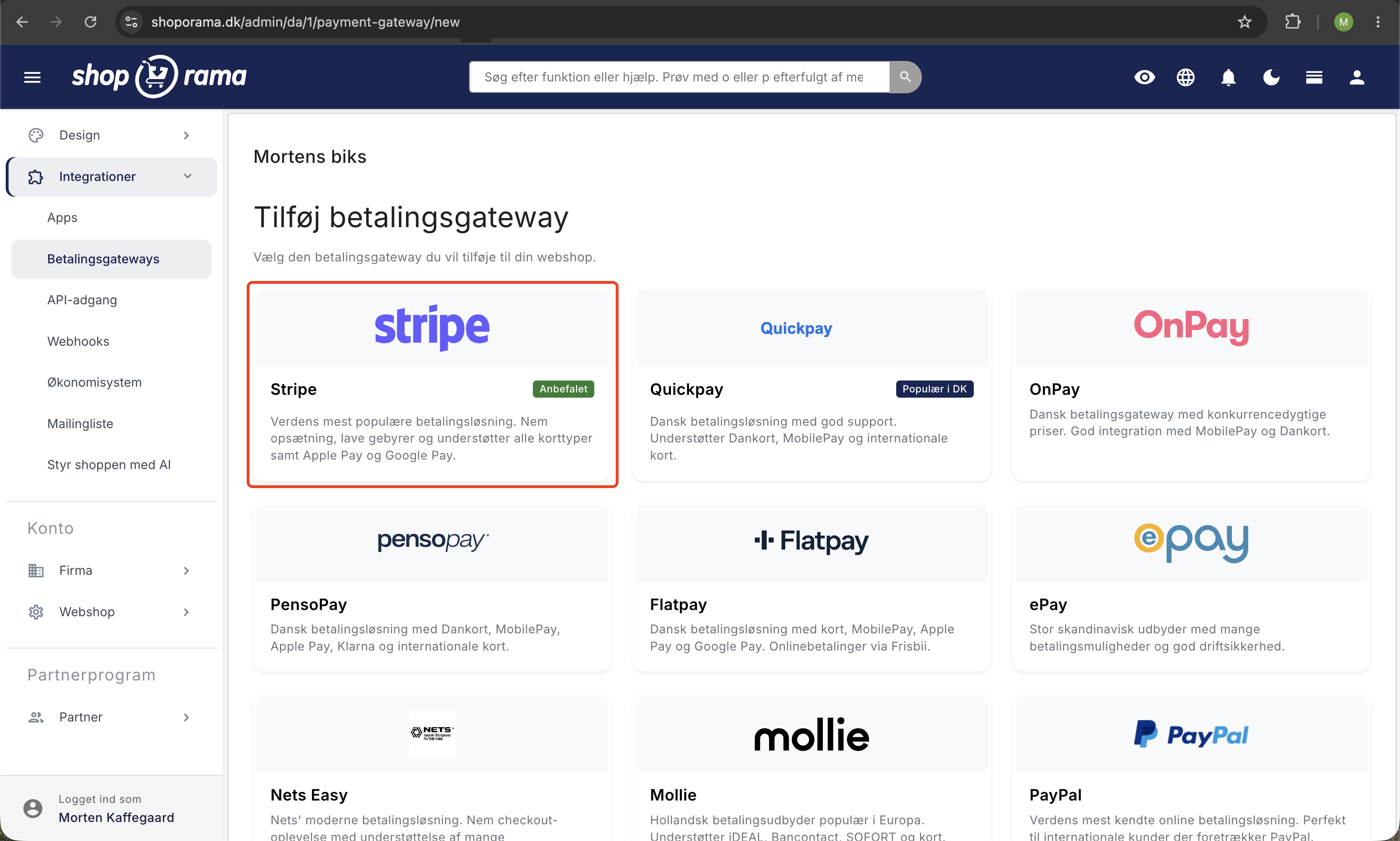
- Go to Integrations → Payment Gateways in your Shoporama admin panel
- Find Stripe on the list and click “Connect”
- You’ll be redirected to Stripe, where you’ll log in or create a new account
- Authorize the connection, and you’ll be redirected back to Shoporama
- Stripe is now active as a payment gateway in your online store
Once the connection is established, the date and time of the connection will appear in the Stripe settings. You can renew the connection at any time if necessary.
Payment Methods
Stripe supports a wide range of payment methods that your customers can choose from at checkout:
- Card payments, Visa, Mastercard, American Express
- Digital wallets: Apple Pay and Google Pay
- MobilePay, Denmark’s most widely used mobile payment solution
- Klarna, buy now, pay later
- iDEAL, popular in the Netherlands
- Bancontact, popular in Belgium
- SEPA Direct Debit, European bank transfer
The available payment methods depend on the customer’s country and your Stripe configuration. You enable and manage which payment methods to display directly in your Stripe Dashboard, not in Shoporama’s gateway settings. Shoporama automatically displays the methods you’ve enabled in Stripe.
Settings in Shoporama
The gateway page in Shoporama is intentionally minimal. You’ll find two elements:
- "Connect/Reconnect to Stripe," the button that starts the Stripe Connect flow
- Automatically process payment when the item is shipped or picked up—a toggle that controls whether the amount is automatically processed when the status is “shipped” or “picked up”
Everything else—including which payment methods should be active, currency, branding, and similar settings—is configured in your Stripe Dashboard.
Payment Flow
When a customer completes a purchase, they are redirected to Stripe’s hosted checkout page, which is optimized for conversion and supports all selected payment methods. After payment, the customer is redirected back to your online store with an order confirmation.
By default, Stripe uses manual authorization. This means the amount is reserved on the customer’s card at the time of order but isn’t charged until you actively choose to authorize it. This allows you to verify the order before payment is processed.
Automatic charging
You can enable automatic charging in the Stripe settings. When this feature is turned on, the amount is automatically charged when the order is marked as shipped or picked up. This saves you a manual step in order processing.
Tip: Automatic charging is ideal for online stores with fast fulfillment, where items are always in stock and shipped the same day.
Charges, Refunds, and Cancellations
From the orders page in Shoporama, you can manage all payment transactions:
- Withdraw payment, withdraw the reserved amount in full or in part
- Refund: Refund all or part of a completed payment
- Cancel: Release a reserved payment that has not yet been charged
Partial refunds are also supported. If a customer returns one item out of several, you can refund exactly the amount corresponding to the returned item.
Subscriptions and recurring payments
Shoporama’s subscription feature is not supported by Stripe. If you sell recurring orders that are automatically charged to the customer, you must choose a payment gateway that supports recurring payments: QuickPay, ePay, PensoPay, Flatpay, or PayOn.
Important: Do not select Stripe as the payment gateway for an online store that sells subscriptions. The customer will be able to add the subscription to their cart, but the payment cannot be processed.
Prices and Fees
In addition to Stripe’s own fees, Shoporama charges a platform fee of 0.5% per transaction (minimum 1 kr.). Stripe’s own fees depend on the payment method and country. See Stripe’s pricing page for current rates.
Example: For an order of 500 kr., Shoporama’s fee will be 2.50 kr. (0.5%). For an order of 100 kr., the fee will be 1 kr. (the minimum fee).
Webhooks
Stripe automatically sends notifications (webhooks) to Shoporama when a payment is completed. This ensures that orders are marked as paid and that an order confirmation is sent to the customer, even if the customer’s browser is closed during the payment process.
Webhooks are set up automatically upon connection and require no manual configuration.
Troubleshooting
If you’re experiencing issues with Stripe, here are the most common causes:
- The connection has expired; try renewing the connection via the Stripe settings
- The payment is declined; the customer should contact their bank or try a different payment method
- The order isn’t marked as paid—contact support@shoporama.dk for help with webhook configuration
If you have any questions about the Stripe integration, feel free to contact us at support@shoporama.dk.
Related articles
Payson payment gateway
Guide to setting up Payson as a payment gateway in Shoporama. Accept payments from Swedish and Nordic customers.
Subscriptions
Learn how to set up subscriptions in Shoporama so your customers can create recurring orders with automatic payment and delivery at set intervals.
Phone number in MobilePay
Why the phone number is not pre-filled in MobilePay and what the customer can do.
Related features
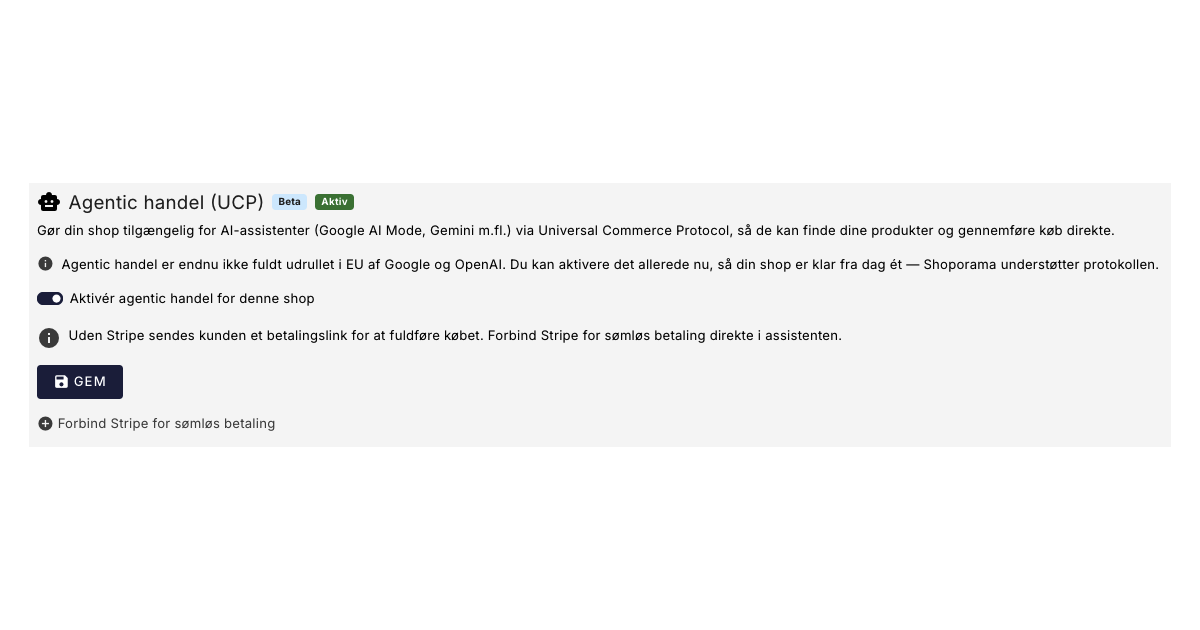
Agentic Trading with Google UCP
Get your online store ready for AI shopping. Shoporama supports Google's UCP, so Gemini and Google AI Mode can find and purchase your products...
Dine kunder kan snart shoppe via AI: Shoporama er klar til Googles nye protokol (UCP)
Google has launched UCP, so AI assistants like Gemini can find and purchase your items directly. Shoporama already supports this feature. See how...
13+ payment gateways for your webshop
Choose from OnPay, Quickpay, Stripe, Mollie, Nets Easy, ePay and many more. Automatic capture, country restrictions and partial payment.
Payment: acquirer, gateway, and how long it takes
Understand the difference between a merchant and a payment gateway, apply for a merchant agreement, choose Stripe or Quickpay, and test card...
Payment gateway
A payment gateway handles the secure transaction process between your online shop and the bank. Learn about pricing, popular solutions in the UK...
PSP - Payment Service Provider
A PSP handles online payments for webshops. Read about payment gateways, QuickPay, Stripe and payment solutions in Denmark.
Webshop with Apple Pay
Offer Apple Pay in your online store and give iPhone customers a checkout in under 5 seconds. How to set up Apple Pay on Shoporama via Mollie or...
Webshop with Dankort
Create a webshop with Dankort as a payment method. How to get started on Shoporama via QuickPay, ePay, Mollie or Stripe - fees and setup explained.
Start an online store: complete guide to opening your own store
How to start an online shop in 2026: platform, payment, shipping, domain and price. Step-by-step guide. Try Shoporama free for 30 days without a...