Set up ViaBill on Shoporama
Guide to setting up ViaBill as a payment option on your Shoporama online shop. Learn how to add the ViaBill script, display the price on the product page and set up ViaBill as a payment gateway via Quickpay or ePay.
To use ViaBill as a payment method, you need to complete three steps. We’ll walk you through them here.
Tip: If you’re using one of Shoporama’s newer themes (e.g., Delaware), you can enable ViaBill directly in the theme settings under “Integrations” without editing any code. Simply enter your ViaBill Shop ID.
1. Insert the ViaBill code
ViaBill will provide you with a unique code that looks something like this:
<script>
  (function(){
    var o = document.createElement('script');
    o.type = 'text/javascript';
    o.async = true;
    o.src = 'https://app.ibill.dk:443/psp/web/webshop/pricetag/DIN_NØGLE';
    var s = document.getElementsByTagName('script')[0];
    s.parentNode.insertBefore(o, s);
  })();
</script>
This script takes your product price and calculates the monthly price through ViaBill. The price is only displayed on the product page, so we recommend that you insert the code only there. This prevents the ViaBill script from unnecessarily slowing down your other pages.
Note: You cannot copy the code above directly. You must use your own unique code from ViaBill. Contact your design partner to have the code inserted correctly.
2. Add a div to display the ViaBill price
Wherever you want the ViaBill price to appear on the product page, you need to add a div. You have two options:
Graphical version:
<div class="ViaBill_pricetag_product" price="<{$product->getRealPrice()}>"></div>Plain text version:
<div class="ViaBill_pricetag_list" price="<{$product->getRealPrice()}>"></div>You can copy the code above directly into your product template.
3. Add ViaBill as a payment gateway
The procedure depends on which payment provider you use.
Quickpay / PensoPay
- Create a new payment gateway in Shoporama
- Set it up just like your other Quickpay methods(using an API key and private key)
- Type "viabill " in the "Payment Methods" field (where it normally says "credit card" or " MobilePay"). If you already have other methods, add "viabill" after the existing ones (e.g. , credit card, MobilePay, viabill)
- Click "Save"
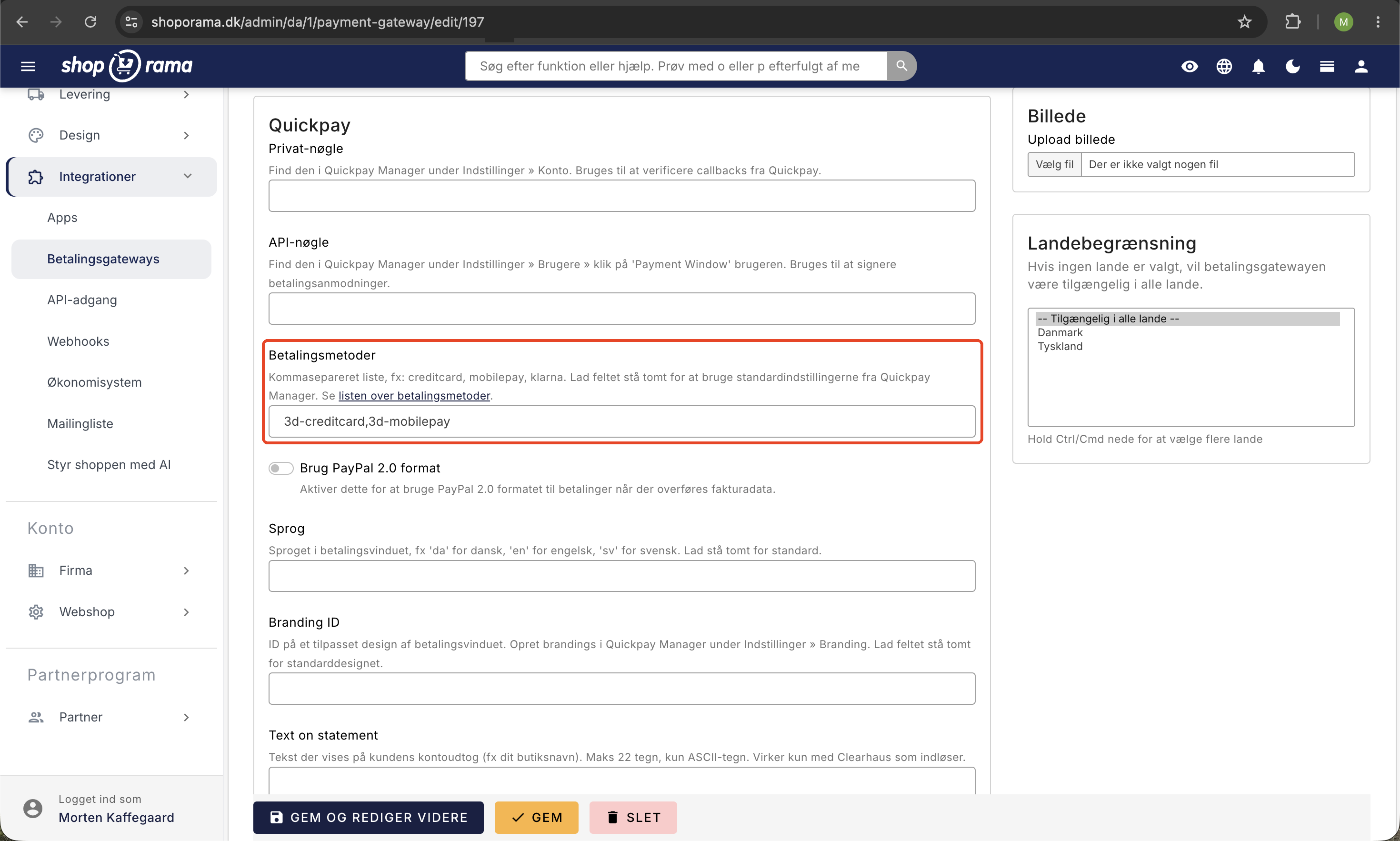
Next, make sure ViaBill is enabled in QuickPay. Go to “Acquirers,” select ViaBill, enter the API key from ViaBill, and check “Enable ViaBill.”
ePay
If you use ePay, you don’t need to do anything in ePay itself. Create a payment gateway in Shoporama, set it up just like your other ePay gateways, but select "ViaBill" from the "Payment Type" dropdown menu. Then click "Save."
Remember to test ViaBill in your store once the setup is complete.
Related articles
Set up ePay as a payment gateway
Step-by-step guide to setting up ePay as a payment gateway in your Shoporama webshop. Fill in Merchant ID, Secret (MD5) and Password for capture...
Set up integration with Anyday
Guide to integrating Anyday installment on your Shoporama online store. Includes script insertion and pricetag implementation.
Set up Klarna as payment method
Learn how to set up Klarna as a payment method in your Shoporama webshop.
Related features
BNPL - Buy Now Pay Later
BNPL lets customers buy now and pay later. Learn about Klarna, Anyday, ViaBill and other BNPL providers and what it costs for your online shop.
ViaBill
Offer installment payments with ViaBill in your Shoporama online store. Learn how to set up the price tag and payment method using QuickPay,...
ViaBill - part payment and buy now, pay later
Offer ViaBill partial payment in your webshop. The customer pays in installments, you get the money right away. Easy integration via QuickPay.
Webshop with ViaBill
Offer ViaBill in your online shop and let customers pay in installments without fees. How to set up ViaBill on Shoporama via QuickPay.
13+ payment gateways for your webshop
Choose from OnPay, Quickpay, Stripe, Mollie, Nets Easy, ePay and many more. Automatic capture, country restrictions and partial payment.