Priceshape feed
Guide to setting up a Priceshape feed on your Shoporama online store via an XML file and a landing page.
Shoporama does not have built-in Priceshape support, but you can create a feed manually using an XML template and a landing page.
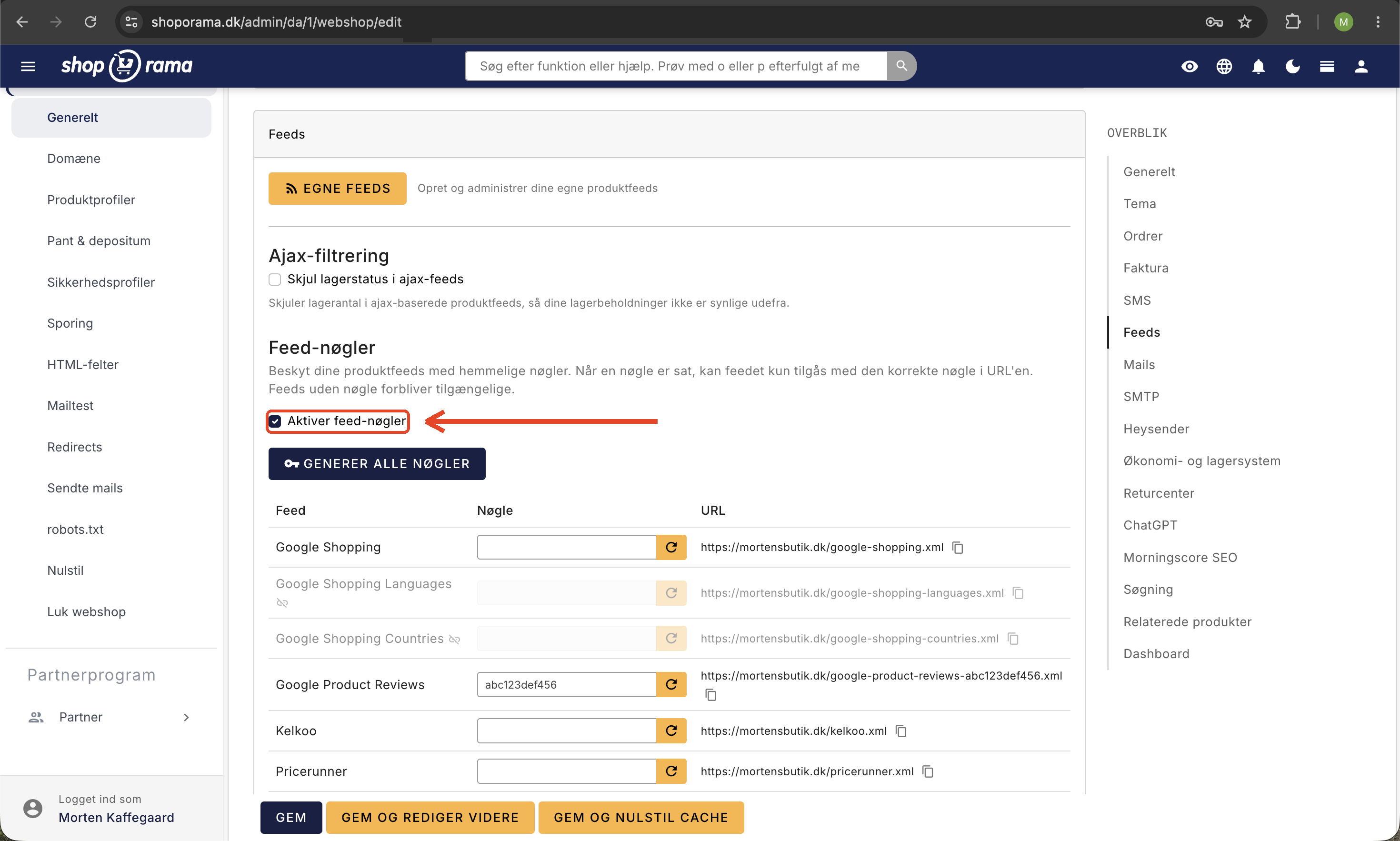
Step 1: Upload the XML template
Ask your developer to create the file `priceshape.xml ` in your theme via SFTP. The file must generate XML with product data in the format expected by Priceshape.
Step 2: Create a landing page
Create a landing page in the Shoporama admin that contains the products you want to include in the feed. Use rules to define which products should be included.
The landing page’s URL is used as the feed URL in Priceshape—simply add .xml after the URL.
Tip
If you need help creating the XML file, contact us or your developer. The template must use Smarty variables such as $products to loop through the products.
Need help? Contact us at support@shoporama.dk.
Related articles
Include color and size in Partner Ads feed
Guide to adding color, size and gender to your Partner Ads feed in Shoporama via product profiles and extra fields.
Set Up a Google Shopping Feed
Guide to Setting Up a Google Shopping Feed in Shoporama: categories, custom labels, product IDs, and catalog matching; feeds by country with the...
Images on landing pages
How to upload images to a Shoporama landing page and display them correctly in your theme with getImages() and getSrc().