robots.txt: Control what search engines are allowed to crawl
Understand what robots.txt does in your Shoporama online store, what the default content is, how to add your own rules, and when to use "noindex" instead.
Your online store is visited by far more than just your customers. Google, Bing, price comparison services, AI bots, and a wide variety of other programs automatically crawl your pages. The robots.txt file is like a little note you hang on the door for them: it tells them which parts of the store they’re welcome to look at—and which ones they should avoid.
Shoporama automatically creates and maintains your robots.txt file, so you don’t need to do anything to get off to a good start. If you want extra control, you can add your own lines. Here’s a complete guide: what the file does, what’s in it by default, how to edit it, and what mistakes to avoid.
What is robots.txt?
robots.txt is a plain text file located in the root directory of your domain. You can view your own by typing /robots.txt after your store’s address in the browser—for example , https://dinshop.dk/robots.txt. Try it as you read along; it’ll make it easier to follow the examples below.
The file contains lines in a very simple format. A robot reads the file before it starts fetching pages and follows the instructions it finds there. The most important terms in the file are:
- User-agent: who the rules apply to. An asterisk means “all robots.”
- Disallow: a path the robot must not crawl.
- Allow: an exception—that is, a path the robot is allowed to crawl even if a broader scope is blocked.
- Sitemap: a reference to your sitemap, which is the list of all the pages you want to be found.
It’s important to understand one thing right away: robots.txt is a polite request, not a lock. The file is public, and anyone can read it. The major search engines respect it, but it doesn’t prevent anyone from opening a page manually. Therefore, never include anything in robots.txt that you don’t want strangers to see, and never use it to protect sensitive content.
Here’s what your robots.txt looks like by default
If you haven’t made any changes, your robots.txt in Shoporama looks like this, with your own domain in the Sitemap line:
User-agent: *
Sitemap: https://dinshop.dk/sitemap.xml
Disallow: /basket$
Disallow: /address
Disallow: /payment
Disallow: /shipping
Disallow: /approve
Disallow: /thanks
Disallow: /order
Disallow: /download-file
Disallow: /product_review
Disallow: /systr
Disallow: /sysreco$
Disallow: /recommendations$

# Powered by Shoporama
In plain English, it says: “Dear all robots. Here is the list of my pages. Please do not access the shopping cart, the address form, the shipping options, the checkout page, the approval page, the receipt page, the order pages, file downloads, or product reviews. Also, please skip the three URLs that the store uses in the background."
The last three lines aren’t pages, but URLs to which the store’s own code sends data. /systr counts visits for statistics, /sysreco measures views and clicks on recommendations, and /recommendations loads the recommendation box itself. Google finds these URLs in the page’s code and attempts to visit them. Without those lines, they may appear as errors in Google Search Console, even though everything is working as it should.
There are two good reasons why these specific pages are blocked. First, they make no sense in a search result. No one benefits from landing directly in an empty shopping cart from Google. Second, robots spend a limited amount of time on your store—what’s known as the crawl budget. Every time a bot fetches a page that shouldn’t appear in search results, that’s time it isn’t spending on your products and categories. In other words: these lines help ensure your actual sales pages are discovered faster.
The “Sitemap” line points to your sitemap, which Shoporama generates automatically based on your products, categories, pages, landing pages, and blog posts. You don’t need to maintain it yourself, and you don’t need to add it manually to robots.txt.
You cannot delete the lines that Shoporama adds itself. This is intentional. These are precisely the kinds of errors that are most costly to fix, and these standard rules apply to virtually all online stores.
How to Edit Your robots.txt
- Go to Webshop> robots.txt in the admin menu.
- You’ll see the Robots.txt page with the “Customize robots.txt” box.
- Enter your additional lines in the “Additional Rules” field. One rule per line.
- Click Save.
- Open https://dinshop.dk/robots.txt in your browser, refresh the page, and verify that the result looks as expected.
The change takes effect immediately, and there’s no cache you need to clear. At the bottom of the page in the admin panel, there’s a small help box with examples of rules you can add.
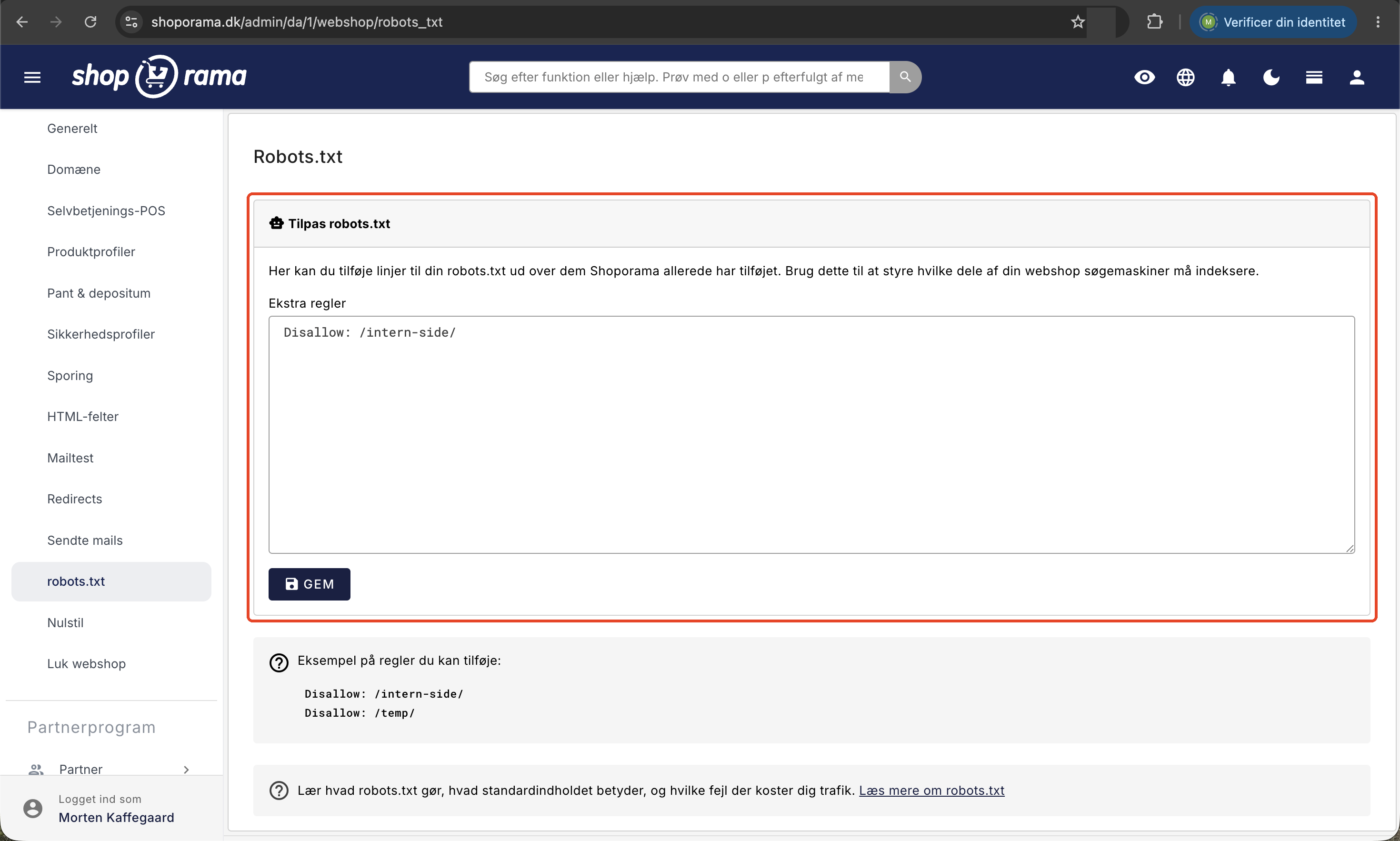
Note that the field is called “Additional Rules” for a reason: what you enter is added on top of Shoporama’s own lines, not in place of them. Your lines are inserted immediately after `User-agent: *` and before the `Sitemap` line and the default rules.
This field applies to one online store at a time. If you have multiple stores in the same account, you’ll need to set this up in each individual store. However, the content will carry over if a store is duplicated.
Rules That Make Sense for an Online Store
Most online stores never need to enter anything in this field. The default setup works well. However, there are some situations where adding an extra line is a good idea.
Internal pages no one should find on Google
If you have pages that are for internal use only, a temporary test page, or a campaign page that should only be accessible via a direct link from your newsletter, you can exclude them:
Disallow: /internal-page/
Disallow: /temp/
Disallow: /newsletter-only/
A path without a trailing slash matches everything that starts with it. So “Disallow: /temp” excludes /temp, /temp/test, and /temperature. Be careful where you place the slash.
Filtered and Sorted Views
If your theme has filters or sorting options that create many variations of the same category page, it may be worth excluding those variations so that the crawlers focus their time on the category itself. Whether this is relevant depends entirely on how your theme is built, so check your own URLs first, or read more about filtering on your online store.
A Specific Exception
If you want to grant access to something that’s otherwise located under a blocked path, you can use `Allow`. A more specific rule takes precedence over a less specific one, regardless of their order:
Disallow: /internal-page/
Allow: /internal-page/guide
What you should NOT block
- Your products and categories. These are what you rely on to be found.
- Images, CSS, and JavaScript. Google renders your pages just like a real browser. If you block the design files, Google will see a broken page and rank it accordingly—especially on mobile.
- Your sitemap. The robots must be able to crawl it.
The difference between robots.txt and noindex
This is the point where most people go wrong, so it’s worth reading twice. The two terms sound similar but do something completely different:
- robots.txt says: “You may not crawl this page.”
- noindex says: “You may crawl the page, but you must not display it in search results.”
The important implication: if you block a page in robots.txt, Google can’t crawl it, and therefore Google can’t see that it has a “noindex” tag. If the page already has external links, Google might still show the URL in search results—just without a title or description. The result is a blank, ugly line in Google instead of nothing at all.
Rule of thumb: If you want a page to be excluded from Google, use `noindex` and don’t block it in `robots.txt`. If you just want to save the crawlers from wasting time on something that’s never going to appear in search results anyway, use `robots.txt`.
In Shoporama, you set “noindex” by checking the “Enable ‘noindex, follow’” checkbox. This option is available for products, categories, pages, landing pages, and blog posts. Read the full guide in “Set noindex on a page, product, or category.”
Shoporama also automatically sets “noindex” on pages where it’s obvious, including the cart, address, shipping, payment, receipt page, and search results page. All newer themes include this. If you have an older or custom-built theme, it’s worth having your theme developer check to make sure the meta tag is actually included.
Common Mistakes
- Writing ` Disallow: /`. That single slash blocks the entire store from search engines. It’s the most costly typo in the entire field. If your traffic from Google disappears over the course of a few weeks, this is the first place you should look.
- Blocking a page to get it out of Google. It doesn’t work. Use `noindex`, as described above.
- Entering a User-agent line in the middle of the field. Your lines will be placed in the group that applies to all robots. If you start a new group in the middle of the field, Shoporama’s default rules will end up in the new group instead, and then they suddenly no longer apply to all robots. If you need rules for a specific robot, contact us at support@shoporama.dk first.
- Using robots.txt as a security measure. The file is public. If you write `Disallow: /secret-folder/`, you’ve just told the whole world that the folder exists.
- Blocking design files. Without CSS and JavaScript, Google will consider your page broken.
- Forgetting to check afterward. Always open /robots.txt in your browser after you’ve saved it. It takes five seconds.
- Thinking it works immediately in Google. The file updates instantly, but it can take days or weeks before Google has fetched it again and crawled through your store.
- Uppercase and lowercase letters. The words “Disallow” and “Allow” themselves are case-insensitive, but the paths are not. /Tilbud and /tilbud are two different things.
Demo stores and shoporama.dk addresses
If your store is still a demo store, is closed, or is located at a temporary address under shoporama.dk, Shoporama automatically generates a robots.txt file that says:
User-agent: *
Disallow: /

# Powered by Shoporama
This is intentional, and it works to your advantage. A store under construction shouldn’t appear in Google, and your temporary address shouldn’t remain active and compete with your actual domain later on. In this situation, the “Extra Rules” field has no effect, as the entire file is replaced.
As soon as the store goes live on your own domain, the file automatically switches to the normal version with a sitemap and standard rules. If you haven’t moved to your own domain yet, read “Move Your Store to Your Own Domain.” If you’re moving an existing store to Shoporama, “Avoid Losing Google Rankings When Moving ” and “The Ultimate Guide to Redirects ” are the two articles you should read first.
For the tech-savvy
- The file is generated on every request and served as text/plain with UTF-8 encoding. Shoporama does not store it, but serves it with a cache time of one hour, so a browser or intermediary may display the previous version for up to one hour.
- The order in the final file is: User-agent: *, followed by your content from the “Extra Rules” field, then the Sitemap line, and finally Shoporama’s default rules.
- The default rule ` Disallow: /basket$ ` uses the dollar sign as the "end here" marker. This means it only affects the shopping cart page itself, not URLs that start with the same prefix. This also applies to /sysreco$ and /recommendations$, so a page with the URL /recommendations-for-you can still be crawled.
- If a bot visits /systr, /sysreco, or /recommendations anyway, they’ll respond with status code 405 (wrong method), an empty response, and a noindex signal. These are intended only for the store’s own script. If you already have a page or a redirect at /sysreco or /recommendations, it will work as before.
- If you sell in multiple countries, each with its own path (e.g., /se/), each country will have its own sitemap line, and the default rules will be repeated under the country’s path. Your own Allow and Disallow lines from “Additional Rules” will also be repeated. Countries that haven’t been enabled yet are blocked entirely, and a line is added for /country-switch, which the language selector uses to switch countries. Read more in “Sell in Multiple Countries and Languages.”
- Google and Bing resolve conflicts between “Allow” and “Disallow” by giving priority to the most specific rule, not by the order in the file. If the rules are of equal specificity, “Allow” takes precedence.
- The sitemap is located at /sitemap.xml and is automatically split into multiple files with an index if the store has a very large number of URLs.
- This field can also be read and written via Shoporama’s API along with the other online store settings if you want to manage it from your own tools.
Frequently Asked Questions
I’ve never touched my robots.txt. Is my store set up incorrectly?
No. Shoporama creates the file for you, and the default content works for the vast majority of online stores. The “Extra Rules” field is for cases where you have something very specific that you want to keep out of search engines. If in doubt, leave it blank.
How do I know if my change has taken effect?
Open https://dinshop.dk/robots.txt in your browser and refresh the page. Shoporama regenerates the file on every visit, so the change will take effect immediately. However, your browser may cache the file for up to an hour. If you’re still seeing the old version, try a hard refresh or opening a private window.
Google is still showing a page I’ve blocked. What should I do?
That’s the classic pitfall. A block in robots.txt prevents Google from crawling the page, not from displaying the URL. Remove the block in the “Extra Rules” field, set “noindex” on the page instead, and wait for Google to crawl it again. Then it will disappear on its own.
Can I create rules that apply only to one specific search engine?
You shouldn’t do that in this field, because your lines will be added to the group that applies to all robots. If you write your own User-agent line, Shoporama’s default rules will be moved over to the new group. If you have a specific need, please email support@shoporama.dk, and we’ll find a solution together.
I have multiple online stores. Do I need to do the same thing in all of them?
Yes, the field applies to each individual online store, so you’ll need to go into each store separately. If you create a new store by copying an existing one, the contents of the field will be carried over to the copy, so you won’t have to do anything there.
Can I prevent order and receipt pages from appearing in Google?
They’re already excluded by default. The shopping cart, address, shipping, payment, and receipt pages have a “Disallow” line, and Shoporama also sets “noindex” on them. The order pages have a “Disallow” line. You don’t need to do anything. Just remember that robots.txt is never, by itself, a form of data protection. The file is public, and anyone can read it.
Could I end up ruining my traffic from Google with this field?
Yes, if you write ` Disallow: /`. That tells all search engines to stay away from the entire store, and over the course of a few weeks, your visibility will drop. Therefore: always check the /robots.txt file in your browser after saving to make sure there isn’t a single slash in it.
Our store is for business customers only and requires a login. Should we block everything?
No, that’s rarely necessary. The robots can’t crawl content behind a login anyway, and blocking the entire store also means that the homepage and any public information pages will disappear from Google. If you want to completely remove the shop from search results, please contact us so we can assess the right solution for your setup.
Can I remove the lines that Shoporama adds automatically?
No, they are always added. They cover the shopping cart, checkout, order pages, file downloads, and product reviews—in other words, pages that should never appear in search results—plus the URLs used by the analytics and recommendations features in the background. If you have a very specific reason for wanting one of these pages crawled, please email support@shoporama.dk.
Search Console shows /systr, /sysreco, or /recommendations as an error. Should I do anything?
No, and you shouldn’t set up redirects for them. These are URLs that the store uses in the background, and they’re already listed in your robots.txt file. If Google visited them before those lines were added, they may still appear as errors in the report for a few more weeks. Afterward, they’ll typically appear as blocked by robots.txt, and that’s perfectly fine.
Do I need to add my sitemap to the field myself?
No. Shoporama automatically inserts a sitemap line that points to /sitemap.xml on your own domain, and the sitemap is kept up to date for you. If you add a line yourself, you’ll just end up with the same sitemap listed twice.
If you have questions about a specific rule, or if you’d like us to review your robots.txt file, please feel free to email us at support@shoporama.dk.
Related articles
Filtering on your online store
Guide to setting up filtering on your Shoporama online store so customers can filter products.
Set noindex on a page, product or category
Here's how to set "noindex" for products, categories, static pages, landing pages, and blog posts in Shoporama so they don't appear in Google...
Move your shop to your own domain
Guide to moving your Shoporama online store to your own domain with DNS setup, SSL and domain validation.
Avoid losing Google rankings when moving
Best practices to maintain your Google rankings when moving your shop to Shoporama.
The big guide to redirects
Complete guide to redirects in Shoporama. Learn when and how to create redirects and avoid losing rankings in Google.
What do the 404 errors in the backend mean?
Explanation of 404 errors that appear in the Shoporama backend and what you should do about them.
Related features
XML sitemap
An XML sitemap lists all pages on your online store for search engines. Learn what it contains, why it's important and how it works in your online...
SEO
SEO (search engine optimization) brings your online store free traffic from Google. Learn about technical SEO, on-page optimization, link building...
SEO in Shoporama - get visible in Google
Shoporama has built-in SEO features: fast speed, full control over titles and meta descriptions, dynamic tags, automatic 301 redirects, XML...