Move your shop to your own domain
Guide to moving your Shoporama online store to your own domain with DNS setup, SSL and domain validation.
Overview
When you create an online store on Shoporama, you automatically receive an address like dinshop.shoporama.dk. But to give your store a professional look, you should connect your own domain—for example, www.dinshop.dk.
Step 1: Buy a domain
If you don’t already have a domain, you can purchase one from a domain registrar such as one.com, Simply.com, Dandomain, or GratisDNS. Choose a short, easy-to-remember domain name that fits your business.
Step 2: Set up DNS records
At your domain provider, you’ll need to set up the following DNS records so that the domain points to Shoporama’s server:
| Host | Type | Value |
|---|---|---|
| dinshop.dk | A | 91.223.235.80 |
| *.dinshop.dk | CNAME | dinshop.dk |
Important: DNS changes can take up to 24–48 hours to take effect, although they typically happen faster.
Step 3: Link the domain in Shoporama
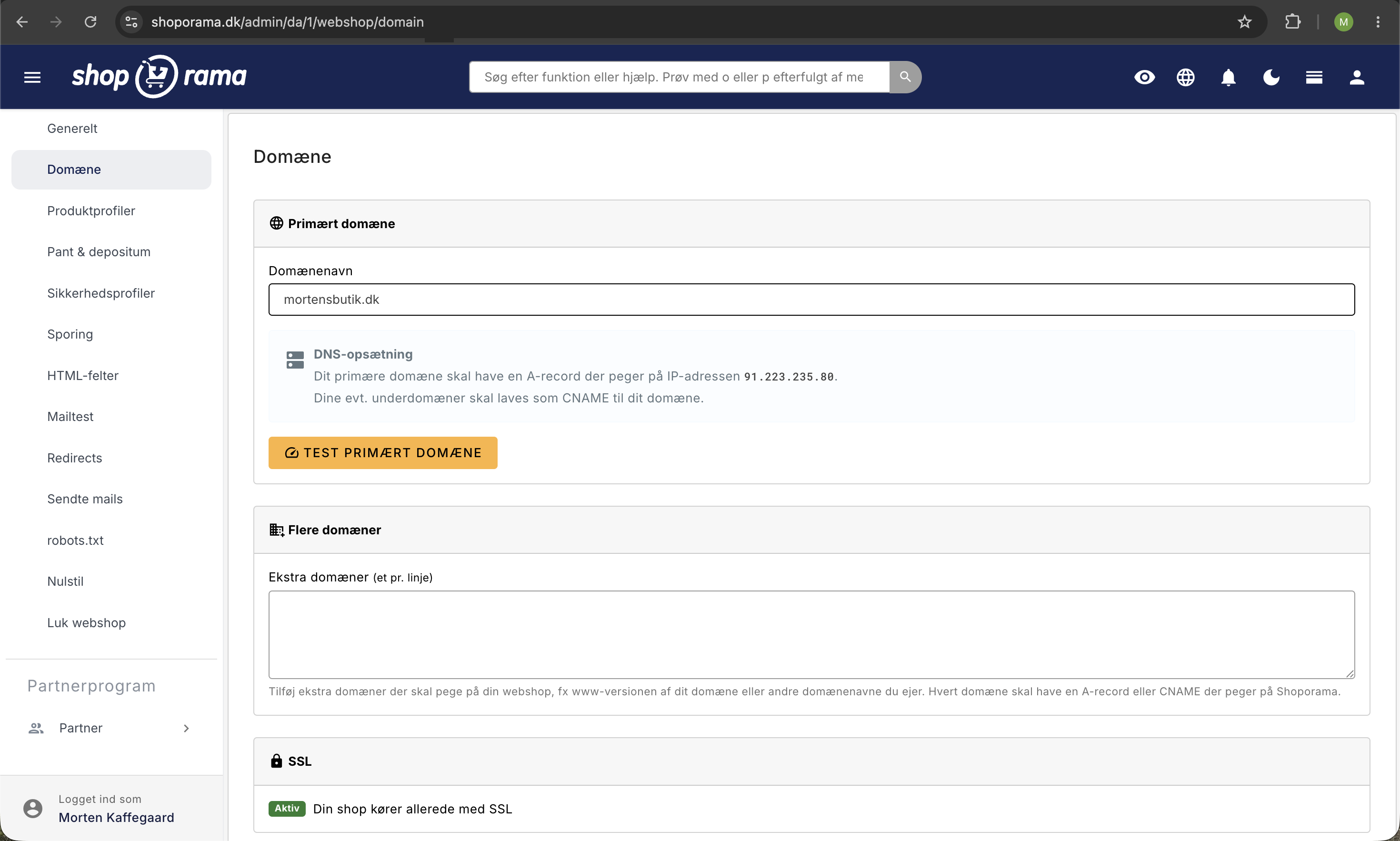
- Log in to your Shoporama admin panel
- Go to Online Store → Domain
- Enter your domain in the Primary Domain field (e.g., dinshop.dk)
- Click “Test Primary Domain” to verify that the DNS is set up correctly
- Save the settings
Step 4: Order a free SSL certificate
Once the domain is linked and the DNS is correct, you can order a free SSL certificate directly from the domain settings. SSL ensures that your online store runs over HTTPS, which is important for:
- Secure data transmission (especially for payments)
- Better SEO rankings on Google
- Customer trust (padlock icon in the browser)
Additional Domains
You can link multiple domains to the same online store under Online Store → Domain. Enter one domain per line in the Additional Domains field. All additional domains will automatically redirect to your primary domain.
Troubleshooting
- Domain test failed: Wait up to 48 hours after making a DNS change. Check that the A record points to 91.223.235.80
- "The domain is already in use": The domain is associated with another online store. Contact support@shoporama.dk for assistance
- SSL isn’t working: Make sure the domain is correctly pointing to Shoporama’s server and that the SSL certificate has been ordered
Need help? Contact us at support@shoporama.dk.
Related articles
DNS setup for your domain
Step-by-step guide to DNS setup so you can use your own domain with your Shoporama online store.
Own email on your domain
Information about email hosting and options to get email on your own domain with Shoporama.
The connection is unsecure - troubleshooting
Solution to the 'Connection is insecure' error with yellow padlock even if you have an SSL certificate.
Related features
Custom Domain and SSL: Launch Your Online Store
Point your domain to Shoporama, order a free SSL certificate, and switch your demo store to live in the correct order, without causing your store...
A-record
An A-record points a domain to an IP address. Read about A-records, DNS setup and how to connect your domain to your online shop.
CNAME
A CNAME record points a domain to another domain. Read about CNAME records, DNS setup and the difference between CNAME and A-records.
DNS
DNS translates domain names to IP addresses. Learn about DNS records, A-records, CNAME and how to set up DNS for your online shop.
Start an online store: complete guide to opening your own store
How to start an online shop in 2026: platform, payment, shipping, domain and price. Step-by-step guide. Try Shoporama free for 30 days without a...