Sales Statistics for a Product
The sales statistics show sales of a single product over a selected period, including units sold, revenue, days in stock, and sales per variant, so you can plan reorders, seasonal items, and promotions.
How many units of a specific product have you sold in the last three months, and how long will your inventory last? The sales statistics for a product provide all the answers on a single page. You’ll see units sold, number of orders, revenue, inventory, and how many days your inventory will last at the current sales rate. You can also compare these figures to the previous period or the same period last year.
The page is designed to support the decisions you make on a daily basis: Should we reorder this item? Do sales peak during a specific season? Did the campaign give sales a boost? And which sizes or colors are actually selling? If the product has variants, you’ll see sales and inventory figures per variant in a table at the bottom of the page.
How to Find Sales Statistics
You can access a product’s sales statistics in three places:
- From the menu in the product overview: Go to Products → All Products, click the three dots (⋮) on the right side of the product’s row, and select Sales Statistics.
- As an icon directly in the product row: Click the gear icon on the far right of the table’s header row to open Customize View. Toggle the Sales Statistics switch on in the Buttons section of the product row, and click Save. Now the statistics are just one click away on every product. This setting applies to the entire online store and thus to all users. Read more in the article about the product overview.
- From the top of the product page: At the top right of the product’s edit page, you’ll see the tabs Edit, Inventory, and Sales Statistics. Click Sales Statistics. The same menu appears on the product’s inventory page and on the Add to Inventory page, so you can switch between pages without returning to the product overview. Read more about the edit page in the article Edit Product.
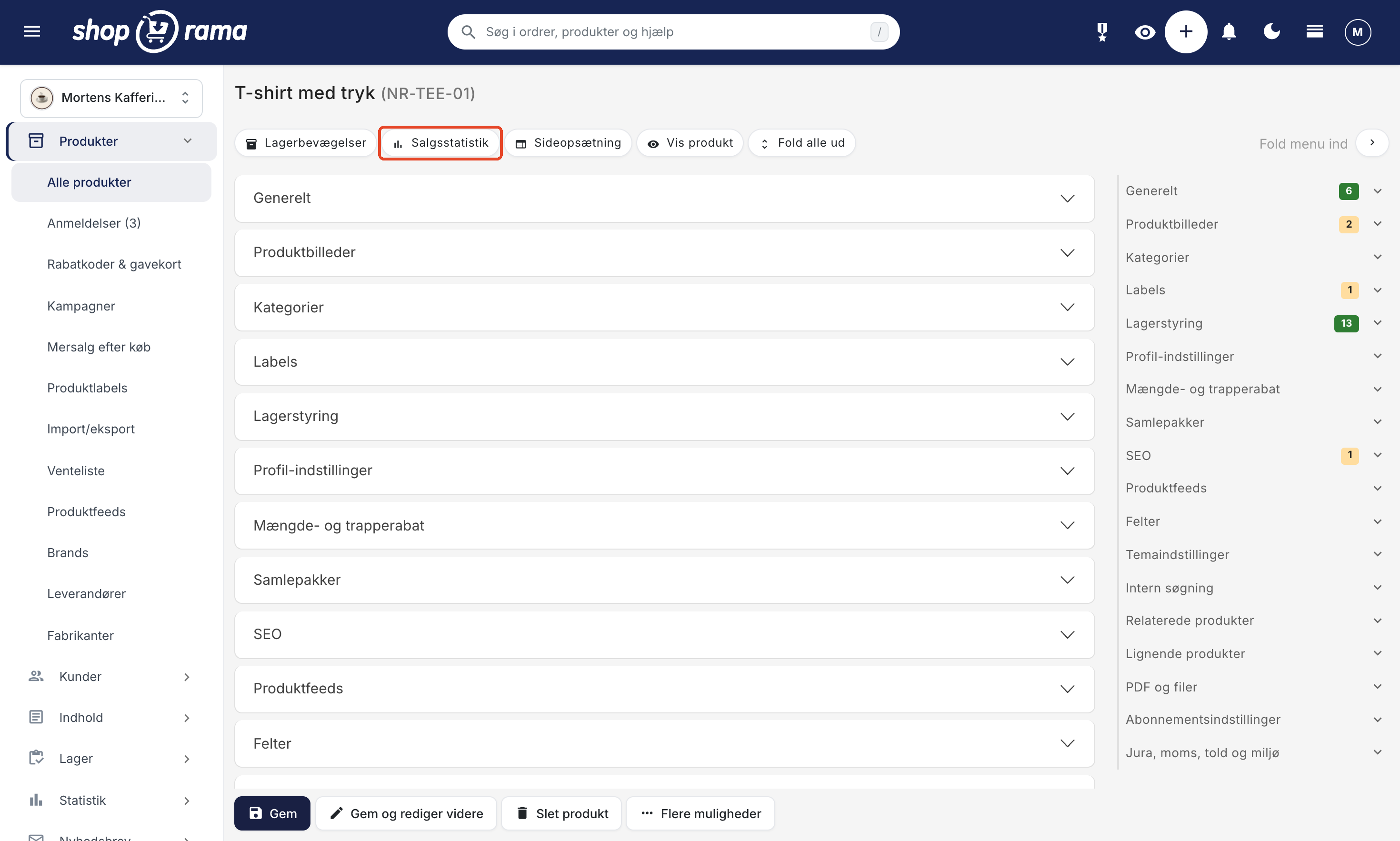
At the top of the sales statistics page is the same header as on the product’s other pages. The header is the product’s name with the SKU (stock keeping unit) in parentheses, if the product has one, and to the right, the Sales Statistics tab is highlighted. If you need to make changes to the product, click Edit in the same row.
The link above the header takes you back to the page you came from. If you came from the product overview, it says “Back to Products,” and you’ll return to the same search results and the same page. If you opened the statistics from the edit page, it will say “Back to Product,” and if you came from the product’s inventory page or from “Add to Inventory,” it will simply say “Back.”
Select a time period
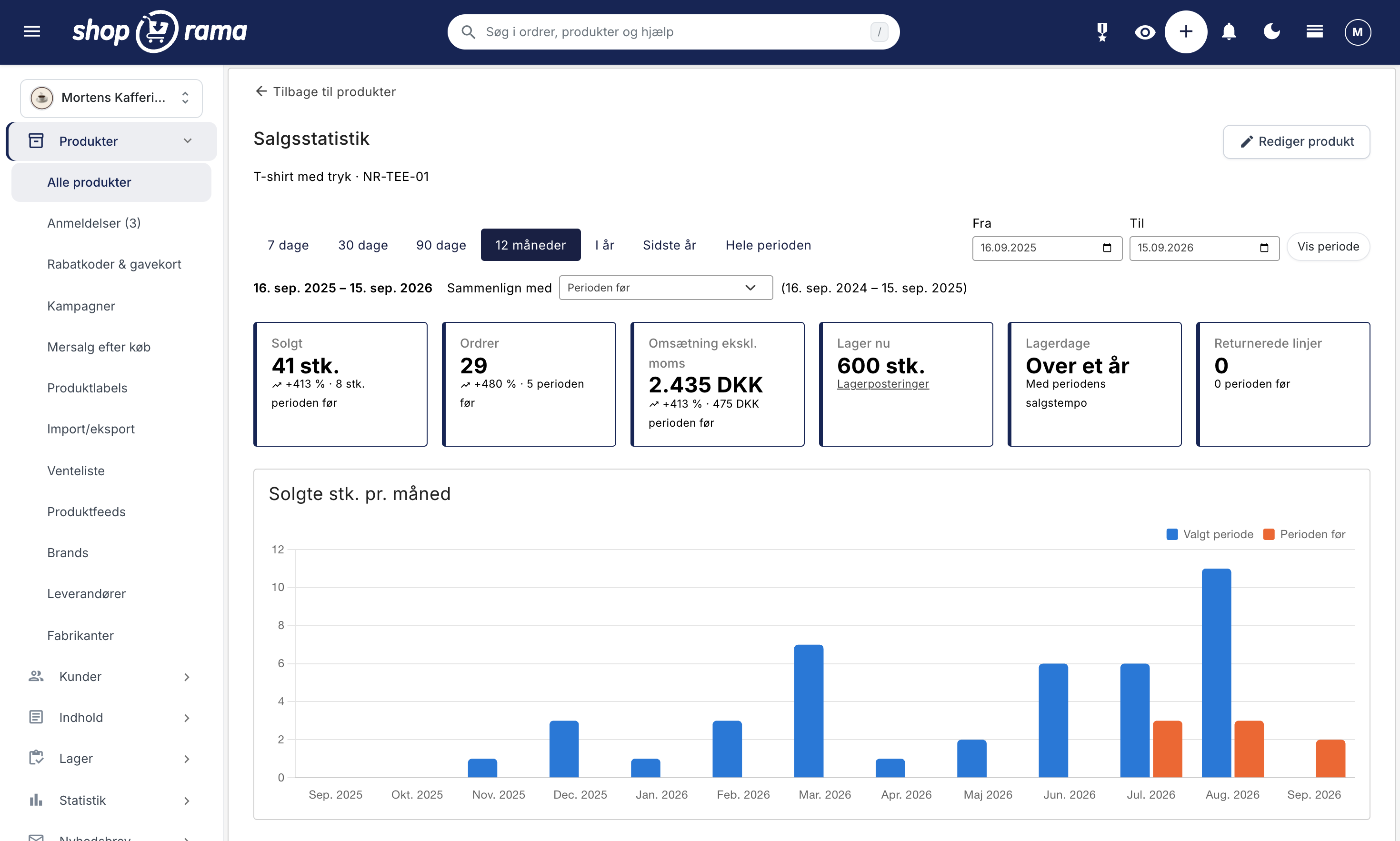
The sales statistics open with the last 90 days. You can change the time period using the tabs at the top:
- 7 days, 30 days, and 90 days: the most recent days up to and including today.
- 12 months: the past year through today.
- This year: from January 1 through today.
- Last year: the entire previous calendar year, from January 1 through December 31.
- Entire period: from the day the product was first sold through today.
If you need a specific period, such as a promotional week or the month of December, enter the dates in the From and To fields to the right of the tabs and click Show Period. The line below the tabs always shows which dates you’re viewing.
There are a few limitations when specifying custom dates:
- You can view a maximum of 3 years at a time. If you select a longer period, it will be shortened to the last 3 years, and you’ll receive a message to that effect. If you want to see all sales, use the “Entire Period” tab, which has no limit.
- The date fields only go up to and including today, because there are no sales for future dates.
- If the start date is after the end date, those dates cannot be used. In that case, the page will display the last 90 days and a message to that effect.
Compare with the previous period or the previous year
A number on its own doesn’t mean much. Is selling 41 T-shirts good or bad? You won’t know until you can see what you sold before. That’s why you can select a comparison in the “Compare with” field on the line below the tabs:
- Previous period: the same number of days immediately preceding the selected period. If you’re looking at the last 30 days, the comparison is with the 30 days before them.
- Same period last year: the same dates one year earlier. This is the best choice for seasonal items, because you’re comparing, for example, December with December.
- No comparison: only the figures for the selected period.
The dates for the comparison period are shown in parentheses next to the field, so you can see exactly what you’re comparing to. By default, “This Year” and “Last Year” are compared to the previous year; “Entire Period” has no comparison; and the other periods are compared to the preceding period. If you select something else, your choice will be remembered when you change the period.
When you make a comparison, three things happen on the page:
- The “Sold,” “Orders,” “Revenue excl. VAT,” and “Returned” cards show the percentage change and the figure from the comparison period, e.g., “+413% · 8 units in the previous period.” If the figure was 0 in the comparison period, only the figure from that time is displayed, with no percentage.
- The graph displays the comparison period as orange bars next to the blue bars for the selected period.
- The “Sales per Variant” table includes an additional column showing the number of units sold during the comparison period.
This comparison is especially useful when you want to see the impact of a special offer or one of your campaigns. Further down under “Frequently Asked Questions,” you can see how to do this.
The Numbers in the Cards
Below the period selection, there are six cards displaying the period’s key metrics:
- Sold: the number of units of the product sold during the period.
- Orders: the number of orders in which the product was included. If a customer buys three units in a single order, it counts as 3 sold and 1 order.
- Revenue excl. tax: the product’s price on the order lines, excluding tax and shipping. If the product has a promotional price, that is the one that counts. Discount codes and promotional discounts are not deducted.
- Current Stock: The product’s current stock level, which is the same as the stock figure shown in the product overview. The “View Stock” link on the card opens the product’s stock page, where you can see how the stock has fluctuated. Read more about stock entries.
- Days of Stock: how many days the current stock will last at the current sales rate. This is explained in the section below.
- Returned lines: The number of lines for the product on credit memos during the period.
Which orders are included?
The sales statistics include paid orders with the status New, In Progress, Pending, Ready, Ready for Pickup, Picked Up, or Shipped. Unpaid, canceled, and credited orders are not included, nor are credit memos. The order date determines which period the sale belongs to.
"Sold," "Orders," "Revenue (excl. tax)," and "Returned Lines" are calculated the same way as in the " Sold Products " report under " Statistics," so you can reconcile them with each other. Returns are not deducted from “Sold” or “Revenue,” but are instead listed in the “Returned Lines” card, just as in the report. If you want to dig deeper into why items are being returned, you can use the returns statistics.
Days of Inventory: How long will your inventory last?
Days of Inventory tells you how many days your current inventory will last if you continue to sell at the same rate as during the period. The number is calculated as follows:
Days of Inventory = Current Inventory ÷ (Sales for the Period ÷ Number of Days in the Period)
An example: You’ve selected 30 days and sold 60 units. That gives a sales rate of 2 units per day. If you have 45 units in stock, your inventory will last for 22 days. The number is rounded down to whole days, so 22.5 becomes 22.
The “Sold Products” report has a similar column, “Days Until Sold Out.” It rounds to the nearest whole day and always includes sales from the period you’ve selected, so the two figures may differ slightly.
Instead of a number of days, the card can also show:
- Over a year: stock will last more than 365 days. A precise number in the thousands of days would look like a reliable forecast, but it isn’t.
- 0 with the text “Sold Out”: Stock is 0 or negative.
- – with the text “No sales to calculate from”: the product has not been sold during the period being calculated. This applies even if the stock is 0.
When the period is in the past
Stock Days is about your current inventory. Therefore, it doesn’t make sense to base calculations on the sales rate from a period that has ended or from a very long period during which sales may have changed over time. If the period does not end today, or if it is longer than one year, Days in Stock instead uses sales from the last 90 days. In that case, it will say “Based on sales from the last 90 days ” below the number. Otherwise, it will say “Based on the period’s sales rate.”
This applies, for example, to the “Last Year” tab, custom dates ending before today, and “Entire Period” for a product that has been sold for more than a year. You can still view sales from the period itself in the cards and in the graph.
A good rule of thumb is that when Days in Stock is lower than the supplier’s lead time plus a little extra for safety, it’s time to place an order. If you want a complete overview of what needs to be ordered, use the order list.
The graph showing units sold
The graph shows how sales are distributed over the period. How finely it is broken down depends on the length of the period, and the heading changes to:
- Units sold per day for periods up to 45 days.
- Units sold per week for periods up to about half a year.
- Units sold per month for periods up to 5 years.
- Units sold per year for even longer periods.
The selected period is shown with blue bars. If you’re making a comparison, the comparison period appears as orange bars next to it, and a legend above the graph explains which color represents what. If you hover your mouse over a bar, you’ll see units sold and revenue (excluding VAT) for both periods. The comparison period is labeled with its own date, so you can see, for example, that July of this year is compared to July of last year when comparing to the previous year.
If the product was not sold during the period or during the comparison period, the message “The product was not sold during the period ” will appear instead of the graph.
Tip for seasonal items: Select “12 months” to view sales month by month and see when the item peaks. That way, you’ll know when to restock before the peak season begins and when it’s time to put the rest on sale.
Sales by Variant
If the product has variants—such as sizes or colors—the “Sales per Variant” table appears at the bottom of the page. Here you can see which variants are driving sales and which ones are sitting in inventory.
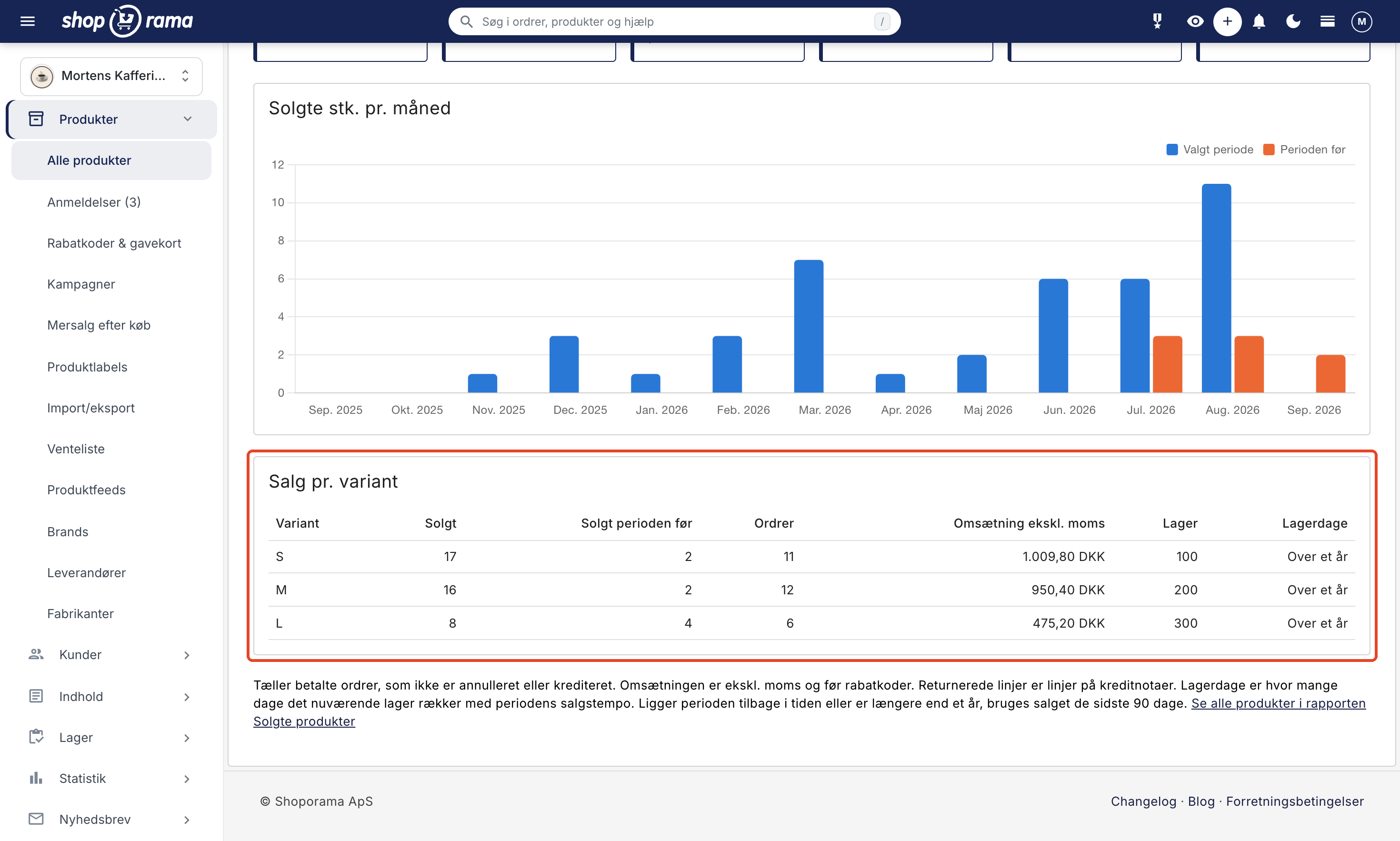
The table has the following columns:
- Variant: the variant’s name, such as S, M, or L.
- Sold: Number of units of the variant sold during the period.
- Sold inthe Previous Period or Sold in the Previous Year: Number of units sold during the comparison period. This column appears only when you’re comparing data.
- Orders: Number of orders for the variant.
- Revenue excl. tax: the variant’s revenue excluding tax.
- Inventory: The variant’s current inventory.
- Days of stock: how many days the variant’s stock will last. The number is calculated the same way as in the card, including the rule regarding the last 90 days.
Variants with no sales are also included in the table, so you can see what isn’t selling. Two types of rows look slightly different:
- No variant: sales of the product where no variant is specified on the order line.
- (variant no longer exists) after the name: sales of a variant that has since been deleted. The sales are still counted, but since the variant no longer exists, stock and stock days are displayed as “–”.
Tip for reordering: Use the table when placing your order. If sizes S and M sell twice as much as size L, your order should reflect that so you don’t run out of the popular sizes while ending up with too many of the slow-moving ones. If there are variants in which the product shouldn’t be sold at all, you can disable them using “Active Variants.”
Frequently Asked Questions
I can’t see the sales statistics icon in the product overview. Where is it?
By default, Sales Statistics is located in the menu with the three dots (⋮) on the right side of each product row. If you want it as an icon, click the gear icon on the far right of the table’s header row, enable Sales Statistics under Buttons in the product row, and click Save. You can also always open the statistics using the Sales Statistics tab at the top of the product’s edit page.
Can each employee choose their own icons in the product overview?
No. The settings you choose under " Customize View" apply to the entire online store and thus to all users. Therefore, please coordinate with your colleagues to decide which buttons should appear in the row.
Why is a sale missing from the statistics?
First, check whether the order is marked as paid. Only paid orders with the status New, In Progress, Pending, Ready, Ready for Pickup, Picked Up, or Shipped are counted, while canceled and credited orders are not. Next, check the time period, as the order’s date determines which period the sale belongs to. There is no delay, so an order is counted as soon as it is paid.
Does revenue include sales tax, discount codes, and shipping?
Revenue excludes VAT and shipping, and it’s the product price on the order line that counts, including any promotional price. Discount codes and promotional discounts aren’t deducted, so the figure may be higher than what customers actually paid for the item.
Are returned items deducted?
No. Returns are not deducted from “Sold” and “Revenue (excl. VAT).” They appear in the “Returned Lines” card, which counts lines on credit memos rather than items, since a single line may cover multiple items. This is the same calculation as in the “Sold Products” report.
Does “Days in Stock” take into account items I’ve ordered from the supplier?
No. Current Inventory is the same inventory count as in the product overview, and Days in Stock only takes that and the sales rate into account. If you have a delivery on the way, you’ll need to add it yourself when assessing whether your inventory will last.
Why can’t “Days of Stock” be calculated based on last year’s peak season?
Because Days in Stock is based on your current inventory. If the period is in the past, sales from the last 90 days are used instead, and this is indicated below the number. You can still see last year’s sales in the charts and the graph, and that’s a good starting point when you’re assessing how much stock you need to bring in for the season.
How can I tell if a campaign has been effective?
Enter the campaign’s start and end dates in the From and To fields, then click Show Period. By default, the comparison is made with the “Previous Period,” meaning the same number of days leading up to the campaign. Select “Same Period Last Year” if you want to see how the same days performed last year. The cards show the change as a percentage, and the graph displays the two periods side by side. Pay special attention to “Sold,” as revenue is calculated before the campaign discount.
Can I export the numbers or view multiple products at once?
The sales statistics show one product at a time and do not include an export option. If you want to view multiple products with the same figures, use the “Sold Products” report under “Statistics,” which can be exported as a CSV file. If you want to find the items that aren’t selling at all, use “Products with No Sales.”
Related articles
Products Sold: Sales Report and Reorder
The "Product Sales" report shows your sales by product for a selected time period, along with current inventory and sales rate, so you can plan...
Product overviews
Shoporama product overview guide: Search, filter, sort and mass edit your products efficiently from the product list.
Edit product
Guide to the Product Edit Page in Shoporama: the top section with "Edit," Inventory, and Sales Statistics; how to customize the page with tabs and...
Unsold Products: Find Your Dead Stock
"Products with No Sales" shows the items in your online store that haven't had a single paid order during the selected time period, how much...
Order list and inventory management
Learn how to use the Shoporama order list to keep track of inventory, generate shopping lists and receive goods efficiently.
Stock records and batch management
Get full traceability of all movements in your inventory. How stock records and batch management work in Shoporama, including FIFO picking,...
Active variants: Select which variants each product uses
Select which profile variants each product uses so that empty variants are excluded from Google Shopping and the other product feeds. Edit one...
Return Statistics: Understand Your Returns and Reduce Them
How to view the Returns page in Shoporama: return rate, return amount, top-returned items, date range selection, CSV export, and exactly which...