Create security profiles
Guide to creating security profiles for products in Shoporama according to EU regulations.
Safety profiles in Shoporama allow you to associate safety certifications and standards with your products—such as EN1078 for bicycle helmets or CE marking. Here, we’ll show you how to create and use safety profiles.
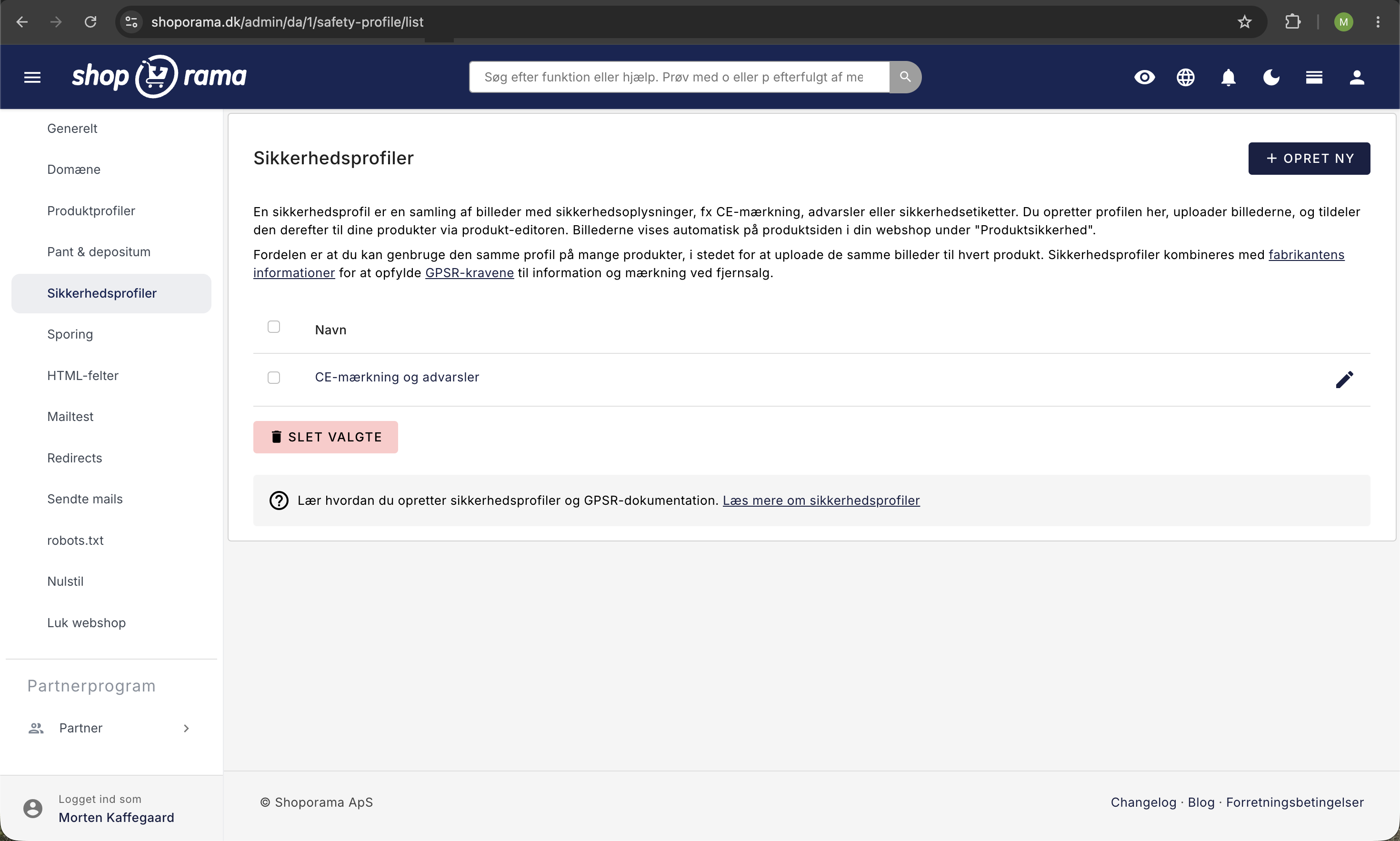
Create a Safety Profile
- Go to Settings → Safety Profiles
- Click "Create New"
- Give it a name, such as “EN1078”
- Click “Create Safety Profile”
- If applicable, upload an image of the certification (e.g., the CE mark)
Link to products
Once the safety profile has been created, you can link it to products via product editing. Select the relevant safety profile from the dropdown menu.
Create Safety Profiles Using AI
You can create safety profiles and assign them to multiple products at once using an AI assistant. This is especially useful if you have an entire product group—such as all bicycle helmets or all toys—that needs to have the same certification associated with it.
Note that the AI can create and name the profile, but you’ll need to upload the actual image of the CE mark or certification to the profile yourself afterward.
Examples of prompts you can copy:
Create a safety profile named EN1078 and assign it to all products in the Bicycle Helmets category.Create a safety profile named “CE Marking” and assign it to all products from the manufacturer Acme GmbH.Show me all products that have a manufacturer but are missing a safety profile.Read more about how to manage your store with an AI assistant in the blog post “Now You Can Manage Your Entire Web Store via Chat.”
Display the safety profile in your theme
To display the safety profile on the product page, your developer must add the following Smarty code:
<{$safetyprofile = $product->getSafetyProfile()}>
<{if $safetyprofile}>
  <{$image = $safetyprofile->getImages()}>
  <{if $image}>
    <img src="<{$image[0]->getSrc(400,100,'fit')}>"
         alt="<{$safetyprofile->getName()|escape}>">
  <{/if}>
  <p><{$safetyprofile->getName()|escape}></p>
<{/if}>
Tip
This code displays the safety profile's image and name on the product page. You can adjust the image size by changing the parameters in getSrc(width, height, 'fit').
Need help? Contact us at support@shoporama.dk.
Related articles
GPSR fields on products
Guide to implement GPSR fields (manufacturer and safety profile) on products according to EU regulations.
Security profiles (GPSR)
Shoporama safety profile guide to help you comply with EU GPSR requirements for manufacturer information and safety documentation.
Unsubscribe links in automatic emails
Give your customers the option to unsubscribe from automatic follow-up emails after purchases and product reviews - with a simple link in the email.