Associate images to a variant
Guide to associate product images to specific variants so that the correct image is displayed when selecting a variant.
You can associate specific images with a variant so that the correct image is displayed when the customer selects, for example, a specific color.
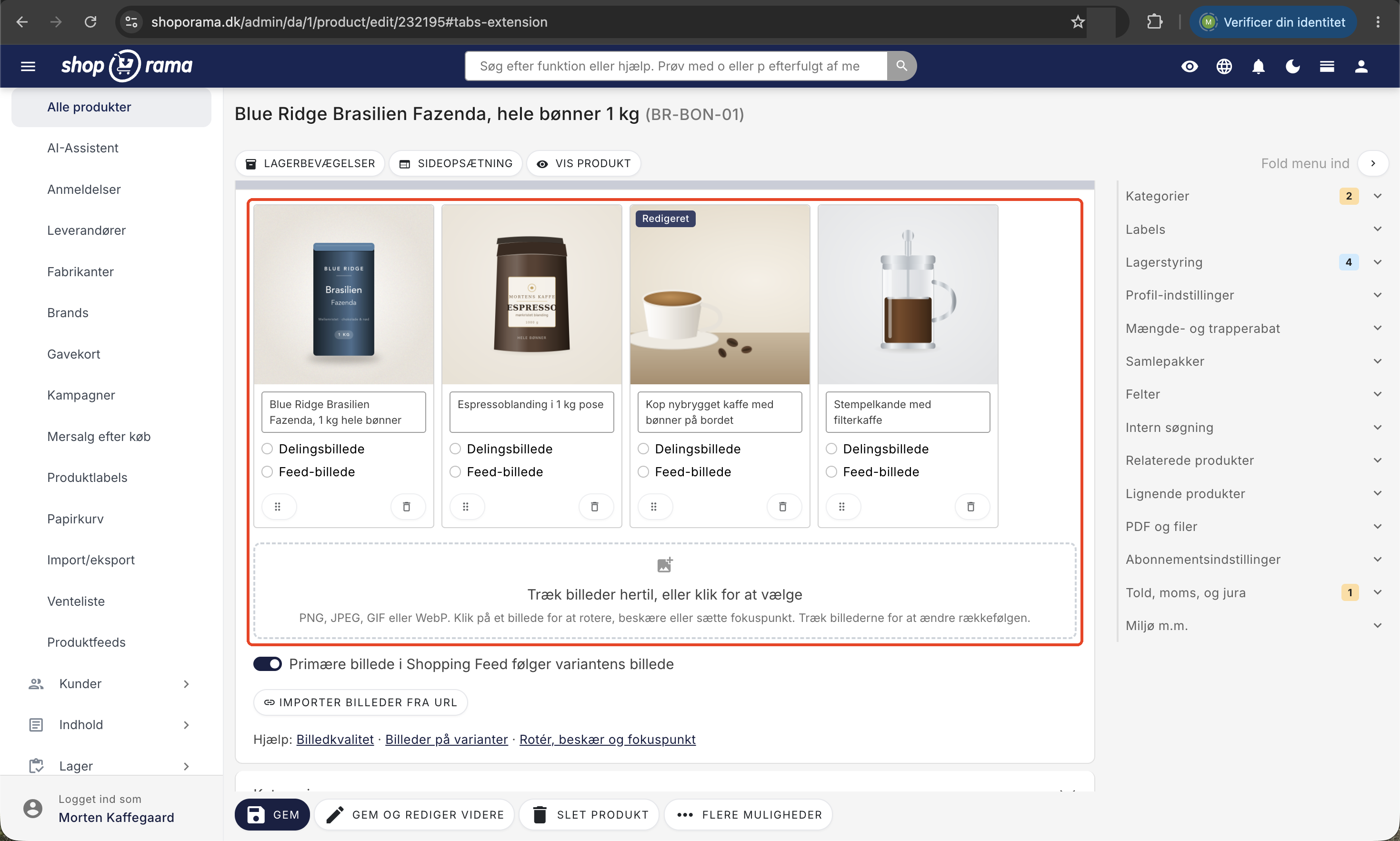
How to associate images
- Go to Products and click Edit on the product
- Upload all images for the product (all colors/variants)
- Expand the “Product Images ” section
- For each image, select the variant it belongs to from the " Assign to Variant" dropdown
- Repeat this for each image that needs to be associated with a variant
- Click Save
Display in the store
When a customer selects a variant (e.g., the color “Red”), the image gallery automatically changes to display the images associated with the selected variant.
In your theme
Variant images are handled automatically in most themes. If you have a custom theme, you can use:
The variant link is stored on the product, not on the variant itself. Therefore, you go through the product’s images and check each one to see if it’s associated with a specific variant value:
<{foreach $product->getImages() as $image}>
  <{$variant_value_id = $image->getVariantAttributeValueId()}>
  <{if !$variant_value_id || $variant_value_id == $selected_variant_value_id}>
    <img src="<{$image|image:400:400:90}>" alt="<{$product->getTitle()}>">
  <{/if}>
<{/foreach}>
An image with no association is always displayed (as the default image), while images associated with a specific variant are only displayed when that variant is selected.
Tips
- Upload all images first, then associate them with variants
- Use a consistent background on all product images for a professional look
- Images that are not associated with any variant are displayed as default images
Edit the image after uploading
Click on an image to rotate, crop, or set a focus point without changing your original file. Learn more about editing images.
See also: Image quality and image format.
Need help? Contact us at support@shoporama.dk.
Related articles
Images are not imported
Troubleshooting when product images are not imported correctly via CSV in Shoporama.
Images on landing pages
How to upload images to a Shoporama landing page and display them correctly in your theme with getImages() and getSrc().
Optimizing images for mobile
Guide to using responsive images with srcset in your Shoporama theme to provide optimized images for mobile users.
Related features
Product variant
A product variant is a version of a product in a different size or color, for example. Read about variants, inventory management and pricing.
Image Archive
Product Profiles and Variants: Set Up Your Product Types
Create product profiles, attributes, and variants in Shoporama with your own prices and inventory, and see how you can customize both color and size.