Image quality and aspect ratio in Shoporama
Learn how Shoporama handles image quality and image format, and what you can do if your images don't look sharp enough.
Shoporama automatically optimizes the images in your store so that pages load quickly. Here you can read about how image quality and image format work.
Image Format
Shoporama supports three image formats. Your store has a default format that is used for all images unless the theme specifies a different one. The default format cannot be changed in the admin panel. If your store needs a different format, please contact us.
| Format | Description |
|---|---|
| WebP (default) | Modern format with good compression and quality. Preserves transparency. Supported by all modern browsers. Always saved at quality level 90. |
| JPG | Classic format, good for photographs. This is the only format where the quality setting below is used. Does not support transparency, so a transparent background will appear white. |
| PNG | Lossless format with transparency. Larger file size, but no loss of quality. |
The theme can select a specific format for individual images, and that format will be used instead of the default format. In Montana, MontanaB2B, Delaware, and DelawareDK, most images—such as product images and images in the page designer—are always displayed as WebP. Montana, Delaware, California, and Alaska use JPG for the image that appears when a page is shared on platforms like Facebook.
Image Quality
The quality setting is a number between 1 and 100, and the default value is 75. It applies only to images saved as JPG. This also applies when your store otherwise uses WebP, such as the image displayed when a page is shared on social media. WebP images are always saved at a quality of 90, regardless of the setting, and PNG is lossless, so the number doesn’t matter here.
For images saved as JPG, the number means the following:
Lower quality (e.g., 60–70)
- Smaller file size
- Faster loading
- May result in visible compression on detailed images
Higher quality (e.g., 85–100)
- Sharper images
- Larger file size
- Slower loading
Tip: If your images look blurry, first check that you’ve uploaded them in high resolution. WebP images are already saved in high quality. If that doesn’t help, email us at support@shoporama.dk. We can change your store’s default format and increase the quality of images saved as JPG. If you’re using Montana or Delaware, this won’t affect your product images, as they’re always displayed as WebP.
Tips for Images
- Always upload images in the highest quality you have available. Shoporama saves product images at up to 2000 × 2000 pixels and automatically scales and compresses them
- Use square images for products to ensure a consistent look
- Avoid uploading images that are already heavily compressed
- WebP, which is the default format, typically offers the best balance between quality and file size
Edit the image after uploading
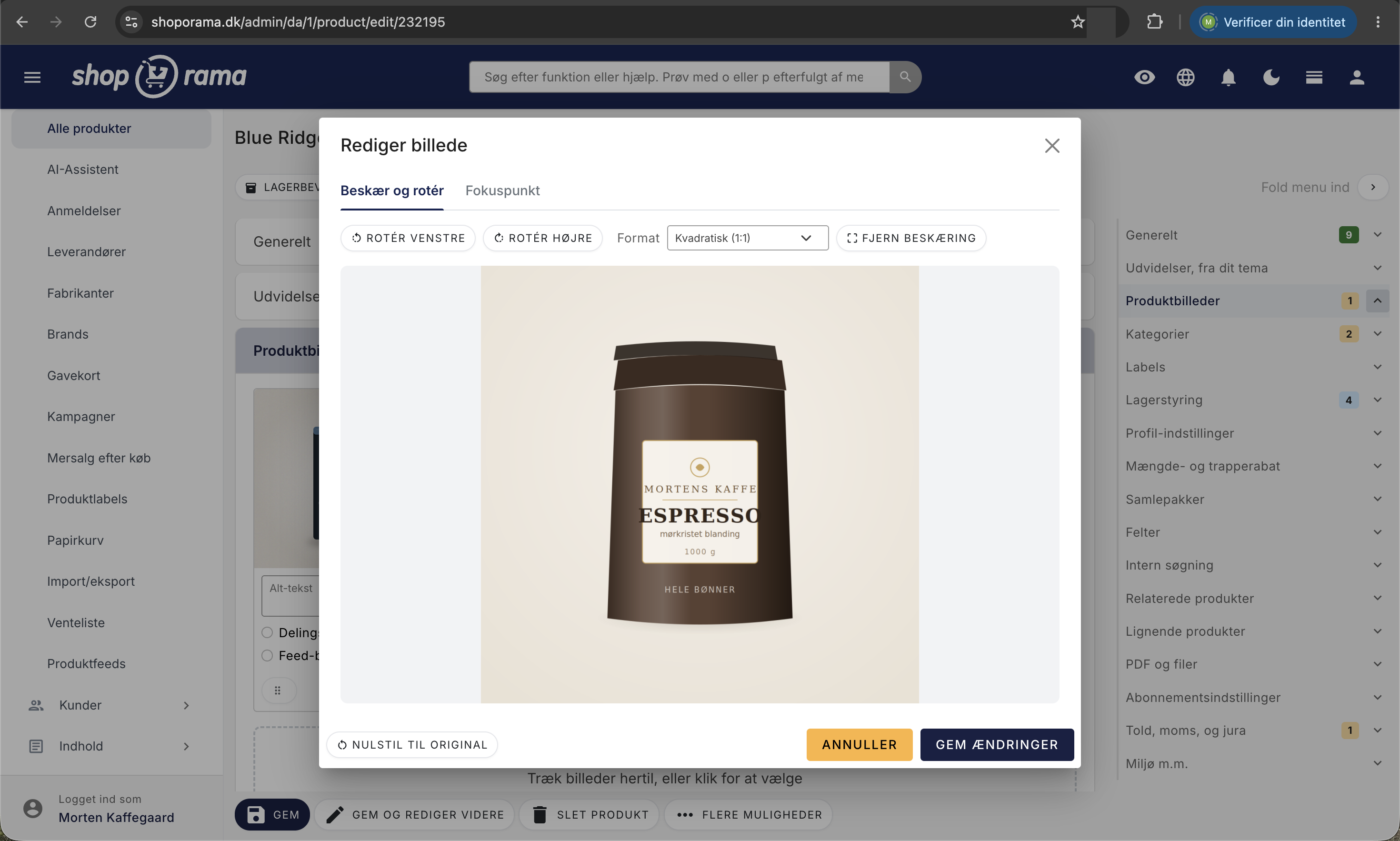
You can edit an image directly in the admin panel after you’ve uploaded it: rotate it, crop it, or set a focus point so that the most important part always remains in the image when the theme crops it. The original is preserved, and you can always reset it. Learn how to edit images.
Related articles
Unsubscribe links in automatic emails
Give your customers the option to unsubscribe from automatic follow-up emails after purchases and product reviews - with a simple link in the email.
AI assistant in the text editor
Learn how to use Shoporama's built-in AI assistant to generate product texts, image descriptions and text suggestions.
Ajax filtering
Technical documentation for Shoporama's /ajax endpoint for filtering products. For developers and theme designers.
Edit photos: rotate, crop, and set the focus point
Here's how to rotate, crop, and set the focus point for images in the admin panel. The original is never overwritten, and you can always reset it.
Optimizing images for mobile
Guide to using responsive images with srcset in your Shoporama theme to provide optimized images for mobile users.
Images on landing pages
How to upload images to a Shoporama landing page and display them correctly in your theme with getImages() and getSrc().
Related features
Speed is a feature - that's why we've made Shoporama shops lightning fast
We love fast online shops. Everyone does. That's why we've made Shoporama webshops lightning fast. It's good for you, your user and your SEO
WebP
WebP is an image format with smaller file sizes than JPEG and PNG. Read about WebP, image optimization and speed for webshops.
Image Archive
CDN
A CDN delivers web content from servers close to the user for faster load times. Read about CDN, caching and speed for webshops.
CLS - Cumulative Layout Shift
CLS measures how much content unexpectedly moves during loading. Learn about causes, thresholds and solutions to improve your Core Web Vital score.
Core Web Vitals
Core Web Vitals (LCP, INP, CLS) are Google's metrics for page speed and user experience. Learn about thresholds, optimization and the importance...
Alt text
Alt text describes images for search engines and screen readers. Read about alt text, SEO for images and accessibility in eCommerce.
Full design freedom - your design, your rules
Design your online store freely with full access to HTML, CSS and templates. Use templates, Page Builder or build from scratch.
Montana and MontanaB2B: All Modules in the Page Designer
A guide to all 25 modules in the page designer for Montana and MontanaB2B: banners, products, categories, text, content items, and...
Delaware and DelawareDK: All modules in the page designer
A guide to all 25 modules in the page builder for Delaware and DelawareDK: hero, products, categories, text, content items, and...