GLS is built directly into Shoporama
GLS is one of the three major shipping carriers in the Danish market, and a web store using GLS is the most common setup among Danish web stores. Shoporama has a direct GLS integration that lets you manage the entire shipping workflow from the order overview in the admin panel: package pickup location selection at checkout, automatic label printing, batch printing, tracking, and returns.
You don’t need a third-party platform between Shoporama and GLS if you only use GLS. If you ship via multiple carriers, a unified platform like Shipmondo can be an alternative.
How the GLS integration works in Shoporama
The integration runs directly via GLS’s API. When a customer places an order with GLS shipping:
- The customer selects a delivery method (home delivery or pickup location)
- If they choose a package pickup location, the customer selects the nearest GLS store directly at checkout
- The order is created in Shoporama with the delivery method and package shop information
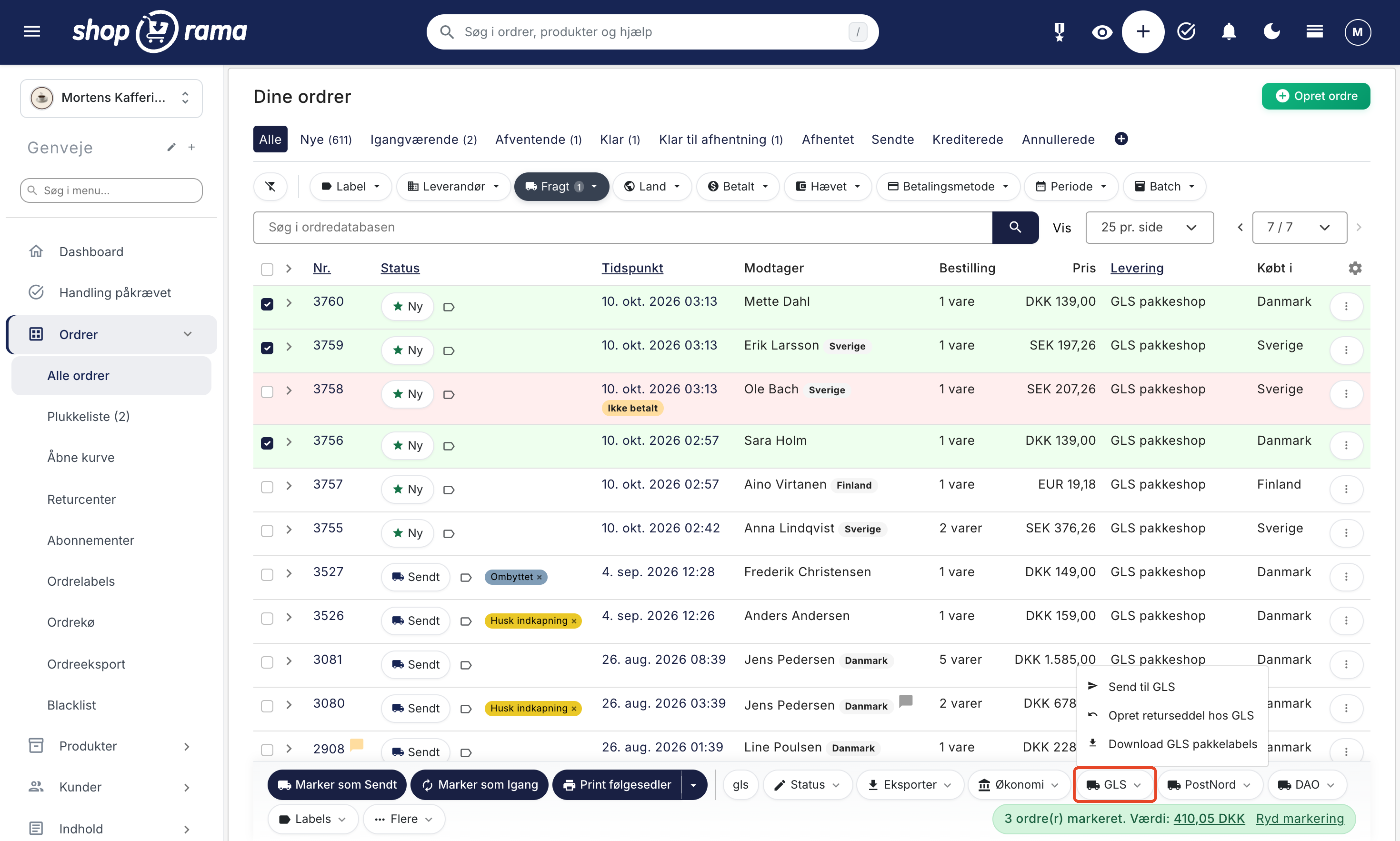
- Go to the order list in the Shoporama admin and select one or more orders
- Open the GLS menu in the bottom bar and select “Send to GLS.” Labels are generated via the GLS API, and you can download them all at once using “Download GLS Package Labels”
- The tracking number is saved with the order. When you mark the order as “Shipped,” the customer receives an email with the tracking number, provided that “Shipped” is enabled under “Email Notifications” for the shipping method
The entire process takes place in a single interface. You don’t need to log in to multiple systems to ship a package.
What do you get as a store owner?
- Package Shop Selector at checkout. The customer selects the nearest GLS package shop directly within the checkout flow based on their ZIP code. This reduces abandoned carts because the customer doesn’t have to consult a separate map.
- Print labels with one click. Select one or more orders from the order list and print all shipping labels at once. This saves you minutes per package, especially on busy days.
- Home delivery, package pickup, and flexible delivery. All three delivery types are supported. You can offer all of them or just select ones, depending on your store.
- Tracking directly to the customer. The tracking number is automatically saved with the order and included in the email when you mark the order as Shipped. If a tracking URL is listed for the shipping method, the customer can click it to go directly to GLS’s tracking page.
- Return labels. Generate return labels to either include in the package or send to the customer separately. Save time and keep the returns process professional.
- Multi-package. If an order requires multiple packages, you can print multiple labels with separate tracking numbers for the same order.
How to Get Started
- Set up a GLS account if you don’t already have one. GLS typically approves accounts within 1 to 5 business days.
- Obtain your GLS API credentials (username, password, customer ID, contact ID) from GLS.
- Enter the credentials in the Shoporama admin under Delivery → Setup.
- Set up GLS as a shipping method under Shipping → Shipping Methods: choose whether you want to offer pickup at a package shop, home delivery, flexible delivery, or all of the above.
- Test by placing a test order and printing a label. That way, you’ll know everything is working.
We have a detailed guide for setting up the GLS integration and a separate article on GLS settings for shipping options. If you encounter any issues, we also have a guide for troubleshooting GLS transfer errors. Need help? Email support@shoporama.dk.
Also read about all of Shoporama’s shipping options for a complete overview of the feature and how it fits into the rest of the platform.
What to Keep in Mind
The GLS integration is stable and well-tested, but there are a few things you should be aware of:
- The GLS Parcel Shop API has a time window. If the GLS Parcel Shop server is slow, queries may fall back to a cached list. This is rare, but it does happen. In the worst-case scenario, the customer will see a slightly outdated list.
- Maximum weight per package. You can set a limit on how heavy packages can be when shipped via the GLS Parcel Shop. Heavy packages (over 20 kg) may require home delivery or special handling.
- Comments on orders. If you have complex delivery instructions for each order, read our article on comments for GLS orders to ensure they are transmitted correctly.
Frequently Asked Questions About GLS in the Online Store
Should I choose between GLS Direct or Shipmondo?
If you only use GLS, the direct integration is typically the easiest and cheapest option. If you ship with multiple carriers (GLS, PostNord, DAO, etc.), a unified platform like Shipmondo can simplify your day-to-day operations. Read more about online stores with Shipmondo.
What happens if the customer doesn’t pick up the package at the pickup location?
GLS will hold the package for 7 days and then return it to the sender. In the Shoporama admin panel, you can check the package’s status and, if necessary, contact the customer if there’s a delay.
Can I ship internationally with GLS?
Yes. GLS covers all of Europe, and you can set up international shipping in Shoporama. Please note that fees and delivery times vary significantly depending on the destination.
Can I print labels without a label printer?
Yes. Labels are generated as PDFs and can be printed on standard A4 paper, which you can then cut to size. However, a label printer (4x6 inches) is much faster if you ship many packages daily.
What should I do if label printing fails?
We have a specific article about the GLS error “No free function server,” which is the most common error. It’s typically resolved by waiting a short while and trying again. If the error persists, please email support@shoporama.dk.
Will I be notified when the customer picks up the package?
Not via email, but you can track the package in Shoporama. Once the label is generated using “Send to GLS,” Shoporama retrieves the status from GLS and displays it on the order list, e.g., “In Transit,” “At the Package Shop,” “Picked Up at the Package Shop,” and “Delivered to the Address.” You can filter the order list by delivery status, and if a package needs to be picked up within 3 days, it will appear under “Action Required.” Read more in “Track Delivery and Package Shop Pickup.”
Can I manually change the shipping method on an order?
Yes. If a customer changes their mind and wants home delivery instead of pickup at a parcel shop (or vice versa), you can edit the order and generate a new label.
How much does GLS shipping cost?
The price is agreed upon directly between you and GLS. It depends on volume, weight, and whether you have a larger agreement. Shoporama does not affect the price.
Ready to ship with GLS from your online store?
An online store with GLS is the easiest way to automate your package handling. Once the integration is set up, you’ll save minutes per package and minimize errors.
Start a free Shoporama trial and see for yourself how easy it is to get an online store with GLS integration up and running. No commitment, no sign-up, no credit card required. Need help? Email support@shoporama.dk.