Brands and brands in Shoporama
Guide to brands and brands in Shoporama: create brands, upload logos, link to brand pages, use in filtering, Google Shopping and statistics.
Brands in Shoporama allow you to organize your products by brand. Customers can filter by brand in your online store, and with brand pages, each brand automatically gets its own page featuring the brand’s products. This is also an important component of your product feeds for Google Shopping and other price comparison sites.

Create a brand
- Go to Products → Brands in the left-hand menu.
- Click Create New Brand.
- Enter the brand name (e.g., “Nike,” “Samsung,” or your own brand).
- Click Save.
You can also create brands directly from the product edit page if the brand doesn't already exist.
Edit a brand
Click the edit icon next to a brand in the list. Here you can change:
- Name. The brand name that appears on products, in filters, and in feeds.
- Link to. Determines which page serves as the brand’s page in the online store. If you’ve enabled brand pages, the first option is “Brand Page (Automatic),” and the brand will get its own page featuring all of its products. If you choose a category or landing page instead, customers and search engines will be redirected there from the brand page, so the brand will have only one page. Even without brand pages, you can still link the brand to a category or landing page. Read more about landing pages in “How to Create the Most Common Landing Pages.”
- Visible in countries. Only appears when the store has countries listed under Web Store → Countries. Uncheck the box next to a country to hide the brand and all its products there. See “Hide a brand in specific countries” further down.
- Logo. Upload the brand’s logo in the Logo section. The logo appears on the brand page and in the brand overview, and it’s used as the image when the brand page is shared on platforms like Facebook. Enter a brief description of the logo in the Alt Text field below the image. This is used as alt text; if the field is left blank, the brand’s name is used instead.
The brand’s page in the admin panel also includes the “Brand Page” and “Search Engine Fields” tabs. In “Brand Page,” you set the brand page’s URL and write an introduction that appears above the products, as well as body text that appears below them. In “Fields for Search Engines,” you enter the title and description for Google, as well as the text for sharing on social media. You can enter this text before enabling brand pages, but it won’t appear in the online store until brand pages are enabled. Learn how in “Brand Pages.”
Assign a brand to products
When you edit a product, you can select a brand in the product form. Each product can have one brand. The brand is used for:
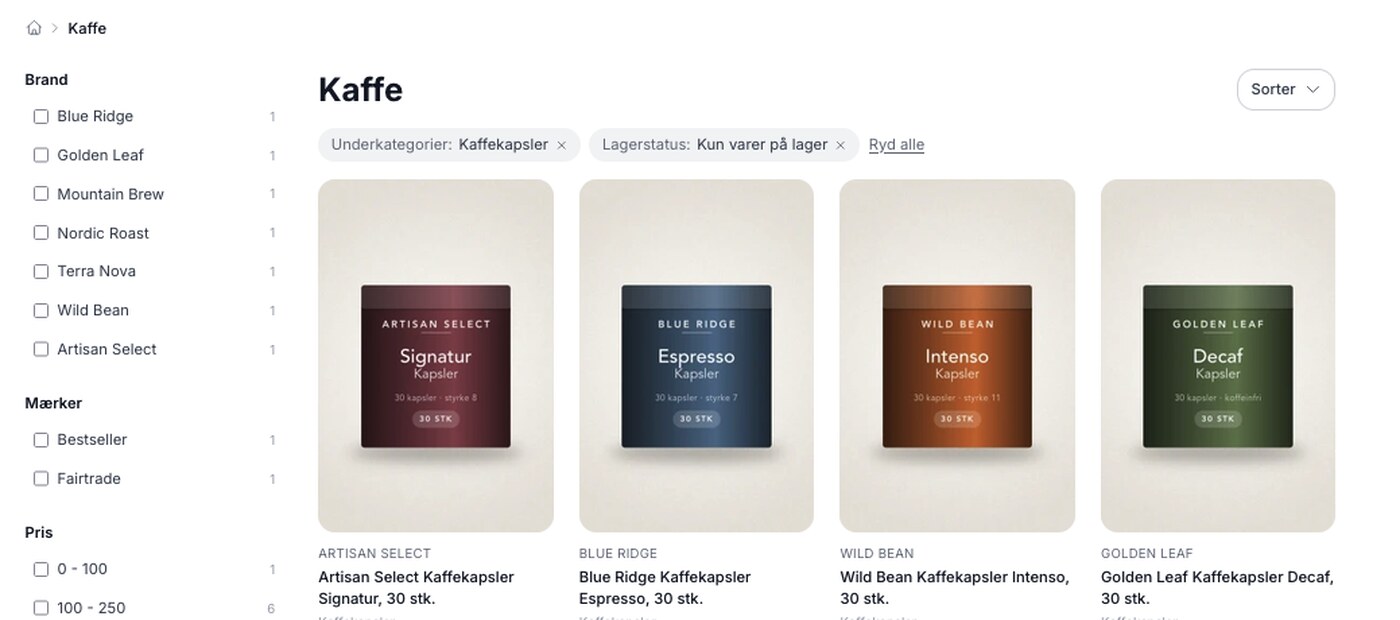
- Filtering. Customers can filter products by brand in categories and on landing pages. See Filtering on Your Online Store.
- Google Shopping. The brand name is used as the “brand” field in your Shopping feed. See Set Up Google Shopping Feed.
- Brand Pages. If you’ve enabled brand pages, the product will automatically appear on the brand’s own page. See Brand Pages in the Online Store further down.
- Landing Pages. You can create landing pages that automatically display all products from a specific brand.
- Statistics. Shoporama can display sales statistics by brand. See Statistics and Analysis in Shoporama.
You can assign a brand to multiple products at once via bulk editing or CSV import.
Brand Pages in the Web Store
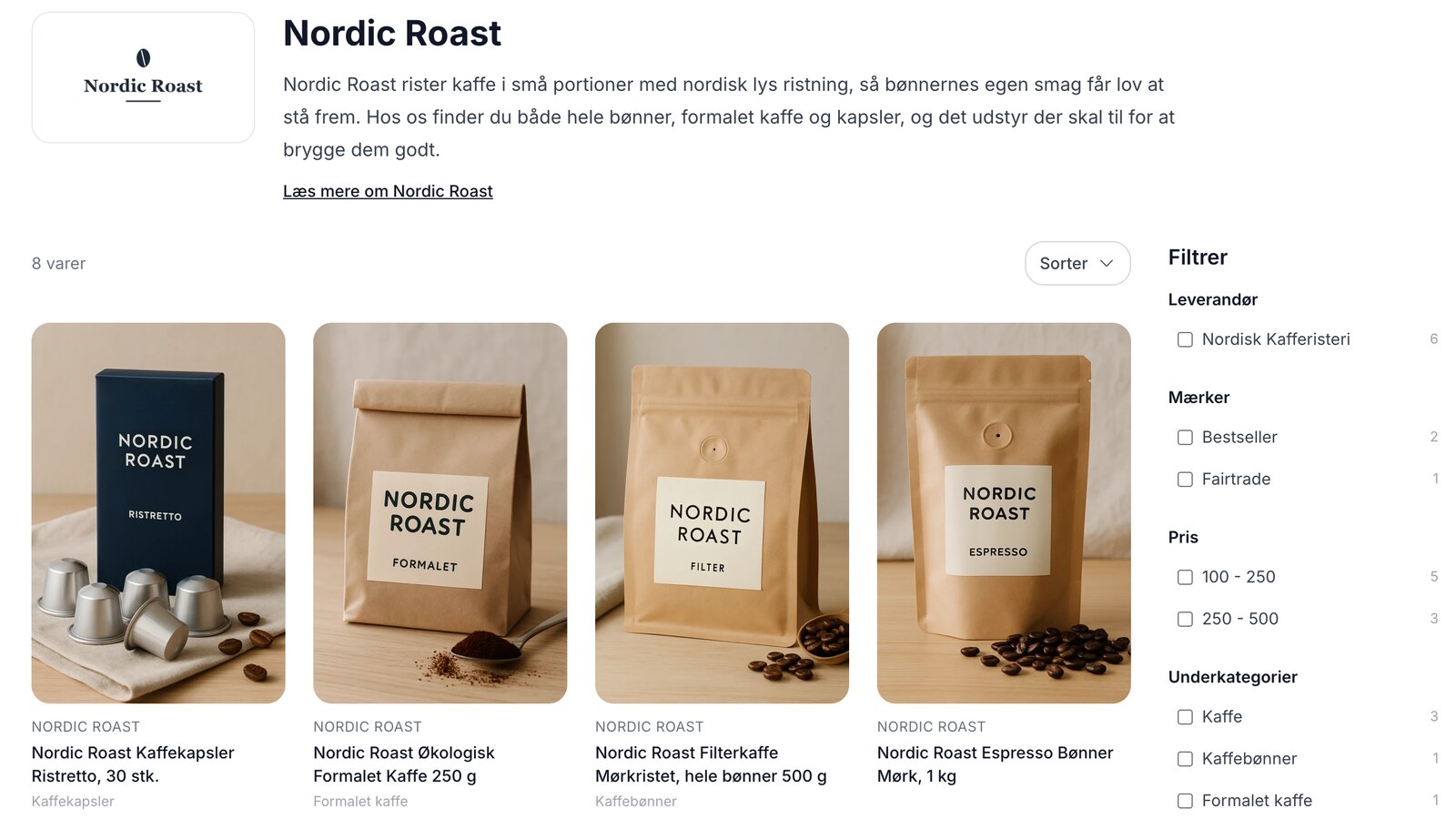
With brand pages, each brand automatically gets its own page in the online store, e.g., /brands/nordic-roast. The page displays the brand’s logo and name, an introduction to the products, all of the brand’s products, and a body text below the products. At /brands, customers get an overview of your brands. Only brands with products that the customer can view are included.
You can enable this under Products → Brands: click the Brand Pages button in the top-right corner, check the “Show brand pages in the store” box in the window that opens, and click Save Settings. All brands are then automatically assigned a URL based on their name. In Montana, MontanaB2B, Delaware, California, and Washington, the brand name on the product page also serves as a link to the brand page. In Montana and MontanaB2B, customers can also use your product filter on the brand page.
Brand pages work in Shoporama’s own themes: Montana, MontanaB2B, Delaware, California, Alaska2, and Washington. If your theme cannot display them, the option will be grayed out. Read the full guide, including information about the text and fields for search engines, in Brand Pages.
If you’d rather manage the brand page entirely on your own, you can still use a landing page:
- Create a landing page using the “Brand” rule.
- Select the desired brand.
- Go to the brand under Products → Brands and set “Link to” to the new landing page.
If you’ve enabled brand pages, the brand page will redirect customers and search engines to the landing page, and the brand will still have only one page. The same thing happens if you assign the brand to a category.
Control who can see a brand
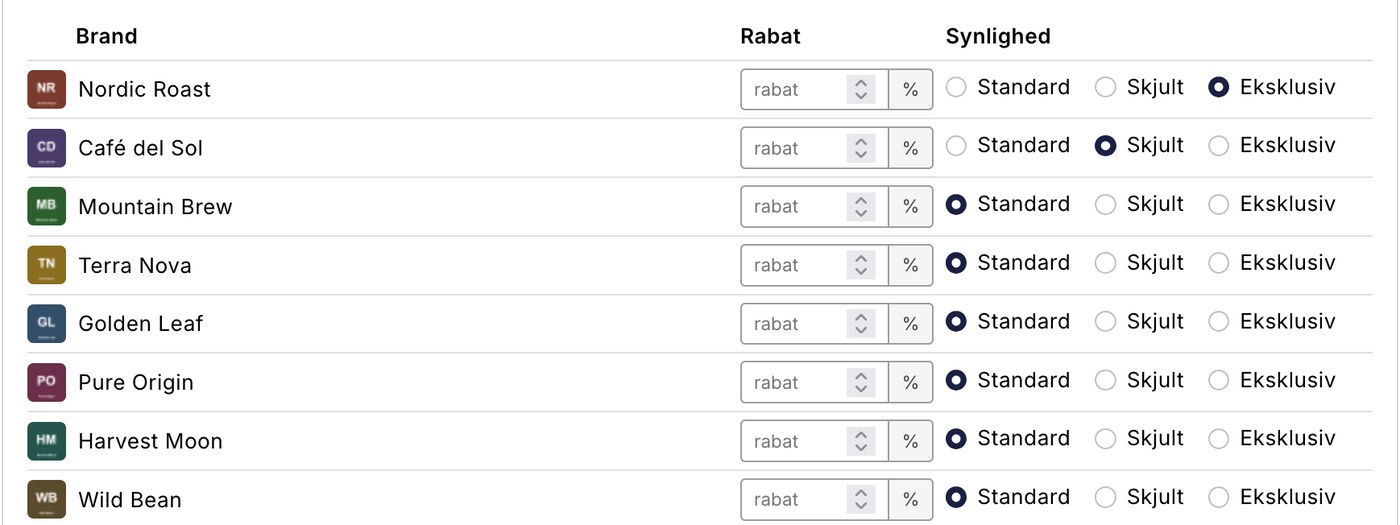
A brand doesn’t have to be visible to everyone. For a customer group, you can choose the visibility for each individual brand, and there are three options.
- Default. The group sees the brand just like everyone else.
- Hidden. Customers in the group cannot view or purchase the brand. All other customers are unaffected.
- Exclusive. Only the group’s customers can view and purchase the brand. It is invisible to everyone else, including visitors who are not logged in, and the products are excluded from your product feeds and sitemap.
This also applies to the brand’s own page, if you’ve enabled brand pages. Customers who aren’t allowed to view the brand will see an error page, and the brand won’t appear in their list of brands. An exclusive brand’s page also won’t appear in your sitemap.
“Exclusive” is designed for private label and reseller agreements where the products must be listed in the same store as everything else but can only be purchased by selected customers. The same brand can be set to “Exclusive” for multiple customer groups if several groups are to share access.
You’ll find the setting under “Customers ” and then “Customer Groups ” for each individual group. Read more in the blog post “Hide or Lock Brands for Specific Customer Groups.”
Hide a brand in specific countries
If you sell in multiple countries using the “Countries” feature, you can also control where a brand is visible. This is useful when a brand cannot be sold in one of your countries, for example, due to a distributor agreement. Open the brand under Products → Brands, uncheck the box next to the country under “Visible in countries,” and click Save. This field only appears when the store has at least one country.
In that country, the following happens:
- All of the brand’s products are hidden—including in search results, the sitemap, and the feeds you retrieve using that country’s URL (e.g., Google Shopping)—and they cannot be added to the cart. This means you don’t need to edit each individual product. Your own feeds under Products → Product Feeds follow the main country, so the products are still listed there. If you’re advertising in that country, use that country’s Google Shopping feed.
- The brand will disappear from the theme’s list of brands and from the country’s overview of brands.
- If you’ve enabled brand pages, the brand’s page cannot be opened in that country. It returns an error page (404), and it’s also not included in that country’s sitemap.
- If you’ve linked the brand to a category or landing page under “Link to,” that page won’t be hidden, but the brand’s products won’t appear on it. You can hide a category in that country yourself using the same field. Landing pages cannot be hidden on a per-country basis.
On the product’s own page, you’ll only see the product’s own checkboxes under “Visible in Countries.” A product can therefore be hidden in a country because of its brand, even if all of the product’s checkboxes are selected. Customer groups and countries function independently of each other: the customer group controls who can see the brand, and “Visible in Countries” controls in which countries it is displayed. Read more in “Visible in Countries.”
Brand Order
In the brand list, you can specify a weight (order) for each brand. Lower numbers appear first. This affects the order in brand filters and brand overviews in your online store. Change the numbers and click Save Order.
If you’ve enabled brand pages, this order is also used on the /brands overview. If you have up to 24 brands, they’ll appear in your specified order. If you have more, they’ll be listed by first letter, and the logos for up to 12 brands will appear at the top. These are the first brands with a logo in your order, so place the brands you want to highlight at the top.
Copy Brands to Other Shops
If you have multiple online stores on Shoporama, you can copy brands between them. Select the desired brands, check the boxes next to the stores you want to copy them to under “Copy selected to another online store,” and click “Copy selected” in that section. The card is only displayed when you have access to more than one online store. The copy in the other store is visible in all of that store’s countries. If you copy a brand within the same store using “Copy Selected” below the list, the copy will have the same checkmarks under “Visible in Countries” as the original.
Brands vs. Manufacturers
Shoporama distinguishes between brands and manufacturers. Brands are the trademarks customers recognize (e.g., “Nike”), while manufacturers are the companies that physically produce the product. For most online stores, brands are the most important factor, but starting in 2025, EU legislation (GPSR) requires that manufacturer information be available for certain products. Read more in “Create Manufacturers in Shoporama.”
Delete Brands
You can delete brands from the edit page or by selecting them in the list and clicking “Delete Selected.” Products that were associated with a deleted brand will simply lose that association. The products themselves are not affected.
Tips for Effective Use of Brands
- Be consistent with naming. Use the official spelling (e.g., “LEGO” and not “Lego” or “lego”). Inconsistency causes confusion in filters and feeds.
- Upload brand logos. A logo makes the brand overview more visual and professional.
- Enable brand pages. This allows customers to see all products from a brand in one place, and brands get their own pages with text and fields for search engines. See Brand Pages.
- Assign a brand to all products. This improves filtering, feeds, and statistics. Products without a brand appear unprofessional in Google Shopping.
- Use the ABC analysis. Shoporama’s ABC analysis can be filtered by brand, so you can see exactly which brands are making you money.
If you have any questions about brands and labels, feel free to contact us at support@shoporama.dk.
Related articles
Brand-by-brand statistics: Which brands sell the best?
See which brands are driving your revenue, how much capital each brand ties up in inventory, how to select a time period, and how cost of goods...
Create manufacturers in Shoporama
Guide to creating manufacturers in Shoporama - a legal requirement for certain products from 2025.
Categories in your webshop
Learn how to create and manage categories in your Shoporama online store. Guide to hierarchical structure, SEO settings, importing via CSV, sorting...
Filtering on your online store
Guide to setting up filtering on your Shoporama online store so customers can filter products.
Set Up a Google Shopping Feed
Guide to Setting Up a Google Shopping Feed in Shoporama: categories, custom labels, product IDs, and catalog matching; feeds by country with the...
Visible in countries: Hide products, pages, and brands in specific countries
Here's how to display products, categories, static pages, and brands only in specific countries using "Visible in Countries"—for example, a brand...
Brand Pages: Give each brand its own page in the online store
Give each brand its own page with a logo, text, and products, and include an overview of all brands at /brands. Here's how to set up brand pages,...
Related features
Brand Pages: One Page for Each Brand
Brand Pages: Each brand gets its own page in your online store
Now, each brand can have its own page with a logo, text, and all of the brand's products. Here's how to enable it, and here's how the store handles...
Hide or lock brands for specific customer groups
Customer groups in Shoporama can now hide a brand entirely or make it exclusive so that only the group's customers can view and purchase it. Set...
Product filtering is here, and you build the filter yourself
Product filtering is currently available in the Montana and MontanaB2B themes and can be added to your own theme. You can set up the filter...
Product filtering: Customers can find the item without having to scroll
Narrow down a large selection to the relevant items using filters for brand, price, inventory, profile attributes, and categories. Requires Montana...