Hide or lock brands for specific customer groups
Some products aren't for everyone. It could be your own private label, which only select retailers are allowed to buy, or a brand where the supplier has set restrictions on who can sell it. Until now, you could grant a customer group access to specific brands, but it was an all-or-nothing situation, and the hidden products were still openly visible to everyone else. Now you can choose visibility on a per-brand, per-customer-group basis. A brand can be set to Standard, Hidden, or Exclusive. If you set it to Exclusive, it will disappear for everyone except the group’s customers—including visitors who aren’t logged in—and it will be removed from your product feeds and sitemap.
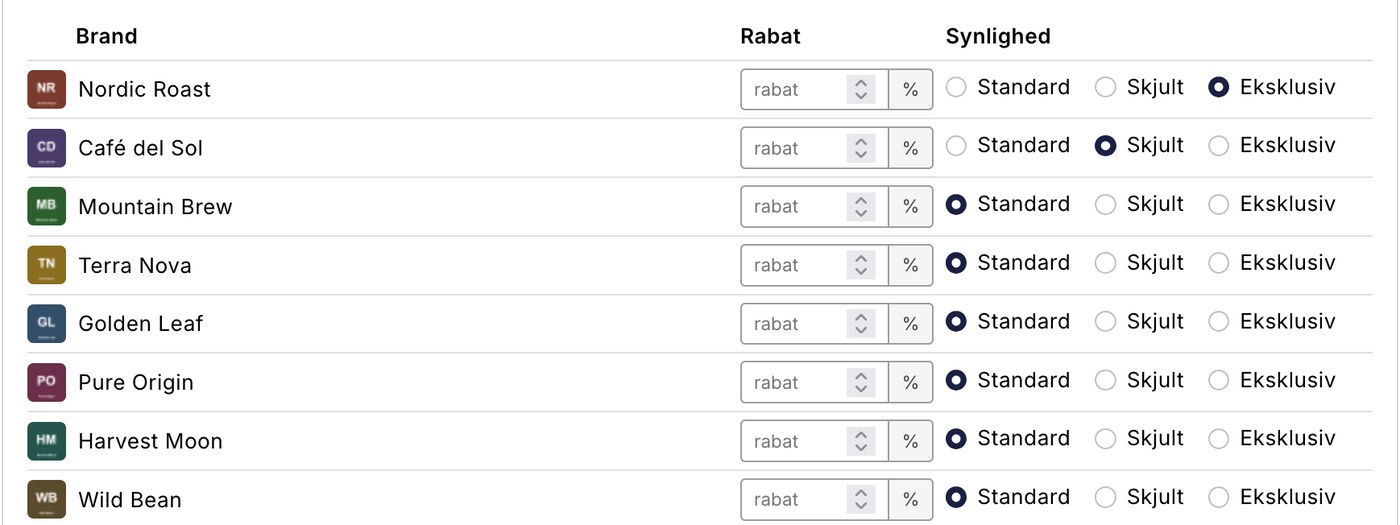
Some products aren't for everyone
You produce your own line and sell it to forty interior designers at wholesale prices. Or you’re the exclusive distributor for a brand where the supplier doesn’t allow the products to be displayed openly and compared in terms of price. Or you sell specialty products that only an authorized installer is permitted to purchase.
What these three scenarios have in common is that the products must be listed in the same online store as everything else—with the same inventory and the same product data—but be visible only to certain customers. Ideally, the rest of the world shouldn’t know they exist.
Three options per brand
For each customer group, you can now choose the visibility settings for each individual brand. There are three options.
- Standard. The group sees the brand just like everyone else. This is the default setting, and it’s how all your brands are currently displayed.
- Hidden. The group’s customers cannot see or purchase the brand. Everyone else is unaffected. Use this when a purchasing agreement covers only specific brands, and you want the shopping cart to match the agreement.
- Exclusive. Only the group’s customers can view and purchase the brand. Everyone else cannot, including visitors who aren’t logged in at all.
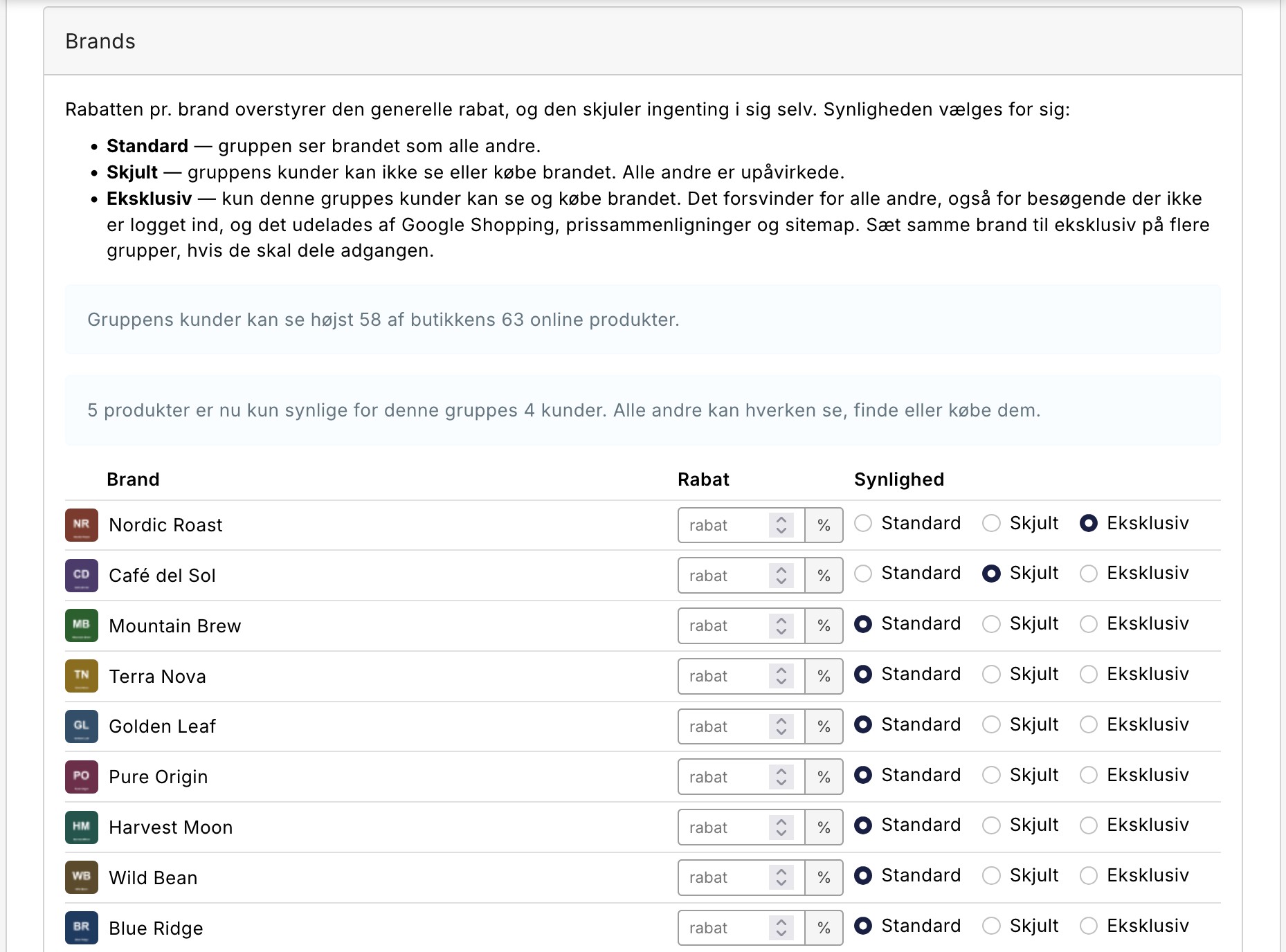
Exclusive means exclusive
It’s worth being precise about what “Exclusive” covers, because this is where the feature differs from simply removing something from a menu. An exclusive brand is removed from categories, search results, product grids, recommendations, landing pages, wish lists, and cross-selling on the receipt page.
If an unauthorized user goes directly to the product’s URL, they’ll be redirected to the home page. If they know the product number and try to add the item to their cart without going through the store, the attempt will be rejected. If the item is already in a cart from when the brand was public, the line item is removed from the cart.
And just as important: the brand is excluded from your product feeds and your sitemap. This applies to Google Shopping, price comparison services like PriceRunner and Kelkoo, affiliate feeds, and your own feeds. In other words, the products won’t be advertised anywhere where you can’t sell them anyway.
Multiple groups can share a tag
Pay attention to the direction. “Exclusive” doesn’t just grant the group access—it removes the tag from everyone else in the entire store. That’s the whole point, but it’s also the easiest mistake to make: if you think you’re opening access to one group, you’re actually closing it off to all the others.
On the other hand, “Exclusive” doesn’t mean that only one group can have access. If you set the same brand to “Exclusive” for multiple customer groups, they can all view and purchase it, while everyone else still can’t. If you have retailers in Denmark and Norway in separate groups, you can give them access to the same private label without having to create the products twice.
Discounts and visibility are two different things
You can still set a discount percentage per label for the group. The important thing is that a discount never hides anything. If you want to give a group a 15 percent discount on one brand, while letting them see the entire store as usual, simply enter the discount and leave the visibility set to Standard. Conversely, of course, a group that has a brand set to “Hidden” won’t receive a discount on that brand either, since they can’t buy it.
That wasn’t the case before. Previously, the two settings were linked in the same field, so a discount on one brand could end up hiding all the others. That pitfall is gone now.
Here’s how to do it
- Go to Customers, then Customer Groups, and select the relevant group.
- Scroll down to Brands. Each brand has a row with a field for the discount and a choice between Standard, Hidden, and Exclusive.
- Set the brands that the group should have exclusively to “Exclusive,” and the brands the group shouldn’t be able to purchase to “Hidden.”
- Save. The store’s cached pages are automatically cleared, so the change will also take effect in places that are normally served from the cache.
To see the result, view the store as an outside visitor, for example in a private browser window. The admin panel always displays your entire catalog, regardless of how visibility is set, so you can edit your products.
The admin keeps an eye on you throughout the process. If the setup results in the group’s customers being unable to see a single product, you’ll see a red warning instead of an empty store. If you make a brand exclusive to a group that doesn’t have any customers yet, you’ll also receive a notification, because in that case the products will be hidden from absolutely everyone.
What You Need to Consider First
If you make a brand exclusive that currently has public product pages with organic traffic, those pages will disappear from your sitemap and feeds, and external visitors will be redirected to the homepage. That’s the intended behavior, but it also means you’re opting out of that traffic. If the brand has a brand page or landing page worth keeping, consider setting up a redirect to something else relevant before making the change.
If you end up with fewer products in Google Merchant Center afterward, it’s not a feed error—it’s the exclusion you requested yourself.
Finally, it’s worth noting that visibility is controlled by brand, not by product. If a single product is to be exclusive, it must have its own brand. Products with no brand at all are not affected by this setting.
Read more
- Customer Groups and B2B Pricing, where you’ll find other ways to set custom terms for a group.
- Brands and Labels in Shoporama, if you need to create the labels first.
- B2B Sales in Shoporama, which brings together the entire reseller section in one place.
Related articles
Kundegrupper og B2B-priser: giv forskellige kunder forskellige priser
Brands and brands in Shoporama
Guide to brands and brands in Shoporama: create brands, upload logos, link to brand pages, use in filtering, Google Shopping and statistics.
B2B sales in Shoporama
How to sell to businesses (B2B) and public institutions (B2G) in Shoporama with CVR, EAN and differentiated VAT.
More from the blog
New Free App Sends Online Store Orders to Business Central
If you use Microsoft Dynamics 365 Business Central, Shoporama can now transfer orders from your online store as sales invoices or sales orders....
31. oktober 2026
New free Billy app replaces the built-in integration
Shoporama has a new, free app for Billy, now called Shine Accounting. It replaces the built-in Billy integration: customer information is reused,...
31. oktober 2026
New free Dinero app replaces the old integration
Shoporama has a new, free Dinero app that replaces the built-in Dinero integration. Your login is valid for one year at a time, errors appear...
30. oktober 2026