Brevo integration newsletter signup integration from your webshop
How to connect your Shoporama webshop to Brevo (formerly Sendinblue) so that new newsletter subscriptions automatically land in Brevo. Read what the integration can do and what you need to set up in Brevo yourself.
Shoporama can be connected directly to Brevo (formerly Sendinblue), so that new newsletter subscriptions from your online store are automatically added to Brevo as contacts. You can then send newsletters, campaigns, and automated emails from Brevo, and the data is shared between Shoporama and Brevo.
Important to know: The integration syncs only the contact information— email, first name, and last name —to Brevo. It does not sync orders, purchase history, phone numbers, addresses, or product data. If you need order syncing, segmentation based on purchases, or automated workflows based on purchases, Klaviyo or HeyLoyalty are better alternatives.
What does Shoporama send to Brevo?
When a customer subscribes to your newsletter through the online store, Shoporama sends this information to Brevo:
- Email address
- FIRSTNAME: the contact’s first name
- LASTNAME: the contact’s last name
The contact is added to the Brevo list you select during setup. Additional contact information, such as phone numbers, addresses, or birthdays, can be added directly in Brevo by the customer or by you.
How to set up the integration
- Create an account with Brevo if you don’t already have one.
- Create a list in Brevo for your new newsletter subscribers.
- Create an email template in Brevo with the “optin” tag. Shoporama requires an opt-in template, even if you’re not using double opt-in.
- Retrieve your API key in Brevo at app.brevo.com/settings/keys/api. The page in Shoporama also links to this.
- Go to Integrations, Mailing List in Shoporama.
- Select Brevo in the Provider field and click Save. The Setup card will then appear with the fields for Brevo.
- Enter the key in the API Key field and click Save.
- Select the list in the “List” field and the template in the “Template ID” field for opt-in, then click Save again.
- Under Newsletter > Setup, make sure that “Use internal newsletter list” is turned off. Otherwise, sign-ups will go to Shoporama’s own list and not to Brevo.
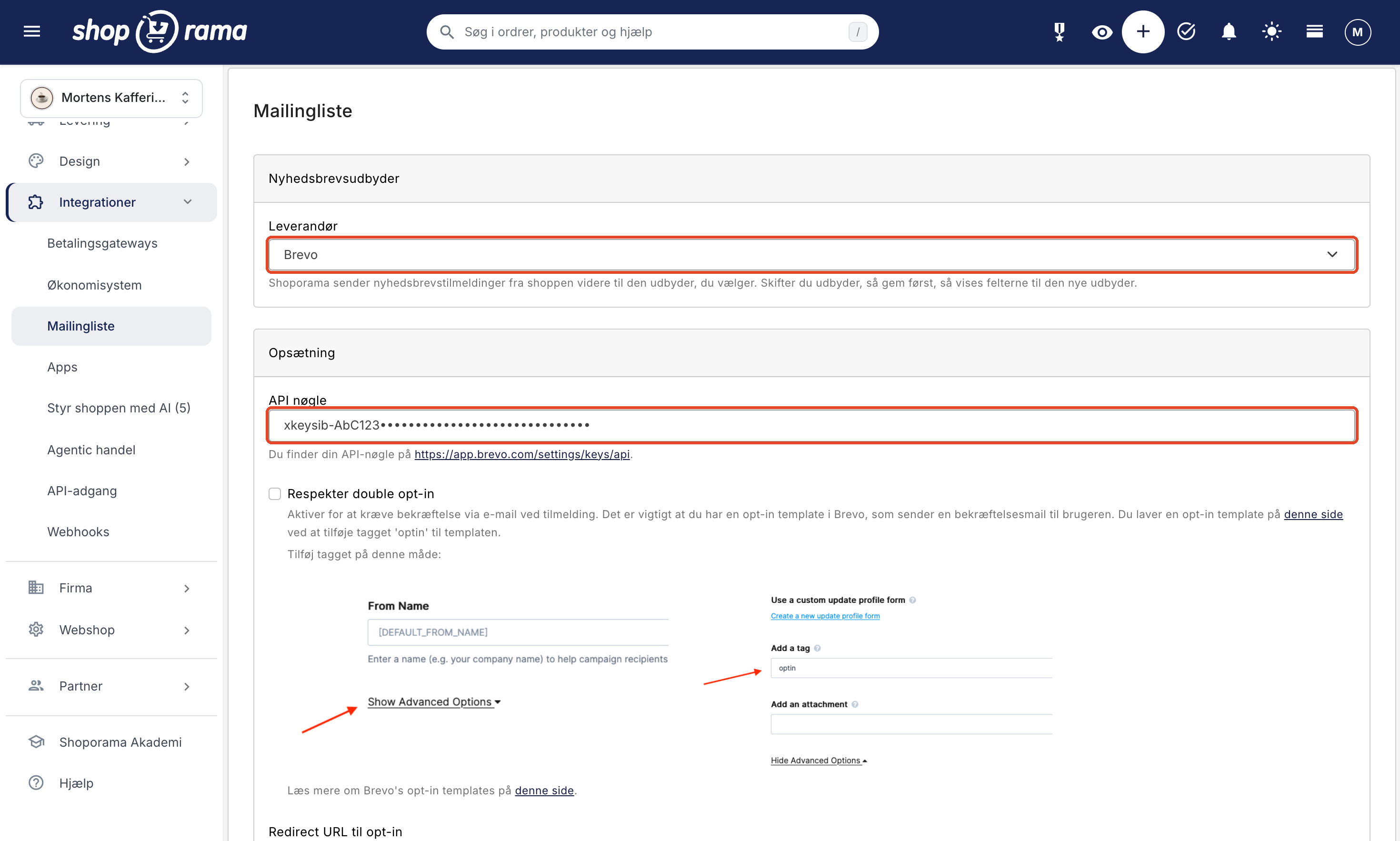
Double opt-in (recommended)
We recommend double opt-in because it results in a cleaner list and provides clear proof of consent. The customer will receive a confirmation email from Brevo and will only be added to the list after clicking the link. Here’s how to set it up:
- Create the template in Brevo, tag it “optin,” and insert Brevo’s confirmation link {{ params.DOIurl }} into it.
- Check the box for “Respect double opt-in.”
- Select the template in “Template ID for opt-in.”
- If desired, enter a URL in “Redirect URL for opt-in.” If the field is left blank, the customer will be redirected to your homepage.
- Click Save.
What happens in Brevo next?
Once the contact is in Brevo, you can:
- Send newsletters and campaigns
- Create automated flows (welcome series, birthday emails, etc.) based on data available in Brevo
- Create segments based on attributes available in Brevo, such as first name, city, or categories you’ve assigned to the contact
- Import additional data manually or via Brevo’s API
Since Shoporama does not send order data to Brevo, you cannot automatically segment contacts based on criteria such as “has spent more than 1,000 DKK,” “has purchased in category X,” or “has not made a purchase in 90 days.” This requires you to enrich the contact information yourself via a CSV export from Shoporama or via Brevo’s API.
Do you want more than basic sync?
If you want full order and purchase synchronization, automated email flows based on actual purchases, abandoned cart emails, and advanced segmentation, we recommend one of these solutions instead:
- Klaviyo: deep integration with orders, categories, products, and purchase history
- HeyLoyalty: a Danish platform with robust order sync and loyalty features
- Shoporama’s own newsletter system: built into the admin panel, no external integration required
Manually export customers to Brevo
If you still want to use Brevo and include order data, you can regularly export customers from Shoporama (e.g., customers who have purchased a specific product) as a CSV file and import them into Brevo as a new attribute. This is a manual process, but it provides a reasonable starting point for segmentation.
Frequently Asked Questions
Does the integration sync my orders to Brevo?
No. Only the email address, first name, and last name are synced when the customer subscribes to the newsletter. Orders, amounts, products, and purchase history are not sent. If you want to segment by purchases, use Klaviyo or HeyLoyalty.
Are customers automatically subscribed to the newsletter when they make a purchase?
No. A customer is only added to your Brevo list when they check the “Subscribe to newsletter” box themselves—for example, at checkout, on the “Create Profile” page, or in a sign-up form. The checkbox is located in your theme. Active consent is required, so this never happens without the customer’s choice.
Can I send my newsletter from Shoporama but keep the contacts in Brevo?
No, not at the same time. If you enable “Use internal newsletter list” under Newsletter > Setup, subscriptions will go to Shoporama’s own list and not to Brevo. Choose one place to collect your subscribers. Learn more about the newsletter module.
What happens if a customer unsubscribes in Brevo?
The unsubscribe is handled in Brevo, and Shoporama is not notified of it. Shoporama also does not update the unsubscribe status. The customer will not receive your campaigns until the unsubscribe is reversed in Brevo.
Where can I find my Brevo API key?
Log in to Brevo and go to app.brevo.com/settings/keys/api. If you don’t have a key, create one there. Copy the key and paste it into the API key field in Shoporama. The page in Shoporama has the same link.
Will I lose my current contacts if I switch from Mailchimp/Heysender to Brevo?
No, but you’ll need to export them from the old system yourself and import them into Brevo. Shoporama only transfers new sign-ups from the moment the integration is activated.
Does the customer need to confirm their subscription?
You can choose this yourself with the “Respect double opt-in” setting. With double opt-in, the customer is added to the list only after confirming the email from Brevo. Without double opt-in, the customer is subscribed immediately.
How much does Brevo cost?
Brevo offers a free plan and several paid plans. See the current prices on Brevo’s website.
Do you need help setting up the Brevo integration? Email us at support@shoporama.dk.
Related articles
The newsletter module
Complete guide to Shoporama's built-in newsletter module. Learn how to create campaigns, segment recipients, use A/B testing, set up automatic...
HeyLoyalty integration
Guide to setting up HeyLoyalty in Shoporama for email marketing with automatic synchronization of subscribers and order data.
Set up Klaviyo integration
Here's how to find the public and private keys in Klaviyo, connect Klaviyo to your Shoporama online store, and select lists for newsletter...
Set up Heysender integration
Guide to setting up Heysender integration so your transactional emails support DMARC, SPF and have better deliverability.
Related features
Email marketing
Integrate with Klaviyo, Brevo, Mailchimp, Ubivox or Campaign Monitor, or use Shoporama's own newsletter system. Automatic synchronization and event...
Newsletter system - send professional newsletters directly from Shoporama
Built-in newsletter system with A/B testing, segmentation, product blocks and statistics. Integrates with Brevo, Klaviyo and HeyLoyalty. Included...
Email marketing software
Email marketing software is the tool for sending newsletters and automated campaigns. Shoporama has a complete, built-in newsletter system with...