Firma-konti med flere brugere og roller
If you sell to businesses, you’ll often find that several people from the same company shop with you. The buyer places the order, a colleague adds to it, and the bookkeeper wants everything billed to the same company with the correct business registration number and address. With company accounts in Shoporama, multiple users can be associated with a single company and share the company’s identity, prices, and terms. This article explains how company accounts work and how to set them up.
Company accounts build on Shoporama’s other B2B features. If you’re new to B2B sales, start with B2B sales in Shoporama and read more about your options on the B2B Webshop page.
What is a company account?
A company account groups multiple users under the same company. Instead of each buyer having their own separate customer profile, they all belong to a single company and share the company’s information and terms. Each user has a role that determines what they are allowed to do:
- A company administrator can manage the company’s users—that is, add colleagues, change roles, and remove users.
- Members can shop using the company’s account and inherit the company’s information, prices, and terms, but cannot manage other users.
Two types of administrators: store owner and company administrator
It’s important to keep these two roles separate because they operate in two different places:
- As a store owner, you work in Shoporama’s admin panel. This is where you create companies, assign customer groups, and add the first users.
- The company administrator is the customer’s own administrator. This person does not work in the admin panel, but within your store under “My Company,” and can add and remove colleagues as well as change their roles.
This means the company can largely manage itself, so you don’t have to manually create or edit the company’s users every time a new employee joins or an existing one leaves.
The company’s identity is inherited by its members
When a user belongs to a company, they automatically inherit the company’s master data. That is:
- Company name
- CVR number, which can be validated against the EU’s VIES service if you’ve enabled VAT number validation in the store’s settings
- EAN number for government procurement and invoicing
The great thing is that members don’t have to enter the CVR or other company information themselves. These details are entered once for the company and apply to everyone. When a member places an order, the company’s name, CVR, and EAN are automatically added to the order, ensuring the information is correct on every single order, regardless of who in the company placed it.
You enter the company’s address in the company’s admin settings, but it isn’t automatically applied to members. Each user still has their own billing and shipping address, so a colleague in another department can have the goods delivered to the right location.
Prices are inherited from the company’s customer group
A company can be assigned a customer group. The customer group determines the prices, discounts, and terms under which the company makes purchases. Price inheritance works as follows:
- A member without their own customer group inherits the company’s group and thus receives the company’s prices, discounts, and terms.
- If a member has their own customer group, the member’s own group takes precedence over the company’s.
This way, you can give an entire company the same contract prices simply by setting the company’s customer group in one place, while still being able to offer a special deal to an individual if necessary.
How to create a company in the admin panel
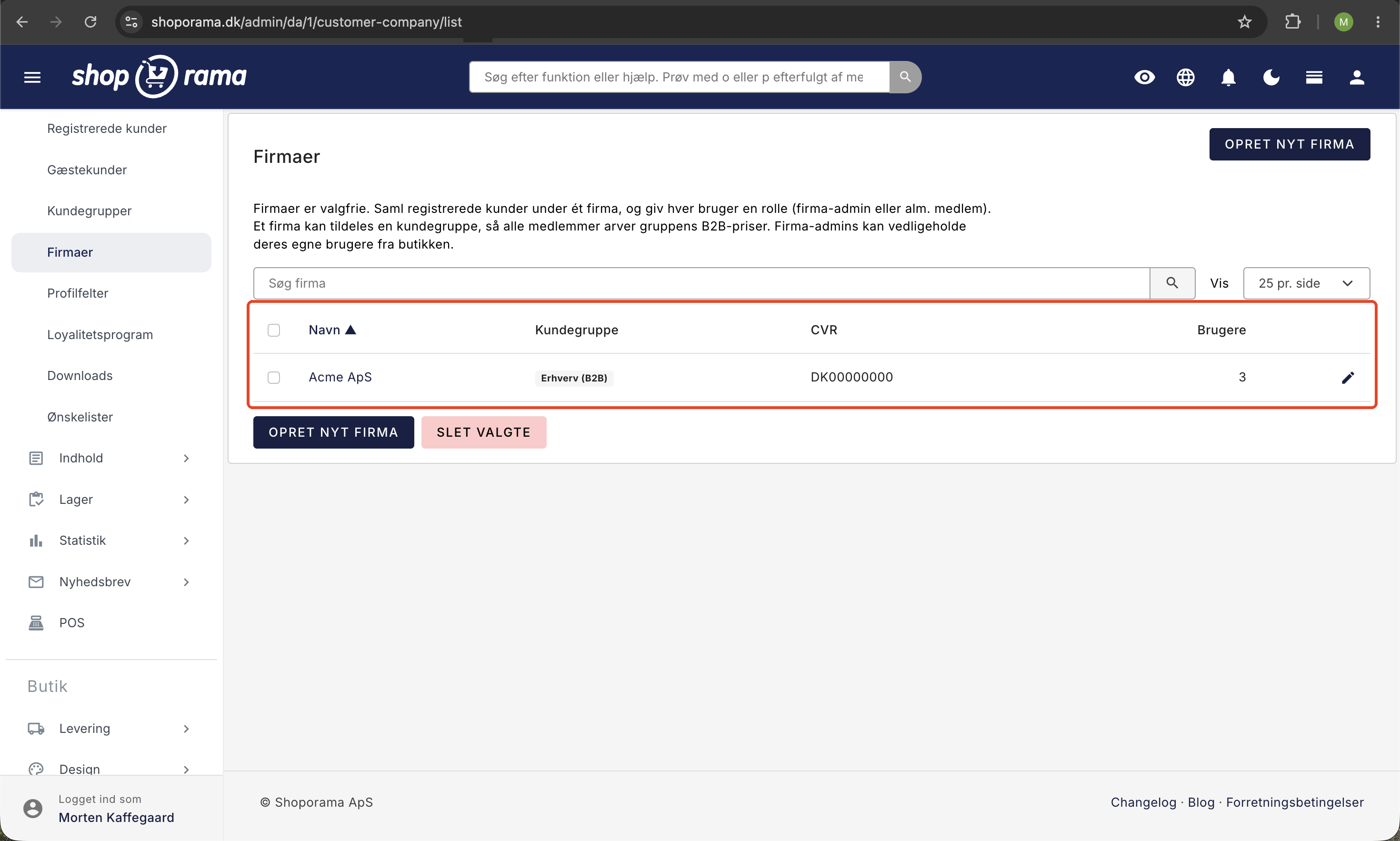
You create and manage companies in the admin under Customers and then Companies:
- Go to Customers and select Companies.
- Create a new company and fill in the company’s information, including the company name, CVR, EAN, and address.
- If desired, assign the company to a customer group so that its members inherit the correct prices and terms.
- Add the company’s members. You can either create a brand-new user who will be invited via email or link an existing customer from your store.
- Designate who will be the company administrator so the company can manage its own users going forward.
If you create a brand-new user, that person will receive a login link via email. The link allows them to log in without a password, making it easy to get started the first time. If, instead, you link a customer who already exists in the store, no email will be sent, since the customer already has their own login.
Send order confirmations and invoices to multiple addresses
In many companies, it’s not just the person placing the order who needs to receive the emails. The shared inbox needs to see the order confirmation, and the accounting department needs the invoice. You set this up once for the company, and it applies to all orders from all of the company’s users.
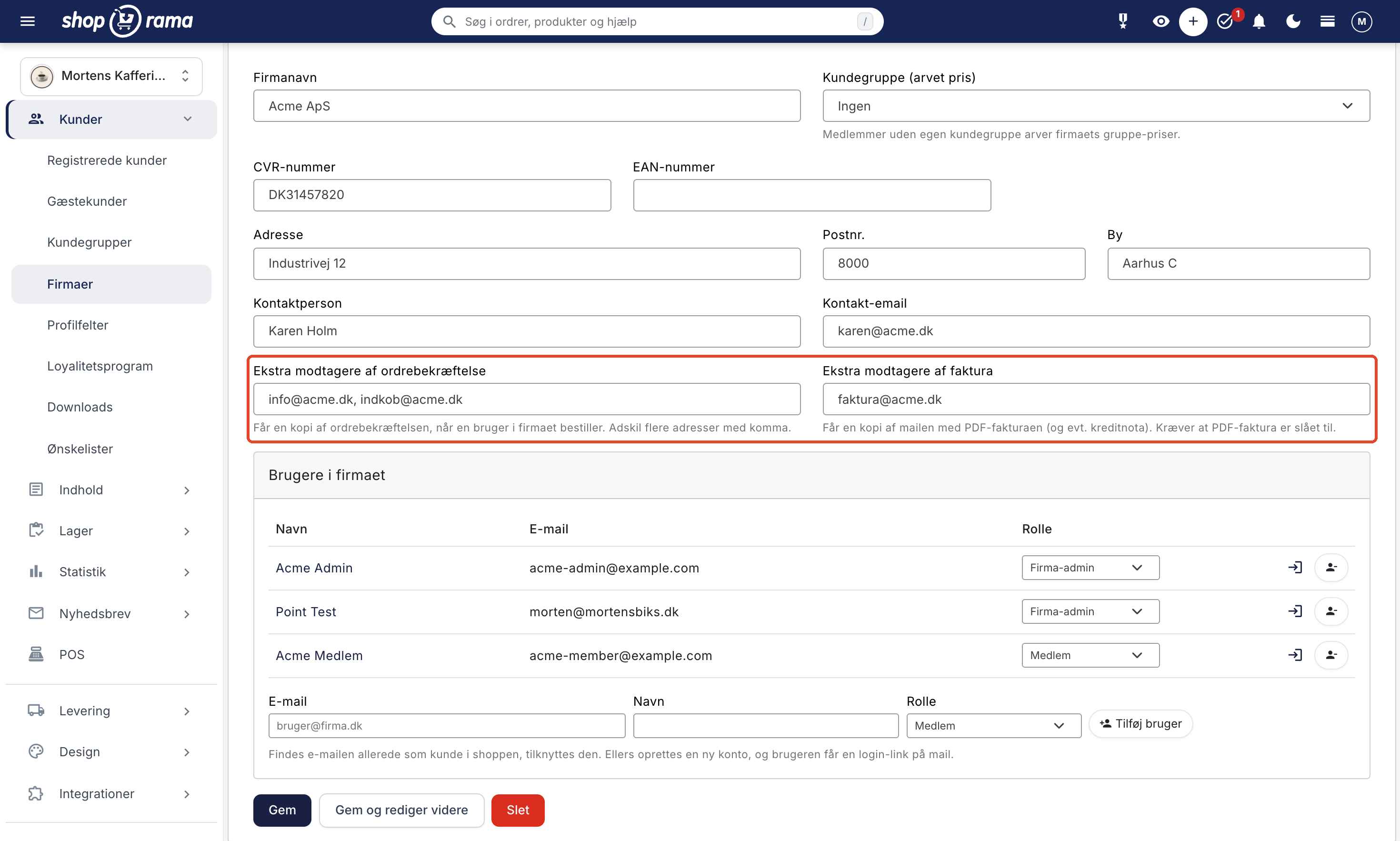
Go to Customers, select Companies, and open the company. Just below Contact Person and Contact Email, you’ll find two fields:
- Additional recipients of the order confirmation will receive a copy of the order confirmation when a user at the company places an order. This also applies when you resend the order confirmation from the admin panel.
- Additional invoice recipients receive a copy of the emails that have the PDF invoice attached—that is, the email confirming that the order has been shipped, the emails indicating “Ready for Pickup” and “Picked Up,” and the email with any credit memo.
For example, enter the company’s info address in the field for the order confirmation and the company’s billing address in the field for the invoice, then click Save. Separate multiple addresses with commas. An invalid address will not be saved, and the admin will display a yellow message listing the affected addresses. If you leave a field blank, the order will not be sent to any additional recipients.
Good to know:
- The user placing the order will still receive their own emails as usual. The additional recipients will receive a copy as well.
- Each additional recipient receives their own email, so recipients cannot see each other’s addresses. All copies are listed in the order’s email log.
- On the order itself in the admin panel, you can see in the “Contact” box who receives a copy of the order confirmation and invoice. The addresses are retrieved from the customer and the company when the email is sent. If you update them in the company settings, this change will also apply to emails sent later for older orders.
- The invoice feature requires that PDF invoices be enabled in the store’s settings. If they are not, nothing will be sent to the invoice recipients. Read more in PDF Invoices for Orders.
- If you ship an order in multiple packages, the invoice will not be included until the entire order has been shipped, and the invoice recipients will not receive the email until then.
- The recipients of the order confirmation will not receive the invoice, and vice versa, unless you enter the same address in both fields.
- This applies to orders linked to a user’s customer account. If someone shops as a guest without logging in, the invoice is not sent to the additional recipients. Other emails, such as payment and notification emails, are sent only to the person who placed the order.
Each customer has the same two fields on their own profile; see Edit a Customer’s Profile and Information. If addresses are entered for both the customer and the company, they are combined so that both lists receive the email. If the same address appears in multiple places, or if it is identical to the email address on the order, only one email is sent to that address.
Note that the “Contact Email” field for the company is for your reference only. That address will not receive order emails. If the contact person needs to receive order confirmations or invoices, enter their address in one of the two new fields.
What the company administrator can do in the store
The company administrator manages the company within your store under “My Company.” From there, they can:
- Add colleagues as new users to the company.
- Change roles—that is, make a member a company administrator or vice versa.
- Remove users who no longer need access.
- Log in as an employee to assist them, and then switch back to their own account.
The “Log in as” feature is handy when the administrator needs to help a colleague who’s stuck, because the administrator can see what the colleague sees and then safely return to their own account without logging out completely.
Roles and Permissions: What Can a Member Do, and What Can a Company Administrator Do?
Every user within a company has exactly one role: either member or company administrator. The role alone determines what the user is allowed to do with the company’s other users. It does not change prices, discounts, or terms, as everyone in the company inherits these in the same way. A company administrator therefore purchases at exactly the same prices as their colleagues.
Member
The member is the regular buyer. They can:
- Shop using the company’s account at the company’s prices and terms.
- View their own orders under “Orders” in the store.
- Edit their own information, including name, address, phone number, shipping address, and password.
However, a member cannot edit the company name, CVR, or EAN. These fields are locked and appear only as text on the profile with a note stating that company information is managed by the company administrator. The same applies at checkout, where the company’s information is automatically added to the order. Members also cannot see the “My Company” tab and therefore cannot view, add, or remove colleagues.
Company Administrator
The company administrator can do everything a member can do and also has access to the “My Company” tab in the store, where the company’s users are managed. There are three restrictions that protect both the company and you:
- A company administrator cannot change their own role, remove themselves, or log in as themselves. This ensures that a company cannot accidentally end up without an administrator.
- Nor can the company administrator edit the company name, CVR, or EAN. As the store owner, you do this in the admin panel to ensure that the company’s VAT number remains the one you’ve approved.
- A company administrator can only view and edit users within their own company and in your store. Companies and stores are kept separate from one another.
A company can easily have multiple company administrators, and there is no upper limit. A user, however, can only belong to one company at a time.
How the company gains access to the “My Company” page
Two things must be in place before a customer can manage their company from within the store:
- The store must use the B2B theme. The “My Company” page is included with the theme. If your store runs on a different or custom-built theme, your theme developer must add the page before it can be used. You can find an overview of the theme in B2B Sales in Shoporama.
- The company must have at least one company administrator. If none of the company’s users have this role, no one will be able to access the page. Appoint an administrator yourself under “Customers and Companies,” or on the individual customer’s page, where the field is labeled “Company Role.”
Once both steps are complete, the “My Company ” tab will appear in the customer’s profile menu in the store, next to “Overview,” “Edit Profile,” and “Orders.” Regular members will not see it.
The invitation email with the login link is also included with the B2B theme. If your store uses a theme that doesn’t include that email, new users won’t receive an invitation and will instead need to use the store’s “Forgot Password” feature to log in for the first time.
How the company administrator manages their colleagues
On the My Company page, the administrator sees the company name, the company’s CVR number (if entered), and a table of the company’s users with columns for name, email, and role. The administrator’s own row is marked with the word “you,” so it’s clear which row is their own. From there, there are three things to do.
Add a colleague
At the bottom of the page is the “Add User” box. The administrator enters the colleague’s email address, a name if desired, selects the role “Member” or “Company Admin,” and clicks “Add User.” The colleague immediately receives an email with a login link that logs them in directly without a password. The colleague can then choose a password themselves in their profile.
One detail is worth noting: from the store, a company admin can only create new accounts. If the email address already exists as a customer in your store, the request will be rejected with a message asking the user to contact the store. This is intentional; otherwise, someone could enter a stranger’s email address, link it to their company, and then log in as that person. If you need to link an existing customer to a company, you’ll have to do it yourself in the admin panel.
Change a colleague’s role
In the “Role” column, there’s a small drop-down menu next to each colleague with the options “Member” and “Company Admin.” The change is saved immediately. The administrator’s own role appears as plain text without a drop-down menu, precisely because you cannot demote yourself.
Remove a user
On the far right is the “Remove” button, which first asks for confirmation. Please note that “Remove” does not delete the customer’s account. It only detaches the user from the company. The person can still log in, but loses their company identity and access to company pricing, and will then act as a regular customer. This is exactly what you want when an employee changes jobs: the contract prices don’t go out the door with them, and the account, history, and previous orders are all preserved.
Log in as a colleague, and switch back again
Next to each colleague is the “Log in as” link. If the administrator clicks it, the store appears exactly as the colleague sees it—that is, with the same prices, the same shopping cart, and the same order history. At the top of every page is a clear banner indicating that you’re viewing the store as that specific colleague, so you’re never in doubt about whose account you’re logged into.
In the same banner is the “Back to My Account” link. Always use this to return to your own account—never use “Log Out.” If you log out instead, you’ll be completely logged out of the store and will have to log in as yourself all over again.
There are strict guidelines for this feature. You can only log in as a user from your own company within the same store, and you cannot log in as yourself. However, you are effectively logged in as the colleague, so any order placed during your session will be charged to that colleague’s account. This is an advantage when the administrator places an order on a colleague’s behalf, but it’s worth keeping in mind if you were just planning to look around. However, this visit does not count as the colleague’s own login. As a store owner, you can therefore still see in the “Last Login” column of the customer overview when the colleague last logged in themselves.
You have a similar option as a store owner. On the company page in the admin panel, there’s a small login icon next to each user that opens the store in a new tab, where you’re logged in as that specific customer. This saves a lot of time in support when a customer calls and says that a price or a product doesn’t look right on their end. Your visit also doesn’t count as the customer’s most recent login.
Frequently Asked Questions
Does each employee have to enter the company’s CVR number themselves when placing an order?
No. The CVR number is entered once for the company itself and is automatically applied to all members. This means individual buyers do not need to remember or enter the CVR number with every order. The order automatically includes the company’s information.
Can I assign the same contract prices to an entire company at once?
Yes. Assign the company to a customer group, and all members without their own group will automatically inherit the group’s prices, discounts, and terms. You do not need to set prices for each individual user. If, in exceptional cases, a member has their own group, that group takes precedence over the company’s.
How can I see which company an order belongs to in the accounting system?
Every order from a member includes the company’s name, CVR number, and EAN. This means that the company information is included with the order, regardless of who in the company placed it, so that accounting and documentation point to the correct company. The delivery address, however, is the one the member specified.
Our buyers change frequently. Do I have to add and remove them manually every time?
No, the company can handle that on its own. You designate a company administrator, who can then add new colleagues, remove those who leave, and change roles directly in the store under “My Company.” This saves you from having to do the manual work.
A coworker is having trouble shopping. Can I help them?
Yes. A company administrator can log in as that employee and see what the colleague sees. Once the help is provided, the administrator switches back to their own account. This makes it easy to guide a colleague without having to share passwords.
Can the invoice be sent to the accounting department instead of the person who placed the order?
The accounting department can receive a copy, but not in place of the person who placed the order. Enter the accounting department’s address in the “Additional invoice recipients” field in the company settings, and the accounting department will receive a copy of the email with the PDF invoice for each order. The person who placed the order will still receive their own email. Remember that PDF invoices must be enabled in the store’s settings.
I entered an address in the “Contact Email” field. Why isn’t it receiving any order confirmations?
Because the “Contact Email” field is for your own reference only and never receives order emails. If you want that address to receive order confirmations, enter it in the “Additional Order Confirmation Recipients” field for the company. If you want it to receive invoices, use the “Additional Invoice Recipients” field.
What happens when I add a new user to a company?
If you create a brand-new user, they’ll receive a login link via email. The link logs the person in directly without a password, so it’s quick to get started the first time. If, instead, you link a customer who already exists in the store, no email is sent, since the customer already has their own login.
Is the CVR number verified, or does the customer just enter a number?
That depends on your store’s settings. If you enable VAT number validation against VIES in the store settings, the CVR number is checked against the EU’s VIES service, and the admin panel clearly indicates whether the number is valid. If validation is turned off, the number is saved without verification. Note that VIES only covers VAT numbers from EU countries.
Can a company have more than one company administrator?
Yes, and there is no upper limit. It’s a good idea to appoint two so the company doesn’t come to a standstill when one is on vacation or leaves. Because a company administrator cannot remove themselves or change their own role, a company cannot accidentally lock itself out of the “My Company” page.
Can the company’s own administrator change the CVR number?
No. The company name, CVR, and EAN are locked for all company users, including the company administrator, both on the profile and at checkout. As the store owner, you can edit these fields in the admin panel, where the CVR number can also be validated against VIES. This means that the VAT number on a company account cannot change between two orders, and that the bookkeeping is based on a number you have approved.
I accidentally removed a colleague. Has the account been deleted?
No. The account still exists, and the person can log in as before. They have simply been removed from the company and will therefore shop at the store’s regular prices. Note that the company administrator cannot add the colleague back from the store, because the email address is now registered as a customer. You can reconnect the account to the company in the admin panel under Customers and Companies.
Can the company administrator view all of the company’s orders in one place in the store?
No. The order overview in the store shows each individual user’s own orders, even if they are the company administrator. If the administrator needs to view a colleague’s orders, they can use the “Log in as” feature. As the store owner, you’ll find the orders in the admin panel, where each order displays the company’s name, CVR number, and EAN, regardless of who in the company placed the order.
Related articles
B2B sales in Shoporama
How to sell to businesses (B2B) and public institutions (B2G) in Shoporama with CVR, EAN and differentiated VAT.
Kundegrupper og B2B-priser: giv forskellige kunder forskellige priser
Reverse charge og VIES-validering: sælg uden moms til erhverv i EU
Hurtig genbestilling for erhvervskunder
Customer Overview: Find and Manage Your Registered Customers
The Customer Overview lists all customers with profiles. Learn what the columns mean, how to search and sort, create orders, log in as a customer,...
Related features
B2B Online Store with Business Central
Sell to businesses and have the orders imported into Business Central as sales invoices or sales orders with a CVR number, open items for invoice...
B2B webshop
A B2B webshop sells to business customers with customer pricing, CVR validation and invoicing. Read about B2B e-commerce and features.
B2B webshop
Shoporama now offers a full-featured B2B solution: a login-based store, customer group pricing, volume discounts, company accounts with roles,...
B2B online store
Nu kan du drive en rigtig B2B-webshop med Shoporama
Shoporama now offers a full-featured B2B solution: a login-based store, customer group pricing, volume discounts, corporate accounts, VIES reverse...
Theme Settings in MontanaB2B: Fields and B2B Features
An explanation of all fields in MontanaB2B's theme settings, plus the login screen, prices excluding VAT, customer groups, company accounts, and...