Kundegrupper og B2B-priser: giv forskellige kunder forskellige priser
Do you sell to both individual customers and resellers? Or do you have customers who have negotiated special prices? With customer groups in Shoporama, you can automatically assign different prices to different customers. When a customer is logged in, they see their own prices without you having to do anything manually. This article shows you how it all works.
What is a customer group?
A customer group is a collection of customers who receive the same pricing treatment. For example, you could create a group called “Reseller” and add your resellers to it. Each customer is assigned to one group, and they automatically see their own prices as soon as they log in to the online store.
Customers who aren’t assigned to a group shop as regular consumers at your standard prices. This means you don’t need to take any special action for your private customers. Only the customers you manually add to a group—and new customers who are placed in your default group when they create an account—will receive different pricing.
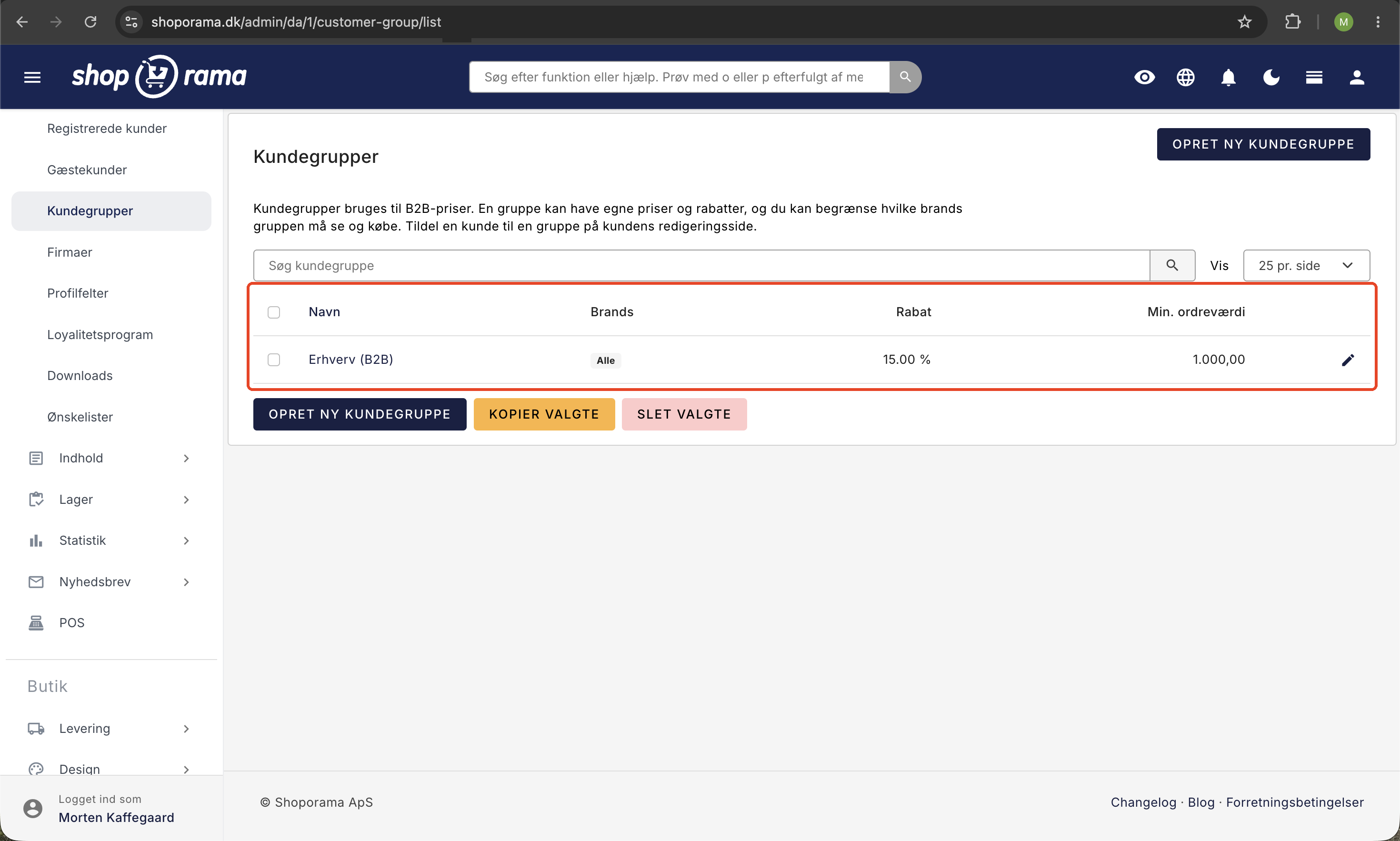
You can create and edit customer groups under Customers → Customer Groups in the admin panel. Here, you can manage the group’s general discount, minimum order value, and which brands the group is allowed to purchase. You can also set the group as the default group for new customers. You set fixed special prices on individual products. If you need to use customer groups for a true B2B solution with login and prices excluding tax, you can read more on the page about B2B webstores.
How to Add Customers to a Group
There are several ways to assign customers to a customer group, and you can use them in combination.
- On the customer’s page. Open the customer under Customers → Registered Customers, and select the group in the Customer Group field. If you select No Group, you’ll remove the customer from the group.
- Multiple at a time from the customer overview. Select the customers under Customers → Registered Customers, click Customer Group, select the group, and click Add Selected.
- Via a company. Customers who belong to a company and do not have their own group inherit the company’s group and, consequently, the company’s prices. Read more in Company Accounts with Multiple Users and Roles.
- Automatically via the default group. New customers who create an account in the online store on their own are automatically placed in the group you’ve set as the default group. We’ll go over that below.
Default Group for New Customers
If you want all new customers who create an account in the online store to be placed in the same group, set that group as the default group:
- Go to Customers → Customer Groups, and open the group you want new customers to be placed in.
- Enable “Default Group for New Customers.”
- Click Save.
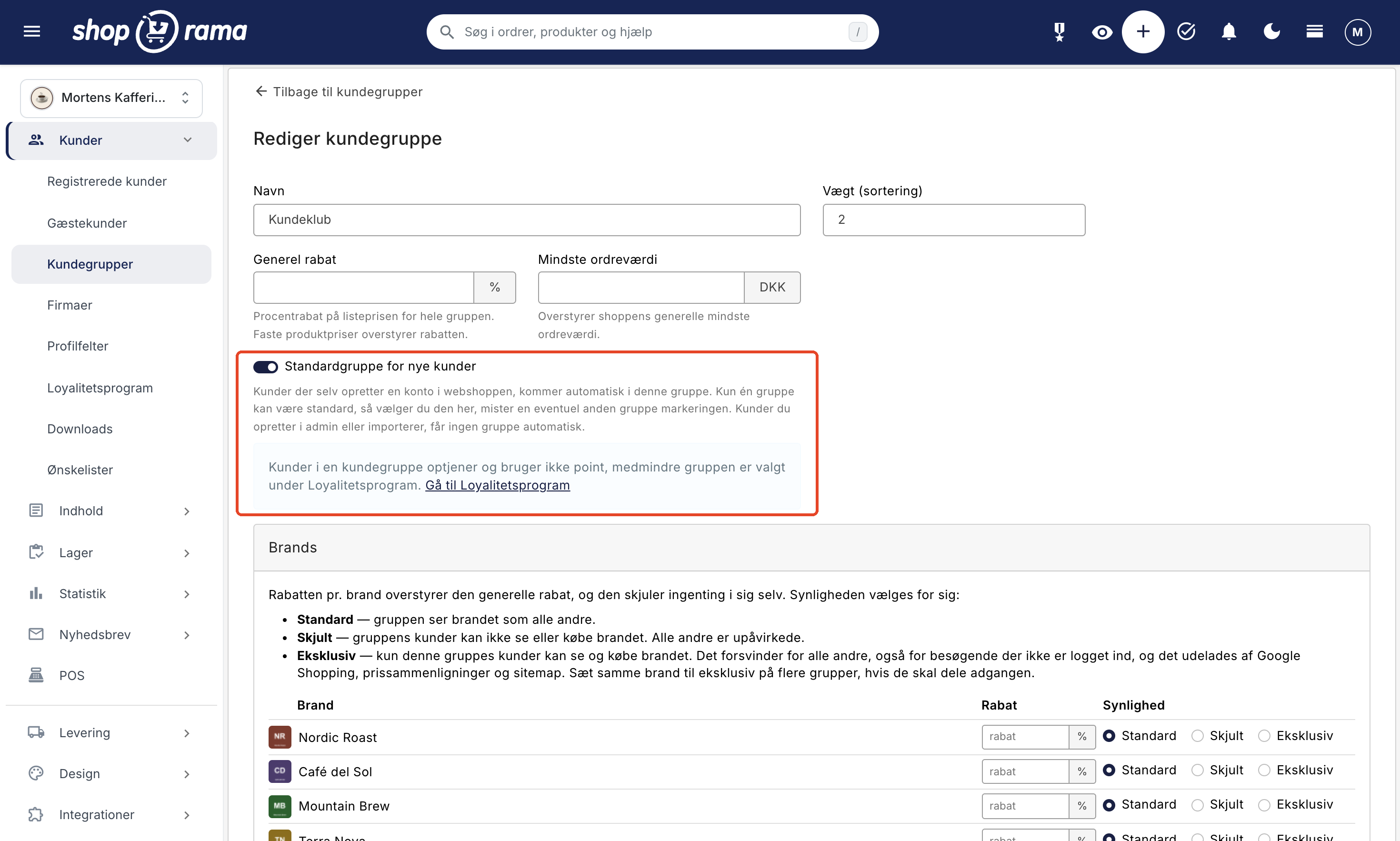
In the customer group overview, “Default” now appears next to the group’s name. There can only be one default group at a time. If you toggle the switch to another group, the old one is automatically deselected, but the customers in the old group remain where they are. If you toggle the switch off and save, or if you delete the default group, new customers will not be assigned a group until you select a new default group.
Who is added to the default group? Only customers who create an account in the online store themselves. This happens either on the online store’s account creation page or when the customer chooses to create a profile at checkout. The following customers are not added to the default group:
- Guests who shop without creating an account.
- Customers you create or import yourself in the admin panel, and customers created by an integration.
- Users created directly under a company. They inherit the company’s group, if the company has one.
Forward-looking only. The default group is assigned the moment the account is created. This means your existing customers will not be added to the group when you flip the switch. If you want to include them, move them from the customer overview using “Customer Group” and “Sign Up Selected.”
Remember the loyalty program. By default, customers in a customer group are excluded from the loyalty program. They do not earn or use points, nor do they receive points upon sign-up. This also applies to the default group. If you want your new customers to earn points, check the box next to the group under Customers → Loyalty Program in the Customer Groups section, and click Save. If the loyalty program is enabled and the group isn’t selected there, the group’s page displays a note with the link “Go to Loyalty Program,” which takes you directly there.
Example: A pharmacy online store sells to both private customers and clinics. Clinics are placed in the Business (B2B) group with a 15 percent discount, and the store assigns this group itself. All individual customers who create an account are placed in the Customer Club group and earn points. The store enables the “Default Group for New Customers” setting to “Customer Club” and checks the “Customer Club” box under Customers → Loyalty Program. Now, all new customers who create an account will be placed in the Customer Club and will be part of the loyalty program from the start, while clinics will continue to shop as Business (B2B). If a clinic creates an account in the online store on its own, it will also be placed in the Customer Club; in that case, move it to Business (B2B) on the customer’s page.
The four ways to assign a group its own price
A customer group can have four different types of pricing rules. You can use one of them or combine several, depending on what fits your agreement with your customers.
- General discount percentage. A fixed percentage deducted from all prices for the group. If you set it to 15 percent, the entire group will see prices 15 percent below the regular price on all items.
- Fixed special prices per product. An agreed-upon price for selected items. The fixed price always takes precedence over the general discount for those specific products.
- Volume discount with tiered pricing. A price that decreases the more the customer buys. The correct tier is automatically selected based on the quantity in the cart.
- Brand visibility. A choice per brand between Standard, Hidden, and Exclusive, possibly with a discount percentage per brand.
Below, we’ll walk through each of these with specific examples.
General discount percentage
The easiest way to offer a group better prices is through a general discount percentage. You apply this directly to the customer group. The percentage is deducted from all prices the group sees, so you don’t need to adjust your products individually to offer a broad discount.
Example: Your “Retailer” group has a 20 percent general discount. An item that normally costs 500 kroner will then be displayed at 400 kroner for everyone in that group. This applies to the entire product range until you override it with a fixed price or a tiered price on individual items.
Fixed Special Prices per Product
Sometimes you’ve agreed on a specific price for a single item, regardless of the general discount. You set this up on the product itself in the admin panel under the tab labeled “B2B Prices (Customer Groups).” Here, you select the group and enter the fixed price.
A fixed price per product always takes precedence over the group’s general discount. For example, if the group has a 20 percent general discount but you set a fixed price of 350 kroner for a specific item, the customer will pay 350 kroner. The general discount is not added on top of that. This gives you full control over the items for which you have a specific agreement.
On the same card, you can create a volume-based pricing tier with multiple steps per group, so the fixed price can also depend on the quantity. This brings us to tiered pricing.
Volume Discounts with Tiered Pricing
With tiered pricing, the price decreases the more the customer buys. You set up a tiered structure with multiple levels, where each level has a starting quantity and a price. The system automatically selects the correct level based on how many items the customer adds to the cart.
Example of a two-tiered pricing structure:
- From 1 item: 100 kroner per item
- From 50 units: 90 kroner per unit
If the customer buys 30 items, they pay 100 kroner per item. If the customer buys 60 items, they reach step two and pay 90 kroner per item for all 60. The customer doesn’t need to do anything; the correct tier is automatically determined based on the quantity. You can add as many tiers as you need so you can reward large orders with a better unit price.
Brand visibility: control which brands a group can see
Sometimes, a specific group of customers shouldn’t be able to purchase all your brands. Other times, it’s the opposite, and a brand should only be available to that specific group. You control both of these settings at the customer group level, where each brand has its own visibility settings.
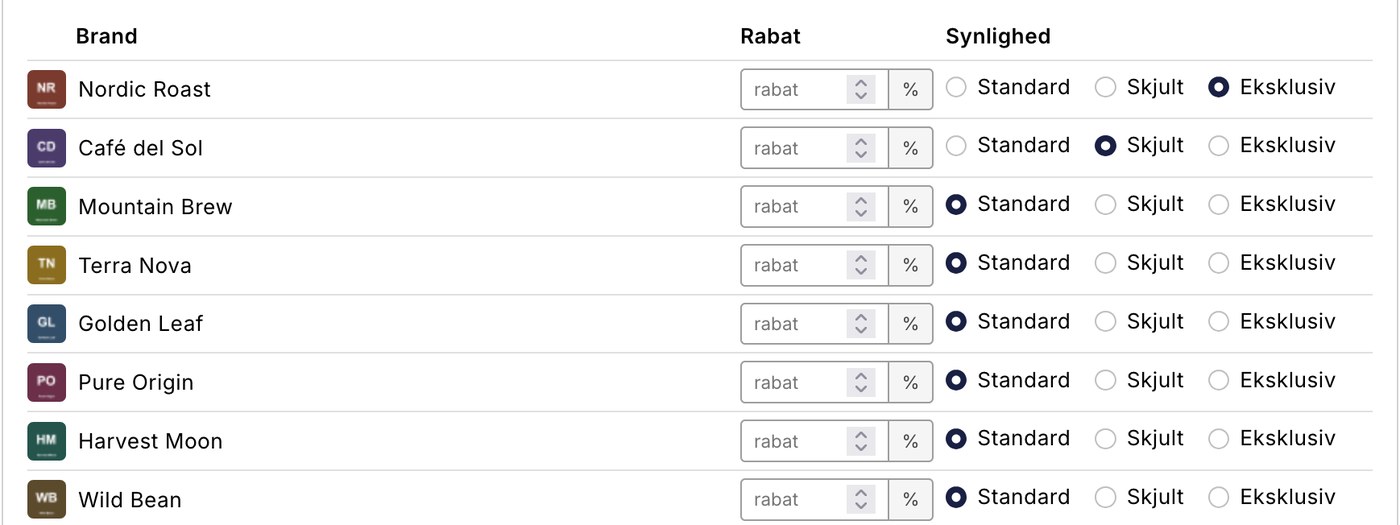
- Default. The group sees the brand just like everyone else. This is the default setting for all brands.
- Hidden. Customers in the group cannot see or purchase the brand, and the items cannot be added to the cart. All other customers are unaffected.
- Exclusive. Only the group’s customers can view and purchase the brand. It is invisible to everyone else, including visitors who are not logged in, and it is excluded from your product feeds and sitemap.
If you’ve enabled brand pages, the brand’s page is included. If the brand is set to “Exclusive,” the brand page is visible only to the group’s customers. Everyone else sees an error page, and the brand does not appear in the list of brands at /brands or in your sitemap. If the brand is set to “Hidden,” the opposite is true: the group’s customers see an error page on the brand page, and the brand does not appear in their list of brands.
Example of “Hidden”: The “Kommune Nord” group has a purchasing agreement that does not cover the Gamma brand. You set Gamma to “Hidden” for the group. The municipality’s buyers will not see Gamma products and cannot order them, while all your other customers shop as usual.
Example of “Exclusive”: You produce your own brand, Alfa, which only your retailers are allowed to purchase. You set Alfa to “Exclusive” in the “Retailers” group. Now only retailers can view and purchase Alfa, and the products do not appear on Google Shopping, price comparison sites, or in your sitemap. If you have brand pages, only retailers can access Alfa’s brand page.
The same brand can be set to “Exclusive” for multiple customer groups. For example, if you have retailers in Denmark and Norway in separate groups, both groups will have access to the same brand, while everyone else remains excluded.
The discount per brand is independent of visibility. This means you can give one group a 25 percent discount on one brand and a 10 percent discount on another without hiding anything at all. If you only want to offer a discount, leave the visibility setting at “Standard.”
The admin will alert you along the way. If the setup results in the group’s customers being unable to see a single product, you’ll be notified before the store runs out of items for them. The same applies if you make a brand exclusive to a group that doesn’t yet have any customers—in that case, the products will be hidden from everyone.
Read more in the blog post “Hide or Lock Brands for Specific Customer Groups.”
Minimum Order Value per Group
You can also set a minimum order value per customer group. This means that customers in the group must spend at least a certain amount before they can complete an order. This is useful in B2B, where you might not want to pack and ship very small orders. Each group can have its own minimum, so you can adjust it differently from group to group.
Prices Excluding Sales Tax in B2B
In the B2B theme, prices are displayed without VAT. This is suitable for business customers who calculate amounts excluding VAT. Your retail customers in a regular consumer store are not affected by this; they will still see prices including VAT as usual.
Where do group prices apply?
Group prices apply wherever the customer is recognized:
- In the online store, when the customer is logged in.
- At the POS, when staff select the customer in the customer selector. Search for the customer by name, company name, or CVR, and the entire cart is calculated using the group’s prices.
- At the self-service POS, when the customer logs in to the self-service terminal.
- On orders you create yourself in the admin panel, when the order is linked to the customer. Select the customer in the Customer field under Create Order, or create the order from the shopping cart icon next to the customer in the customer overview. The items you add will then be assigned the customer’s group prices, even when you later use Add Products on the order.
This means you don’t need to set prices in multiple places. The same group and the same prices are used regardless of whether the customer shops online, at the counter, on a self-service terminal, or if you enter the order yourself in the admin panel.
How to Get Started
- Go to Customers → Customer Groups, and click Create New Customer Group. Name it, for example, “Retailer.”
- Choose how the group should be priced: a general discount percentage, fixed special prices per product, tiered pricing, or a combination.
- If necessary, set brand restrictions if the group is only allowed to purchase specific brands, and a minimum order value if applicable.
- Assign your customers to the group in the “Customer Group” field on the customer’s page, or assign multiple customers at once from Customers → Registered Customers: select the customers, click “Customer Group,” choose the group, and click “Add Selected.” If you want all new customers who create an account in the online store to be added to the group, enable “Default Group for New Customers” for that group. When customers log in, they’ll automatically see their own prices.
If you’d like a thorough walkthrough of the entire B2B setup from scratch, read Getting Started with B2B.
Frequently Asked Questions
Do I need to do anything for my regular retail customers?
No. Customers who aren’t in a group will shop as usual at your standard prices. Only customers you manually add to a group, and new customers who create an account while a group is set as the default group, will receive different pricing. If you don’t have a default group, everything will continue as before.
Can customers in a customer group earn and use points?
Generally speaking, no. Customers in a customer group are considered business customers and are not part of the loyalty program. If you use the groups to categorize private customers, you can check the boxes next to them under Customers → Loyalty Program in the Customer Groups section. Then they’ll earn and use points just like everyone else.
Will my existing customers also be added to the default group when I enable it?
No. The default group is only assigned to customers who create an account after you’ve enabled it. Those who already have an account will remain where they are. If you want to move them, go to Customers → Registered Customers, select the customers, click Customer Group, choose the group, and click Enroll Selected.
What happens to the customers in the old default group if I choose a different one?
They’ll stay in the old group. There can only be one default group, so the old one will lose its selection, but no customers will be moved. Only new customers will be added to the new default group. If you turn the switch off without selecting another group, new customers will not be assigned to a group, just as they were before you started using a default group.
Will a customer be moved back to the default group if I move them out of it?
No. The customer is only placed in the default group at the moment the account is created. If you move the customer to another group or select “No Group,” that setting remains in effect, even when the customer logs in and makes a purchase again.
Which group applies if a customer from the default group is later assigned to a company?
The customer’s own group always takes precedence over the company’s. A customer assigned to the default group will therefore continue to shop at the default group’s prices, even after you’ve assigned the customer to a company. If you want the customer to receive the company’s prices, open the customer’s profile and set the Customer Group to “No Group.” The customer will then inherit the company’s group.
Do new customers earn points upon sign-up when they are placed in the default group?
Only if the group is selected under Customers → Loyalty Program in the Customer Groups section. Otherwise, they won’t receive points upon sign-up or for their purchases. Please note that several of the built-in themes mention the points when the customer creates an account, so be sure to select the group if you want to keep that promise.
Can I see which customers have been automatically added to the group?
No, Shoporama does not distinguish between customers who have been automatically added to the group and those you have added yourself. To view all customers in the group, go to Customers → Registered Customers and select the group from the All Customer Groups dropdown menu above the list. The list also shows corporate users who inherit the group from their company.
What happens if a group has both a general discount and a fixed price for an item?
The fixed price per product takes precedence. The general discount is not applied on top of it. You can therefore safely offer a broad discount to the entire group while simultaneously setting fixed prices for items where you have a specific agreement.
Can I automatically offer a better unit price for large orders?
Yes, you can do this with tiered pricing. You set a starting quantity and a price per tier, and the system automatically selects the correct tier based on the quantity in the cart. If the customer buys enough to qualify for a lower tier, the lower unit price applies to the entire quantity.
How are prices displayed in the accounting system when they’re exclusive of VAT?
In the B2B theme, prices are displayed without VAT in the store, which is appropriate for business customers. VAT is handled on the order as usual, so your bookkeeping and tax calculations are processed in the standard way. It’s only the display in the store that shows prices without VAT.
Can I prevent a group from seeing specific brands?
Yes. Set the brand to “Hidden” for the group, and the group’s customers will neither be able to see nor purchase it, while all other customers remain unaffected. Conversely, if you want only that specific group to be able to purchase the brand, select “Exclusive” instead.
Can I require a minimum purchase from a B2B group?
Yes. You can set a minimum order value per customer group, so customers must spend at least a certain amount before they can complete the order. Each group can have its own minimum, so you can customize it based on who you’re selling to.
Can a group receive different discounts on different brands?
Yes. For each brand, you can set a discount percentage for the group, and this works independently of visibility settings. For example, one brand might have a 25 percent discount, while another has a 10 percent discount, depending on what you’ve agreed upon with your suppliers.
Do group prices also apply in the physical store?
Yes. If staff select the customer in the POS customer selector, the sale is calculated using the customer’s group prices. The same applies at self-service POS terminals when the customer is logged in.
I’m creating an order for a retailer in the admin panel. Why is the item listed at the regular price?
The price is set the moment the item is added to the order, based on the customer listed on the order. If the order is created without a customer, or if the customer is not in a customer group, the item will be priced at the regular price. Therefore, select the customer in the Customer field when you create the order, and verify that the customer or the customer’s company is in the correct group. You cannot add a customer to an order afterward, so if the order was created without a customer, it’s easiest to create a new one with the customer selected.
How does the customer know they’re getting their own prices?
The customer simply needs to be logged in to the online store. As soon as the customer is logged in, they automatically see their group prices throughout the store. There are no discount codes or extra steps for the customer—the prices adjust automatically.
Related articles
B2B sales in Shoporama
How to sell to businesses (B2B) and public institutions (B2G) in Shoporama with CVR, EAN and differentiated VAT.
Customer groups and segmentation
How to create customer groups and segments in Shoporama for targeted marketing and newsletters.
Firma-konti med flere brugere og roller
Reverse charge og VIES-validering: sælg uden moms til erhverv i EU
Hurtig genbestilling for erhvervskunder
Loyalty programme
Complete guide to the Shoporama loyalty program - setting up the points system, earning, redemption and customer communication.
Related features
Hide or lock brands for specific customer groups
Customer groups in Shoporama can now hide a brand entirely or make it exclusive so that only the group's customers can view and purchase it. Set...
B2B webshop
A B2B webshop sells to business customers with customer pricing, CVR validation and invoicing. Read about B2B e-commerce and features.
B2B webshop
Shoporama now offers a full-featured B2B solution: a login-based store, customer group pricing, volume discounts, company accounts with roles,...
B2B online store
Customer group
A customer group segments customers with different prices and discounts. Read about customer groups in webshops and B2B e-commerce.
Nu kan du drive en rigtig B2B-webshop med Shoporama
Shoporama now offers a full-featured B2B solution: a login-based store, customer group pricing, volume discounts, corporate accounts, VIES reverse...
Theme Settings in MontanaB2B: Fields and B2B Features
An explanation of all fields in MontanaB2B's theme settings, plus the login screen, prices excluding VAT, customer groups, company accounts, and...
B2B Online Store with Business Central
Sell to businesses and have the orders imported into Business Central as sales invoices or sales orders with a CVR number, open items for invoice...
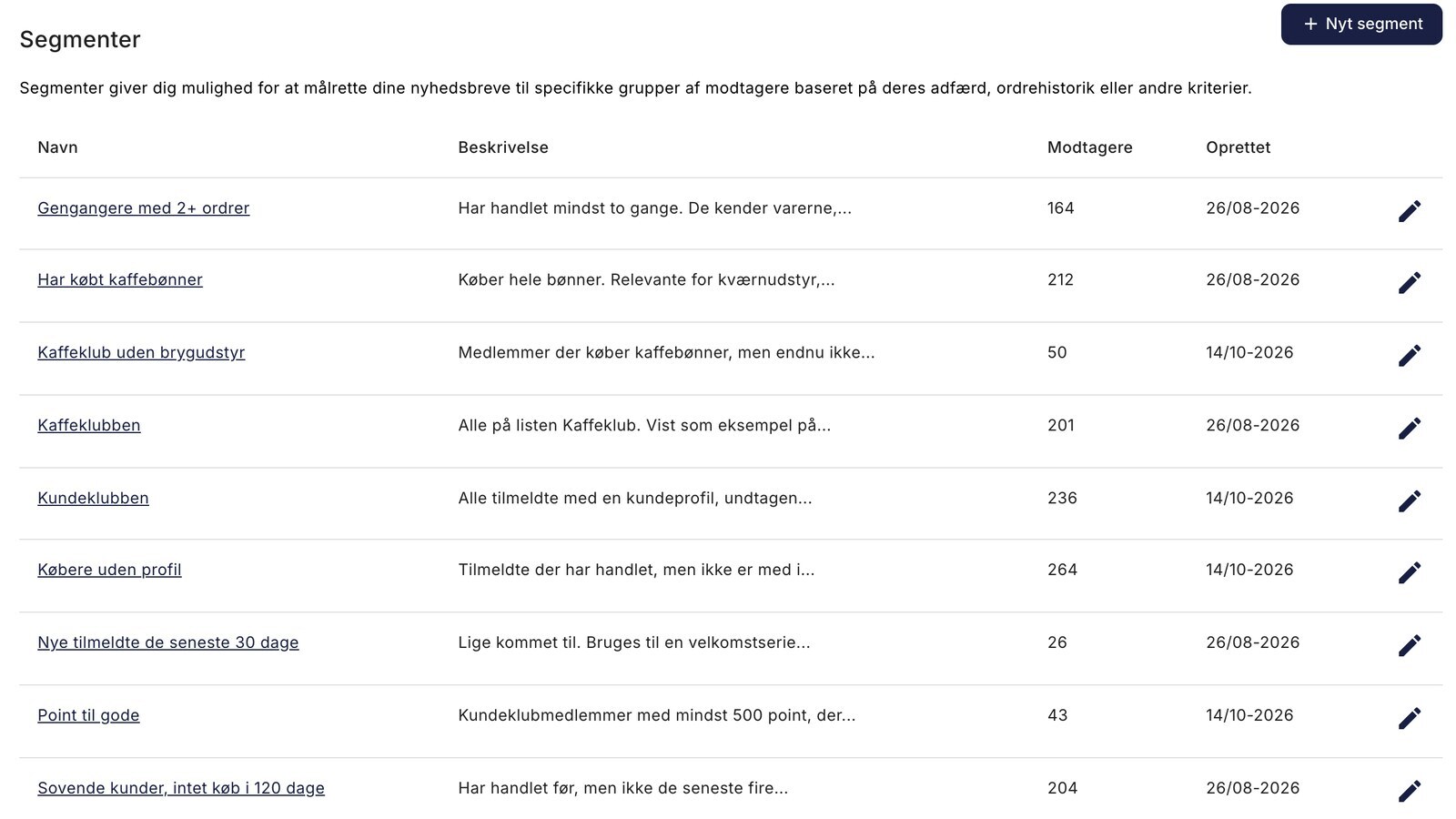
Customer Club Newsletter: Sell More to Returning Customers
Send the newsletter only to the customer club, a specific customer group, or members with points to redeem. Five segments to drive additional sales...