Guest Customers: What They Are and How to Use the List
Guest customers are those who have made a purchase without creating a profile. See what the list in the admin panel shows, how to sort and export it, and what you’re allowed to use the information for.
Most online stores have far more customers than registered users. People add an item to their cart, enter their information, pay, and move on without creating an account. We call these “guest customers,” and they have their own list in the admin panel.
What is a guest customer?
A guest customer is someone who has placed an order without creating a profile. They entered their name, address, email, and phone number at checkout, paid, and left the site. Neither a username nor a password was created.
Shoporama still keeps track of them, though. All orders placed without a profile are grouped by email address, so three orders from the same email address appear as a single guest customer with three purchases and the total sales amount. The email address is the key, not the name.
Guest Customer or Registered Customer: The Difference
- Guest customers aren’t actual profiles, but rather a summary of orders grouped by email address. There’s no login and no information you can edit.
- Registered customers have a profile with a login. You can edit this profile, add it to a customer group, link it to a company, award loyalty program points, create orders for them, and log in as them in the store.
The same person can appear in both categories. If a customer has a profile but forgets to log in before placing an order, the order will be registered as a guest purchase. This is completely normal and not an error.
Here’s how to find the list
- Log in to your Shoporama admin panel.
- Click on Customers in the menu on the left.
- Select Guest Customers.
The page itself is called “Your Customers (without profiles),” so the heading is different from the menu item. You’re in the right place.
What does the list show?
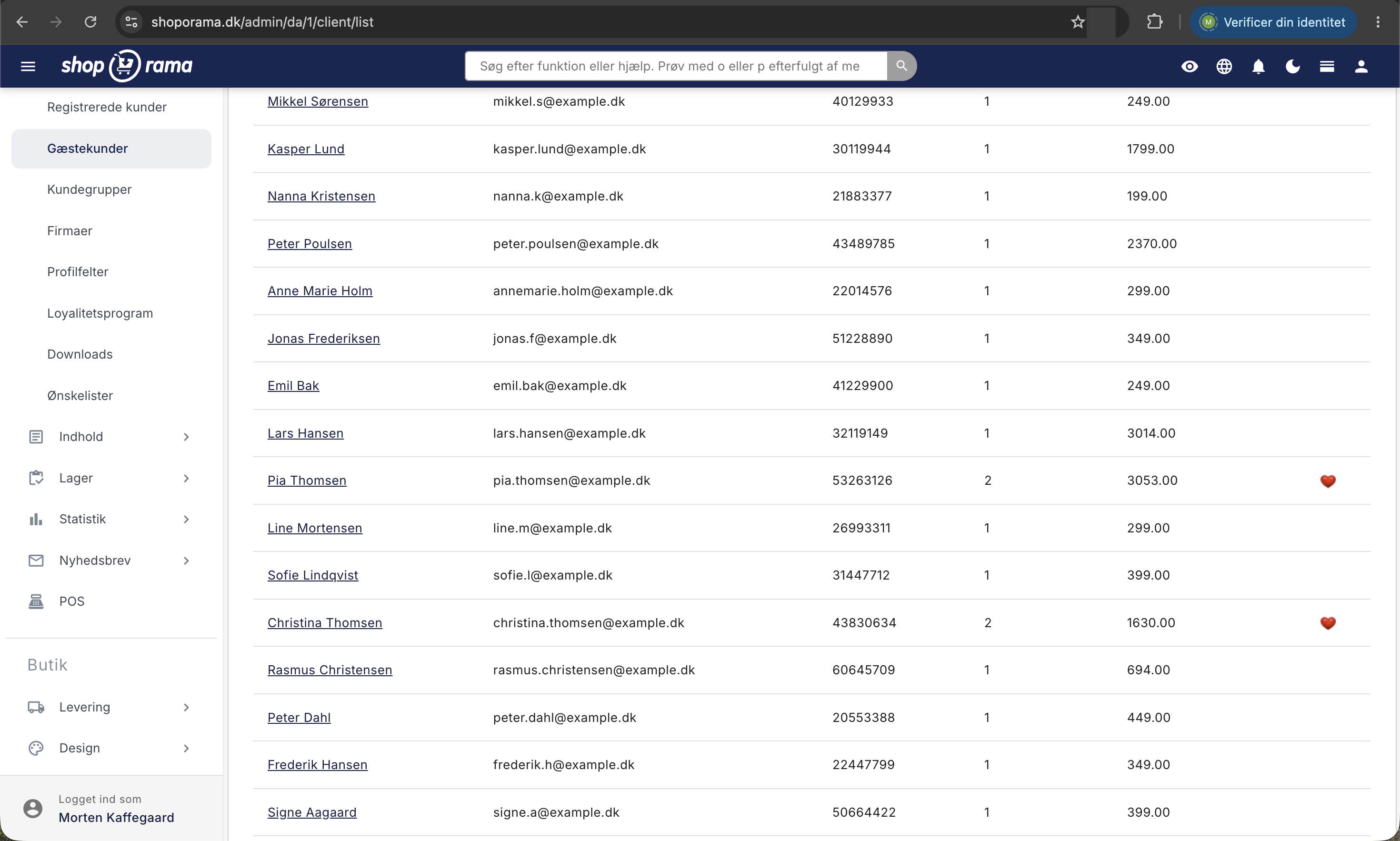
- Name from the customer’s orders. The name is a link to the order list, searched by the corresponding email address.
- Email: the address where the orders are grouped. Two addresses mean two guest customers, even if they’re the same person.
- Phone number from the orders.
- Number of orders, i.e., how many purchases the address has made.
- Total revenue: the sum of the total amounts of the orders, including tax and shipping. The amount is displayed as a plain number in the store’s currency without a currency code.
The hearts on the right
On the far right, there may be a small heart. This is a quick indicator of repeat customers: one heart for exactly two purchases, and a double heart for three or more purchases. If there’s only one purchase, the field is empty. Hover your mouse over the heart to see the number.
Important: Which orders are counted?
The list only counts orders that are marked as paid and have the status “Shipped.” This has three practical implications:
- A new customer only appears once you’ve set the order to “Shipped.” Until then, they’ll only appear on the order list.
- Orders with a different status—that is, New, Pending, In Progress, Ready, Ready for Pickup, Picked Up, Credit Memo, or Canceled—are not included in either the Number of Orders or Total Revenue.
- If you don’t use the “Shipped” status in your workflow, the list will appear empty or incomplete. This isn’t because data is missing, but because the orders never reach that status.
If you need to get your statuses in order first, read about how to manage your orders.
Sorting, Pages, and Next Steps
The “Number of Orders” and “Total Revenue” headers are clickable and sort the orders by most purchases and highest revenue, respectively, with the top entries displayed first. The sorting is always in descending order and cannot be reversed; you cannot sort by name or email. If no selection is made, customers are displayed with the most recent order first.
By default, the list displays 25 rows per page with page navigation at the bottom. If you’ve selected a different number of rows per page in the order list or customer overview, the guest customer list will follow that setting, but you cannot change it on the page itself.
If you click on a name, the order list sorted by that email address opens. There you’ll see all of that person’s orders, including those that aren’t marked as “Shipped.”
What can you use the list for?
Guest customers are easy to overlook because they don’t take up much space in the system. But in many stores, they account for the majority of revenue, and the list gives you three things that are worth their weight in gold:
- You can see who keeps coming back. Sort by Number of Orders, and in just a few seconds you’ll see your most loyal customers.
- You can see who spends the most. Sort by Total Revenue, and you’ll know who’s worth prioritizing with extra-good service or a personal phone call.
- You’ll have a basis for decision-making. If there are many customers with two or three purchases, there’s good reason to make it more attractive for them to create a profile.
The list also serves as a quick reference tool for customer service. If you need more detailed information, read how to export customers who have purchased a specific product and how to send emails to customers who have purchased a specific product.
Download customers as a CSV file
If you want to continue working in a spreadsheet, you’ll find the export option under Customers, Downloads. The “All Customers” tab provides a semicolon-separated file named customer-stat.csv containing the number of orders, name, email, phone number, date of first purchase, date of most recent purchase, and total revenue. These two dates aren’t listed in the admin panel, and they’re invaluable if you want to find customers who haven’t shopped in a while.
Please note that the card is called “All Customers” because the file covers everyone: both guests and registered customers. It is not filtered to show only guests, and here, too, only paid orders with the status “Shipped” are included. The second tab, “Newsletter Subscriptions,” retrieves the email addresses of those who have subscribed to the newsletter, along with the time of subscription.
Marketing and Consent
It’s tempting to import the email addresses from the list directly into your newsletter tool. Don’t do it. The address was provided to you to complete the transaction, not as consent for marketing. Of course, you may use them for anything related to the order. If you want to send newsletters, the customer must have given their consent, and that is exactly what the export of newsletter subscriptions documents. If you’re unsure about the rules, ask your own advisor.
How to Get More People to Create a Profile
Guest purchases are great because they remove barriers at checkout. But profiles give you more to work with: a complete order history, customer groups, and points. Most of Shoporama’s themes therefore display a checkbox at checkout with the text “Create an account for faster checkout in the future.” If you have a loyalty program where customers earn points for signing up, the text changes automatically so the customer can see how many points are available.
If the customer checks the box, the profile is created at the time of order, the customer receives a welcome email, and the order is linked to the profile. The customer will then appear under “Registered Customers.” Make it more attractive with a points-based loyalty program, or with customer groups and special prices if you sell to businesses.
The list can’t do that
- There is no search field. If you need to find a specific person, search the order list.
- You cannot edit a guest customer. There is no profile to edit, and the information is listed on the individual orders.
- You cannot delete a guest customer from the site. The customer exists only as order data, so any deletion must be done on the orders themselves.
- You cannot subscribe anyone to the newsletter from here, and you cannot add a guest customer to a customer group.
- There are no filters for period, amount, country, or product, and no address is listed in the table. The address is listed on the order.
- There is no merging of individuals. If the same customer has used two email addresses, they will appear as two separate customers.
For the tech-savvy
An order is considered a guest purchase when it is not linked to a customer profile. The association occurs in three cases: the customer is logged in when the order is placed, the customer checks the box for “Create an account for faster payment in the future ” at checkout, or you create the order from a customer profile within the admin panel.
The association occurs at the time of the order and is not applied retroactively. If a previous guest creates a profile today, their old orders will still appear as guest purchases. The consolidation on the list is based solely on the email address, and the name and phone number are retrieved from the customer’s orders. If the customer has spelled their name differently from time to time, the most recent spelling may not necessarily be displayed, so the email address and orders are always the most reliable reference points.
Frequently Asked Questions
Why does the same customer appear under both “Registered Customers” and “Guest Customers”?
Because at least one of the customer’s orders was placed without logging in. If the customer has a profile but places an order without logging in, the order is saved as a guest purchase and counts toward the guest list. This is not an error, and you do not need to correct anything.
I can’t find a specific customer on the list. What should I do?
There’s no search field on the page, so use the order list and search by name, email, or phone number. If the customer is missing entirely, it’s usually because the order hasn’t been set to “Shipped” status or hasn’t been marked as paid.
What do the little hearts on the right-hand side mean?
They indicate repeat customers: one heart for exactly two purchases, and a double heart for three or more. Hover your mouse over the heart to see the exact number.
Can I export all guest customers to my email tool?
You can download a CSV file under Customers, Downloads, using the Download Customers button. Please note two things: the file includes both guests and registered customers, and an email address from an order does not in itself constitute consent to receive newsletters. Use the newsletter sign-up export for that.
Can I use “Total Revenue” as a revenue figure in my financial statements?
No. This column is a customer overview, not an accounting figure. It only counts paid orders with the status “Shipped,” it is grouped by email address, and it provides no information about sales tax, credit memos, or periods. Use the statistics and order export for bookkeeping.
Why are the numbers on the list lower than in my statistics?
Because the list only includes paid orders with the status “Shipped.” Orders with a different status—such as “New,” “In Progress,” “Canceled,” or “Credit Memo”—are not included. The statistics are calculated differently, so the two figures should not be expected to match.
A customer has asked to have their information deleted. Can I do that from here?
No. A guest customer is not a separate profile but a summary of orders, so there is no “Delete” button on the page. The information is stored in the individual orders and must be handled there. Keep in mind that accounting regulations may require that order data be retained for a certain number of years, so consult your accountant first.
Can I see the shipping address for a guest customer?
Not on the list, which only shows name, email, phone number, number of orders, and sales. Click on the customer’s name to open the order list with that email address; the address is listed on the individual order.
How can I encourage more people to create a profile instead of shopping as a guest?
Leave the checkbox in the checkout unchecked, and make it more attractive by offering points for creating an account through the loyalty program. However, don’t force everyone to create an account, as this typically results in lost sales at checkout.
If you have any questions about the guest customer list, feel free to email support@shoporama.dk.
Related articles
Manage your orders in Shoporama
Guide to managing orders in Shoporama - from receiving to shipping and status updates.
Export customers who have purchased a specific product
Guide to export a list of customers who have purchased a specific product and send them an email.
Send emails to customers who have purchased a product
Guide to send an email to all customers who have purchased a specific product in your Shoporama online store.
Loyalty programme
Complete guide to the Shoporama loyalty program - setting up the points system, earning, redemption and customer communication.