Now your offer can also stop at a certain number
A sale can now also end based on a quantity, not just a date. You specify how many units can be sold at the sale price, and when that number reaches zero, Shoporama automatically removes the sale price. This way, you set a floor for your profit margin and use scarcity as a selling point at the same time.
In April, we wrote about deals that turn on and off automatically. The story was about the bestseller that was 40 percent off all weekend because no one pressed the button on Monday morning. Setting a start and end date solved that problem.
But there’s another way to burn through your profit margin, and it has nothing to do with the calendar. You’ll remember to turn it off on time. You’ll just sell 400 units instead of the 40 you’d expected, at a price that barely covers your cost.
That’s the situation the new “Quantity on Sale” field addresses. A sale can now also be limited to a specific quantity. You decide how many units can be sold at the sale price, and when that number hits zero, Shoporama automatically ends the sale.
Here’s how to set a quantity limit on your offer
- Open the product under “Products” on the “General” tab.
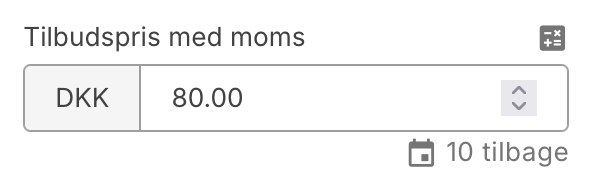
- Fill in the “Sale Price” field as usual.
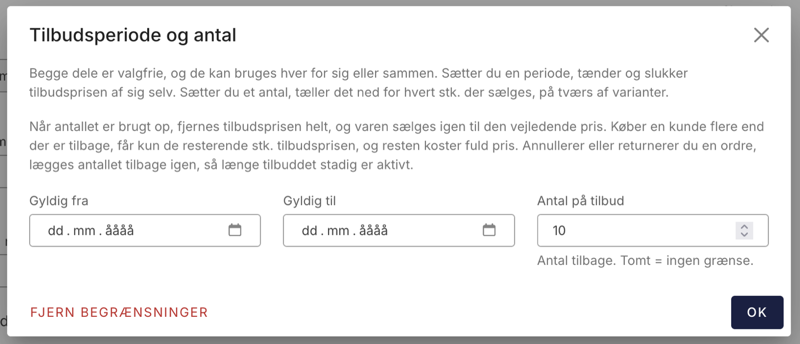
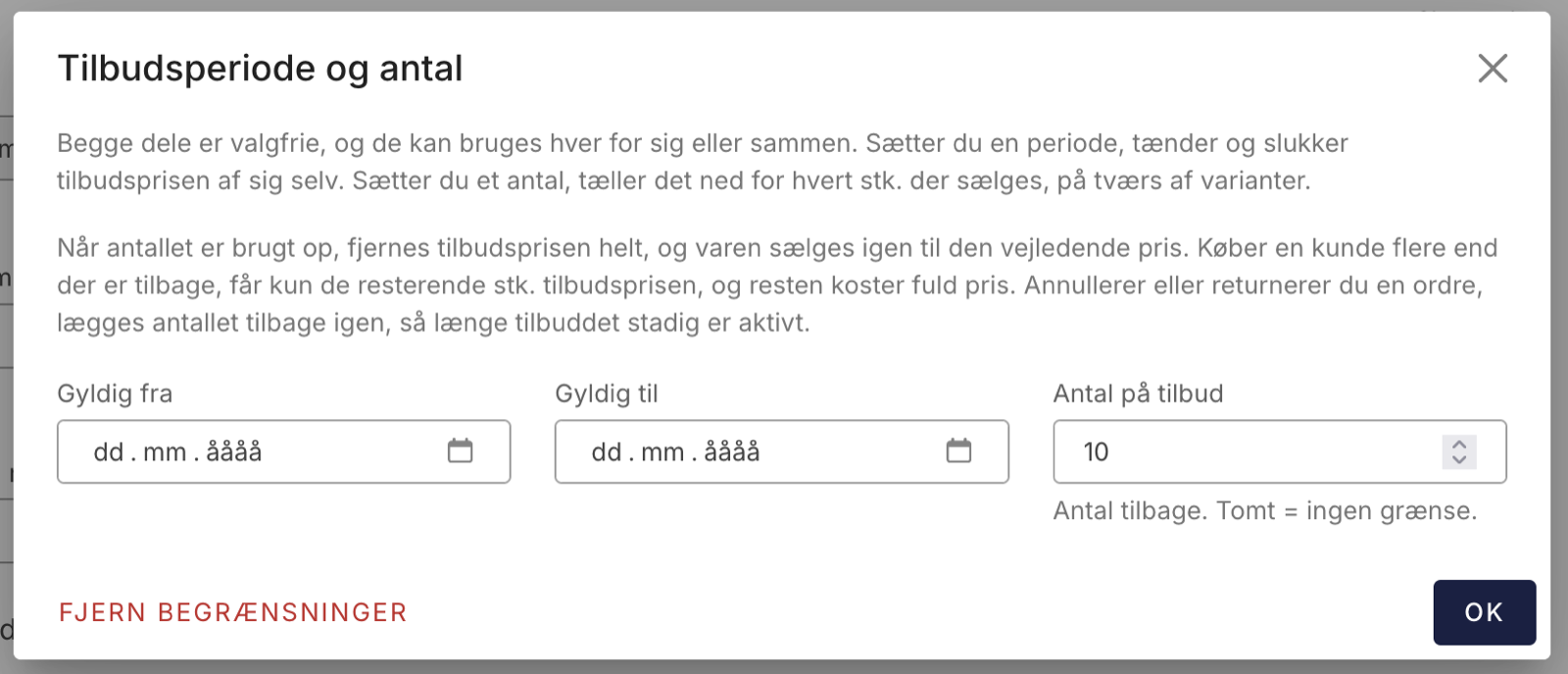
- Click the small gray calendar link next to the field. This opens the “Promotion Period and Quantity” box.
- Enter the number in the “Quantity on Sale” field. You can fill in the “Valid From” and “Valid To” dates, leave them blank, or combine them with the quantity.
- Save (or press Cmd+S).
The link itself shows what has been set. If both a period and a quantity are specified, it will say, for example, “August 30, 2026 – September 4, 2026 · 7 remaining.” If only a quantity is specified, it will say “7 remaining.” If nothing is entered, it will say "Offer period and quantity," and the offer will behave exactly as before.
How Shoporama Counts Down
- An empty field means no limit.
- The number represents the quantity remaining, not the total quantity. If you enter 10, there are 10 items left at the offer price.
- The countdown applies to the entire product, including all variants. If you sell two in size S and one in size L, three items are deducted.
- If you enter 0, the offer ends immediately.
What happens when the count reaches zero?
The sale price is automatically removed, including the sale prices for the individual variants. The dates and quantity field are cleared at the same time, so the product is left with its regular price and a clean slate for the next campaign. A note is added to the product, and you’ll receive a message under “Messages” in the admin panel.
You don’t need to clean up afterward yourself. The promotional price, dates, and quantity all disappear at once, and the note on the product indicates when the promotion ended.
When a customer buys more than there are left
Should the customer be allowed to buy five when only three remain at the sale price? In Shoporama, the customer gets both in the same order line: the remaining items at the sale price, and the rest at full price.
Here’s an example. The suggested retail price is 100 DKK, the sale price is 80 DKK, and there are 3 items left on sale. The customer adds 5 to the cart. The order totals 3 × 80 DKK + 2 × 100 DKK = 440 DKK, which works out to an average of 88 DKK per item. The cart shows “3 out of 5 items at the sale price,” so the customer can see why the numbers don’t add up. In the admin panel, the explanation appears both on the product line itself and in the order’s internal note, so you’ll have no doubt as to why the unit price is off.
Returns reset the quantity
If you cancel an order, accept a return, or issue a credit memo, the quantity is added back to the promotion. However, this only happens while the offer is still active. If the offer has ended because the quantity reached zero or the end date has passed, nothing happens. Otherwise, a return next week could trigger a Black Friday price again.
Quantity and duration can be used together
These two settings are independent. You can set just a quantity, just a time period, or both. If you use both, the offer ends whenever the first condition is met. For example, set 100 items from Friday to Monday: if the 100 are sold out by Saturday morning, the offer ends there, and if 30 remain on Monday evening, the end date will end it.
Four situations where it pays off
- Black Friday without the catch. The price can be aggressive if only the first 50 items qualify.
- The loss leader. You want the traffic and the new customers, not your entire inventory sold at cost.
- The clearance lot. There are 18 units left of a discontinued color. Set the quantity to 18, and the offer ends when the last one is gone.
- The supplier discount. The supplier covers the discount on 200 units. Set the quantity to 200, and you won’t have to pay for unit number 201 yourself.
Scarcity is also a selling point
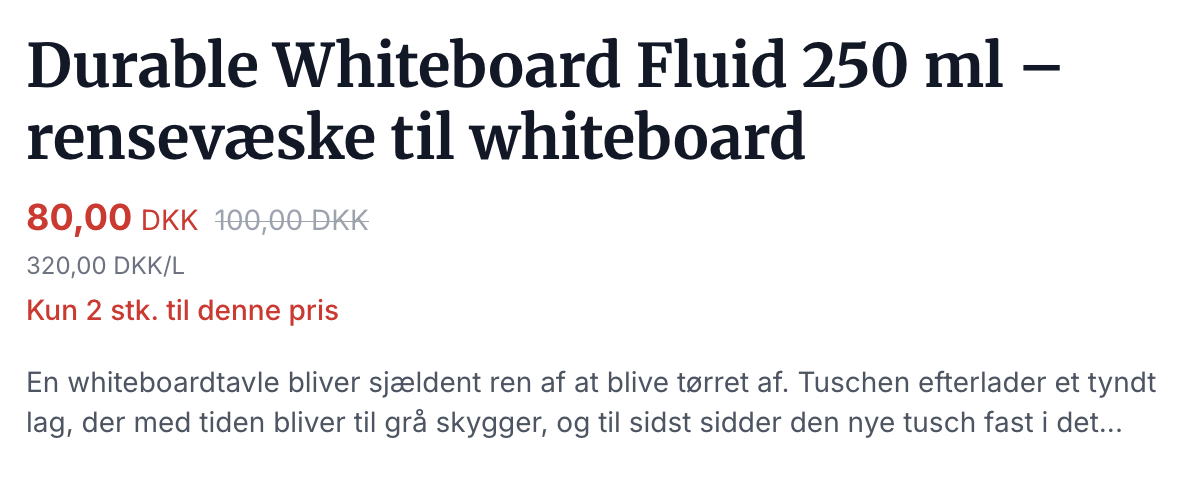
The limit doesn’t just protect your profit margin. The customer can also see that there are only a certain number left at that price, and that scarcity is real: the number comes from your own inventory and counts down as actual sales are made. Here’s what it looks like on the product page.
Will it work with my theme?
In our own themes— Montana, MontanaB2B, Delaware, and DelawareDK —the text appears automatically. You don’t need to do anything other than set the quantity for the item.
If you’re using a different theme, or one that’s been custom-built for you, the restriction itself still works: the countdown, the discounted price in the cart, and the automatic shutdown are the same regardless of the theme. Only the display of “Only X items at this price” needs to be added. It’s just a few lines in the theme’s product page, typically right below the price:
<{$sale_limit = $product->getSaleLimit()}>
<{if $sale_limit && ($product->getSalePrice() || $product->getLowestSalePrice() < $product->getLowestPrice())}>
    <p><{t x=$sale_limit}>Only {x} items at this price<{/t}></p>
<{/if}>
There’s a reason for this somewhat lengthy condition. getSaleLimit() returns the number of items remaining, but a product can be on sale in two ways: either the item itself, or just its variants. If you check only the first option, the text will disappear for items where the sizes are on sale.
If you’re unsure, or if you’d like us to implement this in your theme, please email support@shoporama.dk. It only takes a few minutes.
Here’s what you need to know first
The “Quantity on Sale” is set for each individual product. This field cannot yet be filled in via CSV import or bulk editing, so if you need to set it for many items, you’ll have to do it one at a time or via the API.
- The quantity is displayed on the product page, not on the product cards in the category lists.
- Subscription orders do not reduce the quantity.
- The field is called ` sale_limit ` in our REST API, and it’s also included in our MCP integration, so you can ask Claude to set the limit.
Would you like to offer the discount in a different way?
- Campaigns for rule-based discounts, e.g., on an entire brand.
- Volume discounts, where the price decreases the more the customer buys.
- Scheduled price changes when the regular price needs to be adjusted.
- Price history and the Omnibus Directive, so your previous price is documented.
These fields are located on the product’s edit page. Try it on a single item you’d like to mark down significantly but don’t want to sell in unlimited quantities. The worst-case scenario is that the offer sells out faster than expected, and the price automatically reverts to normal.
If you have any questions, or if your theme needs to display “Only X items at this price,” please email support@shoporama.dk.
Related articles
Schedule price changes for a later date
Here's how to queue price changes and bulk edits from the product overview so they run automatically at the time you choose.
Campaigns
Learn how to create promotions in Shoporama that automatically give your customers a discount. Choose from five promotion types: fixed price,...
Create volume discounts on products
How to automatically give customers a discount when they buy more of the same product. The quantity discount is set up per product in the Quantity...
Price history and the Omnibus Directive
Shoporama automatically logs price changes and calculates the correct pre-price according to the Omnibus Directive (EU 2019/2161). The default...
Edit product
Guide to the Product Edit Page in Shoporama: the top section with "Edit," Inventory, and Sales Statistics; how to customize the page with tabs and...
More from the blog
New Free App Sends Online Store Orders to Business Central
If you use Microsoft Dynamics 365 Business Central, Shoporama can now transfer orders from your online store as sales invoices or sales orders....
31. oktober 2026
New free Billy app replaces the built-in integration
Shoporama has a new, free app for Billy, now called Shine Accounting. It replaces the built-in Billy integration: customer information is reused,...
31. oktober 2026
New free Dinero app replaces the old integration
Shoporama has a new, free Dinero app that replaces the built-in Dinero integration. Your login is valid for one year at a time, errors appear...
30. oktober 2026