Edit a customer's profile and information
Overview of the customer profile in Shoporama: which fields you can edit, how the company and customer group are linked, how to manage loyalty points, and what happens when you delete a customer.
When you edit a customer's profile, you're not just correcting a few fields. You’re updating what the customer sees the next time she logs in, the prices she’ll see, where the package will be shipped, and what will appear on future orders. Here’s a field-by-field breakdown of the “Edit Customer” page so you know exactly what you’re changing.
How to Find a Customer’s Profile
- Go to Customers, Registered Customers in the menu.
- Find the customer, using the “Search for Customers” field if necessary.
- Click the customer’s name or the pencil icon labeled “Edit” at the far right of the row.
If you need to find the right customers first, read Customer Overview: Find and Manage Your Registered Customers.
Left column: name and address
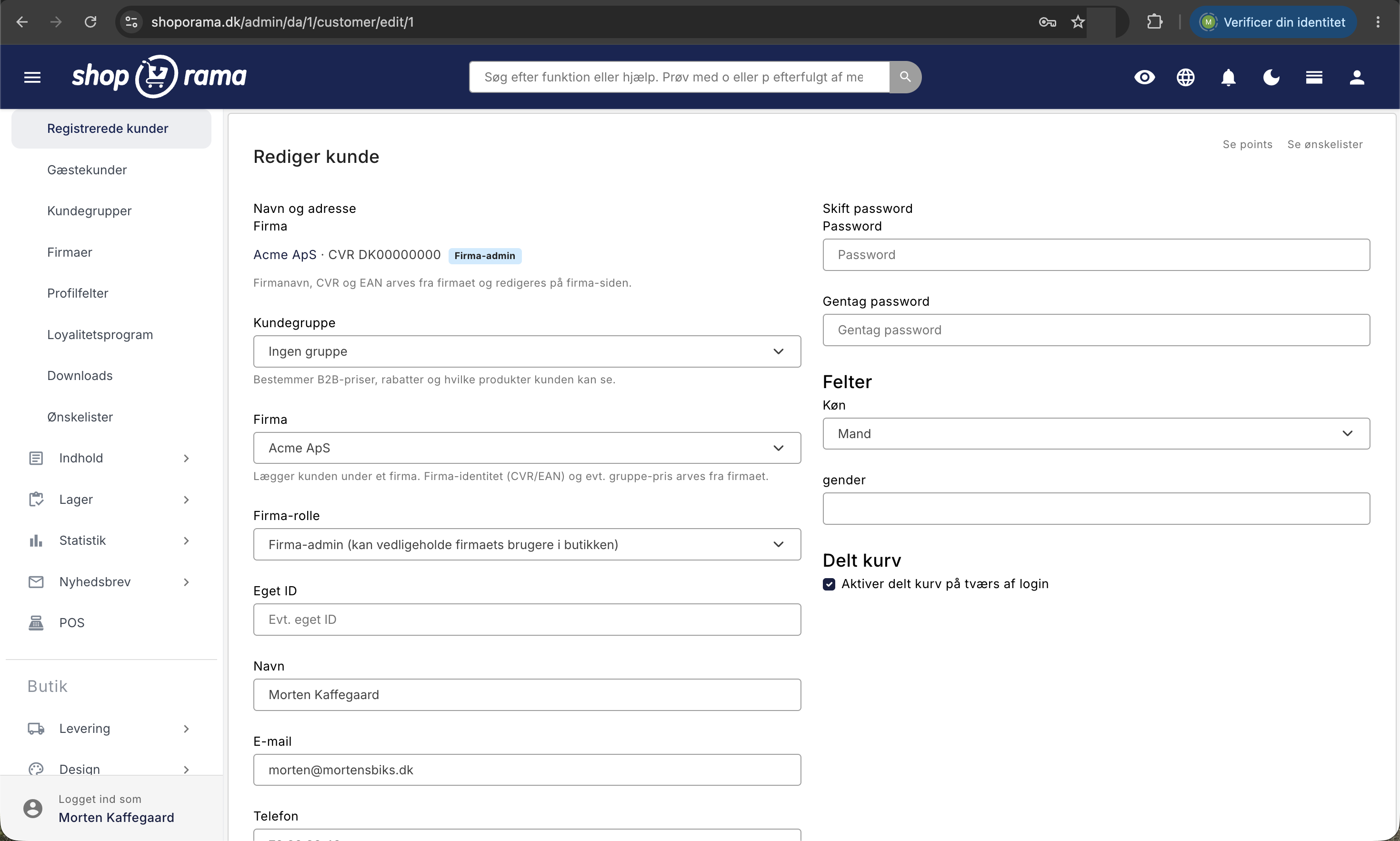
Company name, CVR number, and EAN number
The top three fields are used when the customer is a business. The EAN number is particularly relevant if you sell to municipalities, regions, or other public buyers that require electronic invoicing.
If you have enabled “Validate VAT Numbers Against VIES (EU) ” in the online store’s general settings, the CVR number is automatically checked against the EU VAT register when you save. Below the field, you’ll see either “Valid VAT No. (VIES)” with the company name from the registry, or “Invalid VAT No. according to VIES.” If you correct the number, the previous check is reset so that an outdated warning doesn’t linger.
If the customer is associated with a company, the three fields are replaced by a line showing the company’s name and CVR number, a badge indicating whether the person is a Member or Company Admin, and the text “Company name, CVR, and EAN are inherited from the company and can be edited on the company page.” This ensures that all users from the same company are billed the same way. Read more in Company Accounts with Multiple Users and Roles.
Customer Group, Company, and Company Role
- Customer Group: Select a group, or leave it set to “No Group.” The group determines B2B prices, discounts, and which products the customer can view. See “Customer Groups and B2B Prices.”
- Company: Assign the customer to one of the store’s companies, or select “No company.” The company’s identity and any applicable group pricing are then inherited from the company.
- Company Role: Member or Company Admin (can manage the company’s users in the store). The role only matters when the customer is assigned to a company.
This is where the money is. If you place a reseller in the correct customer group, she will automatically receive her agreed-upon prices every time, and you’ll avoid having to apply manual discounts afterward.
Custom ID, Name, Email, Phone, and Address
"Own ID " is a free-form field for your own reference, typically the customer number from your accounting software or ERP system. It is included in the CSV export and can be set during import. Next come Name, Email, Phone, Address, ZIP Code, City, and Country, where the country list shows the countries you’ve set up in your store.
The email address also serves as the customer’s login and must be unique within your store. If you enter an address that another customer is already using, the page will simply reload, and the email address will remain unchanged. Please note that in this situation, the rest of the form will not be saved either. Only your own profile fields under “Fields” will be saved before the page refreshes. Therefore, edit the email address separately, save it, and then edit the rest.
Alternative Shipping Address
The “Alternative Shipping Address” section includes Name, Address, ZIP Code, City, and Country. It is used when the goods are to be shipped to a location other than the billing address, such as a construction site or a branch office. If you clear the fields and save, the address is removed again.
There is one alternative shipping address per customer, so Shoporama does not maintain an actual address book for each individual customer. The address is used automatically when you create an order for the customer from the customer overview; see “Create Orders Directly from the Customer Overview.” The customer can also edit it themselves on their profile page in the store, if your theme includes that page.
Right column: password, fields, and shared cart
The“Change Password ” section has the “Password” and “Repeat Password” fields. If you enter the same value in both fields, the customer will receive the new password when you save. If the fields are empty or do not match, nothing happens, and the old password is retained. The customer is not automatically notified, so you must provide her with the new password yourself.
The “Fields” section displays your own profile fields—that is, the additional information you’ve defined yourself, such as date of birth or dealer number. Text fields appear as input fields; list fields appear as drop-down lists with your own values. If you don’t have any, it says “You haven’t created any fields.” You can create them under Customers, Profile Fields.
At the bottom, you’ll find the checkbox “Enable shared cart across logins.” If this is enabled, Shoporama will remember the customer’s cart so that the items are still there the next time she logs in, even from a different device.
Loyalty Points for the Customer
If you run a loyalty program, the “View Points” link appears in the top-right corner of the profile. The link is only visible when the loyalty program is active. You can also access it by clicking the number in the “Active Points” column in the customer overview.
The points page is an account statement with the following columns: Date, Order, Order Amount, Points, Status, Pending Until, Expires, and Note. Positive numbers indicate points earned; negative numbers indicate points used. At the bottom are two totals:
- Active Points: the amount the customer can actually use for payment right now, i.e., after points have been used and expired.
- Total Points: the raw sum of all entries regardless of status. A historical figure, not a balance.
An entry has the status Approved, Pending, Revoked, or Expired. Pending points are automatically approved once the date in “Pending Until” has passed, and approved points are automatically marked as expired after the date in “Expires.” Both are controlled by “Waiting Period ” and “Point Expiration” under Customers, Loyalty Program. See also Loyalty Program.
At the bottom of the points page, you have three actions. “Assign Points” opens a form with “Status,” “Points,” “Expires,” and “Note,” where you can manually assign points, for example, as compensation. A negative number deducts points again. “Approve Selected” releases the lines you’ve checked without waiting for the grace period to end, and “Delete Selected” removes them entirely. If you click the pencil icon on a line, you can edit that specific entry. Always use the “Note” field, as it’s the only place that will later tell you why the points were awarded.
Customer Orders, Wish Lists, and Notes
Orders are not stored in the profile. In the customer overview, you’ll see the columns “Number of Orders ” and “Total Revenue”; to view the actual orders, search for the customer’s email address under “Orders.” The order search finds results by email and phone number and also searches names and company names. Alternatively, you can enable the “Customer ID” column on the order list and click directly to the profile.
At the top right of the profile is “View Wish Lists,” which displays the customer’s saved wish lists. This is useful for customer service because you can see what the customer has been looking at without making a purchase.
There is no free text field on the customer profile itself. If you need to jot something down, you can use the note field on a point entry, one of your own profile fields, or a comment on the specific order. If the customer has a subscription, the “View Subscription Log” button may also appear at the bottom of the profile, allowing you to expand a log showing changes to the subscription.
Save, and what happens next
- Save: saves and takes you back to the customer overview.
- Save and continue editing: saves and keeps you on the profile. This is the action triggered by the keyboard shortcut Cmd+S on Mac or Ctrl+S on Windows.
- Delete: Deletes the customer after confirmation.
If you delete a customer, loyalty points, the values in your own profile fields, and the customer’s wish lists are removed along with the profile. Orders remain because they are your records and must be documented for future reference. Deletion cannot be undone.
For the tech-savvy
The customer can edit most of the same fields on their profile page in the store if the theme includes that page: name, address, phone number, country, alternate shipping address, custom profile fields, and company information (if they are not associated with a company). Customer group, company, company role, and Custom ID can only be set by the admin.
If you need to edit many customers at once, use a CSV import rather than editing individual profiles. However, please note two things: the import sets a new random password for all customers in the file, and the export file contains a “points” column that will reassign points if you upload the file unchanged. Delete that column before importing.
Frequently Asked Questions
I’ve corrected the customer’s email address, but the old one still appears on her previous orders
This is intentional. An order stores the information that was current when it was placed, so your records aren’t retroactively altered. If you need to send an old order confirmation to the new address, correct the email address on that specific order.
Why can’t I edit the customer’s company name and CVR number?
Because the customer is associated with a company, and the company name, CVR, and EAN are inherited from that company. You should edit them on the company page instead. If you want to unlink the customer, set the “Company” field to “No company” and save; after that, the fields can be filled out again on the customer’s page.
The customer can’t log in. What should I do?
First, check that the email address on the profile is the one the customer actually uses. Otherwise, enter the same value in both the “Password” and “Repeat Password” fields and save. Remember to give the customer the new password yourself, as no automatic notification is sent when a change is made by the admin.
I gave a customer 500 points, but she can’t use them yet
The entry likely has the status “Pending” and a “Pending until” date. Points become active only after the waiting period has ended. If you want to grant them immediately, check the box next to the line and click “Approve Selected,” or select the “Approved” status when you assign them.
The customer says she has more points than what’s shown in the admin panel. Who’s right?
Look at “Active Points” at the bottom of the points page. That’s the balance the customer can use to pay. “Total Points” is the gross total of all entries, including those still pending and those that have been revoked, while redemptions are deducted as negative entries. The number is therefore typically higher than the balance. The “Status” and “Expires” columns show where the difference comes from.
Can I save multiple shipping addresses for a business customer with many branches?
No, there is only one alternative delivery address per customer. For companies with multiple delivery locations, you can specify the address on each individual order, or you can create one user per branch under the same company so that each user has their own permanent address.
What happens to the accounting records if I delete a customer?
The orders remain and can still be shown to your accountant. What is deleted along with the profile are loyalty points, the values in your own profile fields, and the wish lists.
I need to correct the addresses for 300 customers. Do I have to go into each one individually?
No. Download the customers as a CSV from the customer overview, make the corrections in a spreadsheet, and re-import the file. The import matches by email address, so existing customers will be updated rather than created anew. Keep two things in mind: the import sets new passwords for the affected customers, and you must delete the “points” column from the export; otherwise, customers will receive their points a second time.
I can’t find the “View Points” link on the profile
It only appears when the loyalty program is active. Go to Customers, Loyalty Program, and check the box next to “Activate Loyalty Program.” Note that not all themes display points in the store, so email support@shoporama.dk if you’re unsure.
Why weren’t my changes saved?
The most common reason is that you entered an email address that’s already in use by another customer in the store. In that case, neither the email address nor the other fields will be saved. Correct the email address separately, save it, and then correct the rest. If the problem persists, please email support@shoporama.dk.
Related articles
Customer Overview: Find and Manage Your Registered Customers
The Customer Overview lists all customers with profiles. Learn what the columns mean, how to search and sort, create orders, log in as a customer,...
Business accounts with multiple users and roles
Customer Groups and B2B Pricing: Offer Different Prices to Different Customers
Create orders directly from the customer overview
Create orders directly from your customer overview with customer details automatically populated.
Loyalty programme
Complete guide to the Shoporama loyalty program - setting up the points system, earning, redemption and customer communication.
Add comments to an order
Guide to adding internal comments and notes to orders in Shoporama admin.
B2B sales in Shoporama
How to sell to businesses (B2B) and public institutions (B2G) in Shoporama with CVR, EAN and differentiated VAT.