Customize which tools Claude can use in your shop
On the “Manage Your Store with AI ” page in Shoporama, you can specify exactly which areas of your store Claude is allowed to work on, and to what extent. For each area, you can choose between “Read and Edit,” “Read Only,” and “Off.” For example, you can let Claude view your orders without allowing it to change them, and turn off the theme and page designer entirely if you know you never use the AI for those kinds of tasks. This provides greater peace of mind, faster conversations, fewer misunderstandings, and prevents Claude from running out of space in the middle of a task.
Why should I limit the tools?
Imagine sending a new employee into your store with a stack of manuals under their arm. One manual for the product catalog, one for orders, one for promotions, one for the website’s design, and so on. Before the employee can even answer your first question, she has to flip through the entire stack. Just like having too many tabs open in a browser, everything slows down, and the space for the actual conversation shrinks.
That’s how it works with Claude, too. Every time Claude connects to your store, it retrieves the list of all available AI tools. With over 200 tools, that list takes up a lot of space in Claude’s conversation memory. In practice, this means that long conversations can hit the limit of how much Claude can keep in mind at once, and you might see a message saying the conversation is too long to continue. This happens even on Anthropic’s premium subscription plans.
If you know, for example, that you never use Claude to edit blog posts or tweak theme files, you can disable those features. That way, Claude has more capacity for the actual conversation with you, and you avoid her using time and memory on features you won’t be using anyway.
The second reason is security. If an area is set to “Read-only,” Claude can still answer questions like “How many orders did we get yesterday?” but she can’t make any changes in that area. It’s a great way to get started, or to keep things like orders and customers out of reach while you get to know the AI.
The Three Levels
- Read and Edit: Claude can both view and make changes in the area, such as creating products, adjusting prices, or changing an order’s status.
- Read-only: Claude can view data and answer questions, but cannot make any changes. Any tools in the area that make changes are hidden from Claude and will be blocked if it tries to use them anyway.
- None: Claude has no access to the area, and the area’s tools do not appear in the conversation.
How to customize the tools
Only users with the “Full Access” role on the online store can open the AI Tools page and connect Claude to the store. Users with a different role—such as “Employee,” Marketing, or Developer, and users who only have access to specific categories cannot open the page or connect Claude, because the AI tools operate across the entire store and cannot comply with such restrictions. Read more in Roles and Permissions.
- Go to your Shoporama admin and select Manage the Store with AI in the left-hand menu.
- Click the “Customize Tools” button. The page is called “AI Tools.”
- You’ll now see a card for each area. On the card, select Read and Edit, Read Only, or Off. Under each area, you can click the link showing the number of tools—for example, “Show all 23 tools”—if you want to see exactly which actions are included in that area. Tools that make changes are marked with “changes” in the list.
- Keep an eye on the “Active Tools” counter at the top. It updates immediately when you change levels. If an area is set to “Read Only,” only the tools that read data are counted.
- Click Save.
The changes will take effect the next time Claude reconnects to your shop. If you have a conversation in progress right now, you may need to start a new chat to see the difference.
The 14 areas
The areas are listed in the same order as on the AI Tools page. Here’s a brief overview with real-world examples:
- Catalog: products, variants, categories, brands, suppliers, manufacturers, reviews, waiting lists, and inventory with locations, batches, and cost prices. Use this when you want Claude to create new products, adjust prices, update inventory, or write category descriptions. New products are created as hidden drafts unless you ask Claude to publish them. Set the scope to Read-Only if you only want Claude to answer questions about your product lineup.
- Orders: orders, status updates, notes, tracking numbers, shipping labels, and order labels. Use this if you want Claude to help find orders, mark them as shipped, or print shipping labels. Set it to Read-Only if Claude is allowed to find orders but not modify them, or turn it off if you want to keep order management completely separate from the AI.
- Customers: customers, guest customers, customer groups, B2B companies, profile fields, loyalty points, and customer statistics. Use this if Claude needs to create customers, move them between customer groups, or report on how many new customers you’ve gained. Turn it off if you don’t want customer data involved.
- Marketing: discount codes and promotions. Use this when you want to create a Black Friday discount or a birthday code with Claude. Turn it off if you don’t run those types of promotions via AI.
- Newsletter: newsletters, modules, lists, and subscribers. Use this when Claude needs to build a newsletter or keep your lists up to date. Please note that Claude can build newsletters but can never send them on its own. Turn this off if you don’t use newsletters.
- Page Designer: the front page, modules, and the visual page designer. Use this when Claude needs to build a campaign front page or rearrange modules on a landing page. Turn this off if your design is locked and can only be modified by an agency.
- Theme and CSS: theme files, custom CSS, theme settings, texts, logo, and stylesheet. Use this if you want Claude to customize the look of your store, such as changing colors or fonts. Set it to Read-Only or Off if you have a designer who owns the theme.
- Content: blog posts, static pages, landing pages, help articles, and content types with their fields and entries. Use this if you want Claude to write a new blog post, update “About Us,” or, for example, “create the ‘Recipes’ content type with the fields ‘prep time,’ ‘ingredients,’ and ‘recommended products,’ and add these 10 recipes.” Turn it off if you never use the blog, static pages, or content types.
- Image Archive: images, folders, and alt text in the store’s central image archive. Use this when Claude needs to find, upload, or organize images and folders. This area must also be set to “Read and Edit” if Claude is to be able to send photos and PDFs that you attach in the chat to the store; see “Images from Claude.” Turn this off if you manage the image archive yourself, but then Claude won’t be able to send attachments either.
- Navigation: menus, URL redirects, and 404 errors. Use this if Claude needs to organize the menu or set up redirects for broken links. Turn it off if the menu rarely changes.
- Statistics: sales, profit, products, inventory, marketing, and searches with no results. This section was previously called Insights. Use it if you want to ask Claude, “What was my top seller last month?” or get a weekly report. This section contains only read-only tools, so “Read and Edit” and “Read Only” have the same effect. Read more in Statistics and Reports with Claude.
- Shipping: shipping methods, shipping rates, and countries. Use this if you need Claude to help adjust shipping rates or the free shipping threshold. Turn it off if only you are allowed to modify shipping settings.
- Operations: returns, pick lists, inventory entries, and messages from the store. Use this if you want Claude to retrieve the pick list, locate a return, mark a return as received, or explain why an integration is reporting an error.
- Settings: Selected settings for the online store, such as store name, number of products per page, search, cart and checkout, inventory management, order emails, and robots.txt. Currency, tax display, domain, and login information for the mail server cannot be changed here. Use this if you need Claude to help fine-tune the store.
In addition to the 14 sections, there is always a small basic package, Basic Info, which cannot be disabled. It contains basic information about your store, such as name, language, currency, and whether your prices include or exclude tax. It also allows Claude to check whether a change awaiting your approval has been approved. Without it, Claude wouldn’t know which store she was communicating with, so it is locked and active.
Extra Security
At the bottom of the same page, you’ll find the “Extra Security” option. It’s turned off until you turn it on yourself. When it’s turned on, Claude won’t make changes that send emails, transfer money, delete items, or change multiple things at once. Instead, these changes will wait for your approval, and you’ll see exactly what Claude intends to do before you say yes or no. Routine changes, such as editing a product description, are still carried out immediately.
Extra security works in conjunction with the access levels. If an area is set to Read-only or Off, Claude cannot make any changes there at all—not even with your approval. Read more in Extra Security: Approve Changes from Claude.
What happens if Claude tries to access something it doesn’t have permission to access?
Restricting areas is completely safe. If Claude nevertheless tries to use a tool in an area you’ve disabled, or tries to make changes in an area set to Read-Only—for example, because an ongoing conversation still uses the old settings—Shoporama blocks the request on the server. Claude receives a clear message explaining why the action isn’t allowed, and the attempt is logged in the audit log with the status “Rejected.” You can always check the log to see what Claude tried, when, and whether it was successful.
This means that the setting acts as an extra layer of security on top of your regular access settings. If you use API keys with read-only access, this works completely independently of the levels you’ve selected here. So you can combine the two: a read-only key that’s only allowed to read data, while also turning off the theme and page designer completely, so Claude can’t and isn’t allowed to touch those features.
Good combinations to start with
Here are some typical setups that work well in practice. You can always adjust them later.
- The cautious start: all areas set to Read-only. Claude can answer questions about sales, orders, inventory, and customers, but can’t make any changes. The number of active tools drops to around a hundred. This is a good approach while you’re getting to know the AI.
- Marketing focus: Catalog and Marketing set to Read and Edit, Statistics set to Read-only, and the rest set to Off. Used by stores where Claude is primarily tasked with creating campaigns, writing product descriptions, and answering “How are sales going?” The number of active tools drops from over 200 to under 80.
- Inventory and Order Focus: Catalog, Orders, and Operations set to “Read and Edit,” Delivery set to “Read Only,” and the rest set to “Off.” Used by stores where Claude is a warehouse assistant who needs to update inventory counts, locate orders, retrieve the picking list, accept returns, and print shipping labels.
- Content focus: Content and Navigation set to “Read and Edit,” and the rest set to “Off.” Used if Claude is primarily your writer, responsible for writing blog posts, updating the “About Us” page, creating landing pages, and managing URL redirects.
Remember before you continue
- Your areas retain the access they previously had: areas that were enabled remain set to “Read and Edit,” and areas that were disabled remain set to “Off.” The newest sections—Delivery, Operations, and Settings—start in "Read-only" mode. However, Operations starts in "Off" mode if you have disabled Orders.
- Extra Security is turned off until you turn it on yourself.
- Basic info about the online store is always active and cannot be turned off.
- Changes take effect the next time Claude reconnects. An ongoing chat may still attempt to use tools you’ve disabled or set to “Read-Only,” but these attempts are blocked on the server side.
- Only users with the “Full Access” role can open the AI Tools page and connect Claude to the store, and only if they aren’t restricted to specific categories.
- The audit log is your friend. Here you can see what Claude has tried to do, and whether it was executed, rejected, or is awaiting your approval.
- Access via the Model Context Protocol and standard API keys are two separate layers. You can combine them as needed for your store.
Frequently Asked Questions
Do I need to change anything if I don’t know anything about AI?
No, you don’t need to do anything. Your areas retain the access they had, so Claude can help you with what you usually do. The new sections—Delivery, Operations, and Settings—are set to Read-only by default, so Claude can answer questions about them but can’t make any changes until you select Read and Edit yourself.
Can I choose one of the recommended combinations with a single click?
No, there’s no button for them. The combinations above are suggestions that you set up yourself by selecting a level for each section and clicking Save. It takes a couple of minutes, and the Active Tools counter shows the effect as you click.
What happens if I accidentally turn something off?
Nothing serious will happen. You can always go back to the same page and select the correct level again. Your products, orders, and settings won’t disappear. Only Claude’s access to help with that area will be affected.
Do the settings apply to all my employees and all my stores?
The access levels and Extra Security apply to the entire store—that is, to all connections to Claude in that store, regardless of who created them. If you have multiple shops, you’ll need to set this up separately for each shop. If an employee needs less access than the rest, they can select the “Read” access level when the connection is approved. That connection will then only have read access, regardless of the settings in those areas. A restricted role, such as “Employee” or “Marketing,” cannot be used to grant Claude limited access, however, because with any role other than “Full Access,” the employee cannot connect to Claude at all.
Can all my colleagues change the access levels?
Only those with the Full Access role on the online store. They can change the access levels and toggle Extra Security on and off, and the change applies to all connections to the store. Colleagues with a different role—such as Order Processing, Marketing, or Developer—cannot access the page, and the same applies to users who are restricted to specific categories. The company administrator selects the roles under Company > Users. Therefore, agree on who in your organization is responsible for the setup. Read more in Roles and Permissions.
Can I disable individual tools instead of an entire section?
No, you select the level per area. The list under each area shows what the area contains, but the tools cannot be enabled or disabled individually. If you want to let Claude make edits in an area but approve changes yourself for emails, payments, and most deletions, enable Extra Security.
Does “Orders” need to be set to “Read and Edit” for “Operations” to work?
No, Operations has its own level. It only starts set to “Off” if Orders was turned off, and you can always choose something else. Please note that the picking list and returns are in Operations, while marking an order as picked, adding a tracking number, and changing the status are in Orders. If Claude is to assist with the entire packaging workflow, both areas must be set to “Read and Edit.”
Could Claude accidentally change the inventory levels for the entire product range by mistake?
Inventory adjustments are located under Catalog, and a standard inventory adjustment applies to one product at a time. A connection can make a maximum of 120 changes per minute and 3,000 per hour, so an AI that has gone into a loop will be stopped. Standard inventory adjustments are processed immediately, even with “Extra Security” enabled, unless Claude also needs to send emails to customers on the waiting list. If you want to be completely safe, set “Catalog” to “Read-Only.” Then Claude can view inventory but cannot edit either inventory or products.
Can Claude still see data on discount codes and customers if I turn off Marketing or Customers?
The statistics for discount codes—that is, how often each code has been used and how much it has generated in discounts and revenue—are located in Statistics. Claude can see these even if “Marketing” is set to “Off.” Customer statistics, on the other hand, are located under “Customers” and disappear when “Customers” is set to “Off.” If you want to keep the discount code statistics hidden as well, “Statistics” must be set to “Off.”
Related articles
Find or create an API key
Guide to finding your API key in Shoporama, which is used for integrations with e.g. Shipmondo.
OAuth - give apps access to your webshop
Learn how OAuth works in Shoporama. Give third-party apps secure access to your online store without sharing your password.
REST API
Complete guide to Shoporama's REST API: authentication, all endpoints, examples and Swagger documentation.
AI assistant in the text editor
Learn how to use Shoporama's built-in AI assistant to generate product texts, image descriptions and text suggestions.
Extra security: Approve changes from Claude
With Extra Security, Claude won't make any changes that send emails, transfer money, or can't be undone until you've approved them. Here's how to...
Roles and Permissions: Give Each User the Right Access
See what the seven roles and five optional features provide access to, which role is best suited for whom, and what only the company administrator...
Content Types: Create your own content with custom fields
Create your own content types—such as recipes with cooking times and ingredients—and customize the fields yourself. Learn how to add entries,...
Images from Claude: Send photos and PDFs directly to your online store
Attach photos and PDFs in Claude on your phone, in Claude Desktop, or at claude.ai, and ask Claude to add them to your products. The first time you...
Related features
Claude (AI assistant)
Claude is an AI assistant from Anthropic that can integrate with Shoporama webshops via MCP and control the store via chat in Danish.
Model Context Protocol (MCP)
MCP is an open protocol that allows AI assistants like Claude to securely access webshops and other systems. Shoporama fully supports MCP.
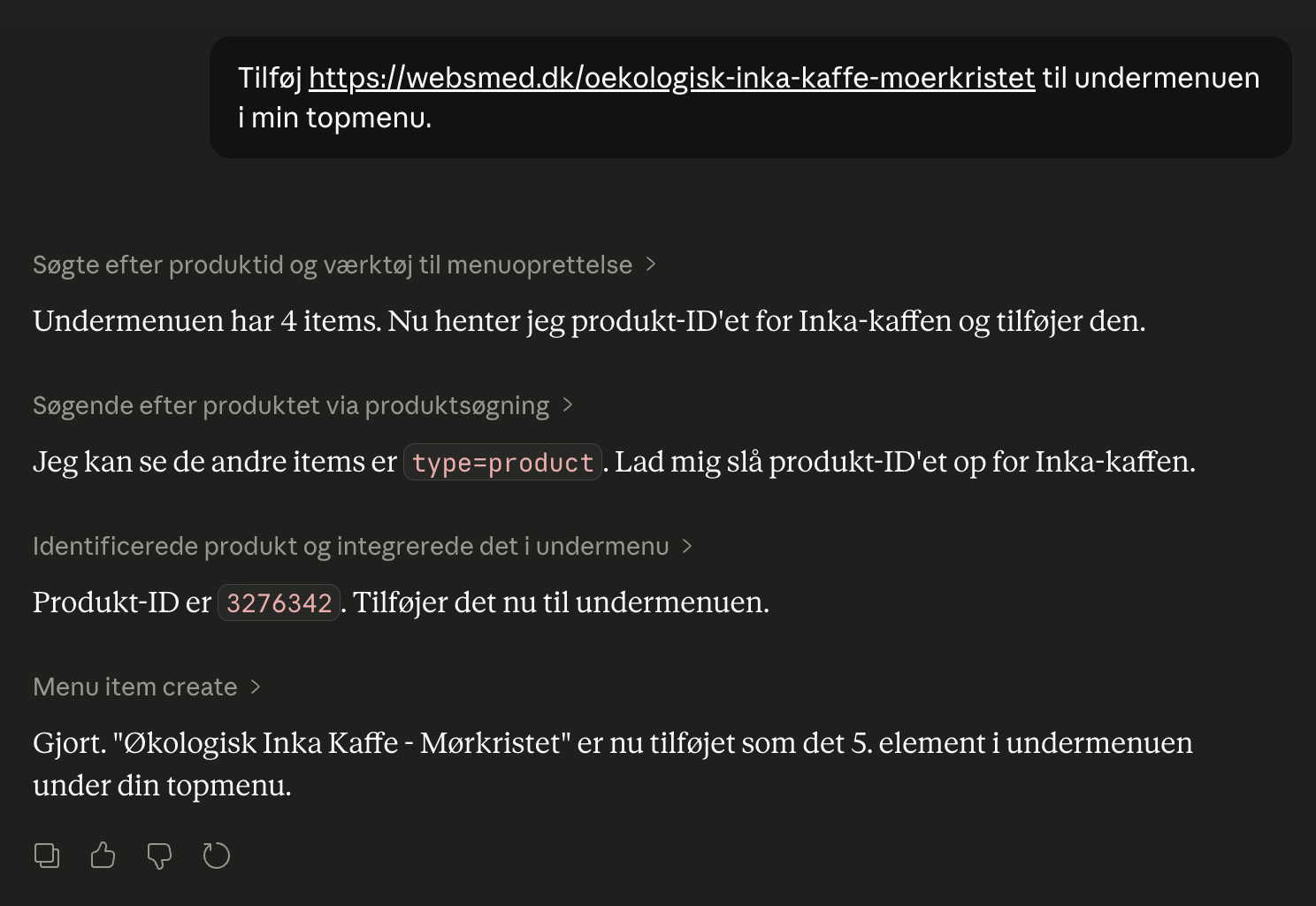
Now you can control your entire webshop by chatting
Launch campaigns, create products and view sales figures via chat in Danish. Shoporama's new AI integration with Claude saves hours in admin every...
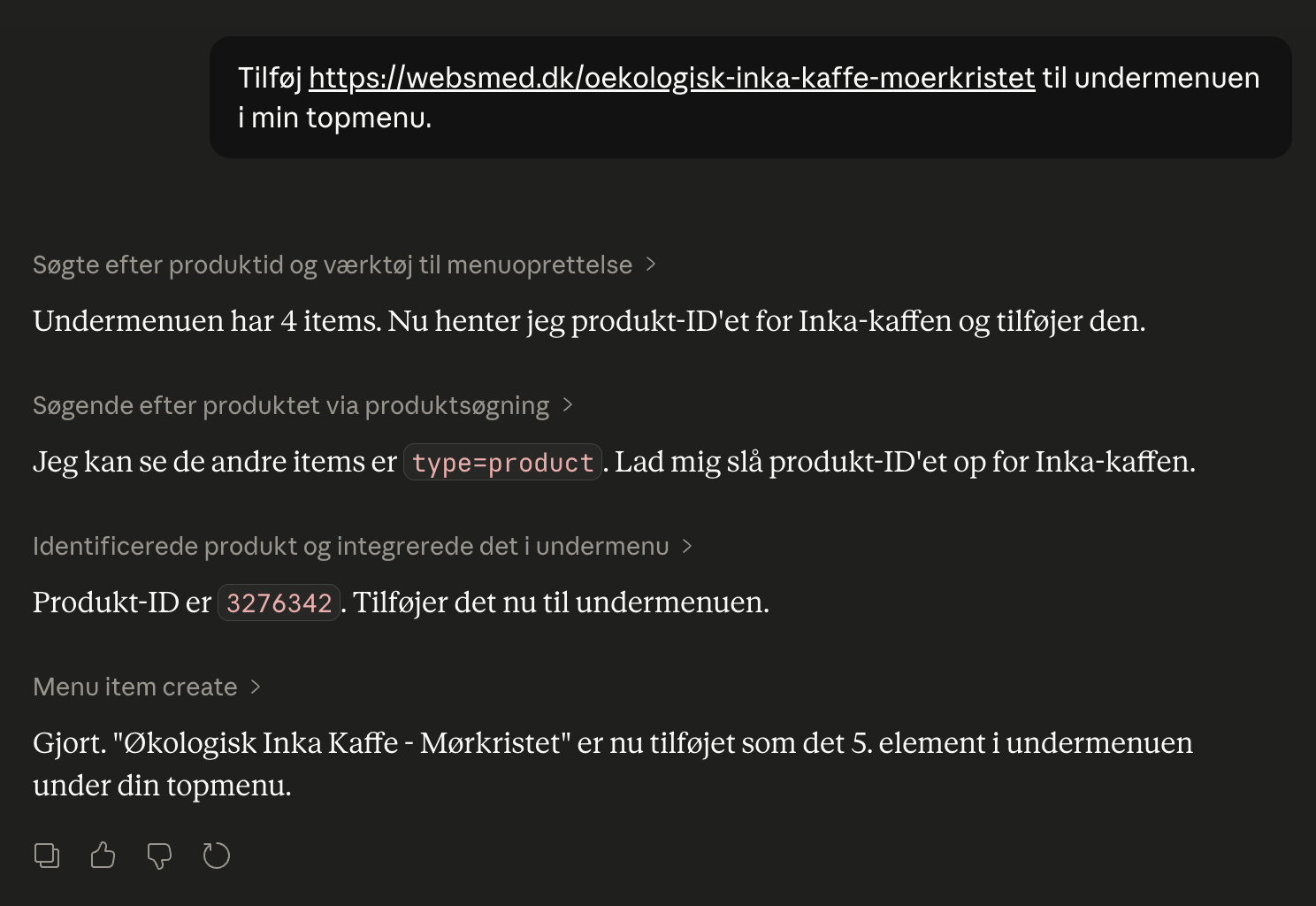
Control the shop with AI
Chat with your online store in Danish. Connect Shoporama to Claude and manage products, orders, promotions, and content directly from the chat.
Manage your store with AI: Connect Claude to your store
Connect Claude to your Shoporama store via MCP. Choose an access level, write some good initial messages, and decide for yourself what the AI is...
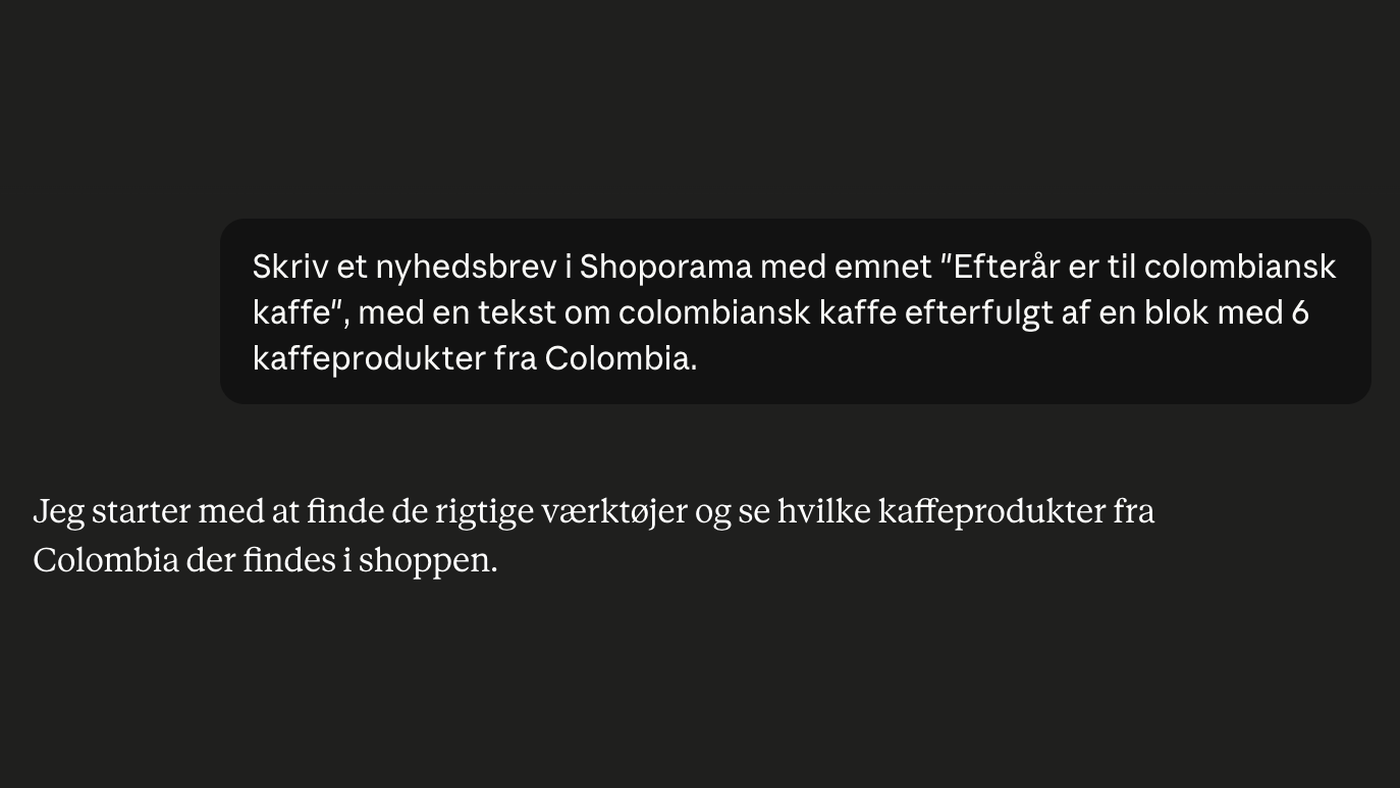
Build your newsletters with AI: you describe, the AI compiles, you send
Describe your newsletter in plain Danish, and the AI will put together the entire draft, including text and products. The AI can do everything...
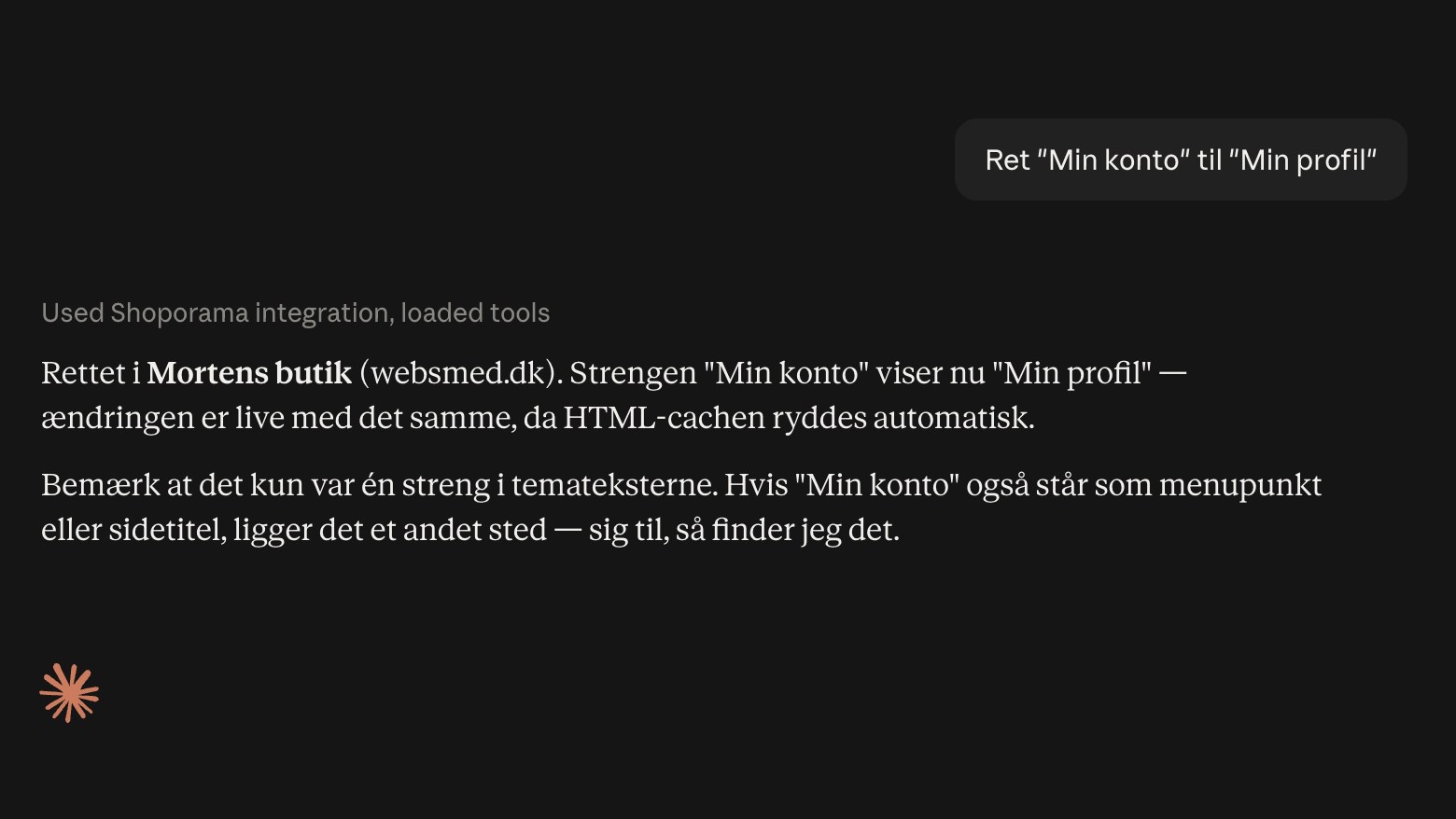
Now, AI can correct the text in your online store
Ask the AI to correct or translate the text in your online store—from buttons to order confirmations. The changes will take effect immediately.
Webshop med AI
Webshop med AI bygget ind: skriv produkttekster, byg nyhedsbreve, og styr hele butikken ved at skrive på dansk. Kunstig intelligens i Shoporama,...