Images from Claude: Send photos and PDFs directly to your online store
Attach photos and PDFs in Claude on your phone, in Claude Desktop, or at claude.ai, and ask Claude to add them to your products. The first time you do this, you'll need to allow www.shoporama.dk in Claude's settings.
Take a photo of an item with your phone, attach it to a chat with Claude, and ask Claude to create the product. The photo will appear directly on the product page in your online store, along with a description and alt text, so you don’t have to transfer files to your computer first. It works the same way with PDFs—such as a data sheet—and in the Claude app on your phone, in Claude Desktop, and on claude.ai.
The first time you do this, you’ll need to change one setting in Claude: under Settings → Capabilities, add www.shoporama.dk to the Additional allowed domains field. It takes just a minute. You’ll find the full guide below.
This article assumes that you’ve already connected Claude to your store. If you haven’t done so yet, start with “Manage Your Store with AI: Get Started with Claude and MCP.”
How to send images from Claude to your online store
- Attach the files. Open a chat in Claude where your shop is connected, and attach your photos or PDF just as you normally would in Claude.
- Tell Claude what to do. Specify which product the images belong to, or ask Claude to create a new one. The more details you provide about the product, the better the description will be.
- Let Claude handle the rest. Claude will send the files to Shoporama and upload them automatically. You don’t need to do anything else in the chat. The images will be uploaded immediately, so they’ll be displayed on the product once Claude has responded.
If the setting is missing in Claude, Claude cannot send the files. In that case, Shoporama will instruct Claude to explain to you what to do and refer you to this article. The setting itself is described in the next section.
Examples of what you can write
- "Create the product 'Red Wool Hat' for 249 kr. with the three images, and write alt text for them."
- "Here are four images of a used teak chest of drawers. Write a description, set the price to 2,400 DKK, and place it in the Furniture category."
- "Add these images to 'Linen Shirt, White,' and make the image showing it being worn the first one."
- "The photos for 'Ceramic Cup, Sand' are too dark. Replace them with the two new ones, and remove the old ones."
- "Here’s a photo of each color. Link them to the colors green, blue, and gray on ‘Knitted Hat’."
- "I’ve attached the data sheet. Upload it to 'Coffee Grinder Pro' as a PDF."
- "Place the five images in the image archive in a folder named 'Spring 2027,' and write a short alt text for each one."
Things to check afterward
- New products are hidden drafts. A product that Claude creates won’t be visible in the shop until you ask Claude to publish it or put it online yourself in the admin panel. That way, you can review it first. If you want it online right away, please mention that in your message.
- Order. The first image is what customers see first. Let Claude know if a specific image should be displayed first.
- Alt text. Read through them and correct them if they’re incorrect.
- The old images. New images are added on top of the ones already associated with the product. The old ones are only removed if you request it.
- Facts in the text. Claude only sees the image. You must provide the measurements, material, and care instructions yourself; otherwise, Claude might guess incorrectly.
- Variants. If you’ve asked Claude to link images to colors or sizes, check that each image is assigned to the correct variant.
The one setting: allow www.shoporama.dk in Claude
Claude can see the images you attach, but cannot send the actual file through the connection to your shop. The connection is based on the Model Context Protocol (MCP), and it only sends the text that Claude writes. A photo would take up millions of characters. So this isn’t a Shoporama error, nor is it due to a file size limit on our end.
Instead, Claude uses its code environment, which is called “Code execution and file creation” in Claude’s settings. This is a small computer at Anthropic where Claude can run code and where your attached files are also stored. From there, Claude sends the file directly to www.shoporama.dk. By default, the code environment is only allowed to download software packages from the internet, so you’ll need to grant it permission to contact Shoporama. Here’s how:
- Open claude.ai in a browser or Claude Desktop on your computer, and go to Settings → Capabilities.
- Find the “Code execution and file creation” section. Make sure that “Cloud code execution and file creation” and “Allow network egress” are both enabled. If either one is disabled, enable it.
- Under “Domain allowlist,” the default setting is “Package managers only.” Leave it as is, type www.shoporama.dk in the “Additional allowed domains” field, and click “Add.”
- Start a new chat and attach the files there again.
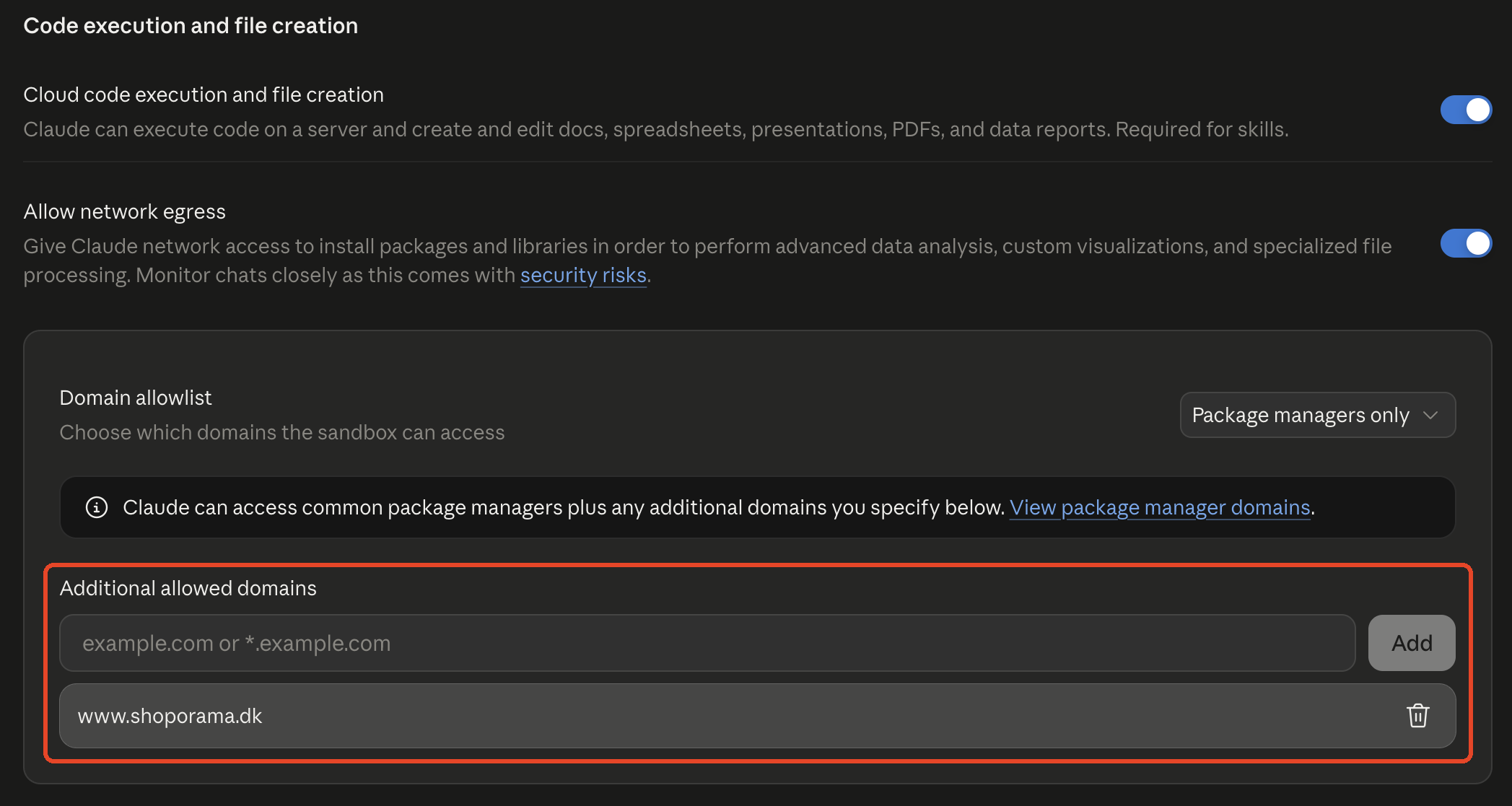
This setting applies to your Claude account, so it also applies in the Claude app on your phone. You only need to do this once.
What about “All domains”? If you select “All domains” under “Domain allowlist,” it will work as well, but then Claude’s code environment will be able to access the entire internet. We recommend that you only add www.shoporama.dk.
Are you using Claude Team or Enterprise?
On Claude Team and Claude Enterprise, the owner of your Claude organization determines which domains the code environment is allowed to contact. Ask the owner to allow www.shoporama.dk in the organization’s settings, or do it yourself there if you’re the owner. Then start a new chat and attach the files again.
Where can the images be used?
Claude can use your attached files in the same places where it can already add images in your store:
- Products. As product images in the order you want, and linked to a specific variant, such as a color. The variant must already exist for the product. Read more in Link images to a variant.
- PDF data sheets. A PDF can be added to a product as the product’s PDF; see “Attach a PDF to Products.”
- Categories, blog posts, and content types. As images for the category, post, or entry. Entries in a content type can only have images when the Image Gallery is enabled for that content type.
- Image Library. Claude can upload images to the Image Library under Content → Image Library, including to a specific folder, so you can reuse them later.
- Theme image fields. Image fields in the theme settings and in the theme’s custom fields for items such as products, categories, and pages in the built-in themes.
- Logo and favicon. For example, send your new logo via chat and ask Claude to use it.
- Page Builder. Image fields in the rows on your pages in the Page Builder.
Claude first saves the logo, favicon, and images from the theme settings to the Image Library and uses them from there. That’s why they remain in the library afterward.
Claude can add alt text to each image at the same time. Alt text is a brief description of what the image shows, which screen readers and Google Image Search use. If an image needs to be cropped, rotated, or have a focus point set, you can do so afterward in the admin panel, just as you would with images you’ve uploaded yourself. See Edit Images: Rotate, Crop, and Set Focus Point.
File Types and Sizes
- Images in JPG, PNG, GIF, and WebP.
- PDFs that can be attached to a product.
- Up to 30 MB per file and a maximum of 40 megapixels per image (approx. 8,000 x 5,000 pixels). These are the same limits as in the Image Library in the admin panel.
- Shoporama cannot useHEIC, the iPhone’s native image format, directly. Most often, the Claude app already sends photos as JPGs; otherwise, Claude is instructed to convert them to JPG before sending.
- Photos taken in portrait orientation are automatically rotated to the correct orientation so they don’t appear sideways in the shop.
- Large photos are scaled down to a maximum of 2,000 pixels on the longest side, just like when you upload them in the admin panel.
Other file types, such as videos or Word documents, cannot be sent.
Security: Where do your files go?
- Directly to Shoporama. The file is sent directly from Claude’s code environment to www.shoporama.dk, without any third-party involvement. Shoporama also requires Claude to never store your files on public file-sharing services. Claude might have done this in the past when there was no other option.
- A one-time ticket to your shop. Before Claude sends the files, it retrieves a ticket from Shoporama through the connection you’ve granted access to. The ticket is valid only for your shop and only for 30 minutes, and it allows files to be stored only in a temporary storage area that others cannot see. The files are not uploaded to the shop until Claude uses them through your connection.
- Cleanup after 24 hours. The temporary copy expires after 24 hours and is then automatically deleted. If the file isn’t used, it will disappear. If Claude has applied it to a product or another location in the shop, it will remain there.
- Everything is recorded in the log. You can see both the retrieval of the ticket and what Claude does with the files afterward—such as creating a product—in the AI audit log.
- Extra Security. If you’ve enabled Extra Security, the transfer itself doesn’t need to be approved because it doesn’t change anything in the shop.
You decide whether Claude can send files
Claude can only send files to your shop when the Image Archive setting is set to Read and Edit. This is the default setting. You’ll find the setting under Integrations → Manage the Shop with AI, where you click on Customize Tools. If you set Image Archive to Read-Only or Off, Claude cannot send files to the shop. Read more in Customize Which Tools Claude Can Use in Your Shop.
The section where the image will be used must also be set to “Read and Edit”:
- Product and categorycatalog.
- Content for blog posts, pages, and content types.
- Theme and CSS for the logo, favicon, and theme settings.
- Page Designer for images in the Page Designer.
If the image doesn't appear
Claude says that the connection to Shoporama is being blocked
Then www.shoporama.dk is missing from Claude’s settings. Follow the steps in the section about the setting above. If you’re using Claude Team or Enterprise, the owner of your Claude organization must authorize the domain.
I’ve changed the setting, but it still isn’t working
Start a brand-new chat and reattach the files. Then check in Claude’s settings to make sure www.shoporama.dk is listed under “Additional allowed domains”(spelled exactly like that) and that “Allow network egress” is still enabled.
Claude says it can’t run code
Enable “Code execution and file creation” under Settings → Capabilities. Without the code environment, Claude cannot send the file from the chat. If you can’t enable it, upload the images to the Image Library in the admin panel, and then ask Claude to use them from there. You can also upload them directly to the product in the admin panel.
Claude says it doesn’t have access
Under Customize Tools, check that the Image Library and the area where the image is to be used are set to Read and Edit. Click Save, and start a new chat in Claude.
The file is being rejected
The file is either larger than 30 MB, the image has more than 40 megapixels, or the file is not a JPG, PNG, GIF, WebP, or PDF. Save the image in a smaller size or as a JPG, and attach it again.
Claude creates the product without images
In the same chat, specify that the attached images should be included with the product. If Claude responds that a setting is missing, follow the instructions above.
If none of that helps, please email support@shoporama.dk, preferably with a screenshot of Claude’s response.
For developers: send files via the REST API
This section is only relevant if you’re building an integration yourself. You can use the same upload method that Claude uses, instead of sending files as base64:
- Call POST /upload-ticket with your regular REST key. The response contains an upload_url that is valid for 30 minutes and supports up to 20 files.
- Send one file per request to the upload_url as a multipart request with the “file” field. No “Authorization” header is required, as the ticket serves as the access token. The response (201) contains an upload_id.
- Use {"upload_id": "..."} instead of data or url wherever images are accepted (products, categories, blog posts, content entries, pages, the image gallery, custom fields, logo, favicon, and the Page Builder’s image fields) and as the product’s PDF. The file is uploaded immediately.
curl -F "file=@foto.jpg" "https://www.shoporama.dk/mcp?upload=BILLET"
An upload is associated with the store that issued the token and expires after 24 hours. The upload URL returns a 401 status code for an unknown or expired ticket, a 409 when the ticket has been used up, a 413 when the file is too large or has more than 40 megapixels, and a 415 for an unsupported file type (including HEIC). Claude uses the same mechanism via the MCP tool `upload_ticket_create`, which you can also see in the AI audit log. Read more about the API in REST API.
Frequently Asked Questions
I can’t find the setting in the app on my phone. Do I have to do this every time?
No, just once. You set this option on claude.ai in a browser or in Claude Desktop on your computer. It’s linked to your Claude account, so afterward you can send photos from the app on your phone without having to do anything else.
Can I remove a photo myself if Claude assigns it to the wrong product?
Yes. The image is just a regular product image, so you can delete it in the admin panel under the “Product Images” tab for that product, just like images you’ve uploaded yourself. You can also simply ask Claude to remove it and assign it to the correct product.
What am I actually granting access to when I add www.shoporama.dk? And what if the upload address gets leaked?
You’re giving Claude’s code environment—that is, the computer at Anthropic—permission to contact www.shoporama.dk. This doesn’t change anything on your own phone or computer. Apart from the software packages, it can only access the domains you’ve added yourself. If an upload address is leaked, it can’t be used to change anything in your shop. Files are only uploaded to the shop through your own connection to Claude.
I have five shops connected to Claude. Do I need to add the domain for each shop?
No, this is a setting in Claude, so you only need to add www.shoporama.dk once. The files will end up in the shop whose connection Claude is using in the chat, so be sure to clearly specify which shop it applies to and check the result in that shop’s admin panel. The setting under “Customize Tools,” however, applies per shop, so “Image Archive” must be set to “Read and Edit” in each shop.
Can I attach 100 photos at once?
Claude determines how many files you can attach in a single message. Shoporama accepts the files in smaller batches, and Claude is notified to continue with the rest. If you need to upload many images at once, it’s often faster to drag them into Content → Image Archive in the admin panel and then ask Claude to use them from the archive.
How can I tell if the image has been uploaded?
Claude will explain in its response what it has done. If you want to check for yourself, open the product under Products → All Products in the admin panel and expand the Product Images tab. The images will be there as soon as Claude has responded.
Will the image be just as sharp as when I upload it in the admin panel, and what will the file be named?
The image is processed exactly the same way as one you upload in the admin panel, so the quality is the same. The file keeps its original name, e.g., IMG_5771.jpg, unless you ask Claude to rename it, e.g., "roed-woolen-hat-front.jpg".
Where do I edit the alt texts afterward?
You can edit the alt texts in the Alt Text field under each image in the Product Images tab. Remember to save the product. You can also ask Claude to edit them.
If you have any questions about images from Claude, feel free to email support@shoporama.dk.
Related articles
Manage Your Store with AI: Get Started with Claude and MCP
Connect your Shoporama store to Claude using the connector library or via MCP, and have it create orders, discount codes, and storefronts. Learn...
Image Archive: Upload, Organize, and Reuse Your Images
Collect, organize, and reuse your images all in one place with the Image Library. Use them as images for products, categories, and pages, and...
Customize which tools Claude can use in your shop
Extra security: Approve changes from Claude
With Extra Security, Claude won't make any changes that send emails, transfer money, or can't be undone until you've approved them. Here's how to...
AI Audit Log: See What the AI Has Been Up To in Your Store
The audit log shows every action an AI assistant has performed in your online store. See what’s logged, how to filter the log, and how to use it...
Attach PDF to products
How to attach PDF files such as product sheets, manuals, datasheets or certificates to your products in Shoporama. Including example of correct...
Related features
Manage your store with AI: Connect Claude to your store
Connect Claude to your Shoporama store via MCP. Choose an access level, write some good initial messages, and decide for yourself what the AI is...
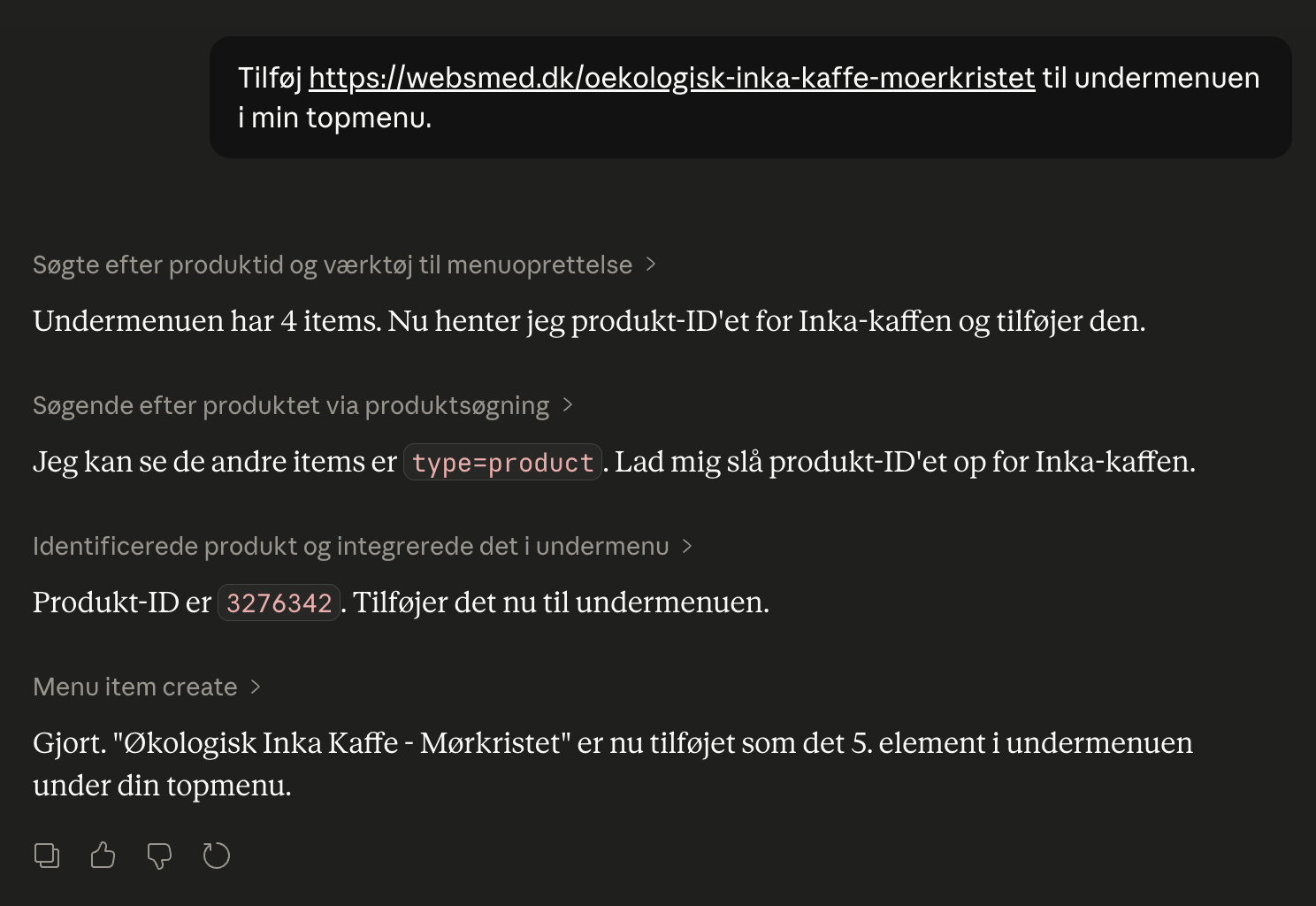
Control the shop with AI
Chat with your online store in Danish. Connect Shoporama to Claude and manage products, orders, promotions, and content directly from the chat.
Image Archive
Claude (AI assistant)
Claude is an AI assistant from Anthropic that can integrate with Shoporama webshops via MCP and control the store via chat in Danish.
Model Context Protocol (MCP)
MCP is an open protocol that allows AI assistants like Claude to securely access webshops and other systems. Shoporama fully supports MCP.
Alt text
Alt text describes images for search engines and screen readers. Read about alt text, SEO for images and accessibility in eCommerce.