Attach PDF to products
How to attach PDF files such as product sheets, manuals, datasheets or certificates to your products in Shoporama. Including example of correct display in the theme.
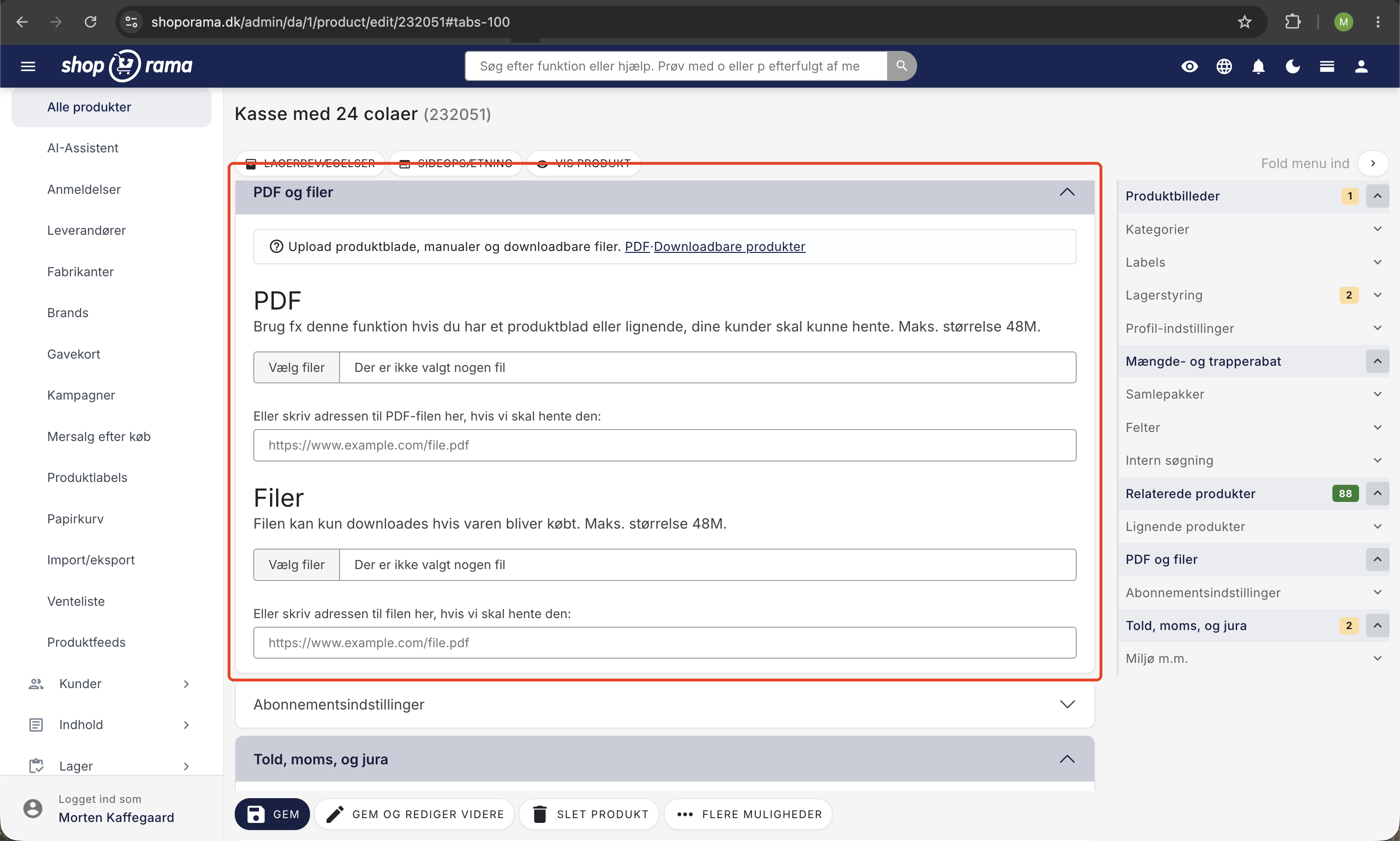
You can attach PDF files directly to your products in Shoporama. This is ideal for product sheets, user manuals, safety data sheets, warranty certificates, assembly instructions, or CE certificates. The files appear as download links on the product page, so customers can open or download them with a single click.
How to attach a PDF
- Go to Products and click Edit on the product you want to add a PDF to.
- Find the “PDF and Files” section and use the top section labeled “PDF.”
- Click Upload and select your PDF file from your computer.
- The file name is used as the link text on the product page. Therefore, give it a descriptive file name (e.g., user-manual.pdf) before uploading.
- Click Save.
You can attach multiple files per product. They will appear in the order they were uploaded.
Tip: Name the files something the customer can understand right away, such as manual.pdf, datasheet.pdf, or installation-guide.pdf. The filename is what the customer sees as a clickable link.
Display on the product page
On the product page, each PDF appears as a download link. The customer clicks the link, and the file opens in the browser or is downloaded to their computer. The link text is the file name, and the URL points to the public path to the file. Note that where and how the files are displayed depends on your theme.
Retrieve PDF Files in Your Theme (for Developers)
On a SafeProduct object, you retrieve the PDF files using getPdfFiles(). The method returns a list of SafeProductFile objects. For each object, you have:
- getFilename() – the file name (used as link text)
- getUrl() – the public URL for the file
- getMB() – file size in megabytes
- getBytes() – file size in bytes
Example of Smarty code in a product template:
<{if $product->getPdfFiles()}>
  <ul class="product-files">
    <{foreach $product->getPdfFiles() as $file}>
      <li>
        <a href="<{$file->getUrl()}>" target="_blank" rel="noopener">
          <{$file->getFilename()}>
          <span class="file-size">(<{$file->getMB()|string_format:"%.2f"}> MB)</span>
        </a>
      </li>
    <{/foreach}>
  </ul>
<{/if}>
Note: Use getPdfFiles() —not getFiles(). And use getFilename() as the link text. There is no getTitle() method on SafeProductFile, so give the files descriptive names before uploading so that the link is neat and understandable.
Tips for Clean PDF Attachments
- Use short, descriptive filenames without spaces or special characters (e.g., manual.pdf or datasheet.pdf).
- Compress large PDF files so they download quickly on mobile devices. Many print-ready PDFs can be reduced to one-third of their size without any noticeable loss of quality.
- Check that the file can be opened on both desktop and mobile devices before uploading.
- Keep the content up to date, such as CE marking, certifications, and contact information.
- Add the same file type in the same language (Danish vs. English) so customers know what they’re downloading.
Other file types and digital products
The file field for products is specifically for PDFs via getPdfFiles(). If you sell digital products—such as e-books, audio files, or images—that need to be downloaded after purchase, use downloadable products instead. Read more in the article “Sell Downloadable Products.”
Tip: If you’d like to attach a file to the order confirmation email instead (e.g., general terms and conditions or a brief user guide), you can do so in the online store’s settings. See Attach a file to the order confirmation.
Frequently Asked Questions
How large can the PDF file be?
There is no fixed limit in the admin panel, but the larger the file, the longer it takes for the customer to download it, especially on mobile devices. We recommend compressing files larger than 5 MB. Many print-ready PDFs can be reduced to one-third of their original size without any noticeable loss of quality.
Can the customer download the PDF without being logged in?
Yes. PDFs attached via the file field on a product are publicly available on the product page. If the file should only be downloadable after purchase (e.g., an e-book), use downloadable products instead.
Can I attach the same PDF to multiple products?
You must upload the file for each product individually. If it’s the same PDF (e.g., a comprehensive brochure for a product line), you can choose to hardcode a shared link in the theme instead of using the product’s files.
Where do I find the button to upload the PDF?
On the individual product page under Products, scroll down to the PDF and Files section, and use the top section labeled PDF. Click Upload and select the PDF from your computer.
What happens if I upload a file with the same name again?
The file will be given a new, unique name on the server, so the new version will be stored alongside the old one. Delete the old file in the admin panel if you want to clean things up so that the customer only sees the latest version.
Can I control the order of the PDF files on the product page?
The files are displayed in the order they were uploaded. If you want to change the order, you can delete a file and upload it again so it appears last. Alternatively, your developer can sort them in the theme using Smarty.
Do PDF files count toward my storage space?
PDF files for products are stored on Shoporama’s servers as part of your store. There’s plenty of space for normal use. Contact us if you have a large product database with large files so we can assess your setup.
Can PDFs be found via Google?
Yes. PDFs on your online store can be indexed by Google and appear in search results. This is a good reason to give the files clear, search-friendly names. If you want to prevent a specific file from being indexed, you can block it in your robots.txt file.
Are there accounting requirements for data sheets and certificates?
Safety data sheets and CE certificates are part of the product documentation itself, not the accounting records. Keep them updated according to the supplier’s latest version so you meet legal requirements for customers and authorities. The actual invoice to the customer is managed through the PDF invoice settings.
Can I bulk import PDFs for multiple products?
Yes, using the REST API, you can upload files programmatically and link them to a product. This is useful if you have many products with data sheets from a single supplier. Read more in the REST API documentation.
Need help? Contact us at support@shoporama.dk.
Related articles
Sell downloadable products
Guide to selling digital downloadable products (PDF, audio, video, ZIP, etc.) in Shoporama. How the download link works, what the customer sees...
Attach file to the order confirmation
Guide to attaching a file (e.g. terms and conditions) to the order confirmation in Shoporama.
Edit product
Guide to the Product Edit Page in Shoporama: the top section with "Edit," Inventory, and Sales Statistics; how to customize the page with tabs and...
REST API documentation
Link to documentation for Shoporama's REST API for integration with external systems.
Attach terms and conditions to the order confirmation
Sådan vedhæfter du dine handelsbetingelser som PDF til ordrebekræftelsen i Shoporama.