The Washington Theme: Setting Up the Headless Theme
Washington is a minimalist headless theme where the entire store runs as a single app in the browser. Learn how to select it, build the homepage in the Page Builder, set up menus, and find out what the theme can't do.
Washington is one of Shoporama’s free themes. It features a calm, minimalist design with plenty of white space, and it’s built as a headless theme. Here, you can see how to select Washington, build the homepage, set up the menus, and learn what you need to know about customer accounts, checkout, tracking, and SEO. Finally, you can see what the theme can’t do, so you know if it’s a good fit for your store.
What is Washington?
“Headless” means that the store’s appearance is separate from the part of Shoporama that manages products, the cart, and orders. You can read more about the concept in the glossary under “headless commerce.” In Washington, the store runs as a single app within the browser. When the customer clicks to navigate, the theme only fetches the new content, rather than reloading the entire page from scratch.
For the customer, this means that pages change without reloading. If the customer adds an item to the cart, the cart opens on the side of the screen so the customer can continue shopping immediately. You can view images of the theme on the Washington theme page.
Washington is a good fit for stores with a manageable product selection, where items are sold based on images and brief descriptions, and which want a clean, simple look without having to design anything themselves. If you need subscriptions, product filters, or reviews, Montana is the right choice. See all themes in “What themes are available on Shoporama?”
How to choose Washington
- Go to Design → Theme. The page is called “Choose Theme.”
- Find Washington under the free themes, and click Select on the card. It will now say Selected.
- Click Save at the bottom of the page.
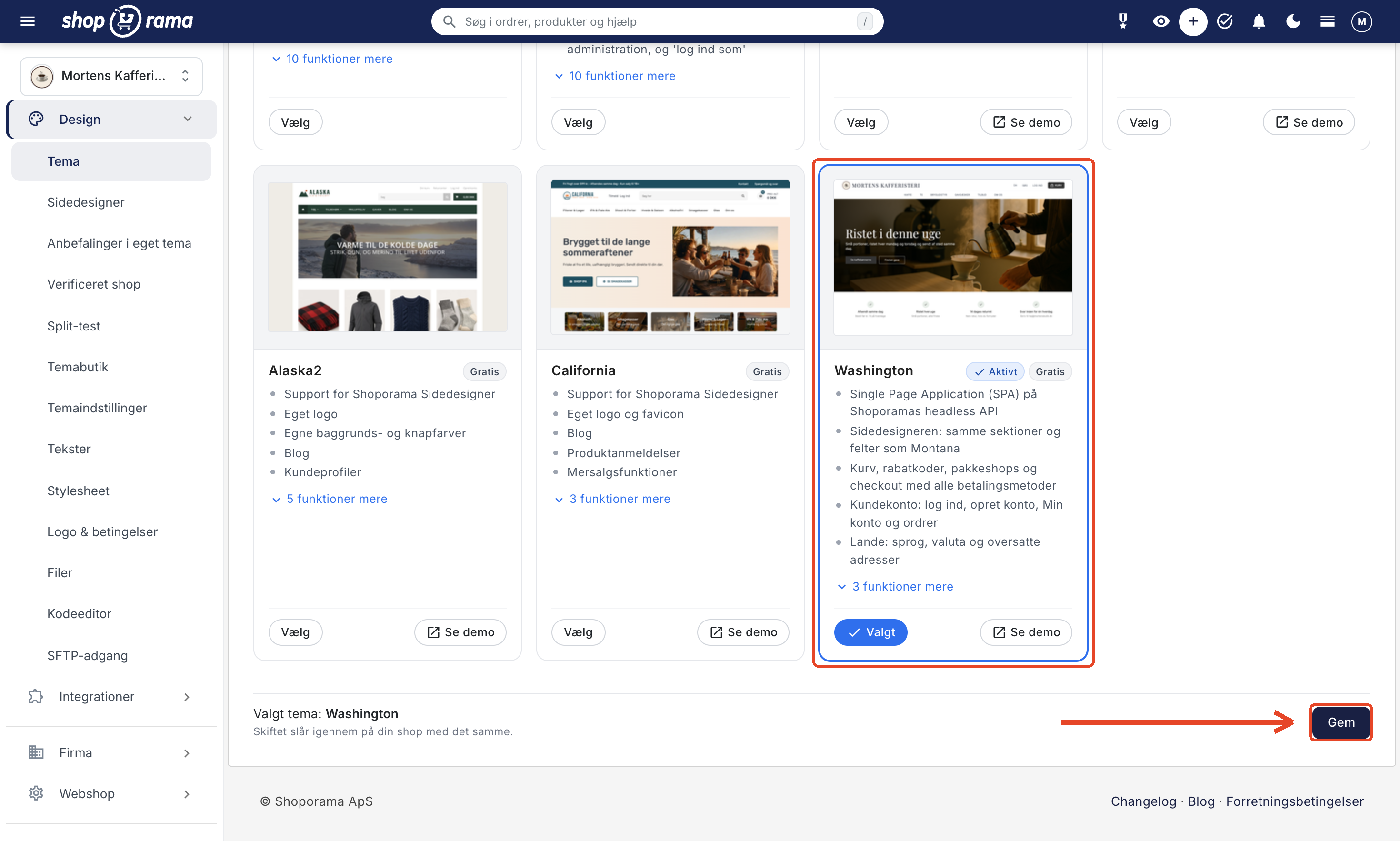
The switch typically takes a minute, and during that time, your store will display a brief waiting message. Your products, categories, orders, and customers will remain unchanged. Washington has its own design and text, so review the text and theme settings after the switch. If you’ve already set a longer cancellation period in Montana, it also applies in Washington.
Washington has a fixed design, so there are no color settings. Under Design → Theme Settings, you’ll only find the cancellation period, which you can read about further down. Washington retrieves the logo from Design → Logo & Terms, and the store name from Store Name under Web Store → General always appears in the header next to the logo. If you have some knowledge of CSS, you can adjust the appearance under Design → Stylesheet. The stylesheet belongs to the store and not to the theme, so if you’ve written your own CSS for your previous theme, it will also carry over to Washington. Be sure to review the store after the switch.
Once the theme has been changed, go through these five steps:
- Set up the homepage in the Page Builder, and remember to include a product section if you want products to appear on the homepage.
- Create a menu with the “Top” placement and one with the “Bottom” placement, and add a link to your terms and conditions in the bottom menu.
- Review Design → Texts and Design → Logo & Terms.
- Check your payment methods under Integrations → Payment Gateways.
- Place a test order using a pickup location and a discount code. If you’re using tracking, keep the Tag Manager preview open and verify that the events and the purchase are being tracked.
Learn more about theme settings in Theme Settings: How to Customize Your Theme.
Build the homepage in the Page Builder
You build the homepage under Design → Page Builder. Open the page layout used on the homepage and use Add Section to add sections, such as a large banner, a product list, or text with an image. If you don’t have a page layout for the homepage yet, click Create New Page Layout and select Category (including the homepage). Washington has the same 25 sections with the same fields as Montana. If you’ve already built a front page for Montana, it will be included, and it will also be included again if you switch back.
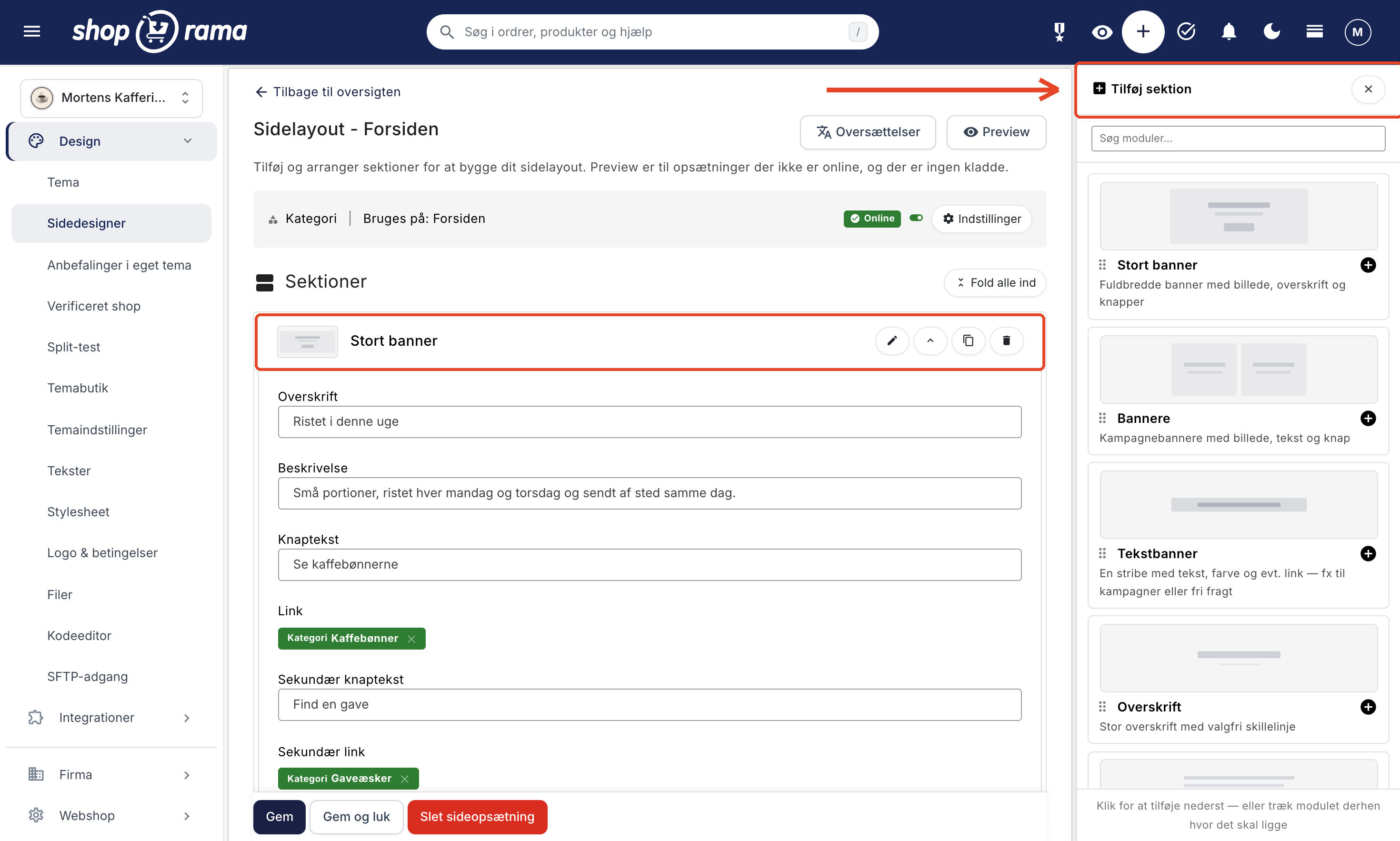
Without a setup in the Page Designer, the front page displays products from the category marked as the front page. As soon as the front page has a setup, only your sections will be displayed. If you still want products on the front page, add a Product List or a Product Carousel.
The sections can also be used on categories, products, static pages, landing pages, and blog posts. Page layouts for static pages such as the cart, checkout, and login page are not displayed in Washington. The Content Entries section displays entries without links in Washington because the theme cannot display the content types’ own pages. Read more in Page Builder and Setting Up the Front Page.
Top and Bottom Menus
You create menus under Content → Menus. Washington uses two locations, which you select in the Menu Location field:
- Top: the main menu in the header. It can have two levels, and the submenus appear as a drop-down menu.
- Bottom: links in the footer. Only the first level is displayed here, and only menu items with a link are shown, so create the menu as a flat list.
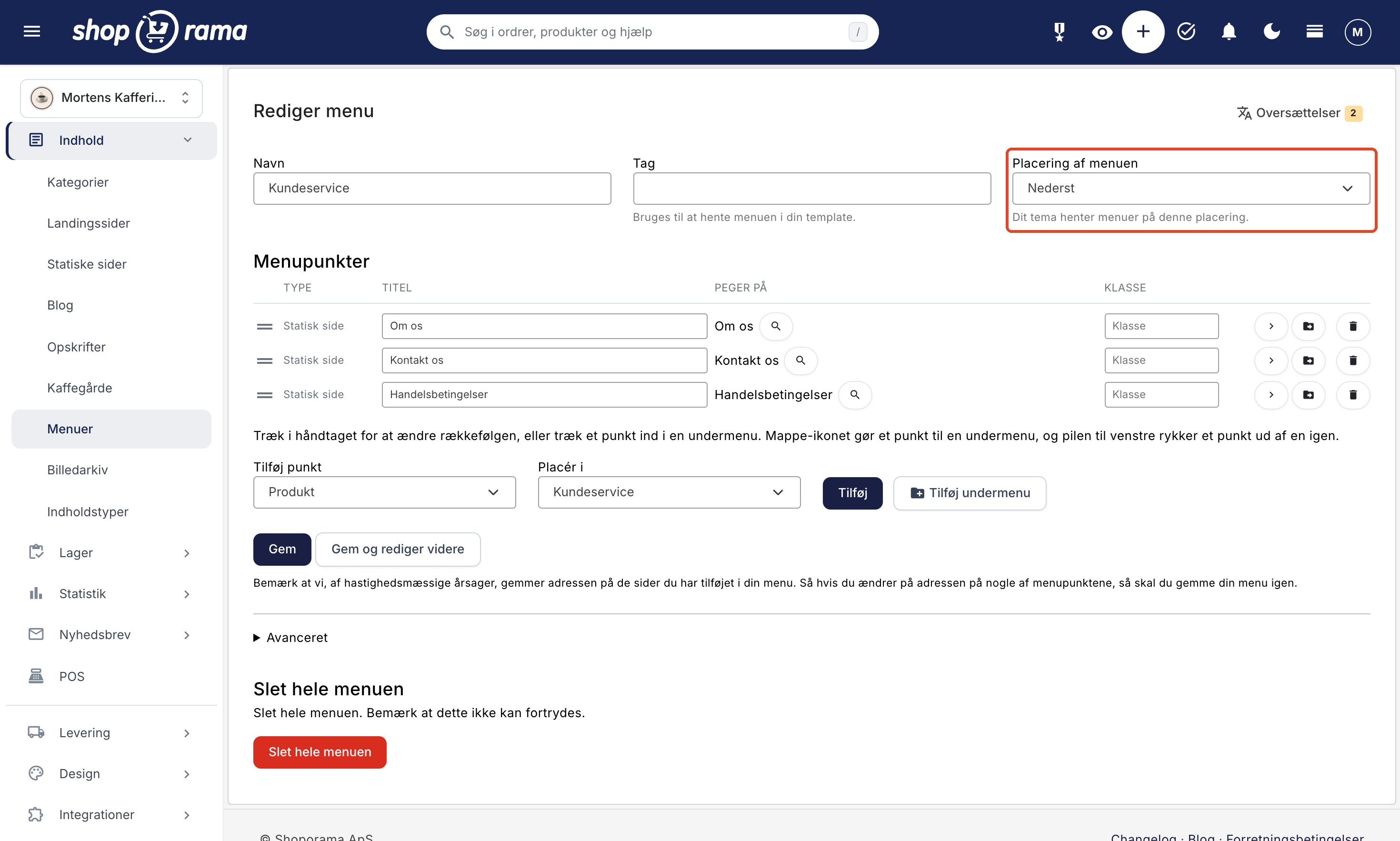
If one of your menus has the “Right Side” or “Left Side” placement from a previous theme, it will say “(not used by your theme)” next to it. Select one of the other two positions instead. Without a menu positioned at the top, the header uses the store’s first menu, so always assign the main menu the “Top” position.
Without a menu at the bottom, the footer displays a link to your terms and conditions. As soon as you create a menu at the bottom, that link disappears, so be sure to add a link to the terms and conditions in the menu yourself. The “Cancel Purchase” link is always displayed in the footer. Read more in Menus and Navigation and Logo, Favicon, and Terms and Conditions.
Edit the theme’s text
You can edit buttons, headings, and messages in Washington under Design → Texts. The text is in Danish, and if you sell in multiple countries, it will appear in the local language. Review the text after the switch to ensure it reflects your store’s style. Read more in Translate and Customize Text in Your Web Store.
Customer Account: Log In, Create Account, and My Orders
At the top of the header is “Log In,” and once the customer is logged in, it says “My Account.” From the “Log In” page, the customer can also create an account or click “Forgot Password?” Under “My Account,” there are tabs for “Overview,” “My Orders,” “Edit Information,” and “Log Out.” The customer pages are displayed with a simple header without a menu; customers can return to the store by clicking “Continue Shopping.”
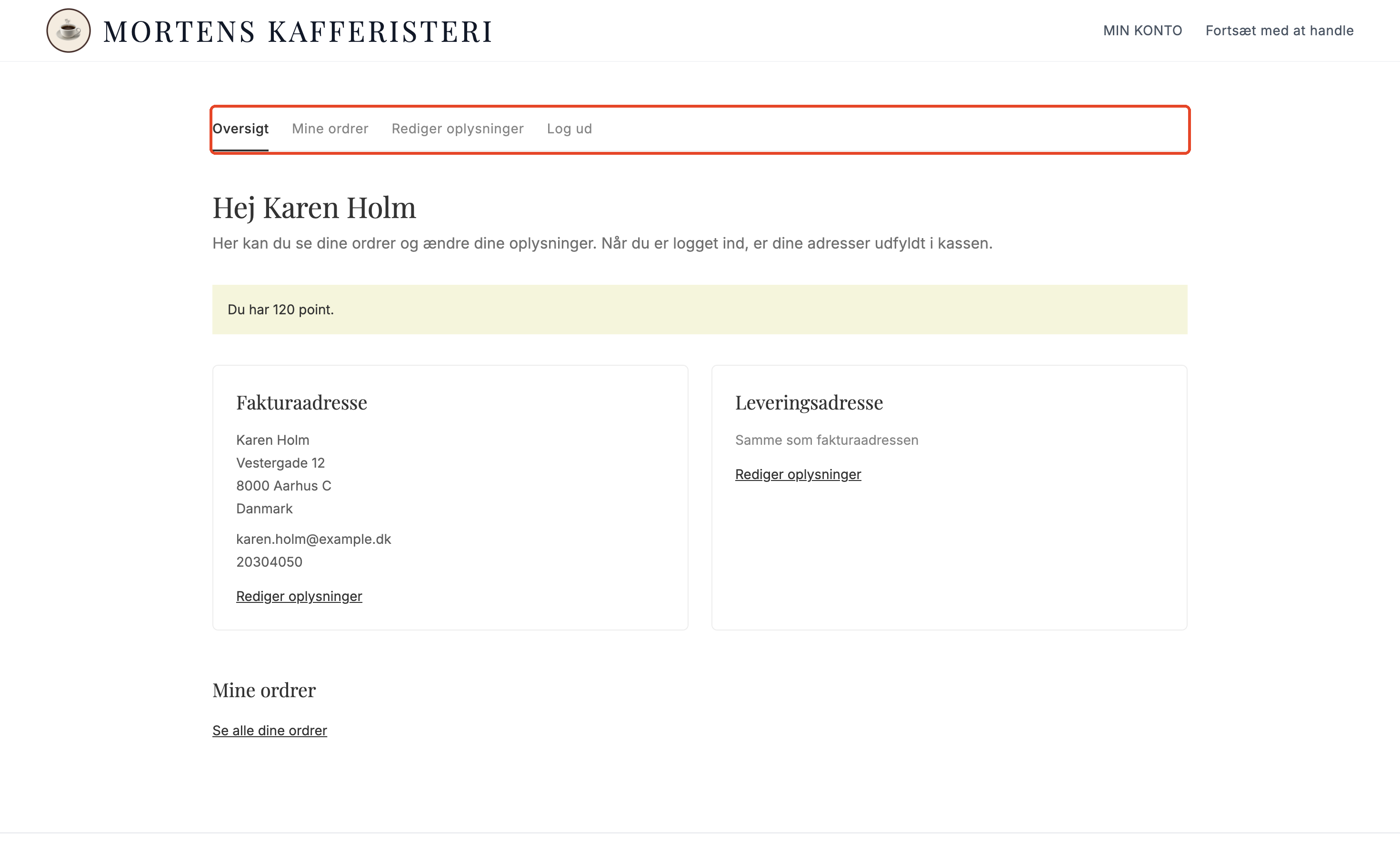
- Create Account: The customer receives a welcome email with their password.
- Forgot your password?: The customer receives an email with a link that logs them in directly. A new password can be selected afterward under “Edit Information.”
- My Orders: Displays the order number, date, status, and total, so the customer can look up an order themselves instead of contacting you.
If the customer is logged in, their address is pre-filled at checkout, and any changes they make at checkout are saved to their account for next time. Logged-in customers also see their customer group prices. Read more in Customer Groups and B2B Prices.
Shopping Cart, Checkout, and Payment
The shopping cart handles variants, deposits, discount codes, and gift cards. The customer clicks “Do you have a discount code?” on the Shopping Cart page, enters the code, and clicks “Apply.” The customer is immediately notified if the code does not exist or can no longer be used. If an item has a deposit, the deposit appears as a separate line in the cart and below the item’s price. Gift cards are redeemed in the same field. You create the codes as usual; see “Create a Discount Code.”
If you have a loyalty program under Customers → Loyalty Program, the customer can also pay with points. A logged-in customer will see the “Pay with Points” box on the Shopping Cart page, showing their balance and how many points can be used for the order. The customer enters a number and clicks “Use Points” or clicks “Use All Points.” The discount appears as a separate line item in the cart, at checkout, on the receipt, and in the order confirmation email. Below the total, it shows how many points the order earns. Guests are informed that they earn points through an account. Points are awarded as in your other themes when the order is approved or shipped, depending on the “Award Time.”
The store’s rules for points also apply in Washington, such as which items and customer groups are eligible. A discount code can only be used in combination with points if the “Can be combined with customer club points” option is enabled for the code. Otherwise, the message “You have no points to use on this order” will appear as long as the code is in the cart.
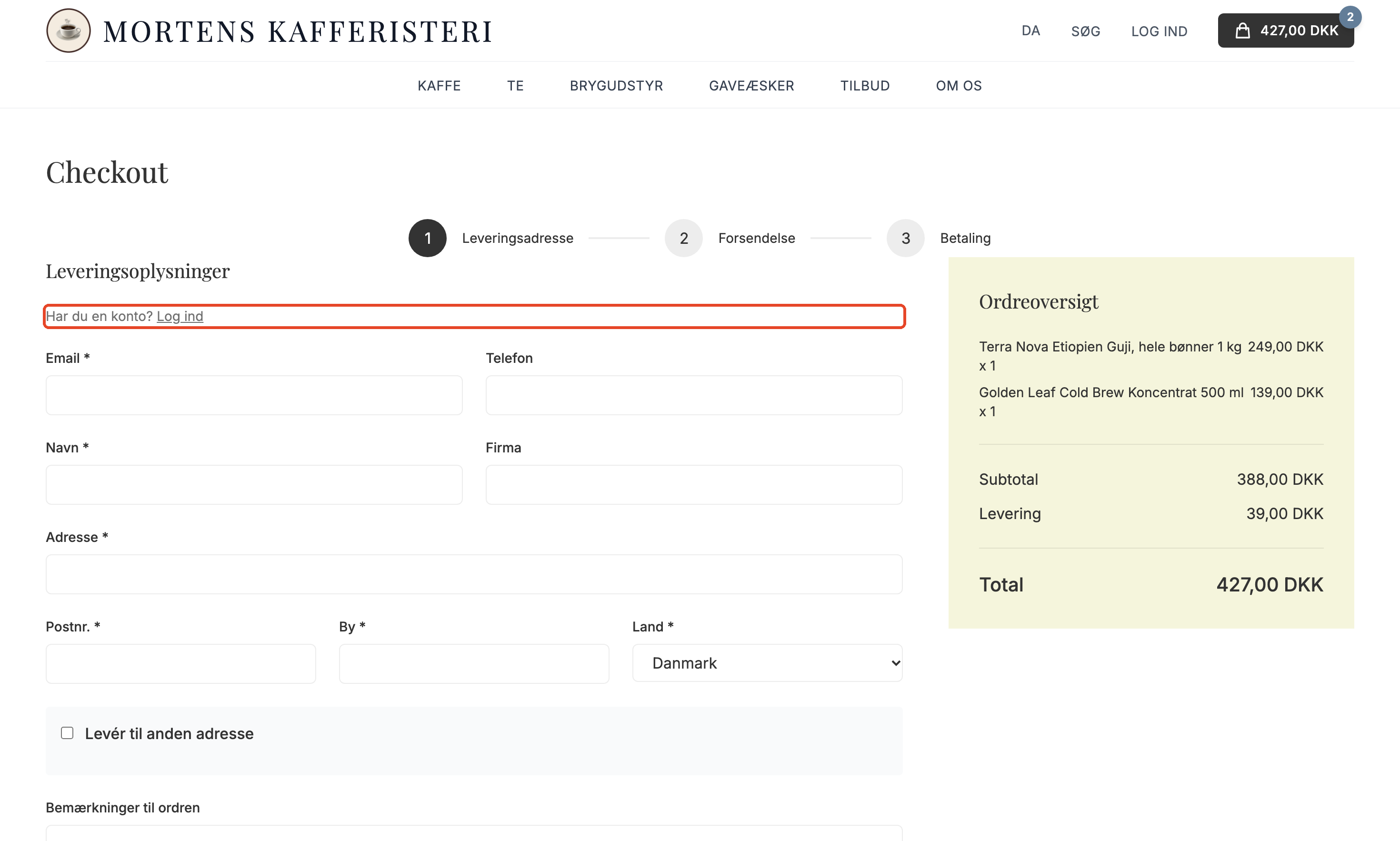
The checkout process itself has three steps:
- Shipping Address: The customer enters their information and clicks “Continue to Shipping.” Guests will see the line “Do you have an account? Log in.” If the customer enters a company name, fields for the CVR and EAN numbers will appear.
- Shipping: The customer selects a shipping method. For delivery to a package pickup location, the first location on the list is preselected, and the customer can choose a different one or search by ZIP code or city. The customer can only select a package pickup location from the list, so you avoid orders with an invalid pickup location.
- Payment: The customer selects a payment method and agrees to your terms and conditions.
Washington uses the store’s own payment methods from Integrations → Payment Gateways. Only methods that are enabled as “Online” and permitted in the customer’s country are displayed. If the customer clicks the button twice, only one order is created.
Payment methods where “Automatically mark new orders as paid?” is enabled—such as invoices for business customers—are only displayed to logged-in customers. Read more in “How do I accept online payments?” and “Set up invoice payments.”
Countries, Languages, and Currencies
If you sell in multiple countries, Washington displays a language and country selector in the header and footer. The selector appears as soon as you enable at least one country in addition to the store’s own. Customers see prices in the country’s currency and text in the country’s language, and at checkout, only the shipping and payment methods specific to that country are displayed. Learn more in “Sell in Multiple Countries and Languages.”
Cancellation and Returns
The “Cancel Purchase” link is always in the footer, and under “My Orders,” it appears next to orders that are still within the cancellation period. If you offer a cancellation period longer than the statutory 14 days, enter the number of days in the “Cancellation Period (days)” field under Design → Theme Settings → Checkout. A blank field means 14 days. If you’ve marked an item as digital content under “Right of Withdrawal” for that item, the customer must consent to immediate delivery at checkout, and items without a right of withdrawal will be listed in the payment step. Read more in “Exclude Products from the Right of Withdrawal.”
If you’ve enabled the Return Center, “Return ” will appear next to shipped orders under “My Orders.” Read more in “Digital Cancellation ” and “Return Center.”
Tracking with Google Tag Manager and GA4
Washington places the same e-commerce events in the dataLayer as Montana, all the way from the product list to the purchase: view_item_list, view_item, add_to_cart, remove_from_cart, view_cart, begin_checkout, add_shipping_info, add_payment_info, and purchase. The events are sent when the customer performs these actions, and the purchase event is sent on the receipt, once per order. A setup in Google Tag Manager and GA4 based on these events in Montana therefore also works in Washington.
These events require that tracking and your Tag Manager ID be enabled in the store’s tracking setup, just as in Montana. If you’ve used Tag Manager with Montana, it will therefore also work in Washington. If you haven’t, please email support@shoporama.dk, and we’ll help you enable it. A Tag Manager script in an HTML field only loads the container. The events are triggered only once tracking is enabled.
Because the page isn’t reloaded, the theme sends the `virtual_page_view` event with the page’s URL and title every time the customer navigates to a new page. Tag Manager counts the first page as a regular page view. GA4 can track page changes itself using its improved measurement, or you can use the event in your Tag Manager setup. Use only one of these methods to avoid double-counting page views.
Apps and custom scripts in the store’s HTML fields only run when the page is loaded for the first time. A script that counts page views on its own will therefore only see the first page. If something needs to happen on every page transition, have it respond to the events in the dataLayer, for example via Tag Manager.
If you use Shoporama’s tracking module under Webshop → Tracking, it sends its events when a page is loaded from the server. In Washington, these are the first page the customer sees, the checkout page, and the receipt. The purchase is therefore tracked, but product views and “Add to Cart” actions later in the visit are not. If tracking the entire customer journey is important for your ads, Montana is the safe choice.
SEO in Washington
The first time a page is displayed, the server sends the title, meta description, canonical tag, Open Graph metadata, product data as JSON-LD, and the sections defined in the Page Designer. The product lists and product pages themselves, however, are built in the browser. A search engine that doesn’t run JavaScript will therefore see less of your product descriptions than it would with a classic theme like Montana. If traffic from Google to your product descriptions is important to your store, Montana is the safe choice.
The shopping cart, checkout, search results, receipt, customer pages, and the page for canceling a purchase are automatically hidden from search engines. If you hide a product, category, page, or landing page from search engines (using the “Hide from search engines ” field on the product page, or enabling “noindex, follow” on the others), Washington sets “noindex, follow.” Read more in SEO in Shoporama and Set "noindex" on a page, product, or category.
Washington Can’t Do This
Washington is a basic theme, and a number of features require Montana. If you need one or more of these features, choose Montana instead:
- Subscriptions
- Wish lists
- Product filters on category pages and in search
- Product reviews
- Content types with their own pages, e.g., recipes
- Add-ons on the product page
- Stock notification, where the customer is notified when the item is back in stock. Out-of-stock items simply display "Out of Stock."
- File upload in fields that the customer fills out on the product page. Text fields work.
- Colors and fonts that you select under Theme Settings
- Unit price (e.g., DKK/kg) for the item
- A login wall where only business customers can view the store. This feature is available in MontanaB2B.
For Developers
Technical Section
This section is for developers. As a store owner, you can skip it.
Washington is built on the store’s headless API. The theme fetches products, pages, menus, the cart, and the checkout from the store’s /api and renders the pages in the browser using standard JavaScript and Tailwind CSS without any frameworks. You can therefore use the theme as an example if you want to build your own storefront. The shopping cart, checkout, and login track the customer’s cookies and only work on the store’s primary domain under Webshop → Domain (or a country-specific domain), while products and content can be retrieved from any domain.
Get started with “Build Your Own Storefront” on Shoporama’s headless API, and find all fields and error codes in the headless API reference.
Frequently Asked Questions
Will my products and customers still be there when I switch to Washington?
Yes. Products, categories, orders, and customers will carry over unchanged when you switch themes. Your customers will log in with the same email and password as before, and under “My Orders,” they’ll see the orders associated with their account.
Can I switch back to Montana if it doesn’t work for me?
Yes. Select Montana under Design → Theme, and click Save. The Page Builder setup is shared between the two themes, so your front page will still be there, and Montana’s colors and theme settings won’t have been deleted in the meantime. If you made changes in the Page Designer while using Washington, you’ll see those changes in Montana as well.
My customers use the filters on the category pages. Will I lose them if I switch?
Washington cannot display product filters, so customers won’t see any filters as long as you’re using the theme, and the Design → Filter menu item will disappear in the admin panel. The filters are a shop setting, not a theme setting, so they won’t be deleted. If you switch back to Montana, they’ll be there again. The same applies to your reviews.
A customer has forgotten their password and can’t view their orders. What should I do?
Ask the customer to click “Log In” and then “Forgot Password?” The link in the email will log the customer in, allowing them to view their orders immediately. If the email doesn’t arrive, ask the customer to check their spam filter and the spelling of their email address.
Are “Add to Cart” and “Purchase” events tracked in Tag Manager when the page isn’t reloaded?
Yes, if tracking and your Tag Manager ID are enabled in the store’s tracking setup, as in Montana. Then Washington sends the events to the dataLayer when the customer adds an item to the cart, proceeds to checkout, and so on, and the purchase is recorded on the receipt. If you use the tracking module under Webshop → Tracking, only the purchase and the first page are included. You can check this yourself by opening Tag Manager’s preview and placing a test order.
What does a product look like when it’s shared on Facebook?
Washington sends the Open Graph information from the server, so Facebook and other services display the product’s name, image, and a short description. This requires no action on your part, other than ensuring the product has an image.
Why can’t I select “Invoice” when I’m testing the checkout?
Invoice and other payment methods where “Automatically mark new orders as paid” is enabled are only displayed to logged-in customers. If you’re testing as a guest, you’ll only see the other payment methods. Log in with a test customer account, and the option will appear.
Are the CVR and EAN numbers included on the order?
Yes. Whatever the customer enters is saved on the order and, when the customer is logged in, also on their account. If the customer is part of a company, the company’s CVR and EAN numbers are used.
Can the customer proceed without selecting a package pickup location?
No. The first pickup location on the list is preselected. If Washington cannot find any pickup locations based on the customer’s ZIP code, the customer will be prompted to correct the address and cannot proceed. The selected pickup location is saved on the order, just as in the other themes.
See also: What themes are available on Shoporama?, Page Designer, and Menus and Navigation.
Need help? Contact us at support@shoporama.dk.
Related articles
What themes are there on Shoporama?
Complete overview of all free themes on Shoporama: Delaware, DelawareDK, California, Alaska 2, Washington, Montana, and the classic Smarty 2 themes...
Theme Settings: How to Customize Your Theme
Theme settings are the theme's own control panel in Shoporama. Here, you can change colors, text, images, and enable or disable features without...
Page designer
Lær hvordan du bruger Sidedesigner i Shoporama til at opbygge sidelayouts med blokke som hero-sektioner, produktlister, bannere og meget mere, helt...
Menus and navigation
Learn how to create and edit menus in your online store. This guide covers menu item types, hierarchy, placements, drag-and-drop sorting, and how...
Translate and customize texts in your webshop
Customize all text in your online store's theme—from buttons to checkout and emails—under Design → Text, and see how it aligns with the...
Sell in multiple countries and in multiple languages
Here's how to sell in other countries in your customers' languages and currencies using "Countries": Add a country, set up the address, language,...
Digital fortrydelse: lad kunderne fortryde købet online
Sådan virker den digitale fortrydelsesfunktion i Shoporama. Kunden fortryder købet online i to trin, du får besked, og ordren markeres automatisk.
Related features
Headless commerce
Headless commerce separates frontend and backend via APIs. Learn what it is, the pros and cons, and when it makes sense for your webshop.
Theme
A theme determines the look and feel of your online store. Read about themes, design, customization and responsive templates for webshops.
Choose a theme and understand theme settings and the page builder
Select and change themes in Shoporama, and learn the difference between Webstore settings, theme settings, text, and the page designer before you...
Build your homepage in the page builder
The Shoporama homepage is a category. Build it using sections in the page designer, display the right products, and make sure the layout doesn't...
Digital fortrydelse
Let customers cancel their online purchases in two steps. Shoporama’s digital cancellation feature complies with the new EU legal requirement...
Countries: Sell in multiple countries from the same online store
Sell in multiple countries from the same online store, with your own language, currency, and prices for each country. Automatic translation of your...