New free Dinero app replaces the old integration
Shoporama has a new, free Dinero app that replaces the built-in Dinero integration. Your login is valid for one year at a time, errors appear directly on the order, and payments made by card, MobilePay, and Klarna can be posted to separate accounts. Here’s the difference, and here’s how to switch.
If you’re currently using Dinero with Shoporama, you’re probably familiar with the routine: about every 30 days, you need to renew the connection to Dinero, and if you forget to do so, the transfer will fail until you’ve done it. And when an order doesn’t come through, you’ll be notified via a message in the admin panel.
Now there’s a new, free Dinero app in Shoporama that replaces the built-in integration. It does the same thing as before: orders and credits are imported into Dinero as invoices or financial documents. But it’s easier to keep track of, and it gives you more options for bookkeeping. You’ll find it under Integrations → Apps. Your company must have Dinero Pro, because Dinero’s API requires it.
The new app and the old integration side by side
| The Dinero app | The old integration | |
|---|---|---|
| Login | Valid for one year at a time | Must be renewed approximately every 30 days |
| Error | Appears on the order with a label and a note | Messages in the admin panel |
| Payments | One account per payment method | One account for all payments |
| Bookkeeping | Automatic, or as a draft—you do the bookkeeping yourself | Posts entries immediately |
| Verification before posting | Amounts and sales tax are checked against the order. If they differ, the invoice becomes a draft | No verification |
| Invoice lines | Can display amounts including VAT | Amounts excluding VAT |
| Financial documents | With the online store’s invoice as a PDF | Without the online store’s invoice |
| Account not found in Dinero | Warning in the app, including for default accounts | Only marked if you selected the account yourself |
| Multiple online stores | Shops using the same Dinero login share the connection | If you connect one store, the connection in the others expires unless they reuse it |
Log in once a year
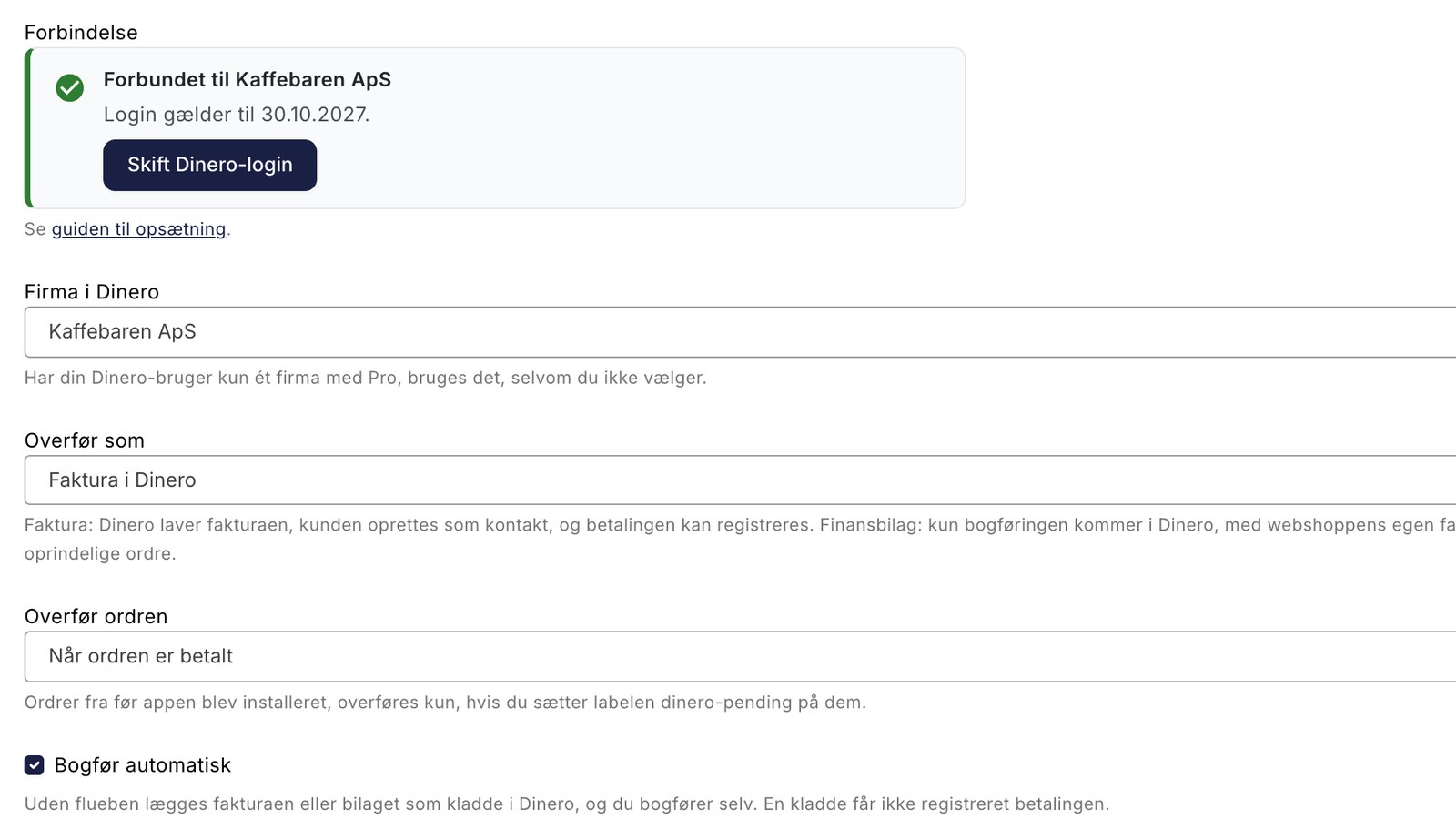
You connect the app by clicking “Connect to Dinero” and logging in with your Dinero username via Visma’s login. There is no key or code to copy. The login is valid for one year from the day you logged in, and the date is listed in the app’s settings. A reminder will appear in the app during the last 30 days. You won’t receive an email about this, so be sure to mark the date on your calendar.
If you have multiple online stores linked to the same Dinero login, click “Connect to Dinero” in each store, and they’ll share the connection. You no longer need to keep track of which store is using which connection.
Cards, MobilePay, and Klarna in separate accounts
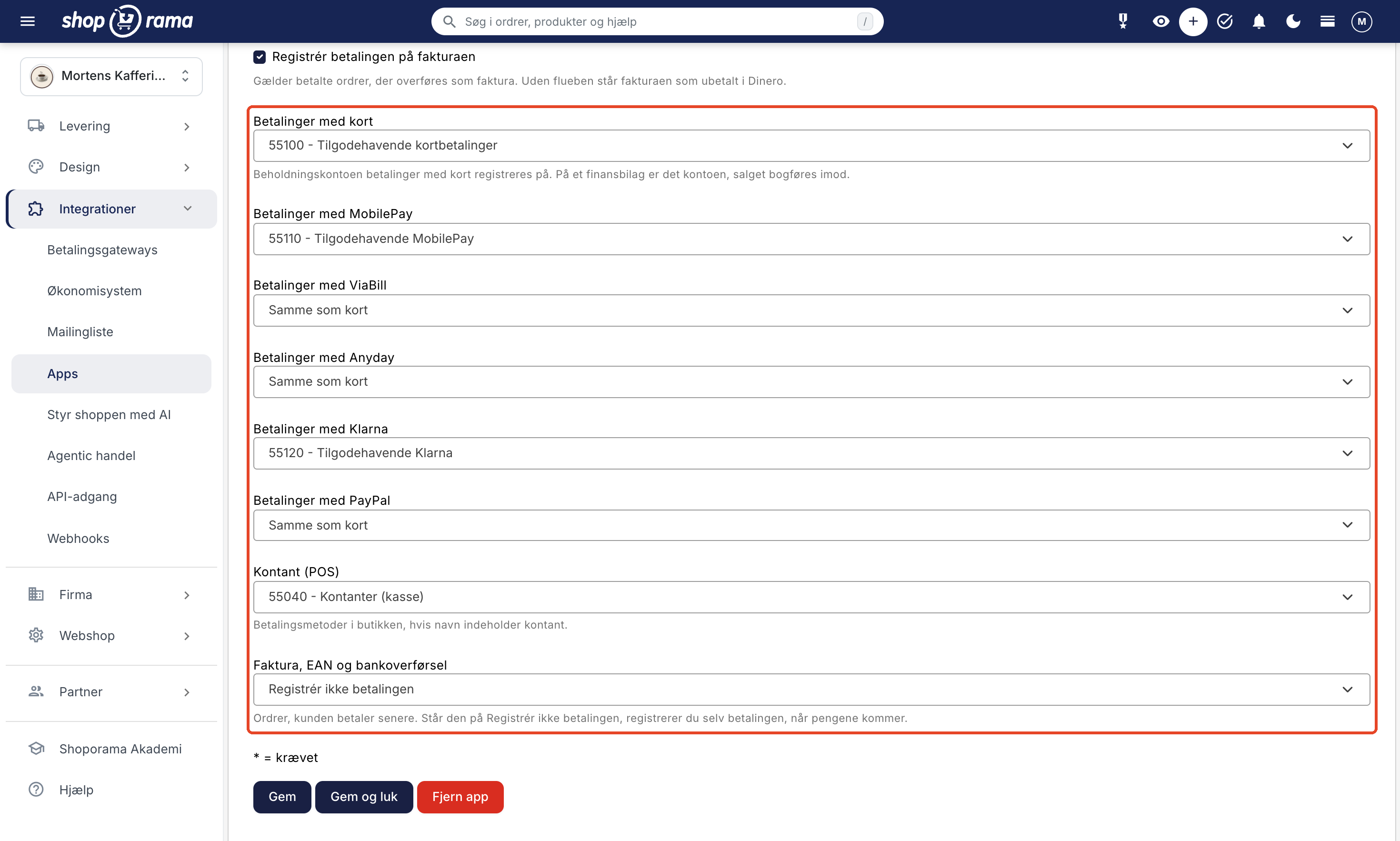
The old integration records all payments in a single account. In the app, each payment method can have its own balance account in Dinero: card, MobilePay, ViaBill, Anyday, Klarna, PayPal, and in-store cash. If a method is set to “Same as card,” it uses the card’s account. Orders paid by invoice, EAN, and bank transfer can remain marked as unpaid in Dinero until the funds are received.
This makes it easier to track the money. Payment providers deduct their fees before the funds reach the bank, so with a suspense account for each provider, you can reconcile each payment separately: the payment is posted to the bank account and the fee is posted as an expense, bringing the interim account to zero. You still perform the reconciliation in Dinero.
You can see what has happened on the order
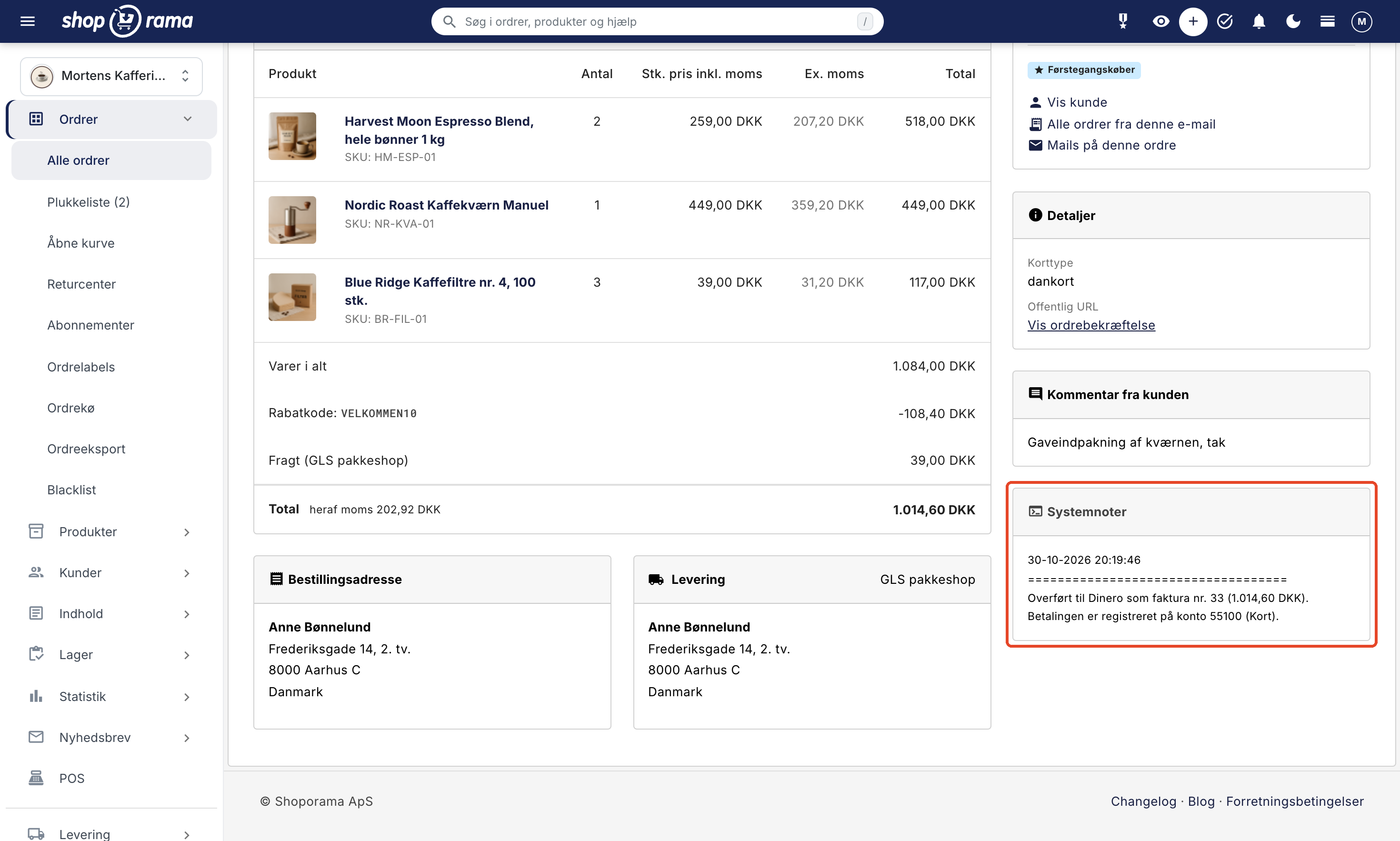
When an order is transferred, it receives the green “dinero-ok” label and a note in Dinero showing the invoice number, the amount, and the account to which the payment was posted. If something goes wrong, the order receives the red “dinero-failed” label and a note explaining why. If you filter the order list by “dinero-failed,” you’ll immediately see which orders are missing in Dinero. The app’s settings also show how many orders failed in the last 7 days.
The app does not retry automatically. Once you’ve corrected the error, apply the “dinero-pending” label to the order, and it will be transferred—typically within a few minutes. The same order is never processed more than once.
Check before posting, and create a draft if you want
Before the app posts an invoice, it compares the amount and sales tax in Dinero with the order. If there’s a discrepancy, the invoice won’t be posted. It remains as a draft in Dinero, and the note on the order explains what’s different. Most often, it’s an account with an incorrect VAT code, so you can correct it before anything is posted incorrectly.
If you want to review the invoices yourself, you can uncheck the “Post Automatically” box. The invoice or attachment will then be saved as a draft in Dinero, and you can post it yourself. Remember that a draft does not record the payment. The old integration always posts immediately.
You select the accounts from your company’s own chart of accounts in Dinero, and the VAT code appears in parentheses after the account name. If a selected account isn’t in your company’s chart of accounts—even if it’s one of the standard accounts—this will be indicated in the app’s settings, so you can choose a different one.
Invoice or financial document with the online store’s invoice
By default, the order becomes an invoice in Dinero. The customer is added via email or created as a contact, and for paid orders, the payment is recorded so the invoice is marked as paid. If you’d rather display the amounts including tax on the invoice lines, there’s a checkbox for that. However, this isn’t used for OSS sales.
If you only need the accounting entries, you can instead transfer the order as a financial document. The app will then attach the online store’s own invoice as a PDF to the document and save it in Dinero’s document archive, so the invoice is included with the accounting entries. Credit entries always follow the original order: an invoice is credited with a credit memo, and a financial document with an offsetting financial document.
Are you currently using the old integration?
The old integration under Integrations → Accounting System will continue to work, but it is no longer being developed, and new stores can no longer select it. We recommend that you switch to the app. Here’s how:
- Go to Integrations → Apps, find Dinero, and click Install.
- Click Connect to Dinero, log in with your Dinero account, and click Authorize with Visma.
- Select your company, sales accounts, and payment accounts, then click Save. The settings from the old integration will not be transferred.
- Go to Integrations → Accounting System, set Vendor to None, and click Save. From now on, the app will transfer new orders.
Three things to keep in mind before you begin:
- You cannot go back. Once “Vendor” is set to “None,” the old integration cannot be selected again. Therefore, first check that the “Connection” field in the app displays your company.
- Orders won’t be transferred twice. While both are enabled, the app won’t transfer anything, and the old integration will continue to transfer orders as before. The app also won’t transfer those orders later. Therefore, make the switch in one go, and then check in Dinero to ensure that the orders from that period are there. If one is missing, apply the “dinero-pending” label to it.
- The app’s default account for sales outside the EU is 1255, which is Dinero’s current account. The old integration uses 1250, which newer companies do not have.
The entire procedure, with screenshots of each step, is outlined in the guide “Set Up Dinero Integration.”
Are you considering Dinero?
Dinero is a Danish accounting program for small businesses. With the app, your online store’s orders are converted into invoices in Dinero, with the customer listed as the contact, the items, shipping, and discounts each on their own line, and the payment recorded. Sales with and without VAT, sales to businesses in the EU, and sales outside the EU can each have their own account, and if you’re registered with OSS, sales to private customers in other EU countries can be posted with that country’s VAT to two separate accounts. Read more at “Webshop with Dinero.”
The app does not do this
- It does not create products in Dinero. The invoice lines consist of text with amounts and account numbers.
- It does not reconcile payments and fees from payment providers.
- It does not assign each item or product group its own account.
- It does not generate legally valid invoices with second-hand VAT. Items subject to second-hand VAT can be recorded in an account without VAT.
- It does not update the invoice if you later correct the order in Shoporama.
- It does not record the refund to the customer on the credit memo.
Get Started
The app is free and can be found under Integrations → Apps. The “Set Up Dinero Integration” wizard walks you through the setup step by step. Under “Dinero Integration,” you can see everything the app does, and under “Webshop with Dinero,” you can read about what Dinero and Shoporama offer you together. If you’re new to Dinero, start with “Dinero in the Glossary.”
If you have any questions about the app or the transition, please email us at support@shoporama.dk.
Related articles
Set up Dinero integration
Here's how to install and connect the free Dinero app, select accounts, VAT, and payment accounts, and have your online store's orders imported as...
Order labels
Guide to order labels in Shoporama. Create color-coded labels to organize and categorize your orders and set up automatic allocation based on...
Credit notes and refunds
Complete guide to credit notes and refunds in Shoporama, including partial refunds, full credit notes and transfer to accounting systems.
More from the blog
New Free App Sends Online Store Orders to Business Central
If you use Microsoft Dynamics 365 Business Central, Shoporama can now transfer orders from your online store as sales invoices or sales orders....
31. oktober 2026
New free Billy app replaces the built-in integration
Shoporama has a new, free app for Billy, now called Shine Accounting. It replaces the built-in Billy integration: customer information is reused,...
31. oktober 2026
Newsletter: Move your list from Klaviyo or Mailchimp and send more targeted emails
Are you thinking about moving your newsletter from Klaviyo or Mailchimp to Shoporama? Now you can import your list without unsubscribers being...
30. oktober 2026