New free Billy app replaces the built-in integration
Shoporama has a new, free app for Billy, now called Shine Accounting. It replaces the built-in Billy integration: customer information is reused, credit memos are linked to the invoice, and errors are listed directly on the order. Here’s the difference, and here’s how to switch.
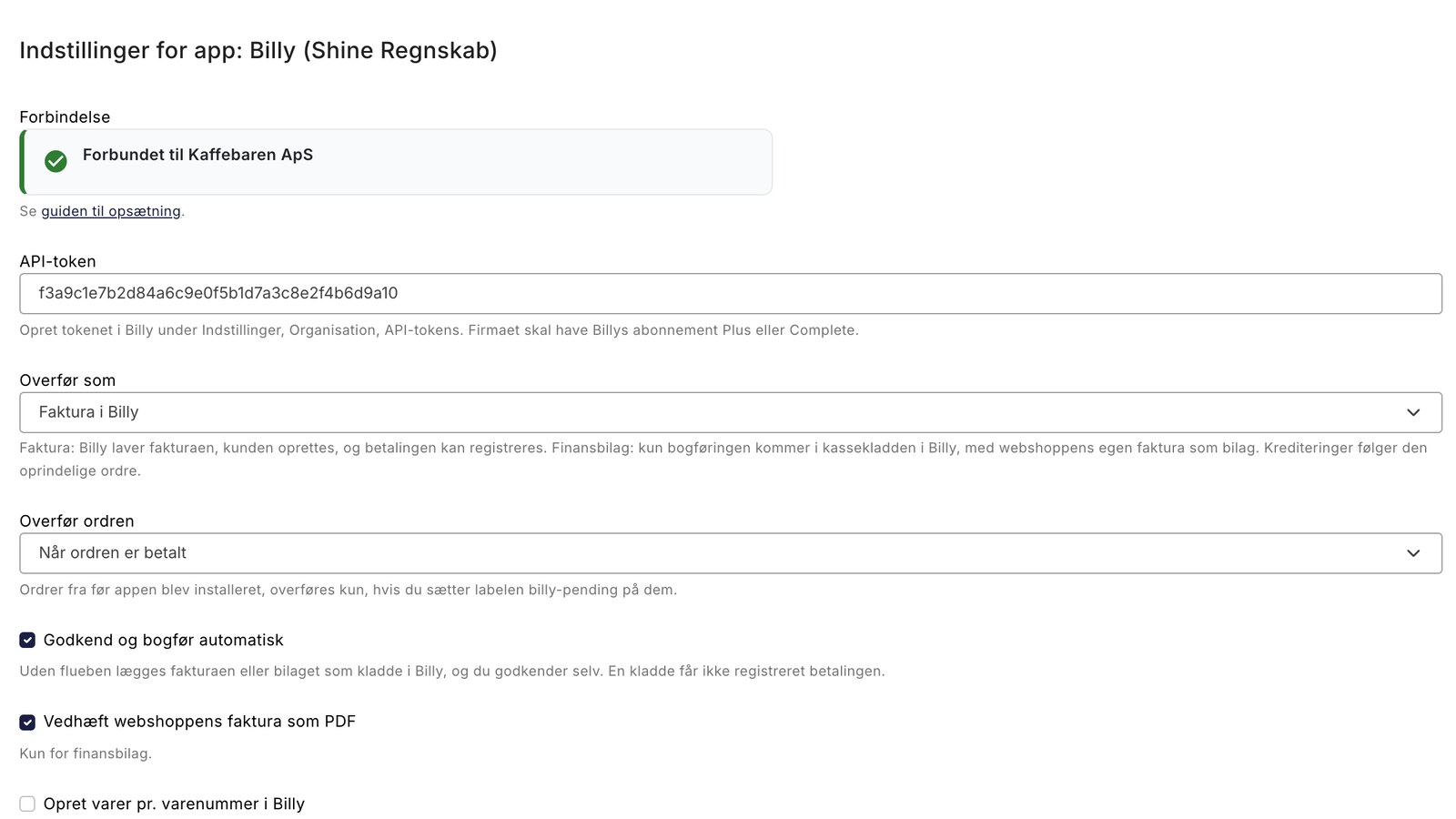
If you use Billy for accounting, there’s something new in Shoporama. Billy is now called Shine Accounting, but the program is the same, and most people still call it Billy. We’ll do the same here.
There’s now a new, free Billy app in Shoporama that replaces the built-in integration. It does the same thing as before: orders and credits from your online store are converted into invoices in Billy. The difference is that customers, products, and credit memos are better linked in Billy, sales tax is applied line by line, and you can see on the order whether it has been transferred. You’ll find the app under Integrations → Apps. Your company must have a Billy Plus or Complete subscription, as Billy only grants access to its API for those two plans.
Then and Now
| The Billy app | The old integration | |
|---|---|---|
| Customers | Recognized by email and reused | One new customer per order |
| Items in Billy | The app automatically creates one item per sales account | One item per item number, and you create items for shipping and discounts yourself |
| Sales Accounts | Separate accounts for sales with and without VAT, for businesses within the EU and outside the EU | One account where new items are created |
| VAT | Set per line: Danish, tax-free, EU sales, or export | Tracks the item in Billy. Mixed rates require tax-exempt items for shipping and discounts |
| Credit notes | Linked to the original invoice | Not always linked to the invoice |
| Payments | One account per payment method | One account for all payments |
| Errors | Appears on the order with a label and a note | Messages in the admin panel |
| Approval | After verifying the amount and tax, or as a draft, you approve it yourself | Approved immediately |
| Financial document | Can be selected instead of an invoice, with the online store’s invoice as a PDF | Invoices only |
The customer is recognized
With the old integration, each order becomes a new customer in Billy. The app recognizes the customer by their email address, so a returning customer appears as a single customer in Billy with all their invoices. Businesses are created using their CVR number (or VAT number if they’re foreign) and EAN number, and the contact person is listed as “Att.” on the invoice.
If you’d rather have all individual customers grouped in one place, you can go to “Customers” in Billy and choose to consolidate them into a single customer. Then all individual orders will appear under the “Webshop Customers” customer, while businesses will still each have their own customer record.
The app creates the products automatically
In Billy, the account is linked to the product. Therefore, with the old integration, you had to manually create products for shipping and discounts in Billy and select them during setup. The app now handles this automatically. It creates one item per sales account in Billy and includes the item name and item number on the invoice line so you can still see what the customer purchased. Shipping is listed with the shipping method’s name, and discounts are listed as “Discount with discount code,” “Promotional discount,” or “Points discount.” Deposits are also included.
If you want to track sales by item in Billy, you can check the box for “Create items by item number in Billy.” This will create each item in Billy with its own item number, and items that the old integration has already created will be reused. Revenue is then posted to the item’s account, even for international sales, but the sales tax is still calculated correctly.
The credit memo is linked to the invoice
If you issue a credit for an order in Shoporama—whether directly on the order, through the returns center, or as part of an exchange—it will be recorded as a credit memo in Billy. The credit memo is linked to the original invoice and is assigned to the same customer, so you can see in Billy what has been credited to which invoice. This also applies to invoices created by the old integration. The app identifies them by the invoice number.
If the app has recorded the payment on the invoice, it also records the refund on the credit memo for the same account. In the case of an exchange, the credit memo and the new order are transferred separately.
Correct VAT, even when selling abroad
The app applies VAT line by line. Sales in Denmark are subject to Danish VAT; tax-exempt items are subject to Billy’s tax-exempt rate; sales to businesses in other EU countries with a valid VAT number are classified as EU sales (Section B); and sales outside the EU are subject to the export rate. If an order contains items with different rates, each line item receives its own rate, and discounts are allocated based on the value of the items per rate. You no longer need to create special tax-exempt items for shipping and discounts.
For sales, select accounts from your company’s chart of accounts in Billy: sales with VAT, sales without VAT, sales to businesses in the EU, and sales outside the EU. Shipping can be assigned its own account or linked to the sale. The default options are accounts from Billy’s standard chart of accounts; if a selected account isn’t available in your company, this will be noted in the app’s settings so you can choose a different one.
If you sell in multiple countries, each with its own currency, an order in euros becomes an invoice in euros using the exchange rate at the time of purchase, and the payment is recorded in Danish kroner using the same exchange rate.
One account per payment method
The old integration records all payments in a single account. In the app, each payment method can have its own account in Billy: card, MobilePay, ViaBill, Anyday, Klarna, PayPal, and in-store cash. If a method is set to “Same as card,” it uses the card’s account. Orders paid by invoice, EAN, and bank transfer are not recorded by default, so the invoice appears as unpaid in Billy until the customer has paid.
Payment providers deduct their fees before the funds reach your bank account, so having one account per provider makes it easier to reconcile each payment. You perform the reconciliation itself in Billy. If you keep the cart open until the order is paid, that’s the cart number the payment provider receives, and if you check the “Cart Number in Invoice Number ” box, it will appear after the invoice number.
You can see what has happened on the order
When an order is transferred, it receives the green “billy-ok” label and a note under “System Notes” with the invoice number in Billy, the amount, and the account to which the payment was posted. If something goes wrong, the order receives the red “billy-failed” label and a note explaining why. If you filter the order list by “billy-failed,” you’ll immediately see which orders are missing in Billy, and the app’s settings show how many orders failed in the last 7 days.
The app does not retry automatically. Once you’ve corrected the error, apply the “billy-pending” label to the order, and it will be transferred. Do the same for orders from before you installed the app. An order that has been transferred will not be resubmitted if its status changes.
Before an invoice is approved, the app compares the amount and sales tax in Billy with the order. If they match, the invoice is approved and posted. If they don’t match, the invoice remains as a draft in Billy, and a note on the order explains the discrepancy. If you want to review all invoices yourself, uncheck the box next to “Approve and Post Automatically.” Remember that a draft invoice does not record the payment.
Invoice or Financial Document
By default, the order becomes an invoice in Billy with the online store’s order number as the invoice number. If you also create invoices directly in Billy, you can add a prefix, such as “WEB-,” to prevent number conflicts. The customer’s comment from checkout and the payment method appear at the top of the invoice.
If you only need the accounting entry, you can instead transfer the order as a financial document. The sale is then posted to the cash book in Billy, and the online store’s own invoice is attached as a PDF. Credit memos always follow the original order.
Connect the app with an API token
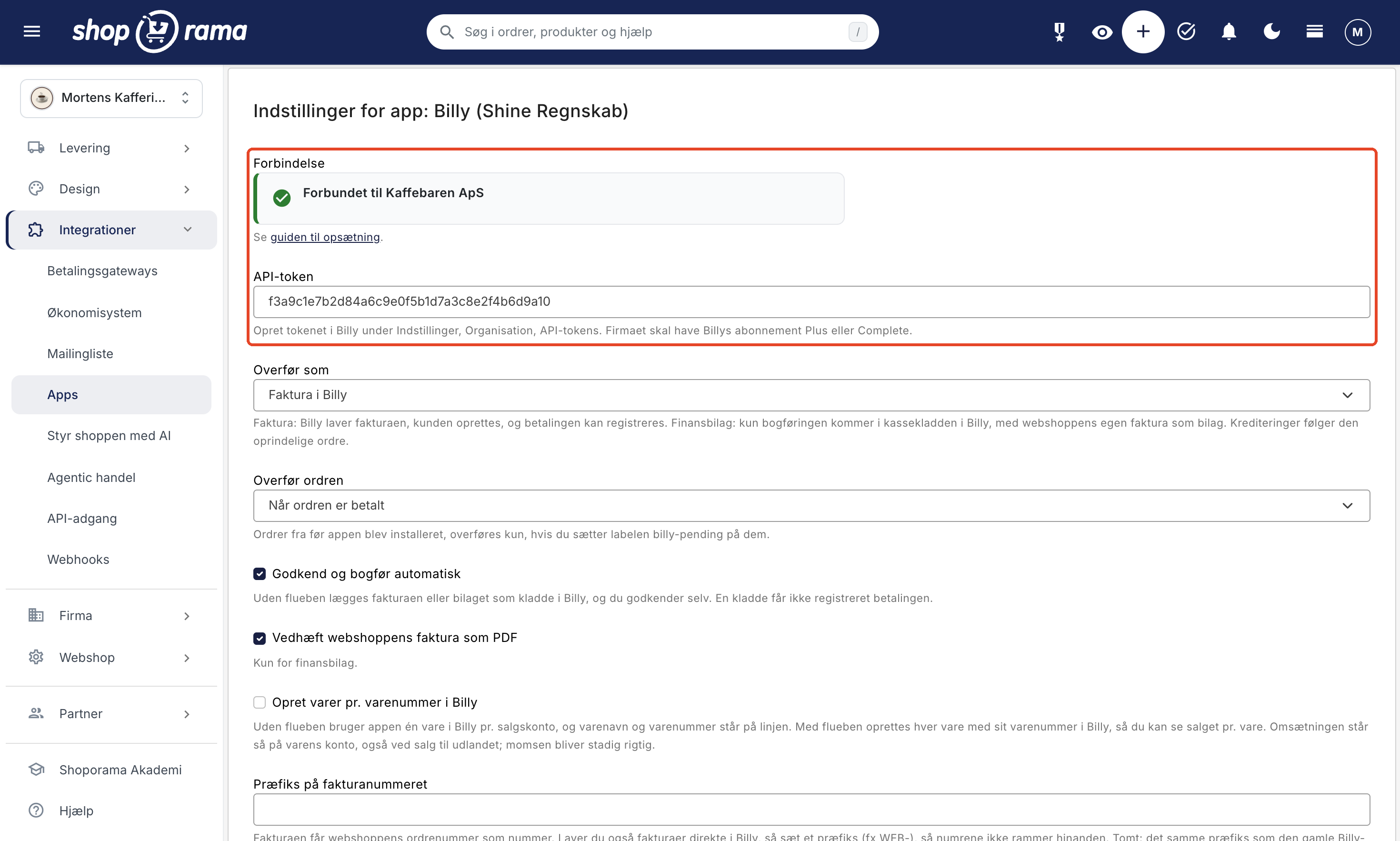
The app uses an API token from Billy. You do not need to log in with your Billy account, and the token does not expire. In Billy, go to Settings and find API tokens (access keys) under Organization. Create a new token, name it Shoporama, and copy it. In Shoporama, paste it into the API Token field in the app and click Save. The app will then retrieve the account lists from the company’s chart of accounts in Billy.
Are you currently using the old Billy integration?
The old integration under Integrations → Accounting System will continue to work for stores that use it, but it is no longer being developed, and new stores cannot select it. We recommend that you switch to the app. Here’s how:
- Go to Integrations → Apps, find Billy (Shine Accounting), and click Install.
- Enter an API token from Billy in the API Token field. This can be the same key used by the old integration or a new token.
- Select accounts for sales and payments, then click Save. The settings from the old integration will not be transferred.
- Go to Integrations → Accounting System, set Vendor to None, and click Save. From now on, the app will transfer new orders.
Good to know before you get started:
- Orders won’t be transferred twice. While both are enabled, the app won’t transfer anything, nor will it transfer those orders later. Therefore, make the switch all at once, and then check in Billy to make sure the orders from that period are there. If one is missing, apply the “billy-pending” label to it.
- Invoice numbers will continue as before. If the “Invoice Number Prefix” field is left blank, the app will use the same prefix as the old integration. If an invoice with the same number and amount already exists in Billy, the app will not create it again. This also applies if the old integration placed the basket number after the invoice number. If you want the basket number included on the new invoices, check the “Basket number in invoice number” box.
- If you later issue a credit memo for an order that the old integration transferred, the credit memo will be linked to the old invoice.
- You cannot go back. When “Supplier” is set to “None,” the old integration cannot be selected again. Therefore, first check that the “Connection” field in the app shows your company.
The entire procedure is described in the Billy app guide.
Free in Shoporama
The app is free in Shoporama. Your company just needs a Billy Plus or Complete subscription, which provides access to the Billy API. By comparison, connecting Billy to Shopify and WooCommerce requires third-party apps, and according to Billy’s own app overview, these cost from approximately 100 DKK per month and up, depending on the provider and the number of orders.
What the app doesn’t do
- It doesn’t keep inventory and products in Billy up to date. It sends orders and credits, and Billy doesn’t send anything back to Shoporama.
- It cannot post OSS VAT on an invoice because Billy does not have OSS rates. If you’re registered for OSS, check the “Registered for OSS (VAT in the buyer’s EU country)” box. Then, orders with VAT for private customers in other EU countries are created as drafts with Danish VAT and a note, and you correct the VAT in Billy and approve the invoice there. If the box is not checked, 25% will be posted as Danish VAT, and an order with a different rate will be created as a draft.
- It cannot include the order number on the actual bank payment because Billy’s payments do not have a text field. Use the invoice number, optionally followed by the cart number, when reconciling.
- It does not automatically transfer orders from before you installed the app, nor does it transfer canceled orders. You can send previous orders with the label “billy-pending.”
Get Started
The app is free and can be found under Integrations → Apps. The Billy app guide walks you through the setup step by step, and on the Billy integration page, you can see everything the app does. A brief overview of what a Billy-powered online store offers is available in “Online Store with Billy.” If you use a different accounting program, check out the accounting programs you can use with Shoporama.
If you have any questions about the app or the transition, please email us at support@shoporama.dk.
Related articles
Billy Integration: Transfer Orders to Billy (Shine Accounting)
Here's how to install the free Billy app, connect it to an API token from Billy (Shine Accounting), select sales and payment accounts, and have...
Credit notes and refunds
Complete guide to credit notes and refunds in Shoporama, including partial refunds, full credit notes and transfer to accounting systems.
Order labels
Guide to order labels in Shoporama. Create color-coded labels to organize and categorize your orders and set up automatic allocation based on...
Sell in multiple countries and in multiple languages
Here's how to sell in other countries in your customers' languages and currencies using "Countries": Add a country, set up the address, language,...
More from the blog
New Free App Sends Online Store Orders to Business Central
If you use Microsoft Dynamics 365 Business Central, Shoporama can now transfer orders from your online store as sales invoices or sales orders....
31. oktober 2026
New free Dinero app replaces the old integration
Shoporama has a new, free Dinero app that replaces the built-in Dinero integration. Your login is valid for one year at a time, errors appear...
30. oktober 2026
Newsletter: Move your list from Klaviyo or Mailchimp and send more targeted emails
Are you thinking about moving your newsletter from Klaviyo or Mailchimp to Shoporama? Now you can import your list without unsubscribers being...
30. oktober 2026