New Free App Sends Online Store Orders to Business Central
If you use Microsoft Dynamics 365 Business Central, Shoporama can now transfer orders from your online store as sales invoices or sales orders. Customer information, sales tax, discounts, and shipping are all included, and on sales invoices, the payment is recorded and the online store’s invoice is attached as a PDF. The app is free.
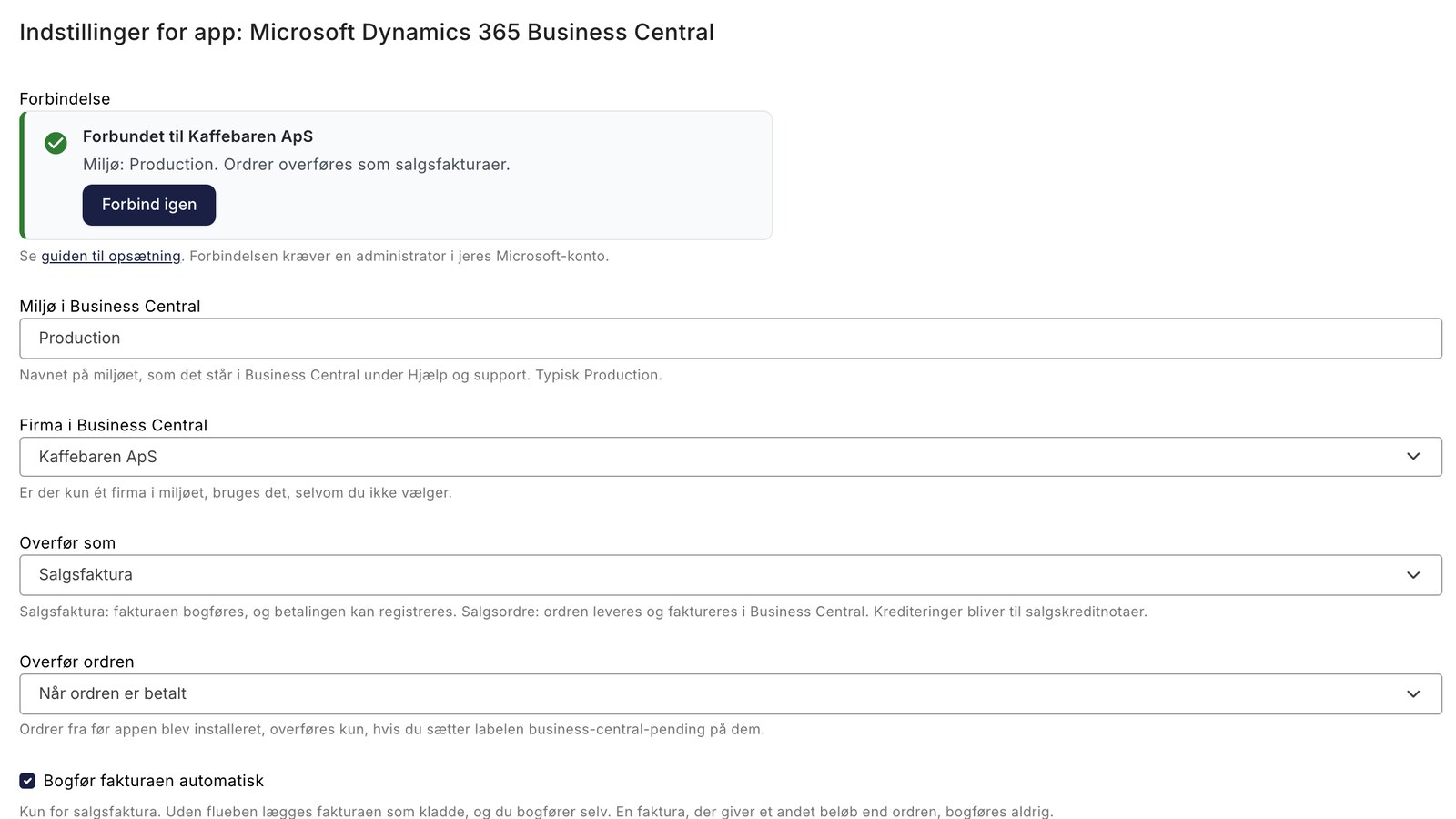
Imagine a small coffee wholesaler. It sells beans and filters through its online store to individual customers and delivers to a handful of cafés that purchase on account. Accounting, inventory, and purchasing are all managed in Business Central. Every morning, yesterday’s online store orders are entered as sales invoices: the customer, the items, the shipping, and the discount code. Afterward, the payments must be tracked down and reconciled. This takes time, and occasionally an amount or a tax code is entered incorrectly.
Shoporama can now take over that work. With the new, free app for Microsoft Dynamics 365 Business Central, online store orders are automatically converted into sales invoices or sales orders in Business Central. You’ll find the app under Integrations → Apps, and it works with Business Central Online.
The order becomes a posted sales invoice
Once the customer has paid, Shoporama sends the order to Business Central. You can also choose to have this happen once the order is shipped or as soon as it’s created. By default, the order becomes a sales invoice that is posted immediately.
The invoice includes one line item per product with the product name and product number, shipping with the shipping method name, and discount codes, promotional discounts, and point-based discounts, each on its own line. Deposits and gift cards are also included. The online store’s order number appears in the “External Document No.” field, and the online store’s own invoice is attached as a PDF so that the accountant can always locate the order associated with the invoice.
The payment is posted and reconciled
For a paid order, the app records the payment and reconciles it with the invoice, so the invoice appears as paid in Business Central. The app uses its own payment journals—one per payment method—so it doesn’t interfere with your own journals. Credit cards, MobilePay, ViaBill, Anyday, Klarna, PayPal, and in-store cash payments can each have their own contra account, such as a suspense account per payment provider. This makes it easier to reconcile payments once the acquirer has deducted its fees.
Cafés pay by invoice, and orders paid by invoice—with an EAN number—or by bank transfer are not recorded by default. The invoice remains open until the customer pays, just like your other accounts receivable invoices. With the default setting, an invoice order is only transferred once it is marked as paid in Shoporama; for the cafés, however, you should select to have the order transferred once it has been shipped.
The amount is verified before posting
Business Central calculates the sales tax automatically based on your sales tax setup. Before the invoice is posted, the app compares the amount and sales tax in Business Central with the order. If they match, the invoice is posted. If they differ, the invoice remains as a draft, and the order is marked with a red label showing both amounts in the note. This way, you’ll spot an incorrect setup right away, rather than waiting until VAT reconciliation.
Sales Order, if Inventory Is Managed in Business Central
If you manage inventory and shipping in Business Central, the order can instead be transferred as a sales order, which you fulfill and invoice there as usual. The app does not post the sales order or record any payment for it. If you also choose to have the order transferred once it’s created, the sales order will be ready as soon as the customer places the order.
Customers and VAT
The app searches for the customer in the customer’s email and creates a new one if it doesn’t exist, with name, address, phone number, email, and VAT region. For businesses, the CVR number is included, and if the app has encountered the company before, it will also recognize it by its CVR number. If you’d rather group private customers under a single customer account—for example, online store customers—you can choose that option, while businesses will still have their own separate accounts. New customer accounts inherit their accounting groups from a customer template that you create once in Business Central.
Each line item is assigned a VAT group, and each new customer is assigned a VAT region: Denmark, businesses in other EU countries with a VAT number, or outside the EU. Sales can have their own account per region, and shipping can have its own account. Orders with VAT from another EU country (OSS) are created as drafts with an explanation when the rate is not 25%, because Business Central requires VAT accounting groups per country, which the app does not recognize. The app cannot distinguish an OSS sale with 25% VAT—for example, to Sweden—from Danish VAT, so you’ll need to correct this yourself in Business Central.
Products and Inventory
If you have the products in Business Central, you can check the box for “Use products in Business Central.” This will post a line item for the product when the product number in the online store is found in Business Central, and the inventory there will be updated to reflect the sale. Variants can be matched by item number and variant code, e.g., SP-SCM1006-HVID. Line items with unknown item numbers are posted to the sales account, and the note on the order specifies which ones. The app never creates items and does not retrieve inventory or prices back to the online store.
Credits are included
If you issue a credit memo for an order in Shoporama—either directly on the order, in the returns center, or for an exchange—it becomes a sales credit memo in Business Central for the same customer. If the invoice hasn’t been paid yet, the credit memo is offset against it. You record the refund to the customer yourself in Business Central. In the case of an exchange, a credit memo is created for the original order and a new invoice is generated for the exchange order. Read more in Credit Memos and Refunds.
You can see what has happened on the order
When an order is transferred, it receives the green “business-central-ok” label and a note under System Notes containing the invoice number in Business Central, the amount, and the contra account for the payment. If something goes wrong, the order receives the red “business-central-failed” label and a note explaining why, such as a missing account or that Business Central rejected the posting. The app’s settings show how many orders have failed in the last 7 days.
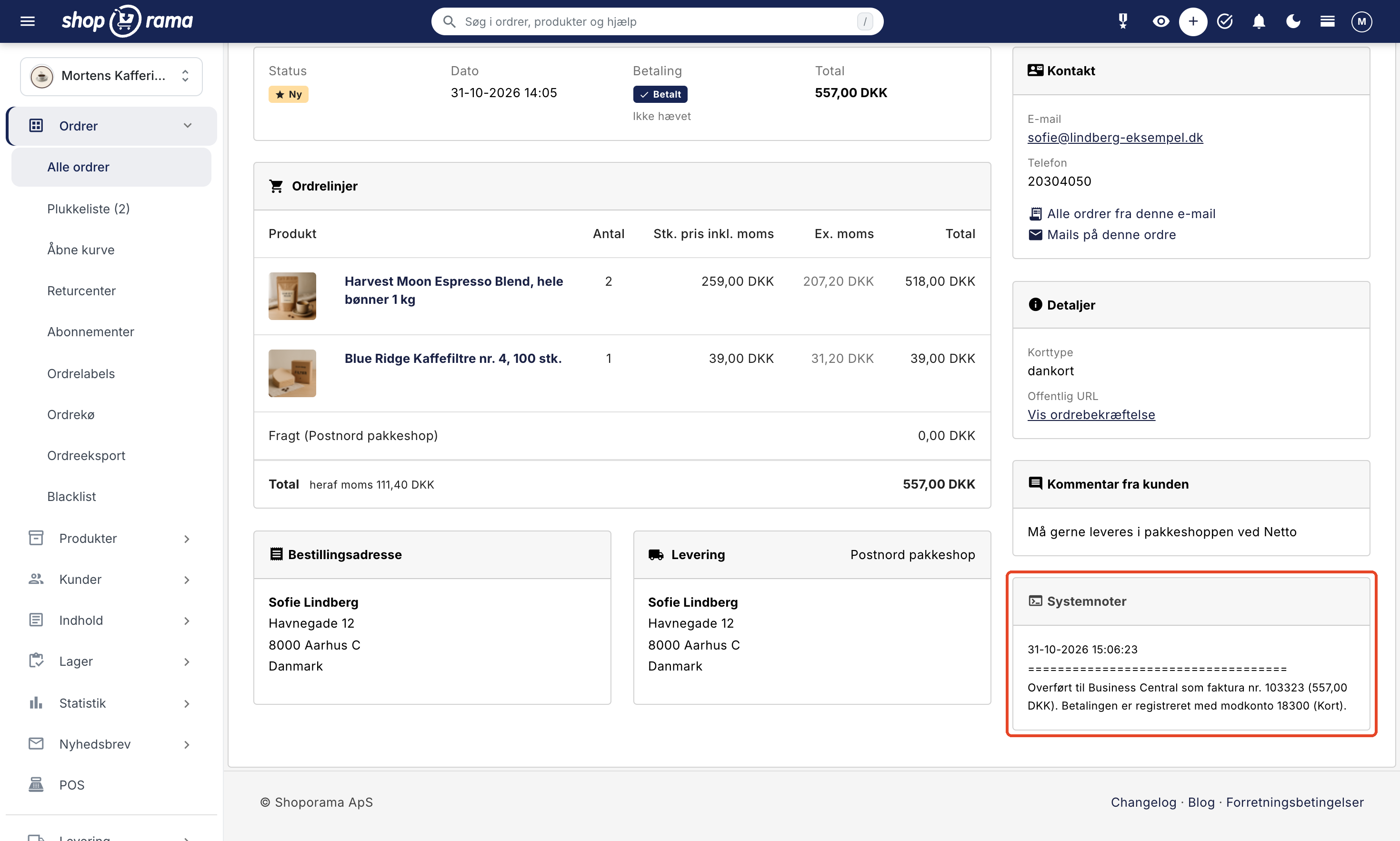
The app does not retry the transfer on its own. Once you’ve corrected the error, apply the “business-central-pending” label to the order, and it will then be transferred. Do the same for orders from before you installed the app. An order that has been transferred is never sent again. Learn more about order labels.
How much does it cost?
The app is free in Shoporama. You obtain your Business Central licenses from Microsoft or your reseller, as usual. The app logs into Business Central as a program and does not use one of your user licenses.
The app does not do the following
- It works only with Business Central Online, not with Business Central on-premises, Dynamics NAV, or Navision. If you use Navision, read about the Navision web store.
- It does not create products in Business Central and does not retrieve products, inventory, or prices for Shoporama.
- It does not record refunds and does not create return orders.
- It does not post OSS sales with VAT rates from other EU countries. These are stored as drafts.
- It does not record payments on invoices in foreign currencies.
- It does not include the EAN number. EAN customers must have it listed as the GLN number on the customer record in Business Central.
Getting Started
Install the app under Integrations → Apps and click Connect to Business Central. An administrator in your Microsoft account grants consent, and then you create the app under Microsoft Entra apps in Business Central with the D365 BUS FULL ACCESS permission set. Finally, select the company, accounts, tax groups, and contra accounts in the app. Your Business Central partner can also assist with the setup within Business Central.
The full guide is available in Set Up Business Central Integration. You’ll find a brief overview of the app under Business Central Integration, and you can read about what a web store with Business Central offers you at Web Store with Business Central. If you sell to resellers, see “B2B Web Store with Business Central,” and if you’d like to learn more about the system, look up “Business Central” in the glossary. If you have any questions, please email support@shoporama.dk.
Related articles
B2B sales in Shoporama
How to sell to businesses (B2B) and public institutions (B2G) in Shoporama with CVR, EAN and differentiated VAT.
Credit notes and refunds
Complete guide to credit notes and refunds in Shoporama, including partial refunds, full credit notes and transfer to accounting systems.
Business Central Integration: Transfer Orders to Microsoft Dynamics 365 Business Central
Here's how to install the free Business Central app, link it to your Microsoft account, set it up under Microsoft Entra apps, and have orders from...
Order labels
Guide to order labels in Shoporama. Create color-coded labels to organize and categorize your orders and set up automatic allocation based on...
Reverse charge og VIES-validering: sælg uden moms til erhverv i EU
More from the blog
New free Billy app replaces the built-in integration
Shoporama has a new, free app for Billy, now called Shine Accounting. It replaces the built-in Billy integration: customer information is reused,...
31. oktober 2026
New free Dinero app replaces the old integration
Shoporama has a new, free Dinero app that replaces the built-in Dinero integration. Your login is valid for one year at a time, errors appear...
30. oktober 2026
Newsletter: Move your list from Klaviyo or Mailchimp and send more targeted emails
Are you thinking about moving your newsletter from Klaviyo or Mailchimp to Shoporama? Now you can import your list without unsubscribers being...
30. oktober 2026