AI Audit Log: See What the AI Has Been Up To in Your Store
The audit log shows every action an AI assistant has performed in your online store. See what’s logged, how to filter the log, and how to use it when something goes wrong.
When you let an AI assistant manage your online store, one question immediately comes to mind: What has it actually been doing? The audit log answers that. It records every single action an AI assistant performs in your store: when it happened, which feature was used, what information was sent, whether it went well, and how long it took.
The log is maintained automatically. You don’t need to turn anything on, and you can’t turn it off. As soon as you connect Claude or another AI assistant to your store, the entries start rolling in. If you haven’t gotten started yet, begin with “Manage Your Store with AI.”
The value is straightforward: the log turns the AI into something you can keep an eye on, rather than something you have to trust blindly. If a price changes and you can’t remember why, it takes less than a minute to check whether it was the AI.
How to find the audit log
- Go to Store in the menu, select Integrations, and click on Manage Your Store with AI.
- At the bottom of the page, you’ll see how many calls have been logged. Click the “View audit log” link next to it.
- The page is called MCP Audit Log. The “Back to Overview” link at the top takes you back.
MCP stands for Model Context Protocol, the open standard the AI assistant uses when communicating with your shop. An “MCP client” is simply the program you’re chatting in—for example, Claude.
The four numbers at the top of the page
- Total. The number of actions logged in the shop.
- Successful. How many went through without any problems.
- Failed. How many were rejected or went wrong.
- Last activity. How long ago the AI last interacted with the shop, shown as “3 days ago.” Hover your mouse over the text to see the exact time.
The number under “Failed” is what you should keep an eye on. A few errors are normal—for example, if the AI tries something you’ve disabled. If the number suddenly increases, check the log.
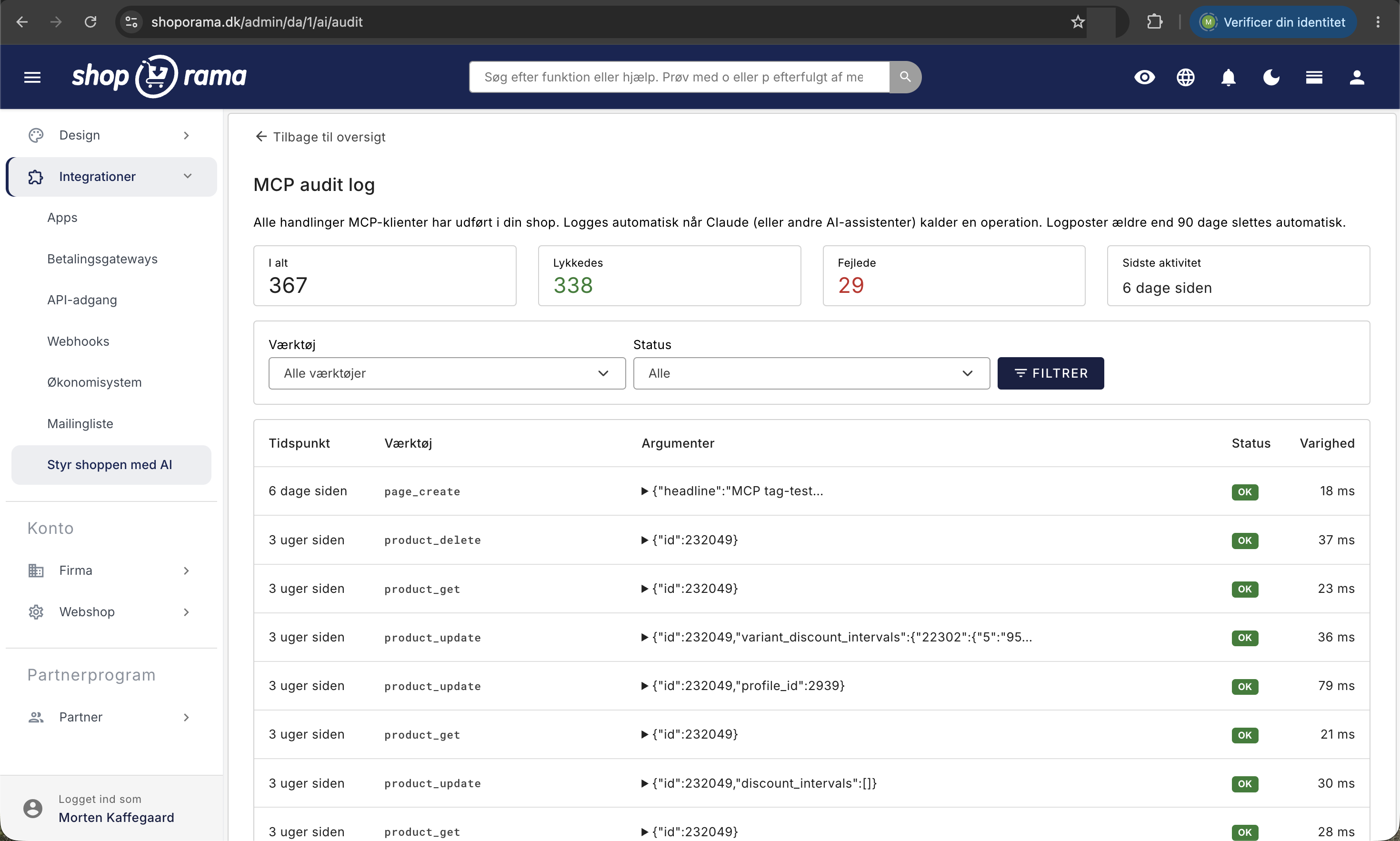
What the log shows for each call
The list has five columns, with the most recent actions at the top:
- Time. Displayed as “6 days ago.” Hover over the date and time.
- Tool. The name of the function the AI used, for example, product_update or order_create. The names are in English and structured as “domain + action,” so voucher_create translates to “create discount code.”
- Arguments. The information the AI sent along with the call. You’ll see a brief preview and can click to expand the full details.
- Status. A green OK or a red Error.
- Duration. How many milliseconds the store took to complete the action. This number is most interesting when something suddenly takes significantly longer than usual.
If you click on the text in “Arguments,” the entire content expands, and you can read exactly what the AI asked the store to do. If it wrote a blog post, the full text is there. If it adjusted a price, the amount is listed there. If the request failed, the error message appears in a red box right below when you expand the section. The list shows 50 log entries at a time, so the filters are the quickest way to navigate if you have many entries.
What Is Logged and What Isn’t
An entry is written every time:
- An AI assistant retrieves information, such as an order list or sales statistics.
- An AI assistant makes a change, such as creating a product, adjusting a price, or updating an order.
- An attempt is rejected. Blocked calls are also logged, along with the reason, so you can see that the AI tried and why it wasn’t allowed to proceed.
However, the following are not included:
- Your own clicks in the admin panel. The log pertains exclusively to the AI assistant.
- Standard API integrations such as shipping or accounting systems. These have their own log per key under Store, Integrations, API Access. See REST API.
- The conversation itself. The log records the actions, not what you and the AI wrote to each other.
- The AI assistant in the text editor. It suggests text for you and does not make changes to the store on its own.
How to filter the log
- Tools. A drop-down list with All Tools at the top. It shows only the features that have actually been used in your store, so you don’t have to search through hundreds of names you’ve never used.
- Status. Choose between All, Successful, and Failed.
- Filter applies your selection. Reset only appears once you have a filter active and clears both fields.
The filters work together. If you only want to see product updates that failed, select “product_update” under “Tools” and “Failed” under “Status.” If there are no matches, the page will indicate this and offer a link to reset the filters.
Use the log when something goes wrong
- Open the log and look at “Last Activity.” If the time doesn’t match when the problem occurred, the AI likely has nothing to do with it.
- Set Status to Failed and click Filter.
- If you’re familiar with the area, select a tool as well—for example, ` product_update ` for an incorrect price or `order_update ` for an order.
- Expand “Arguments.” Now you can read exactly what was sent, and the error message is in the red box below.
- Correct the issue in the general administration. The log is just that—a log—not an undo button.
The error messages you’ll encounter most often
The error messages are in English because they’re also sent back to the AI assistant. Three of them come up repeatedly:
- A domain is disabled (“Tool domain … is disabled”). You disabled that group of tools yourself under “Customize Tools.” See “Customize which tools Claude is allowed to use in your shop.”
- Insufficient permissions (“Insufficient scope”). The access level of the connection doesn’t match the tool, typically because the connection only has read access, while the AI was trying to make changes. The opposite can also happen, as write access does not automatically grant read access. Reconnect and select Full Access.
- Theme files (“Theme-file access disabled on token”). Access to the theme’s files is not enabled for this connection. This is an extra security measure, since theme files control how the store looks.
All three show 0 ms under Duration. This is not a display error. The call was stopped before the store had a chance to do anything. Other error messages come from the store itself, for example, if a required field was missing.
The log is just as useful for the opposite question: “What exactly did the AI write?” Filter by `blog_create` or `page_create`, expand the arguments, and the entire text will be there—even if you’ve since edited it.
Sensitive information is not stored in plain text
Before a log entry is saved, Shoporama scans the arguments and hides anything that looks like a secret. Fields whose names contain words such as password, token, secret, API key, card number, credit card, CVV, or social security number have their values replaced with [REDACTED]. This also applies to fields deep within a larger structure. The actual access key for the connection is never stored—only a hash that cannot be reversed.
At the same time, be aware of the obvious: if you ask the AI to create a phone order, the customer’s name and address will appear in the arguments, just as they do on the order. The log can only be viewed by those logged into the store’s administration, and the entries are automatically deleted after 90 days.
The log is stored for 90 days
Log entries older than 90 days are automatically deleted. The cleanup runs automatically every night, and this is also noted in the text at the top of the page. If you need to use a specific event as documentation for longer than that, take a screenshot or copy the expanded log entry into a document while it’s still there. There is no export button on the page.
For those with a technical background
- The log covers only calls to MCP tools. The arguments are stored as the JSON sent by the client, with sensitive keys masked first, and very long arguments truncated.
- Names containing _list or _get, as well as webshop_info and anything starting with stats_, count as read access. A few pure lookup tools are also marked as read access. The rest count as write access.
- A connection can have the access level Read, Write, or Full Access. Write access does not automatically grant read access; if the AI needs to both retrieve and modify data, the connection must have Full Access. See OAuth: Grant apps access to your online store.
- The duration measures only the shop’s own execution time, not the AI’s processing time or network time. Calls that are stopped by a pre-check—i.e., blocked by domain, incorrect access level, or lack of theme file access—are logged as 0 ms.
- The log is only available in the administration panel. There is no API endpoint to retrieve it programmatically.
Frequently Asked Questions
I don’t understand the term “tool.” What am I looking at?
A tool is a specific action the AI can perform in your store, just like a button in the admin panel. If you ask the AI to adjust a price, it uses the `product_update` tool, and that name appears in the log. The names are in English but follow the pattern “area plus action.”
How do I know if it was the AI or a colleague who made a change?
Check the timestamp. If there’s a log entry during the time the change occurred, and the tool matches the change, it was the AI. If there are no entries around that time, the change was made manually, since the log only covers the AI connection.
Can I use the audit log as documentation for my auditor?
It can be used as supporting evidence, but it is not an accounting document. It shows what the AI did and when. The entries are deleted after 90 days, so if an event needs to be documented for a longer period, you must copy the expanded log entry into a document.
I have five stores. Is the log shared across all of them?
No. Each online store has its own log, and you’ll only see entries from the store you’re currently in. If you need to check another store, switch to that store in the admin panel and open the log there.
There’s an error on a call that I disabled myself. Is that a problem?
No. This happens when the AI is in the middle of a conversation and tries to use a tool that you’ve disabled along the way. The store rejects the call, records the reason in the log, and the AI is notified. Nothing in the store is changed.
The AI made a mistake. Can I undo it from the log?
No, the log cannot undo anything. However, you can expand the arguments to see exactly what was sent, and then manually correct it in the right place in the admin panel. This is usually faster than guessing.
There’s nothing at all in the log. Is something wrong?
Probably not. If no AI call has ever been run in the store, the page will display “No activity yet” and link to the setup. If, on the other hand, it says that no log entries match your filters, you have a filter enabled—in that case, just click Reset.
Can I see calls from my shipping integration in the same log?
No. The audit log covers the AI connection. Integrations that use a standard API key have their own log, which you’ll find by key under Store, Integrations, API Access.
What should I do if I see actions I didn’t request myself?
Disconnect the integration. Disable the Shoporama integration in the AI client you’re using, and revoke access under Store, Integrations, API Access. Then email support@shoporama.dk with the time stamp, and we’ll look into it with you.
If you have any questions about the audit log or the AI integration in general, feel free to email support@shoporama.dk.
Related articles
Manage Your Store with AI: Get Started with Claude and MCP
Connect your Shoporama store to an AI assistant via MCP, and ask it to create orders, discount codes, and storefronts. Learn about the setup,...
REST API
Complete guide to Shoporama's REST API: authentication, all endpoints, examples and Swagger documentation.
Customize which tools Claude can use in your shop
OAuth - give apps access to your webshop
Learn how OAuth works in Shoporama. Give third-party apps secure access to your online store without sharing your password.
Menus and navigation
Learn how to create and edit menus in your online store. The article covers menu item types, hierarchy, locations and drag-and-drop sorting.
Copy a product using Claude or the REST API
Here's how to duplicate a product in Shoporama using Claude or the REST API. The copy is always saved as a draft, and you can override the name,...
Create newsletters with AI
Categories in your webshop
Learn how to create and manage categories in your Shoporama online store. Guide to hierarchical structure, SEO settings, importing via CSV, sorting...
Find or create an API key
Guide to finding your API key in Shoporama, which is used for integrations with e.g. Shipmondo.