Customer groups and segmentation
How to create customer groups and segments in Shoporama for targeted marketing and newsletters.
In Shoporama, you can create customer groups and segment your customers based on behavior, purchases, and other criteria. This is useful for targeted marketing, newsletters, and personalized communication.
Profile Fields (Customer Fields)
Under Customers → Profile Fields, you can create custom fields that customers fill out when creating a profile or during checkout. These fields can be used to categorize your customers.
Each profile field has the following properties:
- Name — The field name displayed to the customer
- Type — Text field or dropdown/list with predefined options
- Required — Whether the field must be filled out to create a profile
- Visibility — Whether the field should be displayed at checkout, on the profile, or both
Example: You can create a “Industry” dropdown field with the options “Individual,” “Business,” and “Organization,” allowing you to segment your customers by type.
Newsletter Segments
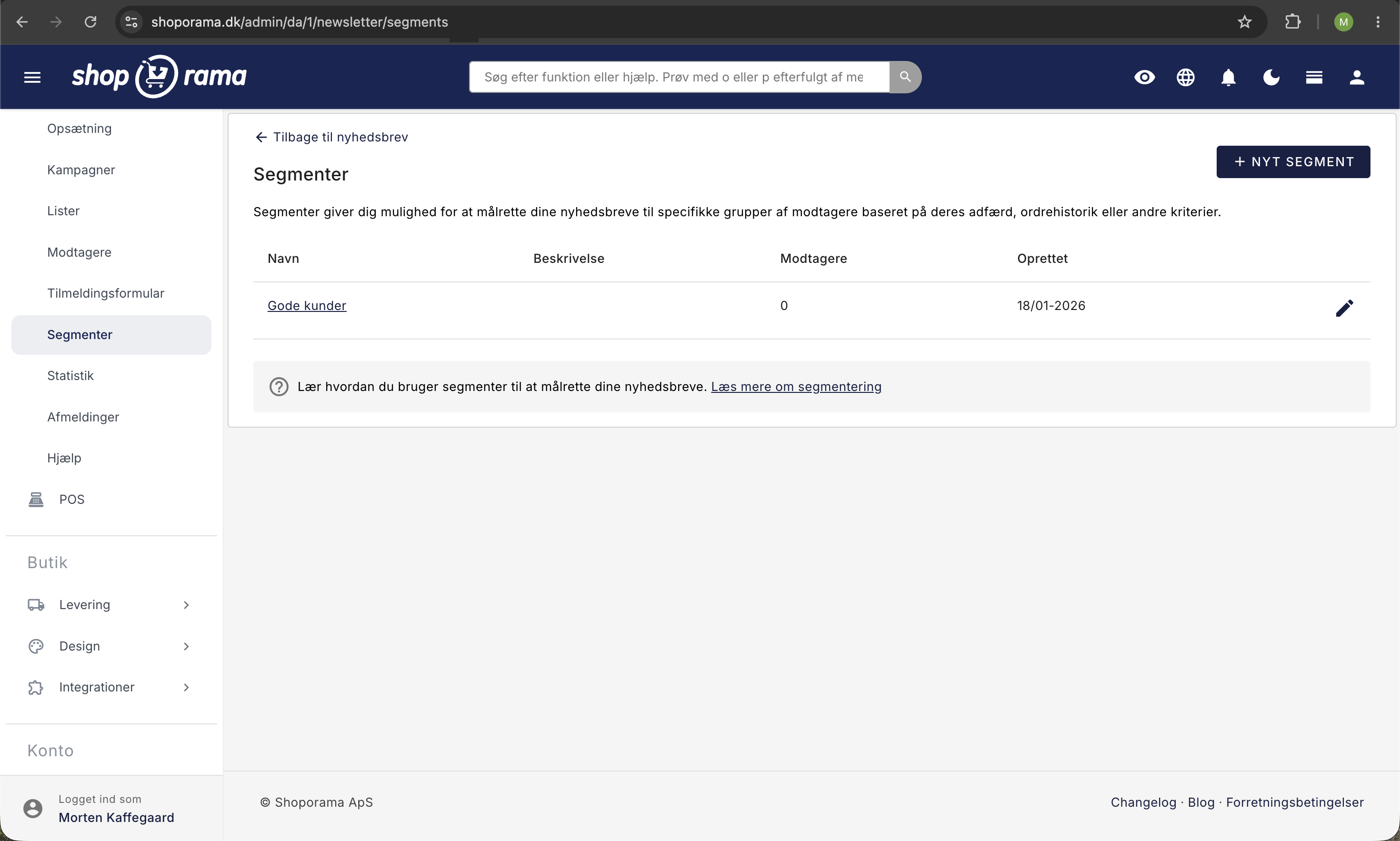
Under Newsletter → Segments, you can create advanced segments based on customer behavior and attributes. Segments are used to send targeted newsletters to specific groups of recipients.
The following rules are available:
- Number of Orders — Filter customers who have made a specific number of purchases (more than, less than, exactly)
- Total Spending — Customers who have spent more than or less than a specific amount
- Days since last order — Customers who have made a purchase within a specific time period (or have not)
- Purchased from category — Customers who have purchased from a specific product category
- Product purchased — Customers who have purchased a specific product
- Purchased with label — Customers who have purchased products with a specific label
- Days since sign-up — Customers who signed up for the newsletter within a specific time period
- Days since last open — Subscribers who have opened a newsletter within a specific time period (or haven’t)
- Days since last click — Subscribers who have clicked a link in a newsletter within a specific time period (or have not)
- List member — Customers on a specific newsletter list
- Customer group — Subscribers whose customer profile is in (or is not in) one or more specific customer groups. If the customer is associated with a company but does not have their own group, the company’s group applies, just as in the customer list. If you select “Is not in,” subscribers without a customer profile are also included
- Has a Customer Profile — Subscribers who do (Yes) or do not (No) have a customer profile in the online store. Since points are tied to the profile, “Yes” effectively corresponds to members of your customer club
- Point Balance — Subscribers with a specific number of active points in the loyalty program, e.g., 500 or more. This rule is only displayed when the loyalty program is enabled
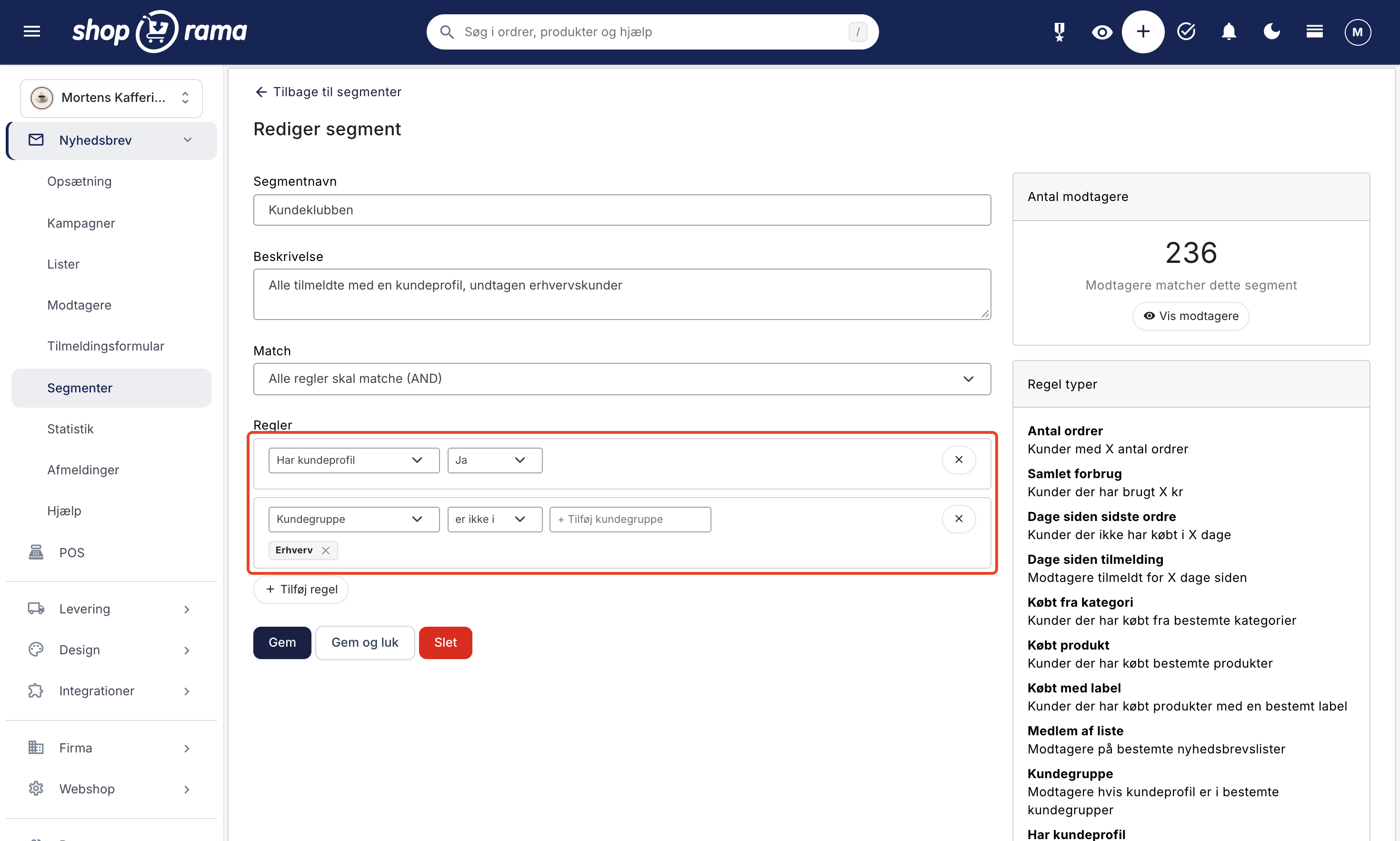
Under “New Segment,” there is already one rule listed: “Number of Orders.” Change it to the rule you want to use from the drop-down menu, and use “Add Rule” to add more rules. You can combine multiple rules and, under “Match, ” select “All rules must match (AND) ” or “At least one rule must match (OR).”
Who is included in a segment?
A segment always selects only from among the active subscribers to your newsletter, and it never subscribes anyone. Unsubscribers, blocked users, and subscribers who have not yet confirmed their subscription (double opt-in) are not included, regardless of whether they have a customer profile or points.
The rules “Customer Group, ” “Has Customer Profile,” and “Point Balance” identify the customer profile using the email address. If the customer has changed their email address in their profile but not in the newsletter—or vice versa—the two are not linked, and the customer is excluded from the rule.
"Point Balance " counts the customer’s active points—that is, approved points that have neither been used nor expired. Points in the pending period and revoked points do not count. Subscribers without a customer profile are never included in the rule, even if you filter for fewer than 100 or exactly 0 points. The same applies to customers in a customer group that has not been selected under Customers → Loyalty Program → Customer Groups, as they are not part of the loyalty program. However, they are still included in the “Has a Customer Profile” segment. This applies to customers who have added themselves to a group. Business users who only inherit the company’s group are part of the loyalty program and can therefore be included in the “Point Balance” segment.
When you click “Create Segment,” you’ll return to the list of segments, where the “Recipients” column shows how many match the criteria. If you open the segment, the number appears in the “Number of Recipients” card, and the “View Recipients” button shows who they are.
Segment by opens and clicks
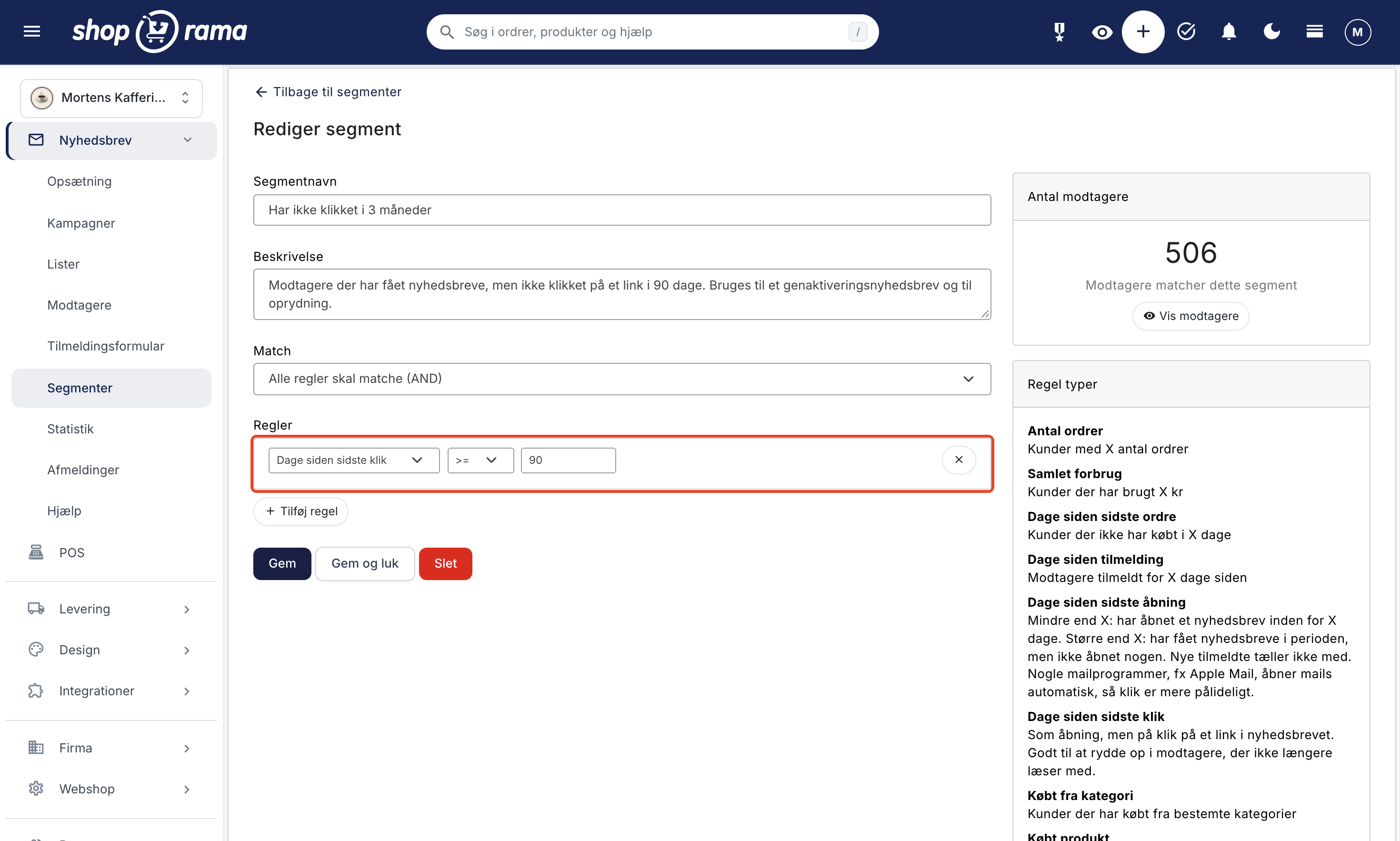
With “Days Since Last Open ” and “Days Since Last Click,” you can find out who is still reading your newsletters. Select an operator and enter a number of days, just as you would with “Days Since Last Order”:
- < or <= X: subscribers who have opened (or clicked on) at least one newsletter within the last X days.
- > or >= X: subscribers who haven’t opened (or clicked on) a newsletter in the last X days. This includes only subscribers who have been subscribed for at least X days and have received at least one newsletter during that period. New subscribers and subscribers you haven’t sent anything to are therefore not included.
Opens and clicks are counted from the newsletters you send via the newsletter module, including both campaigns and automated triggers. Order emails, cart reminders, and test emails are not included. An open is recorded when the email client loads a small, invisible image in the email. Email clients that block images therefore do not record an open, while Apple Mail automatically loads the images and can count an open even if the email has not been read. Clicks are therefore the most reliable metric.
These rules can be combined with all the other rules. For example, use “Days since last click > 180” to identify those who are no longer reading your emails, so you can send them a reactivation newsletter or clean up your list, and “Days since last open < 30” for your most engaged readers.
Examples of Segmentation
Here are some practical examples of segments you can create:
- VIP customers: Customers with total spending over 5,000 DKK and more than 3 orders
- Inactive customers: Customers who haven’t made a purchase in over 6 months
- Category fans: Customers who have purchased from a specific category, e.g., “Running Shoes”
- New subscribers: Customers who signed up for the newsletter within the last 30 days
- Customer Club: Registered users with a customer profile in the online store (Has customer profile = Yes)
- Points to Redeem: Customer Club members with at least 500 points (Point Balance >= 500) who have not made a purchase in the last 60 days (Days Since Last Order >= 60)
- Resellers: Subscribers whose customer profile is in the "Resellers" customer group (Customer Group, Is in)
- Engaged readers: Subscribers who have opened a newsletter within the last 30 days (Days since last open < 30)
- Dormant Recipients: Subscribers who have received newsletters but haven’t clicked on anything in half a year (Days since last click > 180)
Using Segments in Newsletters
When you create a newsletter, you can choose which segments to send it to. This allows you to send targeted offers and content to the customers who are most relevant—instead of sending the same newsletter to everyone.
In the campaign, check the box next to “Select segments ” in the “Recipients” tab. The recipients are the sum of the lists and segments you select, without duplicates. If you select both a list of all your subscribers and a segment, everyone on the list will receive the email. If you want only the segment to receive it, select only the segment.
Remember that a segment is always rule-based. You cannot remove a single recipient from a specific mailing. If you want to exclude a specific person, you must either adjust the segment’s rules so that she is excluded, send the email to a regular list instead, or mark her as unsubscribed under Newsletter → Recipients, which will apply to all future mailings.
Exporting Customer Groups
You can export customers who match your criteria to a CSV file. See the article “Export Customers Who Have Purchased a Specific Product ” for more information.
If you want to send a newsletter to a customer group or to your customer club, you should not export the customers and import them into a newsletter list. An import makes all new addresses in the file active recipients, and when you import, you confirm that they have consented to receive your newsletter. Customers in a customer group have not necessarily given this consent. Instead, use a segment with the “Customer Group” or “Has Customer Profile” rule, as a segment selects only from those who are already subscribed.
Frequently Asked Questions
Is it enough for a customer to have a profile before I can send them offers?
It’s the newsletter subscription that gives you permission to send marketing messages, not the profile. That’s why a segment always selects only from active subscribers. A customer with a profile who isn’t subscribed to the newsletter will never receive the email.
My business customers also have profiles. How do I exclude them from the customer club email?
If “Has Customer Profile” is set to “Yes,” it includes everyone with a profile, including customers in a customer group. Add another rule with “Customer Group” set to “Is not in” and select, for example, your business group, and leave “Match” set to “All rules must match (AND).”
Will anyone receive the email twice if I select both a list and a segment in the campaign?
No, duplicates are removed. However, lists and segments are combined, so only select the segment if you want only that segment to receive the email.
I can’t find the “Point Balance” rule. Where is it?
The rule only appears when the loyalty program is enabled. Go to Customers → Loyalty Program, check the box next to “Enable Loyalty Program,” and save.
Why isn’t a member with a lot of points included in “Points Due”?
The “Days Since Last Order” rule only counts registered members who have made at least one purchase. A member who only earned points upon registration and has never made a purchase is therefore excluded. If you want to include them, use “Point Balance” on its own.
What happens to a segment based on “Point Balance” if I turn off the loyalty program?
The segment still works and calculates based on the points customers have. However, while the program is turned off, customers cannot use their points, so do not run a points campaign during that period. The rule also cannot be added as a new rule until you turn the program back on.
Why are there fewer customers in the segment than there are in the customer group?
The segment only counts customers in the group who are also subscribed to the newsletter using the same email address as on their profile. Customers who are not subscribed, have unsubscribed, or are subscribed with a different email address are not included. Customers associated with a company are included if the company is in the group, just as in the customer list.
Does Apple Mail count as an open?
Yes, and sometimes too many. Apple Mail automatically downloads the images in an email, even if the recipient never reads it, and this counts as an open. Conversely, no opens are recorded for recipients who have turned off images. If you want to be sure people are reading your emails, use “Days since last click ” instead of “Days since last open.”
Why aren’t my new subscribers included in “Days Since Last Click > 180”?
Because they haven’t had a chance to click yet. The segment only includes subscribers who have been subscribed for at least 180 days and have received at least one newsletter during that period. This means new subscribers and people you haven’t sent anything to won’t be included in a cleanup.
Do order confirmations and cart reminders count as opens?
No. Only newsletters from the newsletter module count—that is, your campaigns and campaigns with an automatic trigger. Order emails, cart reminders, and test emails do not count.
Related articles
Unsubscribe links in automatic emails
Give your customers the option to unsubscribe from automatic follow-up emails after purchases and product reviews - with a simple link in the email.
Blacklist - Block unwanted orders
Learn how to use Shoporama's blacklist feature to block spam orders and unwanted customers by blacklisting email, phone number or IP address.
Export customers who have purchased a specific product
Guide to export a list of customers who have purchased a specific product and send them an email.
Loyalty programme
Complete guide to the Shoporama loyalty program - setting up the points system, earning, redemption and customer communication.
The newsletter module
Complete guide to Shoporama's built-in newsletter module. Learn how to create campaigns, segment recipients, use A/B testing, set up automatic...
Related features
Customer database
Complete customer database with profiles, order history, segmentation, customer groups and exports. Identify your best customers and communicate in...
Customer group
A customer group segments customers with different prices and discounts. Read about customer groups in webshops and B2B e-commerce.
Customer Club Newsletter: Sell More to Returning Customers
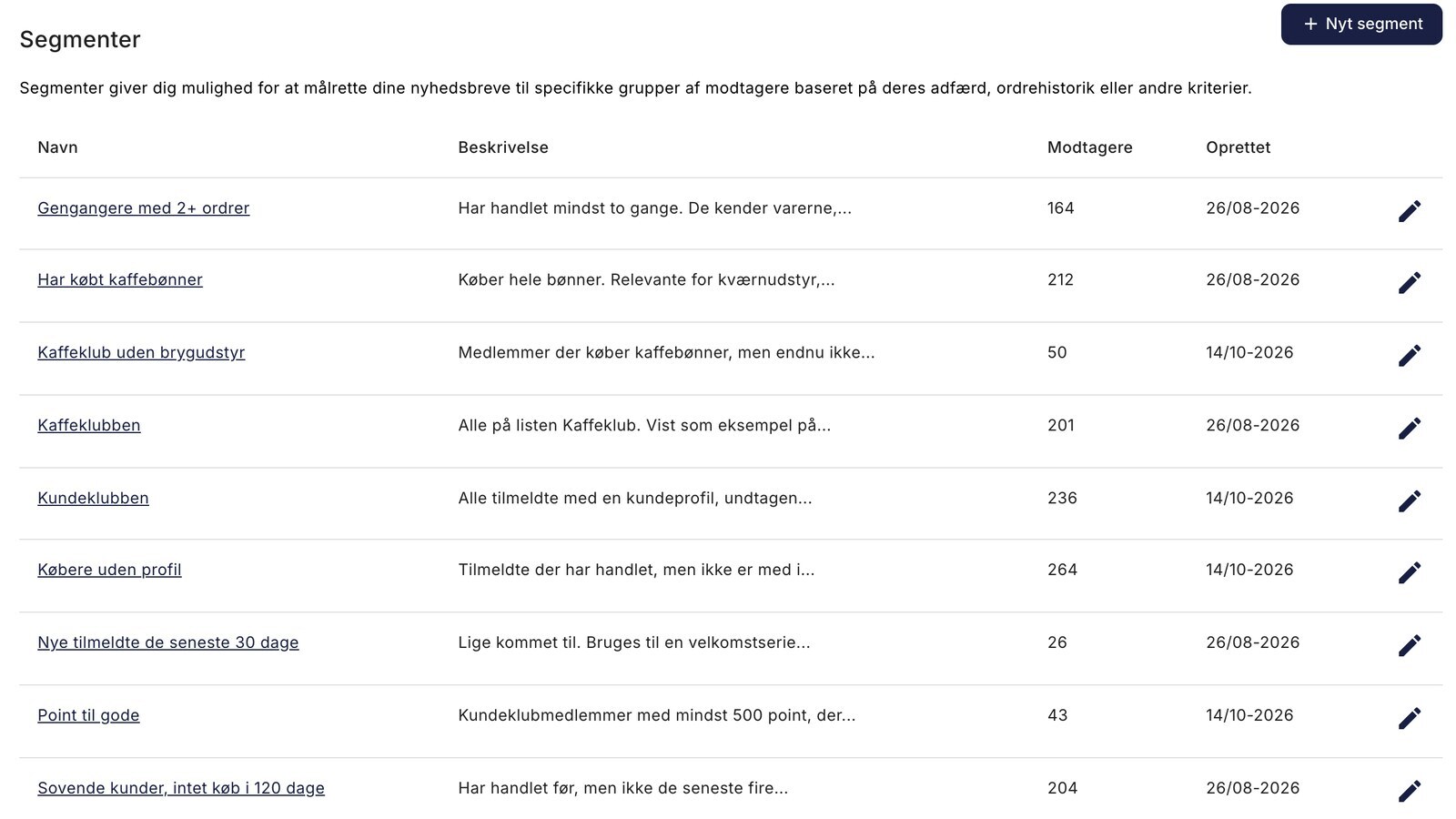
Send the newsletter only to the customer club, a specific customer group, or members with points to redeem. Five segments to drive additional sales...
Loyalty program - reward your customers with points
Increase repurchases with Shoporama's points system. Customers earn points on purchases and use them as discounts. Signup bonus, expiration and...
Newsletter: Move your list from Klaviyo or Mailchimp and send more targeted emails
Import recipients with their consent, without reactivating those who have unsubscribed. Send emails after the purchase of specific items, and view...