Return center
Learn how to set up and use Shoporama's Return Center so your customers can easily request returns and you can handle them efficiently from administration.
Shoporama’s returns center allows your customers to request returns directly from your online store. You manage returns from the admin panel, where you can approve them, create credit memos, and keep track of inventory. Customers can choose a refund, store credit, or an exchange for a different size or a completely different product.
Enable the Returns Center
The Returns Center is activated under Online Store → General on the Returns Center tab by checking the box next to “Activate Returns Center.” Here you’ll also find settings for return shipping, whether items should be restocked, and similar options. Once the Returns Center is enabled, your customers will have access to a returns page on your online store.
You can enable store credit and exchanges on the Returns Center page under Orders → Returns Center, at the bottom of the settings on that page.
Here’s how it works for the customer
- The customer visits the returns page on your online store
- The customer enters their order number and email address to find the order
- The system displays the items that can be returned
- The customer selects which items to return and provides a reason for each item
- The customer may select return shipping (depending on your settings)
- If you offer this option, the customer chooses whether the amount should be issued as a refund, as store credit, or whether the customer would prefer to exchange the item for a different size or product
- The return is processed, and the customer receives a confirmation
Exchange: Exchange for a different size or product
Many returns aren’t about the customer wanting their money back, but about the item not fitting. With exchanges, the customer can swap the item directly within the returns process, allowing you to retain the sale in your store. This feature is enabled on the Return Center page under Orders → Return Center, along with the store credit option.
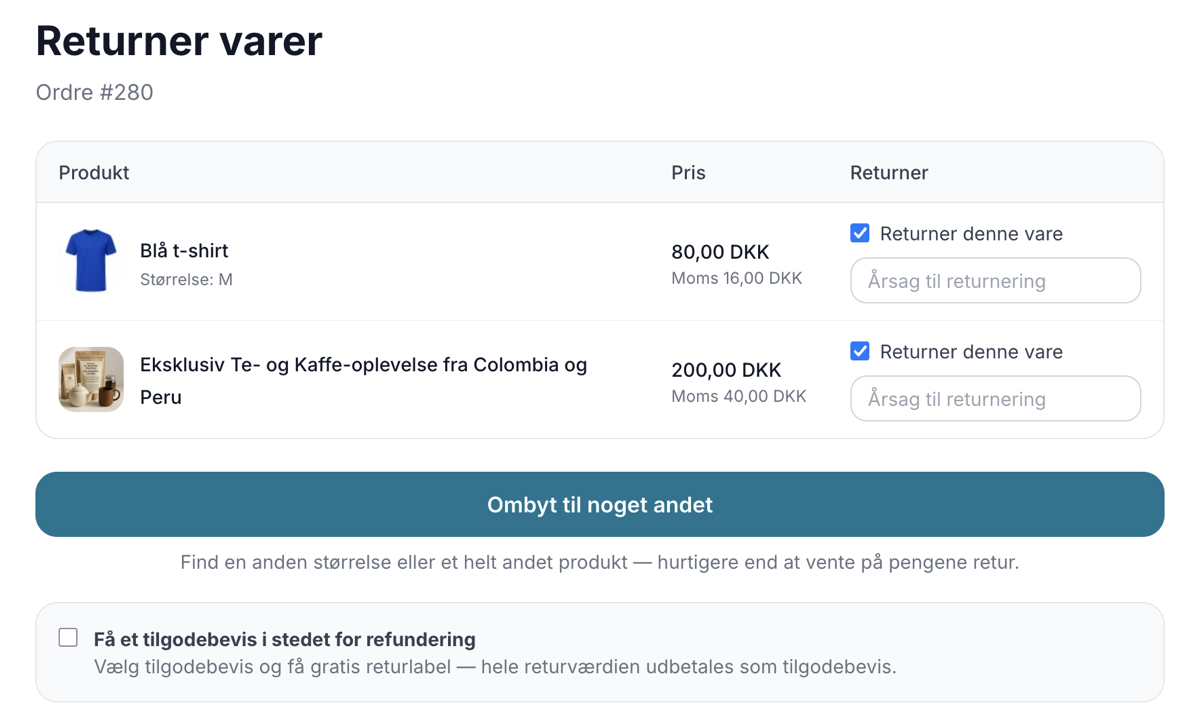
From the returns page, the customer clicks “Exchange for something else, ” which opens a guide where they go through each item and choose what to exchange it for:
- Exchange for a different size: The customer is offered other sizes of the same product. Only sizes that are actually in stock are displayed, so the customer cannot exchange for something that’s out of stock
- Search for a different product: If the customer wants something completely different, they can search your product range and choose a new product to receive instead
While the customer is making their selection, the guide displays a real-time calculation of the difference between the item being returned and the replacement item. This means the customer can see at all times whether the exchange will result in an additional charge or a refund.
What happens to the difference depends on whether the new item is more expensive or less expensive than the returned one:
- More expensive exchange: The customer receives a payment link for the difference. The value of the returned items is refunded to the customer’s card, and the customer pays only the additional cost of the new item
- Cheaper exchange: The new order is covered by the return, and the customer receives the excess amount either as store credit or as a refund to their card. The customer selects this option themselves in the wizard by checking a box
When you approve the exchange, Shoporama creates two documents: a credit memo for the returned items and a new order for the replacement items. This keeps your books in order. The returns page in the admin panel is marked with an “Exchange” label and displays the requested new items, the price difference, and direct links to both the credit memo and the new order.
Tip: Exchanges are an effective way to retain revenue. Instead of losing a sale when an item doesn’t fit, customers can simply exchange it for the right size or an alternative. This improves the customer experience and reduces lost orders. Read more in the article “Handling Returns.”
Only one exchange per order
If you pay for the return shipping yourself when a customer exchanges an item, the same order can quickly become expensive. The customer exchanges a small for a medium, changes their mind, and then exchanges it for a large. Each time, it costs you a return label, and the profit on the order is gone. The reason is that, technically speaking, an exchange creates an entirely new order, and on that new order, the customer starts with a clean slate and can exchange again.
If you’d rather have the customer consolidate everything into a single exchange, enable “Only one exchange per order” under Orders → Return Center, at the bottom of the settings on that page. This setting is disabled by default, so you must actively select it. When it’s enabled:
- The exchange button disappears from the returns page as soon as the customer has created one exchange on the order. This happens as soon as the customer requests it, not only after you approve it
- The restriction applies throughout the entire exchange process. This means the new order the customer receives as part of an exchange cannot be exchanged again
- The customer can still return the item. Standard returns for a refund or store credit are unaffected, even on the exchange order
- Old links cannot be used to bypass this process. If the customer still has a link to the exchange guide from a previous email, they will be directed to the exchange that already exists
The customer will still see the return options, but the “Exchange” button will be hidden on orders that are already part of an exchange. If, in exceptional cases, a single customer still needs to make an exchange, you can temporarily disable the setting, let the customer create the exchange, and re-enable it afterward.
Tip: This setting makes the most sense if you pay for return shipping on exchanges. If, instead, you have the customer pay via the “Return Shipping on Exchanges” field, the extra exchange shipments won’t cost you anything, and you can safely let the customer exchange items multiple times.
Handling Returns in the Admin Panel
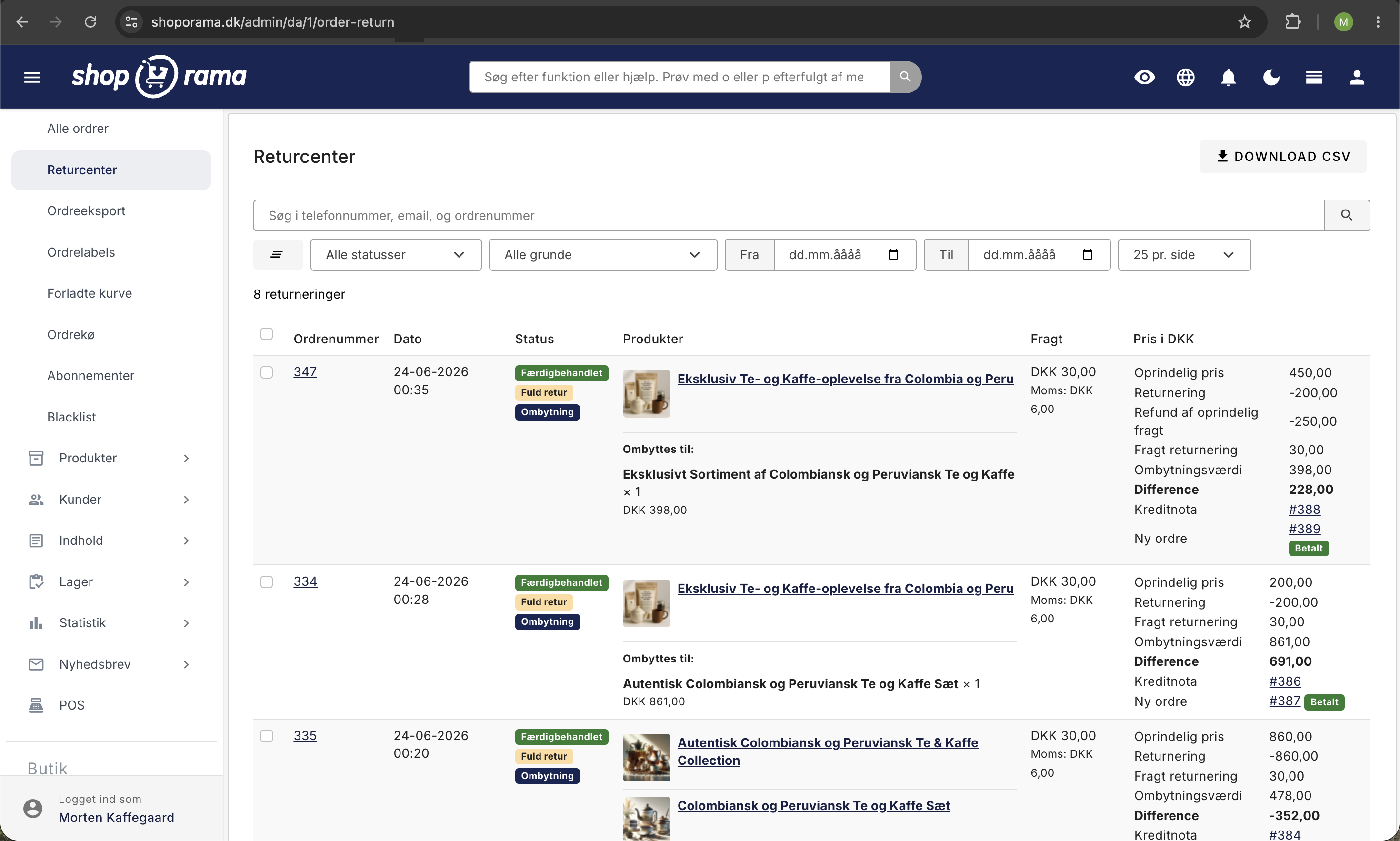
All returns are displayed under Orders → Returns Center in the admin panel. Here you can:
- View an overview of all returns with the following statuses: New, Awaiting Receipt, Refund Pending, or Processed
- Search for returns by phone, email, or order number
- Filter by status, reason for return, and date
- See whether it is a full or partial return
- See which returns are exchanges by checking for an “Exchange” label
- Export returns to CSV
Approval and credit memo
Once you’ve received the returned items, you can approve the return:
- Open the return from the list
- Review the returned items and adjust the amount if necessary
- Select whether the items should be restocked
- Add a comment or internal note if necessary
- Click " Approve and Create Credit Memo"
The system automatically creates a credit memo (negative order amount) linked to the original order. The return is marked as processed. If the return is an exchange, Shoporama also creates a new order for the replacement items and automatically sends a payment link (for more expensive exchanges) or a store credit (for less expensive exchanges) to the customer. Please note that the refund itself does not occur automatically for a standard return. See the section below for details on how the refund is processed.
After Approval: How the Customer Receives the Refund
Many people believe that the money is sent out as soon as the return is approved. That’s not the case. “Approve and Create Credit Memo” creates the credit memo—that is, the accounting entry showing that you owe the customer money. At the same time, the customer is notified that the amount is on its way. However, for a standard return, Shoporama does not transfer the funds itself. The actual refund is a separate step that you initiate.
In short: “Approve and Create Credit Memo” creates the credit memo and sends the email to the customer. “Refund Now” actually returns the money through your payment solution—that is, the system that processed the payment at the time of purchase, such as QuickPay or Stripe. "Mark as Refunded" does not transfer any money, but records that you have refunded the customer outside of Shoporama, e.g., via bank transfer.
Steps in order:
- Approve and create a credit memo. The credit memo is created and linked to the original order. At the same time, the customer receives the email “Your return has been approved.” The email states that the amount will be refunded to the payment method the customer used and that it may take a few business days. No money is transferred at this point.
- Mark as received. This is only relevant if you’ve chosen to defer the inventory update until the item is physically returned. The button only appears when that setting is enabled, and it relates solely to inventory, not to money.
- Refund the amount. You must use one of two buttons, never both: “Refund Now” if the funds are to go through your payment solution, or “Mark as Refunded” if you have already refunded the customer in another way.
Step 3 applies only to returns where the customer is due a refund. If the customer has chosen a store credit or if it’s an exchange, Shoporama usually handles the refund for you upon approval. You can read more about that below.
How to see who is still waiting for a refund
Approved returns for which a completed refund has not yet been recorded are marked with a red label that says “Refund Pending” in the list in the Returns Center. To view them all together, select “Refund Pending” in the status filter at the top of the page. The filter includes “All statuses,” “New,” “Awaiting receipt,” “Refund Pending,” and “Processed.”
The label only appears when money actually needs to be sent. Two types of transactions never receive it: returns where the customer has chosen a store credit, and exchanges. This is because they handle the money themselves. The store credit is issued automatically, and in the case of an exchange, any remaining balance is either refunded to the customer’s card or issued as store credit, depending on what the customer selected in the exchange guide. If the automatic card refund fails, you’ll receive a note on the return instructing you to process the refund manually. This situation isn’t covered by the label, so be sure to read the notes on exchanges carefully. The label will disappear again as soon as the refund is recorded as processed.
"Refund Now" returns the money
Below the label is the “Refund Now” link. It opens the credit memo’s refund page, where the amount is pre-filled. If you click “Refund Amount, ” a refund is processed through your payment solution, and the money is returned to the customer. If you only want to refund a portion of the amount—for example, because the item was returned in poor condition—simply enter a smaller amount in the field before submitting. Use a period as the decimal separator, just as the amount is already formatted in the field. Please note that the red label disappears as soon as a refund has been sent, even if you’ve only refunded a portion of the amount. Shoporama does not track the remaining balance for you.
On the same page, you’ll find a log of all attempts, including the time, amount, result, and a note from the payment provider. If the refund goes through, the result will show as “OK.” If it fails, it will say “Error,” and the red label will remain so you can locate the return and try again. If you’re unable to resolve the issue, you can always refund the customer through your bank and use “Mark as Refunded” instead.
You can return to the refund page from the credit memo and send an additional amount if, for example, you’ve only refunded a portion of the payment so far. The customer won’t receive a new email when you send the money. The notification that the amount is being refunded was already sent when you approved the return.
The link will only appear if your payment solution supports refunds directly from Shoporama. This applies to QuickPay, OnPay, Stripe, PensoPay, and Flatpay. Additionally, the payment must have a transaction number—that is, the ID the payment solution assigned to the payment when the customer made the purchase. Without it, there is no payment transaction through which to refund the money.
If you use a different payment solution, such as Mollie, Nets Easy, ePay, or PayPal, log in to your payment provider’s portal and issue the refund there. The same applies to payments without a transaction to process the refund through, such as bank transfers or invoices. Afterward, use “Mark as Refunded” in Shoporama.
If you have multiple payment methods in the same online store, you’ll see the link on all returns as long as at least one of them supports refunds. If the specific order was paid for using one of the other payment methods, the refund will fail. In that case, you should instead process the refund through the correct provider and then use “Mark as Refunded.”
"Mark as Refunded" is only used when the money has been sent outside of Shoporama
The “Mark as Refunded” button is located at the bottom of the returns center under “With the selected items.” It’s located between “Mark as Received” and “Delete Selected,” and “Mark as Received” only appears if you’ve enabled deferred inventory updates. If you hover your mouse over the button, it says: "Use this if you have refunded the customer bypassing Shoporama, e.g., via bank transfer. "
The button does not actually transfer any money. Use it only when the money has actually been sent to the customer. If you click it just to remove the red label, the return will appear as paid in your accounting records, even though the customer hasn’t received their money. Check one or more returns in the list and click the button.
The entire return amount is posted as a completed refund on the credit memo with a note stating that it was not processed through the payment solution. At the same time, a note with the amount and currency is added to the return itself, and the red label disappears. Note that the button always records the full amount. If you’ve only manually refunded a portion, the credit memo will therefore not match what you’ve actually transferred.
“Mark as Refunded” is therefore not a fixed third step in the process. If you use “Refund Now,” you’re done. You do not need to mark the return as refunded afterward. The red sticker disappears on its own once the refund is complete.
Tip: If a refund has already been recorded for the return, “Mark as Refunded” has no effect, so you cannot use that button twice. The refund page, however, has no such restriction, so always check the log on the page before sending an amount again. If you use a payment solution that supports refunds, you can also see the “Refunded:” total on the credit memo in the order list. A good practice is to filter by “Pending Refund” on a set day each week and clear the list. You can check multiple items at once and run “Mark as Refunded” in bulk. Read more in Credit Memos and Refunds.
Partial returns follow exactly the same process as full returns. The only difference is the amount: for a partial return, the value of the returned items minus the return shipping cost is refunded, whereas the original shipping cost is also refunded for a full return. The amount is calculated in advance and is ready when you open the refund page.
First, restock the item once it has been received
By default, Shoporama restocks the returned item the moment you approve the return. However, it may take the customer several days to ship the package, and in the meantime, the item will appear to be in stock even though you don’t physically have it yet. If you only have one copy, you risk another customer purchasing an item that you cannot ship immediately.
You can avoid this by delaying the inventory update until you actually have the item in hand:
- Go to Webshop → General on the Returns Center tab
- Enable “Automatically add returned items to inventory”
- Also, set “Add the item to inventory only when the return is marked as received” to “On,” and save
Here’s how it works: You approve the return as usual, so the customer receives their credit memo, store credit, or exchange immediately. The item is not added to inventory yet, and the return is given the status “Awaiting Receipt at the Return Center.” When the package is returned, check the box next to the return in the list and click “Mark as Received.” Only then is the item restocked and becomes available for purchase again.
To quickly view returns that are still awaiting a package, select “Awaiting Receipt” in the status filter at the top of the page.
In the case of an exchange, the new order is also automatically assigned an order label (e.g., “Exchange, Awaiting Return”) in the order list. The exchange order is paid for and ready for picking, but the customer’s return item may not have been received yet. The label makes it clear to your warehouse staff that the new item should not be shipped until the returned item has been received. Manually remove the label from the order once you’ve received the returned item. You can customize the label’s name and color under “Order Labels.”
Tip: You can adjust the credit amount per item, for example, if the item is damaged and cannot be fully refunded.
Store Credit Instead of a Refund
You can let the customer choose a store credit instead of a refund. This keeps revenue in the store, and many customers prefer this option if they plan to exchange the item for something else anyway. This feature is enabled on the Orders → Return Center page.
Once the feature is enabled, the customer can check the box for “Receive a store credit instead of a refund” during the return process. This choice applies to the entire return. When you approve the return, Shoporama automatically creates a gift card for the return amount and sends the code to the customer via email. The store credit is valid for 3 years, and the customer receives either a refund or store credit—not both.
You can also offer a free return label when the customer chooses a store credit. In that case, the return shipping cost is not deducted, and the full return value is issued as store credit. This provides an extra incentive to choose store credit over a refund.
Tip: Read more about how store credits are redeemed in the article “Gift Cards and Store Credits.”
Emails Sent for Returns and Exchanges
Shoporama automatically sends the relevant emails based on the customer’s selection. You do not need to contact the customer yourself during the process.
Standard Return
- For you: a notification every time a customer creates a new return, with details about the order and the returned items
- Store credit email to the customer if the customer has chosen a store credit. The email contains the store credit code and is sent when you approve the return
- Confirmation of approved return to the customer if the customer is receiving a refund. Sent when you approve the return, stating that the amount will be refunded to the payment method the customer used at the time of purchase. You initiate the actual refund afterward, and no further email is sent
Exchange
- "We have received your exchange request" is sent to the customer as soon as the exchange is created, confirming that the request has been received
- A payment link is sent to the customer upon approval if the exchange item is more expensive, so the customer can pay the difference
- "Your exchange has been completed" with a store credit code is sent upon approval if the exchange is less expensive and the customer has chosen to receive the excess amount as store credit
- A refund confirmation is sent upon approval if the exchange is cheaper and the customer has chosen to have the excess amount refunded to their card
If you use automatic return labels, a return label will also be sent to the customer as a PDF. The appearance and text of each email are controlled by your theme’s email templates.
Shipping Handling for Returns
Shoporama calculates shipping costs on the credit memo differently depending on whether the customer is returning the entire order or only part of it.
Full return
In the case of a full return (all items from the order are returned in the same shipment), Shoporama refunds both the price of the items and the original shipping cost, since the customer does not end up receiving the items. The customer pays the return shipping fee (the cost of sending the items back to you), which is deducted from the credit memo.
Partial return
In the case of a partial return (the customer keeps one or more items from the order), Shoporama refunds only the value of the returned items, minus the return shipping cost. The original shipping cost is not refunded because it is assumed to cover the items the customer keeps.
You can always manually adjust the amount on the credit memo before approving it if a specific case requires it.
Exchanges
When a customer exchanges an item instead of returning it, the return label is free by default. This is a deliberate incentive: the customer keeps the transaction in your store instead of getting a refund, so you don’t lose the sale. If you still want the customer to cover the return shipping cost for an exchange, set a price in the “Return Shipping for Exchanges” field on the Orders → Returns Center page. The amount is specified excluding tax, and tax is automatically added unless you’ve selected tax-free return shipping. The fee is added to what the customer pays for the exchange order, and the customer sees it during the exchange wizard and on the receipt page.
Settings
The Return Center is configured in two places: under Web Store → General on the Return Center tab (activation, return shipping, and inventory) and on the Orders → Return Center page itself (store credit, exchanges, and return labels). Among other things, you can manage:
- Return shipping: choose a fixed shipping method for returns, or let the customer choose themselves
- Return fee: Set a fixed price for return shipping
- Restock inventory: Choose whether returned items should be automatically restocked. You can either restock them immediately upon approval or wait until you mark the return as physically received (see the section “Restock the item only after it has been received” below)
- Offer store credit: Let the customer choose store credit instead of a refund
- Offer an exchange: Let the customer exchange the item for a different size or product instead of receiving a refund
- Only one exchange per order: require the customer to combine all exchanges into one so you don’t pay return shipping multiple times for the same order
- Return shipping for exchanges: Charge a return shipping fee when the customer exchanges an item, or make it free (default)
- Free return label for store credit: Do not deduct return shipping costs when the customer chooses store credit
- Automatic return labels: Create and send return labels automatically (PostNord and GLS)
Return Statistics
Under Statistics → Returns, you can see which products are returned most often. This helps you identify problematic products, such as items with incorrect size guides or misleading images.
Frequently Asked Questions
What does the “Awaiting Receipt” status mean?
The return has been approved, so the customer has received their credit memo, store credit, or exchange. The item just hasn’t been restocked yet because you’ve chosen to wait until it’s physically received. Click “Mark as Received” once the package has been returned.
Will the customer experience a delay if I wait to mark the return as received?
No. Credit memos, store credit, and exchanges are created as soon as the return is approved, and you can process the refund immediately. Only the inventory update itself waits until you have the item in hand.
Can I mark multiple returns as received at once?
Yes. Check the boxes next to them in the list and click “Mark as Received.” Only the returns that are actually pending will be affected.
Does this also apply to exchanges?
Yes, for the item the customer is returning. The new item the customer is exchanging for will be deducted from inventory upon approval as usual, so you can pack and ship it right away.
What happens if I forget to mark a return as received?
Then the item won’t be added to inventory and can’t be resold. Use the “Pending Receipt” status filter to keep track of returns that still need to be received.
My customer just wants a different size. Does she have to return it and place a new order?
No. If you’ve enabled exchanges, the customer clicks “Exchange for something else” on the returns page and selects a different size directly. Only sizes currently in stock are displayed, so the customer can’t exchange for something that’s out of stock. Once you approve it, the system handles the rest.
What happens to the payment if the exchange is more expensive than the original item?
The customer receives a payment link for the difference and pays only the extra amount. The value of the returned items is refunded to the customer’s card so they don’t pay twice.
And if the new item is cheaper?
Then the new order is covered by the return, and the customer receives the excess amount either as store credit or as a refund to their card. The customer chooses this option in the wizard before the exchange is created.
Will an exchange cause confusion in my accounting?
No. Shoporama creates two distinct documents: a credit memo for the returned items and a new order for the replacement items. Both are linked to the customer, and you can switch between them directly from the returns page.
Do I need to approve exchanges differently than regular returns?
No. You use the same “Approve” button. The only difference is that an exchange is marked with an “Exchange” label and shows the new items plus the price difference before you approve it.
How do I avoid shipping the new item before I’ve received the return?
When you approve an exchange, the new order automatically receives an “Exchange, awaiting return” label in the order list. This reminds you and your warehouse staff to wait to ship until the returned item has been received. Once the item has been returned, simply remove the label from the order.
Can I charge for return shipping when a customer exchanges an item?
Yes. By default, the return label is free for exchanges, as this encourages more customers to exchange items rather than return them. If you want the customer to pay for return shipping anyway, set a price in the “Return Shipping for Exchanges” field under Orders → Return Center. The amount is added to what the customer pays for the exchange order, and sales tax is added unless you’ve selected tax-free return shipping. If you leave the field blank, exchanges remain free.
My customer keeps making exchanges. Can I stop this?
Yes. Enable “Only one exchange per order” under Orders → Returns Center. Then the customer can only create one exchange, and the new order resulting from the exchange cannot be exchanged again. The customer can still return the item and get a refund.
Why does the customer get a new order number when she exchanges an item?
Because an exchange results in two documents: a credit memo for the item the customer is returning, and a new order for the item the customer is exchanging it for. Both are assigned their own number in your order list. The exchanged item is listed on the new order, not on the credit memo.
Does the customer lose the right to cancel the order if I only allow one exchange?
No. The limit applies only to the exchange feature itself. The customer can always create a regular return and get a refund or store credit, even for the order resulting from the exchange.
I’ve enabled the setting, but the exchange button is still there. What should I do?
The button is automatically hidden in Shoporama’s own themes. If you’re using a custom-built theme, the theme must be updated to reflect the setting. However, the customer still cannot initiate a second exchange, as that is also blocked behind the scenes. Email support@shoporama.dk, and we’ll help you hide the button in the right place.
Does the limit apply per order or per customer?
Per order and per exchange chain. A customer with two different orders can therefore exchange items on both orders, but cannot exchange the same item over and over again.
The customer has received an email stating that the money is on its way. Is it sent automatically?
No. The approval only creates the credit memo and the email to the customer. You must send the money yourself using “Refund Now, ” or mark it as refunded using “Mark as Refunded” if you’ve reimbursed the customer in another way. Until then, the return will be marked with the red label “Refund Pending.”
How can I see which returns I still owe money for?
Select “Refund Pending” in the status filter at the top of the Returns Center. The list shows the approved returns for which the money has not yet been sent. Credit memos and exchanges are not included. Returns that were approved before the credit memo started being saved on the return may be missing from the list; check those directly on the credit memo.
It says "Refund Pending," but I don't see a "Refund Now" link. What should I do?
The link only appears if your payment solution supports refunds directly from Shoporama (QuickPay, OnPay, Stripe, PensoPay, or Flatpay) and the payment has a transaction number. If either of these is missing, refund the customer through your payment provider or via bank transfer, and then use “Mark as Refunded” in the Return Center.
Could I accidentally refund the same amount twice?
"Mark as Refunded" does nothing if a refund has already been recorded, so you cannot use it twice. However, the refund page can send an amount again, so check the log on the page first. The red sticker disappears after the first refund, even if you only paid back a portion of the amount.
If you have any questions for the returns center, feel free to contact us at support@shoporama.dk.
Related articles
Credit notes and refunds
Complete guide to credit notes and refunds in Shoporama, including partial refunds, full credit notes and transfer to accounting systems.
Handle returns
Guide to Shoporama's returns center - handle returns, create credit notes, and manage customer return requests.
Return Statistics: Understand Your Returns and Reduce Them
How to view the Returns page in Shoporama: return rate, return amount, top-returned items, date range selection, CSV export, and exactly which...
GLS QR Returns: Set up return labels and send them automatically
Guide to GLS QR Returns in Shoporama: Choose the format for return labels (PDF, QR, or both), automatically send the label to the customer, send a...
Gift cards and vouchers
Guide to creating and managing gift cards and vouchers in your Shoporama online store, including gift card products and discount codes.
Order labels
Guide to order labels in Shoporama. Create color-coded labels to organize and categorize your orders and set up automatic allocation based on...
Related features
Now your customers can exchange instead of return
Let customers exchange for a different size or a completely different product directly in the return center. Keep revenue, save time and let the...
Replacement
An exchange is when a customer exchanges an item for another instead of getting a refund. See what exchange means and how it works in an online store.
Return center - handle returns professionally
Manage returns, issue credit notes and refunds to the customer's card. With return statistics and automatic inventory management.
Webshop til tøjbutik
Få en webshop til din tøjbutik med varianter, fælles lager for butik og web, returcenter, og gavekort. Dansk support. Prøv gratis i 30 dage uden...
Digital fortrydelse
Let customers cancel their online purchases in two steps. Shoporama’s digital cancellation feature complies with the new EU legal requirement...
Digital fortrydelsesret: nyt lovkrav til webshops i 2026
Fra 19. juni 2026 skal danske webshops tilbyde digital fortrydelse online. Se hvad forbrugeraftaleloven kræver, og hvordan Shoporama opfylder...
Right of withdrawal
The right of withdrawal is the consumer's right to cancel a purchase remotely, typically within 14 days. Get an overview of the rules and the new...
Your first order: pack, ship, and collect payment
Manage your first order in Shoporama: order status, picking list, partial shipments, shipping labels, payment refunds, and unpaid orders.