Cookie consent and Consent Mode v2
How to set up Shoporama's free cookie consent app: categories, automatic blocking, consent revocation, and Google Consent Mode v2.
Shoporama has a built-in, free cookie consent app. It displays a cookie banner to your customers, automatically blocks analytics and marketing cookies until consent is given, and supports Google Consent Mode v2. This means you don’t need to purchase an external solution like Cookiebot. However, it’s still your responsibility to ensure that your setup and cookie policy comply with the regulations.
This article walks you through the setup and the most important features. If you’d like to learn more about the legislation itself, read GDPR and Cookie Rules for Your Online Store. You’ll find a complete list of the cookies your store sets in Which Cookies Does Shoporama Set?
How to Enable Cookie Consent
- Go to Integrations > Apps in your admin panel
- Find the Cookie Consent app and install it
- Select a display type, and customize the text, button colors, and the content of your cookie policy as needed
- Save
The app is free, works with all themes, and is automatically added to all pages, so you don’t need to make any changes to your theme. It may take up to four hours for the banner and your changes to appear on all pages.
What the customer sees
On their first visit, the cookie banner appears, allowing the customer to choose from three options:
- Accept All: Statistics and marketing cookies are allowed
- Reject all: Only necessary cookies are allowed
- Settings: The customer selects which categories to enable or disable
You can choose between two display types: a classic overlay in the middle of the screen or a discreet bar at the bottom of the page. Once the customer has made their selection, the page automatically reloads so that the allowed scripts run correctly. The page remembers where the customer came from—for example, a Google search or a link on another site—so that Google Analytics still tracks the correct traffic source.
Once the customer has made their selection, a small cookie icon appears in the lower-left corner of the page. Here, the customer can always change their selection.
Cookie Categories
The app uses three categories:
- Essential: Shopping cart, login, payment, and the consent cookie itself. These are always active and cannot be opted out of.
- Statistics: Analytics tools such as Google Analytics and Hotjar
- Marketing: Advertising platforms such as Meta (Facebook), Google Ads, TikTok, LinkedIn, Pinterest, Snapchat, and Microsoft Ads, as well as email tools such as Klaviyo
Cookies are automatically categorized based on their names. The app recognizes cookies from the most widely used services, and cookies it doesn’t recognize are treated as tracking cookies and blocked until consent is given.
Automatic Blocking
From the moment the page loads, the app detects the cookies that scripts on the page attempt to place on your store’s domain. Until the customer makes a decision, all analytics and marketing cookies are automatically blocked. If the customer gives consent, the blocked cookies are set immediately. If the customer declines, they remain blocked. The app cannot block cookies that other services set on their own domains.
Your tracking scripts will still run, but their cookies on your store’s domain will only be set after consent is given. However, the script itself can still send data to the platform. If you use Shoporama’s built-in tracking, you can handle this by using Consent Mode (see below). If you’ve inserted scripts yourself—for example, a pixel in HTML fields or in your own Google Tag Manager—they must be configured to respect Google Consent Mode.
Withdrawal of Consent
The customer can click the cookie icon at the bottom of the page at any time to change their selection. If consent is withdrawn, the app automatically deletes the relevant analytics and marketing cookies from the browser and also clears associated data from the browser’s local storage.
Consent is stored with a timestamp in the customer’s browser and remains valid for up to 12 months. After that, the customer will be asked to make a decision again. Some browsers, such as Safari, delete it earlier, in which case the customer will be asked again on their next visit.
Google Consent Mode v2
Consent Mode v2 is Google’s standard for consent signals and, as of March 2024, is a requirement from Google if you want to use data from visitors in the EU for personalized advertising and targeting in Google Ads and Google Analytics. The app automatically sends the four signals to Google:
- analytics_storage: Controls Google Analytics cookies
- ad_storage: Controls Google Ads cookies
- ad_user_data: Controls the sharing of user data with Google
- ad_personalization: Controls personalized ads
All signals are set to “denied” by default and are automatically updated based on the customer’s choice. Because Google still receives anonymous signals when the customer opts out, Google can model some of the conversions that would otherwise be missing. This provides a more accurate picture in Google Analytics and Google Ads, even when some customers opt out of cookies.
Integration with Shoporama’s Tracking
If you use Shoporama’s built-in tracking, you can link it directly to the cookie consent:
- Make sure the Cookie Consent app is installed (see above)
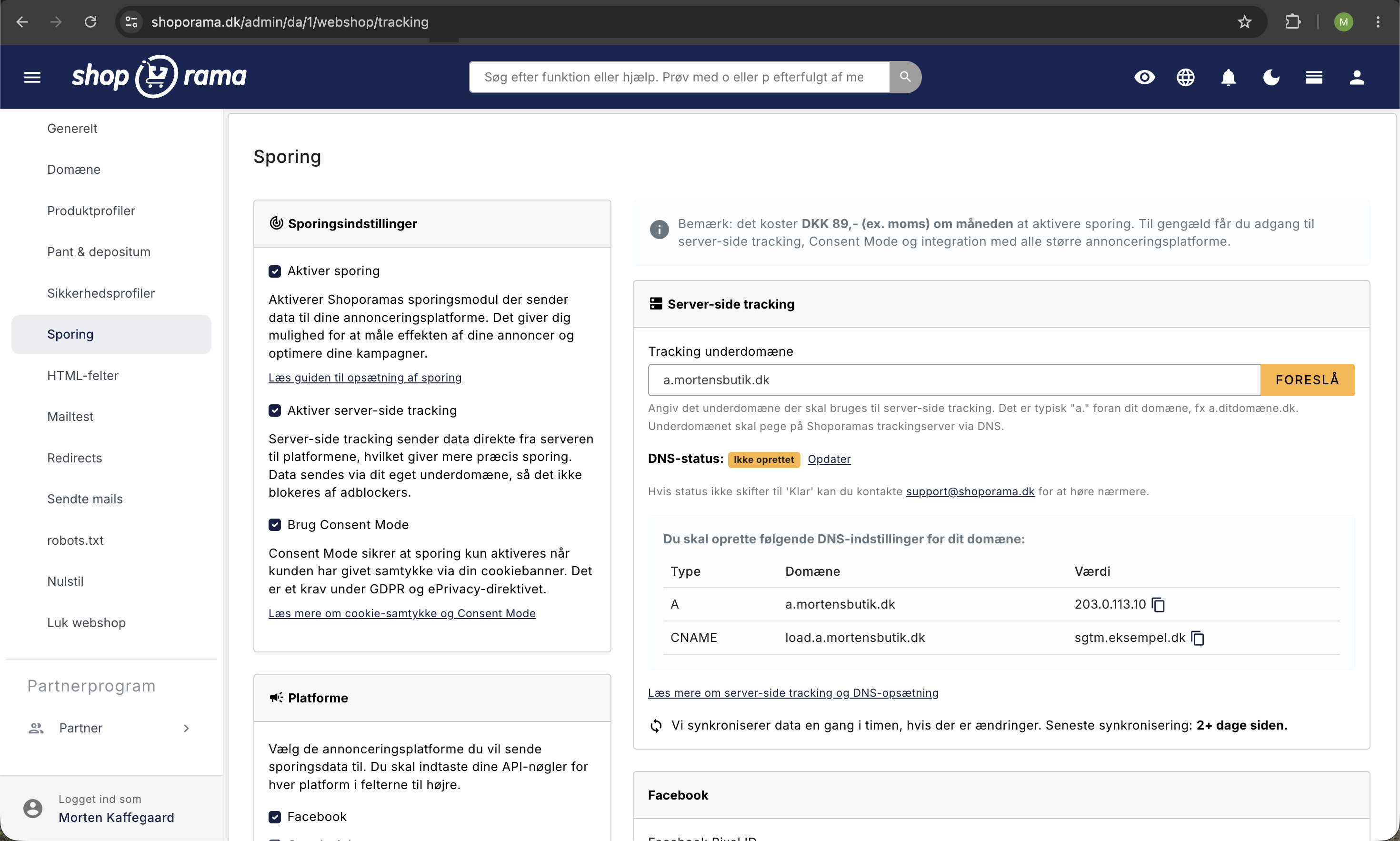
- Go to Webshop > Tracking
- Make sure Enable Tracking is turned on (otherwise, the checkbox in the next step won’t appear)
- Check the box for “Use Consent Mode”
- Save
This ensures that browser tracking respects the customer’s choice in the cookie banner, and ad platforms receive the correct consent signals. Until the customer has made a selection, nothing is sent to Google Analytics. Without the checkmark, tracking ignores the customer’s choice. For example, the meta pixel fires even if the customer has opted out, and the app only blocks the cookies themselves.
Consent Mode requires a cookie banner
With Consent Mode, tracking in the browser waits for the customer’s consent. If there is no cookie banner on the store, customers cannot give consent, and no tracking data is sent from the browser. Google Analytics, Google Ads, and Meta will not receive data on visits, product views, or items added to the cart, and Meta, for example, cannot link customer behavior to the products in your catalog, so retargeting and dynamic product ads will not work (read more in Product IDs and Catalog Match). The purchase is still sent from the server if you use server-side tracking, but all customer activity prior to the purchase is missing.
Therefore, install the Cookie Consent app before checking the “Use Consent Mode” box. If you’ve saved the setting with the checkbox selected without installing the app, the Webshop > Tracking page will display a yellow warning directly below the checkbox.
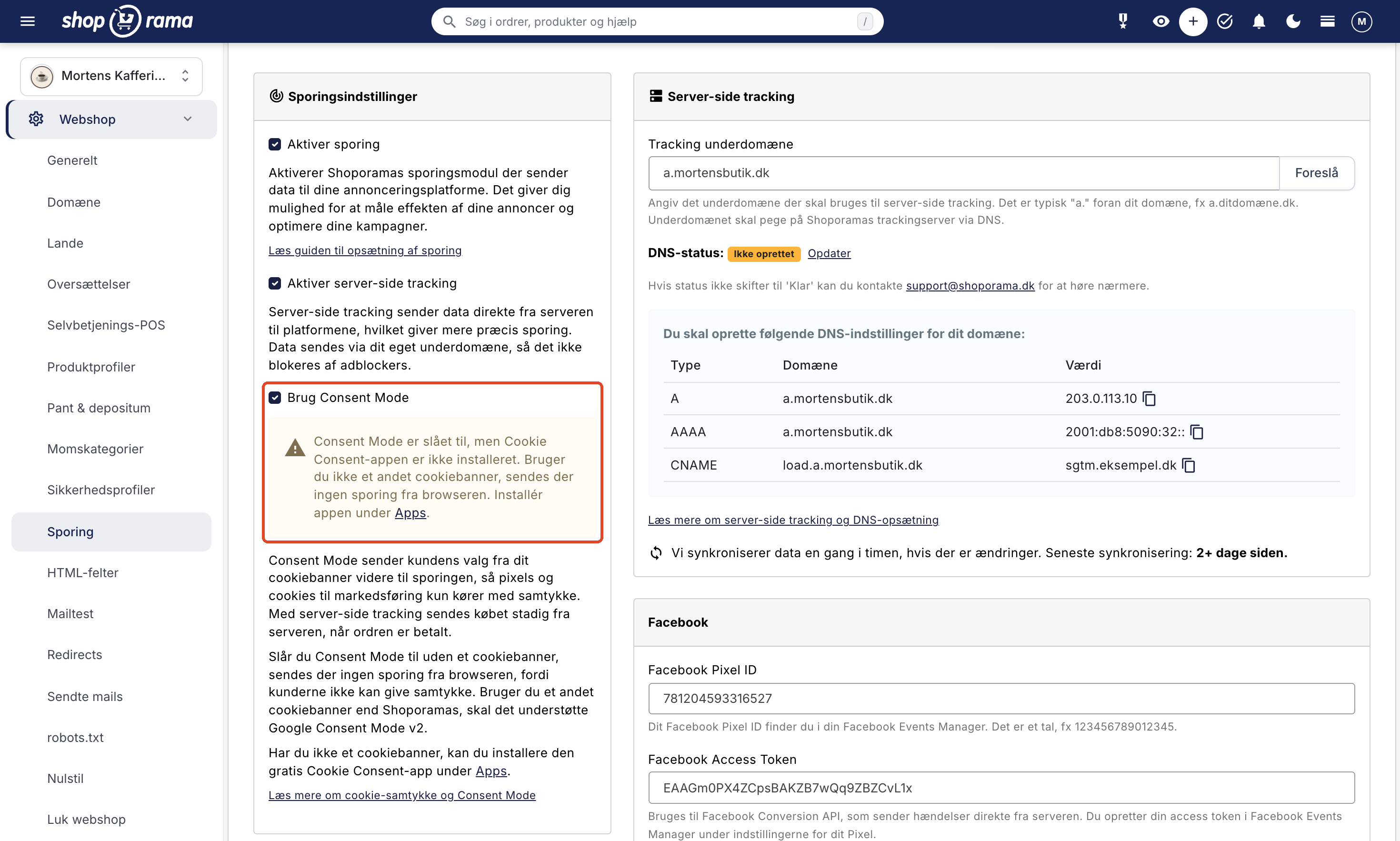
If you use a cookie banner other than Shoporama’s—such as Cookiebot—it must support Google Consent Mode v2; otherwise, the customer’s consent will not be transmitted to the tracking system. The warning can only detect Shoporama’s own app, so it will appear even if you’re using a different banner. If you’re unsure whether your banner is compatible with the tracking, please email support@shoporama.dk.
This happens when the customer declines
With the app and Consent Mode enabled, the following happens when the customer clicks “Reject All”:
- The Meta and LinkedIn pixels do not fire in the browser, and no marketing cookies are set.
- Google receives only anonymous signals without cookies and can model some of the missing conversions in Google Analytics and Google Ads.
- The purchase is still sent from the server if you use server-side tracking. Once the order is paid for, Shoporama’s server sends the purchase along with the customer’s contact information so the platforms can match it.
- Ad clicks are recorded on the order. If the customer came from a Google or Microsoft ad, the purchase may be attributed via offline conversions.
The last two occur outside the browser and do not depend on the customer’s selection in the banner. Therefore, be sure to describe them in your privacy policy. Read more about the other settings in Tracking in your Shoporama online store.
Customization
Most elements of the banner can be customized in the app’s settings:
- The text in the banner: headline, body text, subtitle, the three button texts, as well as the title and description for statistics and marketing. Other fixed text, such as the “Learn more about our cookies” link and the “Save settings” button, can be edited under Design > Text
- The content of the cookie policy that the customer sees under the “Learn more about our cookies” link
- The colors of the “Accept All” and “Reject All” buttons, so the banner matches the store’s design
- Custom CSS for full control over the appearance
- Display type: overlay or discreet bar at the bottom
Frequently Asked Questions
Does the cookie app cost anything?
No. The app is free and included in all Shoporama online stores. You install it under Integrations > Apps, and there’s no ongoing subscription like with external solutions.
Do I need to make any changes to my theme?
No. The app is automatically added to all pages and works with all themes. If you’ve added tracking scripts yourself, the app will block their cookies, but the scripts will still send data. If they need to wait for consent, they must comply with Google Consent Mode.
How do I document the customer’s consent?
Consent is stored with a timestamp in the customer’s own browser. Shoporama does not keep a log of individual customers’ choices, so you cannot look up a specific customer’s consent. What you can document is how your store obtains consent: the banner, the categories, and your cookie policy. Read more in the GDPR and cookie rules for your online store.
Do I lose conversion data when customers reject cookies?
With Consent Mode enabled, the Meta and LinkedIn pixels and the ad platforms’ cookies only run after consent is given, so those visits are not tracked by the pixels in the browser. With Consent Mode v2, Google still receives anonymous signals and can model conversions. The purchase itself can still be tracked via server-side tracking and offline conversions; see the section “What Happens When a Customer Rejects” above.
I’ve enabled Consent Mode, but no data is showing up in Google Analytics or Meta. What’s wrong?
Check to make sure there’s a cookie banner on the store. With Consent Mode, tracking waits for the customer’s consent, and without a banner, no one can give it. Install the Cookie Consent app under Integrations > Apps. If the app is missing, the Webshop > Tracking page will display a yellow warning below the checkmark. It may take up to four hours for the banner to appear on all pages, and data will only start coming in once customers begin accepting cookies.
I use Cookiebot. Why does the Tracking page show a warning?
The warning only checks whether the Cookie Consent app is installed and cannot detect Cookiebot. You should not install the app on top of it, as this will result in customers seeing two banners. Instead, test it yourself: accept cookies in your banner and check under “Real-Time” in Google Analytics to see if your visit is being tracked. If it is, you can ignore the warning. If you’re unsure, email support@shoporama.dk.
How can a customer change their selection later?
Via the small cookie icon in the lower-left corner of the page, which appears once the customer has made their selection. If the customer withdraws their consent, the app automatically deletes the relevant cookies from the browser.
Can I customize the banner to match my store’s design?
Yes. You can change the text, choose button colors, add your own CSS, and choose between an overlay or a discreet bar at the bottom of the screen.
Related articles
GDPR and Cookie Policies for Your Online Store
Overview of the GDPR and cookie regulations for online stores: consent before tracking, documentation, and cookie policies, and how Shoporama meets...
What cookies does Shoporama set?
A complete overview of the cookies set by a Shoporama online store: name, purpose, and duration. Use this list as the basis for your cookie policy.
HTML fields: Insert Cookiebot, GTM and other scripts in your online store
How to use Shoporama HTML fields to insert Cookiebot, Google Tag Manager, Facebook Pixel, chat widgets and other custom HTML/JavaScript on your...
Data Processor Agreement
Guide to approving the data processing agreement with Shoporama under the GDPR.
Server-side tracking in Shoporama
A Complete Guide to Server-Side Tracking in Shoporama. Better data quality, fewer ad-blocker losses, product IDs that match your feed, and...
Offline conversions for Google Ads and Microsoft Ads
Send your Shoporama orders as offline conversions to Google Ads and Microsoft Ads. Get full attribution of sales to clicks via a secure CSV feed.
Tracking in your Shoporama webshop
Enable Shoporama's built-in tracking and send precise tracking data to Facebook, Google Ads, GA4, TikTok, and more. Server-side, GDPR-compliant,...
Product IDs and Catalog Match: How to Ensure Your Ads Match Your Product Feed
An explanation of which product ID Shoporama’s tracking sends, why it always matches the Google Shopping feed, what “catalog match” means for your...
Related features
Consent Mode
Consent Mode controls Google tags based on the user's cookie consent. Learn how it works, why v2 is required and how to set it up.
Cookie Consent - free and GDPR friendly
Free cookie consent included in Shoporama. Google Consent Mode, categorized cookies, automatic blocking and consent logging. GDPR ready.
Cookie consent
Cookie consent is the requirement to obtain consent before cookies are set. Read about cookie categories, GDPR and cookie banners for webshops.
GDPR webshop guide
Complete GDPR guide for merchants: cookie consent, data processing agreements, server-side tracking and checklist. See how Shoporama solves it.
Shoporama vs WooCommerce
Compare Shoporama and WooCommerce: price, security, speed, GDPR and maintenance. Find the best online shopping platform for your business.
Shoporama vs DanDomain
Compare Shoporama and DanDomain on price, speed, AI features and integrations. See which Danish webshop platform is best for your business.