Tracking in your Shoporama webshop
Enable Shoporama's built-in tracking and send precise tracking data to Facebook, Google Ads, GA4, TikTok, and more. Server-side, GDPR-compliant, and with automatic e-commerce events.
Tracking is about knowing what works. Which ads drive sales? Which campaigns should you ramp up, and which ones should you turn off? Shoporama has a built-in tracking module that makes it easy to collect data from all the major ad platforms without having to mess with Google Tag Manager or manual code in the theme.
This guide shows you how to enable tracking in Shoporama, what server-side tracking and Consent Mode are, which e-commerce events are sent automatically, and where to find API keys for Facebook, Google Ads, Microsoft Ads, GA4, Pinterest, Snapchat, TikTok, and LinkedIn.
How to Find the Tracking Page
The tracking module is located in the left sidebar of the admin panel. Follow this path:
- Log in to the Shoporama admin
- In the left sidebar, click on Webshop (the section with the gear icon)
- Select Tracking from the submenu
You are now on the page where all tracking is managed in one place.
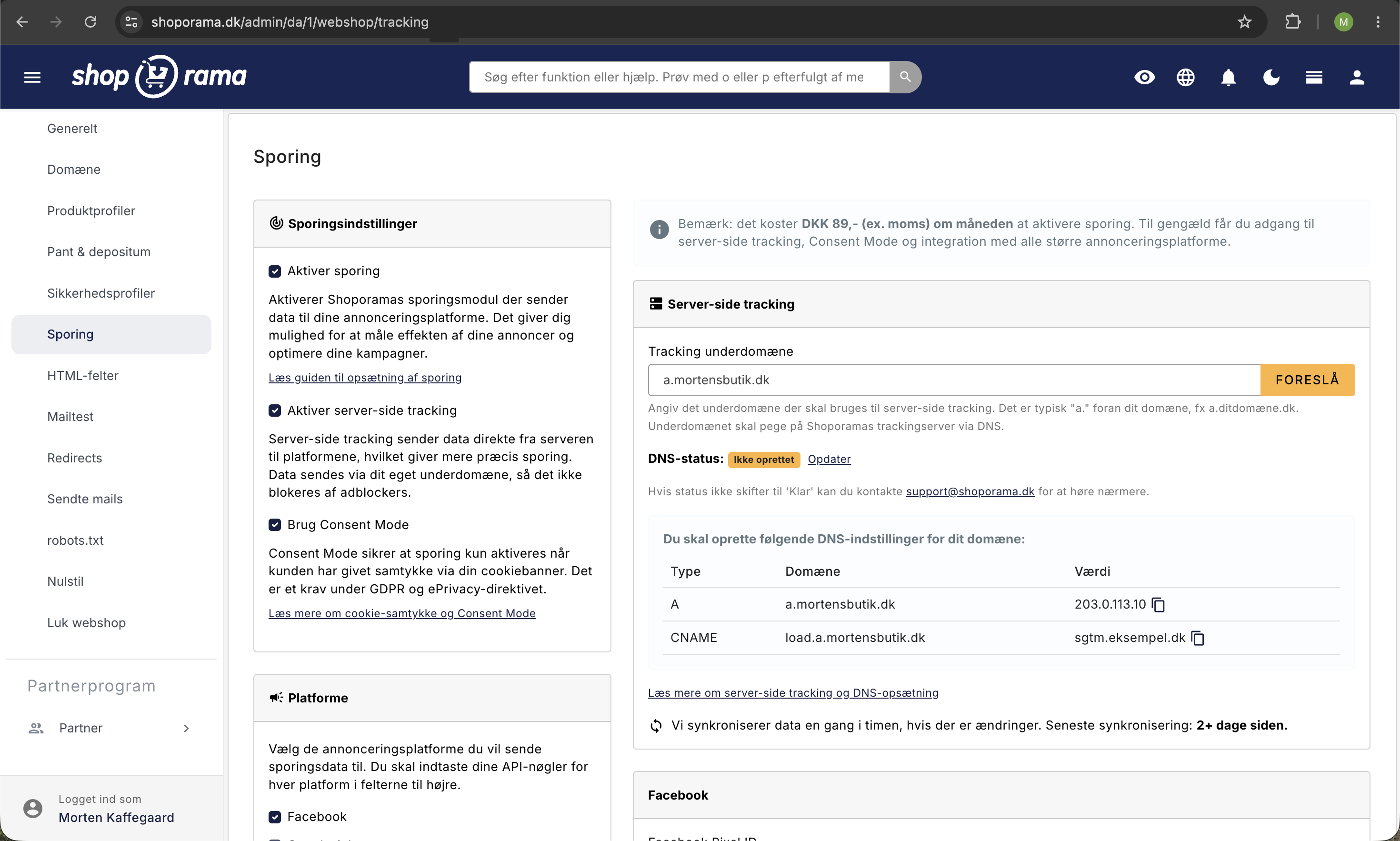
Enable Shoporama’s tracking module
The first thing you need to do is check the box next to “Enable Tracking.” This activates the entire tracking module, allowing Shoporama to start sending data to the ad platforms you select.
The tracking module requires that your online store be on a Pro or Flex plan, and activation incurs a monthly fee (the current price is displayed on the tracking page). In return, you’ll get access to server-side tracking, Consent Mode, and integration with all the major ad platforms.
Note
If you don’t want to use Shoporama’s built-in tracking, you can instead insert your own tracking code via HTML fields or build your own setup in Google Tag Manager. However, it’s much easier to use the built-in solution, and you get server-side tracking right out of the box.
Server-Side Tracking
Once you’ve enabled tracking, you can check the box for “Enable server-side tracking.” This is the key difference between traditional pixel-based tracking and what Shoporama offers.
The difference lies in where the data is sent from:
- Traditional tracking sends data from the customer’s browser. Ad blockers, browser restrictions, and cookie blocking mean that a large portion of your conversions never get recorded.
- Server-side tracking sends data directly from your online store’s server to the ad platform. It’s more accurate, more secure, and ad blockers can’t block it.
For server-side tracking to work, data must be sent via your own subdomain. This is typically something like a.yourdomain.dk. Shoporama automatically suggests a subdomain and displays the DNS records you need to set up with your domain provider. For a new tracking domain, there are three: an A record, an AAAA record, and a CNAME record.
- Check the box next to “Enable server-side tracking”
- Click “Suggest ” to get a subdomain
- Save the page
- Create the displayed DNS records with your domain provider, exactly as they appear in the table
- Wait a moment, then refresh the page. A new tracking domain will be created on the tracking server within an hour, and the status will change to Ready once the DNS is set up
Changes to your tracking settings are automatically synced to the tracking server approximately once an hour. You can find a more detailed walkthrough of the DNS setup in the server-side tracking guide.
If the status does not change to Ready within 24 hours, there is typically an issue with the DNS setup. Email support@shoporama.dk, and we’ll help you.
Consent Mode and GDPR
According to cookie regulations, you may not set cookies for analytics and marketing until your visitors have given their consent via your cookie banner. This applies to all ad platforms, not just Google. If you don’t have a cookie banner, you can use Shoporama’s free Cookie Consent app.
Check the box next to “Use Consent Mode.” When it’s active, tracking in the browser waits for the customer to accept cookies. If the customer declines, the Meta and LinkedIn pixels won’t fire in the browser, no marketing cookies will be set, and Google will only receive anonymous signals.
However, if you use server-side tracking, the purchase itself is still sent from Shoporama’s server once the order is paid for—even if the customer has rejected cookies. The purchase is sent along with the customer’s contact information, such as email and phone number, so the platforms can match it. Describe this in your privacy policy.
Google can still model conversions using Consent Mode v2, so you’ll get an estimate for visits where consent wasn’t given. That way, you won’t lose all your insights, even if many users opt out of cookies. Read more in the article about cookie consent and Consent Mode.
Select your ad platforms
Under “Platforms,” check the boxes next to the platforms you use. For each platform you enable, a field will appear on the right side where you can enter API keys. You can have as many platforms active at once as you like.
Facebook (Meta)
For Facebook and Instagram ads, you’ll need two fields:
- You’ll findthe Facebook Pixel ID in Facebook Events Manager. It’s a 15-digit number.
- The Facebook Access Token is used for the Conversions API (server-side). It’s created in Events Manager under your pixel’s settings.
Read more in the article about the Facebook Conversions API.
Google Ads
For Google Ads, you can track multiple events:
- The Conversion ID typically starts with “AW” and can be found under “Conversions” in Google Ads.
- The Conversion Label - Purchase is required if you want to measure sales and ROAS.
- Conversion Label - Add to Cart and Begin Checkout are optional but provide you with more insight into your conversion funnel.
- The Google Merchant Center ID is optional and appears directly below “Conversion Label - Purchase.” If you fill this in, the items in the purchase will be sent to Google Ads. If Merchant Center also knows your cost of goods sold, you can then view gross profit and cost of goods sold per campaign and product. The ID is located at the top of Merchant Center. Learn more about gross profit in Google Ads.
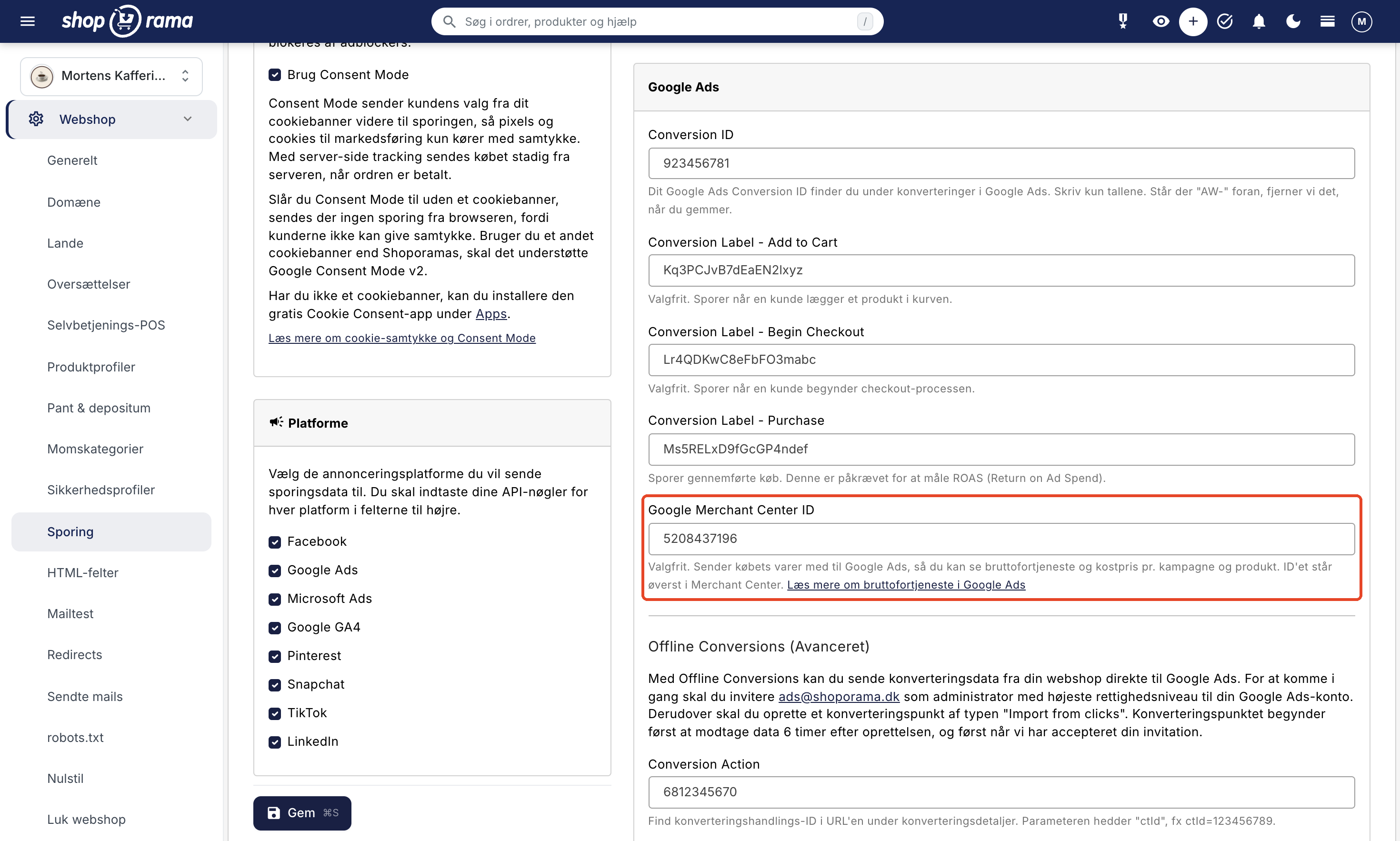
You can also set up offline conversions, where Shoporama sends purchase data directly to Google Ads via a CSV file. This requires that you invite ads@shoporama.dk as an administrator in your Google Ads account and create a conversion point of the type “Import from clicks.” The Tracking page displays the exact URL for the CSV file along with the username and password. Read more in the articles about Google Ads conversion tracking and offline conversions.
Microsoft Ads (Bing)
Microsoft Ads is supported exclusively through offline conversions. There is no pixel or API key to enter. Instead, Shoporama generates a CSV file with your conversion data, and the tracking page displays the URL, username, and password for the file. You can either upload the file manually in Microsoft Ads or set up Microsoft to retrieve it automatically. Read more in the article on offline conversions.
Google GA4
To track visits and e-commerce events in Google Analytics 4, you need to enter your Measurement ID. It starts with “G-” and can be found in GA4 under “Data Streams.” GA4 receives eight of the events listed in the table below: view_item_list, view_item, view_cart, add_to_cart, begin_checkout, add_shipping_info, add_payment_info, and purchase. Read more in the GA4 setup guide.
Pinterest uses two fields:
- The Tag ID can be found in Pinterest Ads Manager under Conversions.
- The Access Token is used for the Pinterest Conversion API and is created in Pinterest Business Manager.
Snapchat
Snapchat uses:
- ThePixel ID can be found in Snapchat Ads Manager under "Events."
- The API Token is used for the Snapchat Conversions API and is created in Snapchat Ads Manager.
TikTok
TikTok user:
- ThePixel ID can be found in TikTok Ads Manager under "Events."
- The Access Token is used for the TikTok Events API and is created in TikTok Ads Manager.
LinkedIn is the easiest to set up. You just need to enter your Insight Tag ID, which is a number you’ll find in LinkedIn Campaign Manager.
E-commerce events are sent automatically
You don’t need to worry about sending events yourself. Once you’ve selected a platform and entered your keys, Shoporama automatically sends twelve e-commerce events as the customer navigates through your online store:
| Event | When it’s sent |
|---|---|
| view_item | A customer views a product page |
| view_item_list | A customer views a category page or a landing page with products |
| search | A customer searches the online store |
| add_to_cart | A product is added to the cart, even when this happens without changing pages |
| view_cart | The customer views the contents of their cart |
| begin_checkout | The customer begins checkout, and the address information page appears |
| begin_checkout_shipping | The customer has entered their address, and the page for selecting shipping and payment appears |
| add_shipping_info | Simultaneously with begin_checkout_shipping, when the shipping and payment page appears. The selected shipping method is not included because the customer has not selected it yet |
| add_payment_info | The customer has selected shipping and payment and is proceeding. Sent on the first page that follows (approval, payment, or receipt) with the name of the payment method, and only once, even if the page is reloaded |
| begin_checkout_approval | The approval page appears, where the customer approves their order. Not sent if the approval page is disabled |
| begin_checkout_payment | The payment page appears, and the customer proceeds to payment |
| purchase | The purchase is complete, and the customer sees the receipt page |
These six checkout events provide a detailed picture of where customers might drop off during the purchase process. begin_checkout, add_shipping_info, and add_payment_info are Google’s standard names, which GA4 uses in the Checkout Journey report. The other three are Shoporama’s own names for the checkout pages and are not sent to GA4. Since shipping and payment are selected on the same page, GA4 cannot distinguish between drop-offs at the shipping stage and drop-offs at the payment stage. The “Purchase” event is sent only once per order, even if the customer reloads the receipt page, so your sales figures are not counted twice.
All events use the same product ID as your Google Shopping feed. This means your events automatically match the product catalog on both Meta and Google, so features like dynamic remarketing work without any additional setup. Read more in the article about product IDs and catalog matching.
When should I use Google Tag Manager?
You don’t need Google Tag Manager to get professional tracking in Shoporama. The built-in tracking module covers most needs and is faster to set up.
GTM may be relevant if you:
- Have special, non-standard tags that you want to manage yourself
- Need to integrate with a platform that Shoporama doesn’t support
- Already have a complete GTM setup that you want to keep
In that case, you can insert your GTM container via Webshop › HTML Fields in the admin panel. See the article on HTML Fields, Cookiebot, and GTM. Remember to enable Consent Mode in GTM so your tags comply with GDPR.
How to test if tracking is working
- Facebook: Use Meta Pixel Helper, a browser extension that shows which events are being fired. You can also use Test Events in Meta Events Manager to view events in real time.
- Google Ads and GA4: Use Google Tag Assistant to view active tags, and GA4 DebugView to track events live.
- Real-time reports: Also test in the respective ad managers by checking whether your own test visits appear as real-time data.
- Server-side: Keep in mind that server-side events aren’t always visible in pixel helpers, since they don’t go through the browser. Check Events Manager directly to verify.
Frequently Asked Questions
Do I need to be technically savvy to use the tracking module?
No. You just need to be able to copy and paste API keys from your ad accounts. If you want to use server-side tracking, you’ll need to set up a few DNS records with your domain provider; there’s a brief guide for that. If you have any questions, email support@shoporama.dk.
How much does it cost?
The tracking module requires a Pro or Flex plan and also incurs a fixed monthly fee. The current price is displayed on the tracking page before you activate the module. The price remains the same regardless of how many platforms you connect.
Which events does Shoporama send automatically?
Twelve e-commerce events that cover the entire customer journey: product view, category and landing page view, search, add to cart, cart view, six checkout events, and purchase. See the table above for a description of each event.
Can I see in GA4 where customers abandon the checkout?
Yes. GA4’s Checkout Journey report shows drop-off rates on the address page, the shipping and payment page, and beyond. You don’t need to configure anything in Shoporama other than your Measurement ID. Read more in the GA4 setup guide.
Does catalog matching work automatically on Meta and Google?
Yes. All events are sent with the same product ID as your Google Shopping feed, so the platforms can automatically match events to your product catalog. Read more in the article about product IDs and catalog matching.
Do I need Google Tag Manager?
No. Shoporama’s built-in tracking covers the most commonly used ad platforms without GTM. GTM is only relevant if you have very specific requirements or already have an existing setup that you want to keep.
Why are there missing conversions in Facebook or Google Ads?
Missing conversions are most often caused by ad blockers, browser restrictions (e.g., Safari’s ITP), or a lack of cookie consent. Server-side tracking resolves the first two issues because data is sent directly from the server. Consent Mode v2 ensures that Google can model the missing conversions. Purchases from customers who have rejected cookies can still be captured via server-side tracking and offline conversions.
Do I need to use a cookie banner along with tracking?
Yes. Cookie regulations require consent before setting cookies for analytics and marketing. Shoporama has a free, built-in cookie consent app that you can install, or you can use a third-party solution such as Cookiebot or Cookie Information.
How long does it take to see data?
Once tracking is enabled and DNS is set up, data starts flowing immediately. On most platforms, there’s a delay of a few hours before conversions appear correctly. For Google Ads offline conversions, however, you’ll need to wait about 6 hours after the conversion point is created.
Can I track multiple accounts for the same platform?
The tracking page is designed for one set of keys per platform. If you need to track multiple Facebook pixels or multiple Google Ads accounts simultaneously, you can supplement this with GTM via HTML fields. Email support@shoporama.dk if you have any questions about how to combine these elements.
What happens if I turn off tracking again?
You can uncheck the “Enable Tracking” box and save at any time. Shoporama will then stop sending data to the platforms immediately. Your keys will be saved, so you can turn tracking back on later without having to re-enter them.
Need help?
Email support@shoporama.dk if you encounter any issues with the setup. We’re happy to help with DNS records, API keys, and troubleshooting missing conversions.
Related articles
Set up Daisycon tracking on your webshop
Guide to implementing Daisycon conversion tracking on your Shoporama webshop with correct Smarty code.
Google Analytics 4 (GA4) on your Shoporama online store
How to set up Google Analytics 4 on your Shoporama online store. Built-in GA4 integration with e-commerce events, server-side tracking and Consent...
SEO in Shoporama
Complete guide to the SEO features in Shoporama - from meta tags and sitemap to Google Shopping and AI Assistant.
Product IDs and Catalog Match: How to Ensure Your Ads Match Your Product Feed
An explanation of which product ID Shoporama’s tracking sends, why it always matches the Google Shopping feed, what “catalog match” means for your...
Cookie consent and Consent Mode v2
How to set up Shoporama's free cookie consent app: categories, automatic blocking, consent revocation, and Google Consent Mode v2.
Server-side tracking in Shoporama
A Complete Guide to Server-Side Tracking in Shoporama. Better data quality, fewer ad-blocker losses, product IDs that match your feed, and...
Related features
Attribution
Attribution is all about determining which marketing channels are credited for a sale. Learn about attribution models, challenges and practical...
Facebook Analytics
Facebook Analytics (now Meta Business Suite) provides insights into how your Facebook and Instagram activities drive traffic and sales. Learn about...
Facebook pixel
Facebook Pixel tracks visitors to your online store and sends data to Meta. Learn about events, retargeting, the Conversions API, and setup in...
GA4 - Google Analytics 4
GA4 is Google's analytics platform for measuring user behavior. Read about GA4, e-commerce tracking and analytics for webshops.
Campaign tracking
Campaign tracking with UTM parameters and conversion tracking shows which campaigns are driving sales. Learn about UTM, tracking setup and...
Conversion tracking
Conversion tracking measures actions like purchases and sign-ups. Read about tracking, ROI measurement and optimizing your online store.
dataLayer
dataLayer is the link between your online store and Google Tag Manager. Learn how e-commerce data—such as product views and purchases—is sent to...
GTM - Google Tag Manager
Google Tag Manager manages tracking codes without code changes. Read about GTM, tags, triggers and e-commerce tracking for webshops.
UTM parameters
UTM parameters are tags added to your links that show which campaigns and channels are driving traffic and sales. Learn about the 5 parameters and...
Server-side tracking - accurate tracking without cookies
Server-side tracking for Google, Facebook, Pinterest, TikTok, LinkedIn and Microsoft Ads. Unaffected by adblockers. Included in Shoporama Pro.