Google Analytics 4 (GA4) on your Shoporama online store
How to set up Google Analytics 4 on your Shoporama online store. Built-in GA4 integration with e-commerce events, server-side tracking and Consent Mode v2.
Why Use Google Analytics 4 for Your Online Store?
Google Analytics 4 (GA4) shows you what’s happening in your online store. You can see which pages people visit, where they come from, which products they view, and how many end up making a purchase. This gives you a solid foundation for making decisions about marketing, product selection, and user experience.
Shoporama has built-in GA4 integration, so you don’t have to mess with code, scripts, or tags. Just enter your Measurement ID, and Shoporama handles the rest for you. You automatically get e-commerce events, server-side tracking, and Consent Mode included in the package.
The Easy Way: Shoporama’s Built-in GA4 Integration
The recommended way to set up GA4 is through Shoporama’s own tracking module. It takes just a few minutes, and you’ll get accurate tracking from day one.
Step 1: Create a GA4 property on Google
- Log in to analytics.google.com
- Click Admin (the gear icon in the lower-left corner) and select Create Property
- Follow the wizard, select Web as the platform, and enter your online store’s URL and name
- Once your data stream is created, your Measurement ID will be displayed. It starts with “G-” followed by a series of characters
- Copy your Measurement ID. You’ll need it in the next step
Step 2: Enable tracking in Shoporama
- Log in to your Shoporama admin panel
- Go to " Webshop " in the left sidebar (the section with the gear icon) and select " Tracking"
- Check the box next to Enable Tracking
- Choose whether you want to enable server-side tracking and Consent Mode (more on both below)
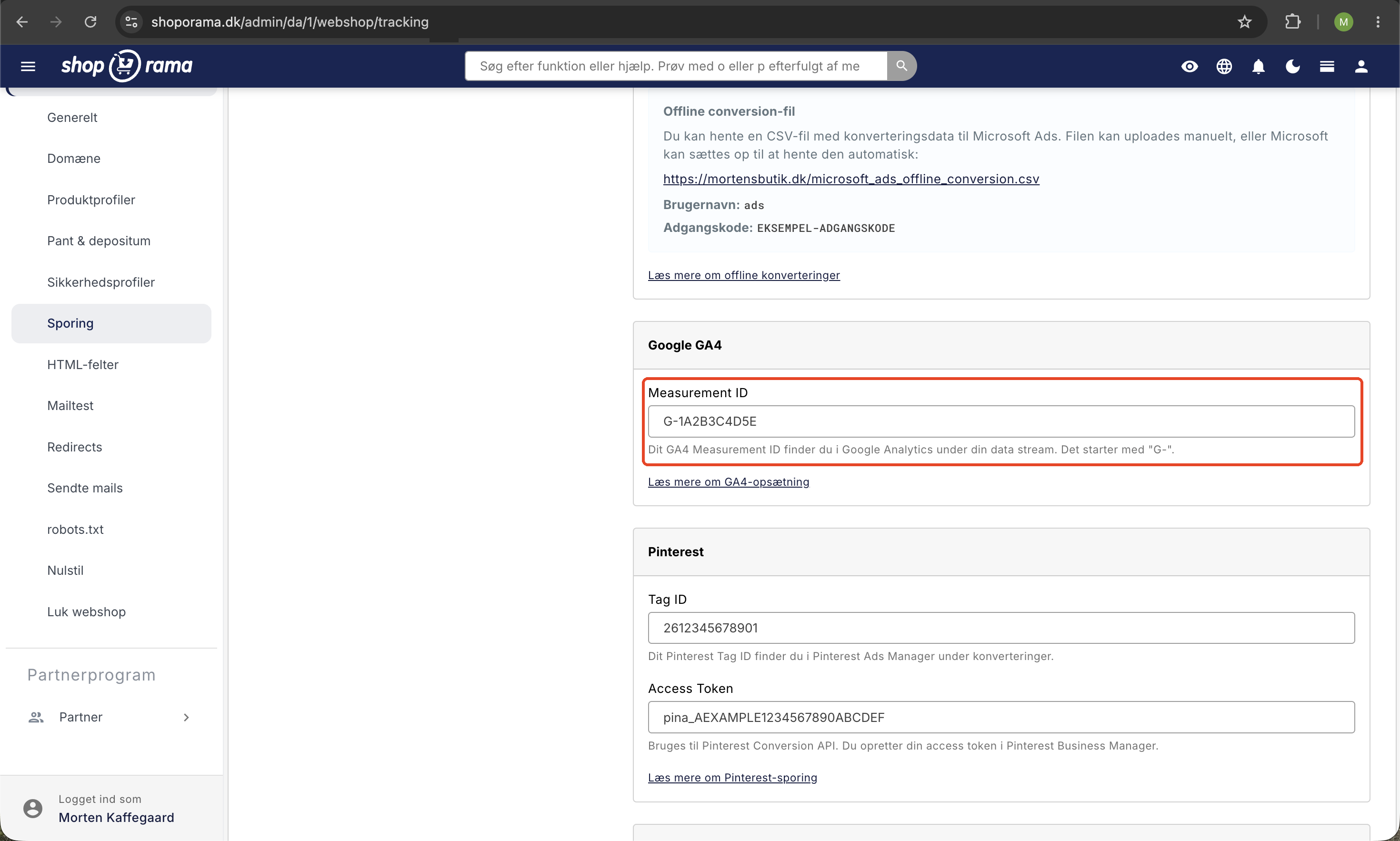
- Under “Platforms,” check the box next to “Google GA4”
- In the Measurement ID field, enter your ID in the format G-xxxxxxxx
- Click Save
That’s it. Shoporama automatically adds the necessary code to your online store and starts sending data to GA4. You don’t need to ask a developer for help, and you don’t have to paste any scripts anywhere.
E-commerce events are sent automatically
Once GA4 is enabled, Shoporama automatically sends the most important e-commerce events to Google. You don’t need to configure anything in GA4 other than creating your property. The following events are sent:
- view_item —when a customer opens a product and views its details
- add_to_cart - when a product is added to the cart
- begin_checkout – when the customer begins the checkout process
- purchase - when an order is completed (including order value, products, and tax)
With these events, you’ll have access to all of GA4’s e-commerce reports out of the box, including conversion rate, average order value, most popular products, and the entire customer journey from first visit to purchase.
Server-side tracking provides more accurate measurement
Shoporama offers server-side tracking, where data is sent directly from the server to Google instead of just from the browser. This resolves several well-known issues with traditional client-side tracking.
The benefits of server-side tracking:
- Ad blockers do not block the data. When tracking occurs via your own subdomain, the browser views it as part of your online store rather than as a third party
- More accurate numbers. Browser-based limitations such as ITP, Safari restrictions, and missing cookies do not affect server-side data
- Better conversion tracking. You’ll typically see 10–30 percent more recorded conversions compared to client-side tracking alone
- Faster online store. Fewer tracking scripts in the browser mean faster loading times
To enable server-side tracking, check the “Enable server-side tracking” box on the Tracking page. You must also create two DNS records (A and CNAME) with your DNS provider. Shoporama displays the exact values on the page, and the status changes to “Ready” once the DNS is set up correctly.
View your contribution margin in GA4
If you use server-side tracking, Shoporama doesn’t just send revenue to GA4. Each purchase also includes cost of goods sold and contribution margin per line item as additional dimensions. If you register these fields as custom dimensions in GA4, you can see your actual profit per campaign and channel—not just revenue. Read how to set this up in the article on server-side tracking.
Consent Mode v2 and GDPR
GA4 may only set cookies and collect personal data if visitors have given their consent. This requires Consent Mode v2, which is Google’s framework for handling consent correctly.
When you check the “Use Consent Mode” box on the Tracking page, the following happens automatically:
- GA4 only fires full events when visitors have accepted cookies
- Before consent is granted, anonymous signals are sent so you still get an estimate of traffic
- Shoporama’s built-in cookie consent solution sends consent signals directly to Google
- You comply with the requirements of the GDPR and the ePrivacy Directive without losing insights
If you use a third-party cookie banner such as Cookiebot or CookieInformation, you must ensure that it sends the correct consent signals to Google. Shoporama’s own solution handles this out of the box.
Alternative: Use Google Tag Manager
If you already have a GTM container, or if you need to send data to many different platforms via the same container, you can use Google Tag Manager. It’s not required to get GA4 working in Shoporama, but it offers flexibility if you’re working with advanced measurements or third-party tools.
How to set up GTM
- Create an account and a web container at tagmanager.google.com
- Note your GTM Container ID in the format GTM-xxxxxxx
- In Shoporama, go to Webshop in the left sidebar and select HTML Fields
- Paste the GTM code into the field for the head section and the no-script section into the body field(follow Google’s instructions)
- Create a GA4 Configuration tag in GTM with your Measurement ID, and trigger it on All Pages
- Enable “Send e-commerce data” on the GA4 tag so that Shoporama’s dataLayer events are forwarded
Shoporama automatically pushes e-commerce events to the dataLayer so that GTM can capture them and forward them to GA4. If you’ve already configured server-side tracking in Shoporama and are also using GTM, be careful to ensure that events aren’t sent twice. Contact support if you have any questions.
Check that it’s working
Once you’ve saved your Measurement ID, you can test whether data is being sent:
- Open your online store in a regular browser (not incognito), and accept cookies if Consent Mode is enabled
- Click around: open a product, add it to the cart, and proceed to checkout
- Log in to GA4 and go to Reports » Real-Time
- You should see your own activity within a minute or two
- To test e-commerce events, you can use GA4’s DebugView along with the Google Analytics Debugger extension in Chrome
E-commerce reports (the Monetization section in GA4) typically take 24–48 hours to fully populate with data the first time.
Related topics
- Tracking in your Shoporama online store —an overview of all tracking options
- Google Ads conversion tracking —so you can measure the effectiveness of your ads
- HTML fields for scripts and GTM
- Cookie consent and Consent Mode v2
- Server-side tracking
Frequently Asked Questions
Do I have to pay for Google Analytics 4?
Google Analytics 4 is free to use for the vast majority of online stores. Shoporama’s tracking module is a paid feature (you can see the price on the Tracking page in your admin panel), but it includes integration with all major advertising platforms, server-side tracking, and Consent Mode.
Where can I find the Tracking menu item in the admin panel?
In the Shoporama admin, you’ll find it in the left sidebar under “Webshop” (the section marked with a gear icon). Click “Webshop” to expand the menu, then select “Tracking.”
Do the GA4 numbers match my orders in Shoporama?
GA4 shows how many purchases have been recorded via tracking, which does not always match the number of orders in Shoporama 100 percent. These discrepancies are typically due to visitors who have rejected cookies, users of ad blockers, or network errors. Server-side tracking significantly reduces these discrepancies. For accounting and bookkeeping purposes, you should always use orders from Shoporama, not GA4.
I’ve switched from Universal Analytics. What should I do?
Google has completely shut down Universal Analytics. You must create a brand-new GA4 property and enter your new Measurement ID in Shoporama. The old UA tracking ID in the format UA-xxxxxx no longer works. Historical data from UA is only available as an export.
Do I need to use both Shoporama’s built-in GA4 and Google Tag Manager?
No, that’s not necessary. Shoporama’s built-in GA4 integration is sufficient for most online stores. GTM only makes sense if you’re already familiar with it, or if you need to send data to many different third-party tools such as Hotjar, Microsoft Clarity, and similar services. If you use both the built-in GA4 and GTM with GA4 tags, you risk having events recorded twice.
Does server-side tracking affect the speed of my online store?
On the contrary. Server-side tracking shifts some of the tracking workload away from the browser, so pages load faster. It can also provide a slight SEO benefit, since Google uses page speed as a ranking factor.
What happens to my data if a customer rejects cookies?
With Consent Mode v2, anonymous signals about the visit are still sent to Google, so you get an estimate of traffic. However, detailed e-commerce events and user behavior are only recorded for customers who have accepted cookies. This is a legal requirement under the GDPR.
Can I exclude my own visits from GA4 data?
Yes. Go to Admin in GA4, select your data stream, and create an internal traffic filter based on your IP address. You can also install the Google Analytics Opt-out browser extension in the browser you use to manage your online store.
Can I send GA4 data to Google Ads?
Yes. In GA4, you can link your property to your Google Ads account under Admin » Product Links. This allows you to import conversions and use GA4 audiences in Google Ads campaigns. Shoporama also has a separate Google Ads integration on the Tracking page that sends conversions directly to Google Ads.
How quickly does my data appear in GA4?
Activity appears in the Real-Time report almost immediately (typically within a minute). Most reports update with a 24–48-hour delay. E-commerce reports may take up to 48 hours to fully populate the first time you enable GA4.
Need help?
If you’re stuck during setup or have questions about the data you see in GA4, feel free to email us at support@shoporama.dk. We’re happy to help you get everything set up.
Related articles
Tracking in your Shoporama webshop
Enable Shoporama's built-in tracking and send precise tracking data to Facebook, Google Ads, GA4, TikTok, and more. Server-side, GDPR-compliant,...
Set up Daisycon tracking on your webshop
Guide to implementing Daisycon conversion tracking on your Shoporama webshop with correct Smarty code.
SEO in Shoporama
Complete guide to the SEO features in Shoporama - from meta tags and sitemap to Google Shopping and AI Assistant.
Related features
GA4 - Google Analytics 4
GA4 is Google's analytics platform for measuring user behavior. Read about GA4, e-commerce tracking and analytics for webshops.
Server-side tracking - accurate tracking without cookies
Server-side tracking for Google, Facebook, Pinterest, TikTok, LinkedIn and Microsoft Ads. Unaffected by adblockers. Included in Shoporama Pro.
Google Shopping feed is included in your Shoporama shop
Get an automatic Google Shopping feed with all required fields. Included for free in your Shoporama shop. Also Pricerunner and custom feeds.