Find and Replace: Correct Text on Multiple Products at Once
How to use Shoporama's "Find and Replace" feature to edit names, descriptions, and meta text for multiple products at once, and what to watch out for when the changes can't be undone.
Have you switched suppliers, changed a brand name, or discovered the same spelling error in 300 product descriptions? Shoporama has a built-in “find and replace” feature that replaces the same text snippet in all the products you’ve selected. A correction that would otherwise take half a workday takes less than a minute.
The feature is fast, but it’s also unforgiving. It saves immediately, shows no preview, and has no undo button. Here’s the full picture: where to find it, what it affects, and how to use it without getting burned.
How to Find Search and Replace
Find and Replace doesn’t have its own entry in the left-hand menu. It’s available exclusively as an action on the products you’ve selected in the product overview, along with the other bulk tools. Here’s how to get there:
- Go to Products and then All Products in the left-hand menu.
- Check the boxes next to the products you want to edit. The checkbox at the top or bottom of the list selects all products on the page you’re on.
- As soon as you’ve selected at least one product, the bulk editing bar appears at the bottom of the screen.
- Click “More Actions” and select “Find and Replace” from the drop-down menu.
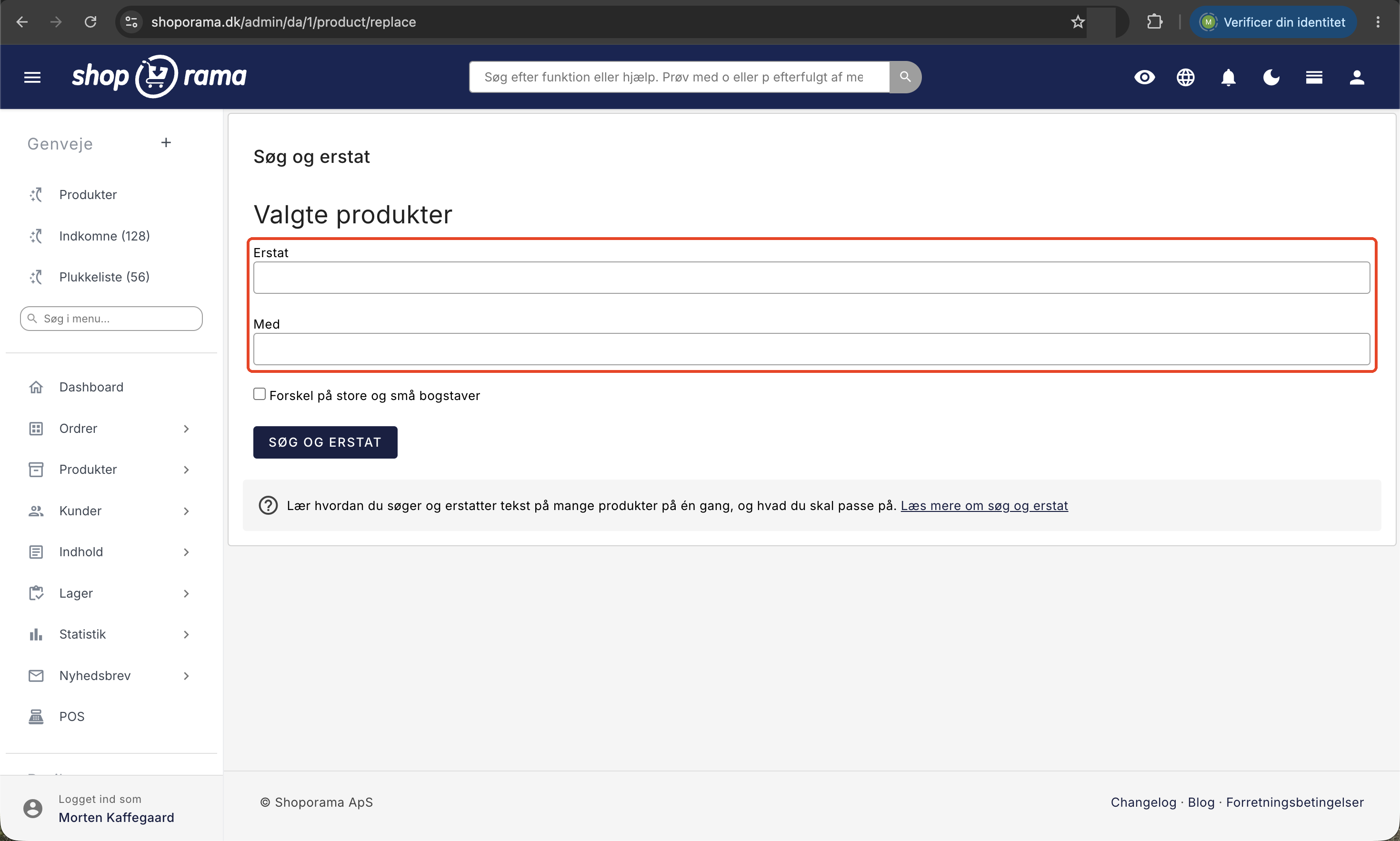
This opens the Find and Replace page. At the top, the selected products are listed under the “Selected Products” heading, so you can verify that they are correct. If you’re unsure how to filter and select items, you can read more in the article about the product overview. Note that this option is not displayed for users with the Supplier role.
If you’d rather enter the address directly
You can also open the page by entering the address in your browser. After the part of the address that ends with your shop’s number, type /product/replace?products= followed by the product ID numbers separated by commas:
.../product/replace?products=1234,1235,1236
You can display the product ID numbers as a column in the product overview: click the gear icon at the far right of the table’s header row to open “Customize View,” toggle the switch next to “Product ID” to “On,” and click “Save.” Note that you won’t be redirected afterward if you start from the address bar. The change will still take effect, but the page will simply reload. If you open the page with no products at all, the list will be empty, and nothing will happen no matter what you type.
Who can use Search and Replace?
With the Full Access role, you can always use Search and Replace. If you have a different role, that role must be able to edit products—for example, Employee—and you must have the Delete and Bulk Import add-on. This is because Search and Replace, just like importing and deleting products, falls under that add-on. If you’re missing one or the other, you can still see the option under “More Actions,” but you’ll get the “No Access” page when you select it. If you want to create a backup using “Export Selected Products” first, you’ll also need the “Data Export” add-on. The company administrator selects roles and add-ons under Company → Users. Read more in Roles and Permissions.
Which fields are modified
Find and Replace searches five text fields for each of the selected products:
- Name, i.e., the product name itself
- List description, the short text used on product cards and lists
- Description, the long product text from the text editor
- Title under the heading “Google title and description,” i.e., the meta title
- "Description " in the same section—that is, the meta description
Everything else remains unchanged. This includes, among other things:
- Prices, sale prices, and cost prices
- SKU, GTIN, and MPN
- Inventory, categories, brands, and suppliers
- Product URL—that is, the URL by which customers and Google identify the product
- Google Shopping title
- Open Graph title and Open Graph description, which are used when sharing on social media
- Additional fields, product attributes, and variant-specific fields
It’s usually an advantage for the URL to remain unchanged. You can rename 500 products without a single link or Google listing being affected. If the URL does need to reflect the new name, the “Reset URL” option is available in the same menu. It generates a new URL based on the product name and automatically sets up a redirect from the old URL to the new one, so no one ends up on an error page.
Step by step: how to run the replacement
- In the “Replace” field, enter the text you want to find.
- In the “With” field, enter the text it should be replaced with.
- Click the “Search and Replace” button.
The change is saved immediately for all selected products, and you’ll be redirected back to the product overview. There is no confirmation message, and no count of how many products were changed. If you want to make sure it worked, you’ll need to open a few of the products and check for yourself.
Uppercase and Lowercase Letters
The search does not distinguish between uppercase and lowercase letters for the standard letters a through z. If you type “sommer,” it will also match “SOMMER” and “Sommer.” All three will be replaced with exactly the text you entered in the “Replace with” field, so the original capitalization will not be preserved.
This does not apply to the Danish letters æ, ø, and å, or to letters with accents. If you type “øko,” it will only match “øko” with a lowercase “ø,” while “ØKO” and “Øko” will remain unchanged. Therefore, run the search once for each spelling.
The page also includes a checkbox labeled “Distinguish between uppercase and lowercase letters.” In practice, this has no effect: the result will be the same regardless of whether you check the box or not. If you need a replacement that truly distinguishes between capital and lowercase letters, please email support@shoporama.dk.
This action cannot be undone
This is the most important sentence in the article: there is no preview, confirmation, or undo option. The moment you click “Search and Replace,” the text on all selected products is changed, and the old text is gone. No copy is saved. That’s why there are three habits that are well worth the effort:
- Try it on one product first. Select a single product, run the replacement, and check the result. If it looks right, repeat the process for the rest.
- Make a backup. Select “Export Selected Products” from the same menu. You’ll get a CSV file containing, among other things, the name, description, list description, meta title, and meta description as they appear right now. If you have a role other than Full Access, the export requires the “Export Data” option.
- Be as specific as possible. The longer and more unambiguous the search text is, the lower the risk of including something you hadn’t considered.
Be careful with parts of words
Search and Replace finds the text fragment no matter where it appears and does not distinguish between whole words and parts of words. If you replace “yellow” with “green,” “carrot” will also become “green-rot.” The solution is to make the search text longer and more precise, preferably with spaces around it. “Free shipping on orders over 499 kr.” is a much safer search text than “shipping.”
How to delete text
If you leave the “With” field blank, the found text will be deleted instead of being replaced. This is the easiest way to remove an expired campaign line, an old delivery promise, or an outdated phrase from many product descriptions at once. Conversely, if you leave the “Replace” field blank, nothing happens.
When the change doesn’t take effect immediately
The text in your product data is updated immediately, but your online store may continue to display the old version for a short while because rendered pages are stored in a cache to improve loading speed. Search and Replace does not clear the cache itself. If you want to speed up the process, you can open any product and click Save. Read more in the article about caching in Shoporama.
The search function on your own online store uses a search index that is updated when a product is saved in the normal way, and the “Find and Replace” feature does not update the index. If you’ve corrected words that customers search for, you should open the affected products and save them afterward.
When to Use a Different Approach
- If each product needs its own value, bulk editing and table editing are spreadsheet-like alternatives.
- If you need to change prices, use the “Prices” button in the bulk edit toolbar or a CSV import.
- If text needs to update automatically—for example, with the current price or stock status— dynamic tags in product descriptions are the way to go.
- If the text needs to be unique for each product, the AI assistant is a better choice.
For the tech-savvy
The description field is rewritten with HTML codes converted to the characters they represent. and & become a space and an ampersand, and if you’ve intentionally written HTML as visible text, it becomes actual HTML. This happens every time you run a search and replace, even if your search text isn’t in the text at all.
The description is HTML, so you can also search and replace within the code itself—for example, to change a domain in all links. Be careful, though: even half an HTML tag in the search text can break the markup in all the selected products at once.
"Find and Replace" writes directly to the fields and does not perform the post-processing that a regular "Save Product" action does. This means that updates to the search index, product feeds to Google Shopping and Klaviyo, and webhooks for your integrations will not be triggered. If you want these to be updated, the products must be saved in the usual way.
Frequently Asked Questions
I can’t find “Search and Replace” in the menu. Where is it?
It doesn’t have its own menu item. First, select some products under Products > All Products. Then the bulk editing bar will appear at the bottom of the screen, and under “More Actions,” you’ll find “Find and Replace.”
I get the “No Access” page when I select “Search and Replace.” Why?
Your role doesn’t grant access to this feature. The message on the page tells you what role you have and whether the “Deletion and Bulk Import” option is missing. Ask the company administrator to enable the option. If your role only allows you to view products, you’ll also need a role that allows you to edit them, such as “Employee.”
Can I undo it if I mess up my text?
No. There is no undo button and no copy of the old text. Therefore, always test on a single product first, and make a backup using “Export Selected Products” before making changes to multiple products.
Can I see what’s being changed before I click?
No, there is neither a preview nor a list of found instances. The page only shows which products you’ve selected. The closest you can get is to run the replacement on a single product and check the result.
How do I know if it worked? I don’t get any confirmation.
You’ll be redirected to the product overview without any notification. Check by opening a few of the products or by searching for the old text in the product overview. If you can’t find it anymore, it’s been replaced.
How many products can I select at a time?
There’s no set limit, but you can only select products on the page you’re currently viewing. Set “Show” at the bottom of the product list to up to 250 per page, select all, run the replacement, and repeat on the next page.
Can I also replace prices, item numbers, or stock levels?
No. Only the name, list description, description, meta title, and meta description are affected. Prices, SKU, GTIN, MPN, stock, categories, and attributes remain unchanged. For numbers and SKUs, use table editing or a CSV import.
We don’t spell “Organic” the same way everywhere. Does the search match all spellings?
Not when the word begins with æ, ø, or å. Uppercase and lowercase letters are treated the same only for a through z, so “Sommer” and “sommer” are matched by the same search, while “Øko” and “øko” must be run separately.
Can I replace HTML and links within the description?
Yes. The search runs directly on the HTML code in the description, so you can, for example, replace an old domain in all links at once. Always test on a single product first. An incomplete HTML tag in the search text can break the markup in all products.
Do the fields support wildcards or regular expressions?
No. It’s a standard text replacement, character by character. Asterisks, question marks, and other wildcards are searched for literally.
Will this change the product’s address and cause my Google rankings to drop?
No. The address remains exactly the same, even if you change the name. If you want it updated, simply select “Reset Address” from the “More Actions” menu, and a redirect from the old address to the new one will be created automatically. If you’re unsure, please email support@shoporama.dk before clicking the button.
Related articles
Product overviews
Shoporama product overview guide: Search, filter, sort and mass edit your products efficiently from the product list.
Cache in Shoporama
How caching works in Shoporama. How often caches are built, when your changes take effect, and how to force a reset.
Mass editing of products
Guide to bulk editing products in Shoporama - edit prices, inventory, SEO fields and more in a spreadsheet-like interface.
Dynamic tags in product texts
Use dynamic tags like [MONTH], [YEAR] and [FREESHIPPING] in product descriptions and meta titles to keep content current.
Print shipping labels without an order
Create and print shipping labels without first placing an order, using your own account with PostNord, GLS, or DAO. Create labels for multiple...
Edit product
Guide to the Product Edit Page in Shoporama: the top section with "Edit," Inventory, and Sales Statistics; how to customize the page with tabs and...
The Theme Store: Find and Buy a New Theme
Here's how to use the Theme Store in Shoporama: browse themes, view details and demos, purchase or subscribe, activate the theme, update versions,...
Related features
Mass editing
Edit many products at once. Loop Edit, stock update, bulk actions and queued bulk edits in the background.
Create and edit products, and edit multiple items at once
Create products with prices, images, categories, and inventory; check why an item isn't showing up; and edit multiple prices at once using bulk...