Pages
Learn how to create, edit, set to offline, and delete static pages such as "About Us," "Terms and Conditions," and "Contact" in Shoporama.
Static pages are fixed content pages in your online store, such as About Us, Terms and Conditions, Contact, or FAQ. They are independent of products and categories and are typically used for information that doesn’t change often. If a page is only needed for part of the year, you can take it offline without deleting it.
Where can I find static pages?
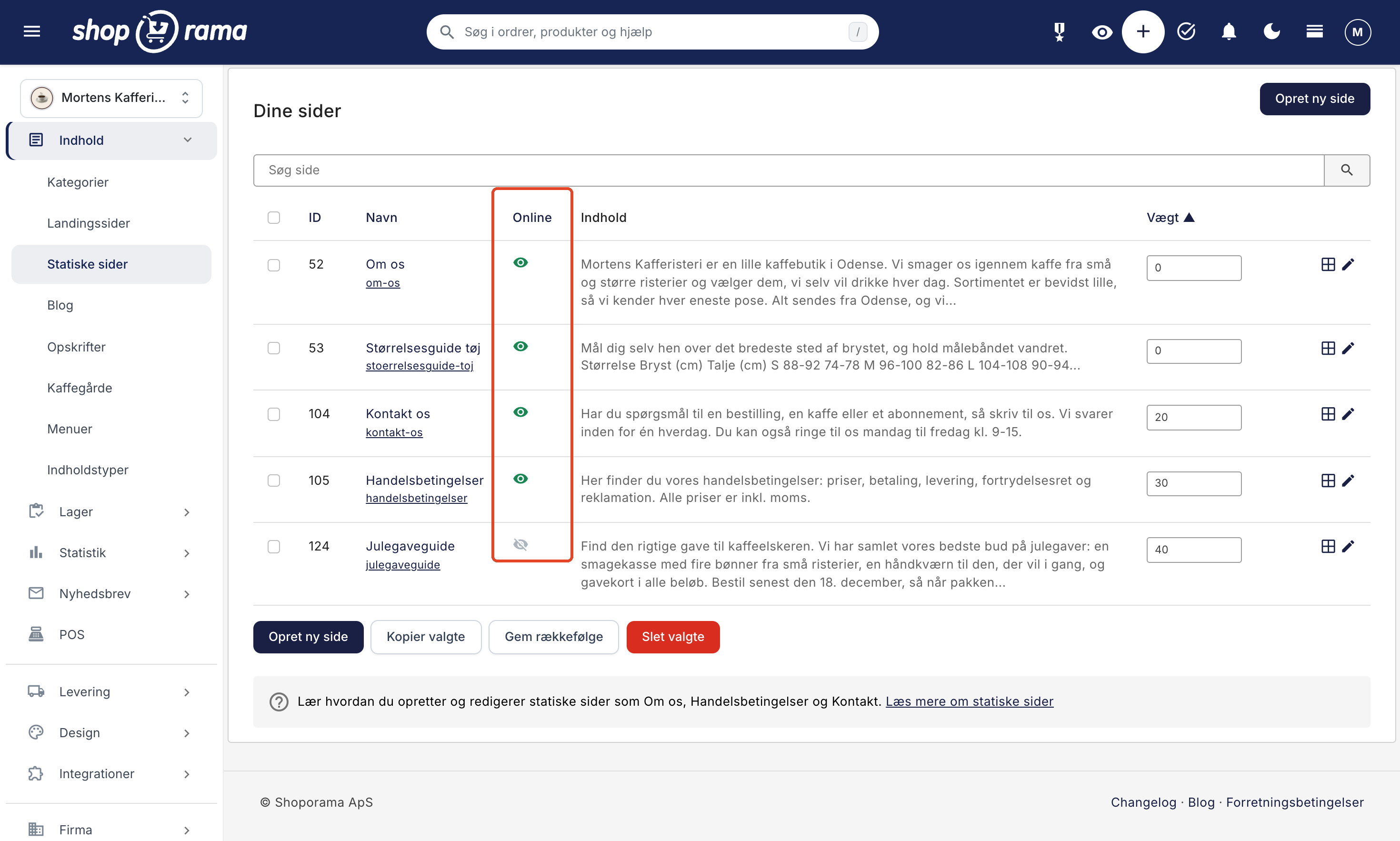
You’ll find your static pages under Content → Static Pages in your Shoporama admin panel. The list is called Your Pages and displays each page with its ID, name, online status, a text excerpt, and file size. The URL listed under the page name opens the page in the store.
At the top, you can search using the “Search Page” field, and you can sort the list by clicking on the headers ID, Name, Online, and Weight. If you check the box next to one or more pages, you can use the “Copy Selected” and “Delete Selected” buttons at the bottom.
Create a New Page
- Go to Content → Static Pages
- Click Create New Page
- Enter a Title. This is also used to automatically generate the page’s URL
- Enter your content in the Text field
- Optionally, select an Image
- Click Save to return to the list, or Save and Edit to continue on the editing page
The page goes live as soon as you save it. You’ll find the URL, search engine fields, and the “Online” status on the editing page. If you don’t want anyone to see the page until it’s finished, click the eye icon next to it in the list right away. You can also click Save and Edit, turn Off " Online," and then click Save.
Edit an existing page
Click the page’s name in the list, or the “Edit” pencil icon on the right, to open the editing page. The page is divided into sections, and under “Overview” on the right, you can jump directly to each one:
General
- Heading: the page’s title. For example, in “Montana, Alaska, and California,” it appears as the page’s main heading (H1)
- Address: The page’s address in the store (e.g., about-us). It’s automatically generated from the heading, but you can edit it. If you clear the field, it will be regenerated from the heading. If you change the URL, a redirect is automatically created from the old URL so that old links still work
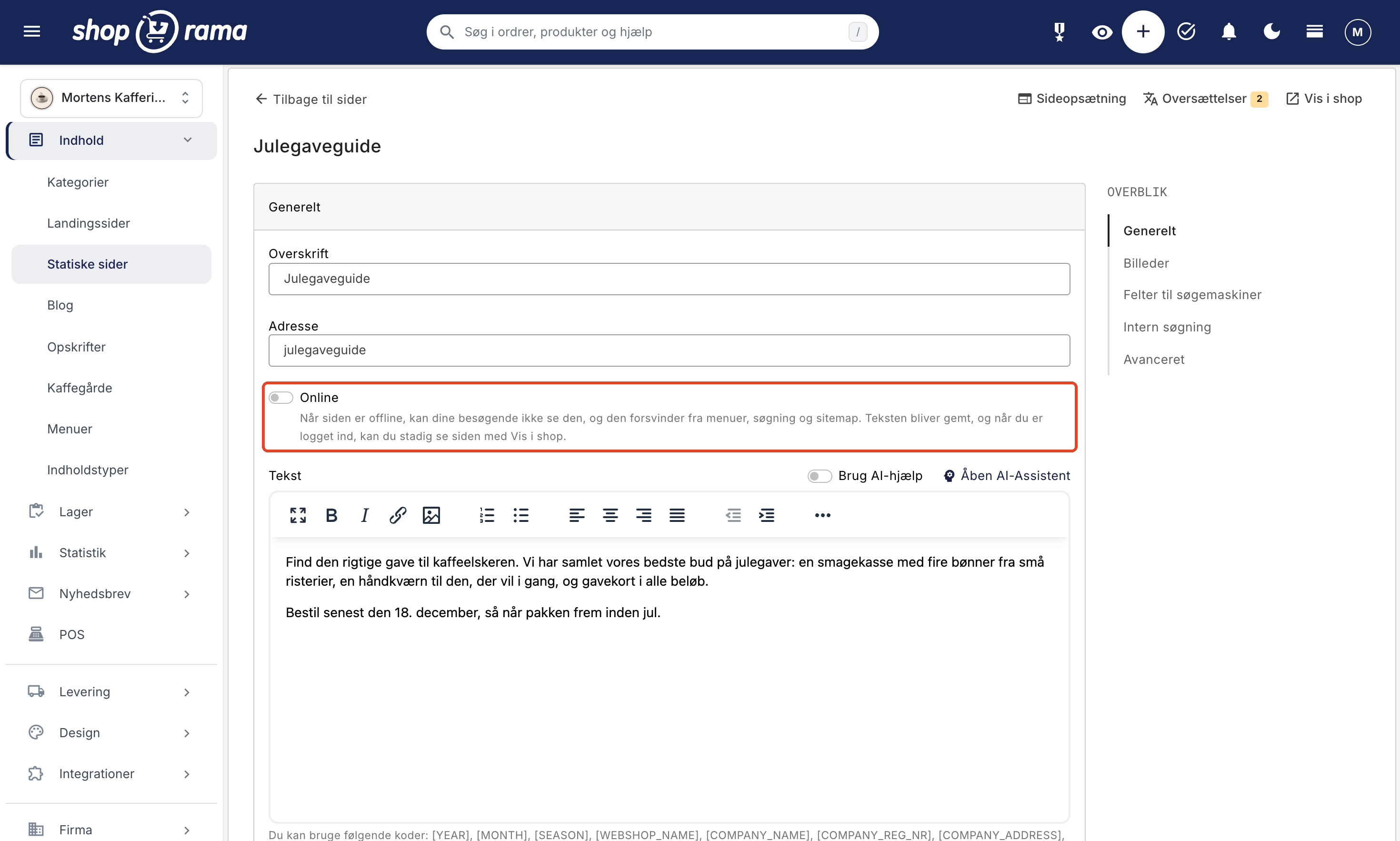
- Online: Turn off the switch and click Save; this will prevent your visitors from seeing the page. The text and all settings will be saved. Read more in the section “Take a page offline” further down
- Visible in countries: Only displayed when the store has countries listed under Web Store → Countries, and appears directly below Online. Uncheck the boxes next to the countries where the page should not be displayed, for example, if the page is a legal notice that applies only to Germany, or rules that apply only in Denmark. The page will then be hidden from menus, search results, the sitemap, and the theme’s lists of pages in that country, and a visitor who enters the URL there will see an error page or your redirect. As with an offline page, you can still view the page yourself when you’re logged in. Read more in “Visible in Countries”
- Text: the page’s content in a text editor, including formatting, links, and images. Below the field are the dynamic tags you can use
AI Help in the Text Editor
Next to the Text field, you’ll find the “Use AI Help” button and the “Open AI Assistant” link. With these, AI can help you write and improve your content. Read more about the AI Assistant.
Theme Settings
If your theme has additional fields for static pages, they’re located in the Theme Settings tab right below General. If the theme doesn’t have any, the tab won’t appear.
Images
- Drag images into the field or click to select them. You can use PNG, JPEG, GIF, or WebP
- Drag the images to change their order
- Enter an Alt text for each image: a short description of what the image shows. It is read aloud to blind and visually impaired users and helps search engines
- Click an image to open " Edit Image," where you can rotate, crop, or set a focus point
- Select "Share Image " next to the image you want to display when the page is shared on Facebook and LinkedIn
- If you delete an image by mistake, you can click " Undo"
Fields for search engines
- Title: The page’s title in search results (recommended max 60 characters)
- Description: The page’s description in search results (recommended max 155 characters)
- Open Graph Title and Open Graph Description: used when the page is shared on Facebook, LinkedIn, and similar platforms
- Primary keyword: the most important keyword for the page
- Enable "noindex, follow": Turn this on if you don’t want search engines to display the page in search results. The page will also be removed from your sitemap, but your visitors can still view it. Learn more about noindex
For both the Title and Description, you can click on AI suggestions to get a draft. A Google preview shows you, as you type, how the page might appear in search results.
Internal Search
In the “Optional words for internal search in the store” field (separate with line breaks), you can enter additional keywords so customers can find the page using the store’s own search. Enter one word per line.
Static pages are only included in the store’s search when “Search static pages” is enabled under Web Store → General in the Search tab, and your theme displays pages in the search results. Of the built-in themes, Alaska does this. A page that is offline will never appear in the search results.
Advanced
- Optional tag: an optional keyword that the theme can use to find the page. Delaware and Montana, for example, use it to display a size guide or washing instructions for products that have a product label with the same tag. See how to create a size guide in Delaware
- Extra fields: values in the key=value format (one per line) that your theme can retrieve and display
- HTML fields: Click Add New HTML Field to add, for example, code or a script to the page. Under “Placement,” select “Insert at the end of <head>,” “Insert at the end of <body>,” or “Do not add automatically” if your theme needs to retrieve the field on its own. Clear the field and save to delete it
- Use on the front page?: Select the page to be displayed as the front page in themes that show a static front page. Only one page can be selected at a time. None of the built-in themes use this setting, so it has no effect in those themes. The store’s front page is the category you’ve selected under “Front Page Category” in Web Store → General. If the page is selected as the front page but is also offline, the theme will not display it. After you save, a warning about this will appear under the “Online” status
Save your changes
At the bottom of the edit page, you’ll find four buttons:
- Save: saves and takes you back to the list
- Save and Edit: saves your changes and keeps you on the page
- Save and View: saves and opens the page in the store. This also works when the page is offline, as long as you’re logged in
- Delete: Deletes the page (see “Delete a Page” further down)
Dynamic tags
In the page’s text and heading, you can use dynamic tags that are automatically replaced with current values:
- [YEAR]: current year
- [MONTH]: the current month in the store’s language
- [SEASON]: current season in the store’s language
- [WEBSHOP_NAME]: your store’s name
- [COMPANY_NAME]: company name
- [COMPANY_REG_NR]: Business Registration Number
- [COMPANY_ADDRESS]: address
- [COMPANY_ZIPCODE]: ZIP code
- [COMPANY_CITY]: city
- [COMPANY_COUNTRY]: country
- [COMPANY_EMAIL]: email
- [COMPANY_PHONE]: phone number
- [FREESHIPPING]: Free shipping threshold
Company information is retrieved from your company details, so the page updates automatically if they change. Tags are particularly useful on pages such as Terms and Conditions, where you can automatically insert the company name, address, and business registration number. Learn more about dynamic tags.
Order
In the list, you can change the order of your pages by entering a number in the Weight column and clicking Save Order. Lower numbers appear first.
Copy a Page
Check the boxes next to the pages you want to copy, then click Copy Selected. The copy will have “(copy)” appended to the title, the same text, the URL with “-copy” appended, the same weight, the same Title, Description, and Extra fields, the same online status, and the same Visible in countries as the original. Images, any tags, Open Graph fields, Primary keyword, noindex, HTML fields, internal search terms, theme settings, and "Use on the front page?" are not included.
If the original is online, the copy goes online immediately. If you don’t want the copy to be visible yet, click the eye icon in the “Online” column next to it.
Page Builder
If your theme supports the Page Builder, you can build the page layout using blocks such as hero sections, product lists, banners, and much more—all without any coding. Click “Page Layout” in the top-right corner of the edit page, or click the “Edit Page Layout” icon next to the page in the list. If your theme doesn’t support the Page Builder, the link and icon won’t appear. Learn more about the Page Builder.
Take a page offline
Some pages are only needed for certain periods, such as a Christmas gift guide, a page about the summer sale, or a page you’re currently writing. Instead of deleting the page, you can take it offline. That way, your visitors won’t be able to see it, but the text, images, URL, and all settings will be saved, and you can put it back online when you need it.
There are two ways to do this:
- Open the page, turn off the “Online” toggle in the General tab, and click Save. The change takes effect only after you save
- Click the eye icon in the “Online” column in the list. The status changes immediately, without requiring confirmation or saving. If you hover your mouse over the eye icon, a tooltip explains what clicking it does
Here’s what your visitors will see
If a visitor enters the page’s address, they’ll see the store’s error page stating that the page doesn’t exist. If you’ve set up a redirect for that address under Web Store → Redirects, they’ll be redirected there instead. You can use this to direct customers to a relevant page while the page is offline. When you put the page back online, it will appear automatically, and the redirect will remain in place without being used until the page goes offline again. Learn more about redirects.
The page will disappear from
- Menus: Menu items of the “Static Page” type that link to the page will not appear in the store. The menu item is not deleted and will reappear automatically when the page is back online. In the menu editor under Content → Menus, “Not displayed” appears next to the item, so you can see why it’s missing. Learn more about menus
- Search in the store, if your static pages are included in the search
- Your sitemap, which search engines use. It updates within an hour
- The theme’s lists of pages, such as the size guide and washing instructions on the product pages for Montana and Delaware, when they’re retrieved from a static page
You can still view the page yourself
If you’ve opened the store from the admin panel—for example, using “View in Store” or the eye icon at the top of the admin panel—you can view the page in that browser, even when it’s offline. Click “View in Shop” in the top-right corner of the edit page, “Save and View” at the bottom, or the URL below the page name in the list. The page does not indicate that it is offline, and the menu item for the page is not displayed to you either. If you want to see what your visitors see, open the URL in an incognito window in your browser.
It won’t be hidden
Some links to the page remain active while the page is offline and lead to the error page (or to your redirect):
- Menu items of the “Link” type where you’ve entered the page’s address yourself
- Buttons and links in the Page Builder that point to the page
- Links you’ve entered yourself in text, such as on products, categories, other pages, blog posts, and newsletters
Edit or remove them while the page is offline, or set up a redirect for the URL. While the page is offline, the URL is still reserved for it. If you create another page, product, or category with the same name, it will be assigned a slightly different URL.
Offline, noindex, or delete?
- Offline: No visitors can see the page, and it’s removed from menus, search results, and the sitemap. Everything is saved, and you can put it back online with a single click
- Noindex (Enable "noindex, follow"): The page is still visible and remains in your menus and the store’s search, but it’s excluded from your sitemap, and search engines are instructed not to display it in search results. Learn more about noindex
- Delete: The page disappears permanently and cannot be restored. The URL becomes available for other content
- Hide in a country (Visible in countries): Same as “Offline,” but only in the countries where you uncheck the box. In the other countries, the page is online as usual. Menu items of the “Static Page” type are also hidden only in those countries, but in the menu editor, they are marked as “not displayed” for those countries. A button in the Page Designer that links to the page will lose its link there. Menu items of the “Link” type, where you’ve entered the address yourself, will remain
Delete a page
You can delete a page in two ways:
- Open the page and click the red “Delete” button at the bottom. Confirm when the browser asks, “Delete this page?”
- Check the box next to one or more pages in the list, and click “Delete Selected.” In the “Confirm Deletion ” dialog, you’ll see which pages will be deleted. Click “Delete,” or “Cancel” if you change your mind
Afterward, you’ll be taken to the “Set Up Redirects for Deleted Pages” page. Your customers and search engines may still know the deleted page’s address, so choose a relevant page to redirect them to, and click “Save Redirects.” Do not select a page that is offline, as customers will end up on the error page anyway. If you don’t want to do this now, click “ Skip.” The address will become available, so you can use it for something else.
Deletion cannot be undone. If you need to use the page again later—for example, next season—set it to “Offline” instead.
Tip: Static pages are ideal for legal texts such as Terms of Service and Privacy Policy because you can use dynamic tags to automatically insert company information.
Frequently Asked Questions
Will the page still be there next year if I take it offline now?
Yes. Taking a page offline doesn’t delete anything. Text, images, address, search engine fields, and all other settings remain intact, and the menu items for the page will automatically reappear when you put it back online.
Can I see what the page looks like before I put it back online?
Yes. Use “View in Shop” in the top-right corner of the editing page. Only you can see the page until you put it back online.
How can I see which pages are currently offline?
Look in the “Online” column under “Content” → “Static Pages.” A gray, crossed-out eye icon means the page is offline. If you click the “Online” heading, the list will be sorted so that the offline pages appear at the top.
Can I accidentally take a page offline?
Yes. Clicking the eye icon in the list changes the status immediately, and you won’t be asked to confirm. If you clicked the wrong one, just click the eye icon again, and the page will be back online.
Does the page lose its ranking on Google when it’s offline?
It might. While the page is offline, the URL returns an error page (404), and when Google visits the URL next time, it typically removes it from search results. If you put the page back online, Google must visit it again before it reappears. Google, not Shoporama, determines when that happens. Your sitemap will be updated within an hour.
Can I schedule a page to go live on a specific date?
No. You put the page online and offline yourself whenever it suits you. You might want to set a reminder in your calendar, for example, before the holiday season.
I’ve taken the page offline, but I can still see it. Is something wrong?
Yes, it is. You’re seeing the page because the store can tell that you’re logged in. Open the URL in an incognito window, and you’ll see the same thing your visitors do: the error page, or the page your redirect sends them to.
Can I take multiple pages offline at once?
No, there’s no button for multiple pages at once. Instead, click the eye icon next to each page in the list. Each click takes effect immediately, so it’s quick.
Does “offline” apply to all countries and languages on the store?
Yes. The page is offline in all countries and in all languages, including the translated URLs. If you only want to take the page offline in some of your countries, leave it online and instead uncheck the boxes next to those countries under “Visible in Countries” in the General tab.
If you have any questions, feel free to contact us at support@shoporama.dk.
Related articles
Page designer
Lær hvordan du bruger Sidedesigner i Shoporama til at opbygge sidelayouts med blokke som hero-sektioner, produktlister, bannere og meget mere, helt...
Menus and navigation
Learn how to create and edit menus in your online store. This guide covers menu item types, hierarchy, placements, drag-and-drop sorting, and how...
Logo, Favicon, and Terms and Conditions
Here's how to upload your logo and favicon and enter your terms and conditions in Shoporama. See where the content appears in the store, at...
SEO in Shoporama
Complete guide to the SEO features in Shoporama - from meta tags and sitemap to Google Shopping and AI Assistant.
How to create the most common landing pages
Guide to creating landing pages in Shoporama with rules for brands, price ranges, extra fields and more.
The big guide to redirects
Complete guide to redirects in Shoporama. Learn when and how to create redirects and avoid losing rankings in Google.
Set noindex on a page, product or category
Here's how to set "noindex" for products, categories, static pages, landing pages, and blog posts in Shoporama so they don't appear in Google...
Visible in countries: Hide products, pages, and brands in specific countries
Here's how to display products, categories, static pages, and brands only in specific countries using "Visible in Countries"—for example, a brand...
Related features
Smarter field types in Page Builder
Page Builder has new field types: search and select multiple products, categories and landing pages, plus a smart link field that searches across...
Page Builder - build professional pages without coding
Build professional pages with Shoporama's visual Page Builder. Drag and drop modules, live preview and responsive design. Included at no extra charge.
Categories, menu, and pages: give the store structure
Create categories and subcategories, build the menu with a dropdown and footer, edit the "About Us" and "Contact Us" pages, and learn when a...
Company Information, Logo, and Terms and Conditions
Here's how to fill in your company information and CVR number, upload your logo and favicon, and write the terms and conditions that will appear at...
Point of Sale, Email, and Integrations in Delaware
All fields in Delaware's theme settings for the checkout, emails, terms of service, integrations, and error pages explained with tags, examples,...