SEO on Product Pages: How to Identify and Fix Underperforming Products
With the new SEO status in the product overview, you can see which products are missing keywords, alt text, or a good Google title. Filter, sort, and fix the most important ones first.
If you work with SEO for your online store, you know the problem. You might have 1,200 products. Some have been thoroughly optimized, while others were created in a hurry. But which ones need attention? Until now, the solution has been to open each product page one by one.
Now you can see it right in the product overview. The new “SEO Status” column and the “SEO” filter give you a to-do list, and on the product page itself, “Edit” buttons take you directly to the field that needs work. This makes SEO on product pages a task you can tackle in small steps. Here’s the workflow, illustrated using a coffee shop as an example.
SEO on Product Pages in One Afternoon
- Go to the product overview, click the gear icon (Customize View), and enable the “SEO Status” column.
- In the SEO filter, select “No keyword” and the category with the highest sales.
- Select the products, open Table Editor with the “Primary Keyword” column, enter one keyword per product, and save.
- Reset the SEO filter to All, but keep the category. Click the SEO header until the arrow points up (▲); this will sort the results so the lowest scores appear at the top.
- Hover over a score to see what’s missing, and click to open the product. Use the “Next Step” button, the “Edit” buttons, and AI suggestions.
- Move on when the product is rated “Good” (80 or higher).
Find the products that need SEO the most
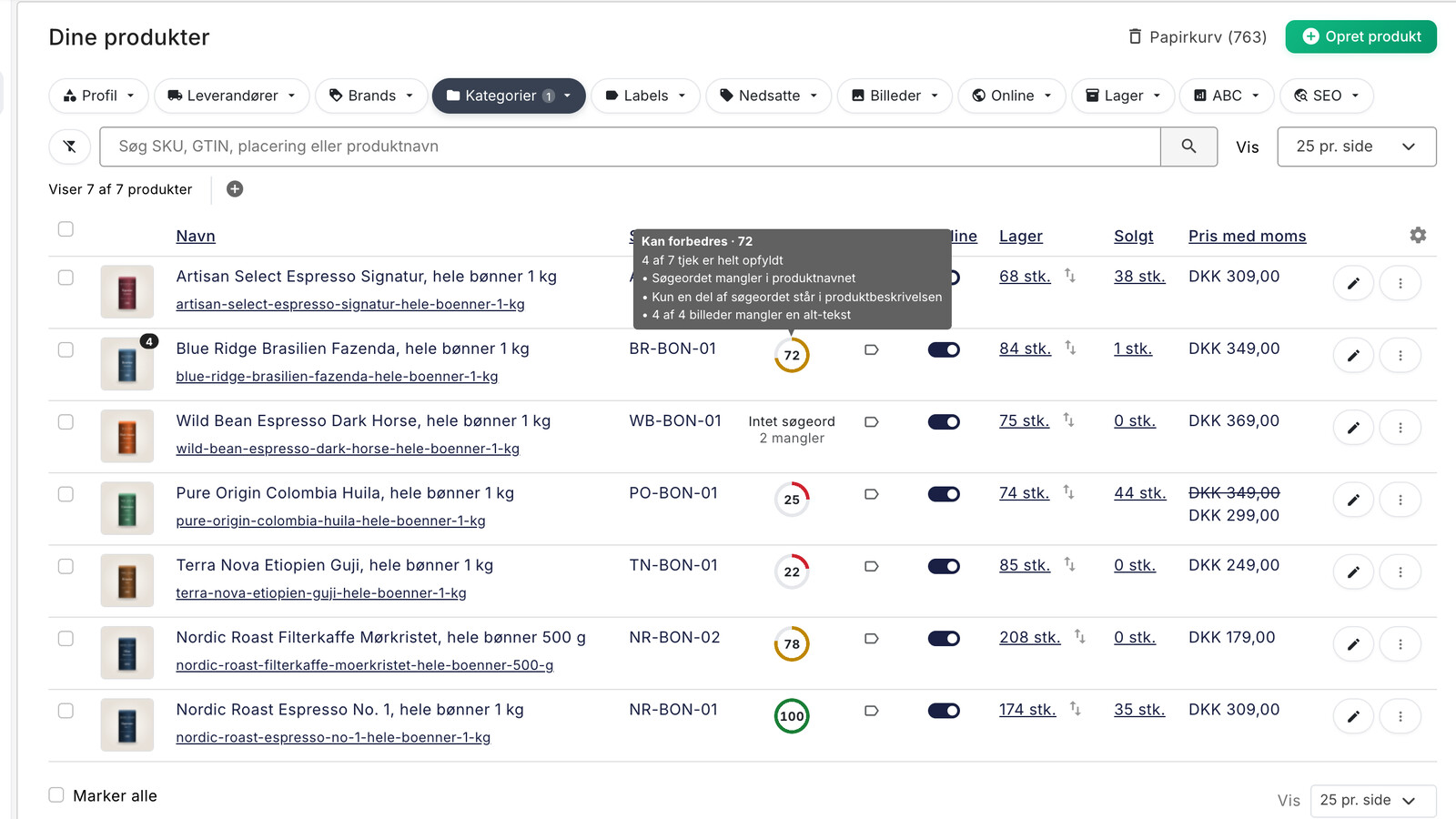
You can enable the “SEO Status” column under “Customize View,” which is the gear icon on the far right of the table’s header row. This setting applies to all users in the store. The cell displays a ring showing the score (green is Good, yellow is Could be improved, and red is Weak) or “No keywords” along with the number of other checks that are missing, e.g., “2 missing.” An eye with a line through it means the product is hidden from search engines.
If you hover your mouse over the cell, you’ll see what’s missing. If you click, the product opens directly on the SEO card.
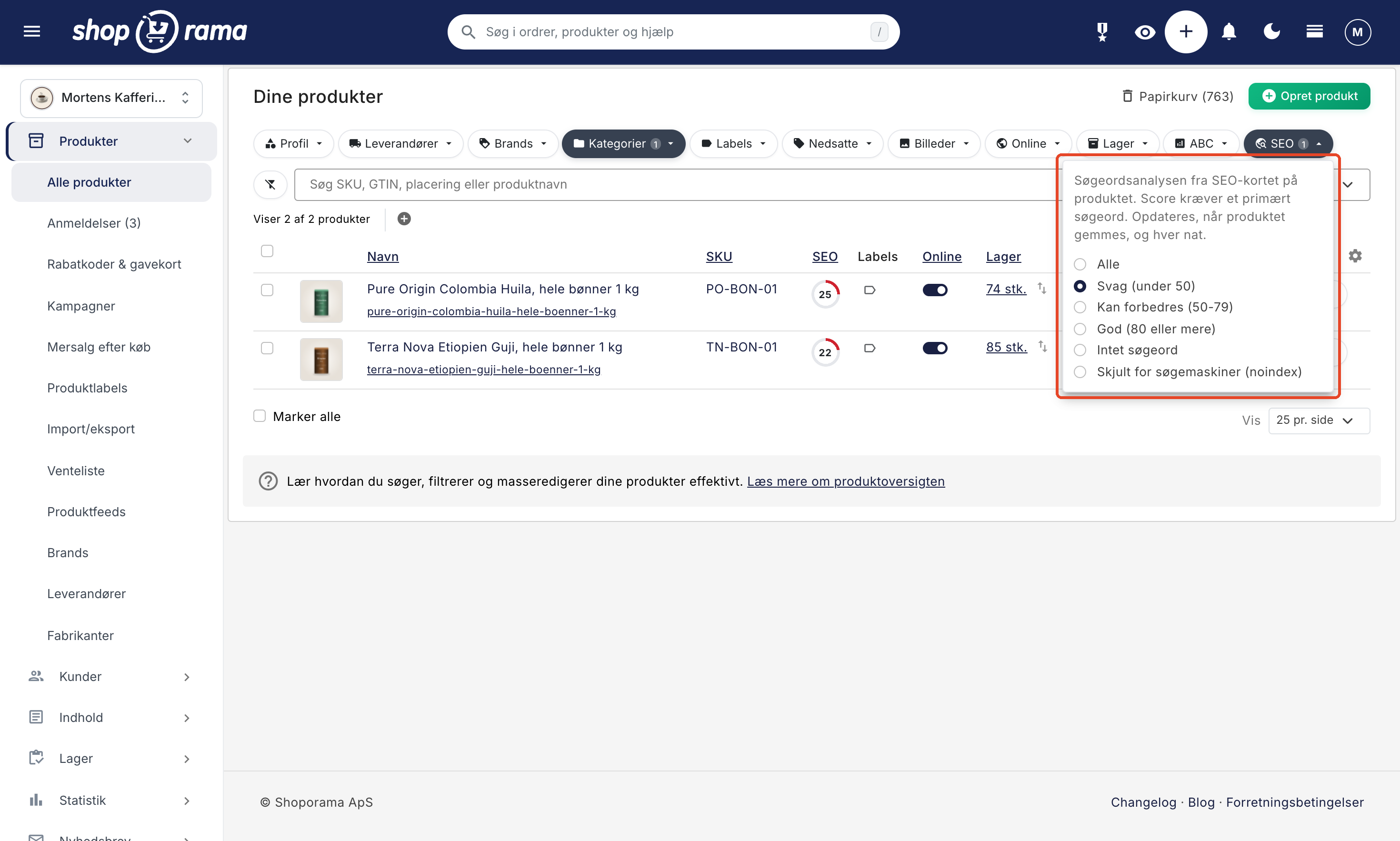
The SEO filter has the following options: Weak (below 50), Could be improved (50–79), Good (80 or higher), No keyword, and Hidden from search engines (noindex). It works even if the column isn’t enabled and can be combined with, for example, a category or a brand. Learn more about the product overview.
Assign a primary keyword to products—even multiple at once
The score requires a primary keyword: the word customers will use to find the product on Google, such as “Brazilian coffee.” The keyword isn’t displayed in the store, but it’s used for keyword analysis and AI suggestions.
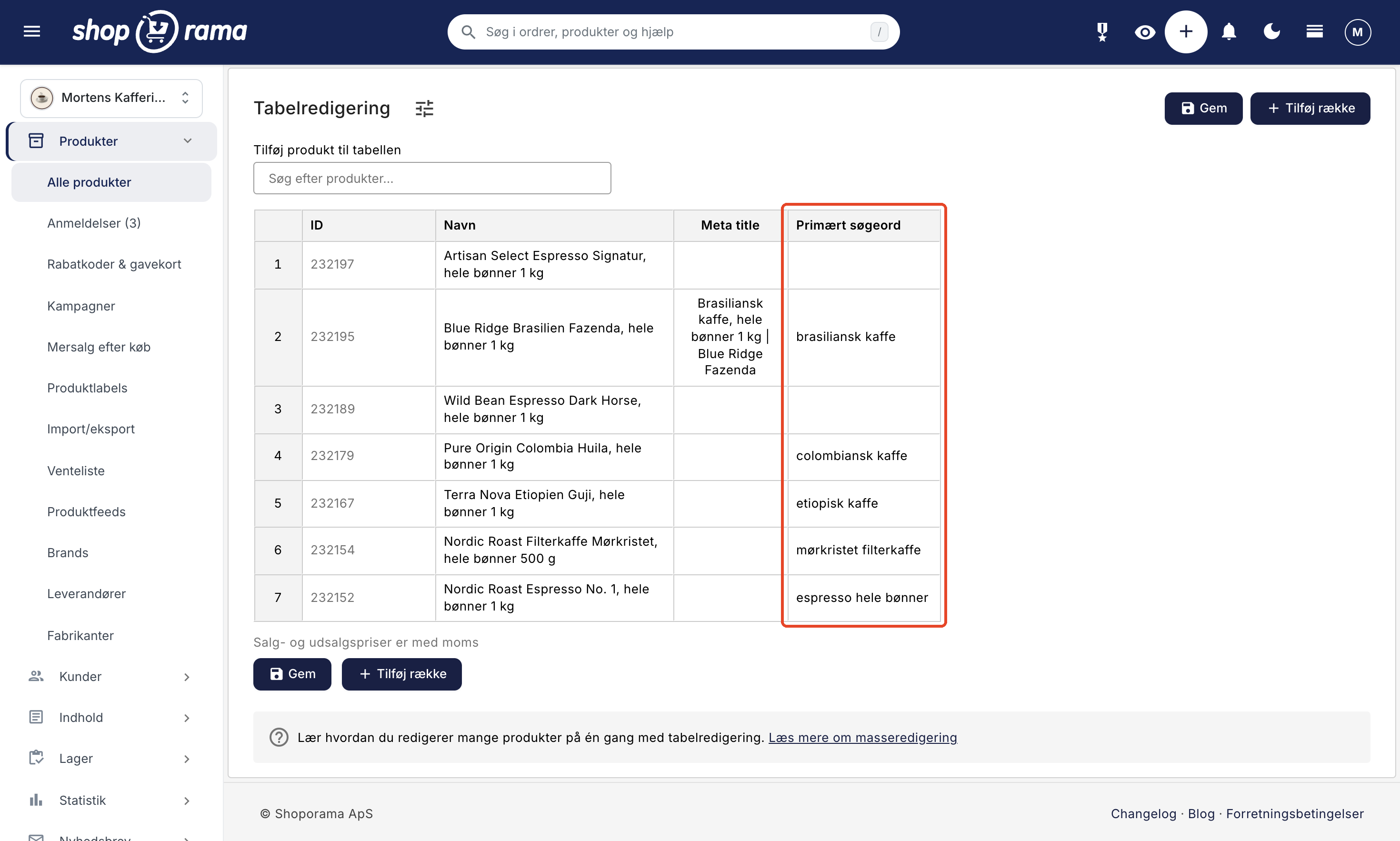
You don’t need to open products one at a time. Select them in the product overview, choose “Table Editing,” and add the “Primary Keyword” column. Then enter the keywords in a single spreadsheet and save them all at once. Give nearly identical products their own specific keywords, such as “Brazilian coffee whole beans” and “Brazilian coffee ground.” Learn more about bulk editing products.
How to Interpret the Score: Good, Could Be Improved, and Weak
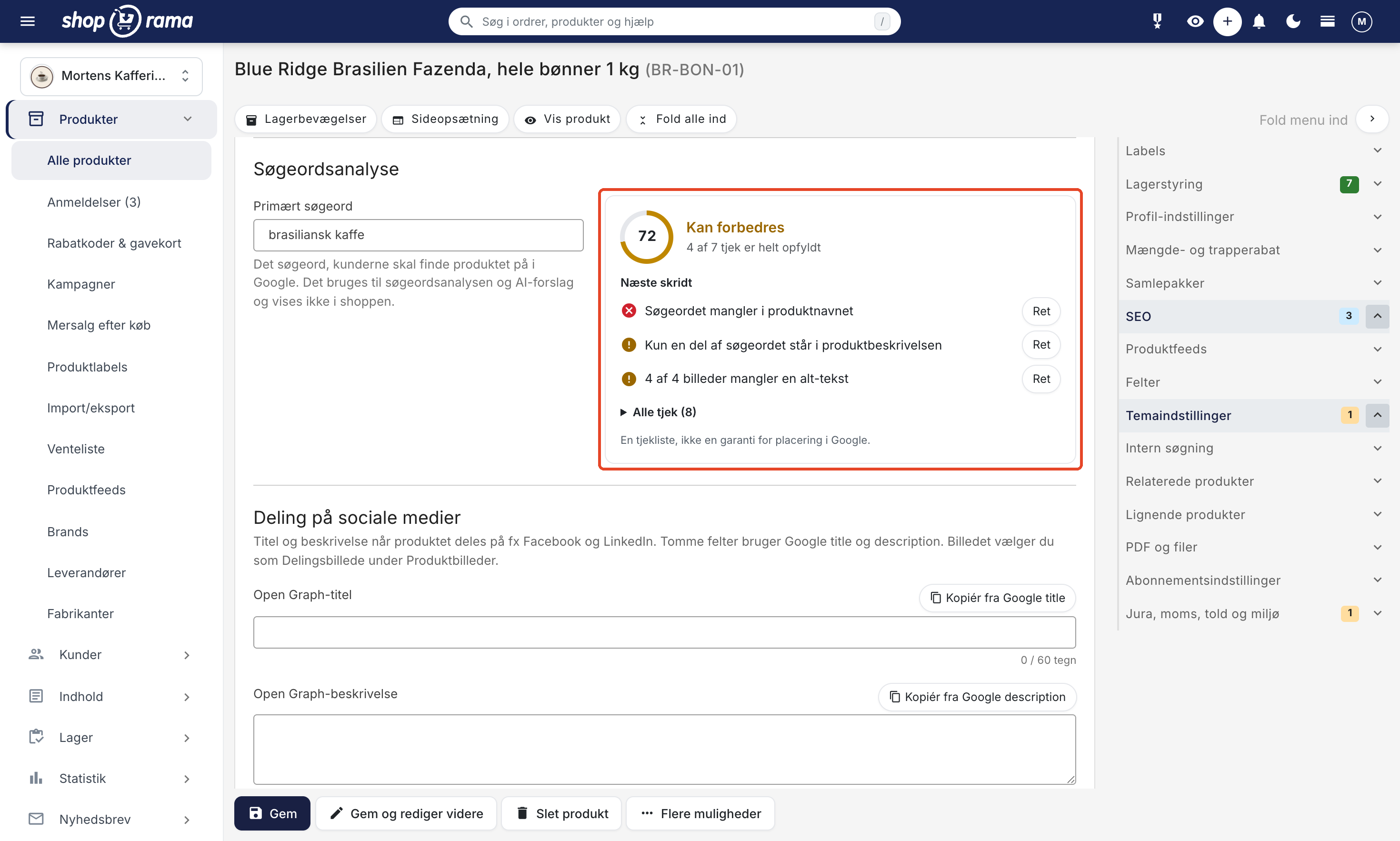
On the SEO tab, the product receives a score from 0 to 100: 80 and above is Good, 50–79 is Could Be Improved, and below 50 is Weak. Under “Next Steps,” you’ll see up to three items that are most important to correct, each with a “Correct” button that takes you directly to the field. If only part of the keyword appears in a field, it counts as half a point.
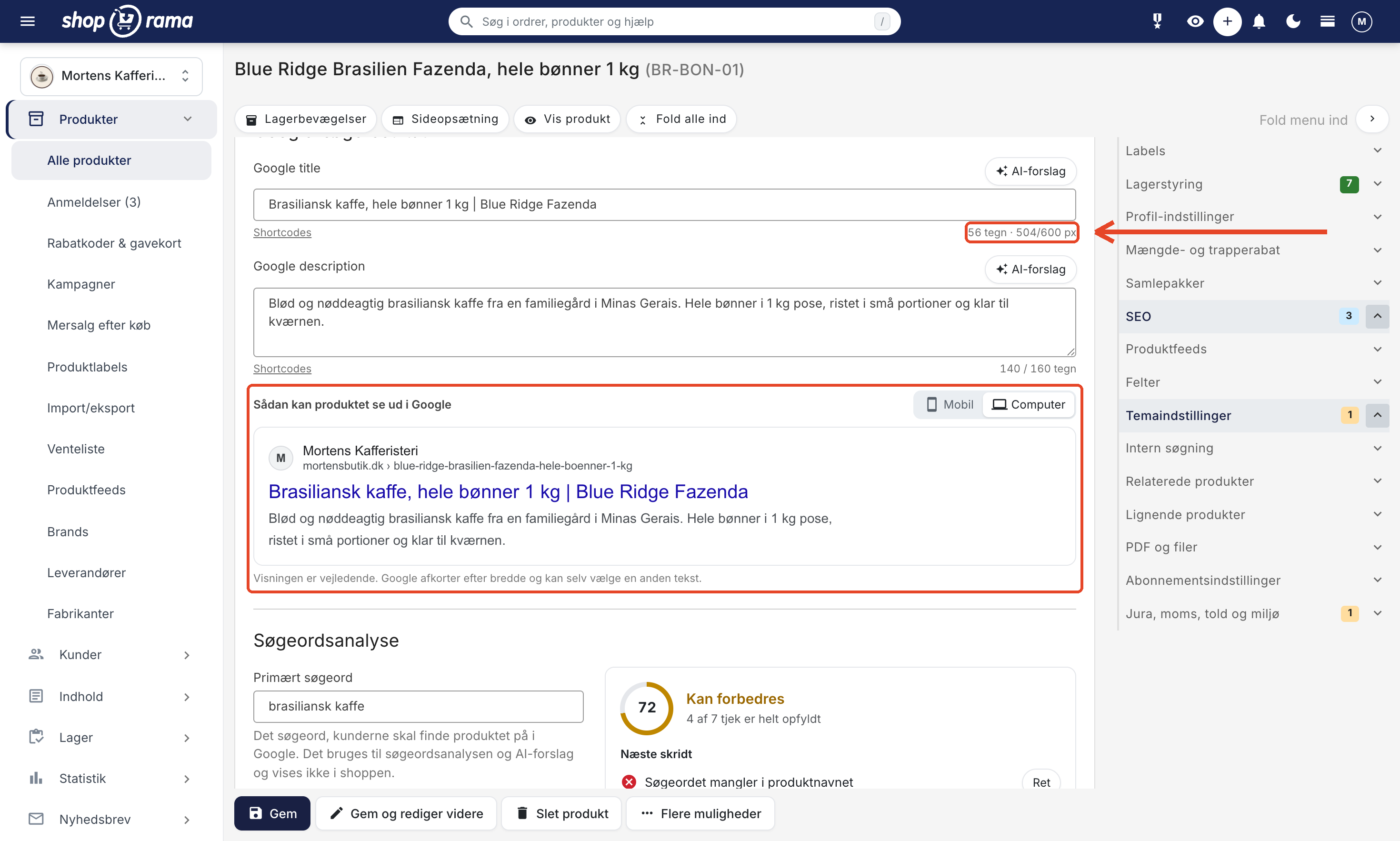
Take “Blue Ridge Brazil Fazenda, whole beans 1 kg ” with the keyword “Brazilian coffee.” It currently scores 72, which is “Can be improved.” The Google title is already “Brazilian Coffee, Whole Beans 1 kg | Blue Ridge Fazenda,” and the Google description mentions Brazilian coffee. Under “Next Steps,” it says:
- The keyword is missing from the product name.
- Only part of the keyword appears in the product description (it says “coffee” and “Brazil,” but not “Brazilian”).
- 4 out of 4 images are missing alt text.
You can ignore the first point if you’re happy with the name. The keyword is already at the beginning of the Google title, and the product name is what customers see in the store. If you rename the product, it will retain its URL. Instead, spend your time naturally incorporating “Brazilian coffee” into the description and adding alt text to the images.
Remember that the score is a checklist and not your ranking in Google. The analysis is based on Google’s recommendations but is no guarantee of a ranking. Read more in SEO in Shoporama.
Google title and description: measure in pixels, not characters
The Google title, also known as the meta title, is the headline you want to appear in search results. The correct length for a meta title is determined by its width, because Google truncates it based on how much space the title takes up. That’s why the counter measures the title in pixels (approx. 600 px) and turns yellow when it’s too wide.
The Google description, also known as the meta description, is the text below the title. Aim for 120–160 characters. A preview with the Mobile and Computer tabs shows how the product might appear in Google, and shortcodes (codes that automatically display, for example, the price) such as [PRICE] are filled in. Learn more about meta descriptions and editing a product.
The AI Suggestions button is available in all stores. The suggestion is limited to 60 characters (title) and 155 characters (description), uses your primary keyword, and must not invent facts such as prices, discounts, shipping, or stock status. Be sure to review it anyway to make sure it sounds like your store.
Don’t forget the alt text for product images
Alt text is a short description of an image that search engines and screen readers can read. It’s now included in the analysis: no images means no points, and if just one image is missing alt text, it counts as half a point. The keyword doesn’t earn any extra points here, so just describe what the image shows. You enter the alt text in the field below each image in the Product Images card.
Sharing and Indexing: Open Graph, canonical, and noindex
- Sharing on social media: Open Graph refers to the title and description that Facebook, for example, displays when the product is shared. If these fields are left blank, Google will use its own title and description; the “Copy from Google title” and “Copy from Google description” buttons provide a starting point. These fields are used by the Montana, MontanaB2B, Delaware, and DelawareDK themes.
- The canonical product tells Google which product is the original when the same item appears multiple times. Now you can search for the product instead of having to know its ID.
- "Hide from search engines (noindex, follow)" instructs Google not to display the product in search results. Learn more about noindex on pages, products, and categories.
In addition, the old “Fields” tab has been divided into three sections: SEO, Product Feeds, and Fields. You can now search for the Google category in the “Product Feeds” tab directly within the field. [SEASON] also works in Swedish stores, and [PRICE_EX_VAT] no longer displays the price including VAT in stores that store prices including VAT.
You don’t need to spend time on this
Start with the products that sell and that are online and visible to search engines. You don’t need to:
- hunt for 100. One is enough.
- change the address on published products. A new address can cause your Google ranking to fluctuate for a few weeks.
- edit products that are hidden from search engines or about to be discontinued.
- repeat the keyword. If it appears twice in the title, you’ll get the warning “Once is enough.”
- hit a specific word count or keyword density. The analysis doesn’t require that.
Keep the SEO status up to date
The SEO status is updated when you save a product (including from the table editor) and when images are uploaded, deleted, or have their alt text edited. This usually happens within a few minutes; until then, the previous status remains. A small line means the product hasn’t been calculated yet—for example, right after you’ve enabled the column. Products are also reviewed overnight, so changes from, say, a CSV import are included as well.
Afterward, a simple routine keeps things in order: filter by “Weak” in one category each week and correct 3–5 products. Assign a primary keyword to new products when you create them.
Get Started
Enable SEO status and select “No keyword” in the SEO filter. You’ll then have your first to-do list. If you’d like to learn more about the individual checks, read “SEO in Shoporama,” and if you have any questions, email support@shoporama.dk.
Related articles
SEO in Shoporama
Complete guide to the SEO features in Shoporama - from meta tags and sitemap to Google Shopping and AI Assistant.
Product overviews
Shoporama product overview guide: Search, filter, sort and mass edit your products efficiently from the product list.
Edit product
Guide to the Product Edit Page in Shoporama: the top section with "Edit," Inventory, and Sales Statistics; how to customize the page with tabs and...
Mass editing of products
Guide to bulk editing products in Shoporama - edit prices, inventory, SEO fields and more in a spreadsheet-like interface.
Set noindex on a page, product or category
Here's how to set "noindex" for products, categories, static pages, landing pages, and blog posts in Shoporama so they don't appear in Google...
More from the blog
New Free App Sends Online Store Orders to Business Central
If you use Microsoft Dynamics 365 Business Central, Shoporama can now transfer orders from your online store as sales invoices or sales orders....
31. oktober 2026
New free Billy app replaces the built-in integration
Shoporama has a new, free app for Billy, now called Shine Accounting. It replaces the built-in Billy integration: customer information is reused,...
31. oktober 2026
New free Dinero app replaces the old integration
Shoporama has a new, free Dinero app that replaces the built-in Dinero integration. Your login is valid for one year at a time, errors appear...
30. oktober 2026